steering TOYOTA PRIUS 2019 Accessories, Audio & Navigation (in English)
[x] Cancel search | Manufacturer: TOYOTA, Model Year: 2019, Model line: PRIUS, Model: TOYOTA PRIUS 2019Pages: 294, PDF Size: 5.31 MB
Page 9 of 294
9
PRIUS_Navi_OM47C47U_(U)
18.10.10 12:01
1
2
3
4
5
6
7
8
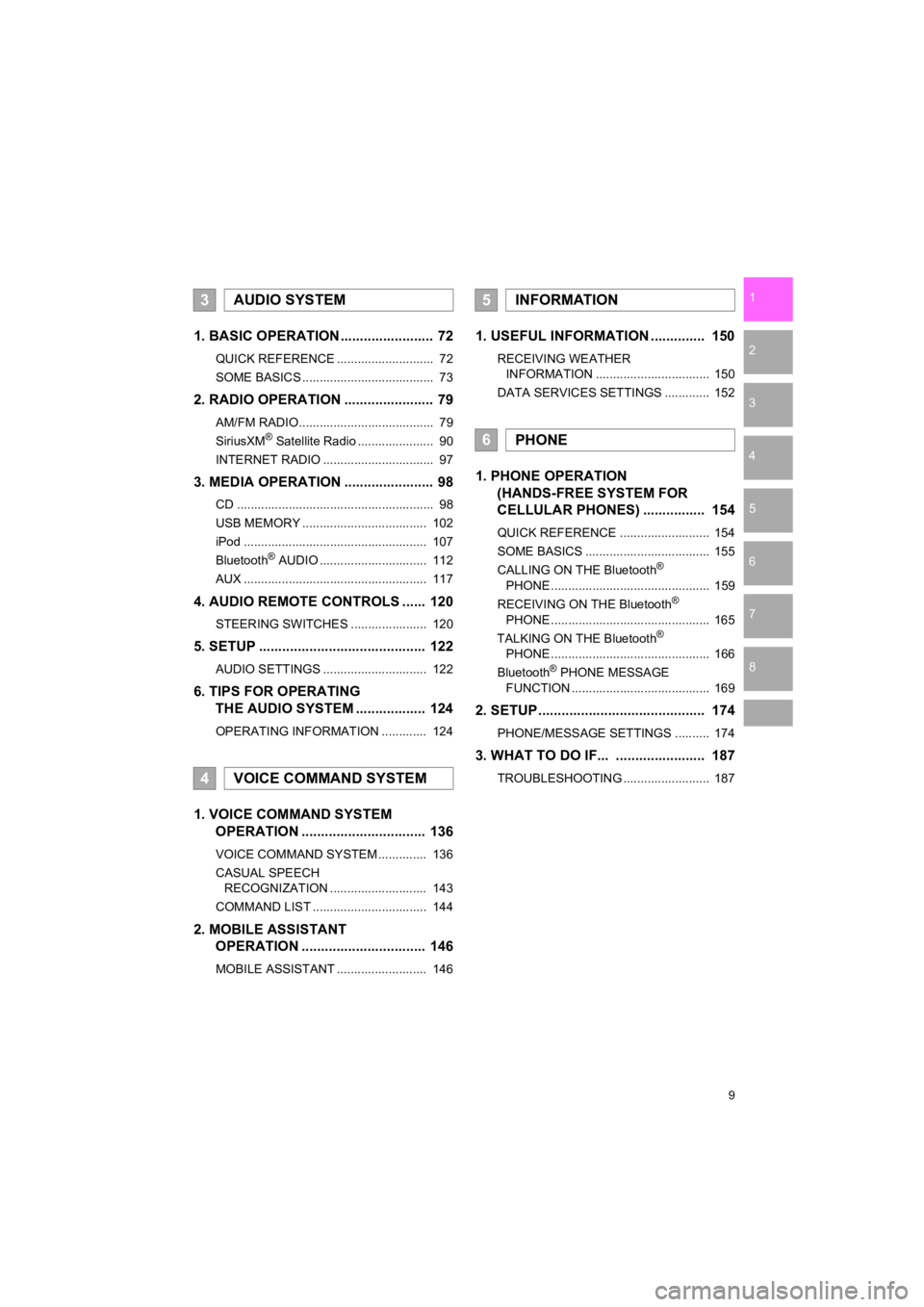
1. BASIC OPERATION ........................ 72
QUICK REFERENCE ............................ 72
SOME BASICS ...................................... 73
2. RADIO OPERATION ....................... 79
AM/FM RADIO....................................... 79
SiriusXM® Satellite Radio ...................... 90
INTERNET RADIO ................................ 97
3. MEDIA OPERATION ....................... 98
CD ......................................................... 98
USB MEMORY .................................... 102
iPod ..................................................... 107
Bluetooth
® AUDIO ............................... 112
AUX ..................................................... 117
4. AUDIO REMOTE CONTROLS ...... 120
STEERING SWITCHES ...................... 120
5. SETUP ........................................... 122
AUDIO SETTINGS .............................. 122
6. TIPS FOR OPERATING THE AUDIO SYSTEM .................. 124
OPERATING INFORMATION ............. 124
1. VOICE COMMAND SYSTEM OPERATION ................................ 136
VOICE COMMAND SYSTEM .............. 136
CASUAL SPEECH
RECOGNIZATION ............................ 143
COMMAND LIST ................................. 144
2. MOBILE ASSISTANT OPERATION ................................ 146
MOBILE ASSISTANT .......................... 146
1. USEFUL INFORMATION .............. 150
RECEIVING WEATHER
INFORMATION ................................. 150
DATA SERVICES SETTINGS ............. 152
1. PHONE OPERATION (HANDS-FREE SYSTEM FOR
CELLULAR PHONES) ................ 154
QUICK REFERENCE .......................... 154
SOME BASICS .................................... 155
CALLING ON THE Bluetooth
®
PHONE .............................................. 159
RECEIVING ON THE Bluetooth
®
PHONE .............................................. 165
TALKING ON THE Bluetooth
®
PHONE .............................................. 166
Bluetooth
® PHONE MESSAGE
FUNCTION ........................................ 169
2. SETUP........................................... 174
PHONE/MESSAGE SETTINGS .......... 174
3. WHAT TO DO IF... ....................... 187
TROUBLESHOOTING ......................... 187
3AUDIO SYSTEM
4VOICE COMMAND SYSTEM
5INFORMATION
6PHONE
Page 43 of 294

43
1. BASIC INFORMATION BEFORE OPERATION
PRIUS_Navi_OM47C47U_(U)
18.10.10 12:01
BASIC FUNCTION
2
8. LINKING MULTI-INFORMATION DISPLAY AND NAVIGATION SYSTEM
The following functions of the navigation system are linked with the multi-informa-
tion display in the instrument cluster:
• Navigation
• Audio
etc.
These functions can be operated using multi-information display control switches
on the steering wheel. For details, refer to “Owner’s Manual”.
Page 44 of 294
44
PRIUS_Navi_OM47C47U_(U)
18.10.10 12:02
2. Bluetooth® SETTINGS
1. REGISTERING/CONNECTING Bluetooth® DEVICE
1Turn the Bluetooth® connection setting
of your cellular phone on.
This function is not available when
Bluetooth® connection setting of your cel-
lular phone is set to off.
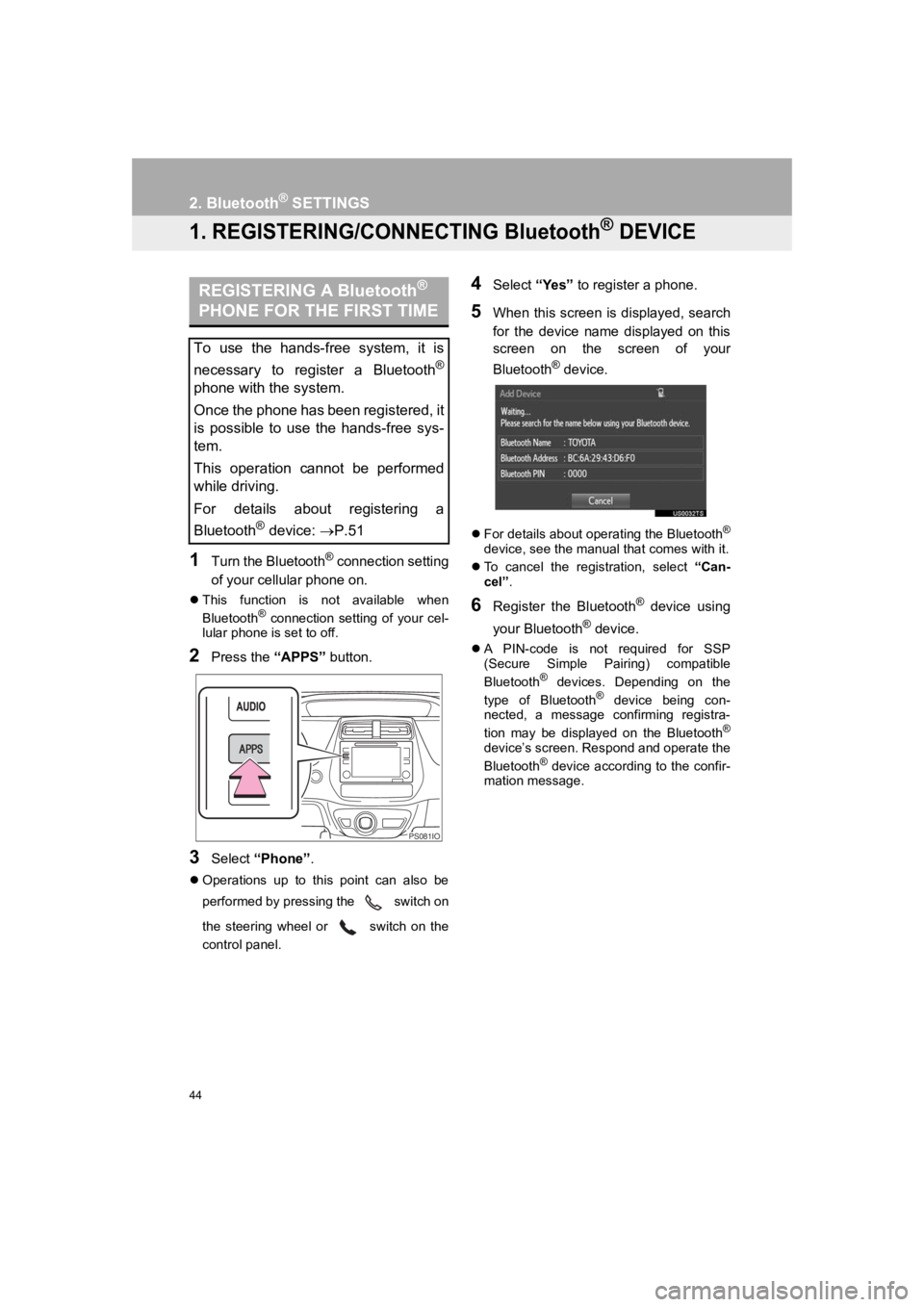
2Press the “APPS” button.
3Select “Phone” .
Operations up to this point can also be
performed by pressing the switch on
the steering wheel or switch on the
control panel.
4Select “Yes” to register a phone.
5When this screen is displayed, search
for the device name displayed on this
screen on the screen of your
Bluetooth
® device.
For details about operating the Bluetooth®
device, see the manual that comes with it.
To cancel the registration, select “Can-
cel”.
6Register the Bluetooth® device using
your Bluetooth
® device.
A PIN-code is not required for SSP
(Secure Simple Pairing) compatible
Bluetooth
® devices. Depending on the
type of Bluetooth® device being con-
nected, a message confirming registra-
tion may be displayed on the Bluetooth
®
device’s screen. Respond and operate the
Bluetooth® device according to the confir-
mation message.
REGISTERING A Bluetooth®
PHONE FOR THE FIRST TIME
To use the hands-free system, it is
necessary to register a Bluetooth
®
phone with the system.
Once the phone has been registered, it
is possible to use the hands-free sys-
tem.
This operation cannot be performed
while driving.
For details about registering a
Bluetooth
® device: P.51
PS081IO
Page 71 of 294
3
71
PRIUS_Navi_OM47C47U_(U)
18.10.10 12:02
1
2
3
4
5
6
7
8
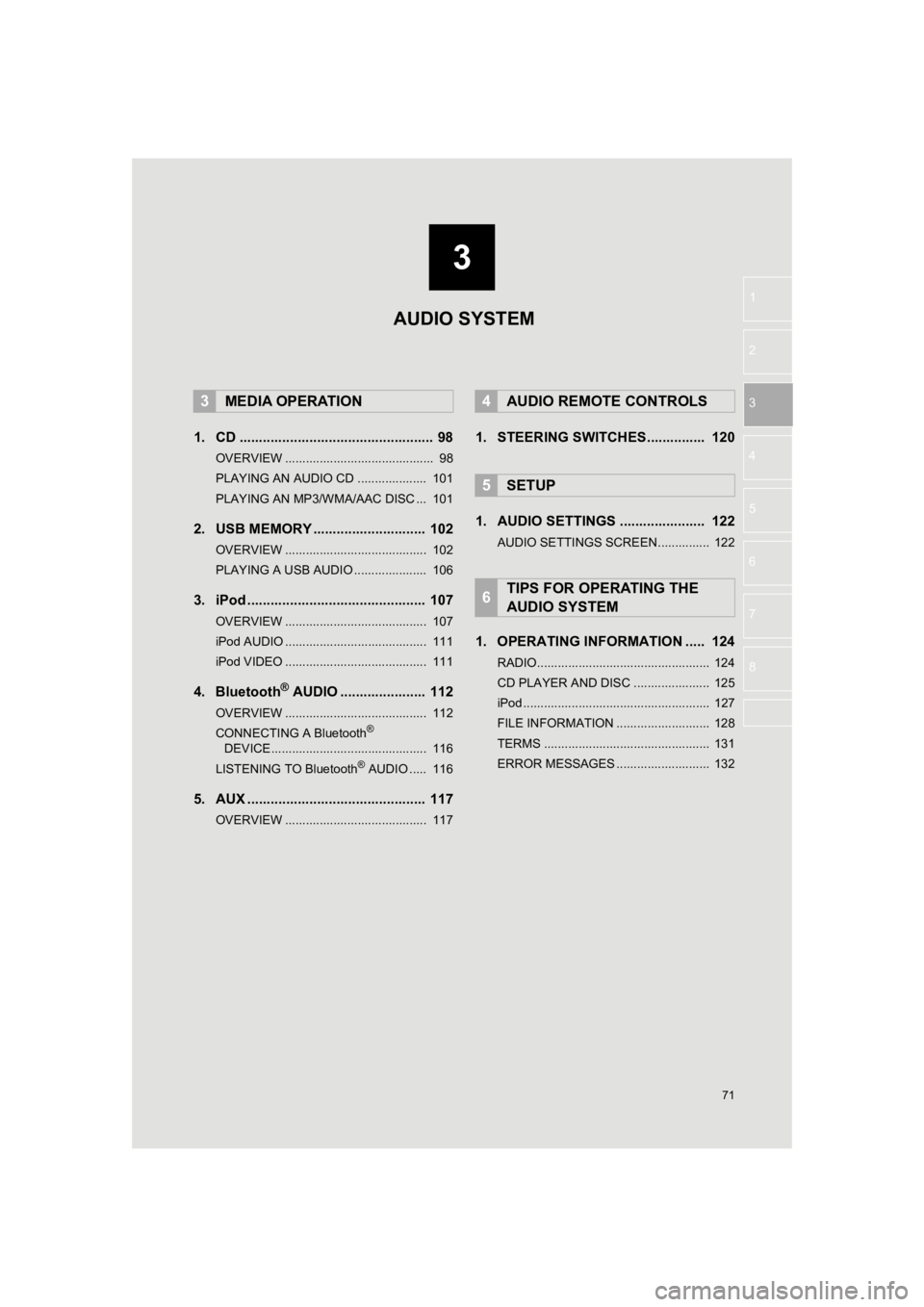
1. CD .................................................. 98
OVERVIEW ........................................... 98
PLAYING AN AUDIO CD .................... 101
PLAYING AN MP3/WMA/AAC DISC ... 101
2. USB MEMORY ............................. 102
OVERVIEW ......................................... 102
PLAYING A USB AUDIO ..................... 106
3. iPod .............................................. 107
OVERVIEW ......................................... 107
iPod AUDIO ......................................... 111
iPod VIDEO ......................................... 111
4. Bluetooth® AUDIO ...................... 112
OVERVIEW ......................................... 112
CONNECTING A Bluetooth®
DEVICE ............................................. 116
LISTENING TO Bluetooth
® AUDIO ..... 116
5. AUX .............................................. 117
OVERVIEW ......................................... 117
1. STEERING SWITCHES............... 120
1. AUDIO SETTINGS ...................... 122
AUDIO SETTINGS SCREEN............... 122
1. OPERATING INFORMATION ..... 124
RADIO.................................................. 124
CD PLAYER AND DISC ...................... 125
iPod ...................................................... 127
FILE INFORMATION ........................... 128
TERMS ................................................ 131
ERROR MESSAGES ........................... 132
3MEDIA OPERATION4AUDIO REMOTE CONTROLS
5SETUP
6TIPS FOR OPERATING THE
AUDIO SYSTEM
AUDIO SYSTEM
Page 72 of 294
72
PRIUS_Navi_OM47C47U_(U)
18.10.10 12:02
1. BASIC OPERATION
1. QUICK REFERENCE
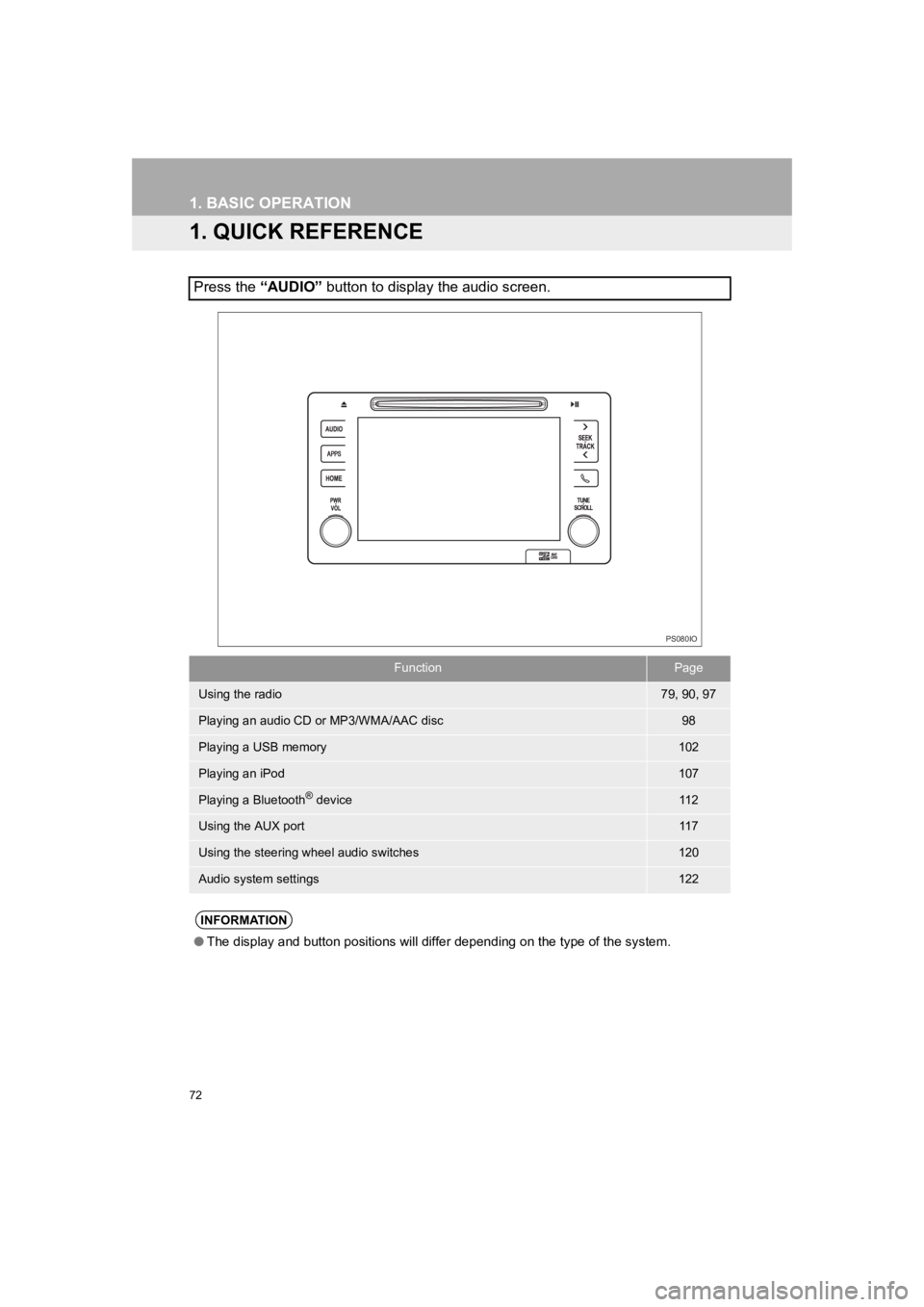
Press the “AUDIO” button to display the audio screen.
FunctionPage
Using the radio79, 90, 97
Playing an audio CD or MP3/WMA/AAC disc98
Playing a USB memory102
Playing an iPod107
Playing a Bluetooth® device11 2
Using the AUX port11 7
Using the steering wheel audio switches120
Audio system settings122
INFORMATION
●The display and button positions will differ depending on the t ype of the system.
PS080IO
Page 97 of 294
97
2. RADIO OPERATION
PRIUS_Navi_OM47C47U_(U)
18.10.10 12:02
AUDIO SYSTEM
3
3. INTERNET RADIO
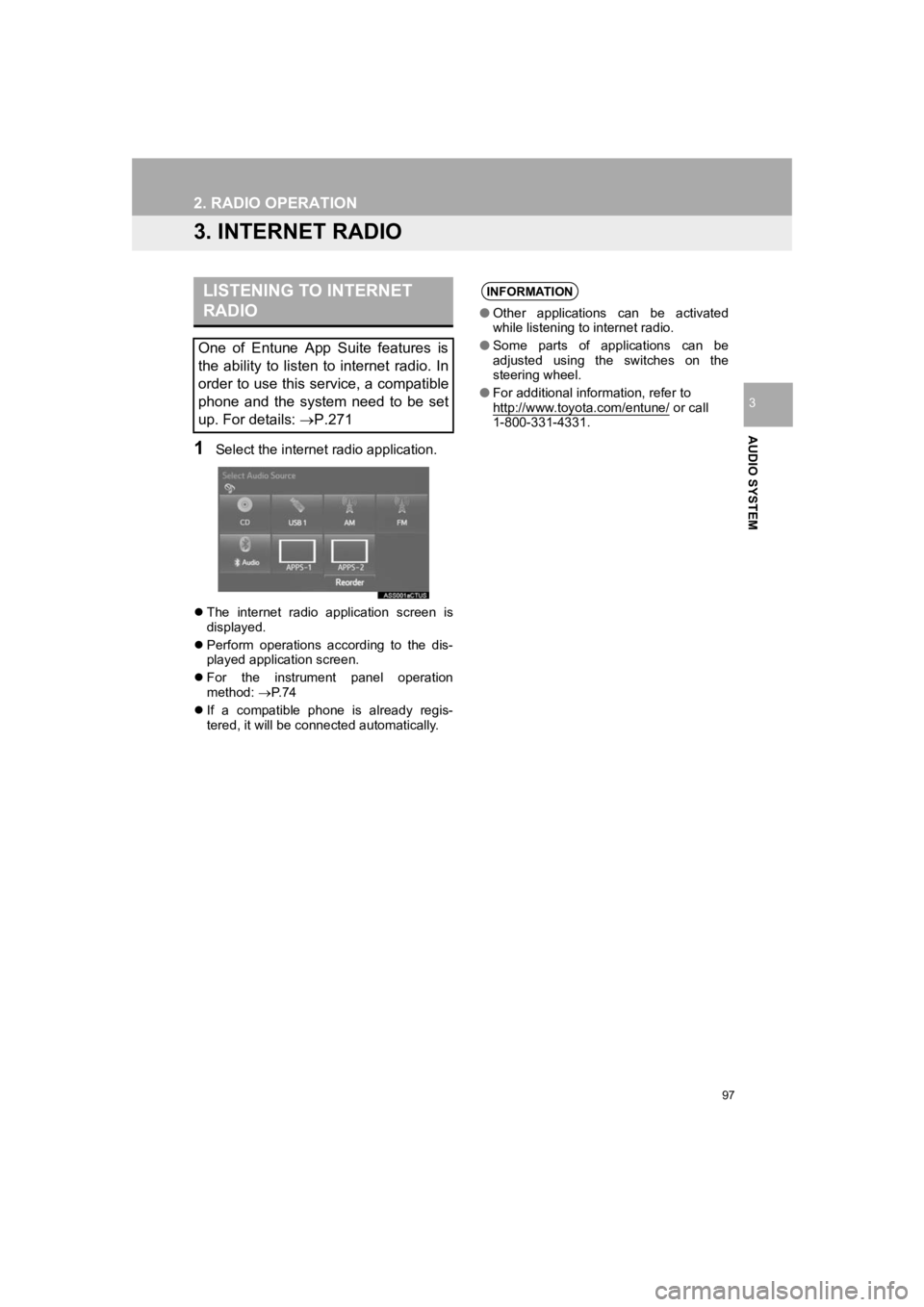
1Select the internet radio application.
The internet radio application screen is
displayed.
Perform operations according to the dis-
played application screen.
For the instrument panel operation
method: P. 7 4
If a compatible phone is already regis-
tered, it will be connected automatically.
LISTENING TO INTERNET
RADIO
One of Entune App Suite features is
the ability to listen to internet radio. In
order to use this service, a compatible
phone and the system need to be set
up. For details: P.271
INFORMATION
●Other applications can be activated
while listening to internet radio.
● Some parts of applications can be
adjusted using the switches on the
steering wheel.
● For additional information, refer to
http://www.toyota.com/entune/
or call
1-800-331-4331.
Page 120 of 294
120
PRIUS_Navi_OM47C47U_(U)
18.10.10 12:02
4. AUDIO REMOTE CONTROLS
1. STEERING SWITCHES
“MODE” switch
Volume control switch
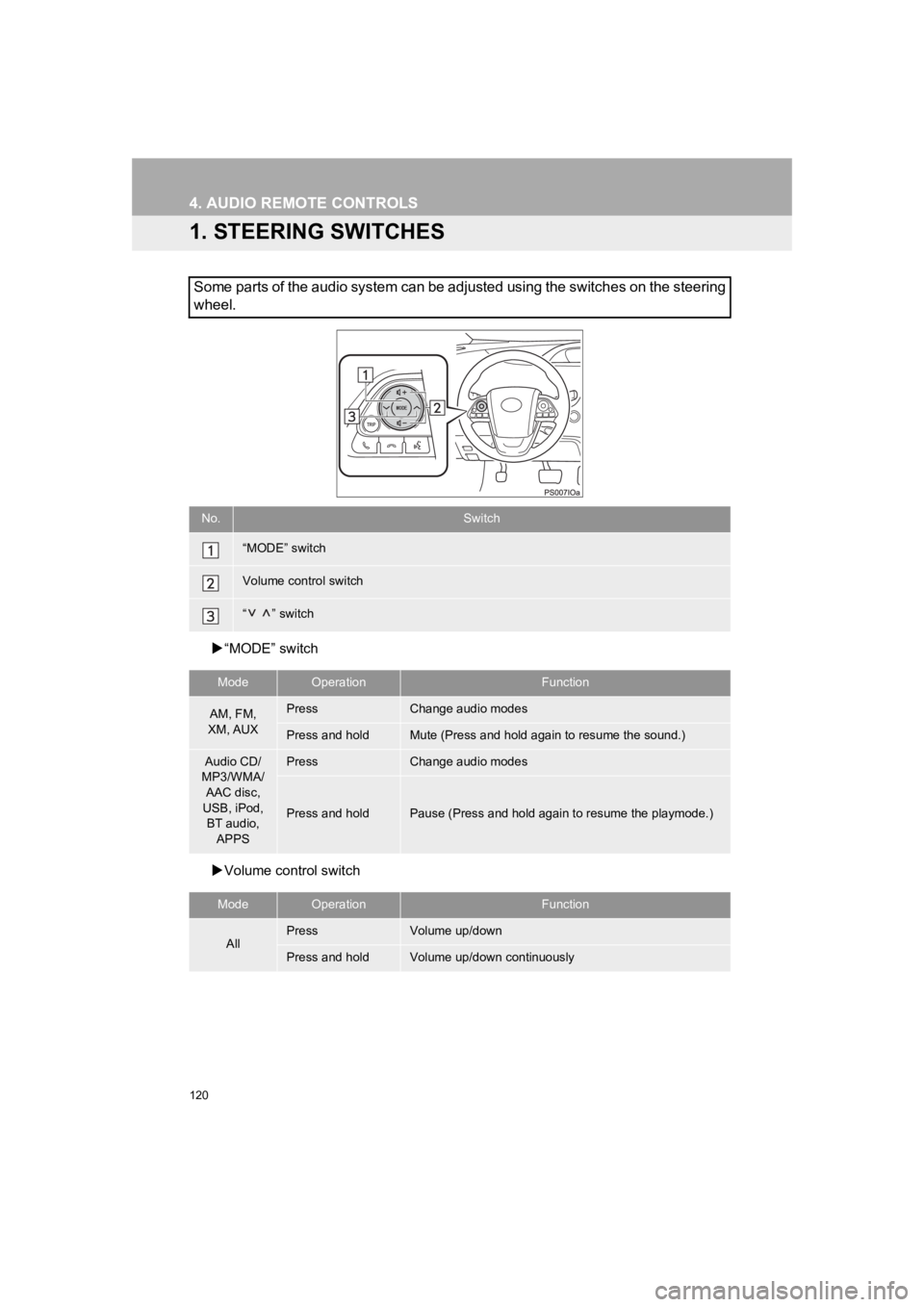
Some parts of the audio system can be adjusted using the switch es on the steering
wheel.
No.Switch
“MODE” switch
Volume control switch
“ ” switch
ModeOperationFunction
AM, FM,
XM, AUXPressChange audio modes
Press and holdMute (Press and hold again to resume the sound.)
Audio CD/
MP3/WMA/
AAC disc,
USB, iPod, BT audio,
APPSPressChange audio modes
Press and holdPause (Press and hold again to resume the playmode.)
ModeOperationFunction
AllPressVolume up/down
Press and holdVolume up/down continuously
Page 136 of 294
136
PRIUS_Navi_OM47C47U_(U)
18.10.10 12:02
1. VOICE COMMAND SYSTEM OPERATION
1. VOICE COMMAND SYSTEM
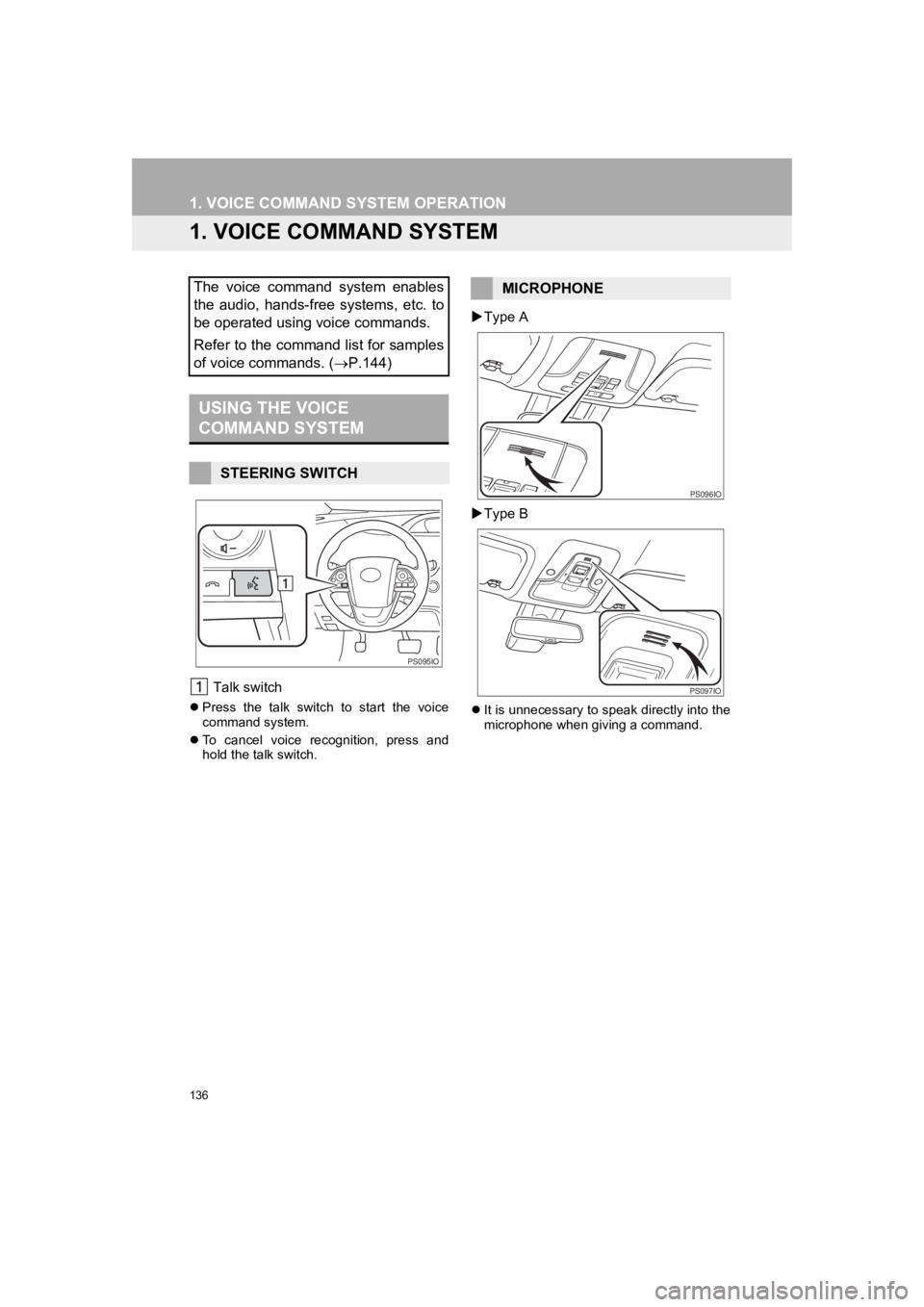
Talk switch
Press the talk switch to start the voice
command system.
To cancel voice recognition, press and
hold the talk switch.
Type A
Type B
It is unnecessary to speak directly into the
microphone when giving a command.
The voice command system enables
the audio, hands-free systems, etc. to
be operated using voice commands.
Refer to the command list for samples
of voice commands. ( P.144)
USING THE VOICE
COMMAND SYSTEM
STEERING SWITCH
PS095IO
0,&523+21(
PS096IO
PS097IO
Page 142 of 294
142
1. VOICE COMMAND SYSTEM OPERATION
PRIUS_Navi_OM47C47U_(U)
18.10.10 12:02
1Press the talk switch.
2Say the phone number.
In the same manner as it is displayed on
the screen, “Dial
“Dial a number” say the phone number.
Say the phone number one digit at a time.
For example, if the phone number is
2345678:
Say “two three four five six seven
eight”
Do not say “twenty three forty five sixty
seven eight”
Calling to the following phone numbers
• 3 digit numbers (911, 411, 611)
• 7 digit numbers (Local phone numbers)
• 10 digit numbers (Area code + Local
phone number)
• 11 digit phone numbers (1 + Area code + Local phone number)
As the system cannot recognize additional
numbers, say the complete number with-
out stopping.
Calling to other phone numbers
3Say “Call” or press the switch on
the steering wheel.
VOICE COMMAND EXAMPLE:
DIAL NUMBER
When the system recognizes multiple
phone numbers, a phone number candi-
date list will be displayed on the screen.
Pressing the
switch on the steer-
ing wheel makes a call to the top entry
on the list. If the desired phone number
is not displayed on the top of the screen,
say the number of the desired phone
number from the candidate list to select
a phone number from the candidate list.
Page 146 of 294
146
PRIUS_Navi_OM47C47U_(U)
18.10.10 12:02
2. MOBILE ASSISTANT OPERATION
1. MOBILE ASSISTANT
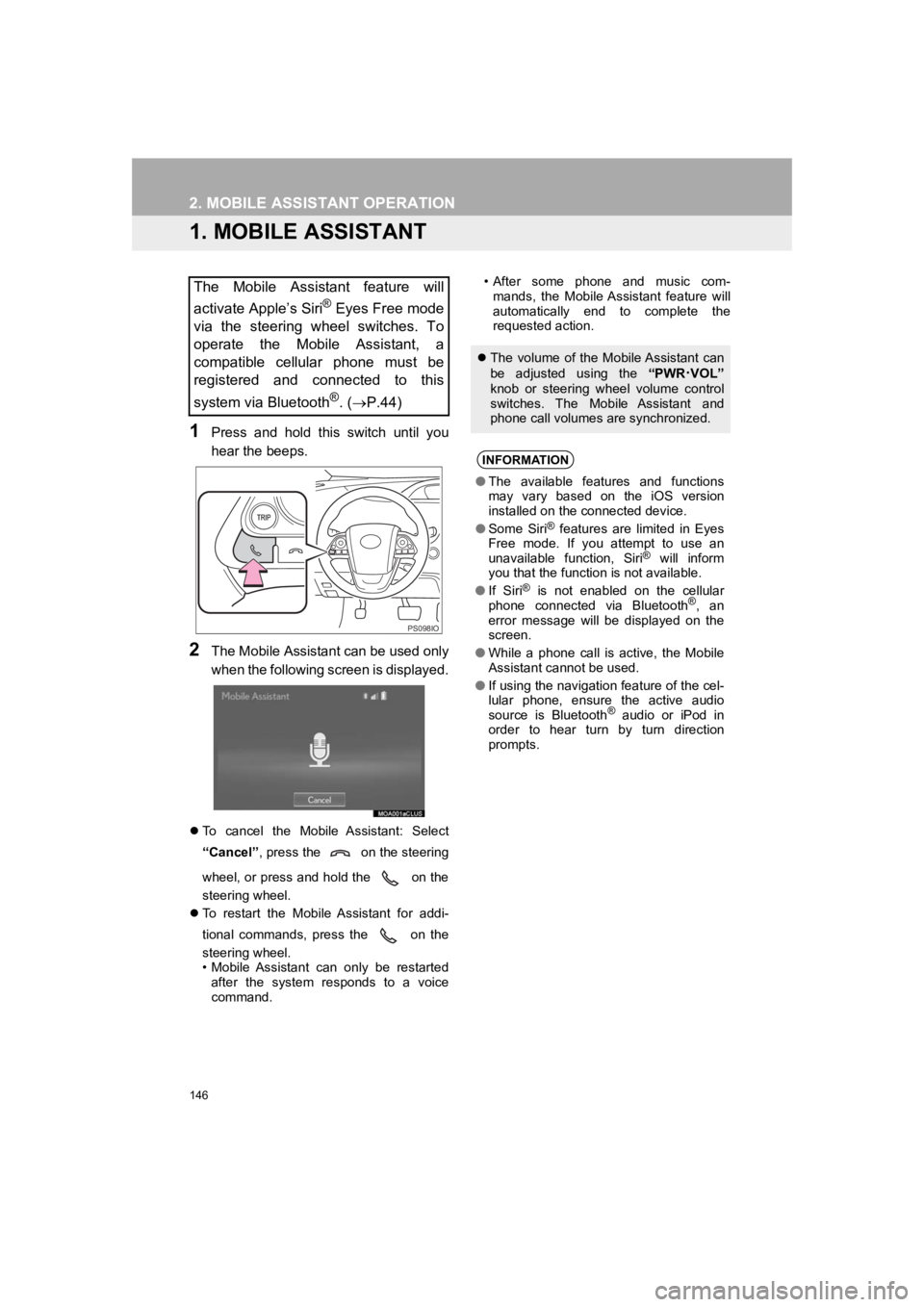
1Press and hold this switch until you
hear the beeps.
2The Mobile Assistant can be used only
when the following screen is displayed.
To cancel the Mobile Assistant: Select
“Cancel”, press the on the steering
wheel, or press and hold the on the
steering wheel.
To restart the Mobile Assistant for addi-
tional commands, press the on the
steering wheel.
• Mobile Assistant can only be restarted
after the system responds to a voice
command. • After some phone and music com-
mands, the Mobile Assistant feature will
automatically end to complete the
requested action.
The Mobile Assistant feature will
activate Apple’s Siri
® Eyes Free mode
via the steering wheel switches. To
operate the Mobile Assistant, a
compatible cellular phone must be
registered and connected to this
system via Bluetooth
®. (P.44)
PS098IO
The volume of the Mobile Assistant can
be adjusted using the “PWR
·VOL”
knob or steering wheel volume control
switches. The Mobile Assistant and
phone call volumes are synchronized.
INFORMATION
● The available features and functions
may vary based on the iOS version
installed on the connected device.
● Some Siri
® features are limited in Eyes
Free mode. If you attempt to use an
unavailable function, Siri
® will inform
you that the function is not available.
● If Siri
® is not enabled on the cellular
phone connected via Bluetooth®, an
error message will be displayed on the
screen.
● While a phone call is active, the Mobile
Assistant cannot be used.
● If using the navigation feature of the cel-
lular phone, ensure the active audio
source is Bluetooth
® audio or iPod in
order to hear turn by turn direction
prompts.