change time TOYOTA PRIUS C 2020 Owner's Manual
[x] Cancel search | Manufacturer: TOYOTA, Model Year: 2020, Model line: PRIUS C, Model: TOYOTA PRIUS C 2020Pages: 600, PDF Size: 12.02 MB
Page 289 of 600
2895-3. Setup (Multimedia system)
5
Audio system
PRIUS c_U
Press the “SETUP” button.
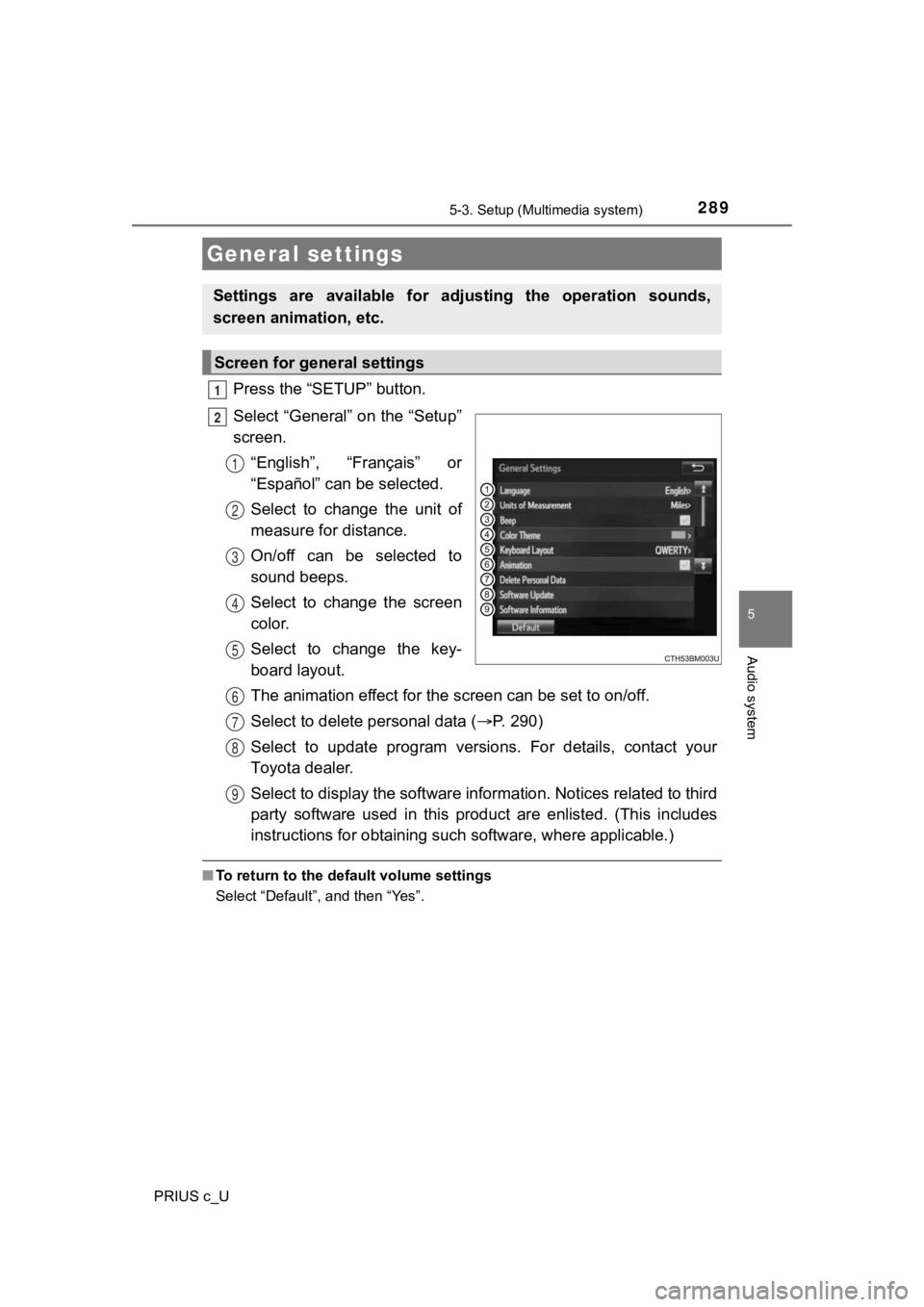
Select “General” on the “Setup”
screen.“English”, “Français” or
“Español” can be selected.
Select to change the unit of
measure for distance.
On/off can be selected to
sound beeps.
Select to change the screen
color.
Select to change the key-
board layout.
The animation effect for the screen can be set to on/off.
Select to delete personal data ( P. 2 9 0 )
Select to update program versions. For details, contact your
Toyota dealer.
Select to display the software information. Notices related to third
party software used in this product are enlisted. (This include s
instructions for obtaining suc h software, where applicable.)
■To return to the default volume settings
Select “Default”, and then “Yes”.
General settings
Settings are available for ad justing the operation sounds,
screen animation, etc.
Screen for general settings
1
2
1
2
3
4
5
6
7
8
9
Page 290 of 600

2905-3. Setup (Multimedia system)
PRIUS c_U
Select “Delete Personal Data” on the “General Settings” screen.
Select “Delete”.
Check carefully beforehand, as data cannot be retrieved once de leted.
A confirmation screen will be displayed. Select “Yes”.
The following personal data will be deleted or changed to its d efault
settings.
• General settings
• Audio settings
• Phone settings
Delete personal data
1
2
3
Page 292 of 600
2925-3. Setup (Multimedia system)
PRIUS c_U
Press the “SETUP” button.
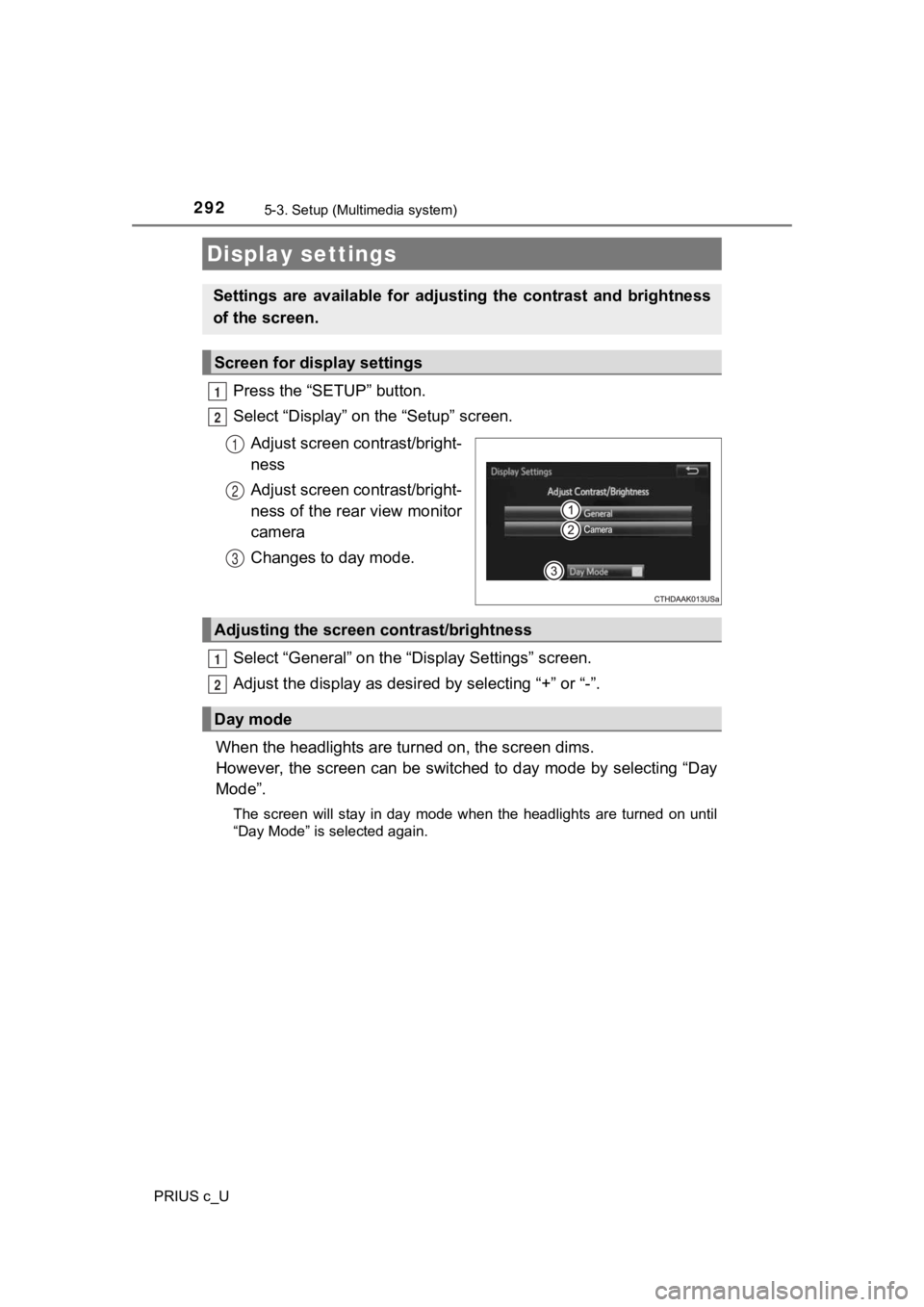
Select “Display” on the “Setup” screen.Adjust screen contrast/bright-
ness
Adjust screen contrast/bright-
ness of the rear view monitor
camera
Changes to day mode.
Select “General” on the “D isplay Settings” screen.
Adjust the display as desir ed by selecting “+” or “-”.
When the headlights are tur ned on, the screen dims.
However, the screen can be switched to day mode by selecting “D ay
Mode”.
The screen will stay in day mode when the headlights are turned on until
“Day Mode” is selected again.
Display settings
Settings are available for adjus ting the contrast and brightness
of the screen.
Screen for display settings
1
2
1
2
3
Adjusting the screen contrast/brightness
Day mode
1
2
Page 294 of 600
294
PRIUS c_U
5-4. Using the Multimedia system
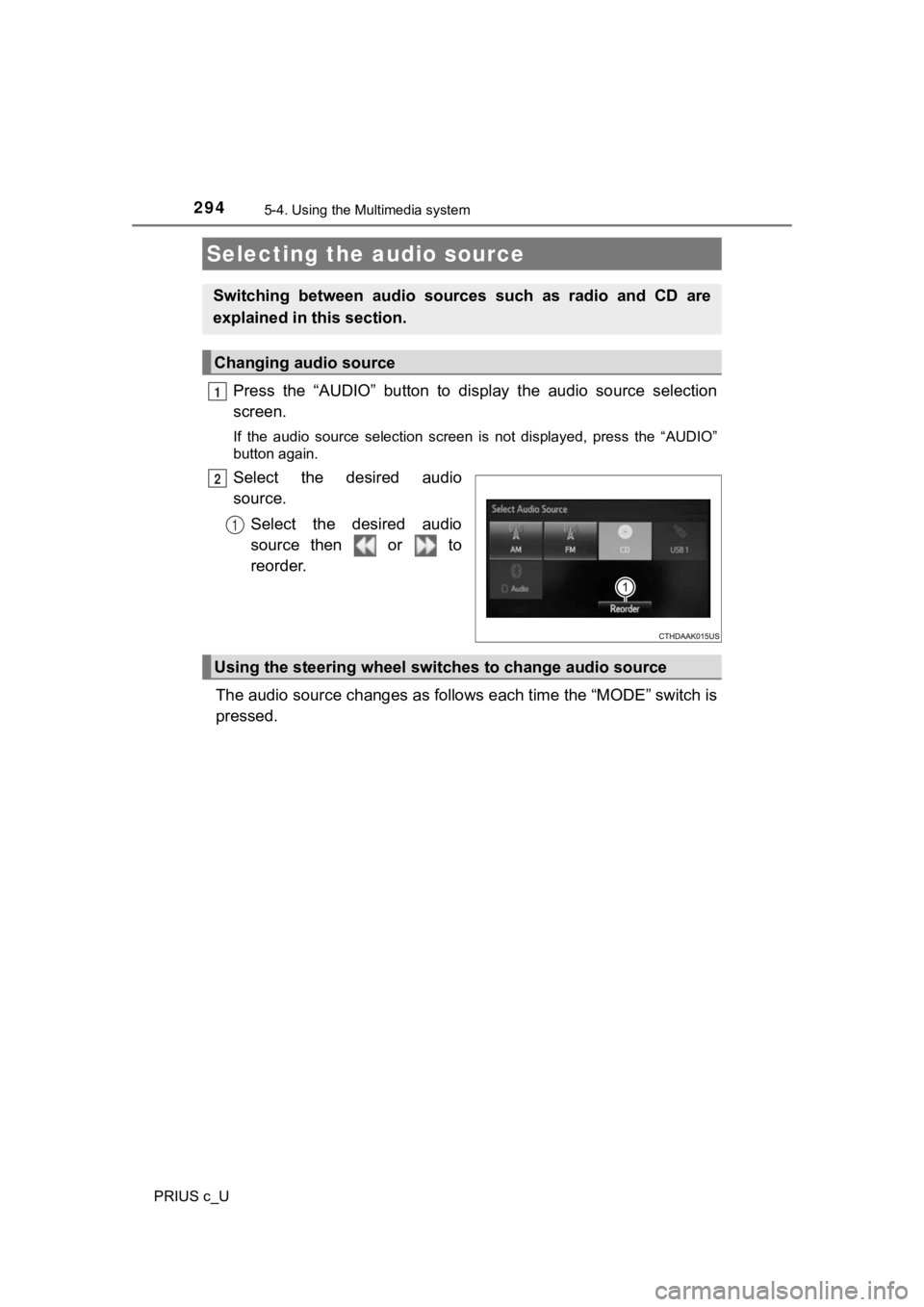
Press the “AUDIO” button to display the audio source selection
screen.
If the audio source selection screen is not displayed, press the “AUDIO”
button again.
Select the desired audio
source.
Select the desired audio
source then or to
reorder.
The audio source changes as follows each time the “MODE” switch is
pressed.
Selecting the audio source
Switching between audio sources such as radio and CD are
explained in t his section.
Changing audio source
1
2
1
Using the steering wheel switches to change audio source
Page 299 of 600
2995-5. Using the radio (Multimedia system)
5
Audio system
PRIUS c_U
Search for desired stations by turning the “TUNE·SCROLL” knob or
pressing the “ ” or “ ” button on “SEEK/TRACK”.
Select “(add new)”.
To change the preset station to a different one, select and hol d the preset
station.
Select “Yes”.
Select “OK” after setting the new preset station.
■Refreshing the station list
Select “Refresh” on the “Station List” screen.
To cancel the refresh, select “Cancel Refresh”.
■Reception sensitivity
●Maintaining perfect radio reception at all times is difficult d ue to the continu-
ally changing position of the antenna, differences in signal strength and sur-
rounding objects, such as trains, transmitters, etc.
● The radio antenna is mounted on the rear roof.
Setting station presets
1
2
3
4
1
Page 307 of 600
3075-7. Using an external device (Multimedia system)
5
Audio system
PRIUS c_U
Select “Browse” on the screen.
Select the desired play mode. Then select a song to begin using
the selected play mode.
Select to change on/off.
Select to change on/off.
Selecting a play mode
Shuffle play
Repeat play
1
2
Page 308 of 600
3085-7. Using an external device (Multimedia system)
PRIUS c_U
■Cord hook
P. 284
■ About iPod
●“Made for iPod” and “Made for iPhone” mean that an electronic a ccessory
has been designed to connect specifically to iPod or iPhone, re spectively,
and has been certified by the developer to meet Apple performance stan-
dards.
● Apple is not responsible for the operation of this device or it s compliance
with safety and regulatory standards. Please note that the use of this acces-
sory with iPod or iPhone may affect wireless performance.
● iPhone, iPod, iPod classic, iPod nano, and iPod touch are trade marks of
Apple Inc., registered in the U.S. and other countries. Lightning is a trade-
mark of Apple Inc.
■ iPod cover art
●Depending on the iPod and songs in the iPod, iPod cover art may be dis-
played.
● This function can be changed to on/off. ( P. 291)
● It may take time to display iPod cover art, and the iPod may no t be operated
while the cover art display is in process.
● Only iPod cover art that is saved in JPEG format can be display ed.
Page 309 of 600
3095-7. Using an external device (Multimedia system)
5
Audio system
PRIUS c_U■
iPod functions
●When an iPod is connected and the audio source is changed to iP od mode,
the iPod will resume play from the same point in which it was last used.
● Depending on the iPod that is connected to the system, certain functions
may not be available. If a function is unavailable due to a mal function (as
opposed to a system specification), disconnecting the device and recon-
necting it may resolve the problem.
● While connected to the system, the iPod cannot be operated with its own
controls. It is necessary to use the controls of the vehicle's multimedia sys-
tem instead.
● When the battery level of an iPod is very low, the iPod may not operate. If
so, charge the iPod before use.
● Compatible models ( P. 3 1 0 )
■ iPod problems
To resolve most problems encountered when using your iPod, disc onnect
your iPod from the vehicle iPod connection and reset it. For in structions on
how to reset your iPod, refer to your iPod Owner's Manual.
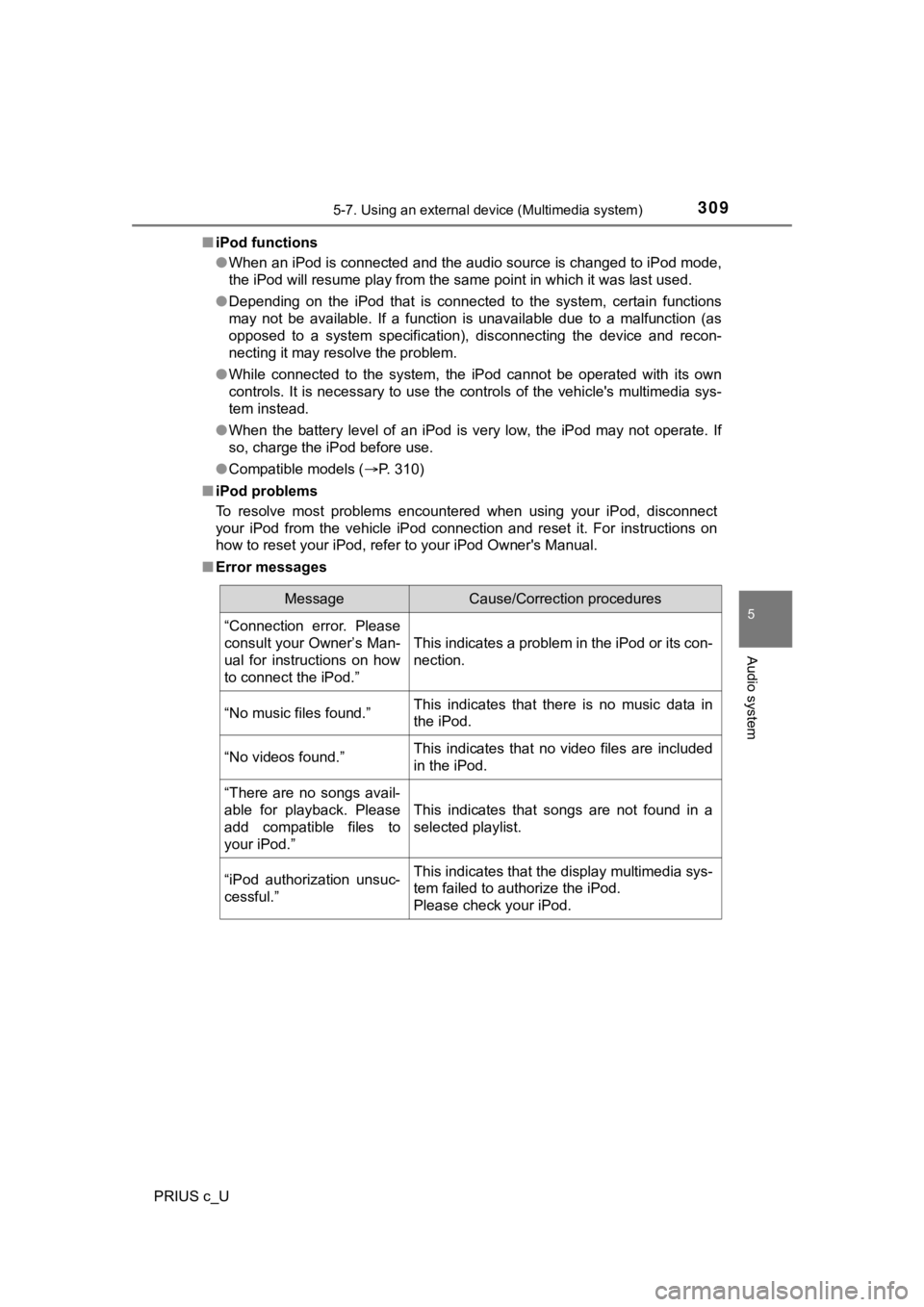
■ Error messages
MessageCause/Correction procedures
“Connection error. Please
consult your Owner’s Man-
ual for instructions on how
to connect the iPod.”
This indicates a problem in the iPod or its con-
nection.
“No music files found.”This indicates that there is no music data in
the iPod.
“No videos found.”This indicates that no video files are included
in the iPod.
“There are no songs avail-
able for playback. Please
add compatible files to
your iPod.”
This indicates that songs are not found in a
selected playlist.
“iPod authorization unsuc-
cessful.”This indicates that the display multimedia sys-
tem failed to authorize the iPod.
Please check your iPod.
Page 314 of 600

3145-7. Using an external device (Multimedia system)
PRIUS c_U●
ID3, WMA and AAC tags
ID3 tags can be added to MP3 files, making it possible to recor d the track
title, artist name, etc.
The system is compatible with ID3 Ver. 1.0, 1.1, and Ver. 2.2, 2.3 ID3 tags.
(The number of characters is based on ID3 Ver. 1.0 and 1.1.)
WMA tags can be added to WMA files, making it possible to recor d the
track title and artist name in the same way as with ID3 tags.
AAC tags can be added to AAC files, making it possible to recor d the track
title and artist name in the same way as with ID3 tags.
● MP3, WMA and AAC playback
• When a device containing MP3, WMA and AAC files is connected, all
files in the USB memory device are checked. Once the file check is fin-
ished, the first MP3, WMA and AAC file is played. To make the file check
finish more quickly, we recommend that you do not include any f iles other
than MP3, WMA and AAC files or create any unnecessary folders.
• When a USB memory device is connected and the audio source is
changed to USB memory mode, the USB memory device will start pl ay-
ing the first file in the first folder. If the same device is r emoved and
reconnected (and the con- tents have not been changed), the USB mem-
ory device will resume play from the same point in which it was last used.
● Extensions
If the file extensions .mp3, .wma and .m4a are used for files other than
MP3, WMA and AAC files, they will be skipped (not played).
● Playback
• To play MP3 files with steady sound quality, we recommend a fi xed bit
rate of at least 128 kbps and a sampling frequency of 44.1 kHz.
• There is a wide variety of freeware and other encoding software for MP3, WMA and AAC files on the market, and depending on the status of the
encoding and the file format, poor sound quality or noise at th e start of
playback may result. In some cases, playback may not be possible at all.
• Microsoft, Windows, and Windows Media are the registered trade marks
of Microsoft Corporation in the U.S.A. and other countries.
WARNING
■ While driving
Do not connect a USB memory device or operate the device contro ls.
Page 325 of 600
3255-8. Connecting Bluetooth® (Multimedia system)
5
Audio system
PRIUS c_U
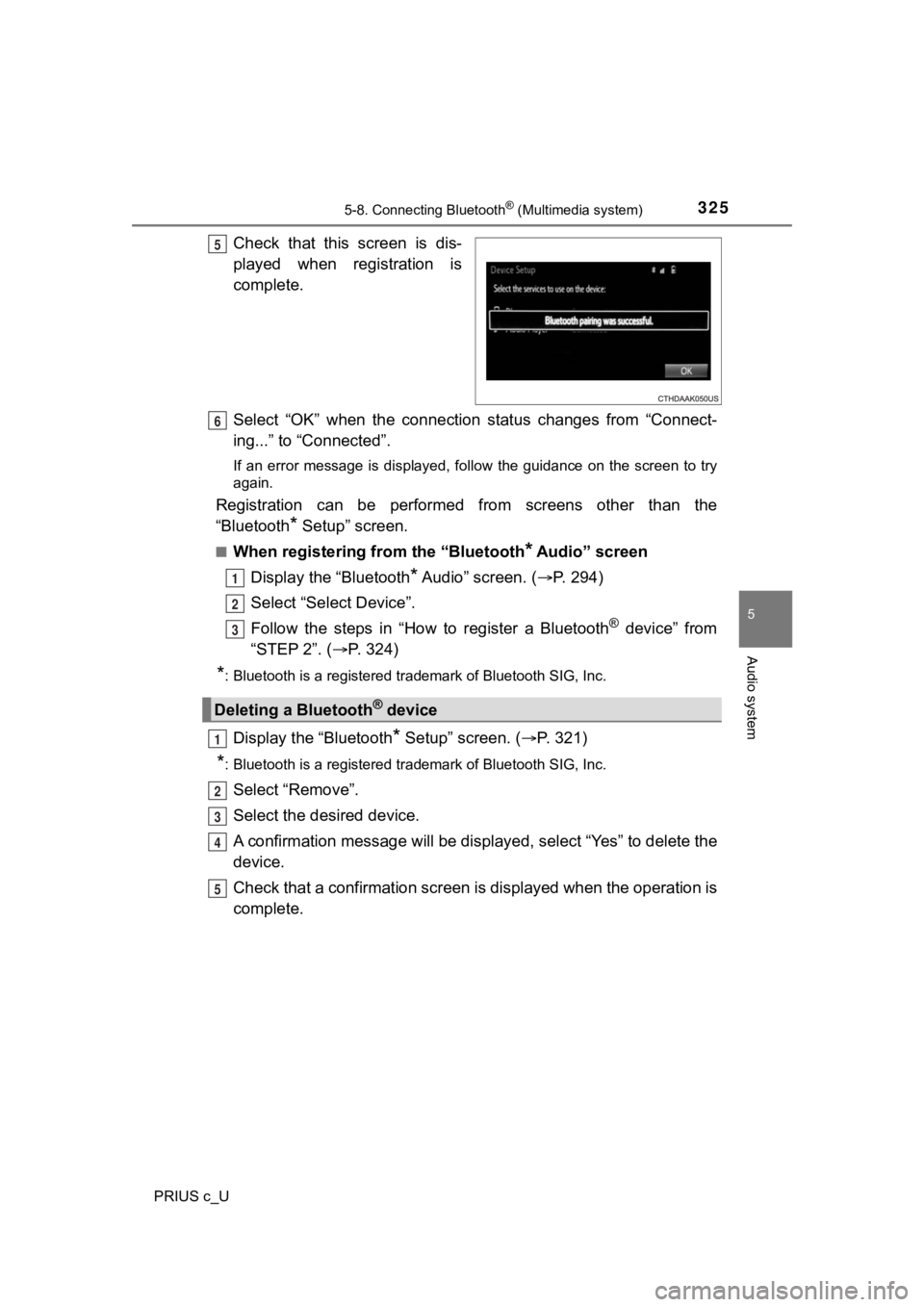
Check that this screen is dis-
played when registration is
complete.
Select “OK” when the connection status changes from “Connect-
ing...” to “Connected”.
If an error message is displayed, follow the guidance on the screen to try
again.
Registration can be performed from screens other than the
“Bluetooth
* Setup” screen.
■When registering from the “Bluetooth* Audio” screen
Display the “Bluetooth
* Audio” screen. ( P. 2 9 4 )
Select “Select Device”.
Follow the steps in “How to register a Bluetooth
® device” from
“STEP 2”. ( P. 3 2 4 )
*: Bluetooth is a registered trademark of Bluetooth SIG, Inc.
Display the “Bluetooth* Setup” screen. ( P. 321)
*: Bluetooth is a registered trademark of Bluetooth SIG, Inc.
Select “Remove”.
Select the desired device.
A confirmation message will be di splayed, select “Yes” to delete the
device.
Check that a confirmation screen is displayed when the operation is
complete.
5
Deleting a Bluetooth® device
6
1
2
3
1
2
3
4
5