wheel TOYOTA PRIUS C 2020 Service Manual
[x] Cancel search | Manufacturer: TOYOTA, Model Year: 2020, Model line: PRIUS C, Model: TOYOTA PRIUS C 2020Pages: 600, PDF Size: 12.02 MB
Page 278 of 600

278
PRIUS c_U5-1. Using the audio system
Audio system types ........... 280
5-2. Basic Operations (Multimedia system)
Multimedia system ............ 281
Steering wheel audio switches ................ 283
USB port/AUX port ............ 284
Basic audio operations...... 286
5-3. Setup (Multimedia system)
Setup menu....................... 288
General settings ................ 289
Audio settings ................... 291
Display settings ................. 292
Voice settings.................... 293
5-4. Using the Multimedia system
Selecting the audio source ................... 294
List screen operation......... 295
Optimal use of the multimedia system .......... 297
5-5. Using the radio (Multimedia system)
Radio operation................. 298
5Audio system
Page 279 of 600
279
5Audio system
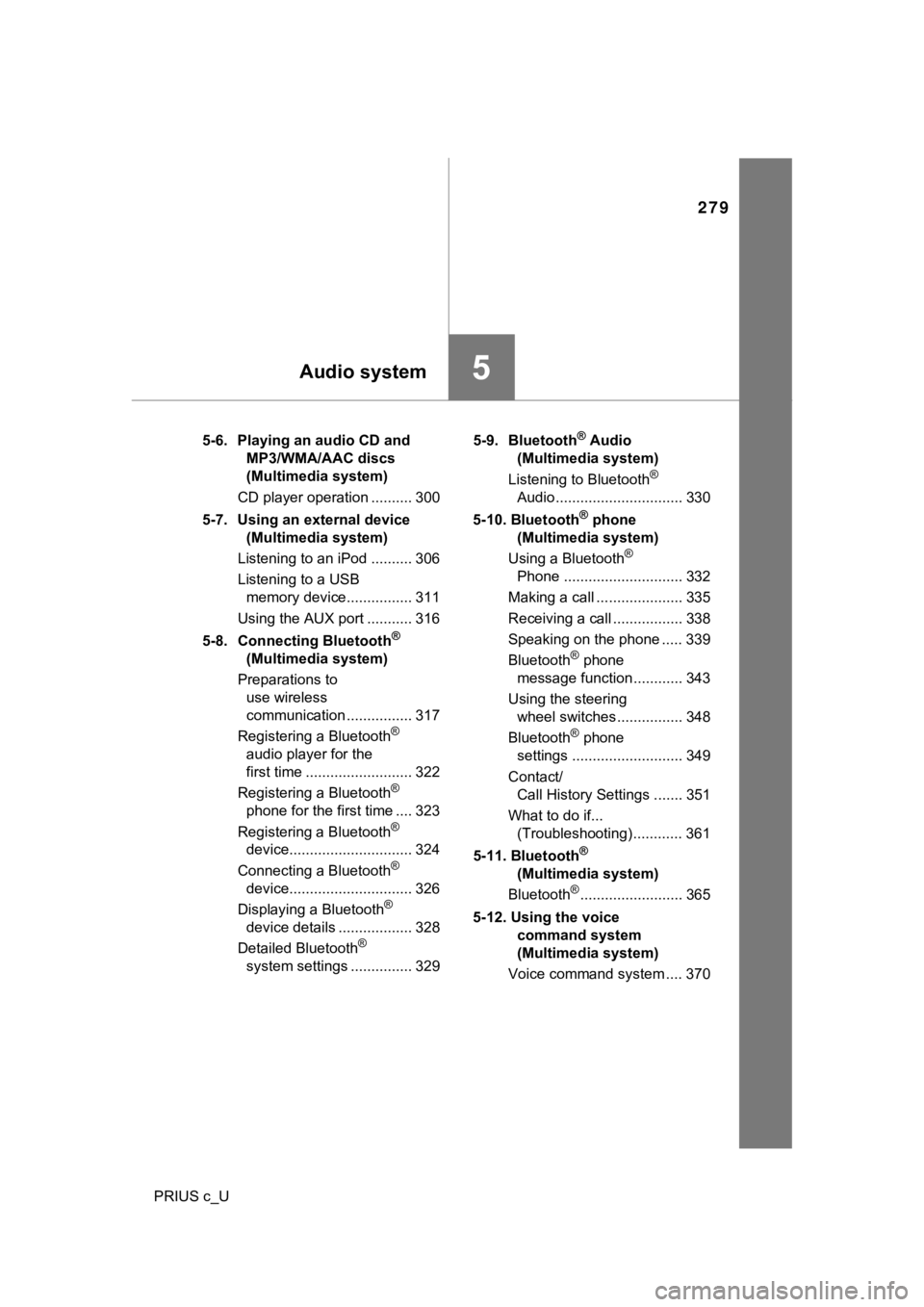
PRIUS c_U5-6. Playing an audio CD and
MP3/WMA/AAC discs
(Multimedia system)
CD player operation .......... 300
5-7. Using an external device (Multimedia system)
Listening to an iPod .......... 306
Listening to a USB memory device................ 311
Using the AUX port ........... 316
5-8. Connecting Bluetooth
®
(Multimedia system)
Preparations to use wireless
communication ................ 317
Registering a Bluetooth
®
audio player for the
first time .......................... 322
Registering a Bluetooth
®
phone for the first time .... 323
Registering a Bluetooth
®
device.............................. 324
Connecting a Bluetooth
®
device.............................. 326
Displaying a Bluetooth
®
device details .................. 328
Detailed Bluetooth
®
system settings ............... 329 5-9. Bluetooth
® Audio
(Multimedia system)
Listening to Bluetooth
®
Audio............................... 330
5-10. Bluetooth
® phone
(Multimedia system)
Using a Bluetooth
®
Phone ............................. 332
Making a call ..................... 335
Receiving a call ................. 338
Speaking on the phone ..... 339
Bluetooth
® phone
message function ............ 343
Using the steering wheel switches ................ 348
Bluetooth
® phone
settings ........................... 349
Contact/ Call History Settings ....... 351
What to do if... (Troubleshooting) ............ 361
5-11. Bluetooth
®
(Multimedia system)
Bluetooth
®......................... 365
5-12. Using the voice command system
(Multimedia system)
Voice command system .... 370
Page 283 of 600
2835-2. Basic Operations (Multimedia system)
5
Audio system
PRIUS c_U
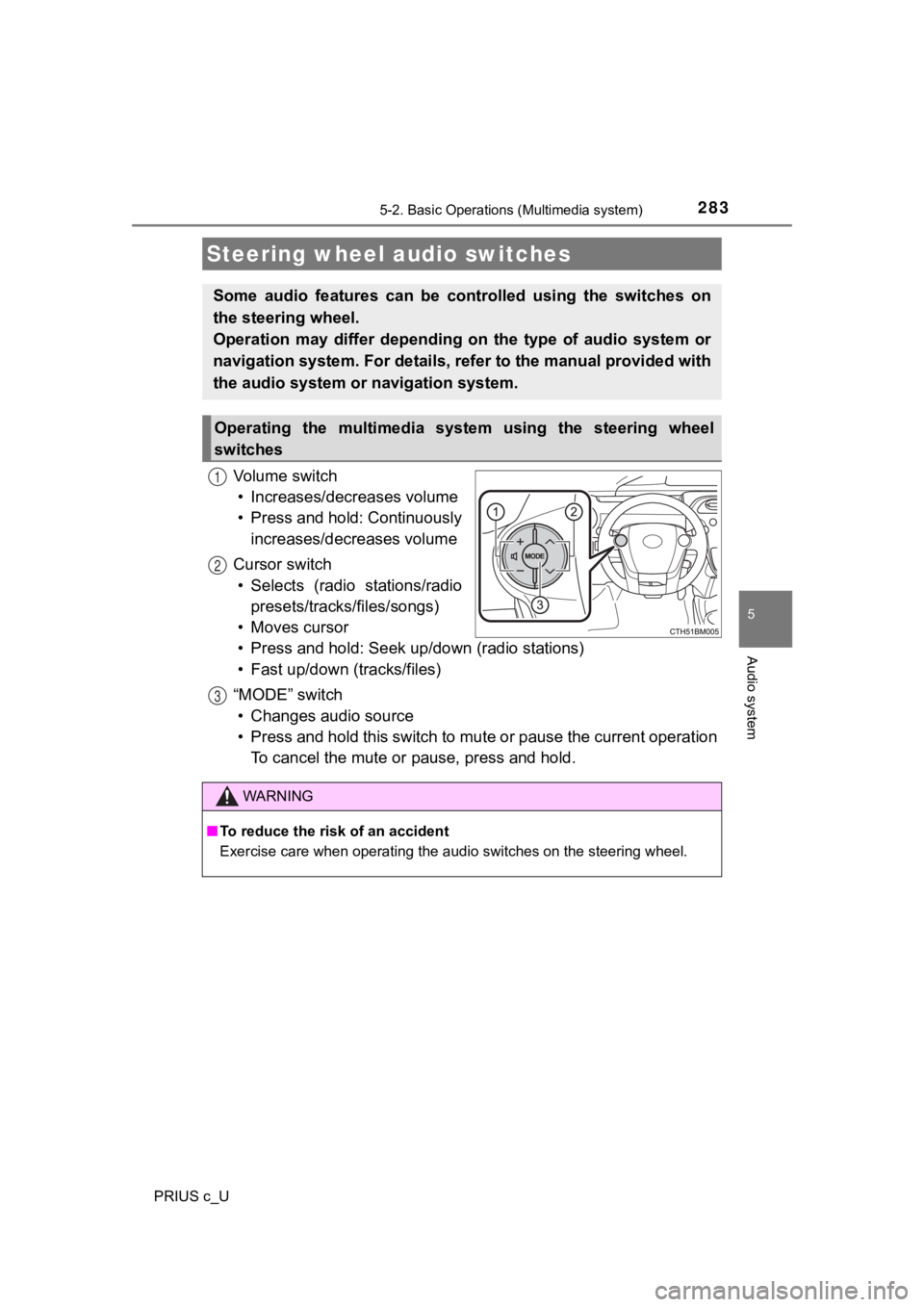
Vo l u m e s w i t c h• Increases/dec reases volume
• Press and hold: Continuously increases/decreases volume
Cursor switch • Selects (radio stations/radio presets/tracks/files/songs)
• Moves cursor
• Press and hold: Seek up /down (radio stations)
• Fast up/down (tracks/files)
“MODE” switch • Changes audio source
• Press and hold this switch to mute or pause the current operat ion
To cancel the mute or pause, press and hold.
Steering wheel audio switches
Some audio features can be cont rolled using the switches on
the steering wheel.
Operation may differ depending on the type of audio system or
navigation system. For details, refer to the manual provided with
the audio system or navigation system.
Operating the multimedia system using the steering wheel
switches
1
12
3
WARNING
■To reduce the risk of an accident
Exercise care when operating the audio switches on the steering wheel.
Page 294 of 600
294
PRIUS c_U
5-4. Using the Multimedia system
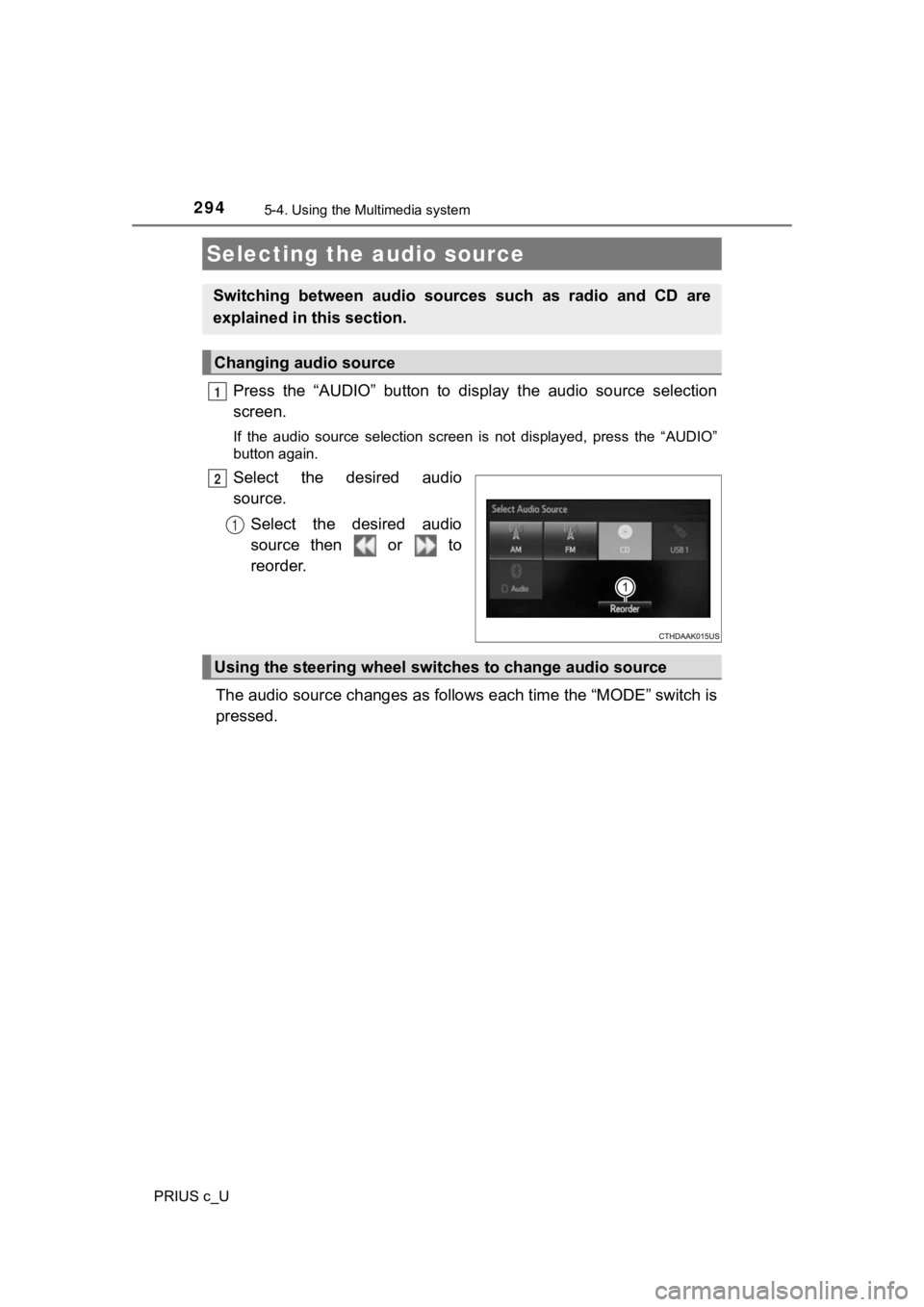
Press the “AUDIO” button to display the audio source selection
screen.
If the audio source selection screen is not displayed, press the “AUDIO”
button again.
Select the desired audio
source.
Select the desired audio
source then or to
reorder.
The audio source changes as follows each time the “MODE” switch is
pressed.
Selecting the audio source
Switching between audio sources such as radio and CD are
explained in t his section.
Changing audio source
1
2
1
Using the steering wheel switches to change audio source
Page 332 of 600
332
PRIUS c_U
5-10. Bluetooth® phone (Multimedia system)
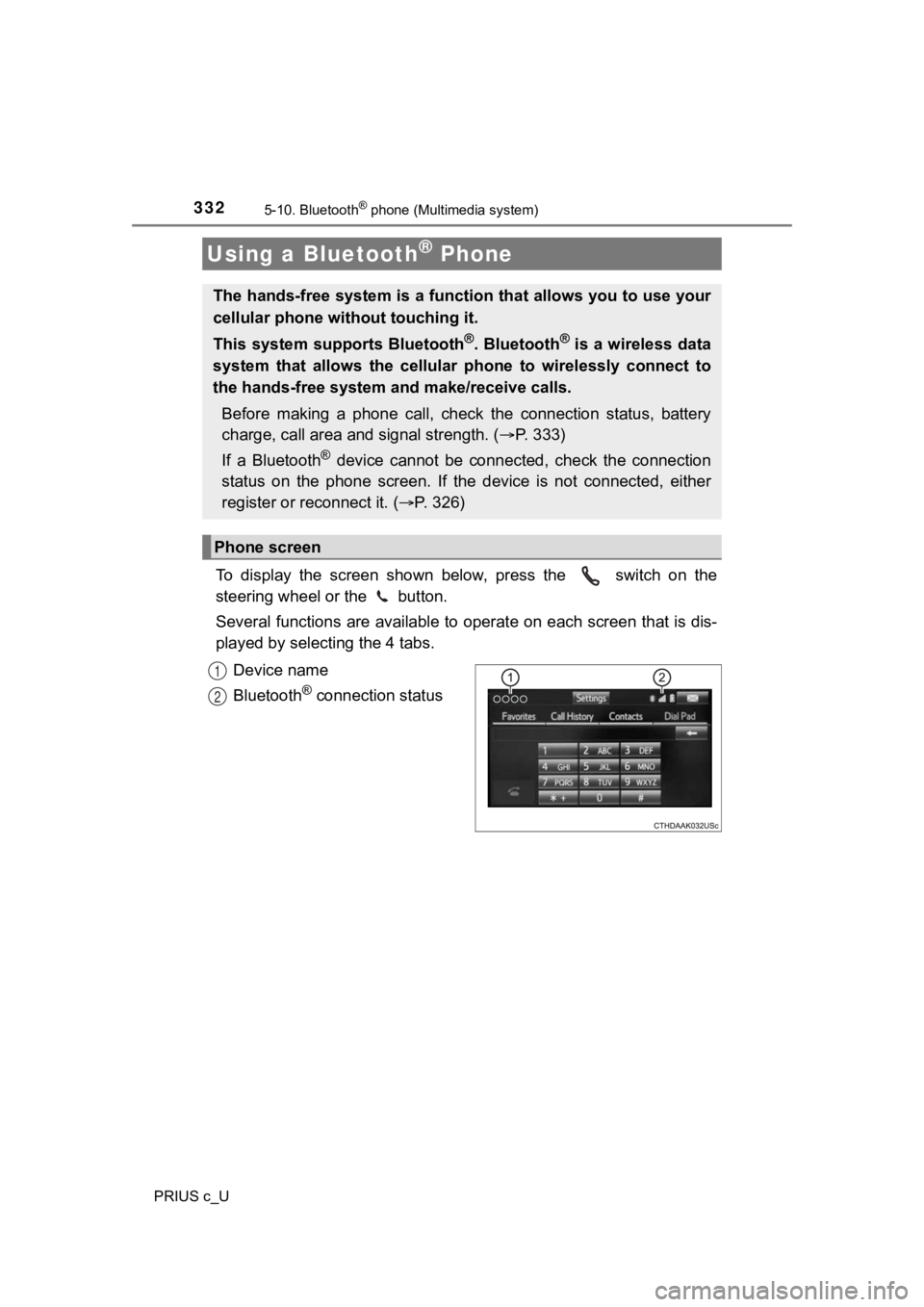
To display the screen shown below, press the switch on the
steering wheel or the button.
Several functions are available to operate on each screen that is dis-
played by select ing the 4 tabs.
Device name
Bluetooth
® connection status
Using a Bluetooth® Phone
The hands-free system is a function that allows you to use your
cellular phone without touching it.
This system supports Bluetooth
®. Bluetooth® is a wireless data
system that allows the cellular phone to wirelessly connect to
the hands-free system and make/receive calls.
Before making a phone call, check the connection status, batter y
charge, call area and signal strength. ( P. 3 3 3 )
If a Bluetooth
® device cannot be connected, check the connection
status on the phone screen. If the device is not connected, eit her
register or reconnect it. ( P. 3 2 6 )
Phone screen
1
2
Page 335 of 600
3355-10. Bluetooth® phone (Multimedia system)
5
Audio system
PRIUS c_U
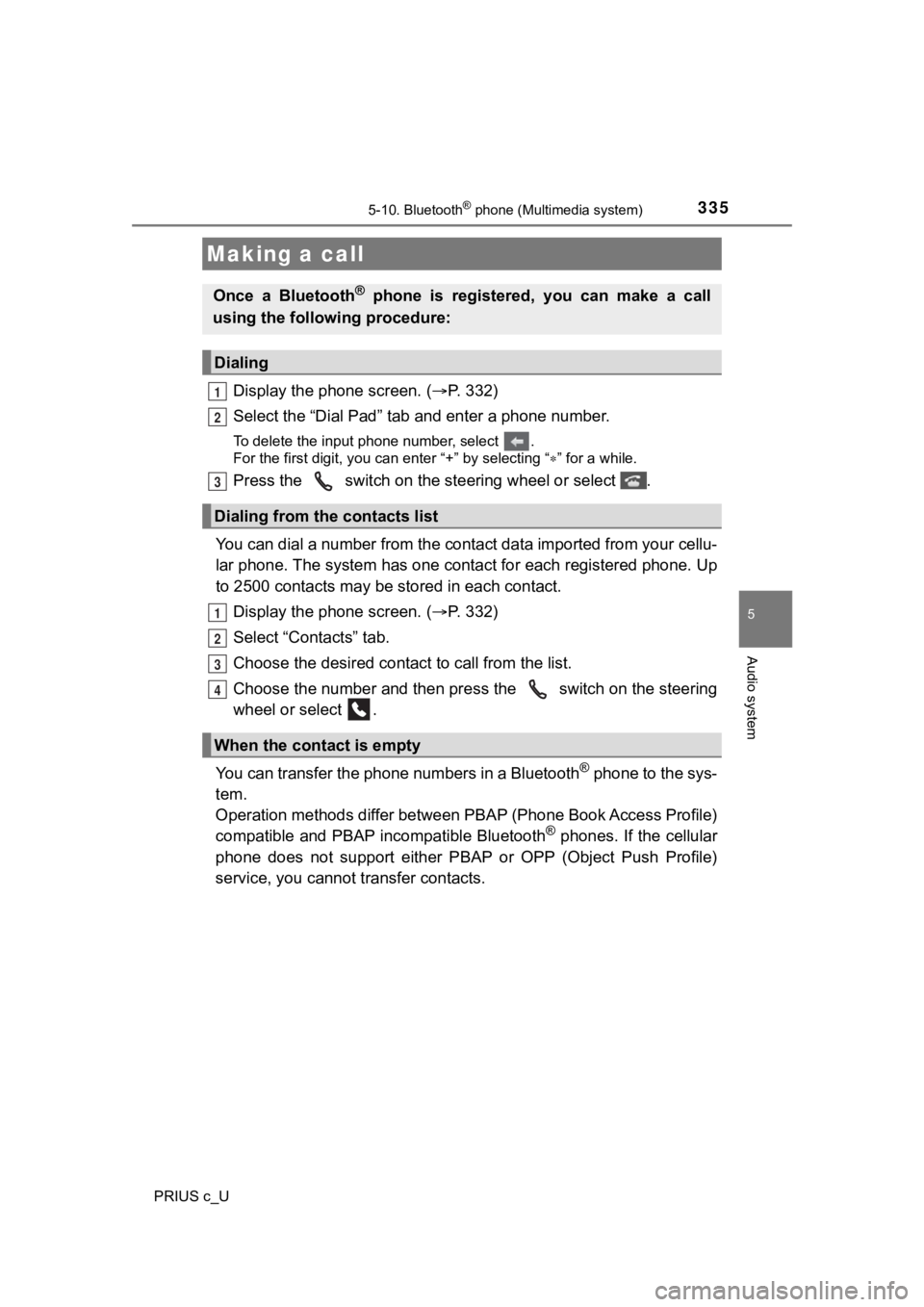
Display the phone screen. (P. 3 3 2 )
Select the “Dial Pad” tab a nd enter a phone number.
To delete the input phone number, select .
For the first digit, you can enter “+” by selecting “ ” for a while.
Press the switch on the steering wheel or select .
You can dial a number from the contact data imported from your cellu-
lar phone. The system has one contact for each registered phone . Up
to 2500 contacts may be stored in each contact.
Display the phone screen. ( P. 3 3 2 )
Select “Contacts” tab.
Choose the desir ed contact to call from the list.
Choose the number and then pre ss the switch on the steering
wheel or select .
You can transfer the phone numbers in a Bluetooth
® phone to the sys-
tem.
Operation methods differ between PBAP (Phone Book Access Profil e)
compatible and PBAP incompatible Bluetooth
® phones. If the cellular
phone does not support either PBAP or OPP (Object Push Profile)
service, you cannot t ransfer contacts.
Making a call
Once a Bluetooth® phone is registered, you can make a call
using the following procedure:
Dialing
Dialing from the contacts list
When the contact is empty
1
2
3
1
2
3
4
Page 336 of 600
3365-10. Bluetooth® phone (Multimedia system)
PRIUS c_U
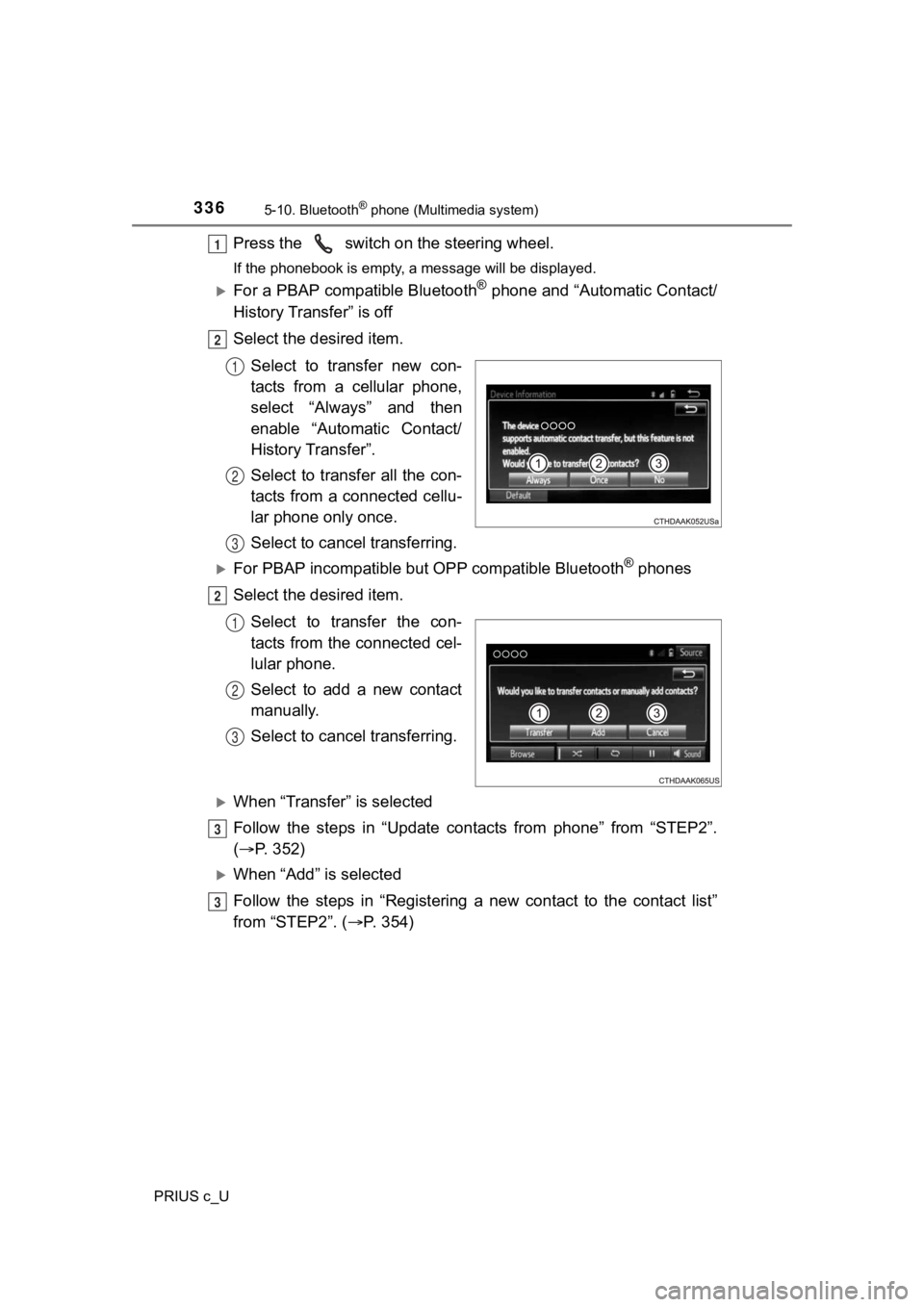
Press the switch on the steering wheel.
If the phonebook is empty, a message will be displayed.
For a PBAP compatible Bluetooth® phone and “Automatic Contact/
History Transfer” is off
Select the desired item.
Select to transfer new con-
tacts from a cellular phone,
select “Always” and then
enable “Automatic Contact/
History Transfer”.
Select to transfer all the con-
tacts from a connected cellu-
lar phone only once.
Select to cancel transferring.
For PBAP incompatible but OPP compatible Bluetooth® phones
Select the desired item.
Select to transfer the con-
tacts from the connected cel-
lular phone.
Select to add a new contact
manually.
Select to cancel transferring.
When “Transfer” is selected
Follow the steps in “Update cont acts from phone” from “STEP2”.
( P. 352)
When “Add” is selected
Follow the steps in “Registering a new contact to the contact l ist”
from “STEP2”. ( P. 354)
1
2
1
2
3
2
1
2
3
3
3
Page 338 of 600
3385-10. Bluetooth® phone (Multimedia system)
PRIUS c_U
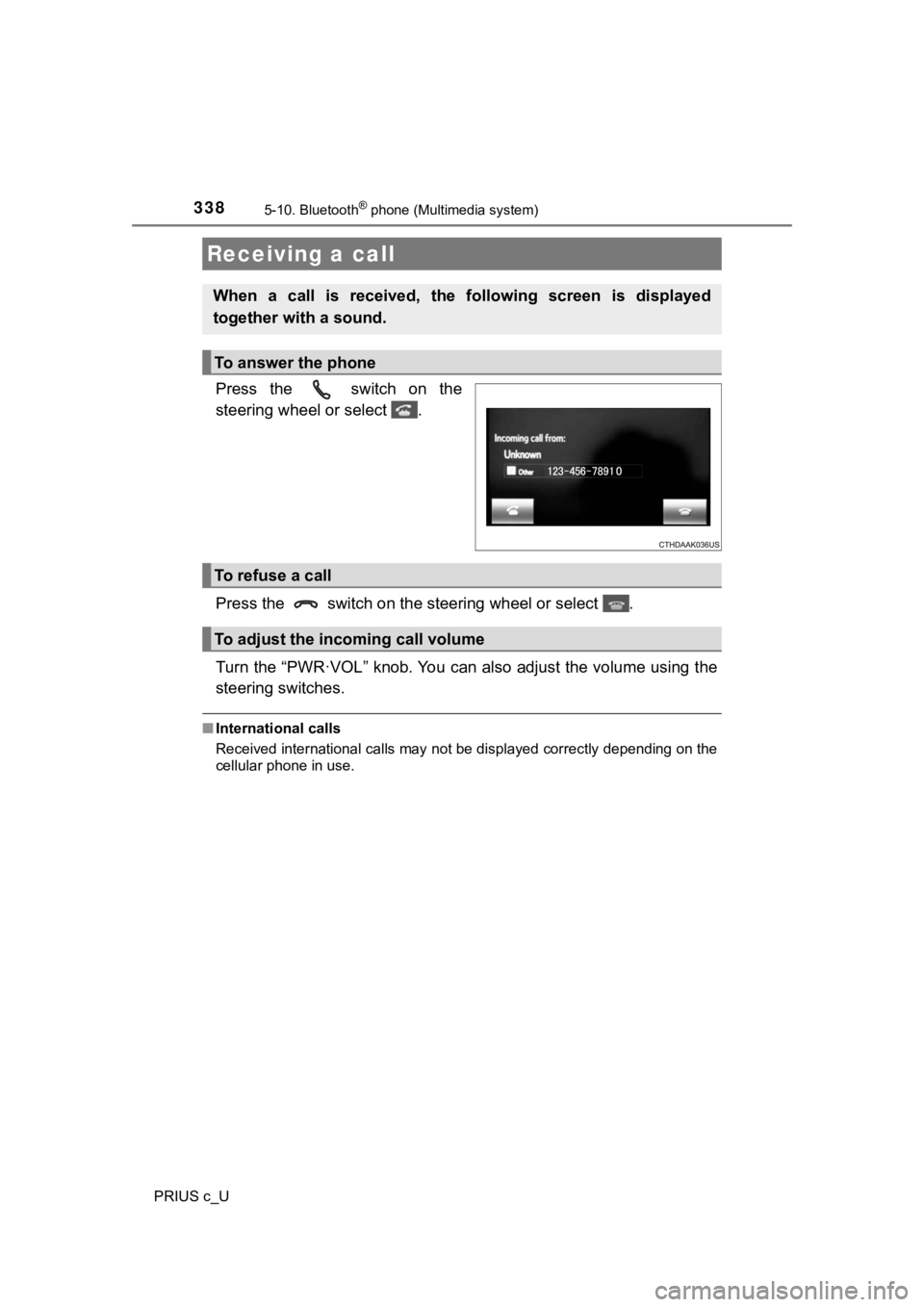
Press the switch on the
steering wheel or select .
Press the switch on the steering wheel or select .
Turn the “PWR·VOL” knob. You can a lso adjust the volume using the
steering switches.
■ International calls
Received international calls may not be displayed correctly depending on the
cellular phone in use.
Receiving a call
When a call is received, the following screen is displayed
together with a sound.
To answer the phone
To refuse a call
To adjust the incoming call volume
Page 341 of 600
3415-10. Bluetooth® phone (Multimedia system)
5
Audio system
PRIUS c_U
Select “Handset Mode” to on from a hands-free call to a cellular
phone call.
Select “Handset Mode” to off from a cellular phone call to a ha nds-free
call.
Select “Transmit Volume”.
Select the desired level for the transmit volume.
Select “OK”.
Press the switch on the s teering wheel or select .
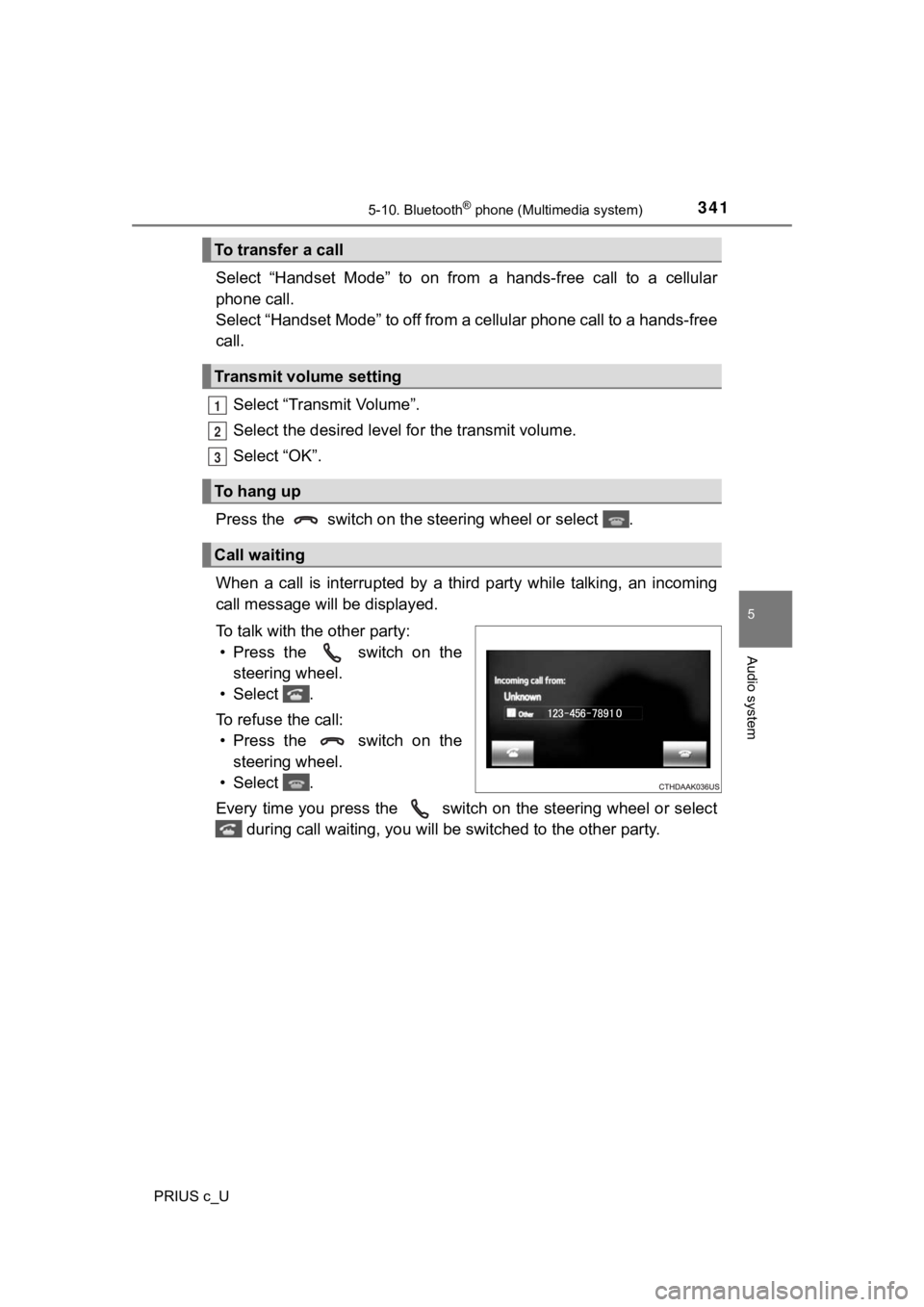
When a call is interrupted by a third party while talking, an i ncoming
call message will be displayed.
To talk with the other party: • Press the switch on the steering wheel.
• Select .
To refuse the call: • Press the switch on the steering wheel.
• Select .
Every time you press the switch on the steering wheel or selec t
during call waiting, you will be switched to the other party.
To transfer a call
Transmit volume setting
To hang up
Call waiting
1
2
3
Page 346 of 600
3465-10. Bluetooth® phone (Multimedia system)
PRIUS c_U
■Check the messages
●Depending on the type of Bluetooth® phone being connected, it may be nec-
essary to perform additional steps on the phone.
● Messages are displayed in the appropriate connected Bluetooth
® phone’s
registered mail address folder.
Select the tab of the desired folder to be displayed.
● Only received messages on the connected Bluetooth
® phone can be dis-
played.
● The text of the message is not displayed while driving.
● When “Automatic Message Readout” is set to on, messages will be auto-
matically read out. ( P. 359)
● Turn the “PWR·VOL” knob, or use the volume switch on the steeri ng wheel
to adjust the message read out volume.
● The message read out function is available even while driving.
Display the message inbox screen. ( P. 343)
Select the desired message from the list.
Select “Quick Message”.
Select the desired message.
Select “Send”.
■Editing quick reply message Select “Quick Message”.
Select corresponding to t he desired message to edit.
Select “OK” when editing is completed.
Replying to a message
1
2
3
4
5
1
2
3