Preset TOYOTA PRIUS PRIME 2017 2.G Navigation Manual
[x] Cancel search | Manufacturer: TOYOTA, Model Year: 2017, Model line: PRIUS PRIME, Model: TOYOTA PRIUS PRIME 2017 2.GPages: 304, PDF Size: 4.56 MB
Page 86 of 304
86
2. RADIO OPERATION
PRIUS PRIME_Navi_OM47A96U_(U)
16.07.05 09:52
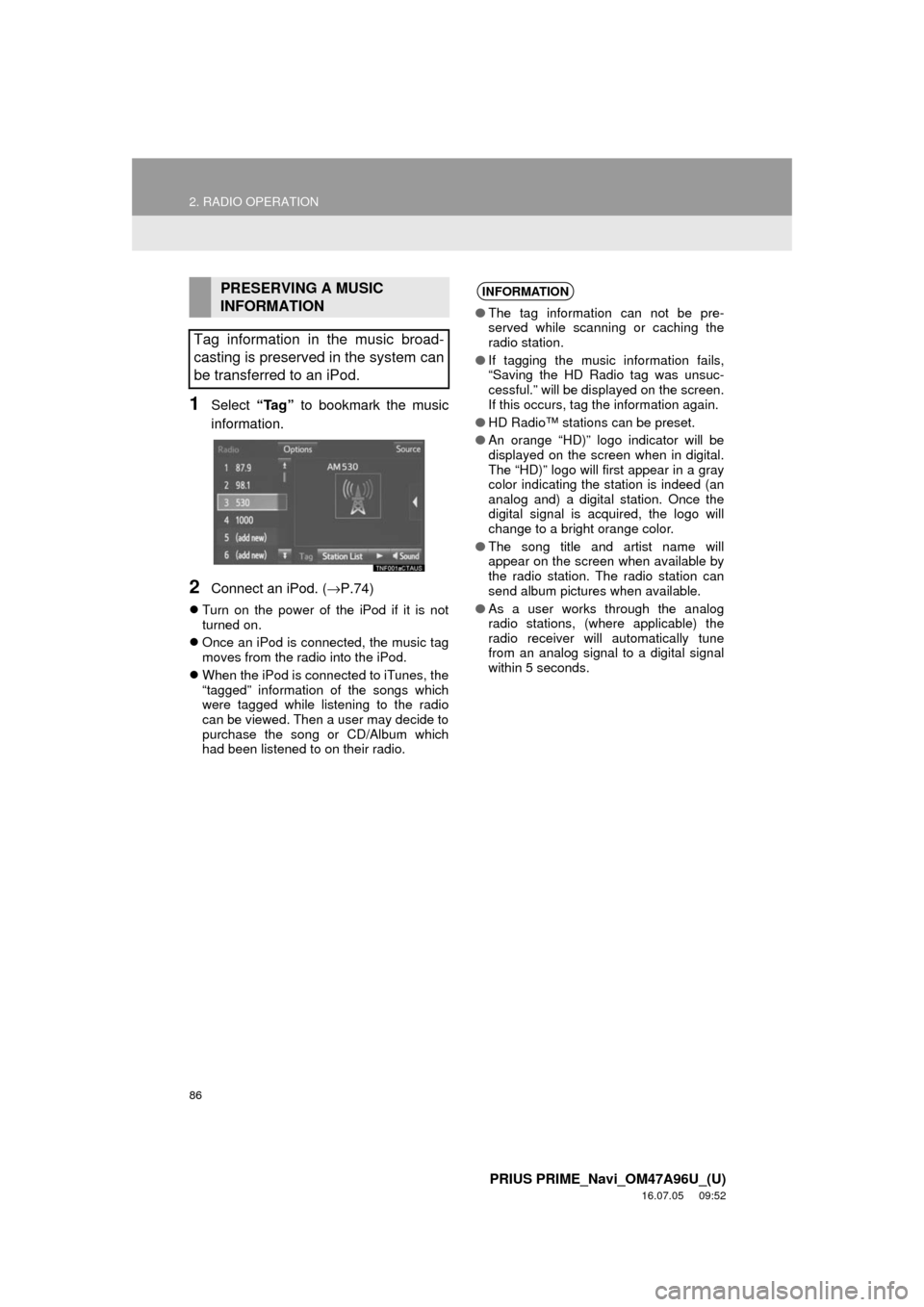
1Select “Tag” to bookmark the music
information.
2Connect an iPod. ( →P.74)
Turn on the power of the iPod if it is not
turned on.
Once an iPod is connected, the music tag
moves from the radio into the iPod.
When the iPod is connected to iTunes, the
“tagged” information of the songs which
were tagged while listening to the radio
can be viewed. Then a user may decide to
purchase the song or CD/Album which
had been listened to on their radio.
PRESERVING A MUSIC
INFORMATION
Tag information in the music broad-
casting is preserved in the system can
be transferred to an iPod.INFORMATION
● The tag information can not be pre-
served while scanning or caching the
radio station.
● If tagging the music information fails,
“Saving the HD Radio tag was unsuc-
cessful.” will be displayed on the screen.
If this occurs, tag the information again.
● HD Radio™ stations can be preset.
● An orange “HD)” logo indicator will be
displayed on the screen when in digital.
The “HD)” logo will first appear in a gray
color indicating the station is indeed (an
analog and) a digital station. Once the
digital signal is acquired, the logo will
change to a bright orange color.
● The song title and artist name will
appear on the screen when available by
the radio station. The radio station can
send album pictures when available.
● As a user works through the analog
radio stations, (where applicable) the
radio receiver will automatically tune
from an analog signal to a digital signal
within 5 seconds.
Page 87 of 304
87
2. RADIO OPERATION
PRIUS PRIME_Navi_OM47A96U_(U)
16.07.05 09:52
AUDIO SYSTEM
3
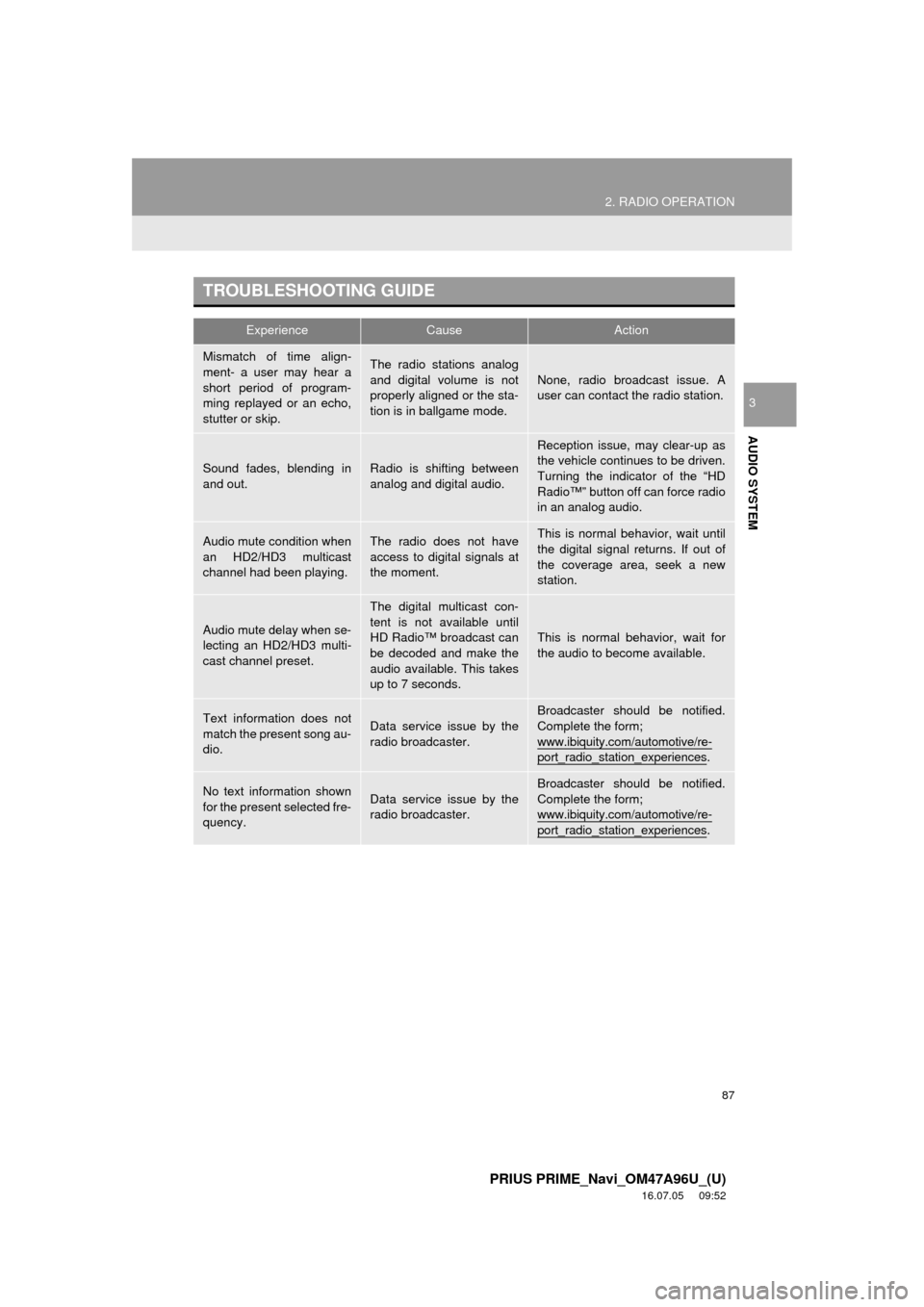
TROUBLESHOOTING GUIDE
ExperienceCauseAction
Mismatch of time align-
ment- a user may hear a
short period of program-
ming replayed or an echo,
stutter or skip.The radio stations analog
and digital volume is not
properly aligned or the sta-
tion is in ballgame mode.None, radio broadcast issue. A
user can contact the radio station.
Sound fades, blending in
and out.Radio is shifting between
analog and digital audio.
Reception issue, may clear-up as
the vehicle continues to be driven.
Turning the indicator of the “HD
Radio™” button off can force radio
in an analog audio.
Audio mute condition when
an HD2/HD3 multicast
channel had been playing.The radio does not have
access to digital signals at
the moment.This is normal behavior, wait until
the digital signal returns. If out of
the coverage area, seek a new
station.
Audio mute delay when se-
lecting an HD2/HD3 multi-
cast channel preset.
The digital multicast con-
tent is not available until
HD Radio™ broadcast can
be decoded and make the
audio available. This takes
up to 7 seconds.
This is normal behavior, wait for
the audio to become available.
Text information does not
match the present song au-
dio.Data service issue by the
radio broadcaster.
Broadcaster should be notified.
Complete the form;
www.ibiquity.com/automotive/re-
port_radio_station_experiences.
No text information shown
for the present selected fre-
quency.Data service issue by the
radio broadcaster.Broadcaster should be notified.
Complete the form;
www.ibiquity.com/automotive/re-
port_radio_station_experiences.
Page 90 of 304
90
2. RADIO OPERATION
PRIUS PRIME_Navi_OM47A96U_(U)
16.07.05 09:52
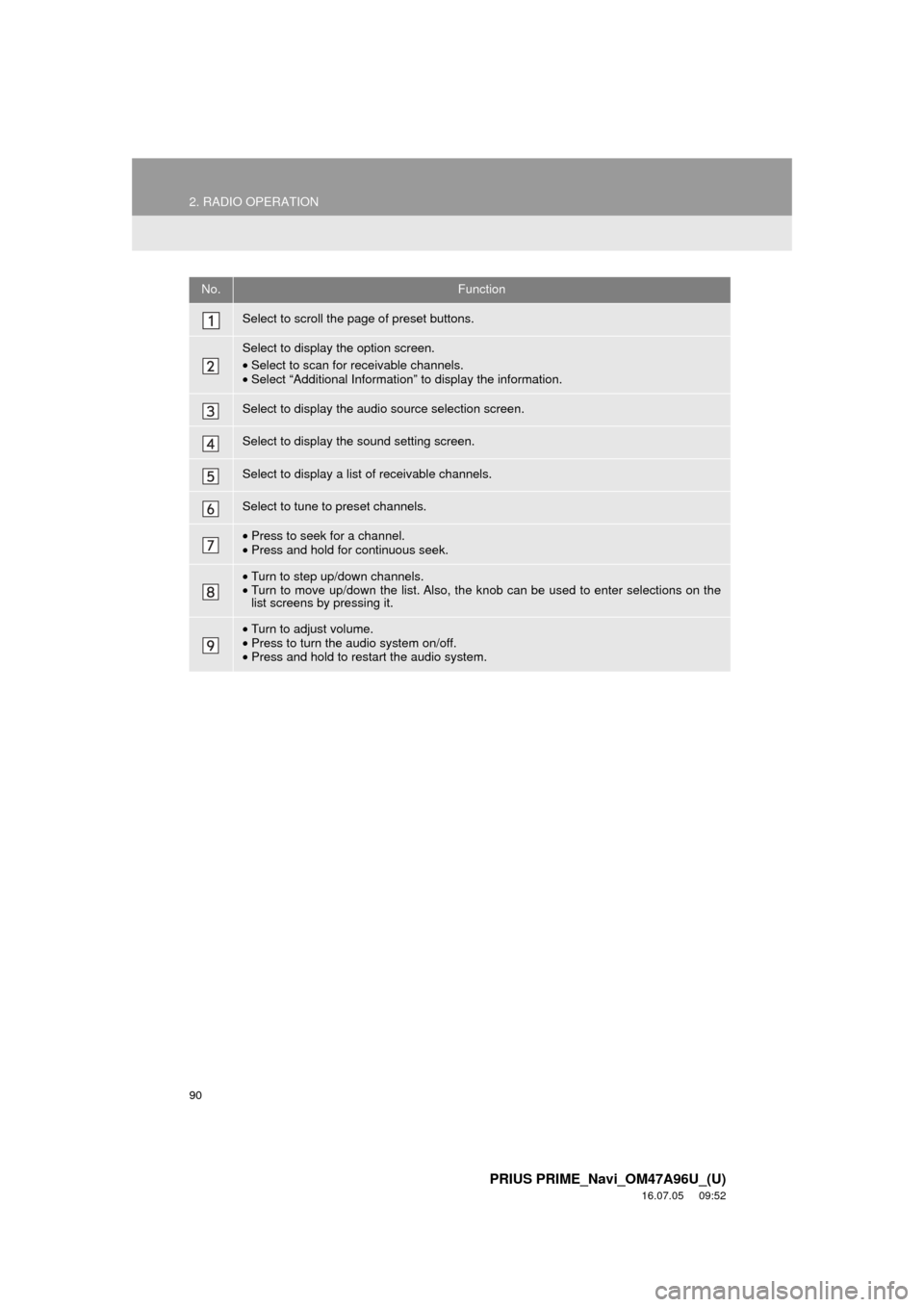
No.Function
Select to scroll the page of preset buttons.
Select to display the option screen.
•Select to scan for receivable channels.
• Select “Additional Information” to display the information.
Select to display the audio source selection screen.
Select to display the sound setting screen.
Select to display a list of receivable channels.
Select to tune to preset channels.
•Press to seek for a channel.
• Press and hold for continuous seek.
•Turn to step up/down channels.
• Turn to move up/down the list. Also, the k nob can be used to enter selections on the
list screens by pressing it.
• Turn to adjust volume.
• Press to turn the audio system on/off.
• Press and hold to restart the audio system.
Page 93 of 304
93
2. RADIO OPERATION
PRIUS PRIME_Navi_OM47A96U_(U)
16.07.05 09:52
AUDIO SYSTEM
3If “Ch 000” is selected using the
“TUNE SCROLL” knob, the ID code,
which is 8 alphanumeric characters, will
be displayed. If another channel is
selected, the ID code will no longer be dis-
played. The channel (000) alternates
between displaying the radio ID and the
specific radio code.
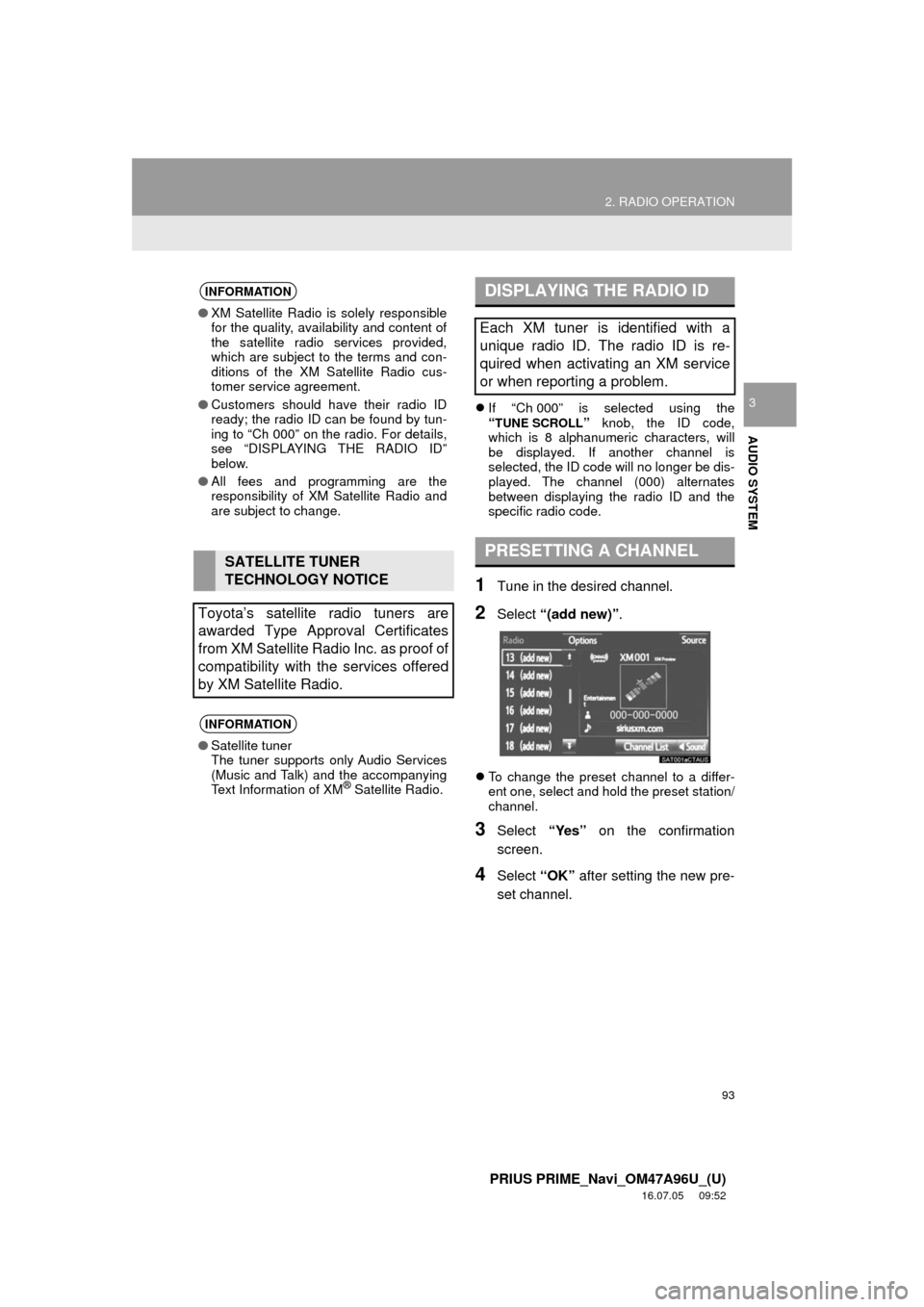
1Tune in the desired channel.
2Select “(add new)” .
To change the preset channel to a differ-
ent one, select and hold the preset station/
channel.
3Select “Yes” on the confirmation
screen.
4Select “OK” after setting the new pre-
set channel.
INFORMATION
● XM Satellite Radio is solely responsible
for the quality, availability and content of
the satellite radio services provided,
which are subject to the terms and con-
ditions of the XM Satellite Radio cus-
tomer service agreement.
● Customers should have their radio ID
ready; the radio ID can be found by tun-
ing to “Ch 000” on the radio. For details,
see “DISPLAYING THE RADIO ID”
below.
● All fees and programming are the
responsibility of XM Satellite Radio and
are subject to change.
SATELLITE TUNER
TECHNOLOGY NOTICE
Toyota’s satellite radio tuners are
awarded Type Approval Certificates
from XM Satellite Radio Inc. as proof of
compatibility with the services offered
by XM Satellite Radio.
INFORMATION
● Satellite tuner
The tuner supports only Audio Services
(Music and Talk) and the accompanying
Text Information of XM
® Satellite Radio.
DISPLAYING THE RADIO ID
Each XM tuner is identified with a
unique radio ID. The radio ID is re-
quired when activating an XM service
or when reporting a problem.
PRESETTING A CHANNEL
Page 120 of 304
120
4. AUDIO REMOTE CONTROLS
PRIUS PRIME_Navi_OM47A96U_(U)
16.07.05 09:52
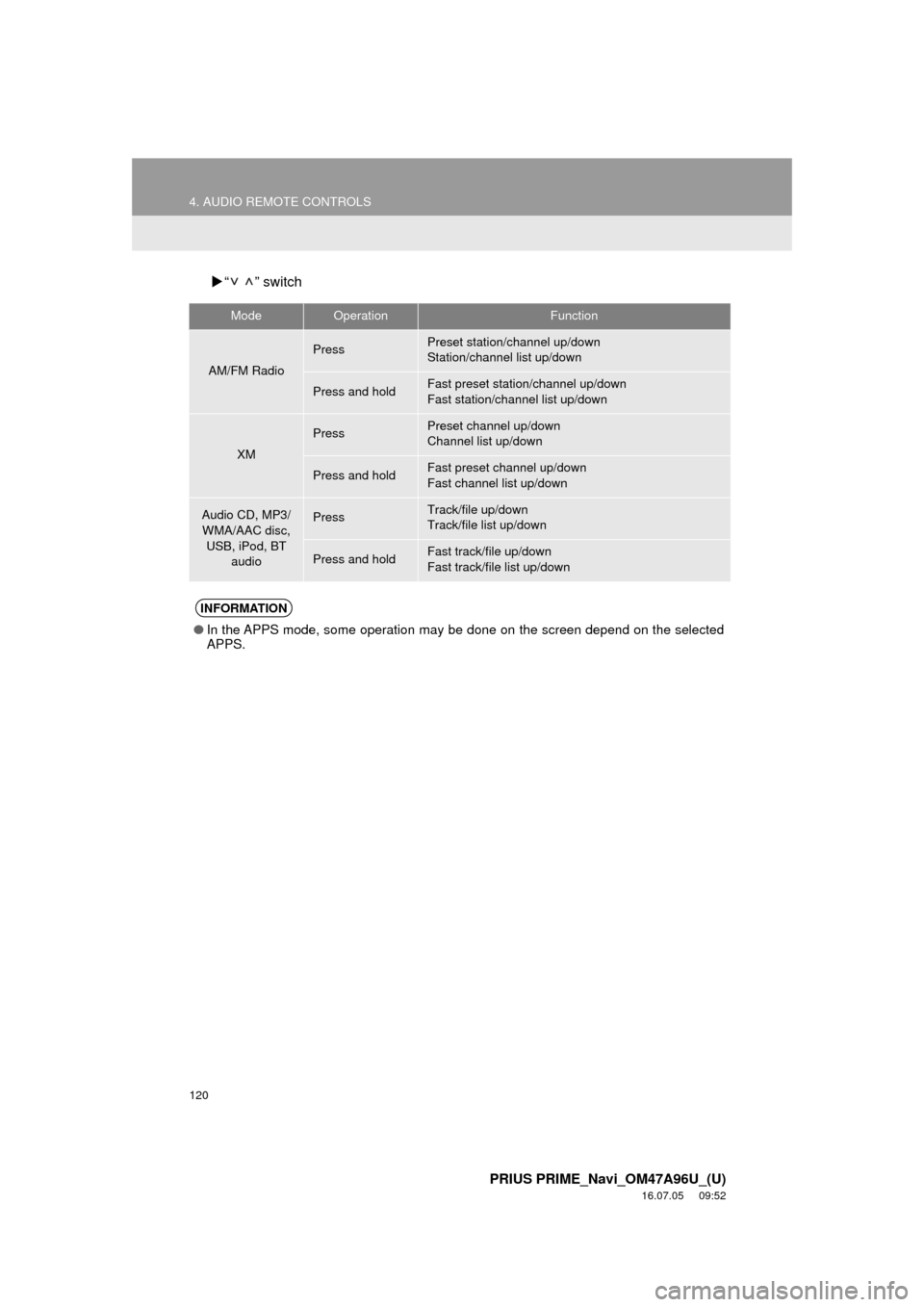
“ ” switch
ModeOperationFunction
AM/FM Radio
PressPreset station/channel up/down
Station/channel list up/down
Press and holdFast preset station/channel up/down
Fast station/channel list up/down
XM
PressPreset channel up/down
Channel list up/down
Press and holdFast preset channel up/down
Fast channel list up/down
Audio CD, MP3/
WMA/AAC disc, USB, iPod, BT audioPressTrack/file up/down
Track/file list up/down
Press and holdFast track/file up/down
Fast track/file list up/down
INFORMATION
●In the APPS mode, some operation may be done on the screen depend on the selected
APPS.
Page 122 of 304
122
5. SETUP
PRIUS PRIME_Navi_OM47A96U_(U)
16.07.28 14:42
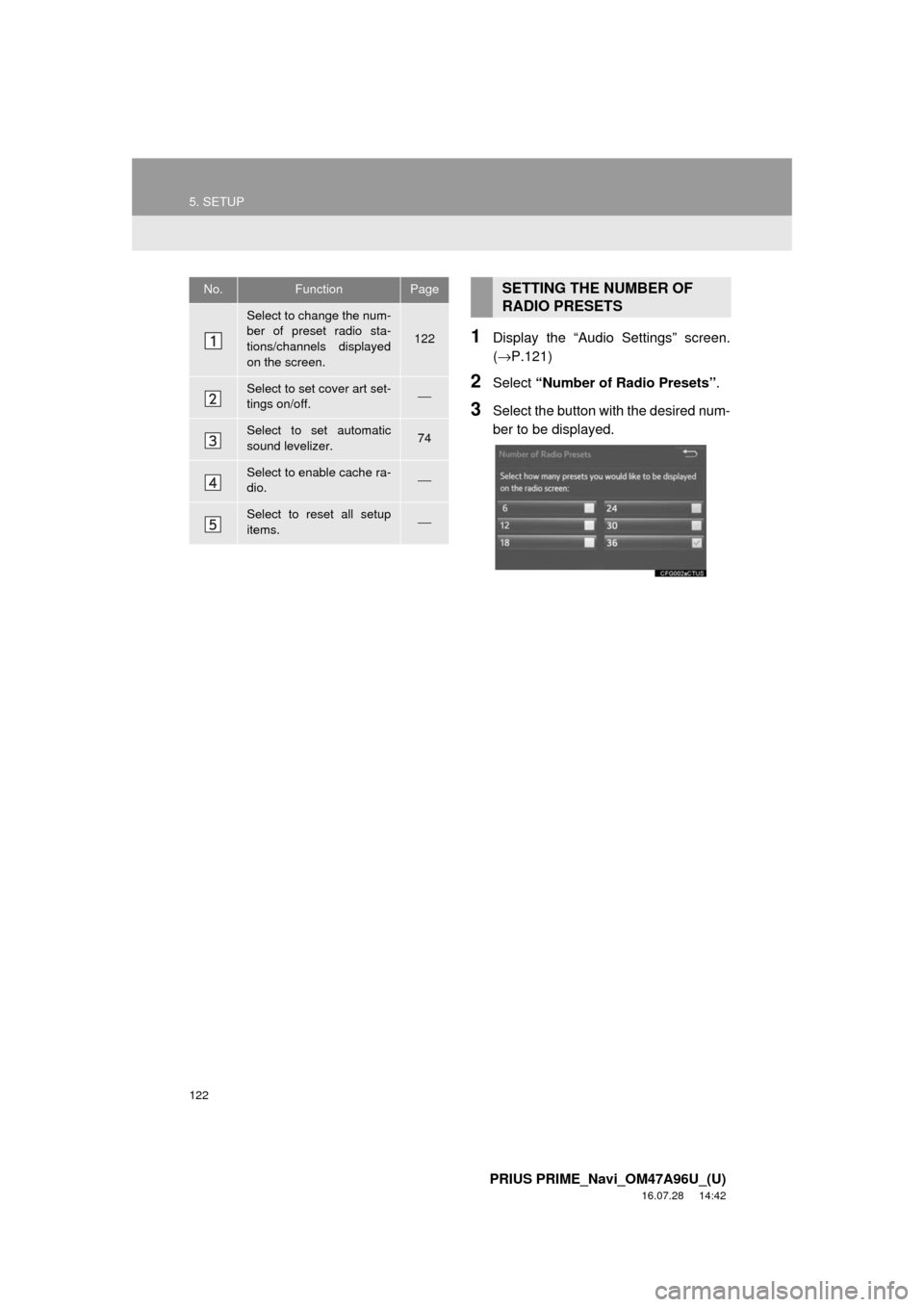
1Display the “Audio Settings” screen.
(→P.121)
2Select “Number of Radio Presets” .
3Select the button with the desired num-
ber to be displayed.
No.FunctionPage
Select to change the num-
ber of preset radio sta-
tions/channels displayed
on the screen.
122
Select to set cover art set-
tings on/off.⎯
Select to set automatic
sound levelizer.74
Select to enable cache ra-
dio.⎯
Select to reset all setup
items.⎯
SETTING THE NUMBER OF
RADIO PRESETS
Page 204 of 304
204
PRIUS PRIME_Navi_OM47A96U_(U)
16.07.05 10:14
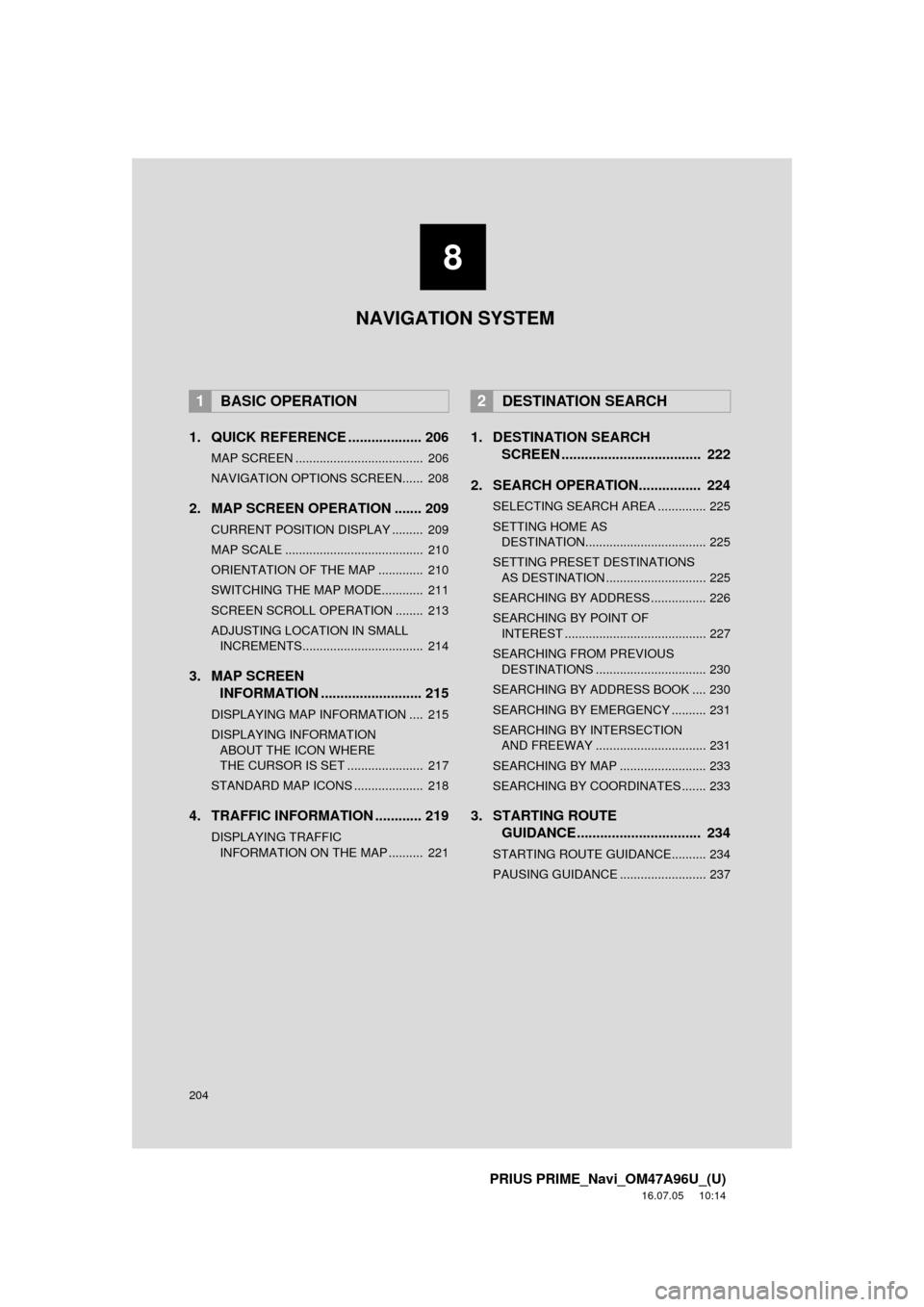
1. QUICK REFERENCE ................... 206
MAP SCREEN ..................................... 206
NAVIGATION OPTIONS SCREEN...... 208
2. MAP SCREEN OPERATION ....... 209
CURRENT POSITION DISPLAY ......... 209
MAP SCALE ........................................ 210
ORIENTATION OF THE MAP ............. 210
SWITCHING THE MAP MODE............ 211
SCREEN SCROLL OPERATION ........ 213
ADJUSTING LOCATION IN SMALL INCREMENTS................................... 214
3. MAP SCREEN INFORMATION .......................... 215
DISPLAYING MAP INFORMATION .... 215
DISPLAYING INFORMATION
ABOUT THE ICON WHERE
THE CURSOR IS SET ...................... 217
STANDARD MAP ICONS .................... 218
4. TRAFFIC INFORMATION ............ 219
DISPLAYING TRAFFIC INFORMATION ON THE MAP .......... 221
1. DESTINATION SEARCH SCREEN .................................... 222
2. SEARCH OPERATION.. .............. 224
SELECTING SEARCH AREA .............. 225
SETTING HOME AS
DESTINATION................................... 225
SETTING PRESET DESTINATIONS AS DESTINATION ............................. 225
SEARCHING BY ADDRESS ................ 226
SEARCHING BY POINT OF INTEREST ......................................... 227
SEARCHING FROM PREVIOUS DESTINATIONS ................................ 230
SEARCHING BY ADDRESS BOOK .... 230
SEARCHING BY EMERGENCY .......... 231
SEARCHING BY INTERSECTION AND FREEWAY ................................ 231
SEARCHING BY MAP ......................... 233
SEARCHING BY COORDINATES ....... 233
3. STARTING ROUTE GUIDANCE ....... ......................... 234
STARTING ROUTE GUIDANCE.......... 234
PAUSING GUIDANCE ......................... 237
1BASIC OPERATION2DESTINATION SEARCH
8
NAVIGATION SYSTEM
Page 205 of 304
8
205
PRIUS PRIME_Navi_OM47A96U_(U)
16.07.05 10:14
1
2
3
4
5
6
7
8
9
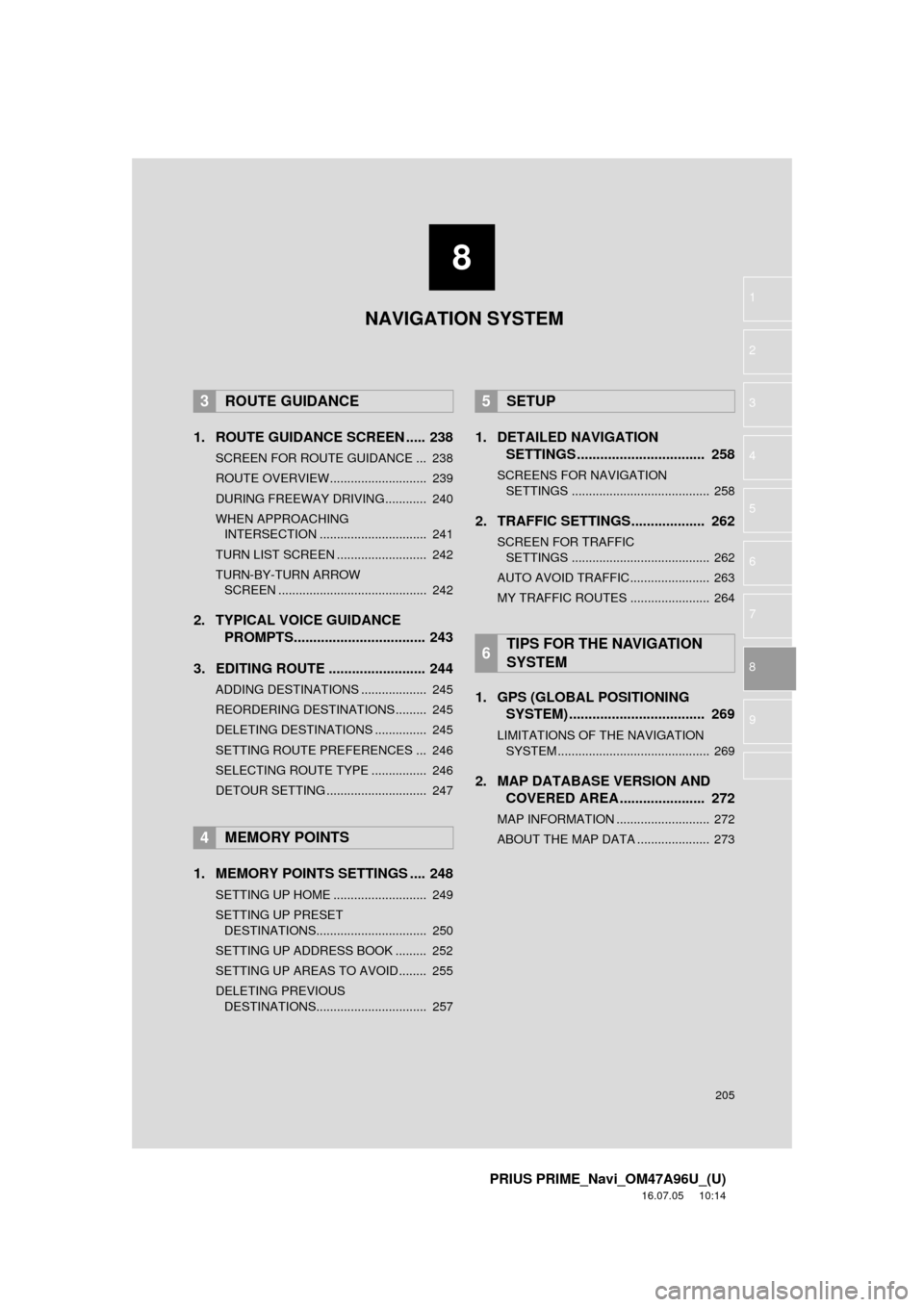
1. ROUTE GUIDANCE SCREEN ..... 238
SCREEN FOR ROUTE GUIDANCE ... 238
ROUTE OVERVIEW............................ 239
DURING FREEWAY DRIVING............ 240
WHEN APPROACHING INTERSECTION ............................... 241
TURN LIST SCREEN .......................... 242
TURN-BY-TURN ARROW SCREEN ........................................... 242
2. TYPICAL VOICE GUIDANCE PROMPTS.................................. 243
3. EDITING ROUTE ......................... 244
ADDING DESTINATIONS ................... 245
REORDERING DESTINATIONS ......... 245
DELETING DESTINATIONS ............... 245
SETTING ROUTE PREFERENCES ... 246
SELECTING ROUTE TYPE ................ 246
DETOUR SETTING ............................. 247
1. MEMORY POINTS SETTINGS .... 248
SETTING UP HOME ........................... 249
SETTING UP PRESET DESTINATIONS................................ 250
SETTING UP ADDRESS BOOK ......... 252
SETTING UP AREAS TO AVOID ........ 255
DELETING PREVIOUS DESTINATIONS................................ 257
1. DETAILED NAVIGATION SETTINGS ................................. 258
SCREENS FOR NAVIGATION
SETTINGS ........................................ 258
2. TRAFFIC SETTINGS................... 262
SCREEN FOR TRAFFIC SETTINGS ........................................ 262
AUTO AVOID TRAFFIC....................... 263
MY TRAFFIC ROUTES ....................... 264
1. GPS (GLOBAL POSITIONING SYSTEM) .................... ............... 269
LIMITATIONS OF THE NAVIGATION
SYSTEM ............................................ 269
2. MAP DATABASE VERSION AND COVERED AREA ...................... 272
MAP INFORMATION ........................... 272
ABOUT THE MAP DATA ..................... 273
3ROUTE GUIDANCE
4MEMORY POINTS
5SETUP
6TIPS FOR THE NAVIGATION
SYSTEM
NAVIGATION SYSTEM
Page 223 of 304
223
2. DESTINATION SEARCH
PRIUS PRIME_Navi_OM47A96U_(U)
16.07.05 09:53
NAVIGATION SYSTEM
8
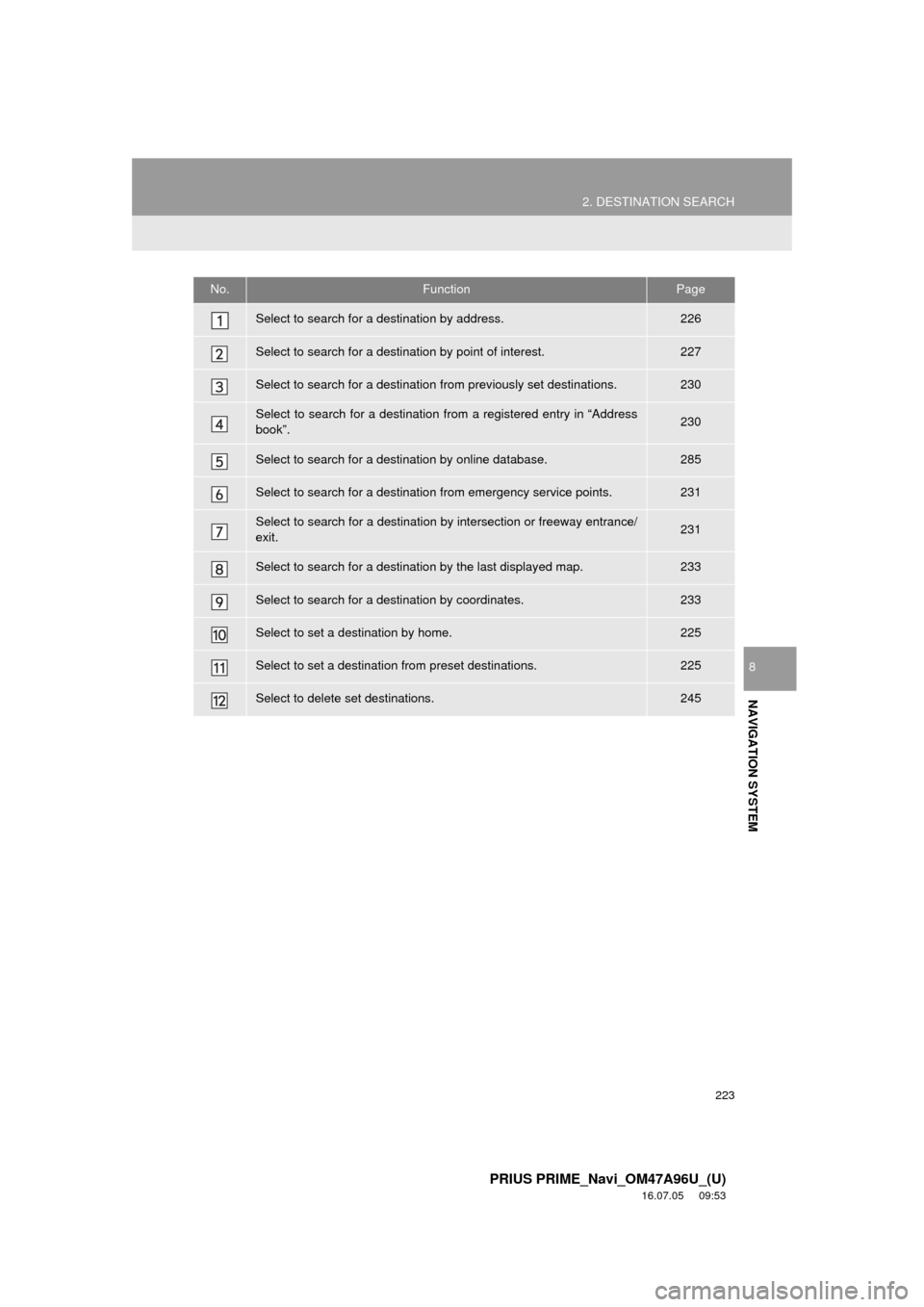
No.FunctionPage
Select to search for a destination by address. 226
Select to search for a destination by point of interest. 227
Select to search for a destination from previously set destinations.230
Select to search for a destination from a registered entry in “Address
book”.230
Select to search for a destination by online database. 285
Select to search for a destination from emergency service points.231
Select to search for a destination by intersection or freeway entrance/
exit.231
Select to search for a destination by the last displayed map.233
Select to search for a destination by coordinates.233
Select to set a destination by home.225
Select to set a destinati on from preset destinations.225
Select to delete set destinations.245
Page 225 of 304
225
2. DESTINATION SEARCH
PRIUS PRIME_Navi_OM47A96U_(U)
16.07.05 09:53
NAVIGATION SYSTEM
8
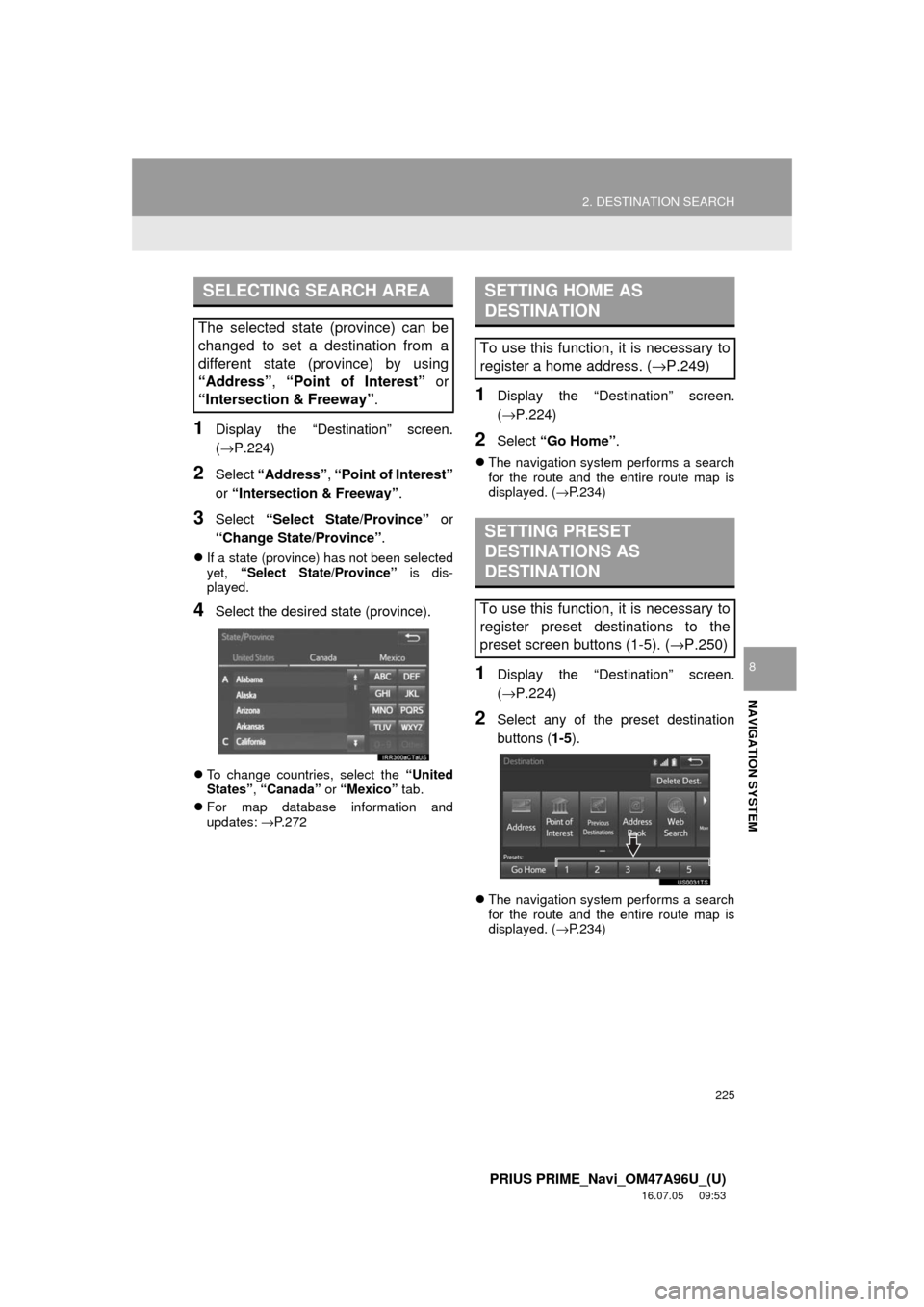
1Display the “Destination” screen.
(→P.224)
2Select “Address” , “Point of Interest”
or “Intersection & Freeway” .
3Select “Select State/Province” or
“Change State/Province” .
If a state (province) has not been selected
yet, “Select State/Province” is dis-
played.
4Select the desired state (province).
To change countries, select the “United
States”, “Canada” or “Mexico” tab.
For map database information and
updates: →P. 2 7 2
1Display the “Destination” screen.
(→P.224)
2Select “Go Home” .
The navigation system performs a search
for the route and the entire route map is
displayed. ( →P.234)
1Display the “Destination” screen.
(→P.224)
2Select any of the preset destination
buttons ( 1-5).
The navigation system performs a search
for the route and the entire route map is
displayed. ( →P.234)
SELECTING SEARCH AREA
The selected state (province) can be
changed to set a destination from a
different state (province) by using
“Address”, “Point of Interest” or
“Intersection & Freeway”.
SETTING HOME AS
DESTINATION
To use this function, it is necessary to
register a home address. ( →P.249)
SETTING PRESET
DESTINATIONS AS
DESTINATION
To use this function, it is necessary to
register preset destinations to the
preset screen buttons (1-5). ( →P.250)