radio TOYOTA PRIUS PRIME 2017 2.G Navigation Manual
[x] Cancel search | Manufacturer: TOYOTA, Model Year: 2017, Model line: PRIUS PRIME, Model: TOYOTA PRIUS PRIME 2017 2.GPages: 304, PDF Size: 4.56 MB
Page 123 of 304
123
PRIUS PRIME_Navi_OM47A96U_(U)
16.07.05 09:52
AUDIO SYSTEM
3
6. TIPS FOR OPERATING THE AUDIO SYSTEM
1. OPERATING INFORMATION
Fading and drifting stations: Generally, the
effective range of FM is about 25 miles (40
km). Once outside this range, you may no-
tice fading and drifting, which increase with
the distance from the radio transmitter.
They are often accompanied by distortion.
Multi-path: FM signals are reflective, mak-
ing it possible for 2 signals to reach the ve-
hicle’s antenna at the same time. If this
happens, the signals will cancel each other
out, causing a momentary flutter or loss of
reception.
Static and fluttering: These occur when
signals are blocked by buildings, trees or
other large objects. Increasing the bass
level may reduce static and fluttering.
Station swapping: If the FM signal being
listened to is interrupted or weakened, and
there is another st rong station nearby on
the FM band, the radio may tune in the
second station until the original signal can
be picked up again.
NOTICE
● To avoid damage to the audio system:
• Be careful not to spill beverages over
the audio system.
• Do not put anything other than an appropriate disc into the disc slot.
INFORMATION
● The use of a cellular phone inside or
near the vehicle may cause a noise from
the speakers of the audio system which
you are listening to. However, this does
not indicate a malfunction.
RADIO
Usually, a problem with radio reception
does not mean there is a problem with
the radio — it is just the normal result
of conditions outside the vehicle.
For example, nearby buildings and ter-
rain can interfere with FM reception.
Power lines or phone wires can inter-
fere with AM signals. And of course, ra-
dio signals have a limited range. The
farther the vehicle is from a station, the
weaker its signal will be. In addition, re-
ception conditions change constantly
as the vehicle moves.
Here, some common reception prob-
lems that probably do not indicate a
problem with the radio are described.
FM
Page 124 of 304
124
6. TIPS FOR OPERATING THE AUDIO SYSTEM
PRIUS PRIME_Navi_OM47A96U_(U)
16.07.05 09:52
Fading: AM broadcasts are reflected by
the upper atmosphere — especially at
night. These reflected signals can interfere
with those received directly from the radio
station, causing the radio station to sound
alternately strong and weak.
Station interference: When a reflected sig-
nal and a signal received directly from a ra-
dio station are very nearly the same
frequency, they can interfere with each
other, making it difficult to hear the broad-
cast.
Static: AM is easily affected by external
sources of electrical noise, such as high
tension power lines, lightening or electrical
motors. This results in static.
Cargo loaded on the roof luggage carrier,
especially metal objects, may adversely
affect the reception of XM Satellite Radio.
Alternation or modifications carried out
without appropriate authorization may
invalidate the user’s right to operate the
equipment.
This CD player is intended for use with 4.7
in. (12 cm). discs only.
Extremely high temperatures can keep the
CD player from working. On hot days, use
the air conditioning system to cool the
inside of the vehicle before using the
player.
Bumpy roads or other vibrations may
make the CD player skip.
If moisture gets into the CD player, the
discs may not be able to be played.
Remove the discs from the player and
wait until it dries.
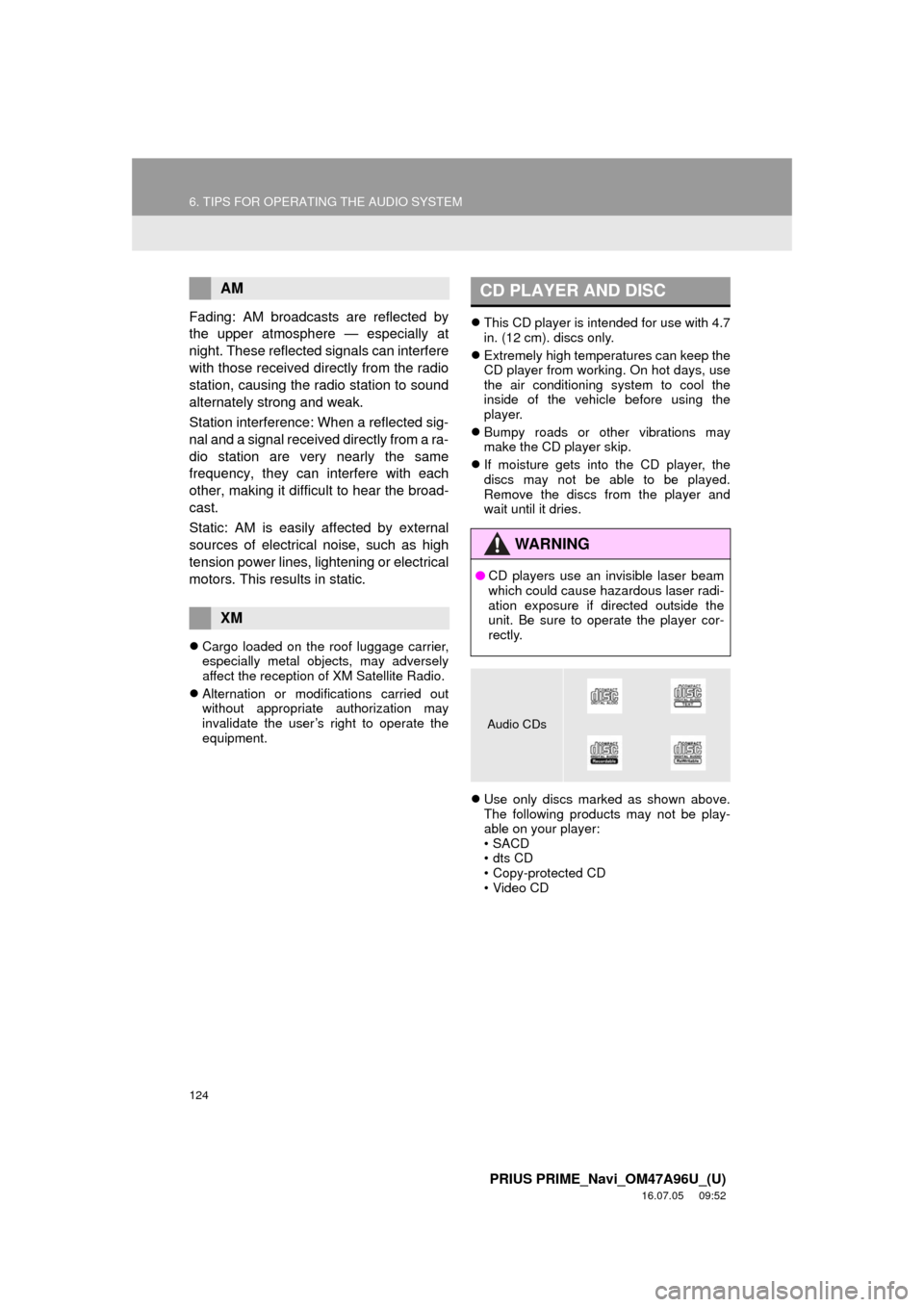
Use only discs marked as shown above.
The following products may not be play-
able on your player:
•SACD
•dts CD
• Copy-protected CD
• Video CD
AM
XM
CD PLAYER AND DISC
WA R N I N G
●CD players use an invisible laser beam
which could cause hazardous laser radi-
ation exposure if directed outside the
unit. Be sure to operate the player cor-
rectly.
Audio CDs
Page 148 of 304
148
PRIUS PRIME_Navi_OM47A96U_(U)
16.07.05 09:53
1. USEFUL INFORMATION
1. RECEIVING WEATHER INFORMATION
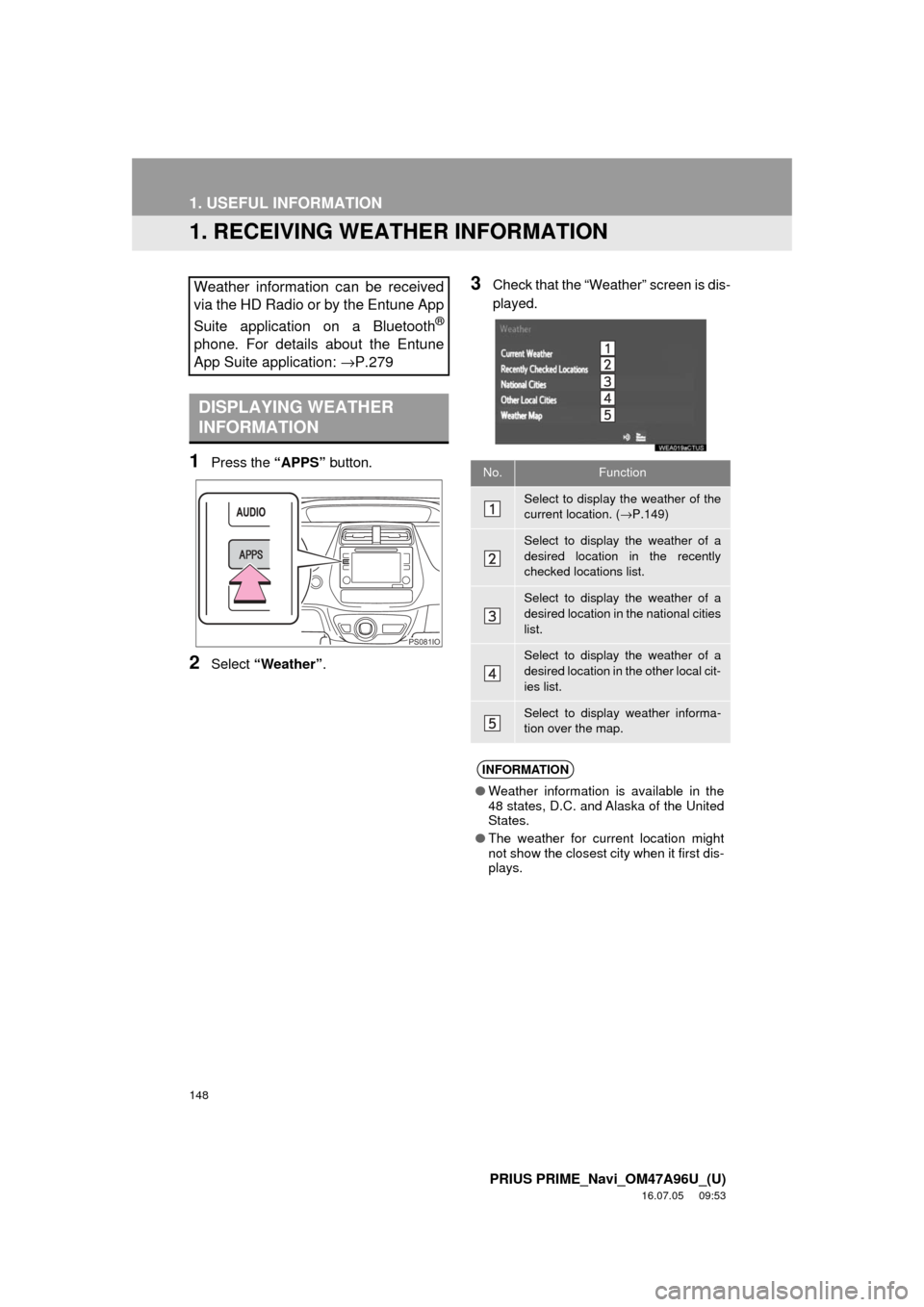
1Press the “APPS” button.
2Select “Weather” .
3Check that the “Weather” screen is dis-
played.Weather information can be received
via the HD Radio or by the Entune App
Suite application on a Bluetooth
®
phone. For details about the Entune
App Suite application: →P.279
DISPLAYING WEATHER
INFORMATION
PS081IO
No.Function
Select to display the weather of the
current location. (→P.149)
Select to display the weather of a
desired location in the recently
checked locations list.
Select to display the weather of a
desired location in the national cities
list.
Select to display the weather of a
desired location in the other local cit-
ies list.
Select to display weather informa-
tion over the map.
INFORMATION
● Weather information is available in the
48 states, D.C. and Alaska of the United
States.
● The weather for current location might
not show the closest city when it first dis-
plays.
Page 150 of 304
150
1. USEFUL INFORMATION
PRIUS PRIME_Navi_OM47A96U_(U)
16.07.05 09:53
2. DATA SERVICES SETTINGS
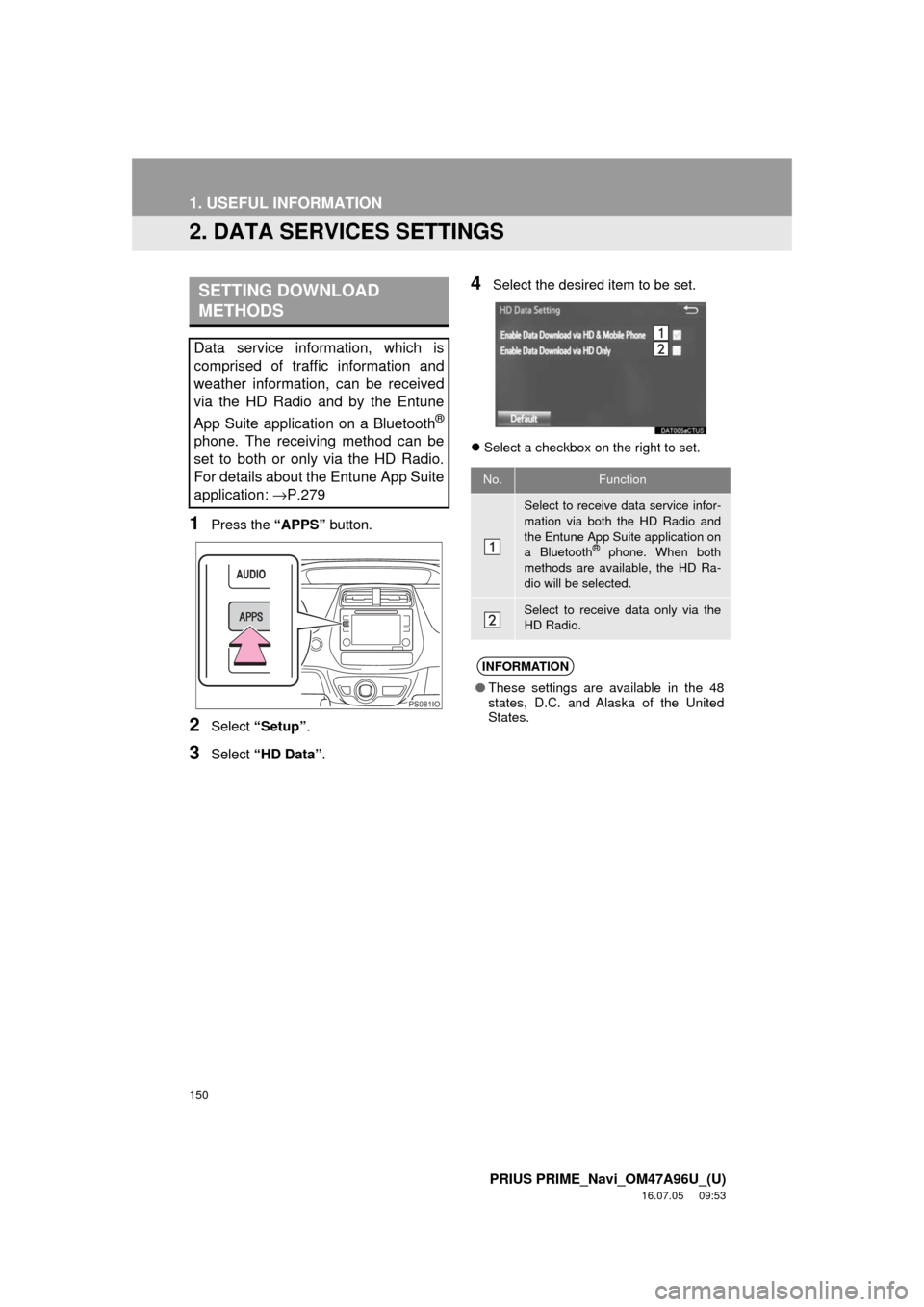
1Press the “APPS” button.
2Select “Setup” .
3Select “HD Data” .
4Select the desired item to be set.
Select a checkbox on the right to set.
SETTING DOWNLOAD
METHODS
Data service information, which is
comprised of traffic information and
weather information, can be received
via the HD Radio and by the Entune
App Suite application on a Bluetooth
®
phone. The receiving method can be
set to both or only via the HD Radio.
For details about the Entune App Suite
application: →P.279
PS081IO
No.Function
Select to receive data service infor-
mation via both the HD Radio and
the Entune App Suite application on
a Bluetooth
® phone. When both
methods are available, the HD Ra-
dio will be selected.
Select to receive data only via the
HD Radio.
INFORMATION
● These settings are available in the 48
states, D.C. and Alaska of the United
States.
Page 165 of 304
165
1. PHONE OPERATION (HANDS-FREE SYSTEM FOR CELLULAR PHONES)
PRIUS PRIME_Navi_OM47A96U_(U)
16.07.05 09:53
PHONE
7
2. SOME BASICS
The hands-free system enables calls
to be made and received without hav-
ing to take your hands off the steering
wheel.
This system supports Bluetooth
®.
Bluetooth® is a wireless data system
that enables cellular phones to be used
without being connected by a cable or
placed in a cradle.
The operating procedure of the phone
is explained here.
WA R N I N G
● While driving, do not use a cellular
phone or connect the Bluetooth® phone.
● Your audio unit is fitted with Bluetooth
®
antennas. People with implantable car-
diac pacemakers, cardiac resynchroni-
zation therapy-pacemakers or
implantable cardioverter defibrillators
should maintain a reasonable distance
between themselves and the Bluetooth
®
antennas. The radio waves may affect
the operation of such devices.
● Before using Bluetooth
® devices, users
of any electrical medical device other
than implantable cardiac pacemakers,
cardiac resynchronization therapy-pace-
makers or implantable cardioverter
defibrillators should consult the manu-
facturer of the device for information
about its operation under the influence
of radio waves. Radio waves could have
unexpected effects on the operation of
such medical devices.
NOTICE
● Do not leave your cellular phone in the
vehicle. The temperature inside may rise
to a level that could damage the phone.
INFORMATION
●If your cellular phone does not support
Bluetooth®, this system cannot function.
● In the following conditions, the system
may not function:
• The cellular phone is turned off.
• The current position is outside the
communication area.
• The cellular phone is not connected.
• The cellular phone has a low battery.
● When using Bluetooth
® audio and
hands-free at the same time, the follow-
ing problems may occur:
• The Bluetooth
® connection may be
cut.
• Noise may be heard on the Bluetooth
®
audio playback.
REGISTERING/CONNECTING
A Bluetooth® PHONE
To use the hands-free system for cellu-
lar phones, it is necessary to register a
cellular phone with the system.
( → P.44)
Bluetooth® PHONE CONDITION
DISPLAY
The condition of the Bluetooth
® phone
appears on the upper right side of the
screen. ( →P.18)
Page 290 of 304

290
ALPHABETICAL INDEX
PRIUS PRIME_Navi_OM47A96U_(U)
16.07.05 10:20
A
AM/FM radio ............................................. 77Available HD radio™ technology........... 85
Caching a radio program ....................... 82
Overview ............................................... 77
Presetting a station................................ 81
Radio broadcast data system ................ 83
Selecting a station from the list ............. 81
Traffic announcement (FM radio) .......... 84
Troubleshooting guide ........................... 87
Using HD radio™ technology ................ 85
“Apps” screen............................................ 14
Audio remote controls ............................. 119
Audio settings ......................................... 121 Audio settings screen .......................... 121
Audio system ....... ..................................... 69
AUX......................................................... 116 Overview ............................................. 116
B
Basic function...................................... 12, 31
Basic information before operation ........... 32
Basic operation ................................. 70, 206
Bluetooth
® audio ..................................... 111
Connecting a Bluetooth® device ......... 115
Listening to Bluetooth® audio .............. 115
Overview ............................................. 111
Bluetooth
® phone message function ...... 179
Calling the message sender ................ 183
Checking messages ............................ 181
Message inbox screen ........................ 179
Receiving a message .......................... 180
Replying to a message (Quick reply) .................................... 182
Bluetooth
® settings ................................... 44
C
Calling on the Bluetooth® phone .............169
By call history ......................................170
By contacts list.....................................171
By dial pad ...........................................173
By favorites list ....................................170
By “Home” screen................................174
By off hook switch................................173
Capacitive touch switches .........................34
Casual speech recognization ..................141
CD .............................................................97 Overview................................................97
Playing an audio CD ............................100
Playing an MP3/WMA/AAC disc ..........100
Command list ..........................................142
Controls overview......................................12
D
Data services settings .............................150 Setting download methods ..................150
Destination search ..................................222
Destination search screen.......................222
Detailed navigation settings ....................258 Screens for navigation settings ...........258
Driver settings ...........................................64 Manually select linked settings ..............64
ALPHABETICAL INDEX
Page 291 of 304

291
PRIUS PRIME_Navi_OM47A96U_(U)
16.07.05 10:20
E
Editing route............................................ 244Adding destinations ............................. 245
Deleting destinations ........................... 245
Detour setting ...................................... 247
Reordering destinations ...................... 245
Selecting route type ............................ 246
Setting route preferences .................... 246
Entering letters and numbers/ list screen operation .............................. 38
Entering letters and numbers ................ 38
List screen ............................................. 38
Entune App Suite ............................ 275, 281 Entune App Suite keyword operation.......................................... 286
Linking Entune App Suite and navigation function........................... 285
Using Entune App Suite ...................... 281
Entune App Suite operation .................... 281
Entune App Suite overview..................... 276
Entune App Suite service ....................... 276 Before using the function .................... 278
Preparation before using Entune App Suite............................. 279
Entune App Suite settings ...................... 288
F
Function index .......................................... 28
G
General settings ........................................ 57 General settings screen ........................ 57
GPS (Global positioning system) ............ 269
Limitations of the navigation system .............. ............................... 269
H
Home screen............................................. 16
Status display ........................................ 18
Home screen operation............................. 37
I
Information .............................................. 147
Initial screen .............................................. 32
Internet radio ............................................. 96 Listening to internet radio ...................... 96
iPod ......................................................... 106
iPod audio ........................................... 110
iPod video............................................ 110
Overview ............................................. 106
L
Linking multi-information display and navigation system........ .......................... 43
Page 292 of 304

292
ALPHABETICAL INDEX
PRIUS PRIME_Navi_OM47A96U_(U)
16.07.05 10:20
M
Maintenance ............................................. 65
Map database version and covered area ..................................................... 272
About the map data ............................. 273
Map information................................... 272
Map screen information .......................... 215 Displaying information about the icon where the cursor is set ............. 217
Displaying map information ................. 215
Standard map icons ............................ 218
Map screen operation ............................. 209
Adjusting location in small increments ....................................... 214
Current position display ....................... 209
Map scale ............................................ 210
Orientation of the map ......................... 210
Screen scroll operation........................ 213
Switching the map mode ..................... 211
Media operation ........................................ 97
Memory points ........................................ 248
Memory points settings ........................... 248 Deleting previous destinations ............ 257
Setting up address book...................... 252
Setting up areas to avoid..................... 255
Setting up home .................................. 249
Setting up preset destinations ............. 250
Mobile assistant ...................................... 144
Mobile assistant operation ...................... 144
N
Navigation operation ................................. 22
Navigation system........... ..................... ... 205
O
Operating information..............................123
CD player and disc ..............................124
Error messages ...................................131
File information ....................................127
iPod .....................................................126
Radio ...................................................123
Terms ..................................................130
Operation flow: Guiding the route .............26
Other settings ............................................57
P
Peripheral monitoring syst em..................151
Phone ......................................................163
Phone operation (Hands-free system for cellular phones) ..............................164
Phone/message settings .........................184 “Contact/Call History Settings” screen ..............................................186
“Messaging Settings” screen ...............194
“Phone Display Settings” screen .........196
Phone/message settings screen .........184
“Sound Settings” screen ......................185
Q
Quick guide ...............................................11
Quick reference ...................20, 70, 164, 206 Map screen ..........................................206
Navigation options screen ...................208
Page 293 of 304

293
PRIUS PRIME_Navi_OM47A96U_(U)
16.07.05 10:20
R
Radio operation ........................................ 77
Rear view monitor system ...................... 152Driving precautions ............................. 152
Screen description .............................. 154
Rear view monitor system precautions ... 156 Area displayed on screen.................... 156
Differences between the screen and the actual road .............. 158
The camera ......................................... 157
When approaching three-dimensional objects................ 159
Receiving on the Bluetooth
® phone........ 175
Incoming calls ..................................... 175
Receiving weather information ............... 148
Displaying weather information ........... 148
Registering home...................................... 22
Registering preset destinations ................ 24
Registering/connecting Bluetooth
®
device .................................................... 44
Certification ........................................... 48
Profiles .................................................. 46
Registering a Bluetooth
® audio
player for the first time ....................... 45
Registering a Bluetooth
® phone
for the first time .................................. 44
Route guidance....................................... 238
Route guidance screen ........................... 238 During freeway driving ........................ 240
Route overview ................................... 239
Screen for route guidance ................... 238
Turn list screen.................................... 242
Turn-by-turn arrow screen................... 242
When approaching intersection........... 241
S
Screen adjustment .................................... 41
Search operation..................................... 224Searching by address.......................... 226
Searching by address book ................. 230
Searching by coordinates .................... 233
Searching by emergency..................... 231
Searching by intersection and freeway ............................................ 231
Searching by map ............................... 233
Searching by point of interest .............. 227
Searching from previous destinations...................................... 230
Selecting search area.......................... 225
Setting home as destination ................ 225
Setting preset destinations as destination ....................................... 225
Setting Bluetooth
® details ......................... 49
“Bluetooth* Setup” screen ..................... 49
Connecting a Bluetooth
® device ........... 52
Deleting a Bluetooth® device ................ 51
Editing the Bluetooth® device
information ......................................... 54
Registering a Bluetooth
® device ........... 50
“System Settings” screen ...................... 55
Setting home as the destination................ 27
Setup............................... 121, 184, 258, 288
“Setup” screen .......................................... 20
*: Bluetooth is a registered trademark of Bluetooth SIG, Inc.
Page 294 of 304

294
ALPHABETICAL INDEX
PRIUS PRIME_Navi_OM47A96U_(U)
16.07.05 10:20
Some basics ..................................... 71, 165About the contacts in the contact list ........................................ 168
Disc slot ................................................. 73
Registering/connecting a Bluetooth
® phone ............................ 165
Selecting an audio source ..................... 72
Sound settings....................................... 74
Turning the system on and off ............... 71
USB/AUX port ....................................... 74
Using the phone switch/ microphone ...................................... 166
Voice command system ................ 76, 167
When selling or disposing of the vehicle.............................................. 168
Starting route guidance ........................... 234 Pausing guidance ................................ 237
Steering switches .................................... 119
T
Talking on the Bluetooth® phone ............ 176
Incoming call waiting ........................... 178
Things you should know ......................... 161 If you notice any symptoms ................. 161
Tips for operating the audio system ........ 123
Tips for the navigation system ................ 269
Touch screen gestures ............................. 35
Touch screen operation ............................ 36
Traffic information ................................... 219 Displaying traffic information on the map .................................................. 221
Traffic settings......................................... 262 Auto avoid traffic.................................. 263
My traffic routes ................................... 264
Screen for traffic settings..................... 262
Troubleshooting ...................................... 197
Typical voice guidance prompts.............. 243
U
USB memory ...........................................101
Overview..............................................101
Playing a USB audio............................105
Useful information ...................................148
V
Voice command system ... ...............133, 134
Using the voice command system .......134
Voice command system operation ......135
Voice command system operation ..........134
Voice settings ............................................63 Voice settings screen ............................63
W
What to do if... .........................................197
X
XM Satellite Radio.....................................88Displaying the radio ID ..........................93
How to subscribe to an XM Satellite Radio .............................91
If the satellite radio tuner malfunctions .......................................95
Overview................................................88
Presetting a channel ..............................93
Selecting a channel from the list............94