Card TOYOTA PRIUS PRIME 2017 2.G Navigation Manual
[x] Cancel search | Manufacturer: TOYOTA, Model Year: 2017, Model line: PRIUS PRIME, Model: TOYOTA PRIUS PRIME 2017 2.GPages: 304, PDF Size: 4.56 MB
Page 13 of 304
13
1. BASIC FUNCTION
PRIUS PRIME_Navi_OM47A96U_(U)
16.07.11 09:20
QUICK GUIDE
1No.FunctionPage
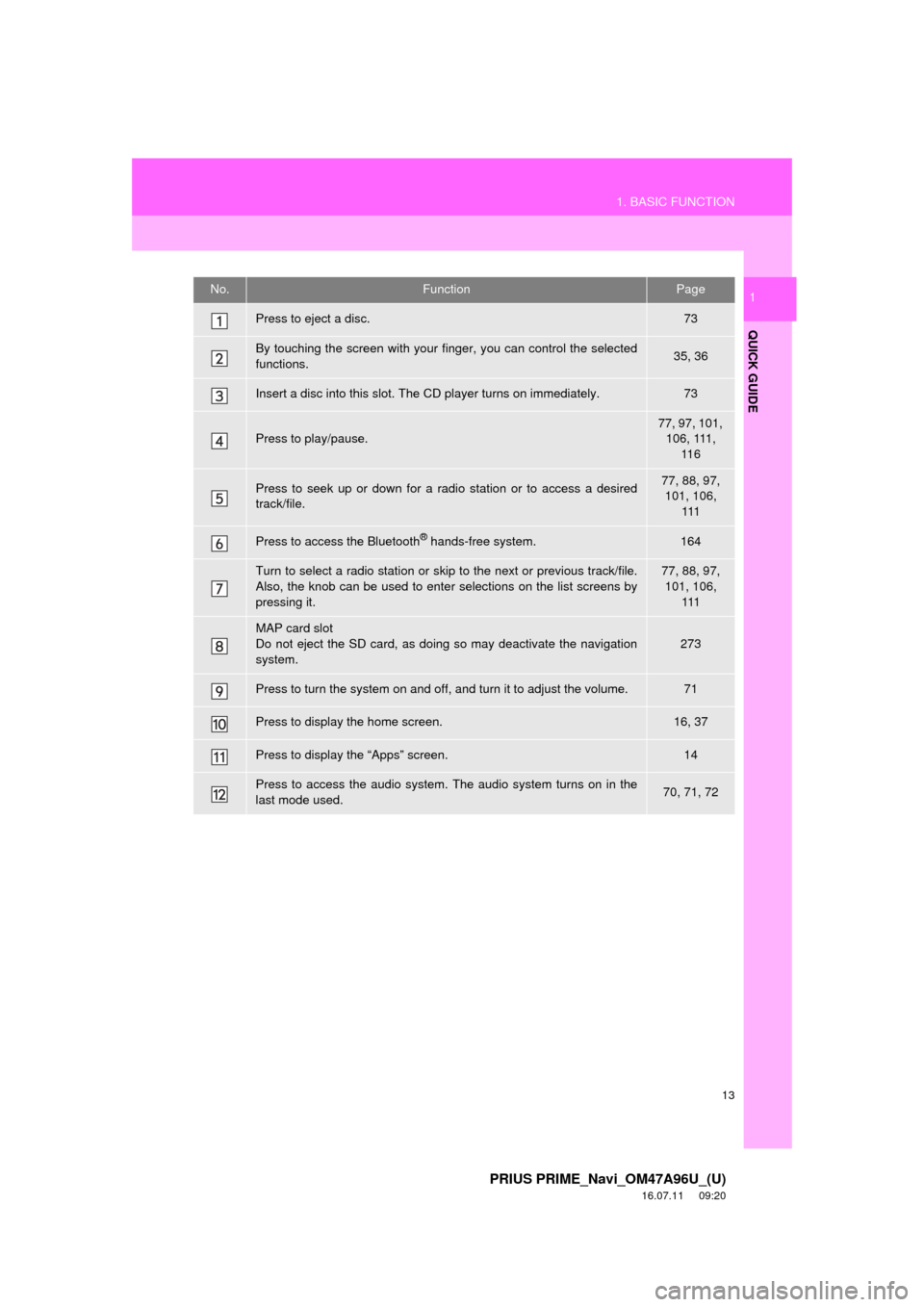
Press to eject a disc.73
By touching the screen with your finger, you can control the selected
functions.35, 36
Insert a disc into this slot. The CD player turns on immediately.73
Press to play/pause.
77, 97, 101, 106, 111, 11 6
Press to seek up or down for a radio station or to access a desired
track/file.77, 88, 97, 101, 106,
111
Press to access the Bluetooth® hands-free system.164
Turn to select a radio station or skip to the next or previous track/file.
Also, the knob can be used to enter selections on the list screens by
pressing it.77, 88, 97, 101, 106, 111
MAP card slot
Do not eject the SD card, as doing so may deactivate the navigation
system.
273
Press to turn the system on and off, and turn it to adjust the volume.71
Press to display the home screen.16, 37
Press to display the “Apps” screen.14
Press to access the audio system. The audio system turns on in the
last mode used.70, 71, 72
Page 62 of 304
62
3. OTHER SETTINGS
PRIUS PRIME_Navi_OM47A96U_(U)
16.07.05 09:52
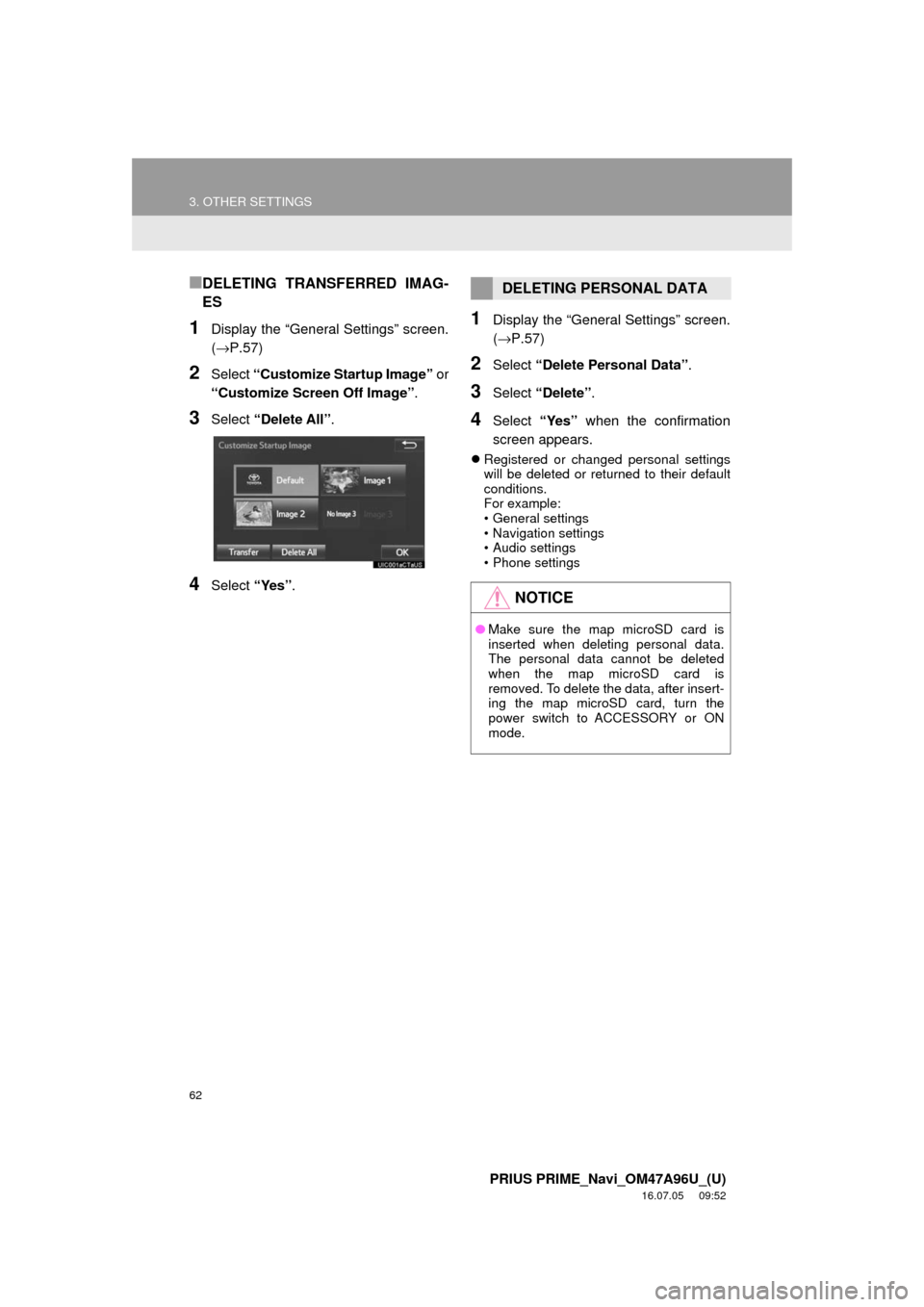
■DELETING TRANSFERRED IMAG-
ES
1Display the “General Settings” screen.
(→P.57)
2Select “Customize Startup Image” or
“Customize Screen Off Image” .
3Select “Delete All”.
4Select “Yes”.
1Display the “General Settings” screen.
(→P.57)
2Select “Delete Personal Data” .
3Select “Delete” .
4Select “Yes” when the confirmation
screen appears.
Registered or changed personal settings
will be deleted or returned to their default
conditions.
For example:
• General settings
• Navigation settings
• Audio settings
• Phone settings
DELETING PERSONAL DATA
NOTICE
●Make sure the map microSD card is
inserted when deleting personal data.
The personal data cannot be deleted
when the map microSD card is
removed. To delete the data, after insert-
ing the map microSD card, turn the
power switch to ACCESSORY or ON
mode.
Page 113 of 304
113
3. MEDIA OPERATION
PRIUS PRIME_Navi_OM47A96U_(U)
16.07.05 09:52
AUDIO SYSTEM
3
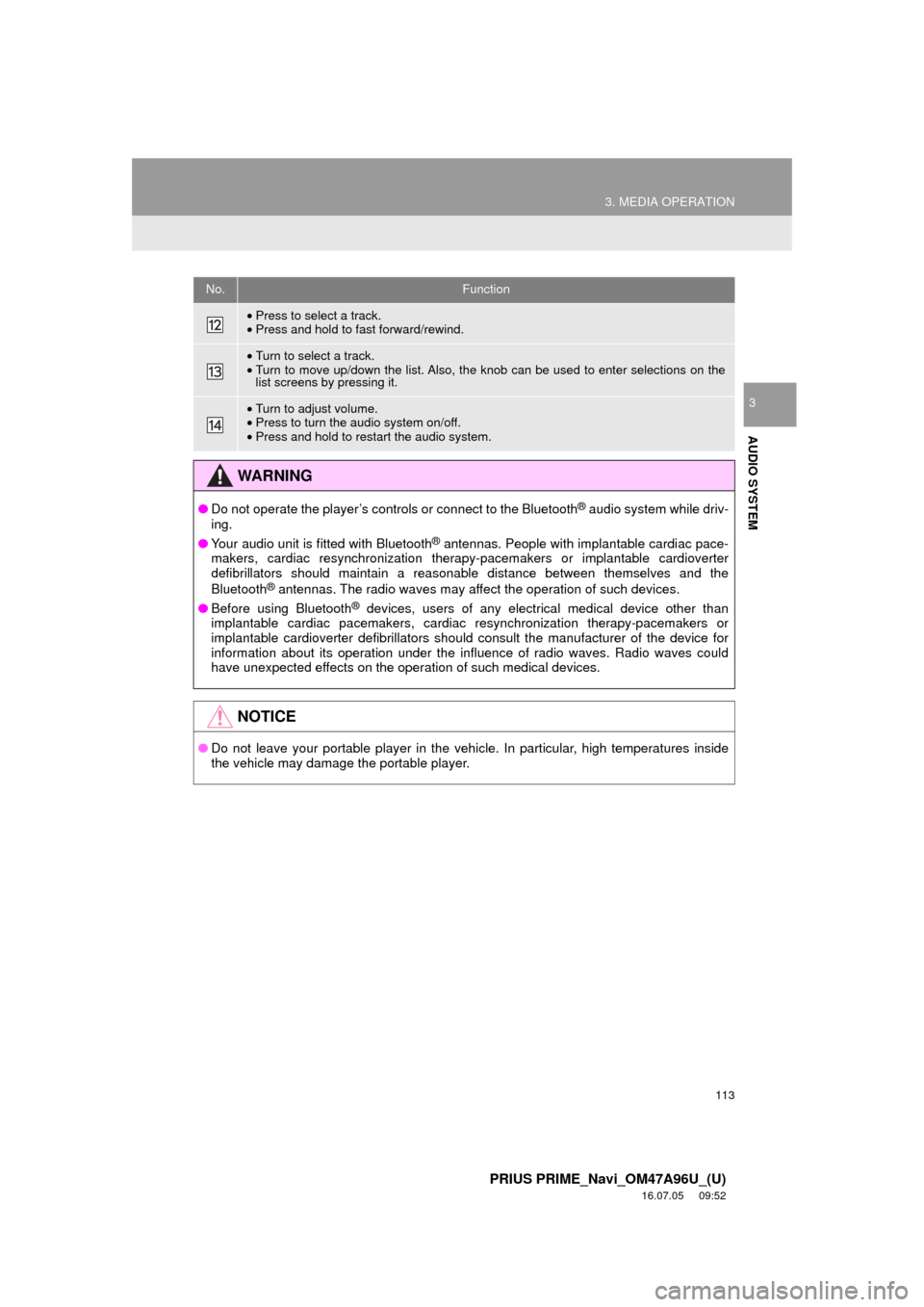
•Press to select a track.
• Press and hold to fast forward/rewind.
•Turn to select a track.
• Turn to move up/down the list. Also, the knob can be used to enter selections on the
list screens by pressing it.
•Turn to adjust volume.
• Press to turn the audio system on/off.
• Press and hold to restart the audio system.
WA R N I N G
● Do not operate the player’s controls or connect to the Bluetooth® audio system while driv-
ing.
● Your audio unit is fitted with Bluetooth
® antennas. People with implantable cardiac pace-
makers, cardiac resynchronization therapy-pacemakers or implantable cardioverter
defibrillators should maintain a reasonable distance between themselves and the
Bluetooth
® antennas. The radio waves may affect the operation of such devices.
● Before using Bluetooth
® devices, users of any electrical medical device other than
implantable cardiac pacemakers, cardiac resynchronization therapy-pacemakers or
implantable cardioverter defibrillators should consult the manufacturer of the device for
information about its operation under the influence of radio waves. Radio waves could
have unexpected effects on the operation of such medical devices.
NOTICE
● Do not leave your portable player in the vehicle. In particular, high temperatures inside
the vehicle may damage the portable player.
No.Function
Page 138 of 304
138
1. VOICE COMMAND SYSTEM OPERATION
PRIUS PRIME_Navi_OM47A96U_(U)
16.07.05 09:52
1Press the talk switch.
2Say “Play song
A confirmation screen will be displayed
showing the recognition results. If multiple
matching items are found, a selection
screen will be displayed. Say “
The system starts playing music and the
song lists are displayed.
INFORMATION
●The voice command recognition is
designed to recognize the main body of
the official street name.
For example: if the official street name is
“East Main Street”, the voice command
recognition will recognize
“Main”.
● Say the desired number, cardinal direc-
tion etc. in the place of the “<>”.
For example: Say “West 555”.
●Inputting the house number can be
skipped.
● Even if the state set using voice recogni-
tion is different from the set state in the
“Address” screen (which was set when a
destination was set manually), the set
state in the “Address” screen will not
change. ( →P.226)
● The house number voice recognition
conditions are outlined below:
• Numerals: 10 digits or less
• Numerals and cardinal direction or a
hyphen and numerals: A total of 9
digits or less (Do not say “and”.)
• Cardinal direction or a hyphen and numerals: A total of 9 digits or less
(Do not say “and”.)
• Numerals are recognized as single digits only.
• The cardinal direction and hyphens are only recognized once.
• The following cardinal directions can be recognized: North, East, West and
South.
VOICE COMMAND EXAMPLE:
SEARCH FOR A SONG*
INFORMATION
● The Gracenote database is only com-
patible with the USB or iPod mode.
● A USB memory or iPod must be con-
nected to enable track searching and
playback. ( →P.101, 106)
● When a USB memory or iPod is con-
nected, recognition data is created so
tracks can be searched using voice
commands.
● Recognition data is updated under the
following conditions:
• When the USB memory or iPod data
has changed.
• When the voice recognition language
is changed. ( →P.57)
● While the recognition data is being cre-
ated or being updated, a track search
cannot be performed using a voice com-
mand.
*: Only for external music device
Page 165 of 304
165
1. PHONE OPERATION (HANDS-FREE SYSTEM FOR CELLULAR PHONES)
PRIUS PRIME_Navi_OM47A96U_(U)
16.07.05 09:53
PHONE
7
2. SOME BASICS
The hands-free system enables calls
to be made and received without hav-
ing to take your hands off the steering
wheel.
This system supports Bluetooth
®.
Bluetooth® is a wireless data system
that enables cellular phones to be used
without being connected by a cable or
placed in a cradle.
The operating procedure of the phone
is explained here.
WA R N I N G
● While driving, do not use a cellular
phone or connect the Bluetooth® phone.
● Your audio unit is fitted with Bluetooth
®
antennas. People with implantable car-
diac pacemakers, cardiac resynchroni-
zation therapy-pacemakers or
implantable cardioverter defibrillators
should maintain a reasonable distance
between themselves and the Bluetooth
®
antennas. The radio waves may affect
the operation of such devices.
● Before using Bluetooth
® devices, users
of any electrical medical device other
than implantable cardiac pacemakers,
cardiac resynchronization therapy-pace-
makers or implantable cardioverter
defibrillators should consult the manu-
facturer of the device for information
about its operation under the influence
of radio waves. Radio waves could have
unexpected effects on the operation of
such medical devices.
NOTICE
● Do not leave your cellular phone in the
vehicle. The temperature inside may rise
to a level that could damage the phone.
INFORMATION
●If your cellular phone does not support
Bluetooth®, this system cannot function.
● In the following conditions, the system
may not function:
• The cellular phone is turned off.
• The current position is outside the
communication area.
• The cellular phone is not connected.
• The cellular phone has a low battery.
● When using Bluetooth
® audio and
hands-free at the same time, the follow-
ing problems may occur:
• The Bluetooth
® connection may be
cut.
• Noise may be heard on the Bluetooth
®
audio playback.
REGISTERING/CONNECTING
A Bluetooth® PHONE
To use the hands-free system for cellu-
lar phones, it is necessary to register a
cellular phone with the system.
( → P.44)
Bluetooth® PHONE CONDITION
DISPLAY
The condition of the Bluetooth
® phone
appears on the upper right side of the
screen. ( →P.18)
Page 273 of 304
273
6. TIPS FOR THE NAVIGATION SYSTEM
PRIUS PRIME_Navi_OM47A96U_(U)
16.07.05 09:53
NAVIGATION SYSTEM
8
ABOUT THE MAP DATA
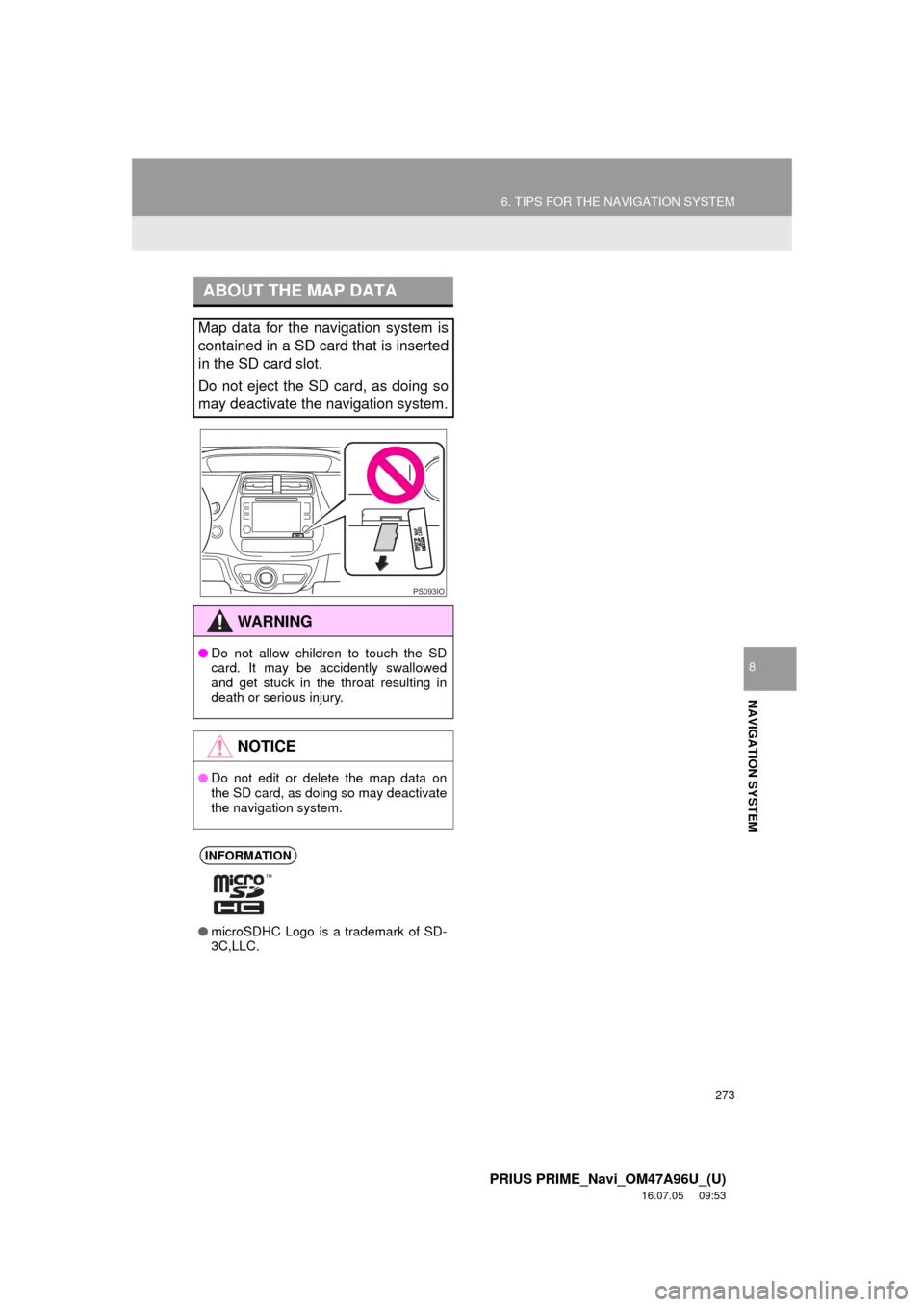
Map data for the navigation system is
contained in a SD card that is inserted
in the SD card slot.
Do not eject the SD card, as doing so
may deactivate the navigation system.
WA R N I N G
●Do not allow children to touch the SD
card. It may be accidently swallowed
and get stuck in the throat resulting in
death or serious injury.
NOTICE
●Do not edit or delete the map data on
the SD card, as doing so may deactivate
the navigation system.
INFORMATION
●microSDHC Logo is a trademark of SD-
3C,LLC.
PS093IO