navigation TOYOTA PRIUS PRIME 2017 2.G User Guide
[x] Cancel search | Manufacturer: TOYOTA, Model Year: 2017, Model line: PRIUS PRIME, Model: TOYOTA PRIUS PRIME 2017 2.GPages: 784, PDF Size: 14.98 MB
Page 239 of 784

PRIUS PRIME_OM_OM47A88U_(U)
2393. Instrument cluster
3
Instrument cluster
Meter control switches
These switches are used when adjusting the display position and bright-
ness of the head-up display. (→P. 241)
“HUD” (Head-up display) switch (→P. 2 4 0)
Vehicle speed display
Hybrid System Indicator ( →P. 210)
The display contents of the Hybrid System Indicator are different in EV
mode and HV mode.
EV driving range
Indicates the estimated distance that can be driven using the current
remaining hybrid battery (traction battery). ( →P. 100)
When the air conditioning system is operating, the driving range with the
air conditioning system on is displayed.
The EV driving range may shorten even when not driving due to power
consumption by the system.
Insert display ( →P. 2 4 2)
This display inserts information from each driving support system accord-
ing to driving conditions.
Route guidance display ( →P. 243)
This display is automatically shown when the navigation system is per-
forming route guidance.
1
2
3
4
5
6
7
Page 243 of 784
PRIUS PRIME_OM_OM47A88U_(U)
2433. Instrument cluster
3
Instrument cluster
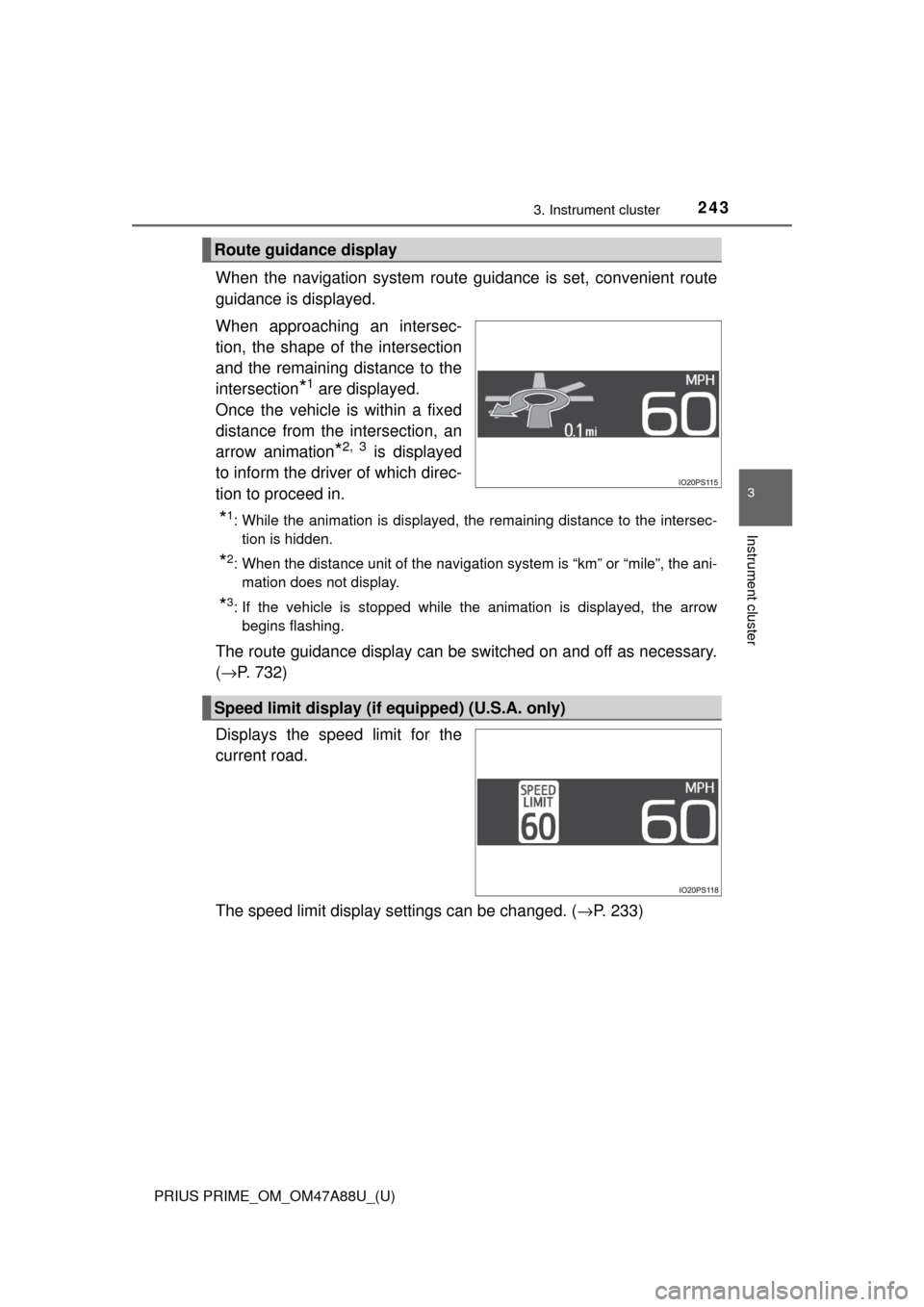
When the navigation system route guidance is set, convenient route
guidance is displayed.
When approaching an intersec-
tion, the shape of the intersection
and the remaining distance to the
intersection
*1 are displayed.
Once the vehicle is within a fixed
distance from the intersection, an
arrow animation
*2, 3 is displayed
to inform the driver of which direc-
tion to proceed in.
*1: While the animation is displayed, the remaining distance to the intersec- tion is hidden.
*2: When the distance unit of the navigation system is “km” or “mile”, the ani-mation does not display.
*3: If the vehicle is stopped while the animation is displayed, the arrowbegins flashing.
The route guidance display can be switched on and off as necessary.
(→ P. 732)
Displays the speed limit for the
current road.
The speed limit display settings can be changed. ( →P. 233)
Route guidance display
Speed limit display (if equipped) (U.S.A. only)
Page 244 of 784

244
PRIUS PRIME_OM_OM47A88U_(U)
3. Instrument cluster
■Enabling/disabling of the head-up display
When the head-up display is turned off with the “HUD” switch, it is not dis-
played until the “HUD” switch is used to turn the head-up display on again.
(Operation of the head-up display is not linked with the power switch.)
■ Display brightness
●The brightness of the head-up display is automatically adjusted according to
the operation status of the headlights (on/off) and the brightness of the sur-
roundings.
● When the brightness of the head-up display is adjusted to a certain level or
higher, the display automatically dims when the vehicle is stopped. Once the
vehicle starts off and the vehicle speed reaches approximately 3.1 mph
(5 km/h) or more, the display automatically returns to its previous bright-
ness.
■ Vehicle speed display
In extremely cold environments, the display of the speedometer and the vehi-
cle speed of the head-up display may slightly differ.
■ Head-up display
The head-up display may seem dark and hard to see when viewed through
sunglasses, especially polarized sunglasses.
■ When the 12-volt battery is disconnected
The customize settings of the head-up display will be reset.
■ Route guidance display
The route guidance is not displayed on both the head-up display and multi-
information display simultaneously. When the route guidance is displayed on
the head-up display, the multi-information display does not display the route
guidance even if the navigation system-linked display ( →P. 225) is selected
on the multi-information display.
Page 246 of 784
246
PRIUS PRIME_OM_OM47A88U_(U)
3. Instrument cluster
Energy monitor/consumption screen/detail
screen (vehicles wi th 7-inch display)
◆Multi-information display
→P. 2 0 5
◆Audio system screen
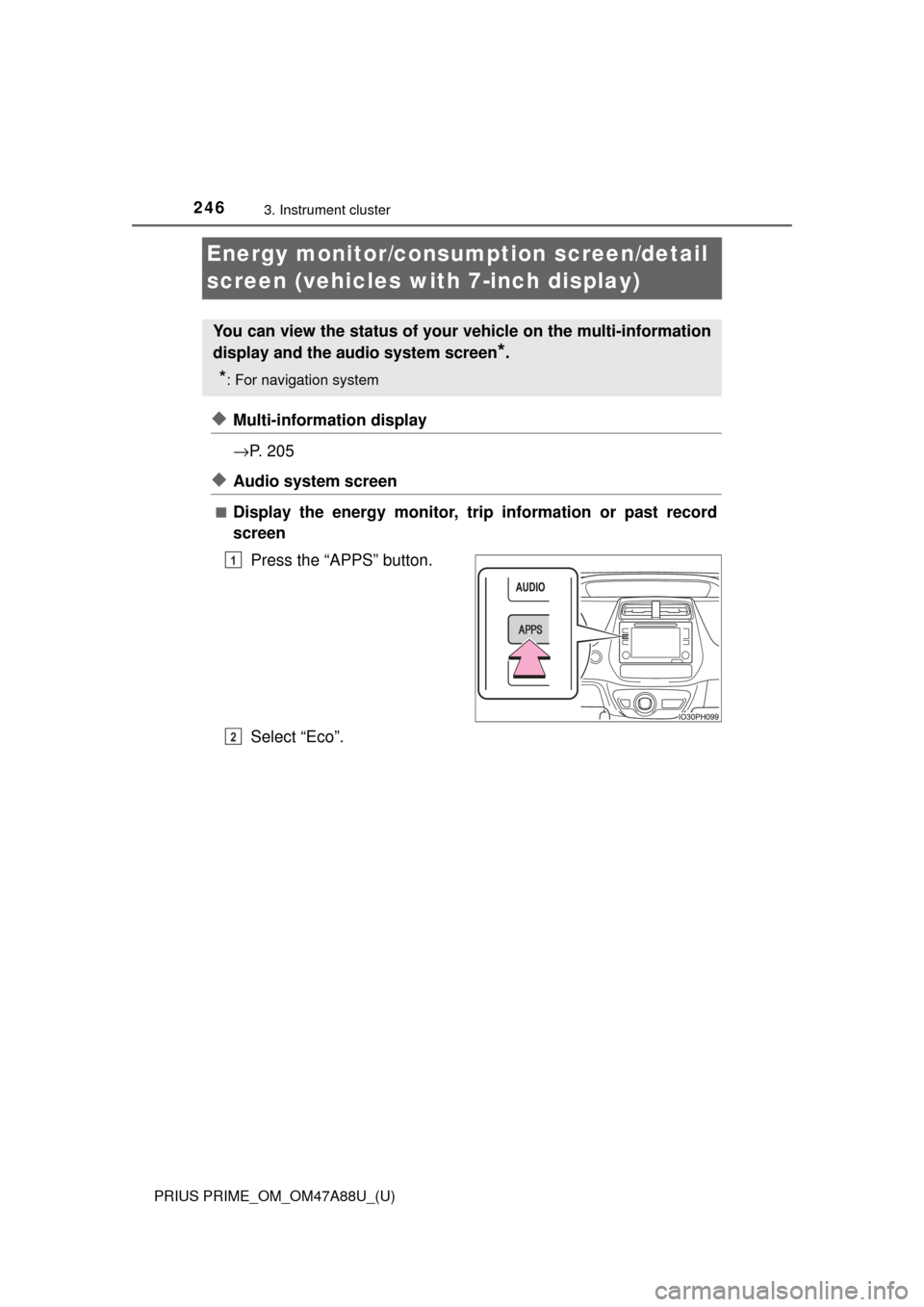
■Display the energy monitor, tr ip information or past record
screen
Press the “APPS” button.
Select “Eco”.
You can view the status of your vehicle on the multi-information
display and the audio system screen
*.
*: For navigation system
1
2
Page 252 of 784
252
PRIUS PRIME_OM_OM47A88U_(U)
3. Instrument cluster
Energy monitor/consumption screen/detail
screen (vehicles with 11.6-inch display)
◆Multi-information display
→P. 2 0 5
◆Audio system screen
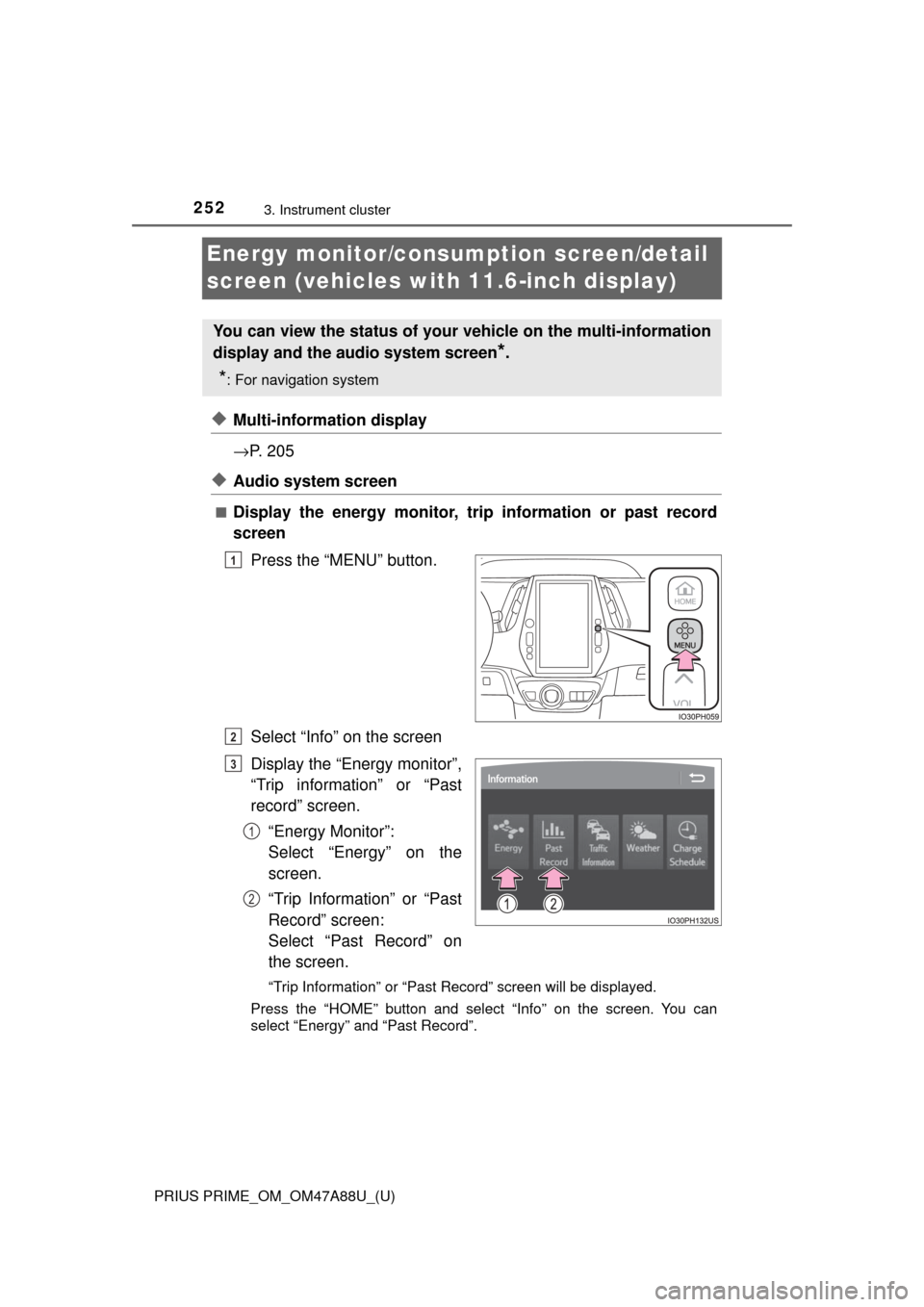
■Display the energy monitor, tr ip information or past record
screen
Press the “MENU” button.
Select “Info” on the screen
Display the “Energy monitor”,
“Trip information” or “Past
record” screen.“Energy Monitor”:
Select “Energy” on the
screen.
“Trip Information” or “Past
Record” screen:
Select “Past Record” on
the screen.
“Trip Information” or “Past Record” screen will be displayed.
Press the “HOME” button and select “Info” on the screen. You can
select “Energy” and “Past Record”.
You can view the status of your vehicle on the multi-information
display and the audio system screen
*.
*: For navigation system
1
2
3
1
2
Page 253 of 784
PRIUS PRIME_OM_OM47A88U_(U)
2533. Instrument cluster
3
Instrument cluster
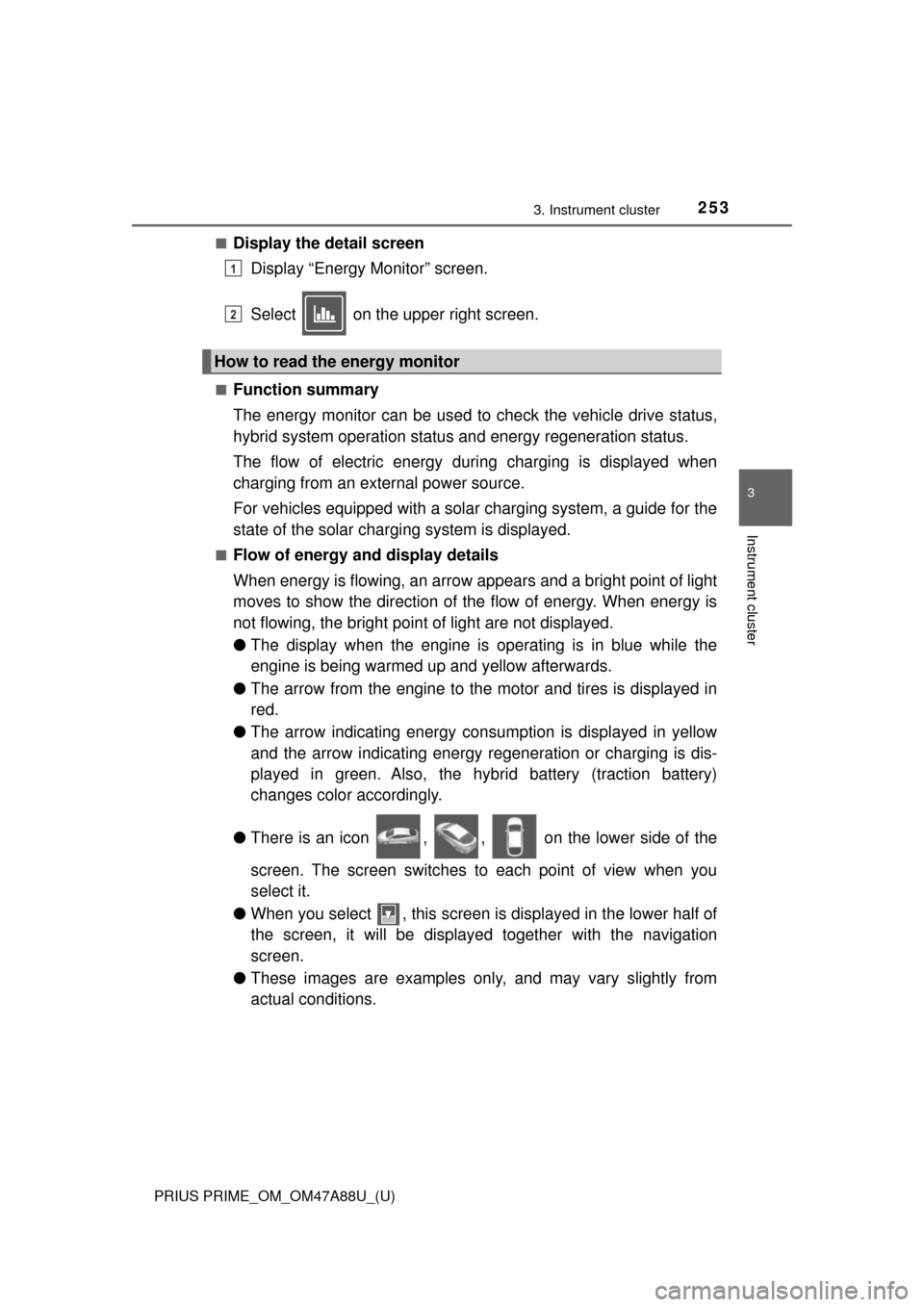
■Display the detail screenDisplay “Energy Monitor” screen.
Select on the upper right screen.
■Function summary
The energy monitor can be used to check the vehicle drive status,
hybrid system operation status and energy regeneration status.
The flow of electric energy during charging is displayed when
charging from an external power source.
For vehicles equipped with a solar charging system, a guide for the
state of the solar charging system is displayed.
■Flow of energy and display details
When energy is flowing, an arrow appears and a bright point of light
moves to show the direction of the flow of energy. When energy is
not flowing, the bright point of light are not displayed.
● The display when the engine is operating is in blue while the
engine is being warmed up and yellow afterwards.
● The arrow from the engine to the motor and tires is displayed in
red.
● The arrow indicating energy consumption is displayed in yellow
and the arrow indicating energy regeneration or charging is dis-
played in green. Also, the hybr id battery (traction battery)
changes color accordingly.
● There is an icon , , on the lower side of the
screen. The screen switches to each point of view when you
select it.
● When you select , this screen is displayed in the lower half of
the screen, it will be displaye d together with the navigation
screen.
● These images are examples only, and may vary slightly from
actual conditions.
How to read the energy monitor
1
2
Page 259 of 784
PRIUS PRIME_OM_OM47A88U_(U)
2593. Instrument cluster
3
Instrument cluster
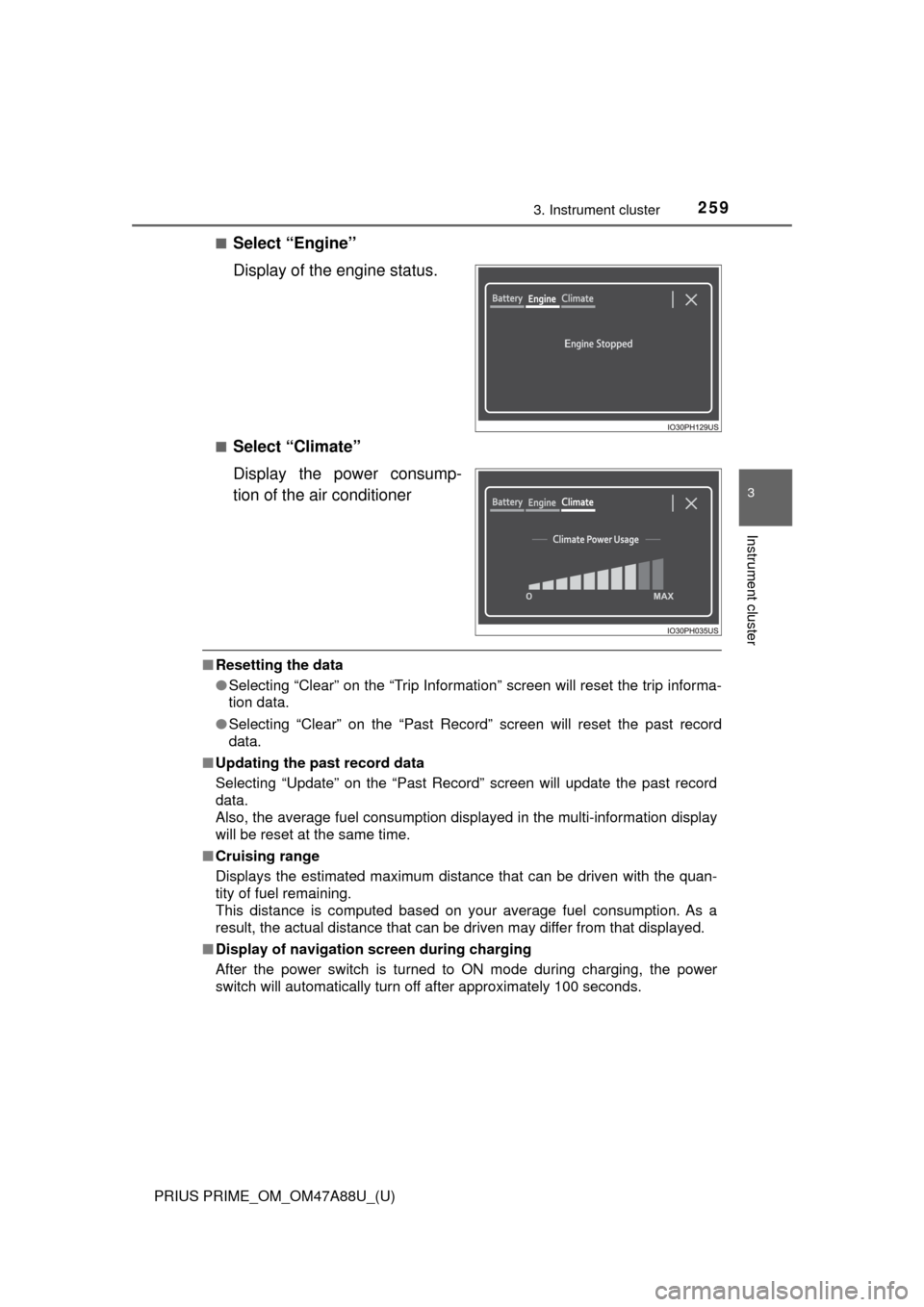
■Select “Engine”
Display of the engine status.
■Select “Climate”
Display the power consump-
tion of the air conditioner
■Resetting the data
●Selecting “Clear” on the “Trip Information” screen will reset the trip informa-
tion data.
● Selecting “Clear” on the “Past Record” screen will reset the past record
data.
■ Updating the past record data
Selecting “Update” on the “Past Record” screen will update the past record
data.
Also, the average fuel consumption displa yed in the multi-information display
will be reset at the same time.
■ Cruising range
Displays the estimated maximum distance that can be driven with the quan-
tity of fuel remaining.
This distance is computed based on your average fuel consumption. As a
result, the actual distance that can be driven may differ from that displayed.
■ Display of navigation screen during charging
After the power switch is turned to ON mode during charging, the power
switch will automatically turn off after approximately 100 seconds.
Page 498 of 784
498
PRIUS PRIME_OM_OM47A88U_(U)
6-1. Using the air conditioning system and defogger
Automatic air conditi oning system (vehi-
cles with 11.6-inch display)
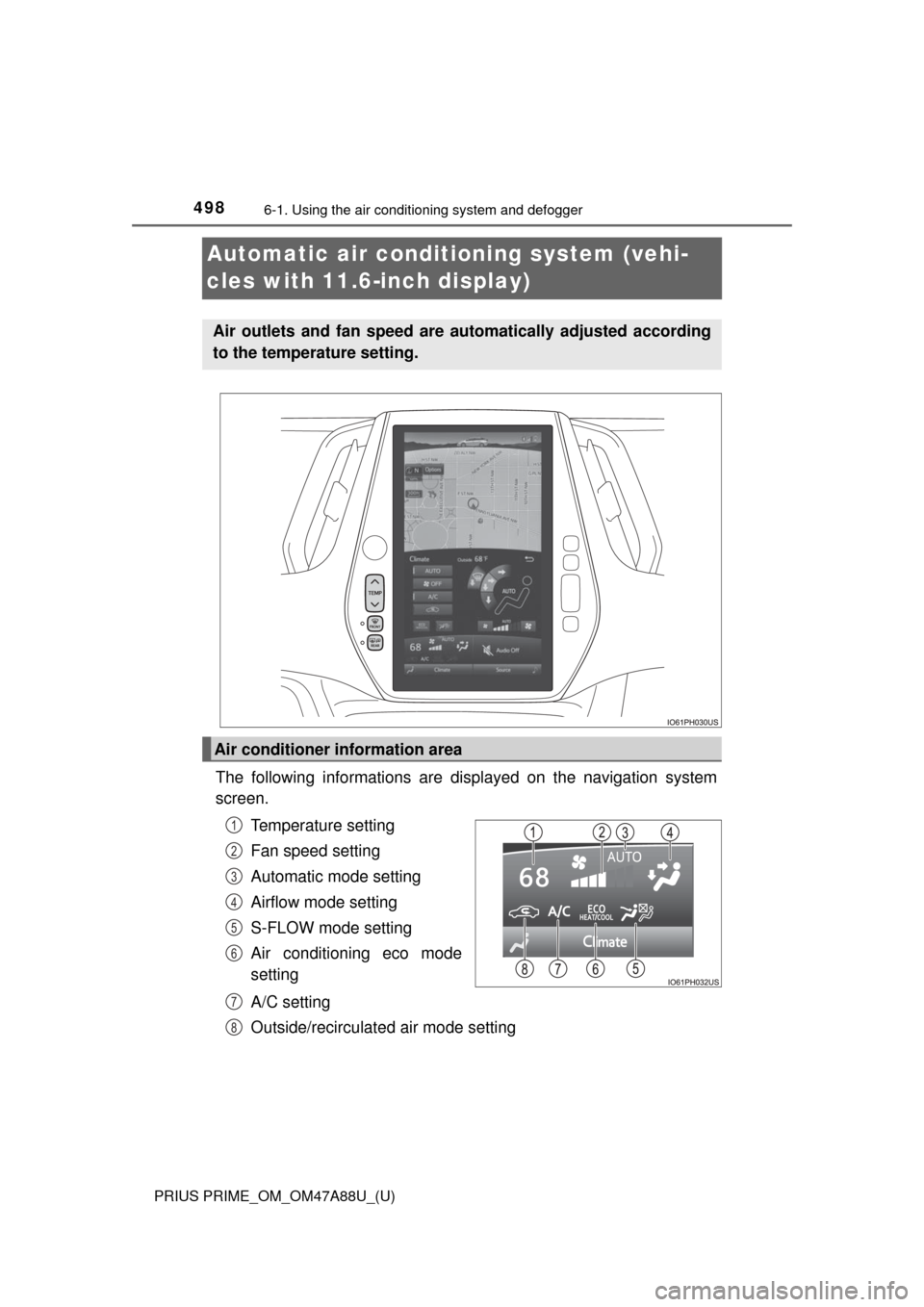
The following informations are displayed on the navigation system
screen.
Temperature setting
Fan speed setting
Automatic mode setting
Airflow mode setting
S-FLOW mode setting
Air conditioning eco mode
setting
A/C setting
Outside/recirculated air mode setting
Air outlets and fan speed are automatically adjusted according
to the temperature setting.
Air conditioner information area
1
2
3
4
5
6
7
8
Page 732 of 784
732
PRIUS PRIME_OM_OM47A88U_(U)
9-2. Customization
Customizable features
When customizing vehicle features, ensure that the vehicle is parked
in a safe place with the parking brake set and the shift position in P.
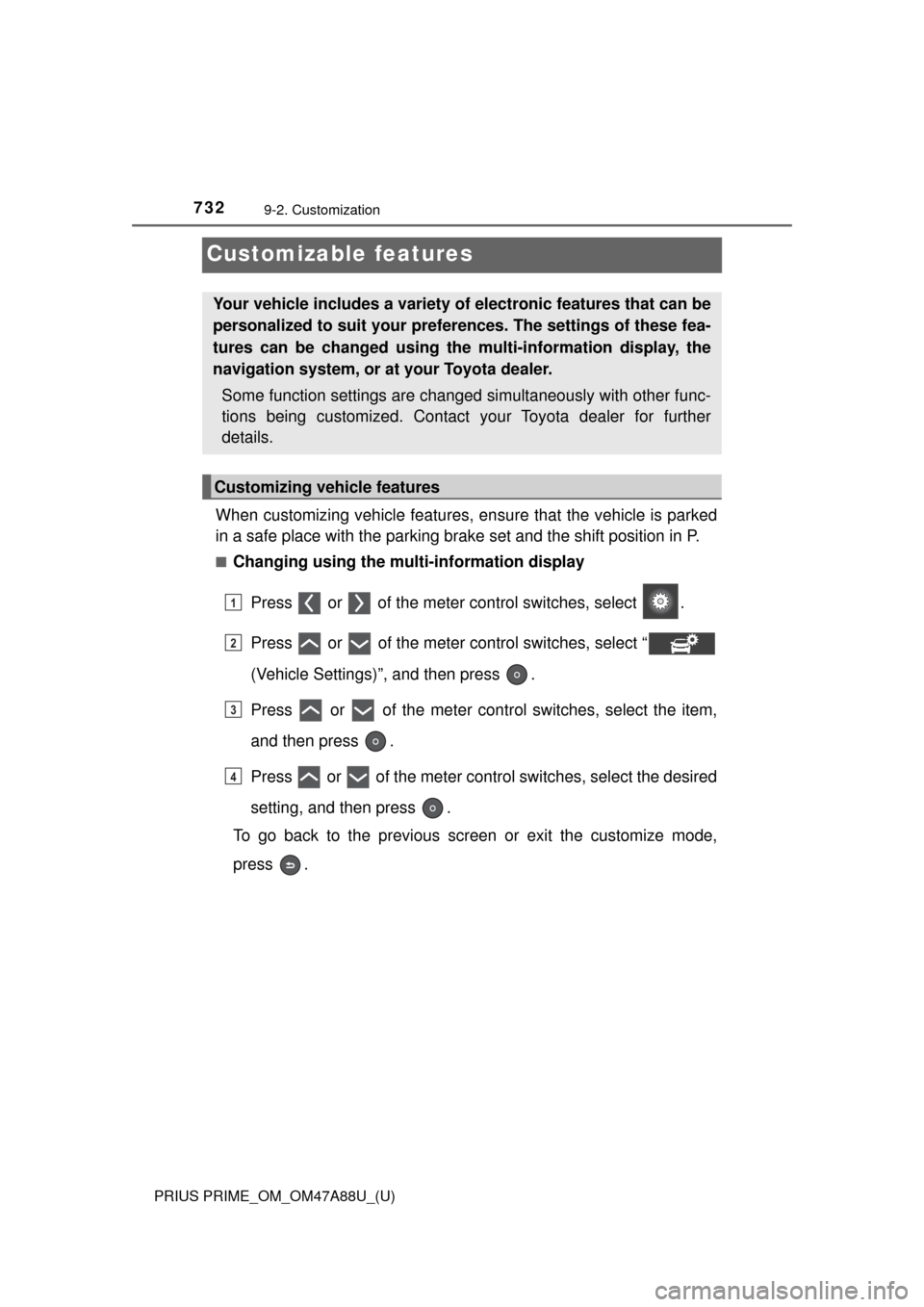
■Changing using the multi-information display
Press or of the meter control switches, select .
Press or of the meter control switches, select “
(Vehicle Settings)”, and then press .
Press or of the meter control switches, select the item,
and then press .
Press or of the meter control switches, select the desired
setting, and then press .
To go back to the previous screen or exit the customize mode,
press .
Your vehicle includes a variety of electronic features that can be
personalized to suit your prefer ences. The settings of these fea-
tures can be changed using the multi-information display, the
navigation system, or at your Toyota dealer.
Some function settings are changed simultaneously with other func-
tions being customized. Contact your Toyota dealer for further
details.
Customizing vehicle features
1
2
3
4
Page 733 of 784
PRIUS PRIME_OM_OM47A88U_(U)
7339-2. Customization
9
Vehicle specifications
■Changing using the navigation system
Vehicles with 7-inch display
Press the “APPS” button on the navigation system.
Select “Setup”.
Select “Vehicle” on the “Setup” screen and select “Vehicle cus-
tomization”.
Various settings can be changed. Refer to the list of settings that
can be changed for details.
Vehicles with 11.6-inch display
Press the “MENU” button on the navigation system.
Select “Settings”.
Select “Vehicle” on the “Setup” screen and select “Vehicle cus-
tomization”.
Various settings can be changed. Refer to the list of settings that
can be changed for details.
1
2
3
1
2
3