apple carplay TOYOTA PRIUS PRIME 2020 Accessories, Audio & Navigation (in English)
[x] Cancel search | Manufacturer: TOYOTA, Model Year: 2020, Model line: PRIUS PRIME, Model: TOYOTA PRIUS PRIME 2020Pages: 172, PDF Size: 2.92 MB
Page 43 of 172
432-2. Connectivity settings
2
Basic function
SymptomSolution
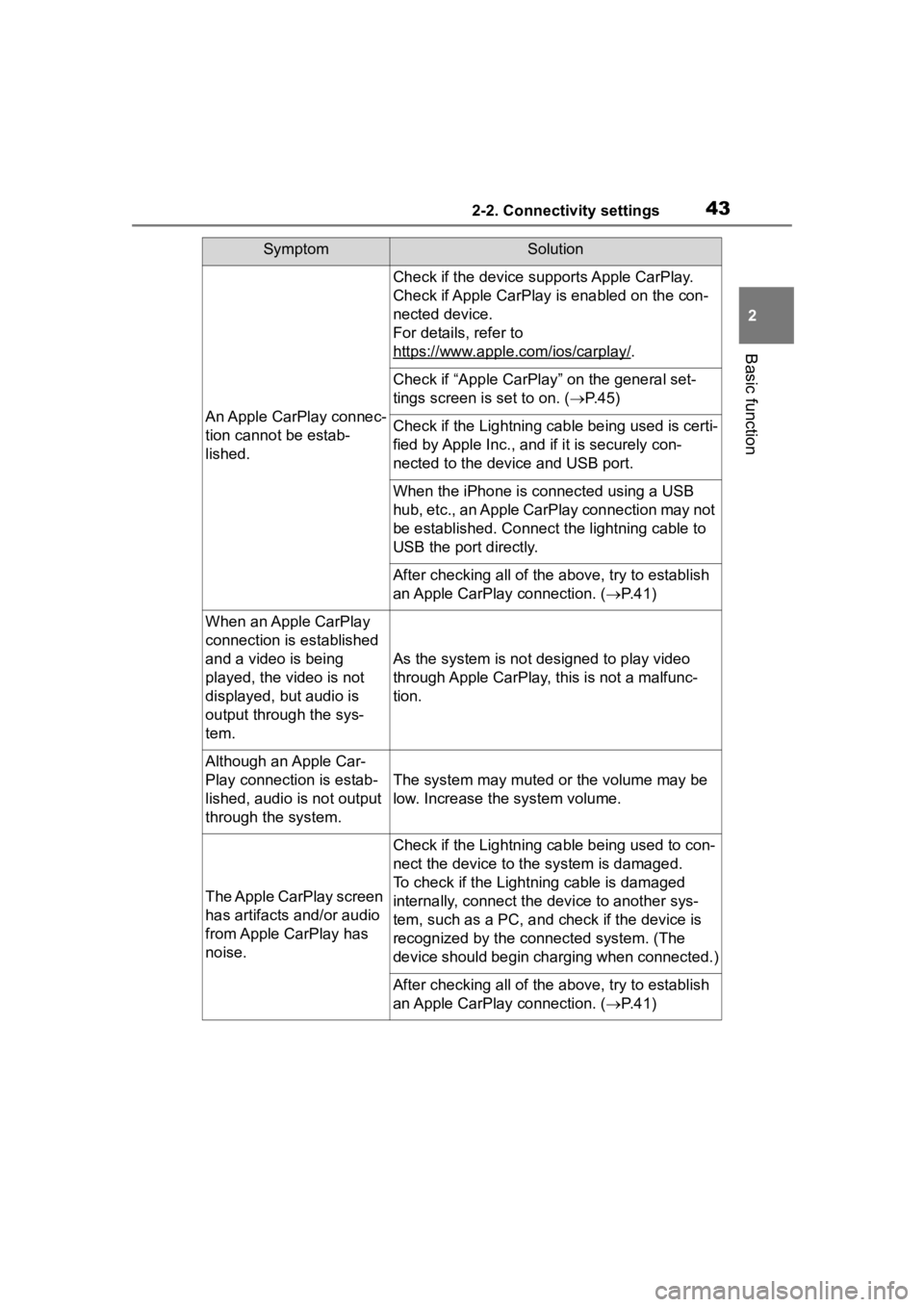
An Apple CarPlay connec-
tion cannot be estab-
lished.
Check if the device supports Apple CarPlay.
Check if Apple CarPlay is enabled on the con-
nected device.
For details, refer to
https://www.apple.com/ios/carplay/
.
Check if “Apple CarPlay” on the general set-
tings screen is set to on. (P.45)
Check if the Lightning cable being used is certi-
fied by Apple Inc., and i f it is securely con-
nected to the devic e and USB port.
When the iPhone is c onnected using a USB
hub, etc., an Apple CarPlay connection may not
be established. Connect the lightning cable to
USB the port directly.
After checking all of the above, try to establish
an Apple CarPlay connection. ( P. 4 1 )
When an Apple CarPlay
connection is established
and a video is being
played, the video is not
displayed, but audio is
output through the sys-
tem.
As the system is not designed to play video
through Apple CarPlay, this is not a malfunc-
tion.
Although an Apple Car-
Play connection is estab-
lished, audio is not output
through the system.
The system may muted or the volume may be
low. Increase the system volume.
The Apple CarPlay screen
has artifacts and/or audio
from Apple CarPlay has
noise.
Check if the Lightning cable being used to con-
nect the device to th e system is damaged.
To check if the Lightning cable is damaged
internally, connect the device to another sys-
tem, such as a PC, and check if the device is
recognized by the conn ected system. (The
device should begin charging when connected.)
After checking all of the above, try to establish
an Apple CarPlay connection. ( P. 4 1 )
Page 44 of 172
442-2. Connectivity settings
*: Applications not compatible with Apple CarPlay are applications installed
on the iPhone that are not disp layed on the Apple CarPlay scree n appli-
cation list. (such as visual voicemail)
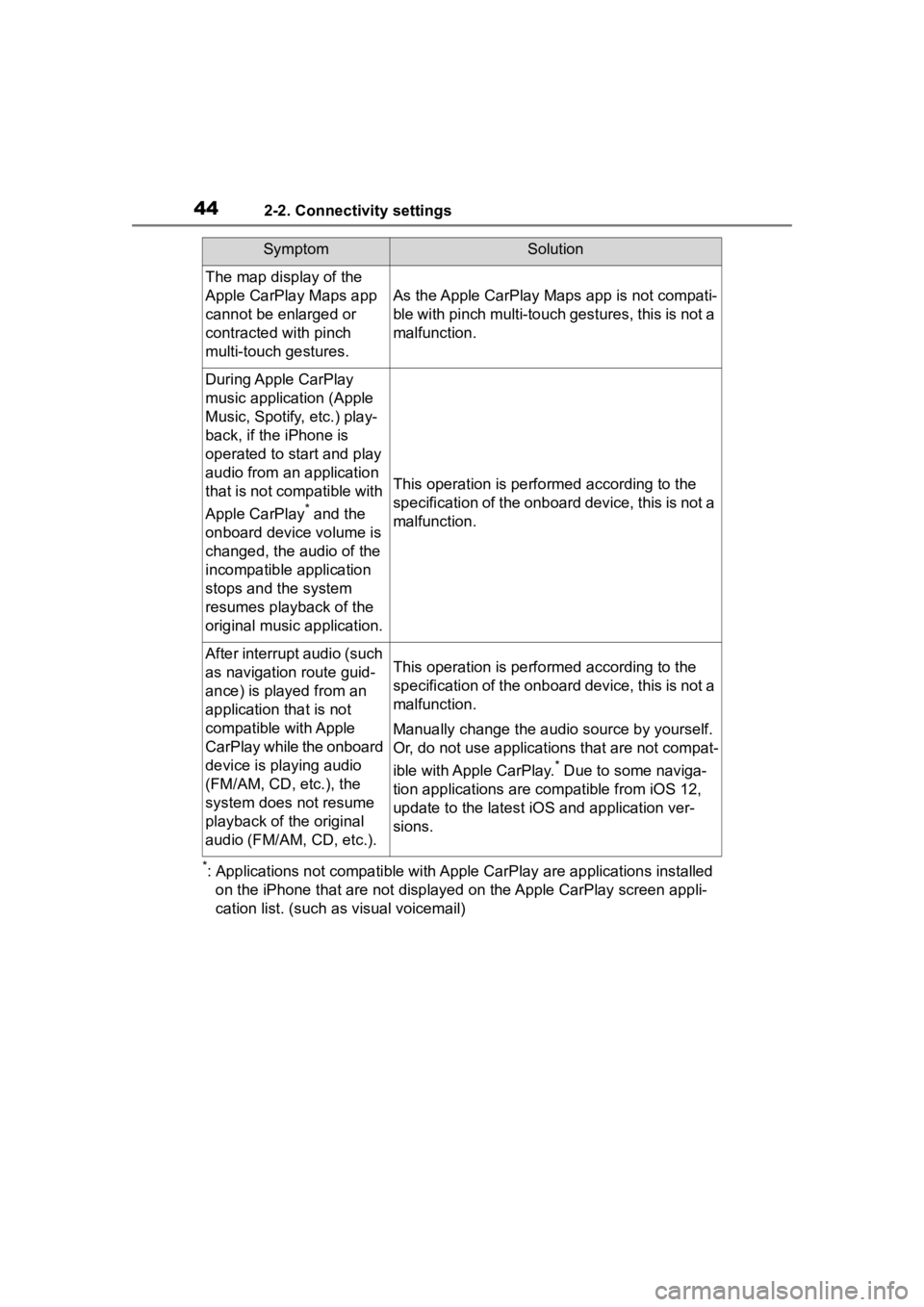
The map display of the
Apple CarPlay Maps app
cannot be enlarged or
contracted with pinch
multi-touch gestures.
As the Apple CarPlay Maps app is not compati-
ble with pinch multi-touch gestures, this is not a
malfunction.
During Apple CarPlay
music application (Apple
Music, Spotify, etc.) play-
back, if the iPhone is
operated to start and play
audio from an application
that is not compatible with
Apple CarPlay
* and the
onboard device volume is
changed, the audio of the
incompatible application
stops and the system
resumes playback of the
original music application.
This operation is perfo rmed according to the
specification of the onboard device, this is not a
malfunction.
After interrupt audio (such
as navigation route guid-
ance) is played from an
application that is not
compatible with Apple
CarPlay while the onboard
device is playing audio
(FM/AM, CD, etc.), the
system does not resume
playback of the original
audio (FM/AM, CD, etc.).This operation is perfo rmed according to the
specification of the onboard device, this is not a
malfunction.
Manually change the audi o source by yourself.
Or, do not use applications that are not compat-
ible with Apple CarPlay.
* Due to some naviga-
tion applications are compatible from iOS 12,
update to the latest iOS and application ver-
sions.
SymptomSolution
Page 45 of 172
452-3. Other settings
2
Basic function
2-3.Other settings
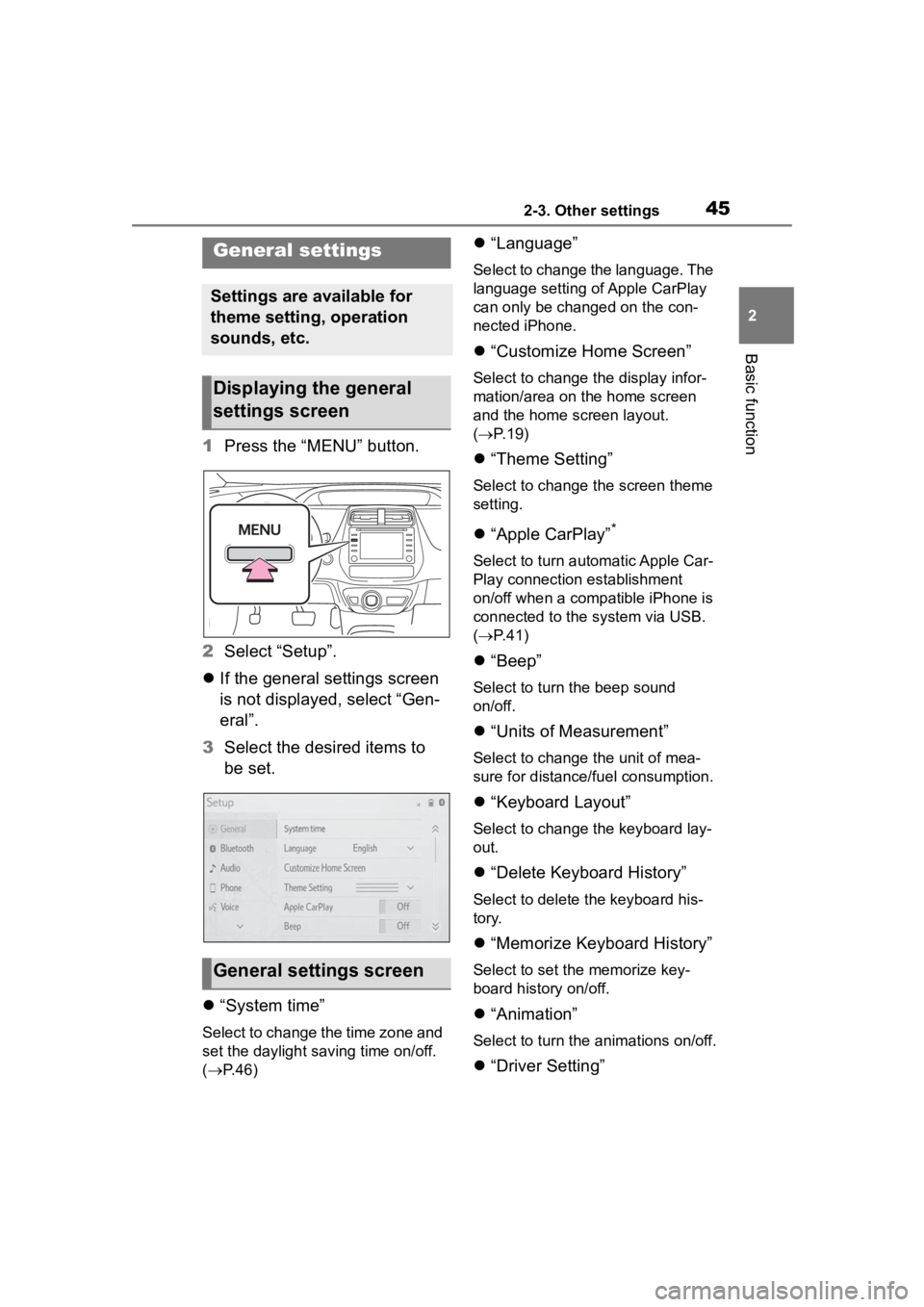
1Press the “MENU” button.
2 Select “Setup”.
If the general settings screen
is not displayed, select “Gen-
eral”.
3 Select the desired items to
be set.
“System time”
Select to change the time zone and
set the daylight saving time on/off.
( P.46)
“Language”
Select to change the language. The
language setting of Apple CarPlay
can only be chan ged on the con-
nected iPhone.
“Customize Home Screen”
Select to change the display infor-
mation/area on the home screen
and the home screen layout.
( P. 1 9 )
“Theme Setting”
Select to change the screen theme
setting.
“Apple CarPlay”*
Select to turn automatic Apple Car-
Play connection establishment
on/off when a compatible iPhone is
connected to the system via USB.
( P. 4 1 )
“Beep”
Select to turn the beep sound
on/off.
“Units of Measurement”
Select to change the unit of mea-
sure for distance/fuel consumption.
“Keyboard Layout”
Select to change the keyboard lay-
out.
“Delete Keyboard History”
Select to delete the keyboard his-
tory.
“Memorize Keyboard History”
Select to set the memorize key-
board history on/off.
“Animation”
Select to turn the animations on/off.
“Driver Setting”
General settings
Settings are available for
theme setting, operation
sounds, etc.
Displaying the general
settings screen
General settings screen
Page 53 of 172
533-1. Basic operation
3
Audio/visual system
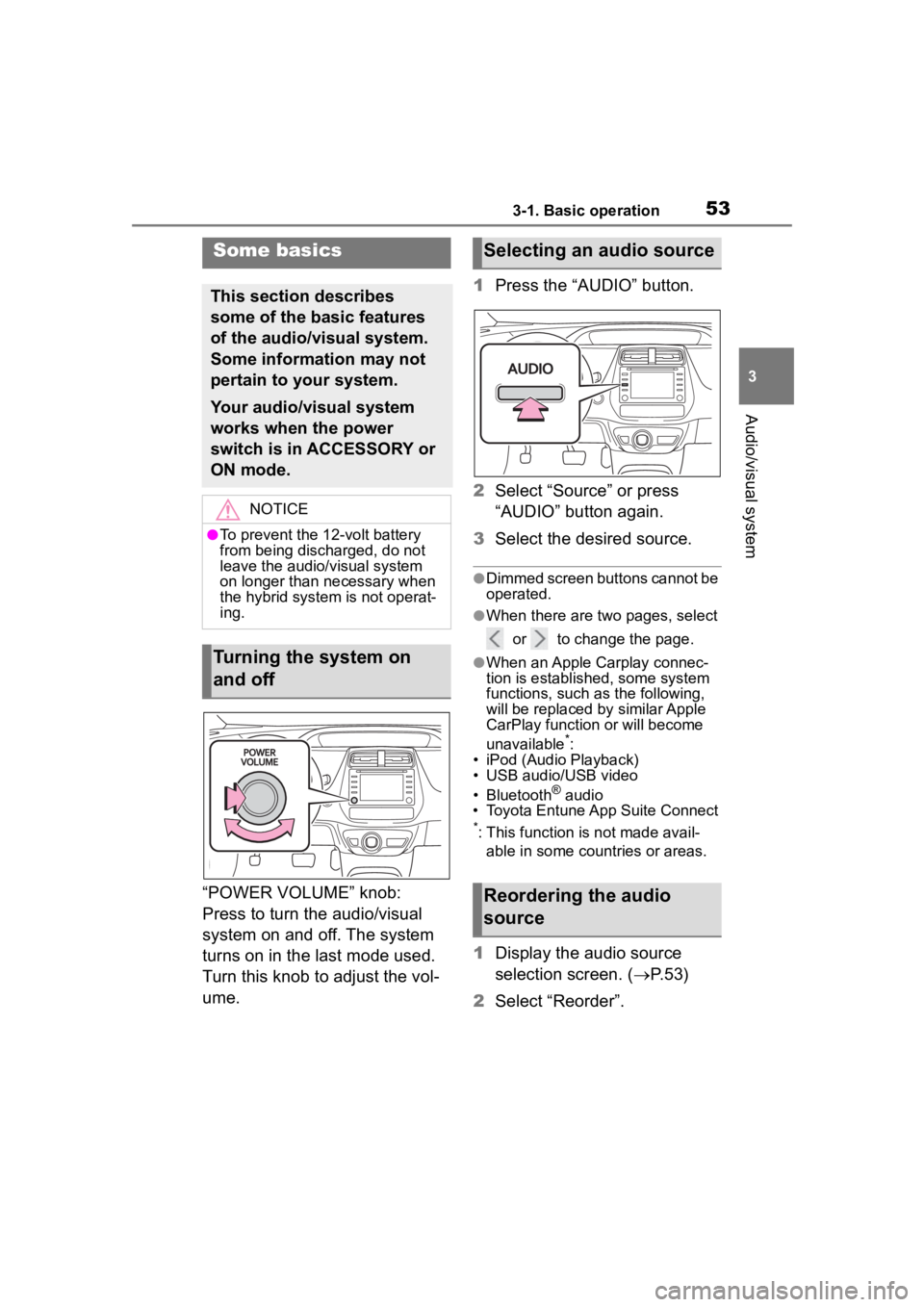
“POWER VOLUME” knob:
Press to turn the audio/visual
system on and off. The system
turns on in the last mode used.
Turn this knob to adjust the vol-
ume.1
Press the “AUDIO” button.
2 Select “Source” or press
“AUDIO” button again.
3 Select the desired source.
●Dimmed screen buttons cannot be
operated.
●When there are tw o pages, select
or to change the page.
●When an Apple Carplay connec-
tion is established, some system
functions, such as the following,
will be replaced by similar Apple
CarPlay function or will become
unavailable
*:
• iPod (Audio Playback)
• USB audio/USB video
• Bluetooth
® audio
• Toyota Entune App Suite Connect
*: This function is not made avail-
able in some countries or areas.
1 Display the audio source
selection screen. ( P.53)
2 Select “Reorder”.
Some basics
This section describes
some of the basic features
of the audio/visual system.
Some information may not
pertain to your system.
Your audio/visual system
works when the power
switch is in ACCESSORY or
ON mode.
NOTICE
●To prevent the 12-volt battery
from being discharged, do not
leave the audio/visual system
on longer than necessary when
the hybrid system is not operat-
ing.
Turning the system on
and off
Selecting an audio source
Reordering the audio
source
Page 69 of 172
693-3. Media operation
3
Audio/visual system
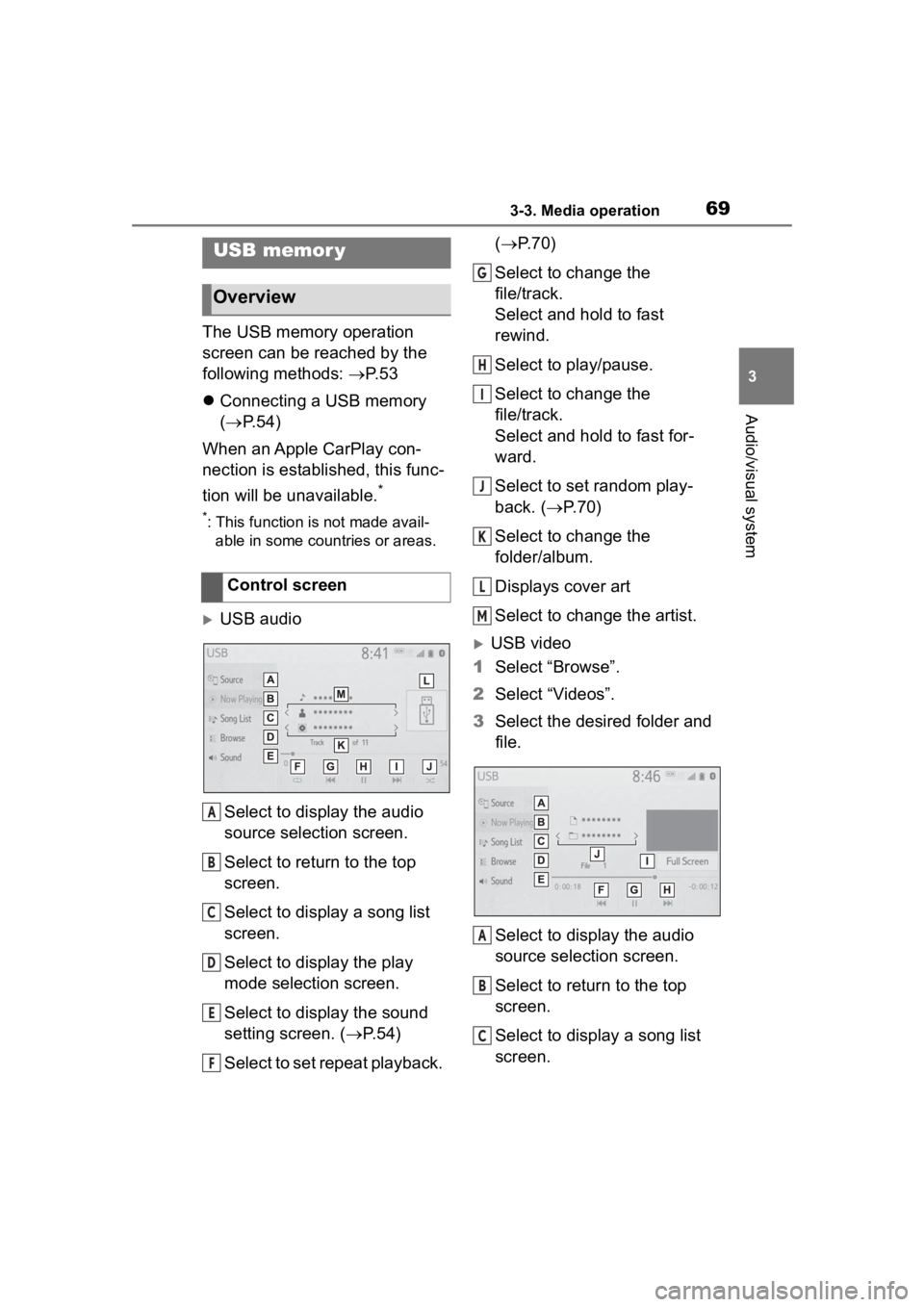
The USB memory operation
screen can be reached by the
following methods: P. 5 3
Connecting a USB memory
( P. 5 4 )
When an Apple CarPlay con-
nection is established, this func-
tion will be unavailable.
*
*: This function is not made avail- able in some countries or areas.
USB audio
Select to display the audio
source selection screen.
Select to return to the top
screen.
Select to display a song list
screen.
Select to display the play
mode selection screen.
Select to display the sound
setting screen. ( P. 5 4 )
Select to set repeat playback. (
P.70)
Select to change the
file/track.
Select and hold to fast
rewind.
Select to play/pause.
Select to change the
file/track.
Select and hold to fast for-
ward.
Select to set random play-
back. ( P.70)
Select to change the
folder/album.
Displays cover art
Select to change the artist.
USB video
1 Select “Browse”.
2 Select “Videos”.
3 Select the desired folder and
file.
Select to display the audio
source selection screen.
Select to return to the top
screen.
Select to display a song list
screen.
USB memor y
Overview
Control screen
A
B
C
D
E
F
G
H
I
J
K
L
M
A
B
C
Page 72 of 172
723-3. Media operation
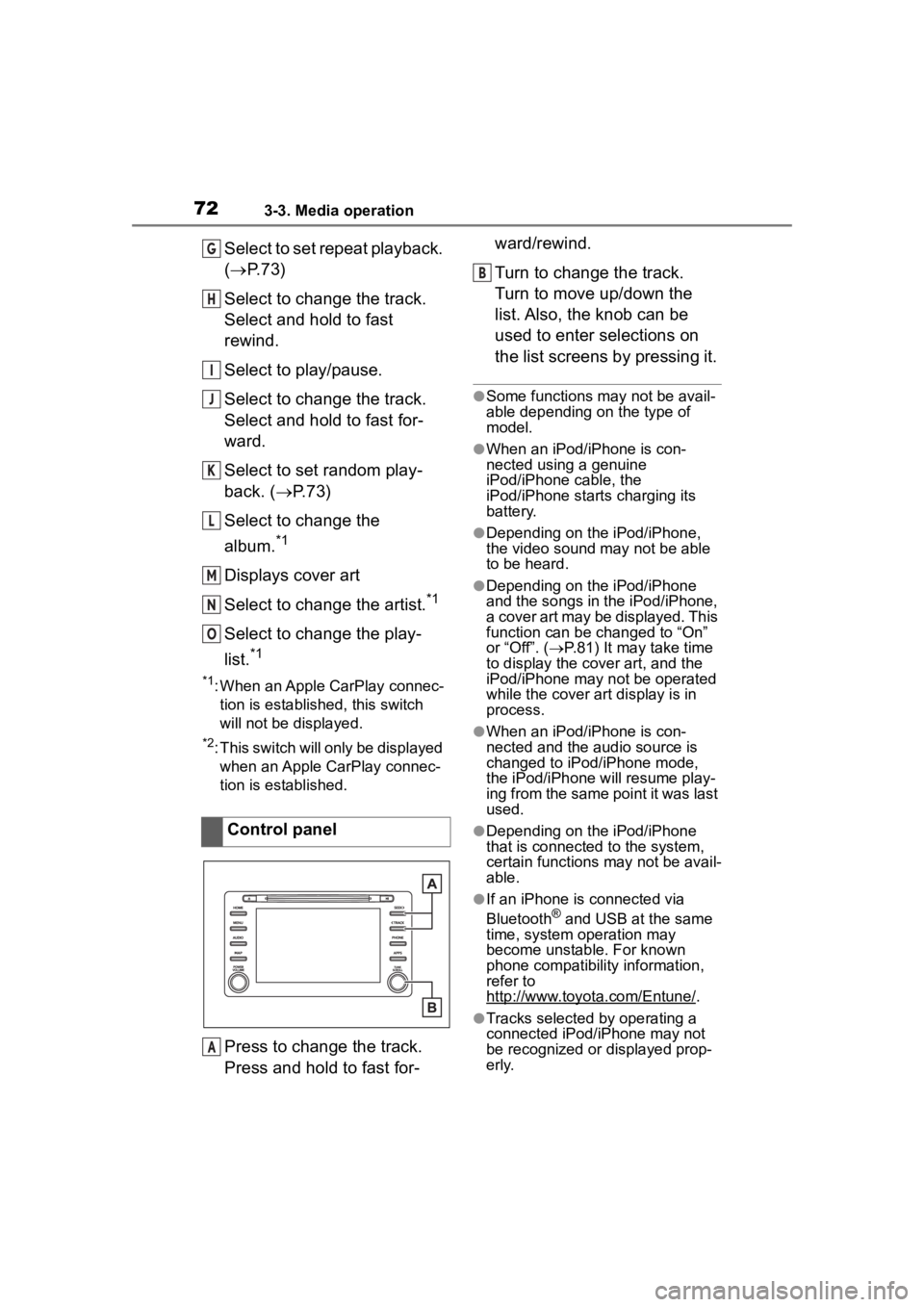
Select to set repeat playback.
(P. 7 3 )
Select to change the track.
Select and hold to fast
rewind.
Select to play/pause.
Select to change the track.
Select and hold to fast for-
ward.
Select to set random play-
back. ( P.73)
Select to change the
album.
*1
Displays cover art
Select to change the artist.
*1
Select to change the play-
list.
*1
*1: When an Apple CarPlay connec- tion is established, this switch
will not be displayed.
*2: This switch will only be displayed when an Apple CarPlay connec-
tion is established.
Press to change the track.
Press and hold to fast for- ward/rewind.
Turn to change the track.
Turn to move up/down the
list. Also, the knob can be
used to enter selections on
the list screens by pressing it.
●Some functions may not be avail-
able depending on the type of
model.
●When an iPod/iPhone is con-
nected using a genuine
iPod/iPhone cable, the
iPod/iPhone starts charging its
battery.
●Depending on the iPod/iPhone,
the video sound
may not be able
to be heard.
●Depending on the iPod/iPhone
and the songs in the iPod/iPhone,
a cover art may be displayed. This
function can be changed to “On”
or “Off”. ( P.81) It may take time
to display the cov er art, and the
iPod/iPhone may not be operated
while the cover art display is in
process.
●When an iPod/iPhone is con-
nected and the audio source is
changed to iPod/iPhone mode,
the iPod/iPhone will resume play-
ing from the same point it was last
used.
●Depending on the iPod/iPhone
that is connected to the system,
certain functions may not be avail-
able.
●If an iPhone is connected via
Bluetooth® and USB at the same
time, system operation may
become unstable. For known
phone compatibility information,
refer to
http://www.toyota.com/Entune/
.
●Tracks selected by operating a
connected iPod/iPhone may not
be recognized or displayed prop-
erly.
Control panel
G
H
I
J
K
L
M
N
O
A
B
Page 74 of 172
743-3. Media operation
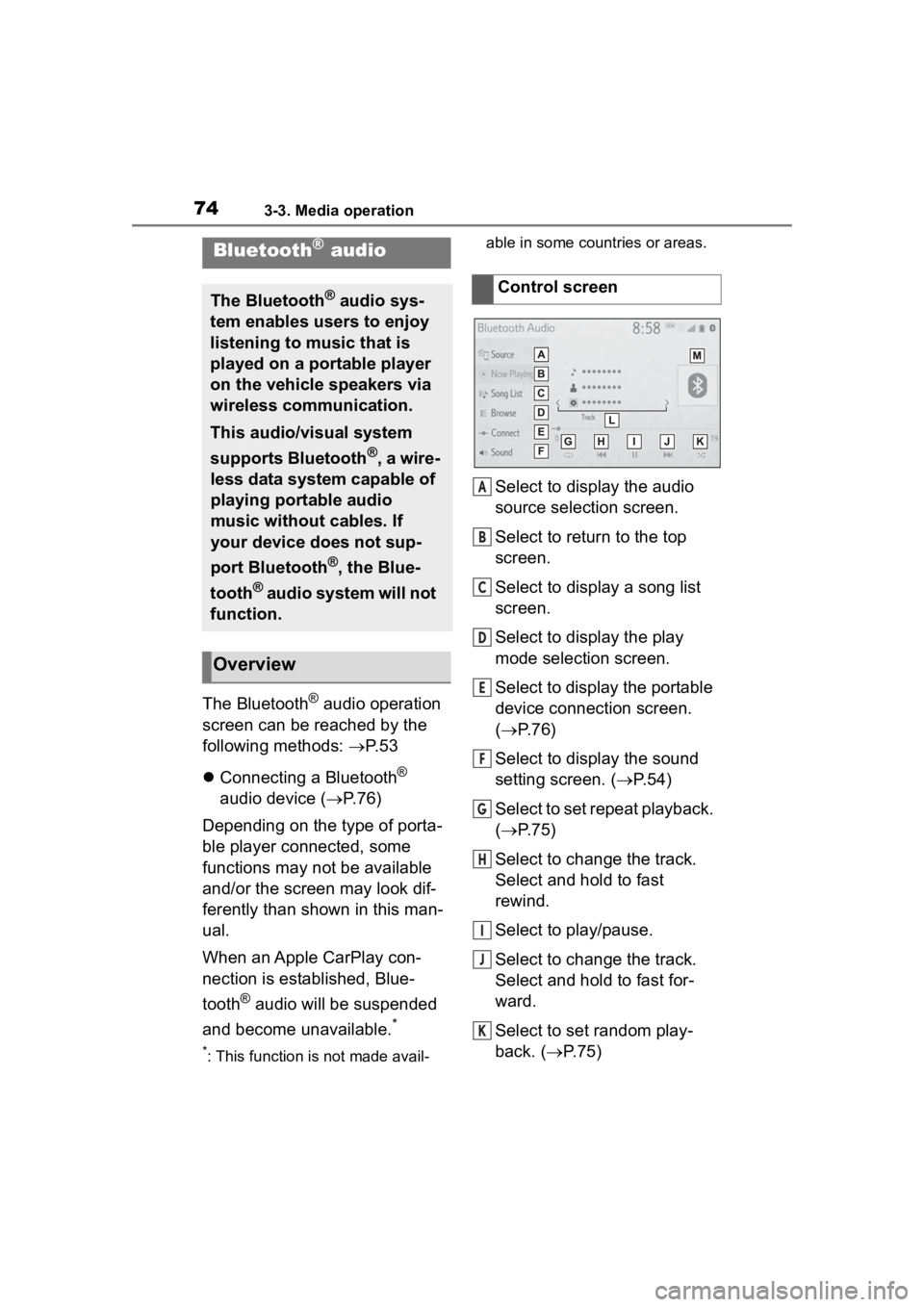
The Bluetooth® audio operation
screen can be reached by the
following methods: P. 5 3
Connecting a Bluetooth
®
audio device ( P.76)
Depending on the type of porta-
ble player connected, some
functions may not be available
and/or the screen may look dif-
ferently than shown in this man-
ual.
When an Apple CarPlay con-
nection is established, Blue-
tooth
® audio will be suspended
and become unavailable.
*
*: This function is not made avail- able in some countries or areas.
Select to display the audio
source selection screen.
Select to return to the top
screen.
Select to display a song list
screen.
Select to display the play
mode selection screen.
Select to display the portable
device connection screen.
(
P.76)
Select to display the sound
setting screen. ( P.54)
Select to set repeat playback.
( P.75)
Select to change the track.
Select and hold to fast
rewind.
Select to play/pause.
Select to change the track.
Select and hold to fast for-
ward.
Select to set random play-
back. ( P.75)
Bluetooth® audio
The Bluetooth® audio sys-
tem enables users to enjoy
listening to music that is
played on a portable player
on the vehicle speakers via
wireless communication.
This audio/visual system
supports Bluetooth
®, a wire-
less data system capable of
playing portable audio
music without cables. If
your device does not sup-
port Bluetooth
®, the Blue-
tooth
® audio system will not
function.
Overview
Control screen
A
B
C
D
E
F
G
H
I
J
K
Page 79 of 172
793-4. Audio/visual remote controls
3
Audio/visual system
3-4.Audio/visual remote controls
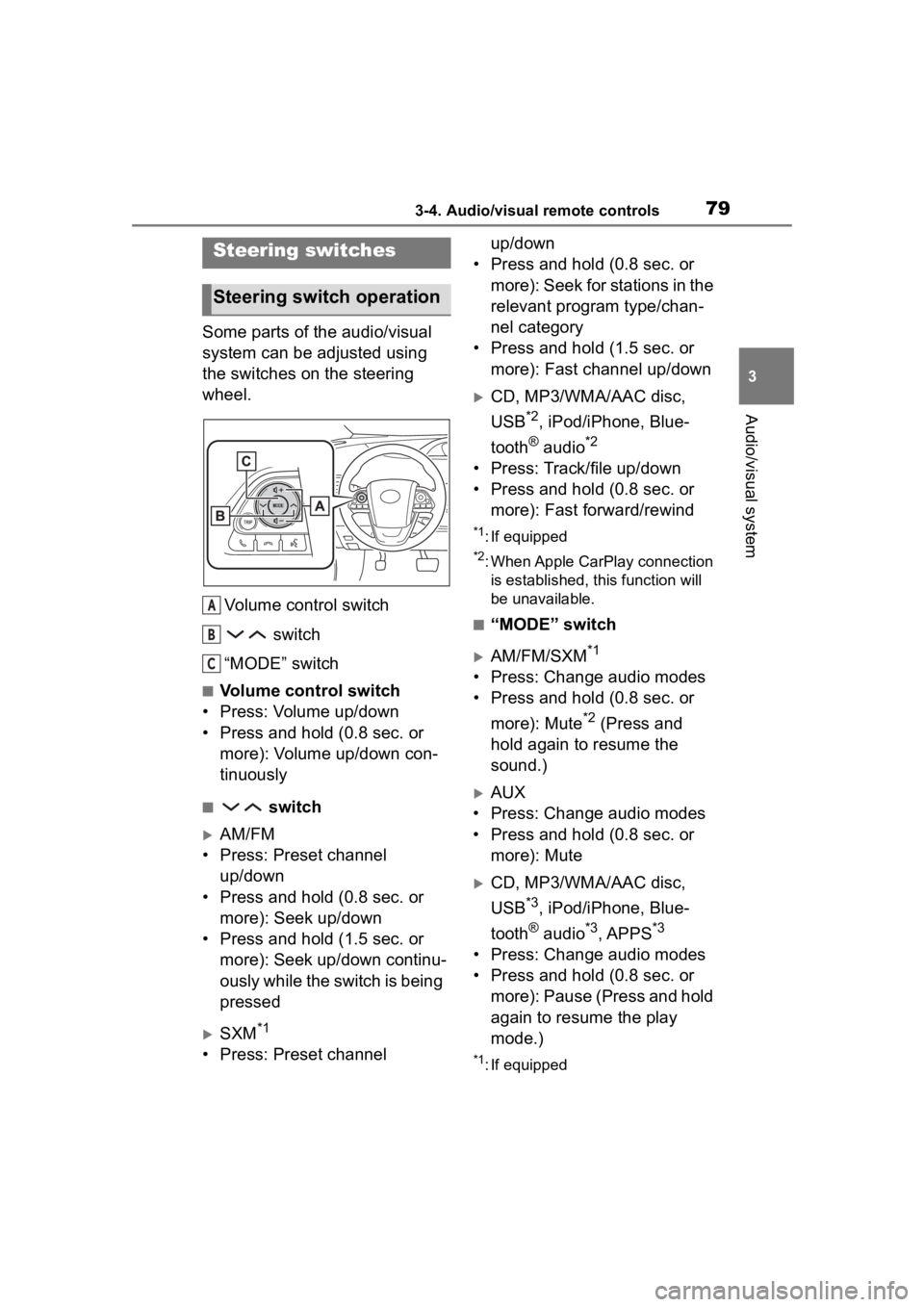
Some parts of the audio/visual
system can be adjusted using
the switches on the steering
wheel.Volume control switch switch
“MODE” switch
■Volume control switch
• Press: Volume up/down
• Press and hold (0.8 sec. or more): Volume up/down con-
tinuously
■ switch
AM/FM
• Press: Preset channel up/down
• Press and hold (0.8 sec. or more): Seek up/down
• Press and hold (1.5 sec. or more): Seek up/down continu-
ously while the switch is being
pressed
SXM*1
• Press: Preset channel up/down
• Press and hold (0.8 sec. or more): Seek for stations in the
relevant program type/chan-
nel category
• Press and hold (1.5 sec. or more): Fast channel up/down
CD, MP3/WMA/AAC disc,
USB
*2, iPod/iPhone, Blue-
tooth
® audio*2
• Press: Track/file up/down
• Press and hold (0.8 sec. or more): Fast forward/rewind
*1: If equipped
*2: When Apple CarPlay connection is established, this function will
be unavailable.
■“MODE” switch
AM/FM/SXM*1
• Press: Change audio modes
• Press and hold (0.8 sec. or
more): Mute
*2 (Press and
hold again to resume the
sound.)
AUX
• Press: Change audio modes
• Press and hold (0.8 sec. or more): Mute
CD, MP3/WMA/AAC disc,
USB
*3, iPod/iPhone, Blue-
tooth
® audio*3, APPS*3
• Press: Change audio modes
• Press and hold (0.8 sec. or more): Pause (Press and hold
again to resume the play
mode.)
*1: If equipped
Steering switches
Steering switch operation
A
B
C
Page 80 of 172

803-4. Audio/visual remote controls
*2: If cached radio is enabled, press-ing and holding the “MODE”
switch pauses the broadcast.
(Press and hol d again to play
back the cached radio program.)
*3: When Apple CarPlay connection is established, t his function will
be unavailable.
●In the APPS mode, some opera-
tion may be done on the screen
depend on t he selected APPS.
Page 96 of 172
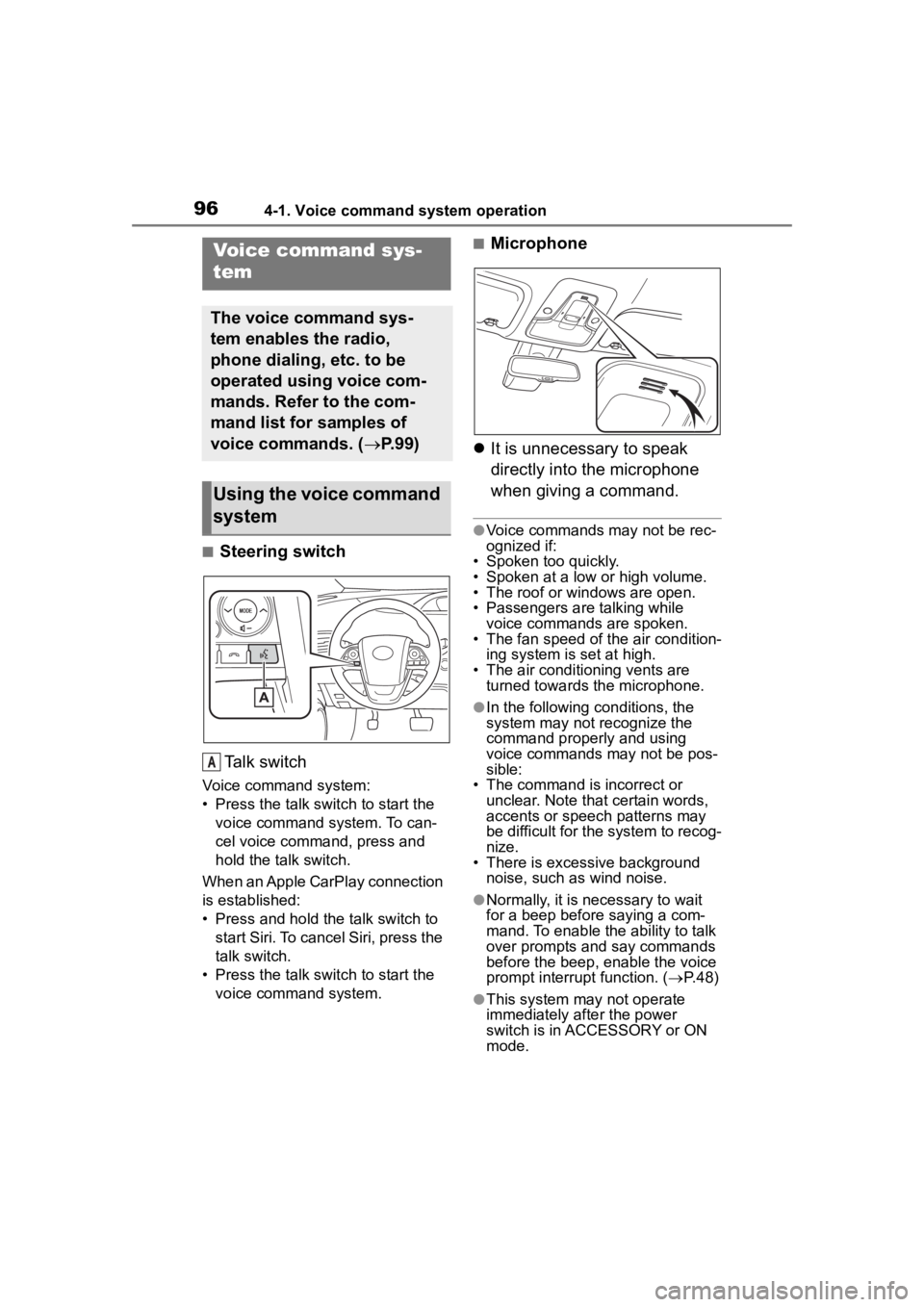
964-1. Voice command system operation
4-1.Voice command system operation
■Steering switchTa l k s w i t c h
Voice command system:
• Press the talk switch to start the voice command system. To can-
cel voice command, press and
hold the talk switch.
When an Apple CarPlay connection
is established:
• Press and hold the talk switch to start Siri. To cancel Siri, press the
talk switch.
• Press the talk switch to start the voice command system.
■Microphone
It is unnecessary to speak
directly into the microphone
when giving a command.
●Voice commands may not be rec-
ognized if:
• Spoken too quickly.
• Spoken at a low or high volume.
• The roof or windows are open.
• Passengers are talking while
voice commands are spoken.
• The fan speed of the air condition- ing system is set at high.
• The air conditioning vents are turned towards the microphone.
●In the following c onditions, the
system may not recognize the
command properly and using
voice commands may not be pos-
sible:
• The command is incorrect or
unclear. Note that certain words,
accents or speech patterns may
be difficult for the system to recog-
nize.
• There is excessive background noise, such as wind noise.
●Normally, it is necessary to wait
for a beep before saying a com-
mand. To enable th e ability to talk
over prompts and say commands
before the beep, enable the voice
prompt interrupt function. ( P. 4 8 )
●This system may not operate
immediately after the power
switch is in ACCESSORY or ON
mode.
Voice command sys-
tem
The voice command sys-
tem enables the radio,
phone dialing, etc. to be
operated using voice com-
mands. Refer to the com-
mand list for samples of
voice commands. ( P. 9 9 )
Using the voice command
system
A