radio TOYOTA PRIUS PRIME 2020 Accessories, Audio & Navigation (in English)
[x] Cancel search | Manufacturer: TOYOTA, Model Year: 2020, Model line: PRIUS PRIME, Model: TOYOTA PRIUS PRIME 2020Pages: 172, PDF Size: 2.92 MB
Page 83 of 172
833-6. Tips for operating the audio/visual system
3
Audio/visual system
3-6.Tips for operating the audio/visual system
●The use of a cellular phone inside
or near the vehicle may cause a
noise from the speakers of the
audio/visual system which you are
listening to. However, this does
not indicate a malfunction.
Usually, a problem with radio
reception does not mean there
is a problem with the radio it
is just the normal result of condi-
tions outside the vehicle.
For example, nearby buildings
and terrain can interfere with FM
reception. Power lines or phone
wires can interfere with AM sig-
nals. And of course, radio sig-
nals have a limited range. The
farther the vehicle is from a sta-
tion, the weaker its signal will
be. In addition, reception condi-
tions change constantly as the
vehicle moves.
Here are some common recep-
tion problems that may not indi-
cate a problem with the radio as
described.
■FM
Fading and drifting stations:
Generally, the effective range of FM is about 25 miles (40 km).
Once outside this range, you
may notice fading and drifting,
which increase with the distance
from the radio transmitter. They
are often accompanied by dis-
tortion.
Multi-path: FM signals are
reflective, making it possible for
2 signals to reach the vehicle’s
antenna at the same time. If this
happens, the signals will cancel
each other out, causing a
momentary flutter or loss of
reception.
Static and fluttering: These
occur when signals are blocked
by buildings, trees or other large
objects. Increasing the bass
level may reduce static and flut-
tering.
Station swapping: If the FM sig-
nal being listened to is inter-
rupted or weakened, and there
is another strong station nearby
on the FM band, the radio may
tune in the second station until
the original signal can be picked
up again.
■AM
Fading: AM broadcasts are
reflected by the upper atmo-
sphere especially at night.
These reflected signals can
interfere with those received
directly from the radio station,
causing the radio station to
sound alternately strong and
weak.
Operating infor mation
NOTICE
●To avoid damage to the
audio/visual system:
• Be careful not to spill beverages over the audio/visual system.
Radio
Page 84 of 172
843-6. Tips for operating the audio/visual system
Station interference: When a
reflected signal and a signal
received directly from a radio
station are very nearly the same
frequency, they can interfere
with each other, making it diffi-
cult to hear the broadcast.
Static: AM is easily affected by
external sources of electrical
noise, such as high tension
power lines, lightening or electri-
cal motors. This results in static.
■SiriusXM
Cargo loaded on the roof lug-
gage carrier, especially metal
objects, may adversely affect
the reception of SiriusXM Sat-
ellite Radio.
Alternation or modifications
carried out without appropri-
ate authorization may invali-
date the user’s right to
operate the equipment.
This CD player is intended for
use with 12 cm discs only.
Extremely high temperatures
can keep the CD player from
working. On hot days, use the
air conditioning system to cool
the inside of the vehicle
before using the player.
Bumpy roads or other vibra-
tions may make the CD player
skip.
If moisture gets into the CD player, the discs may not be
able to be played. Remove
the discs from the player and
wait until it dries.
■CD player
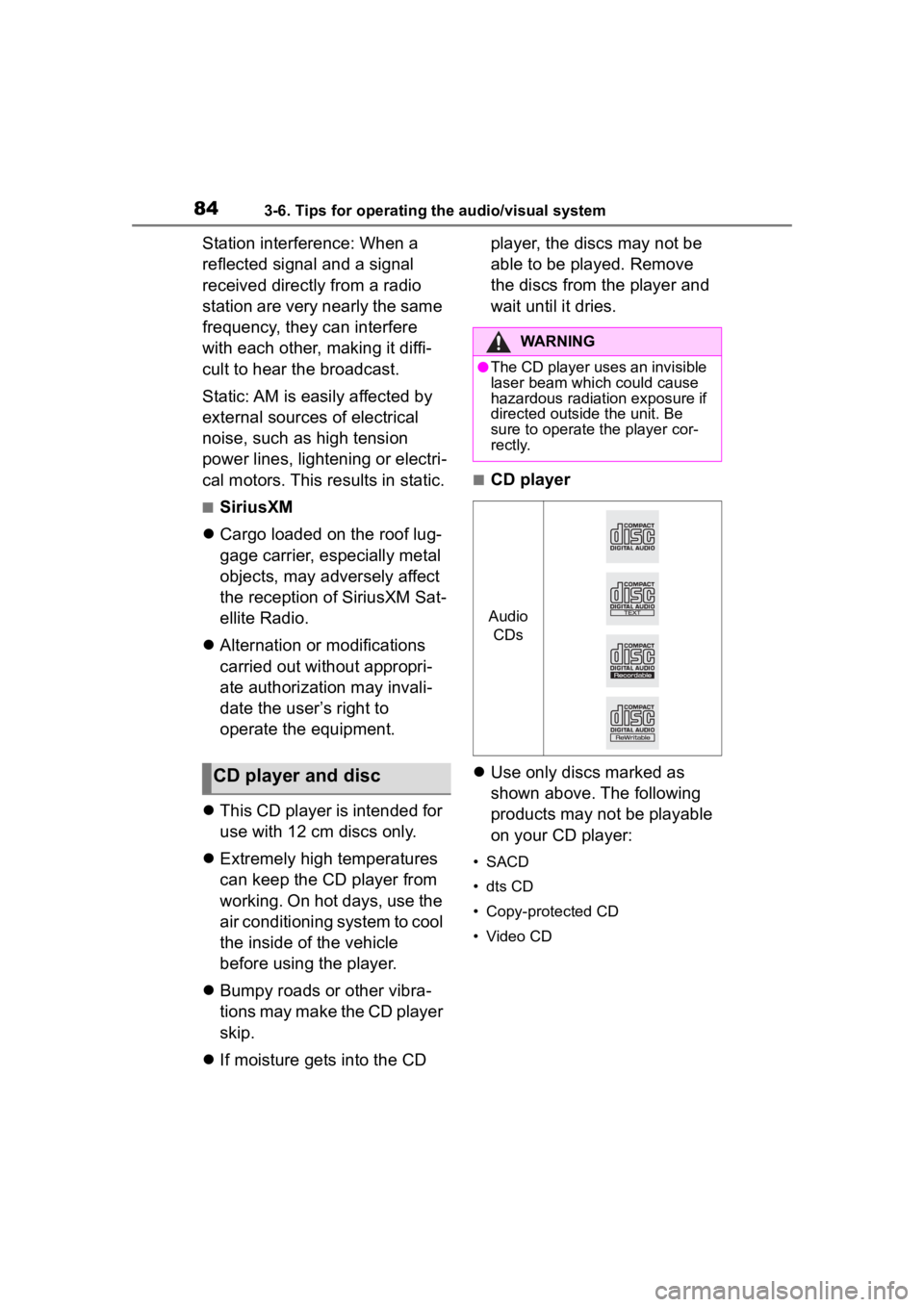
Use only discs marked as
shown above. The following
products may not be playable
on your CD player:
• SACD
• dts CD
• Copy-protected CD
• Video CD
CD player and disc
WARNING
●The CD player uses an invisible
laser beam which could cause
hazardous radiation exposure if
directed outside the unit. Be
sure to operate the player cor-
rectly.
Audio
CDs
Page 96 of 172
964-1. Voice command system operation
4-1.Voice command system operation
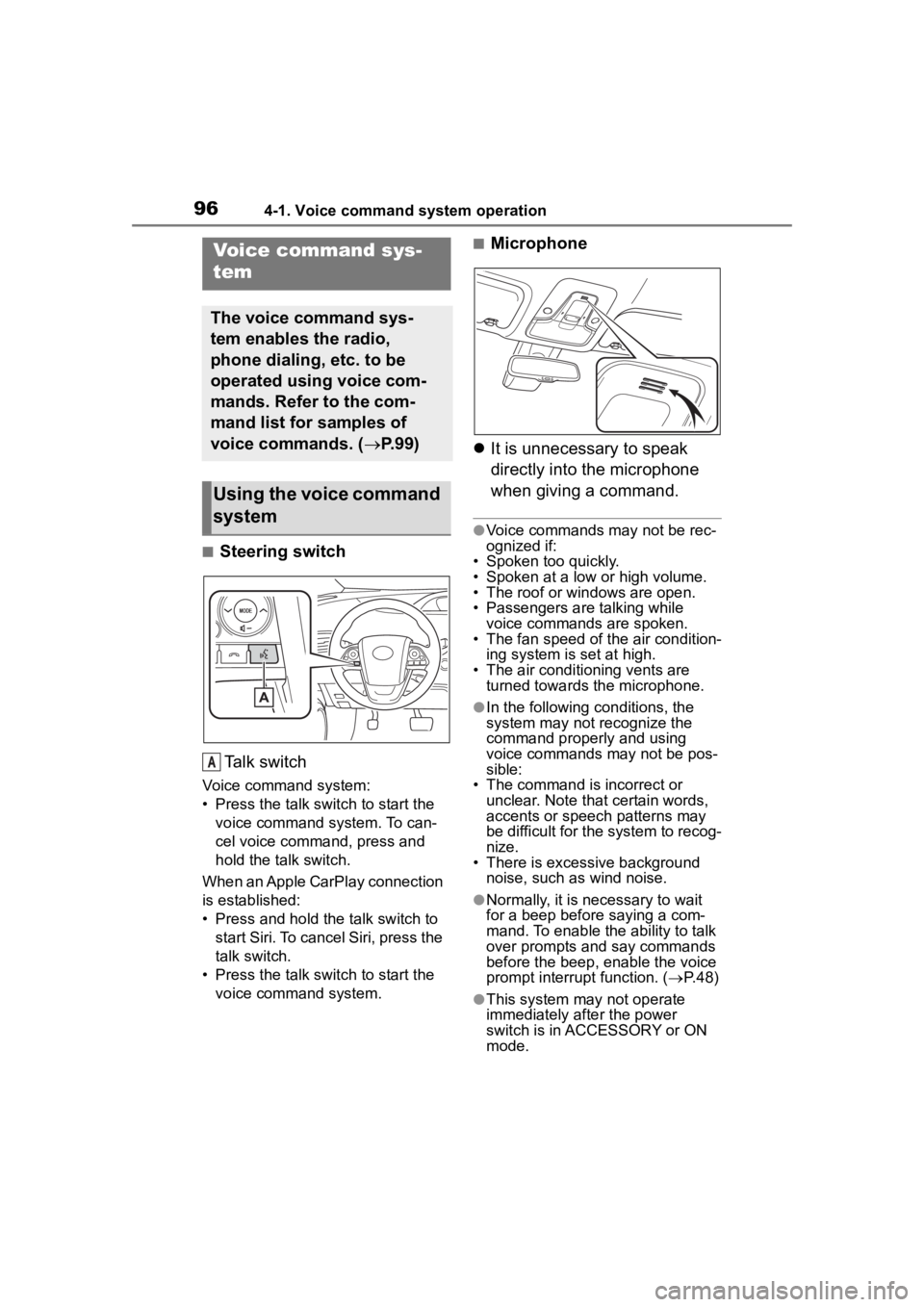
■Steering switchTa l k s w i t c h
Voice command system:
• Press the talk switch to start the voice command system. To can-
cel voice command, press and
hold the talk switch.
When an Apple CarPlay connection
is established:
• Press and hold the talk switch to start Siri. To cancel Siri, press the
talk switch.
• Press the talk switch to start the voice command system.
■Microphone
It is unnecessary to speak
directly into the microphone
when giving a command.
●Voice commands may not be rec-
ognized if:
• Spoken too quickly.
• Spoken at a low or high volume.
• The roof or windows are open.
• Passengers are talking while
voice commands are spoken.
• The fan speed of the air condition- ing system is set at high.
• The air conditioning vents are turned towards the microphone.
●In the following c onditions, the
system may not recognize the
command properly and using
voice commands may not be pos-
sible:
• The command is incorrect or
unclear. Note that certain words,
accents or speech patterns may
be difficult for the system to recog-
nize.
• There is excessive background noise, such as wind noise.
●Normally, it is necessary to wait
for a beep before saying a com-
mand. To enable th e ability to talk
over prompts and say commands
before the beep, enable the voice
prompt interrupt function. ( P. 4 8 )
●This system may not operate
immediately after the power
switch is in ACCESSORY or ON
mode.
Voice command sys-
tem
The voice command sys-
tem enables the radio,
phone dialing, etc. to be
operated using voice com-
mands. Refer to the com-
mand list for samples of
voice commands. ( P. 9 9 )
Using the voice command
system
A
Page 100 of 172
1004-1. Voice command system operation
*1: When an Apple CarPlay connec-tion is established, these voice
commands will be unavailable.
*2: If the system does not recognize the name of a con tact, create a
voice tag. ( P.134) The name of
a contact can also be recognized
by adding a voice tag.
■While in a phone call*
*: When an Apple CarPlay connec- tion is established, these voice
commands will be unavailable.
■While incoming message
notification is displayed
*1, 2
*1: Full screen message notification must be turned on within the
phone settings ( P.132)
*2: When an Apple CarPlay connec-
tion is established, these voice
commands will be unavailable.
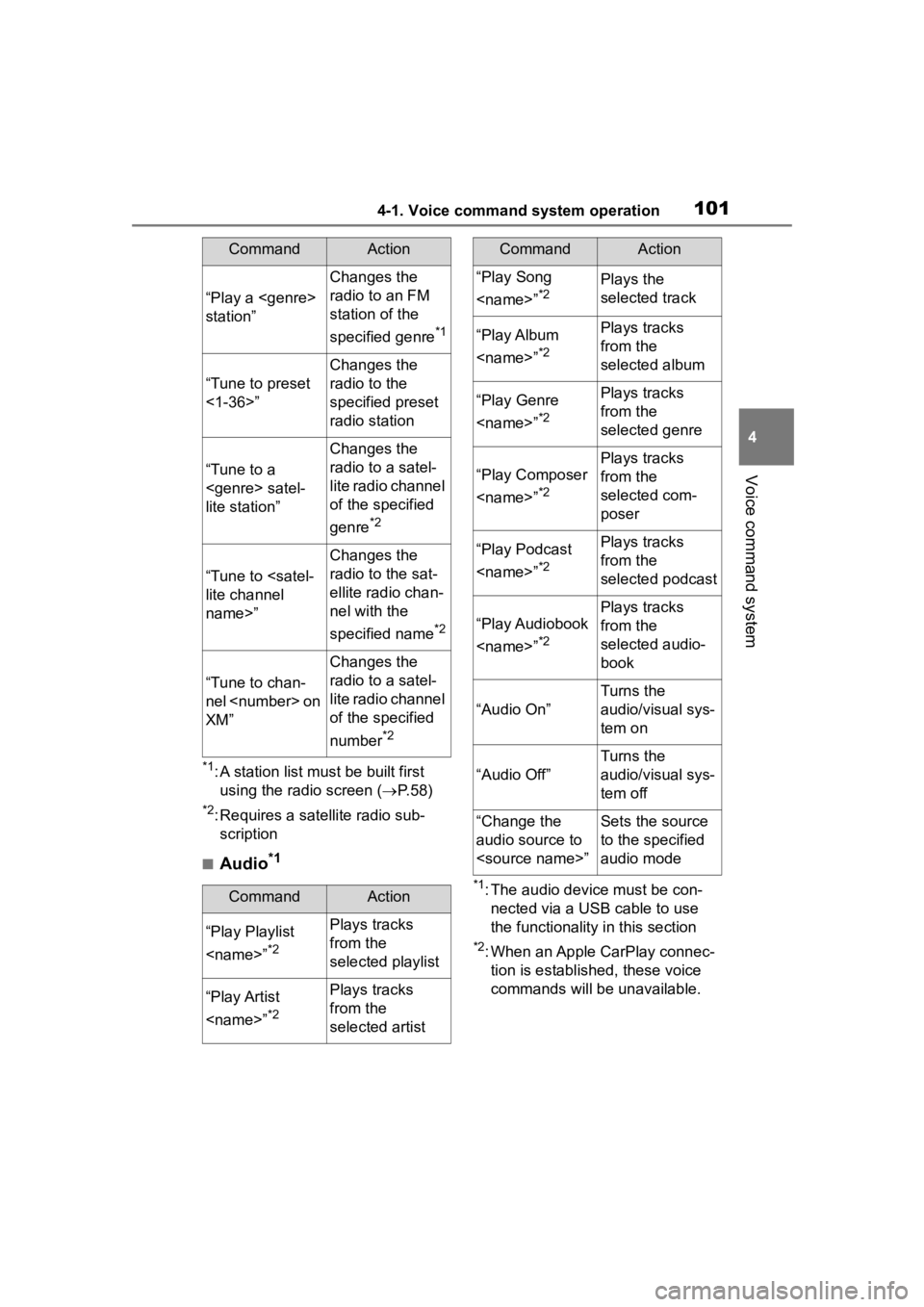
■Radio
“Dial
the specified
phone number
“Redial”
Places a call to
the phone num-
ber of the latest
outgoing call
“Call back”
Places a call to
the phone num-
ber of latest
incoming call
“Show recent
calls”Displays the call
history screen
“Send a mes-
sage to
Sends a text
message to
specified con-
tact from the
phone book
CommandAction
“Send
Sends DTMF
tones has speci-
fied
“Mute”
Mutes the micro-
phone (far side
cannot hear the
conversation)
“Unmute”Unmutes the
microphone
CommandAction
CommandAction
“Read message”
Reads the
incoming mes-
sage over the
vehicle speakers
“Ignore”
Ignores the
incoming mes-
sage notification
“Reply”
Initiates sending
a reply to the
incoming mes-
sage
“Call”
Places a call to
the phone num-
ber of incoming
message
CommandAction
“Tune to
Changes the
radio to the
specified AM fre-
quency
“Tune to
Changes the
radio to the
specified FM fre-
quency
Page 101 of 172
1014-1. Voice command system operation
4
Voice command system
*1: A station list must be built first using the radio screen ( P. 5 8 )
*2: Requires a satellite radio sub-
scription
■Audio*1
*1: The audio device must be con-nected via a USB cable to use
the functionality in this section
*2: When an Apple CarPlay connec-tion is established, these voice
commands will be unavailable.
“Play a
station”
Changes the
radio to an FM
station of the
specified genre
*1
“Tune to preset
<1-36>”
Changes the
radio to the
specified preset
radio station
“Tune to a
lite station”
Changes the
radio to a satel-
lite radio channel
of the specified
genre
*2
“Tune to
name>”
Changes the
radio to the sat-
ellite radio chan-
nel with the
specified name
*2
“Tune to chan-
nel
XM”
Changes the
radio to a satel-
lite radio channel
of the specified
number
*2
CommandAction
“Play Playlist
*2
Plays tracks
from the
selected playlist
“Play Artist
*2
Plays tracks
from the
selected artist
CommandAction
“Play Song
*2Plays the
selected track
“Play Album
*2
Plays tracks
from the
selected album
“Play Genre
*2
Plays tracks
from the
selected genre
“Play Composer
*2
Plays tracks
from the
selected com-
poser
“Play Podcast
*2
Plays tracks
from the
selected podcast
“Play Audiobook
*2
Plays tracks
from the
selected audio-
book
“Audio On”
Turns the
audio/visual sys-
tem on
“Audio Off”
Turns the
audio/visual sys-
tem off
“Change the
audio source to
to the specified
audio mode
CommandAction
Page 118 of 172
1186-1. Phone operation (Hands-free system for cellular phones)
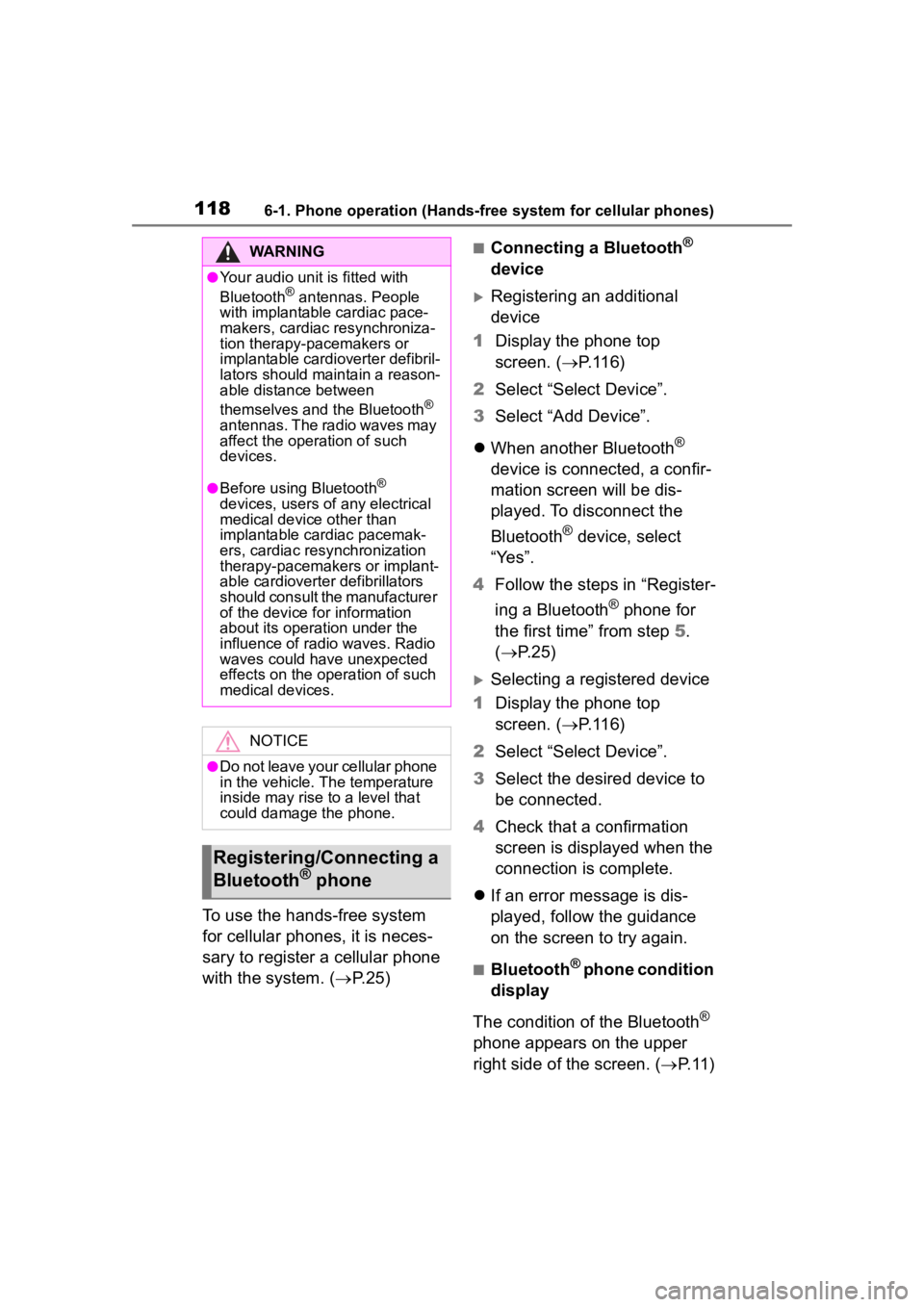
To use the hands-free system
for cellular phones, it is neces-
sary to register a cellular phone
with the system. (P.25)
■Connecting a Bluetooth®
device
Registering an additional
device
1 Display the phone top
screen. ( P.116)
2 Select “Select Device”.
3 Select “Add Device”.
When another Bluetooth
®
device is connected, a confir-
mation screen will be dis-
played. To disconnect the
Bluetooth
® device, select
“Yes”.
4 Follow the steps in “Register-
ing a Bluetooth
® phone for
the first time” from step 5.
( P.25)
Selecting a registered device
1 Display the phone top
screen. ( P.116)
2 Select “Select Device”.
3 Select the desired device to
be connected.
4 Check that a confirmation
screen is displayed when the
connection is complete.
If an error message is dis-
played, follow the guidance
on the screen to try again.
■Bluetooth® phone condition
display
The condition of the Bluetooth
®
phone appears on the upper
right side of the screen. ( P. 1 1 )
WARNING
●Your audio unit is fitted with
Bluetooth® antennas. People
with implantable cardiac pace-
makers, cardiac resynchroniza-
tion therapy-pacemakers or
implantable cardioverter defibril-
lators should maintain a reason-
able distance between
themselves and the Bluetooth
®
antennas. The radio waves may
affect the operation of such
devices.
●Before using Bluetooth®
devices, users of any electrical
medical device other than
implantable cardiac pacemak-
ers, cardiac resynchronization
therapy-pacemakers or implant-
able cardioverter defibrillators
should consult the manufacturer
of the device for information
about its operation under the
influence of radio waves. Radio
waves could have unexpected
effects on the operation of such
medical devices.
NOTICE
●Do not leave your cellular phone
in the vehicle. The temperature
inside may rise to a level that
could damage the phone.
Registering/Connecting a
Bluetooth® phone
Page 144 of 172
1446-3. What to do if...
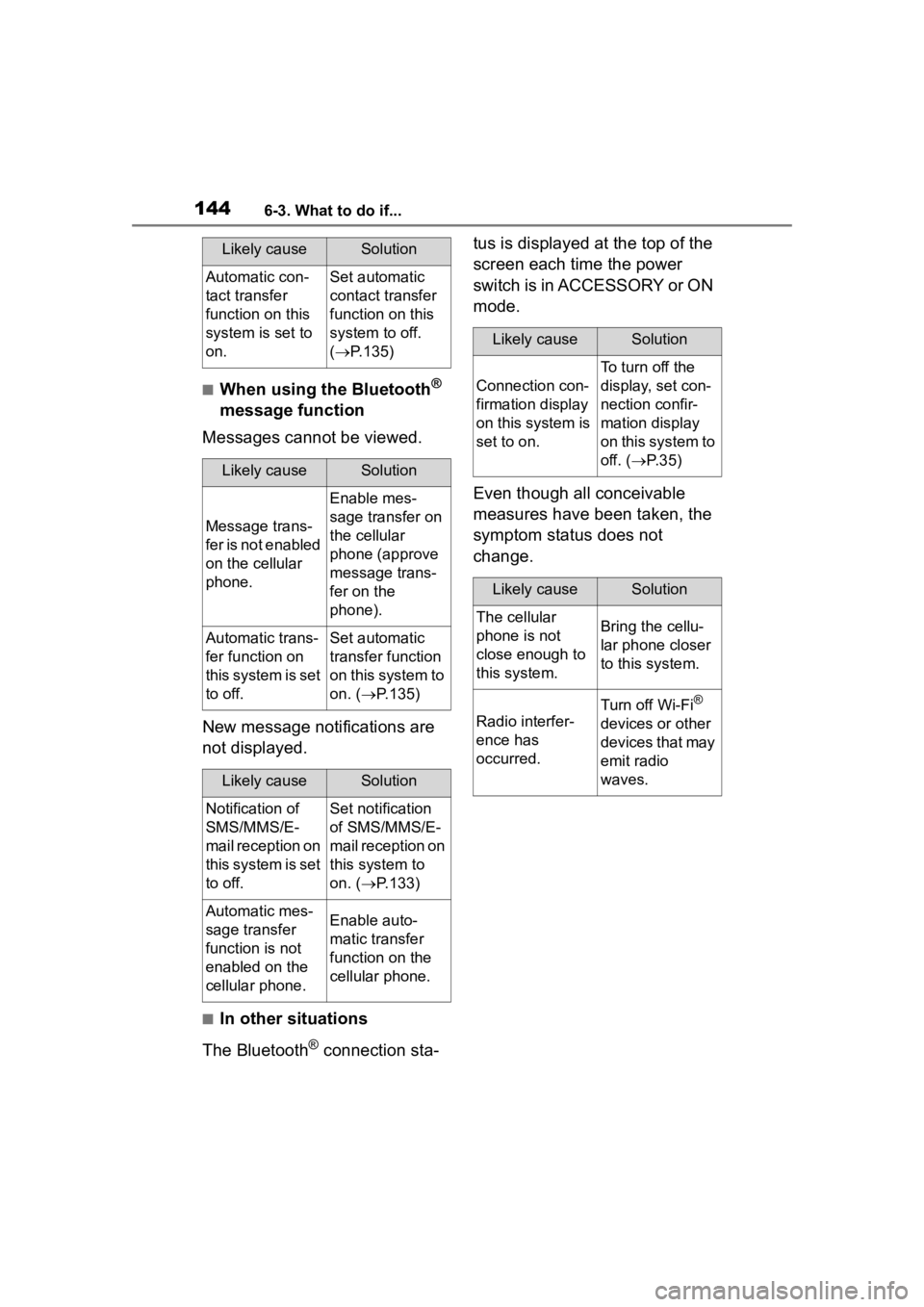
■When using the Bluetooth®
message function
Messages cannot be viewed.
New message notifications are
not displayed.
■In other situations
The Bluetooth
® connection sta- tus is displayed at the top of the
screen each time the power
switch is in ACCESSORY or ON
mode.
Even though all conceivable
measures have been taken, the
symptom status does not
change.
Likely causeSolution
Automatic con-
tact transfer
function on this
system is set to
on.Set automatic
contact transfer
function on this
system to off.
(
P.135)
Likely causeSolution
Message trans-
fer is not enabled
on the cellular
phone.
Enable mes-
sage transfer on
the cellular
phone (approve
message trans-
fer on the
phone).
Automatic trans-
fer function on
this system is set
to off.Set automatic
transfer function
on this system to
on. ( P.135)
Likely causeSolution
Notification of
SMS/MMS/E-
mail reception on
this system is set
to off.Set notification
of SMS/MMS/E-
mail reception on
this system to
on. ( P.133)
Automatic mes-
sage transfer
function is not
enabled on the
cellular phone.Enable auto-
matic transfer
function on the
cellular phone.
Likely causeSolution
Connection con-
firmation display
on this system is
set to on.
To turn off the
display, set con-
nection confir-
mation display
on this system to
off. ( P. 3 5 )
Likely causeSolution
The cellular
phone is not
close enough to
this system.Bring the cellu-
lar phone closer
to this system.
Radio interfer-
ence has
occurred.
Turn off Wi-Fi®
devices or other
devices that may
emit radio
waves.
Page 151 of 172
1517-1. Toyota Entune overview
7
Toyota Entune
nect and the applications, refer to
http://www.toyota.com/Entune/
in the United States, and
http://www.toyota.ca/entune
in Canada.
●These functions are not made
available in some countries or
areas. Availability of functions of
the Toyota Entune App Suite Con-
nect service is dependent on net-
work reception level.
■Initializing personal data
The personal data used in appli-
cations can be reset. ( P.47)
The following personal data
can be deleted and returned
to their default settings:
• Downloaded contents
• Radio stations that were listened
to
●Once initialized, the data and set-
tings will be erased. Pay much
attention when initializing the data.
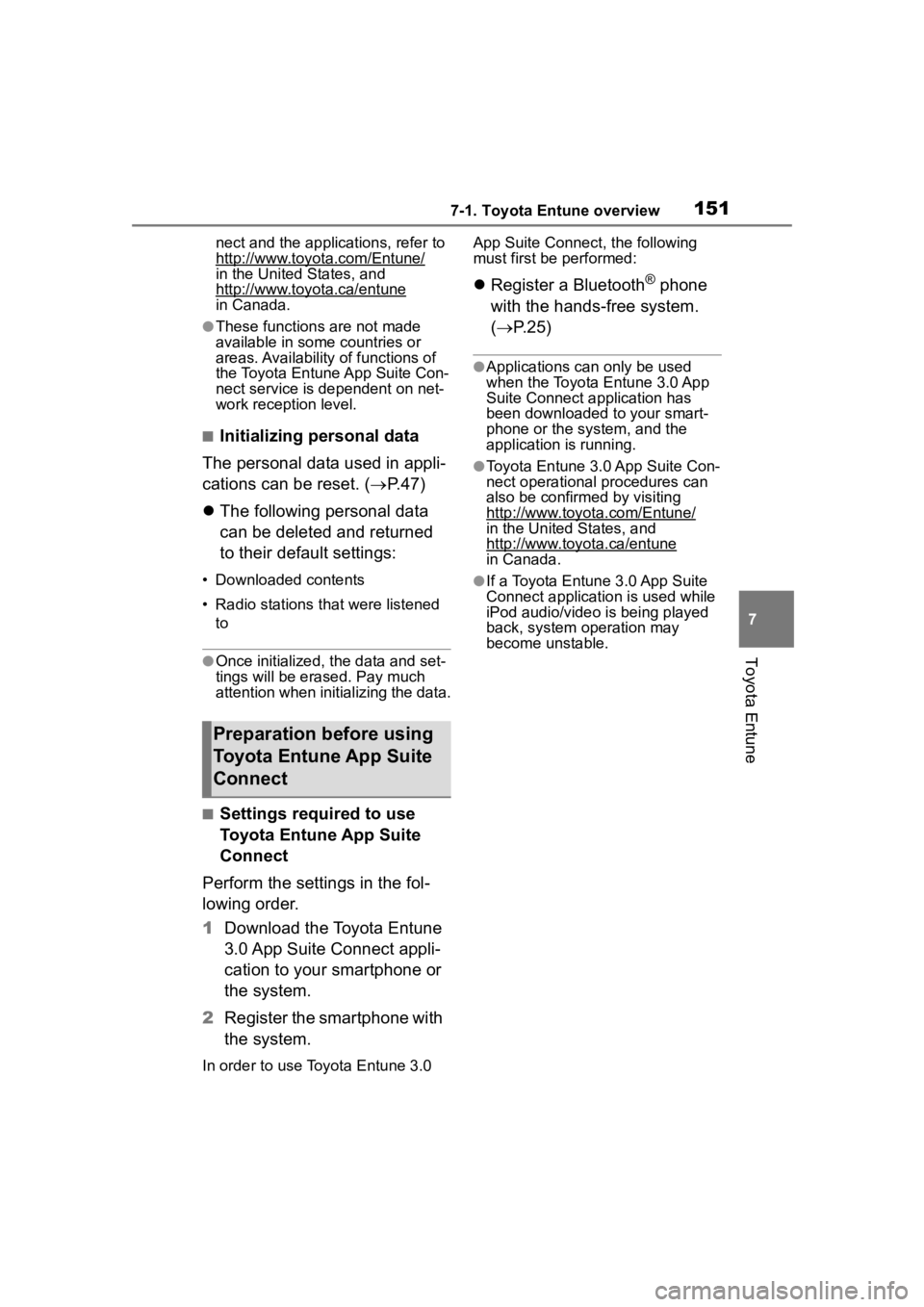
■Settings required to use
Toyota Entune App Suite
Connect
Perform the settings in the fol-
lowing order.
1 Download the Toyota Entune
3.0 App Suite Connect appli-
cation to your smartphone or
the system.
2 Register the smartphone with
the system.
In order to use To yota Entune 3.0 App Suite Connect, the following
must first be performed:
Register a Bluetooth® phone
with the hands-free system.
( P.25)
●Applications can only be used
when the Toyota Entune 3.0 App
Suite Connect application has
been downloaded to your smart-
phone or the system, and the
application is running.
●Toyota Entune 3.0 App Suite Con-
nect operational procedures can
also be confirmed by visiting
http://www.toyota.com/Entune/
in the United States, and
http://www.toyota.ca/entune
in Canada.
●If a Toyota Entune 3.0 App Suite
Connect applicatio n is used while
iPod audio/video is being played
back, system operation may
become unstable.
Preparation before using
Toyota Entune App Suite
Connect
Page 153 of 172
1537-1. Toyota Entune overview
7
Toyota Entune
●Free/Open Source Software Infor-
mation
This product contains Free/Open
Source Software (FOSS).
The license information and/or the
source code of such FOSS can be
found at the following URL.
https://www.
toyota.com/opensource/dcm
●Exposure to radio frequency sig-
nals:
The connected service system
installed in your vehicle includes a
low power radio transmitter and
receiver. The system receives and
also sends out radio frequency
(RF) signals.
●In August 1996, the Federal Com-
munications Commission (FCC)
adopted RF exposure guidelines
with safety levels for mobile wire-
less phones. Those guidelines are
consistent with the safety stan-
dards previously set by both U.S.
and international standards bod-
ies.
• ANSI (American National Stan- dards Institute) C95.1 [1992]
• NCRP (National Council on Radi-
ation Protection and Measure-
ment) Report 86 [1986]
• ICNIRP (Intern ational Commis-
sion on Non-Ionizing Radiation
Protection) [1996]
●These standards are based on
comprehensive and periodic eval-
uations of the relevant scientific lit-
erature. Over 1 20 scientists, engineers, and physicians from
universities, government health
agencies, and industry reviewed
the available body of research to
develop the ANSI Standard
(C95.1).
●The design of Toyota Entune sys-
tem complies with the FCC guide-
lines in addition to those
standards.
●Contact with the Toyota Entune
center is dependent upon the
telematics device being in opera-
tive condition, cellular connection
availability, and GPS satellite sig-
nal reception, whi
ch can limit the
ability to reach the Toyota Entune
center or receive support. Enroll-
ment and Telematics Subscription
Service Agreement required. A
variety of subscription terms are
available; charges vary by sub-
scription term selected.
●The Toyota Entune center offers
support in multiple languages.
●Select Safety Connect-sub-
scribed vehicles are capable of
communicating vehicle informa-
tion. Please see the terms and
conditions for additional details.
Owners who do not wish to have
their vehicle transmit this informa-
tion can opt out at the time of
enrollment or b y calling 1-800-
331-4331 in the United States,
and 1-888-869-6828 in Canada,
and following t he prompts for
Safety Connect.
●For further details about the ser-
vice, contact your Toyota dealer.
●Toyota Entune functions are not
subject to section 255 of the Tele-
communications Act and the sys-
tem is not TTY compatible.
Type C: Function
achieved by using
DCM
The functionality of Safety
Connect is made possible
by the use of a DCM.
For details, refer to
“OWNER’S MANUAL”.
Page 162 of 172

162Alphabetical Index
Alphabetical Index
A
AM/FM/SiriusXM (SXM) radio .. 58
Available HD Radio™ technol- ogy ....................................... 62
Caching a radio program........ 59
Displaying the radio ID ........... 64
HOW TO SUBSCRIBE TO Siri- usXM Radio Services ........... 63
Overview ................................ 58
Presetting a station ................ 59
Radio broadcast data system. 60
Radio options ......................... 60
Refer to the table below to iden- tify the problem and take the
suggested corrective action . 64
Selecting a station from the list ............................................. 60
Smart favorites ....................... 64
Troubleshooting guide ............ 62
Using HD Radio™ technology 61
Apple CarPlay ........................... 41 Establishing an Apple CarPlay connection ............................ 41
Troubleshooting...................... 42
“Apple CarPlay” button (“Menu” screen) .............................. 10, 41
“Apps” button (“Menu” screen) ......................................... 10, 155
“APPS” button ........ ............8, 155
Audio/visual remote controls .. 79
“Audio” button (“Menu” screen) ........................................... 10, 52
“Audio” button (“Setup” screen) ........................................... 13, 81
“AUDIO” button .............. 8, 52, 53
Audio settings .......................... 81 Audio settings screen ............. 81
Displaying the audio settings screen .................................. 81
AUX ............................................ 77 Overview ................................ 77
B
Basic function .............................8
Basic information before opera-tion ...........................................16
Basic operation.........................52
Bluetooth
® audio ......................74
Overview ................................74
Registering/Connecting a Blue-
tooth
® device ........................76
Bluetooth
® phone message func-
tion .........................................127 Calling the message sender .130
Checking received messages ...........................................128
Displaying the message screen
...........................................127
Receiving a mess age ...........128
Replying to a message (dicta- tion reply)............................129
Replying to a message (quick reply) ..................................130
“Bluetooth” button (“Setup” screen) ...............................13, 29
Buttons overview........................8 Operations of each part ............8
C
CD ..............................................67Overview ................................67
Command list ............................99 Command list overview ..........99
Connectivity settings ...............25
D
“Display” button (“Menu”
screen) ...............................10, 23