page 72 TOYOTA PRIUS PRIME 2020 Accessories, Audio & Navigation (in English)
[x] Cancel search | Manufacturer: TOYOTA, Model Year: 2020, Model line: PRIUS PRIME, Model: TOYOTA PRIUS PRIME 2020Pages: 310, PDF Size: 6.19 MB
Page 3 of 310

3
PRIUS PRIME_Navi_OM47C85U_(U)
19.03.07 12:34
Please be aware that all current vehicle navigation systems have certain limita-
tions that may affect their ability to perform properly. The accuracy of the vehi-
cle’s position depends on satellite conditions, road configurat ion, vehicle
condition or other circumstances. For more information on the l imitations of the
system, refer to page 272.
Page 13 of 310
13
1. BASIC FUNCTION
PRIUS PRIME_Navi_OM47C85U_(U)
19.03.07 12:34
QUICK GUIDE
1No.FunctionPage
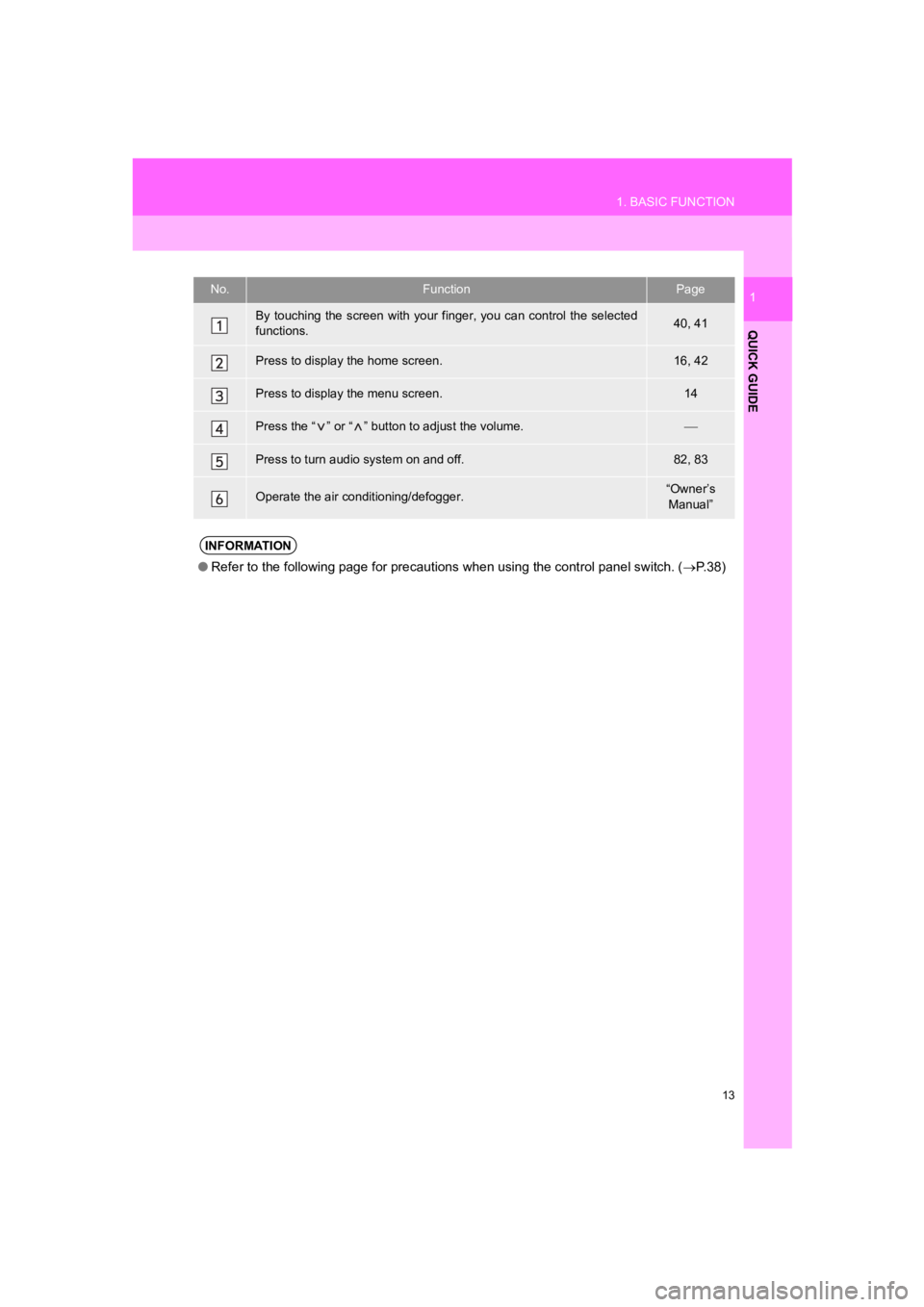
By touching the screen with your finger, you can control the selected
functions.40, 41
Press to display the home screen.16, 42
Press to display the menu screen.14
Press the “ ” or “ ” button to adjust the volume.
Press to turn audio system on and off.82, 83
Operate the air conditioning/defogger.“Owner’s Manual”
INFORMATION
● Refer to the following page for precautions when using the control panel switch. ( P. 3 8 )
Page 15 of 310
15
1. BASIC FUNCTION
PRIUS PRIME_Navi_OM47C85U_(U)
19.03.07 12:34
QUICK GUIDE
1No.FunctionPage
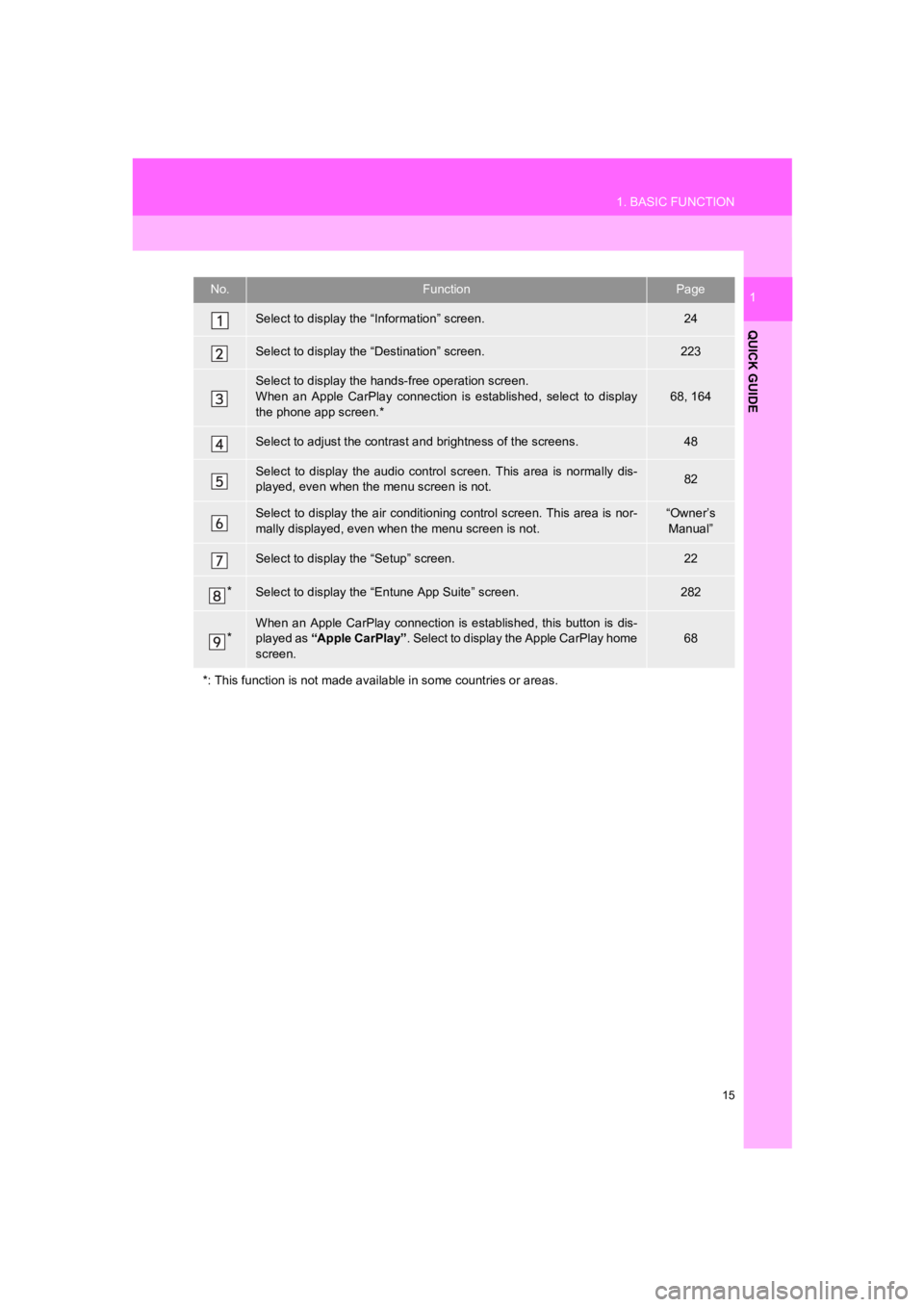
Select to display the “Information” screen.24
Select to display the “Destination” screen.223
Select to display the hands-free operation screen.
When an Apple CarPlay connection is established, select to display
the phone app screen.*
68, 164
Select to adjust the contrast a nd brightness of the screens.48
Select to display the audio control screen. This area is normal ly dis-
played, even when the menu screen is not.82
Select to display the air conditioning control screen. This are a is nor-
mally displayed, even when the menu screen is not.“Owner’s Manual”
Select to display the “Setup” screen.22
*Select to display the “Entune App Suite” screen.282
*When an Apple CarPlay connection is established, this button is dis-
played as “Apple CarPlay” . Select to display the Apple CarPlay home
screen.
68
*: This function is not made avai lable in some countries or areas.
Page 16 of 310
16
1. BASIC FUNCTION
PRIUS PRIME_Navi_OM47C85U_(U)
19.03.07 12:34
3. MAP SCREEN
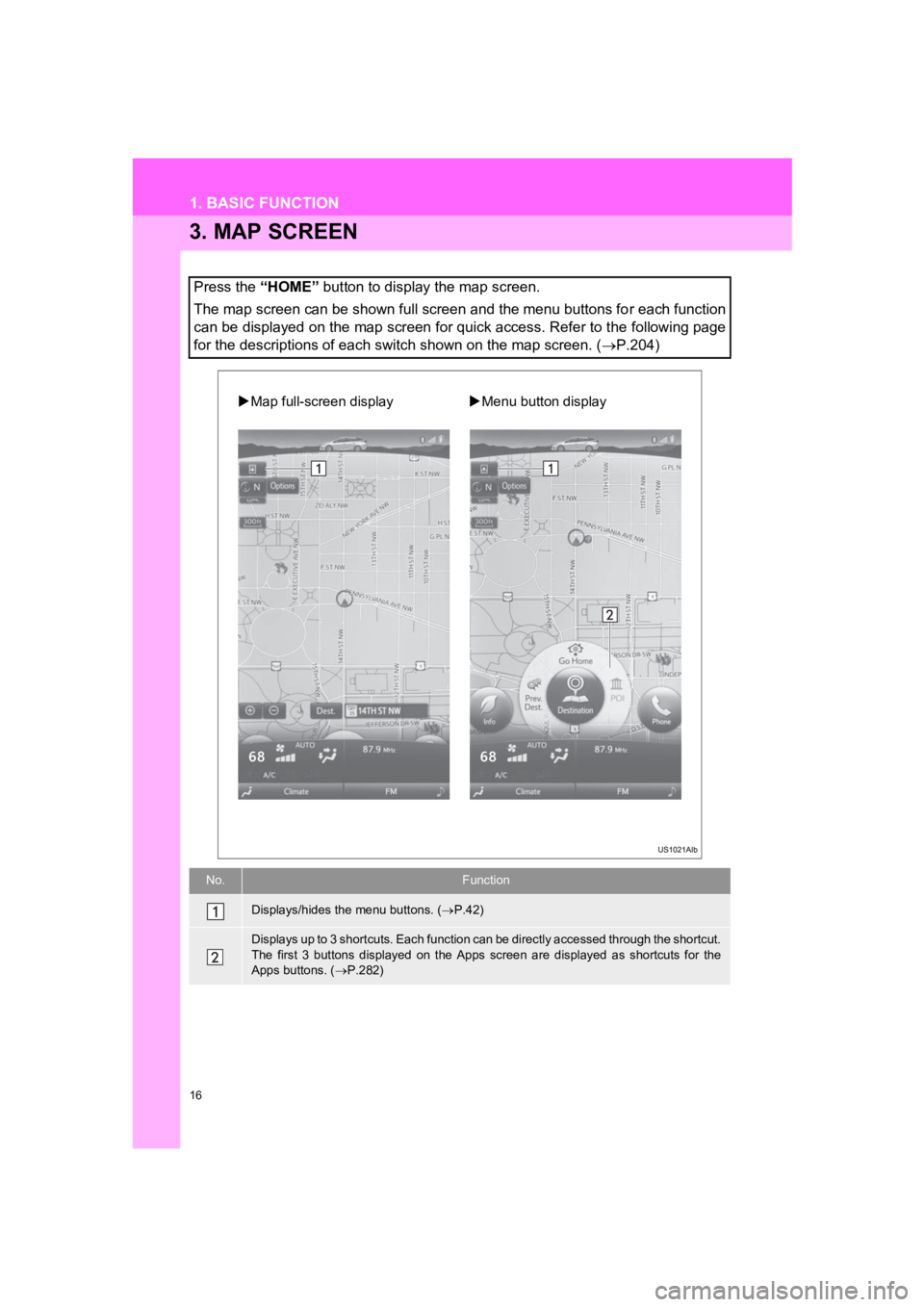
Press the “HOME” button to display the map screen.
The map screen can be shown full screen and the menu buttons fo r each function
can be displayed on the map screen for quick access. Refer to t he following page
for the descriptions of each switch shown on the map screen. (P.204)
No.Function
Displays/hides the menu buttons. ( P.42)
Displays up to 3 shortcuts. Each function can be directly accessed through the shortcut.
The first 3 buttons displayed on the Apps screen are displayed as shortcuts for the
Apps buttons. ( P.282)
Map full-screen display Menu button display
Page 19 of 310
19
1. BASIC FUNCTION
PRIUS PRIME_Navi_OM47C85U_(U)
19.03.07 12:34
QUICK GUIDE
1No.FunctionPage
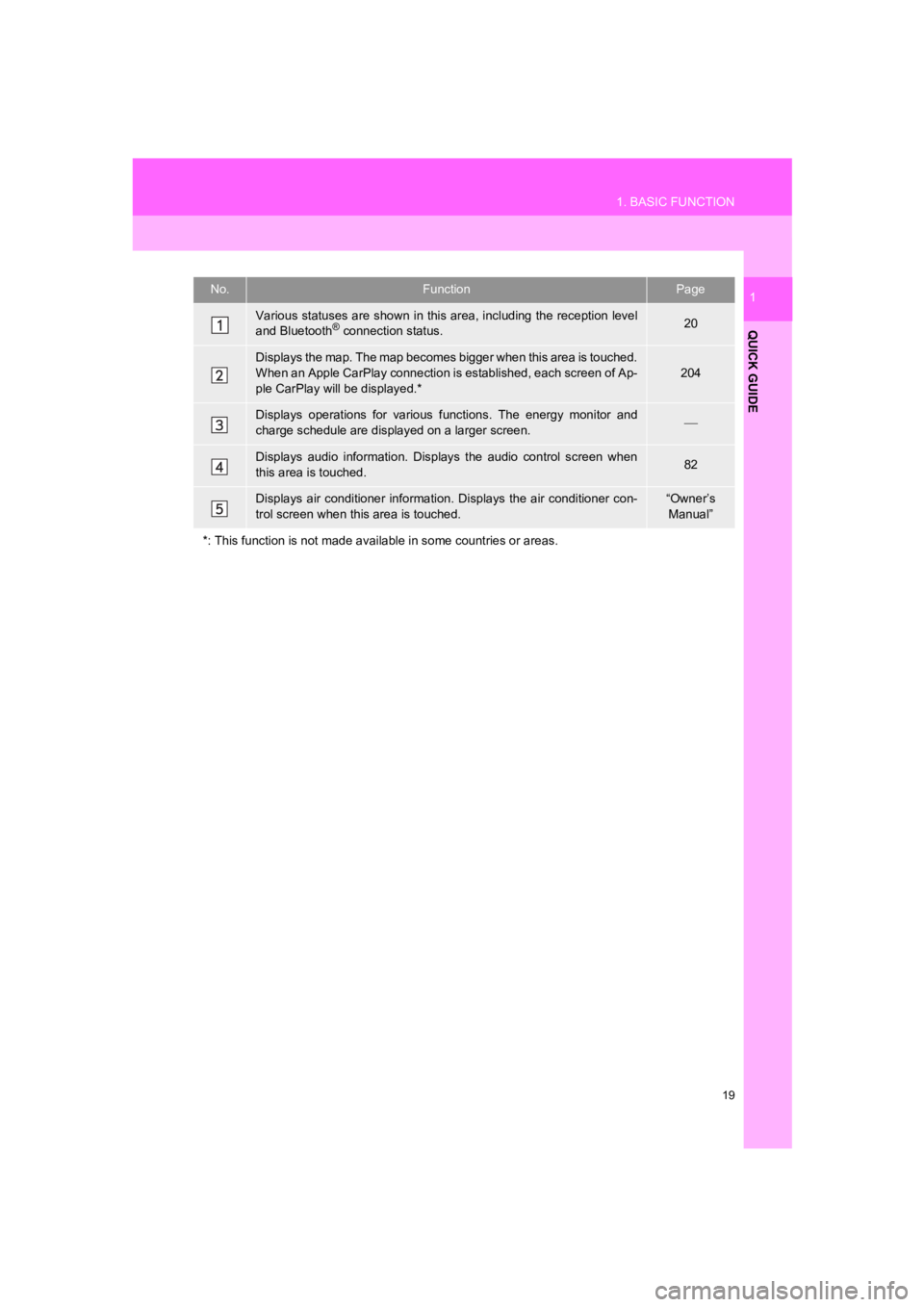
Various statuses are shown in this area, including the reception level
and Bluetooth® connection status.20
Displays the map. The map becomes bigger when this area is touched.
When an Apple CarPlay connecti on is established, each screen of Ap-
ple CarPlay will be displayed.*204
Displays operations for various functions. The energy monitor and
charge schedule are displayed on a larger screen.
Displays audio information. Displays the audio control screen w hen
this area is touched.82
Displays air conditioner informati on. Displays the air conditioner con-
trol screen when this area is touched.“Owner’s Manual”
*: This function is not made avai lable in some countries or areas.
Page 23 of 310
23
2. QUICK REFERENCE
PRIUS PRIME_Navi_OM47C85U_(U)
19.03.07 12:34
QUICK GUIDE
1No.FunctionPage
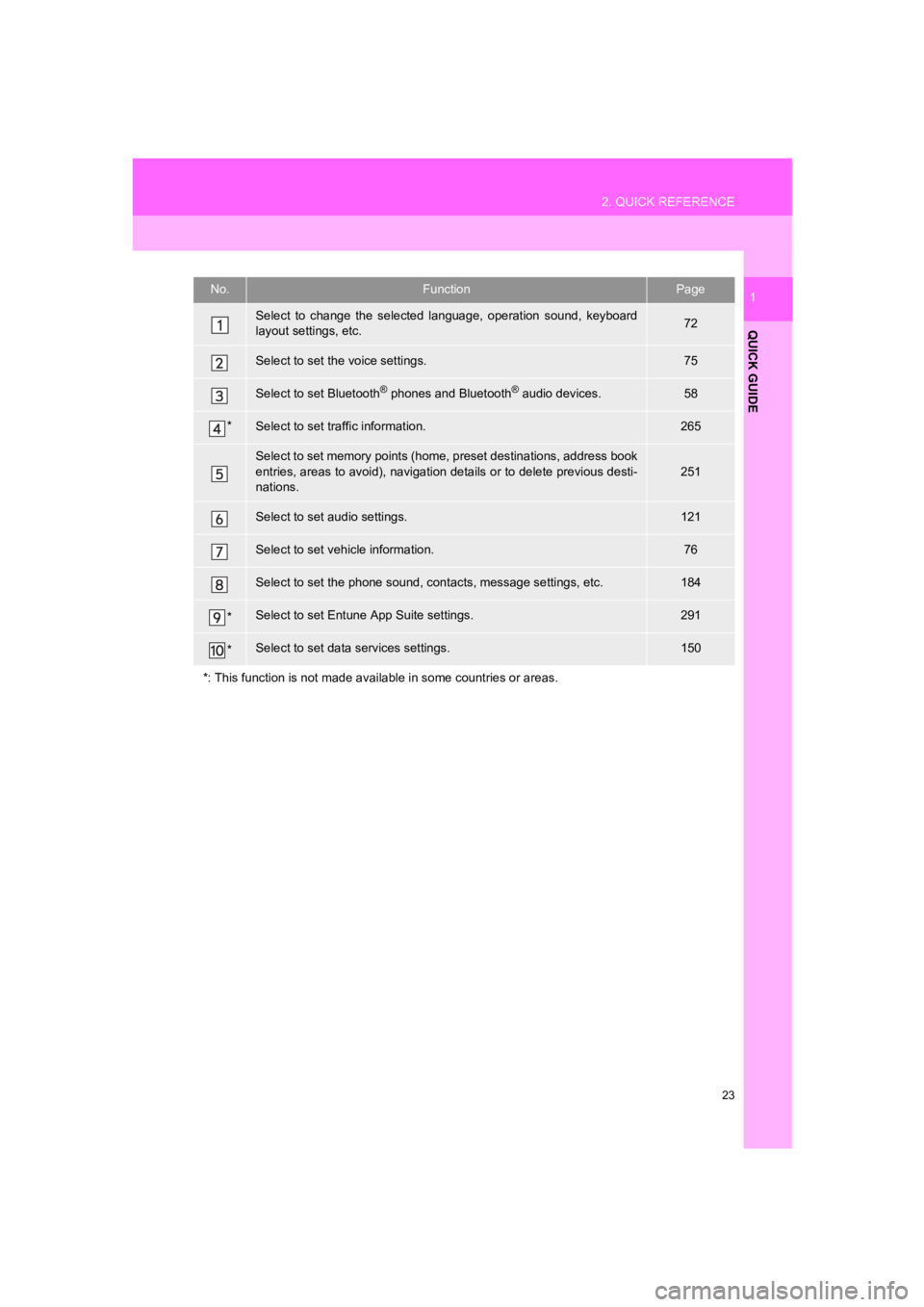
Select to change the selected language, operation sound, keyboard
layout settings, etc.72
Select to set the voice settings.75
Select to set Bluetooth® phones and Bluetooth® audio devices.58
*Select to set traffic information.265
Select to set memory points (home, preset destinations, address book
entries, areas to avoid), navigation details or to delete previous desti-
nations.
251
Select to set audio settings.121
Select to set vehicle information.76
Select to set the phone sound, cont acts, message settings, etc.184
*Select to set Entune App Suite settings.291
*Select to set data services settings.150
*: This function is not made avai lable in some countries or areas.
Page 25 of 310
25
2. QUICK REFERENCE
PRIUS PRIME_Navi_OM47C85U_(U)
19.03.07 12:34
QUICK GUIDE
1No.FunctionPage
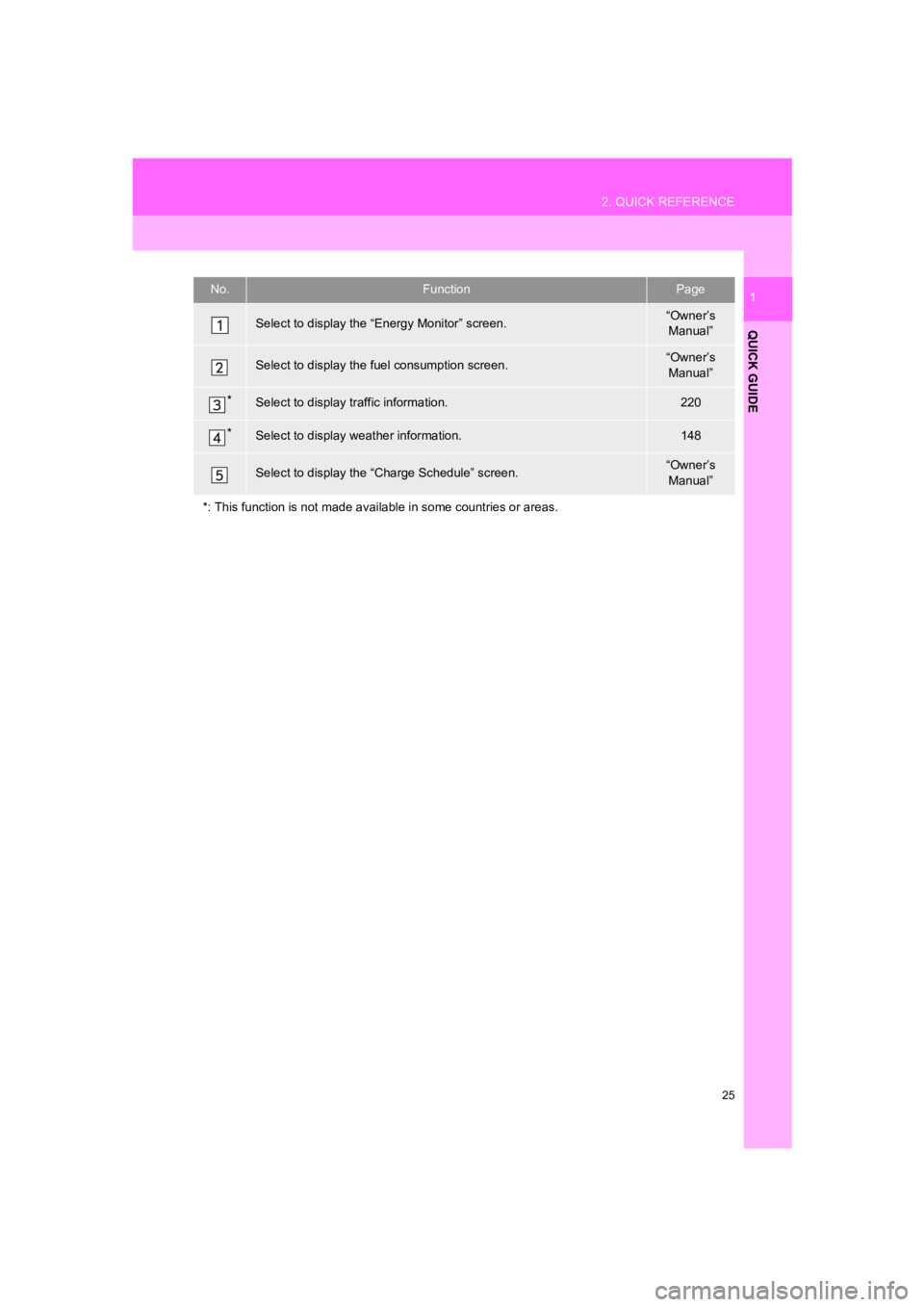
Select to display the “Energy Monitor” screen.“Owner’s
Manual”
Select to display the f uel consumption screen.“Owner’s
Manual”
*Select to display traffic information.220
*Select to display weather information.148
Select to display the “Charge Schedule” screen.“Owner’s
Manual”
*: This function is not made avai lable in some countries or areas.
Page 32 of 310
32
PRIUS PRIME_Navi_OM47C85U_(U)
19.03.07 12:34
4. FUNCTION INDEX
1. FUNCTION INDEX
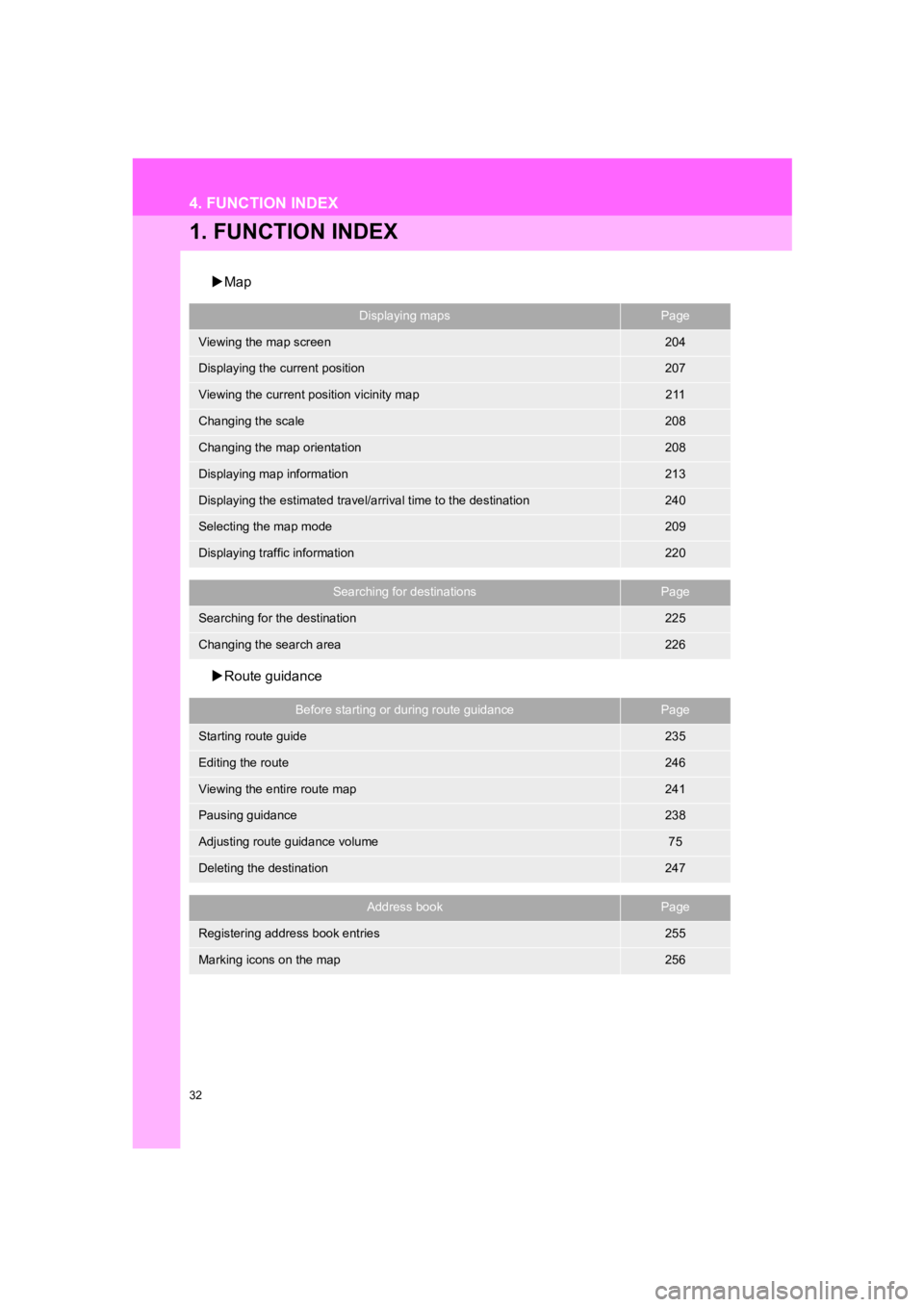
Map
Route guidance
Displaying mapsPage
Viewing the map screen204
Displaying the current position207
Viewing the current position vicinity map211
Changing the scale208
Changing the map orientation208
Displaying map information213
Displaying the estimated travel/arrival time to the destination240
Selecting the map mode209
Displaying traffic information220
Searching for destinationsPage
Searching for the destination225
Changing the search area226
Before starting or during route guidancePage
Starting route guide235
Editing the route246
Viewing the entire route map241
Pausing guidance238
Adjusting route guidance volume75
Deleting the destination247
Address bookPage
Registering address book entries255
Marking icons on the map256
Page 33 of 310
33
4. FUNCTION INDEX
PRIUS PRIME_Navi_OM47C85U_(U)
19.03.07 12:34
QUICK GUIDE
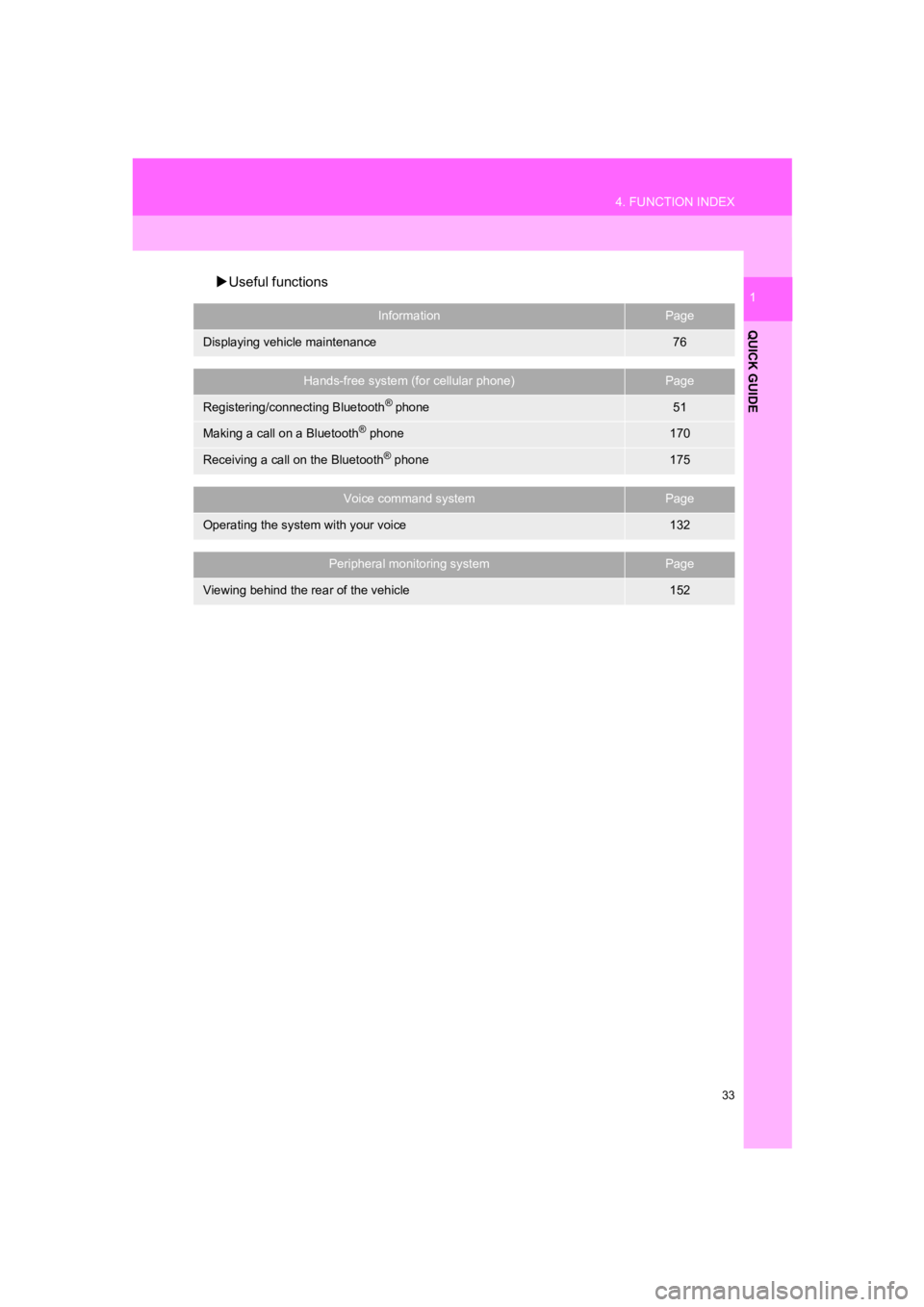
1Useful functions
InformationPage
Displaying vehicle maintenance76
Hands-free system (for cellular phone)Page
Registering/connecting Bluetooth® phone51
Making a call on a Bluetooth® phone170
Receiving a call on the Bluetooth® phone175
Voice command systemPage
Operating the system with your voice132
Peripheral monitoring systemPage
Viewing behind the rear of the vehicle152
Page 41 of 310
41
1. BASIC INFORMATION BEFORE OPERATION
PRIUS PRIME_Navi_OM47C85U_(U)
19.03.07 12:34
BASIC FUNCTION
2
4. TOUCH SCREEN OPERATION
This system is operated mainly by the
buttons on the screen. (Referred to as
screen buttons in this manual.)
When a screen button is touched, a
beep sounds. (To set the beep sound,
see page 72.)
NOTICE
● To prevent damaging the screen, lightly
touch the screen buttons with your fin-
g er.
● Do not use objects other than your finger
to touch the screen.
● Wipe off fingerprints using a glass clean-
ing cloth. Do not use chemical cleaners
to clean the screen, as they may dam-
age the touch screen.
INFORMATION
●If the system does not respond to touch-
ing the screen button, move your finger
away from the screen and then touch it
again.
● Dimmed screen buttons cannot be oper-
ated.
● The displayed image may become
darker and moving images may be
slightly distorted when the screen is
cold.
● In extremely cold conditions, the map
may not be displayed and the data input
by a user may be deleted. Also, the
screen buttons may not react properly.
● When you look at the screen through
polarized material such as polarized
sunglasses, the screen may be dark and
hard to see. If so, look at the screen
from different angles, adjust the screen
settings on the “Display” screen or take
off your sunglasses.