change time TOYOTA PRIUS PRIME 2020 (in English) Owner's Manual
[x] Cancel search | Manufacturer: TOYOTA, Model Year: 2020, Model line: PRIUS PRIME, Model: TOYOTA PRIUS PRIME 2020Pages: 792, PDF Size: 16.56 MB
Page 169 of 792
PRIUS PRIME_OM_OM47C77U_(U)
1692-2. Charging
2
Plug-in hybrid system
■To return to original setting after changing “Next Charging Eve nt” set-
ting
Turning the setting of “Charge Now” on and then off can return the setting of
“Next Charging Event” to its original setting.
■ When “Next Charging Event” is changed while charging
●When the charging mode is “Departure”, the current charging is interrupted
or continued depending on the remaining time until the charging is com-
pleted.
● When the charging mode is “Start”, the current charging is interrupted, the
next charging will start at the set time.
■ When the power switch is turned off
*2: When the power switch is turned off, the “Next Charging Event” confirma-
tion screen may be displayed.
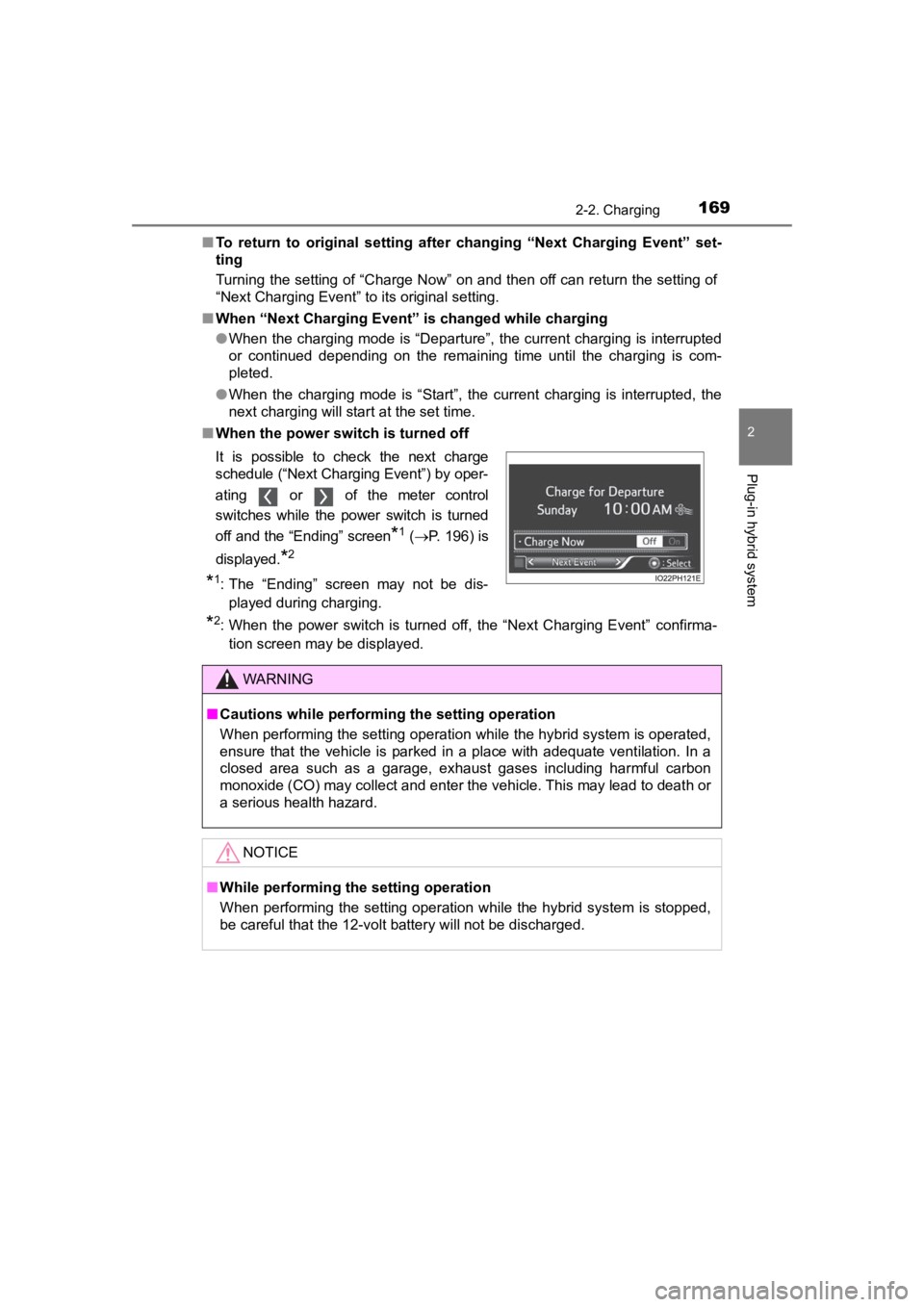
It is possible to check the next charge
schedule (“Next Charging Event”) by oper-
ating or of the meter control
switches while the power switch is turned
off and the “Ending” screen
*1 (
P. 196) is
displayed.
*2
*1: The “Ending” screen may not be dis- played during charging.
WARNING
■ Cautions while performing the setting operation
When performing the setting operation while the hybrid system is operated,
ensure that the vehicle is parked in a place with adequate vent ilation. In a
closed area such as a garage, exhaust gases including harmful c arbon
monoxide (CO) may collect and enter the vehicle. This may lead to death or
a serious health hazard.
NOTICE
■ While performing the setting operation
When performing the setting operation while the hybrid system is stopped,
be careful that the 12-volt battery will not be discharged.
Page 172 of 792
172
PRIUS PRIME_OM_OM47C77U_(U)
2-2. Charging
“ON”/“OFF” button
The charge schedule switches between “ON” and “OFF” each time this
button is pressed. (P. 174)
Scroll bar
When the number of registered charge schedules exceeds 3, the d is-
played contents can be changed by operating the button.
Main content displayed on the calendar:
*1: A row with a red line indicates the current time.
*2: While a registered setting is being changed, the icon of the r elated setting
is highlighted (except when the icon overlaps with another icon ).
*3: When “Charge Now” (P. 175) is set to on, the orange icon moves to the
position of the red line and changes to display “Charge Now”.
*4: The content of the charge schedule that corresponds to the “Ne xt Charging
Event” is not displayed in the list.
■
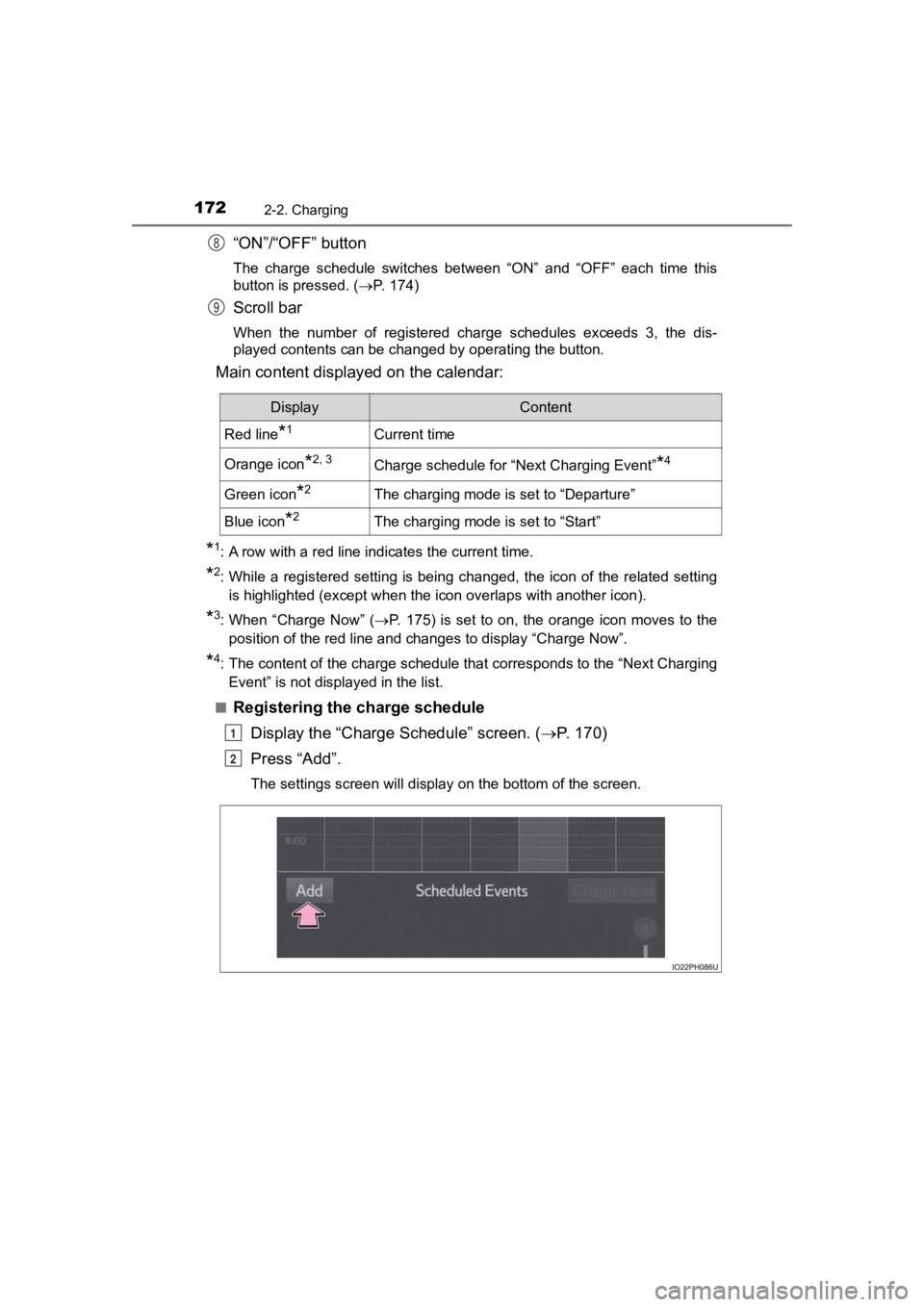
Registering the charge schedule Display the “Charge Schedule” screen. ( P. 1 7 0 )
Press “Add”.
The settings screen will display on the bottom of the screen.
8
9
DisplayContent
Red line*1Current time
Orange icon*2, 3Charge schedule for “Next Charging Event”*4
Green icon*2The charging mode is set to “Departure”
Blue icon*2The charging mode is set to “Start”
1
2
Page 174 of 792
174
PRIUS PRIME_OM_OM47C77U_(U)
2-2. Charging
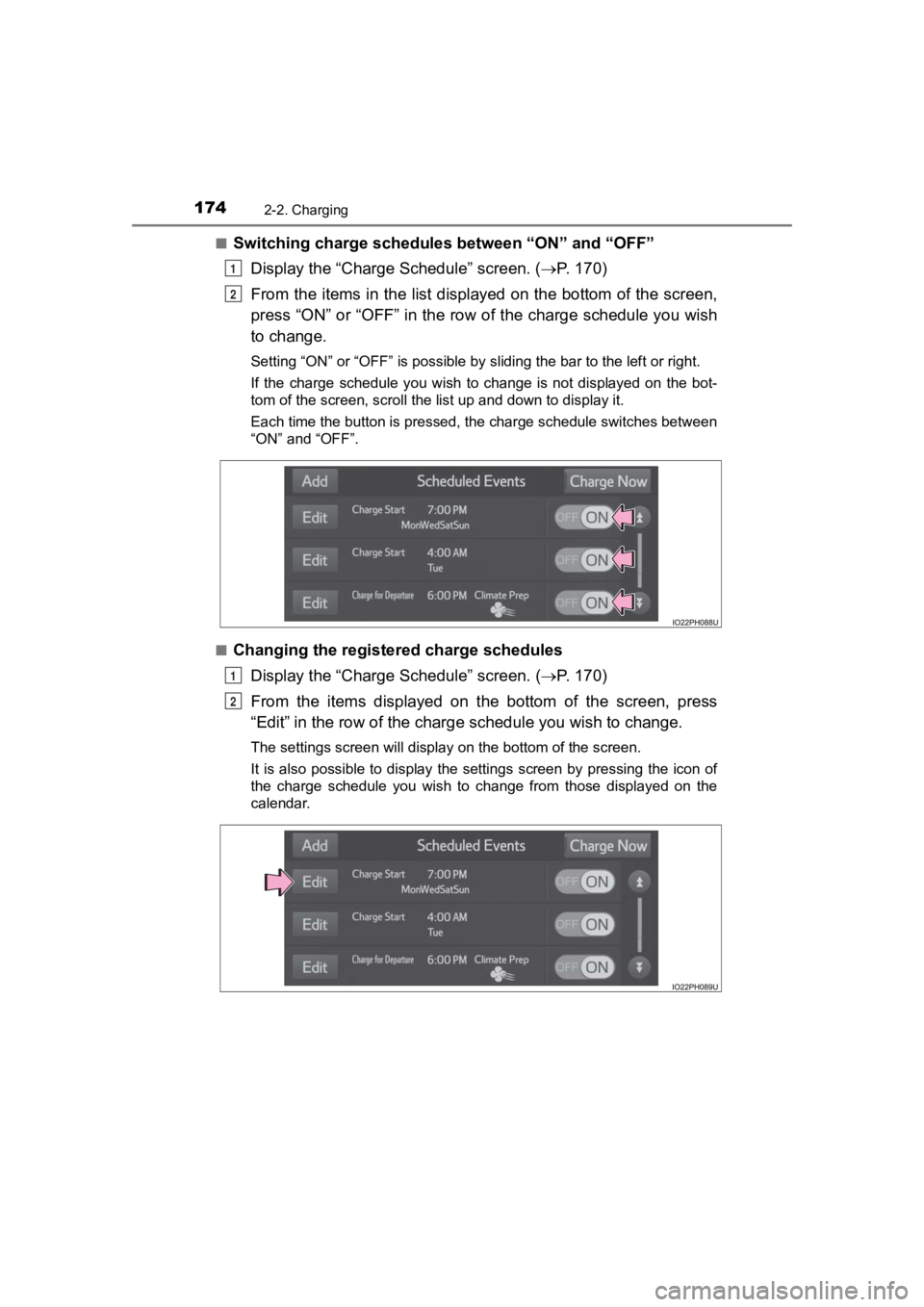
■Switching charge schedules between “ON” and “OFF”
Display the “Charge Schedule” screen. ( P. 1 7 0 )
From the items in the list displayed on the bottom of the scree n,
press “ON” or “OFF” in the row of the charge schedule you wish
to change.
Setting “ON” or “OFF” is possible by sliding the bar to the lef t or right.
If the charge schedule you wish to change is not displayed on the bot-
tom of the screen, scroll the list up and down to display it.
Each time the button is pressed, the charge schedule switches between
“ON” and “OFF”.
■
Changing the registered charge schedules Display the “Charge Schedule” screen. ( P. 1 7 0 )
From the items displayed on the bottom of the screen, press
“Edit” in the row of the char ge schedule you wish to change.
The settings screen will display on the bottom of the screen.
It is also possible to display the settings screen by pressing the icon of
the charge schedule you wish to change from those displayed on the
calendar.
1
2
1
2
Page 175 of 792
PRIUS PRIME_OM_OM47C77U_(U)
1752-2. Charging
2
Plug-in hybrid system
●Changing registered items:
Change the desired settings as described in step to step of
the “Registering the charge schedule” procedure. (P. 172)
When a setting is changed, its icon on the calendar also change s.
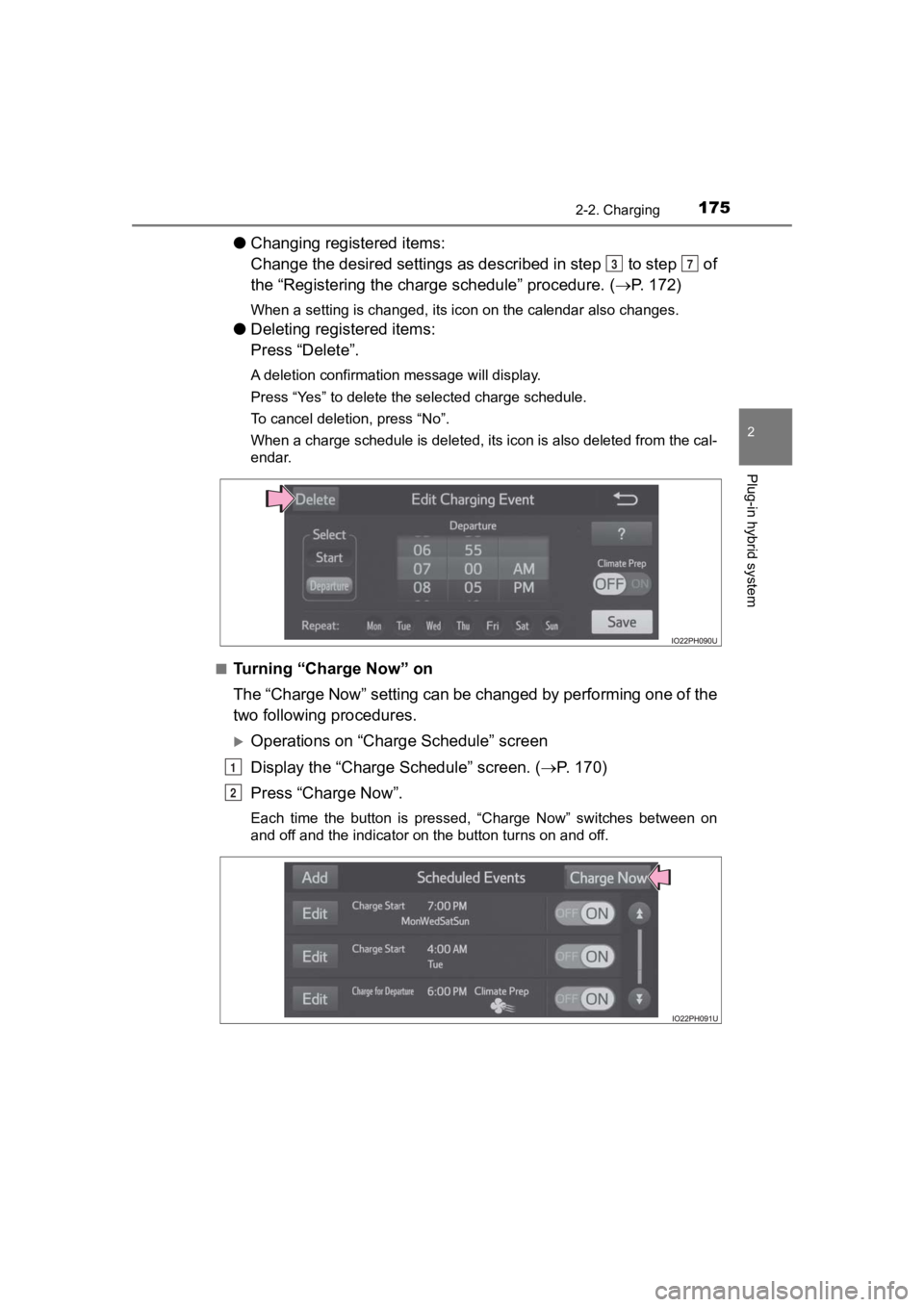
●Deleting registered items:
Press “Delete”.
A deletion confirmation message will display.
Press “Yes” to delete the selected charge schedule.
To cancel deletion, press “No”.
When a charge schedule is deleted, its icon is also deleted fro m the cal-
endar.
■
Turning “Charge Now” on
The “Charge Now” setting can be changed by performing one of th e
two following procedures.
Operations on “Charge Schedule” screen
Display the “Charge Schedule” screen. ( P. 1 7 0 )
Press “Charge Now”.
Each time the button is pressed, “Charge Now” switches between on
and off and the indicator on the button turns on and off.
37
1
2
Page 177 of 792
PRIUS PRIME_OM_OM47C77U_(U)
1772-2. Charging
2
Plug-in hybrid system
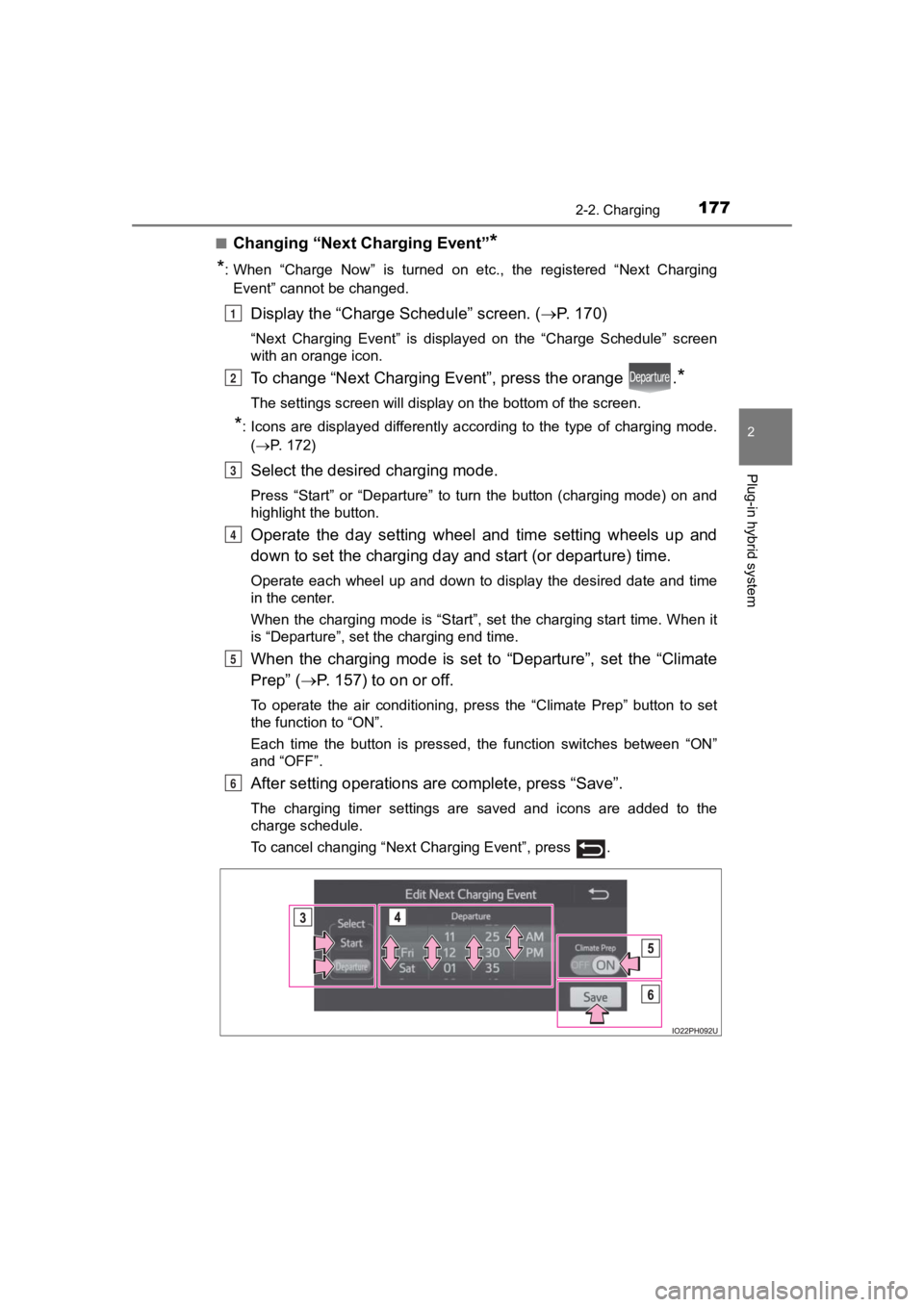
■Changing “Next Charging Event”*
*
: When “Charge Now” is turned on etc., the registered “Next Charging Event” cannot be changed.
Display the “Charge Schedule” screen. ( P. 1 7 0 )
“Next Charging Event” is displayed on the “Charge Schedule” scr een
with an orange icon.
To change “Next Charging Ev ent”, press the orange .*
The settings screen will display on the bottom of the screen.
*: Icons are displayed differently according to the type of charg ing mode.
( P. 172)
Select the desired charging mode.
Press “Start” or “Departure” to turn the button (charging mode) on and
highlight the button.
Operate the day setting wheel and time setting wheels up and
down to set the charging day and start (or departure) time.
Operate each wheel up and down to display the desired date and time
in the center.
When the charging mode is “Start”, set the charging start time. When it
is “Departure”, set the charging end time.
When the charging mode is set to “Departure”, set the “Climate
Prep” ( P. 157) to on or off.
To operate the air conditioning, press the “Climate Prep” butto n to set
the function to “ON”.
Each time the button is pressed, the function switches between “ON”
and “OFF”.
After setting operations are complete, press “Save”.
The charging timer settings are saved and icons are added to the
charge schedule.
To cancel changing “Next Charging Event”, press .
1
2
3
4
5
6
Page 178 of 792
178
PRIUS PRIME_OM_OM47C77U_(U)
2-2. Charging
■When charging timer setting operations are canceled
When the vehicle is in the following conditions, charging timer setting opera-
tions are canceled.
●The power switch is turned off before the settings are confirme d
● The vehicle starts off
● When a display with a higher priority than that of the timer charging setting
is shown
■ “Next Charging Event”
After charging completes, the “Next Charging Event” displayed o n the display
will not change until the charging cable is removed, even after charging is
performed according to the “Next Charging Event” schedule.
■ To return to original setting after changing “Next Charging Eve nt” set-
ting
Turning the setting of “Charge Now” on and then off can return the setting of
“Next Charging Event” to its original setting.
■ When “Next Charging Event” is changed while charging
● When the charging mode is “Departure”, the current charging is interrupted
or continued depending on the remaining time until the charging is com-
pleted.
● When the charging mode is “Start”, the current charging is inte rrupted, the
next charging will start at the set time.
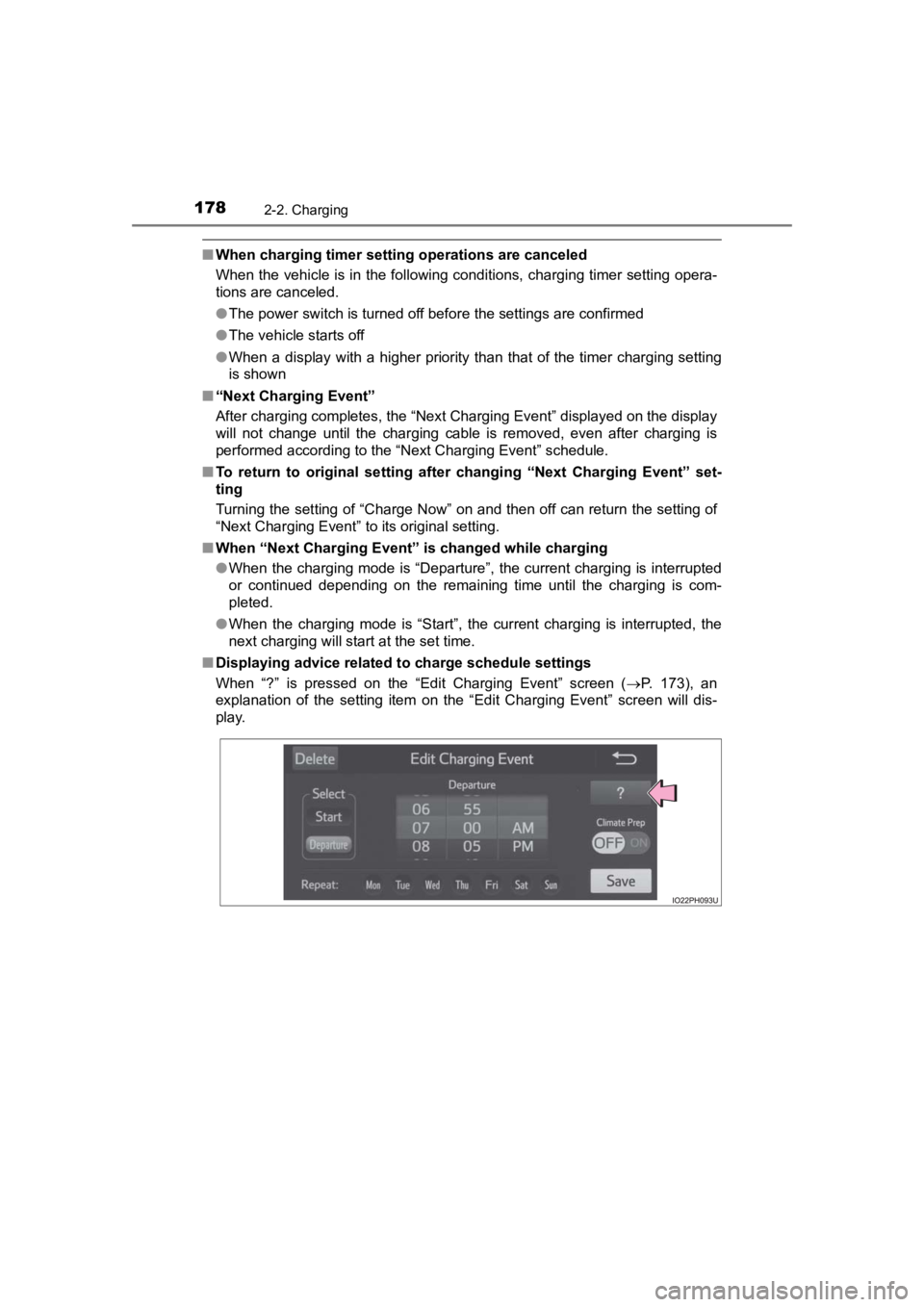
■ Displaying advice related to charge schedule settings
When “?” is pressed on the “Edit Charging Event” screen ( P. 173), an
explanation of the setting item on the “Edit Charging Event” sc reen will dis-
play.
Page 182 of 792
182
PRIUS PRIME_OM_OM47C77U_(U)
2-2. Charging
*: Refer to P. 114 for details regarding charging indicator illumination and
flashing.
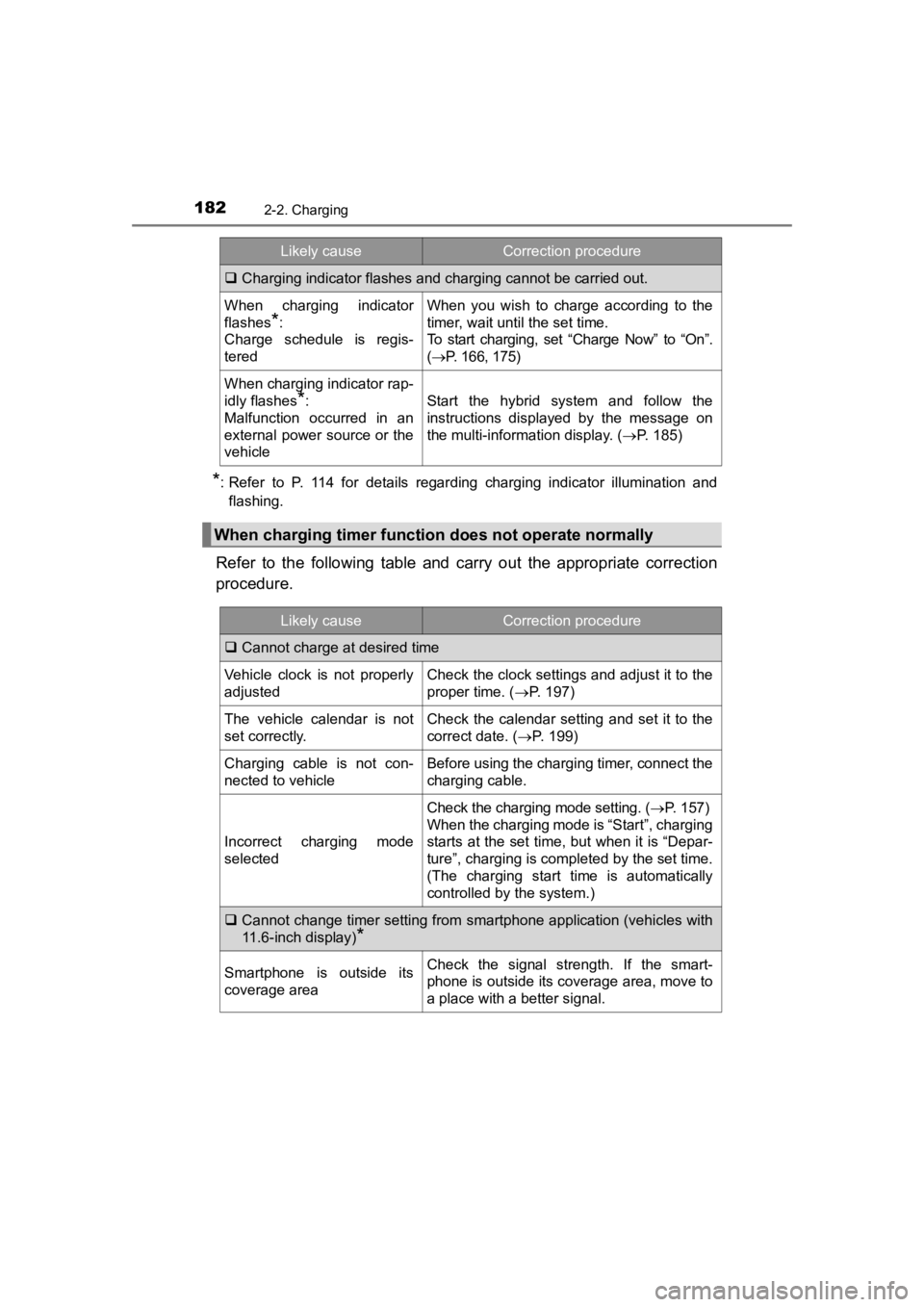
Refer to the following table and carry out the appropriate corr ection
procedure.
Charging indicator flashes and charging cannot be carried out.
When charging indicator
flashes
*:
Charge schedule is regis-
tered
When you wish to charge according to the
timer, wait until the set time.
To start charging, set “Charge Now” to “On”.
( P. 166, 175)
When charging indicator rap-
idly flashes
*:
Malfunction occurred in an
external power source or the
vehicleStart the hybrid system and follow the
instructions displayed by the message on
the multi-information display. ( P. 185)
When charging timer function does not operate normally
Likely causeCorrection procedure
Cannot charge at desired time
Vehicle clock is not properly
adjustedCheck the clock settings and adjust it to the
proper time. ( P. 197)
The vehicle calendar is not
set correctly.Check the calendar setting and set it to the
correct date. ( P. 199)
Charging cable is not con-
nected to vehicleBefore using the charging timer, connect the
charging cable.
Incorrect charging mode
selected
Check the charging mode setting. ( P. 1 5 7 )
When the charging mode is “Start”, charging
starts at the set time, but when it is “Depar-
ture”, charging is completed by the set time.
(The charging start time is automatically
controlled by the system.)
Cannot change timer setting from smartphone application (vehicl es with
11.6-inch display)
*
Smartphone is outside its
coverage areaCheck the signal strength. If the smart-
phone is outside its coverage area, move to
a place with a better signal.
Likely causeCorrection procedure
Page 184 of 792
184
PRIUS PRIME_OM_OM47C77U_(U)
2-2. Charging
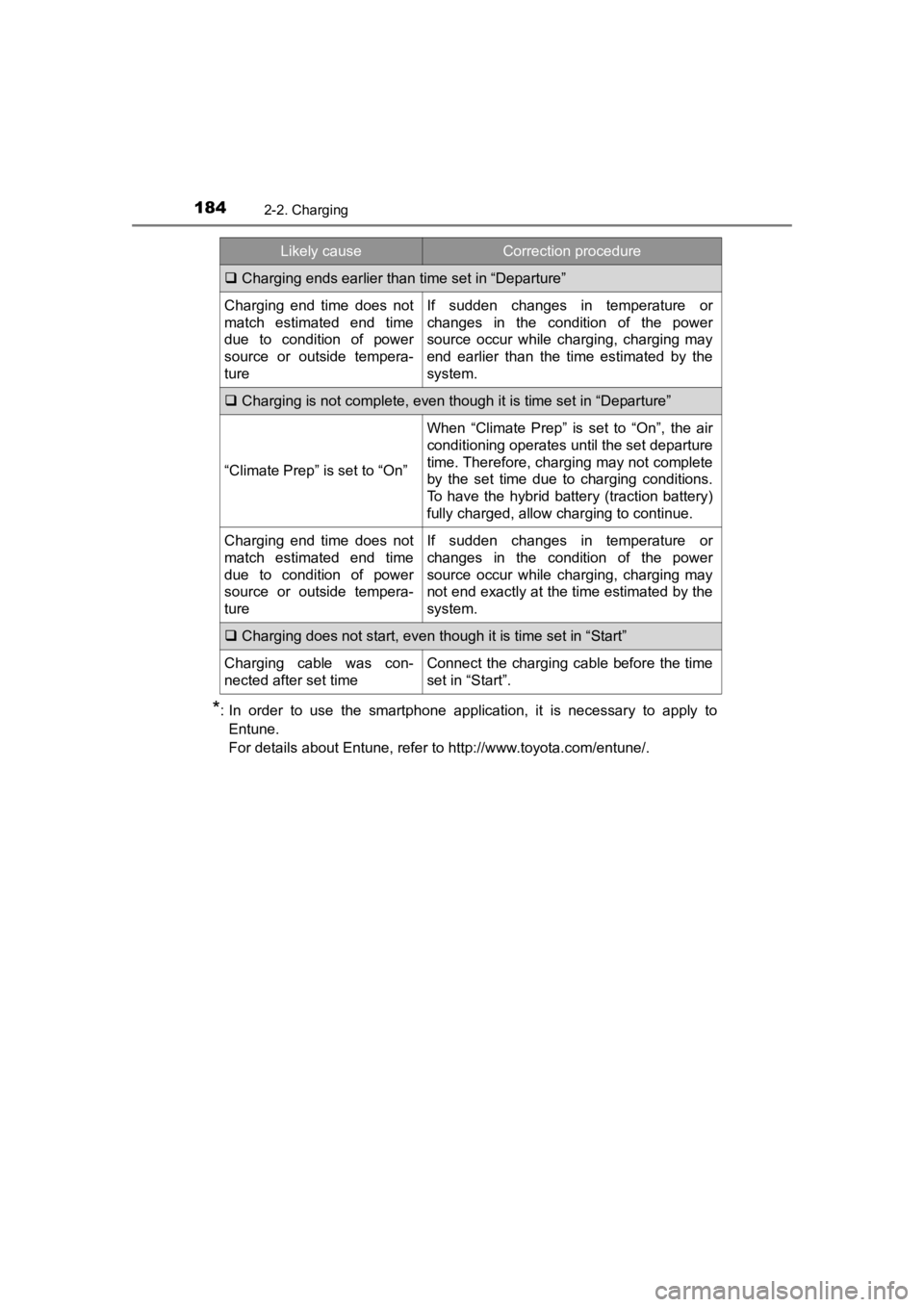
*: In order to use the smartphone application, it is necessary to apply toEntune.
For details about Entune, refer to http://www.toyota.com/entune /.
Charging ends earlier than time set in “Departure”
Charging end time does not
match estimated end time
due to condition of power
source or outside tempera-
tureIf sudden changes in temperature or
changes in the condition of the power
source occur while charging, charging may
end earlier than the time estimated by the
system.
Charging is not complete, even though it is time set in “Departure”
“Climate Prep” is set to “On”
When “Climate Prep” is set to “On”, the air
conditioning operates until the set departure
time. Therefore, charging may not complete
by the set time due to charging conditions.
To have the hybrid battery (traction battery)
fully charged, allow charging to continue.
Charging end time does not
match estimated end time
due to condition of power
source or outside tempera-
tureIf sudden changes in temperature or
changes in the condition of the power
source occur while charging, charging may
not end exactly at the time estimated by the
system.
Charging does not start, even though it is time set in “Start”
Charging cable was con-
nected after set timeConnect the charging cable before the time
set in “Start”.
Likely causeCorrection procedure
Page 193 of 792
PRIUS PRIME_OM_OM47C77U_(U)
1933. Instrument cluster
3
Instrument cluster
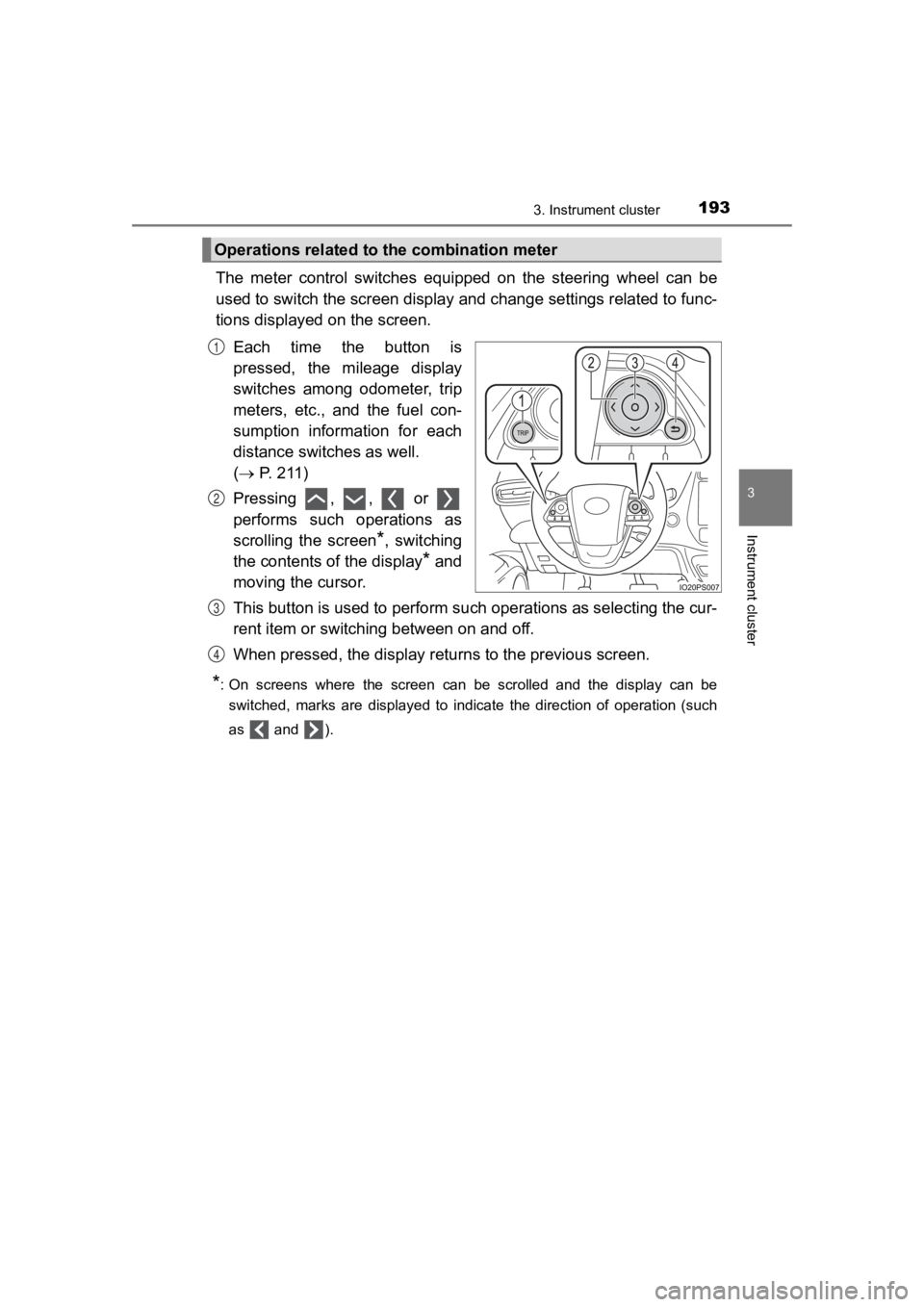
The meter control switches equipped on the steering wheel can be
used to switch the screen displa y and change settings related to func-
tions displayed on the screen.
Each time the button is
pressed, the mileage display
switches among odometer, trip
meters, etc., and the fuel con-
sumption information for each
distance switches as well.
( P. 211)
Pressing , , or
performs such operations as
scrolling the screen
*, switching
the contents of the display
* and
moving the cursor.
This button is used to perform s uch operations as selecting the cur-
rent item or switching between on and off.
When pressed, the display returns to the previous screen.
*: On screens where the screen can be scrolled and the display ca n be
switched, marks are displayed to indicate the direction of oper ation (such
as and ).
Operations related to the combination meter
1
2
3
4
Page 194 of 792
194
PRIUS PRIME_OM_OM47C77U_(U)
3. Instrument cluster
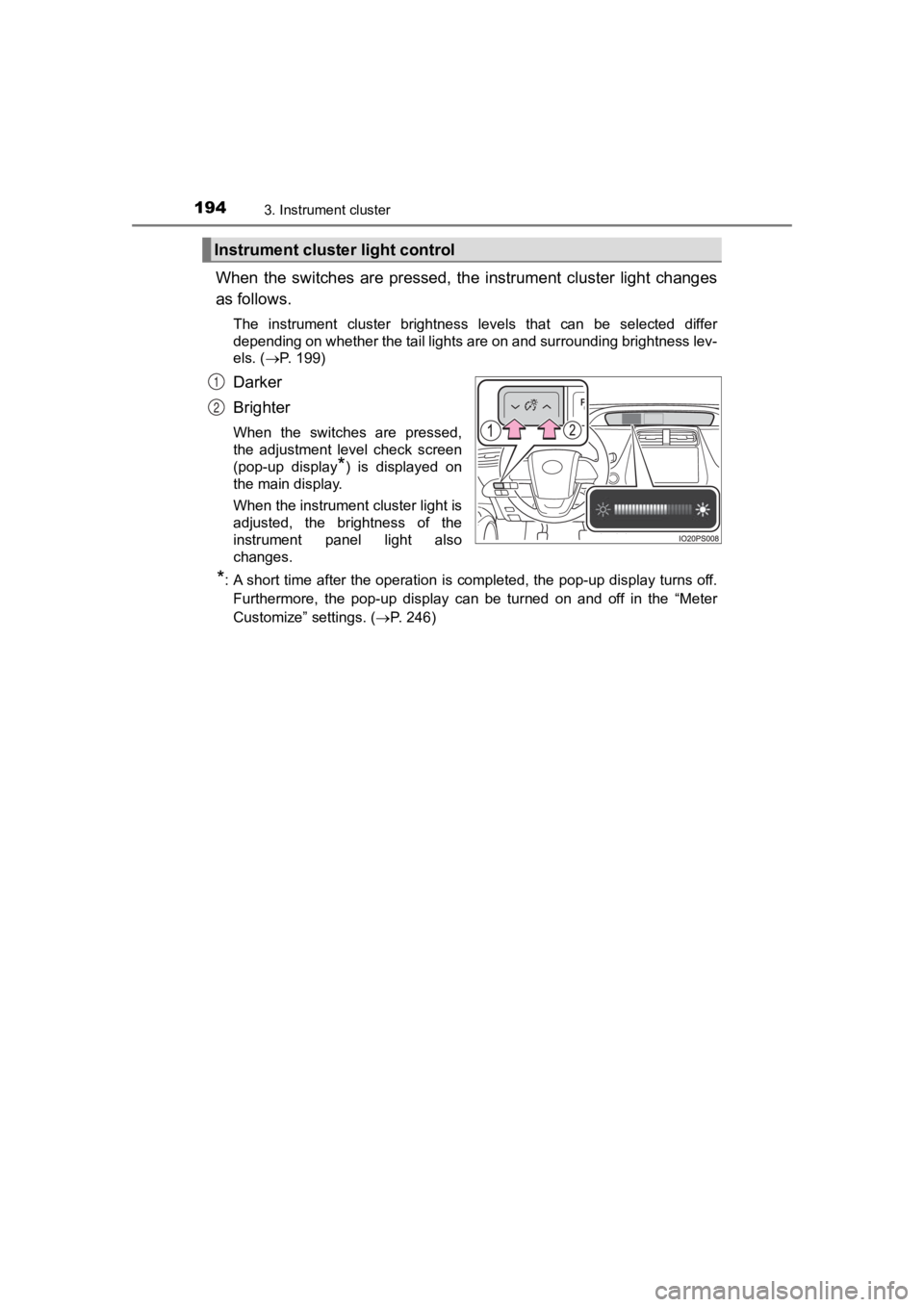
When the switches are pressed, the instrument cluster light changes
as follows.
The instrument cluster brightness levels that can be selected differ
depending on whether the tail lights are on and surrounding bri ghtness lev-
els. ( P. 199)
Darker
Brighter
When the switches are pressed,
the adjustment level check screen
(pop-up display
*) is displayed on
the main display.
When the instrument cluster light is
adjusted, the brightness of the
instrument panel light also
changes.
*: A short time after the operation is completed, the pop-up disp lay turns off.
Furthermore, the pop-up display can be turned on and off in the “Meter
Customize” settings. ( P. 246)
Instrument cluster light control
1
2