carplay TOYOTA PRIUS PRIME 2021 Accessories, Audio & Navigation (in English)
[x] Cancel search | Manufacturer: TOYOTA, Model Year: 2021, Model line: PRIUS PRIME, Model: TOYOTA PRIUS PRIME 2021Pages: 176, PDF Size: 4.87 MB
Page 119 of 176
1216-1. Phone operation (Hands-free system for cellular phones)
6
Phone
●This system is not guaranteed to
operate with all Bluetooth®
devices.
●If your cellular phone does not
support Bluetooth®, this system
cannot function.
●In the following conditions, the
system may not function:
• The cellular phone is turned off.
• The current position is outside the
communication area.
• The cellular phone is not con-
nected.
• The cellular phone has a low bat- tery.
●Depending on the type of
Bluetooth® phone, some function
is not available.
●When using the hands-free sys-
tem or Bluetooth® audio and
Wi-Fi® hotspot functions at the
same time, the following problems
may occur:
• The Bluetooth
® connection may
be cut.
• Noise may be heard on the
Bluetooth
® audio playback.
• A noise may be heard during phone calls.
●Bluetooth® uses the 2.4 GHz fre-
quency band. If both a Wi-Fi® con-
nection and Bluetooth®
connection are being used simul-
taneously, each connection may
be affected.
●If a Bluetooth® device is attempt-
ing to connect to the vehicle while
another device is connected as a
Bluetooth
® audio device or con-
nected using the hands-free sys-
tem or Wi-Fi
® hotspot function,
the communication speed may
decrease or malfunctions may
occur, such as image distortion or
audio skipping. If a Bluetooth
®
device is connected to the system,
the interference it may cause will
be reduced. When carrying a
device with its Bluetooth
® connec-
tion enabled, make sure to regis-
ter it to the system and connect it
or disable its Bluetooth
® function.
●When a device is connected via
Bluetooth®, the Bluetooth® icon
on the status bar will be displayed
in blue. ( P.11)
Some basics
The hands-free system
enables calls to be made
and received without having
to take your hands off the
steering wheel.
This system supports
Bluetooth
®. Bluetooth® is a
wireless data system that
enables cellular phones to
be used without being con-
nected by a cable or placed
in a cradle.
The operating procedure of
the phone is explained here.
When an Apple CarPlay
connection is established,
phone functions will be per-
formed by Apple CarPlay
instead of the hands-free
system.
WARNING
●While driving, do not operate a
cellular phone.
Page 121 of 176
1236-1. Phone operation (Hands-free system for cellular phones)
6
Phone
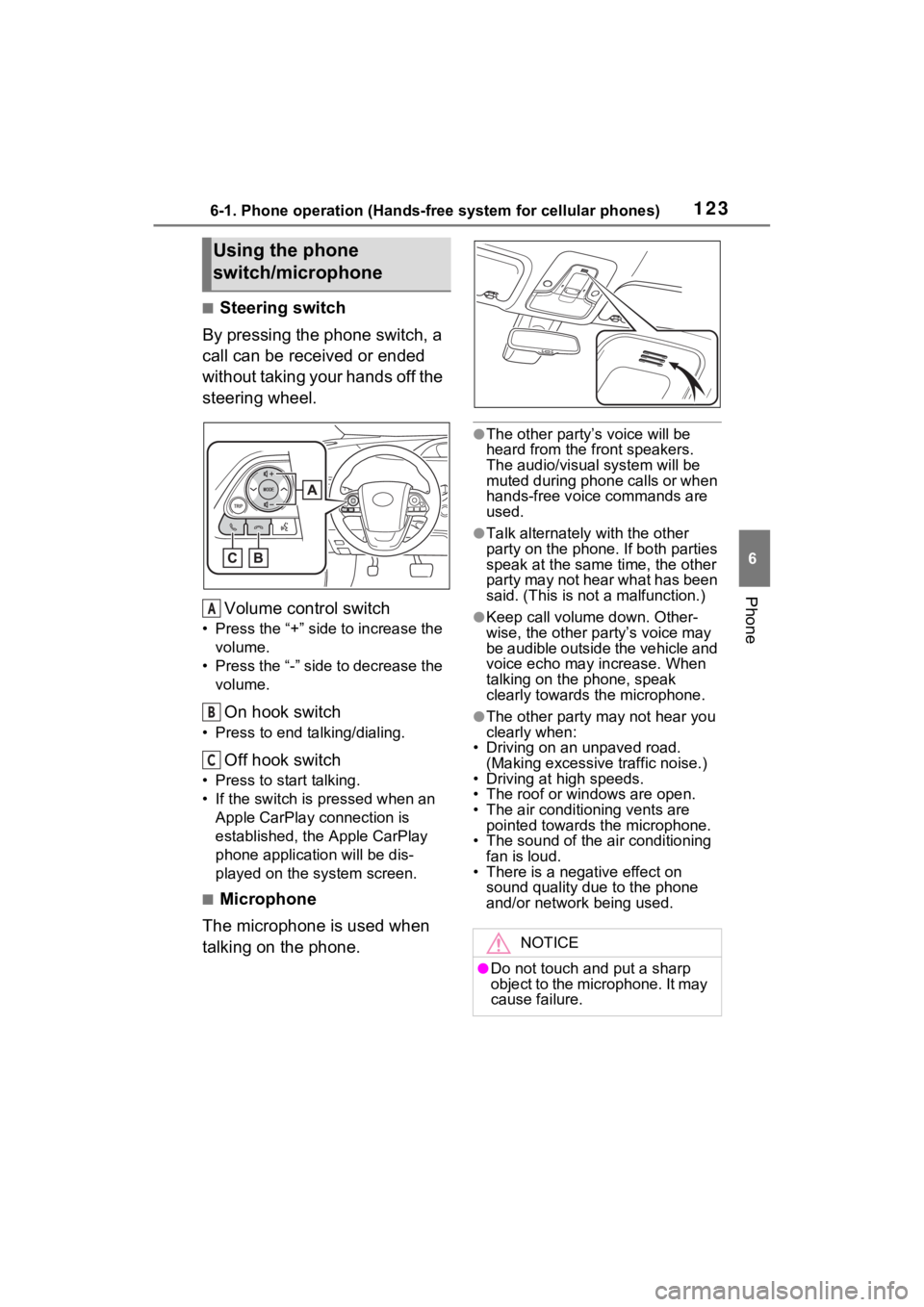
■Steering switch
By pressing the phone switch, a
call can be received or ended
without taking your hands off the
steering wheel.
Volume control switch
• Press the “+” side to increase the volume.
• Press the “-” side to decrease the volume.
On hook switch
• Press to end talking/dialing.
Off hook switch
• Press to start talking.
• If the switch is pressed when an Apple CarPlay connection is
established, the Apple CarPlay
phone application will be dis-
played on the system screen.
■Microphone
The microphone is used when
talking on the phone.
●The other party’s voice will be
heard from the front speakers.
The audio/vis ual system will be
muted during phone calls or when
hands-free voice commands are
used.
●Talk alternately with the other
party on the phone. If both parties
speak at the same time, the other
party may not hear what has been
said. (This is not a malfunction.)
●Keep call volume down. Other-
wise, the other party’s voice may
be audible outside the vehicle and
voice echo may increase. When
talking on the phone, speak
clearly towards the microphone.
●The other party may not hear you
clearly when:
• Driving on an unpaved road.
(Making excessive traffic noise.)
• Driving at high speeds.
• The roof or windows are open.
• The air conditioning vents are pointed towards the microphone.
• The sound of the air conditioning
fan is loud.
• There is a negative effect on sound quality due to the phone
and/or network being used.
Using the phone
switch/microphone
A
B
C
NOTICE
●Do not touch and put a sharp
object to the microphone. It may
cause failure.
Page 166 of 176

166Alphabetical Index
Alphabetical Index
A
AM/FM/SiriusXM (SXM) radio .. 64
Available HD Radio™ technol- ogy ....................................... 68
Caching a radio program........ 65
Displaying the radio ID ........... 70
How to subscribe to SiriusXM Radio Services ..................... 69
Overview ................................ 64
Presetting a station ................ 65
Radio broadcast data system. 66
Radio options ......................... 66
Refer to the table below to iden- tify the problem and take the
suggested corrective action . 70
Selecting a station from the list ............................................. 66
Smart favorites ....................... 70
Troubleshooting guide............ 68
Using HD Radio™ technology 67
Android Auto ............................ 79 Overview ................................ 79
“Android Auto” button (“Menu” screen) .............................. 10, 42
Apple CarPlay/Android Auto ... 42 Establishing an Android Auto connection ............................ 43
Establishing an Apple CarPlay connection ............................ 42
Troubleshooting ..................... 45
“Apple CarPlay” button (“Menu” screen) .............................. 10, 42
“Apps” button (“Menu” screen) ......................................... 10, 160
“APPS” button ........ ............8, 160
Audio/visual remote controls .. 84
“Audio” button (“Menu” screen) ........................................... 10, 58
“Audio” button (“Setup” screen) ........................................... 13, 86
“AUDIO” button .............. 8, 58, 59 Audio settings...........................86
Audio settings screen .............86
Displaying the audio settings screen...................................86
B
Basic function .............................8
Basic information before opera-tion ...........................................16
Basic operation.........................58
Bluetooth
® audio ......................80
Overview ................................80
Registering/Connecting a
Bluetooth
® device .................82
Bluetooth
® phone message func-
tion .........................................131 Calling the message sender .134
Checking received messages ...........................................132
Displaying the message screen ...........................................131
Receiving a mess age ...........132
Replying to a message (dictation reply) ..................................133
Replying to a message (quick reply) ..................................134
“Bluetooth” button (“Setup” screen) ...............................13, 29
Buttons overview........................8 Operations of each part ............8
C
CD ..............................................72Overview ................................72
Command list ..........................105 Command list overview ........105
Connected Services operation ...............................................160
Connected Services overview ...............................................152
Page 167 of 176
Alphabetical Index167
Connectivity settings ............... 25
D
“Display” button (“Menu” screen) .............................. 10, 23
E
“ECO” button (“Information” screen) .................................... 14
Eject button .......................... 8, 60
Entering letters and numbers/list screen operation .................... 20Entering letters and numbers . 20
List screen .............................. 21
F
Functional overview ............... 152
G
“General” button (“Setup”
screen) .............................. 13, 49
General settings ....................... 49 Displaying the general settings screen .................................. 49
General settings screen ......... 49
H
“HOME” button ..................... 8, 19
Home screen ............................. 19 Home screen operation .......... 19
I
“Info” button (“Menu” screen)
........................................... 10, 14
“Information” screen ............... 14
Initial screen ............................. 16 Caution screen ....................... 16
Restarting the system ............ 16 iPod/iPhone (Apple CarPlay) ...76
Overview ................................76
L
Linking multi-information display and the system .......................24
M
“MAP” button ..............................8
Media operation ........................72
“MENU” button .....................8, 10
“Menu” screen ..........................10 “Menu” screen operation ........10
O
Operating information ..............88CD player and disc .................89
Error messages ......................98
File information .......................92
High-resolution sound source.92
iPod/iPhone ............................91
Radio ......................................88
Terms .....................................96
Other settings ...........................49
P
“Phone” button (“Menu” screen) .........................................10, 120
“Phone” button (“Setup” screen) .........................................13, 136
“PHONE” button .................8, 120
Phone operation (Hands-free system for cellular phones) .120
Phone settings ...... ..................136
Contacts/Call history settings screen.................................138
Displaying the phone settings screen.................................136
Message settings screen......144
Notifications/display settings
Page 168 of 176

168Alphabetical Index
screen ................................ 137
Phone settings screen.......... 136
Sounds settings screen ........ 136
Placing a call using the
Bluetooth
® hands-free system
............................................... 125 By call history ....................... 125
By contacts list ..................... 126
By favorites list ..................... 126
By home screen ................... 127
By keypad ............................ 127
Calling methods on the
Bluetooth
® phone ............... 125
“POWER VOLUME” knob ....................................... 8, 16, 59
“Projection” button (“Menu” screen) .................................... 10
Q
Quick reference ................ 58, 120
Functional overview ............... 58
Phone screen operation ....... 120
R
Radio operation ........................ 64
Rear view monitor system ..... 110 Driving precautions .............. 110
Screen description ............... 111
Rear view monitor system pre- cautions ................................ 112Area displayed on screen..... 112
Differences between the screen and the actual road ............ 113
The camera .......................... 112
When approaching three-dimen- sional objects ..................... 115
Receiving a call using the
Bluetooth
®hands-free system
............................................... 128 Incoming calls ...................... 128 Registering/Connecting a
Bluetooth
® device ..................25
Profiles ...................................28
Registering a Bluetooth
® audio
player for the first time ..........27
Registering a Bluetooth
® phone
for the first time.....................25
S
Screen adjustment ...................23 Displaying the screen adjust-ment screen..........................23
“SEEK TRACK” button ..............8 AM/FM/SiriusXM (SXM) radio 64
Android Auto...........................79
Bluetooth
® audio ....................81
CD ..........................................73
iPod/iPhone (Apple CarPlay)..77
USB memory ..........................75
Setting Bluetooth
® details .......29
“Detailed Settings” screen ......34
Bluetooth
® setup screen.........29
Connecting a Bluetooth
® device
.............................................30
Deleting a Bluetooth
® device..32
Displaying the Bluetooth
® setup
screen...................................29
Editing the Bluetooth
® device
information............................33
Registering a Bluetooth
® device
.............................................32
Setup..........................86, 136, 164
“Setup” button (“Menu” screen) ...........................................10, 13
“Setup” screen .........................13
Some basics.......... ............59, 121
About the contacts in the contact list .......................................124
Audio screen adjustment ........62
Page 169 of 176
Alphabetical Index169
Disc slot.................................. 60
Registering/Connecting a Bluetooth
® phone ............... 122
Reordering the audio source .. 60
Selecting an audio source ...... 59
Sound settings ....................... 61
Turning the system on and off 59
USB port................................. 60
Using the phone switch/micro- phone ................................. 123
Voice command system . 63, 124
When selling or disposing of the vehicle ................................ 124
Status icon ................................ 11 Status icon explanation .......... 11
Steering switch “MODE” switch ....................... 84
Off hook switch..................... 123
On hook switch..................... 123
Talk switch ................... 102, 124
Volume control switch .... 84, 123 switch ......................... 84
Steering switches ..................... 84 Steering switch operation ....... 84
System time settings ......... 43, 50
T
Talking on the Bluetooth®
hands-free system ............... 129 Call screen operation ........... 129
Incoming call waiting ............ 130
Sending tones ...................... 130
Transmit volume setting ....... 130
Things you should know ....... 117 If you notice any symptoms.. 117
Tips for operating the audio/ visual system.......................... 88
Touch screen .......... .................. 17
Touch screen gestures........... 17
Touch screen operation ......... 18
Toyota Apps ........................... 160 Entering keyword operation ..162
Using Toyota Apps ...............160
“Toyota Apps” button (“Setup” screen) .............................13, 164
Toyota Apps setting s .............164
Displaying the To yota Apps set-
tings screen ........................164
Toyota Apps settings screen 164
Troubleshooting .....................146
“TUNE SCROLL” knob ...............8 AM/FM/SiriusXM (SXM) radio 64
Android Auto...........................79
Bluetooth
® audio ....................81
CD ..........................................73
iPod/iPhone (Apple CarPlay)..77
USB memory ..........................75
Type A: Function achieved by using a smartphone or DCM153Before using the f unction......154
By using a smartphone or DCM ...........................................153
Preparation before using Toyota mobile application...............155
Type B: Function achieved by using DCM and the system..156Before using the f unction......156
Type C: Function achieved by using DCM .............................157
U
USB memory .............................74 Overview ................................74
V
“Vehicle Alert History” button (“Information” screen) ...........14
“Vehicle” button (“Setup” screen) ...............................13, 54
Vehicle settings ........................54 Displaying the vehicle settings screen...................................54