power steering TOYOTA PRIUS PRIME 2021 Accessories, Audio & Navigation (in English)
[x] Cancel search | Manufacturer: TOYOTA, Model Year: 2021, Model line: PRIUS PRIME, Model: TOYOTA PRIUS PRIME 2021Pages: 176, PDF Size: 4.87 MB
Page 100 of 176
1024-1. Voice command system operation
4-1.Voice command system operation
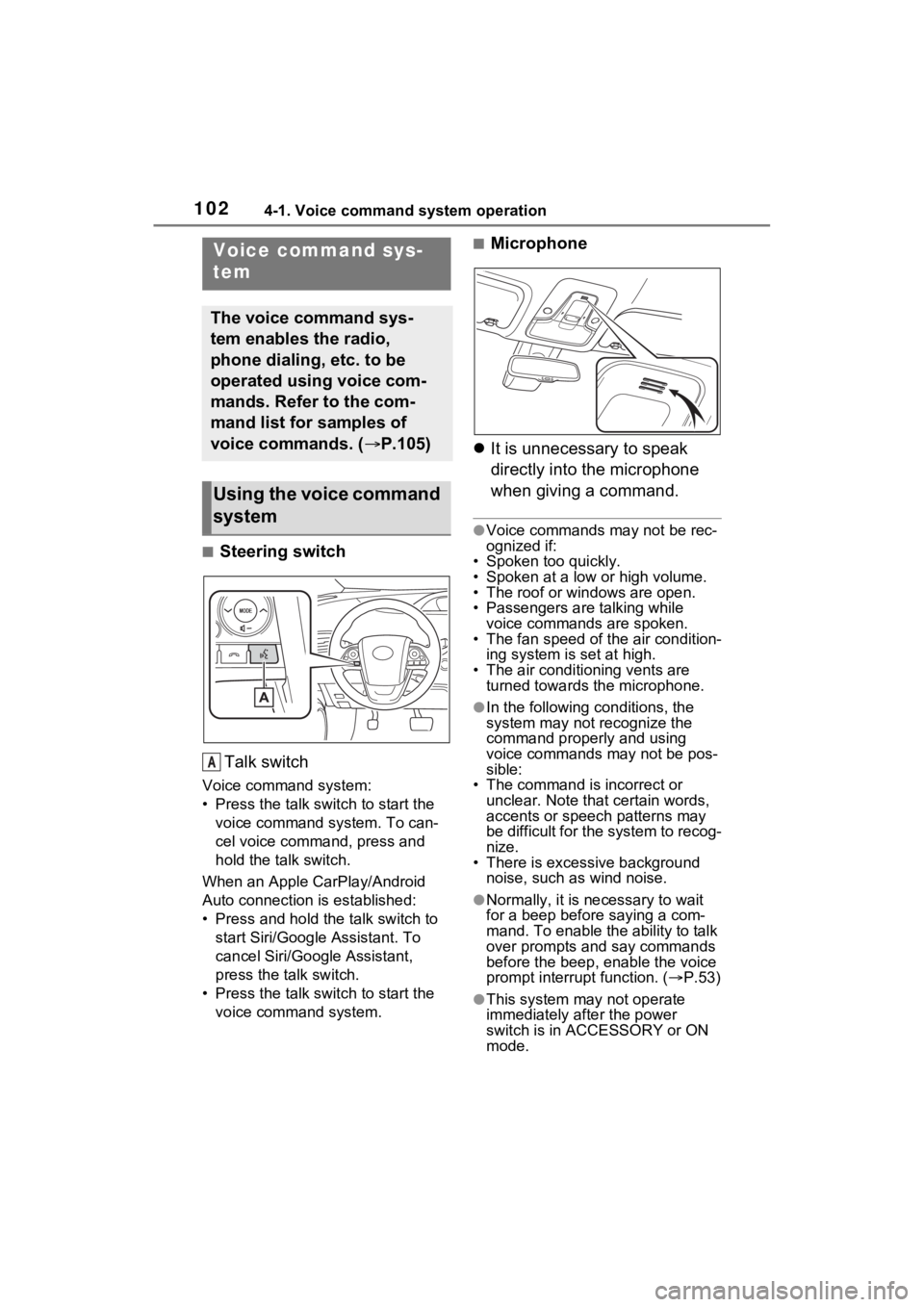
■Steering switchTalk switch
Voice command system:
• Press the talk switch to start the voice command system. To can-
cel voice command, press and
hold the talk switch.
When an Apple CarPlay/Android
Auto connection is established:
• Press and hold the talk switch to start Siri/Google Assistant. To
cancel Siri/Google Assistant,
press the talk switch.
• Press the talk switch to start the voice command system.
■Microphone
It is unnecessary to speak
directly into the microphone
when giving a command.
●Voice commands may not be rec-
ognized if:
• Spoken too quickly.
• Spoken at a low or high volume.
• The roof or windows are open.
• Passengers are talking while
voice commands are spoken.
• The fan speed of the air condition- ing system is set at high.
• The air conditioning vents are turned towards the microphone.
●In the following c onditions, the
system may not recognize the
command properly and using
voice commands may not be pos-
sible:
• The command is incorrect or
unclear. Note that certain words,
accents or speech patterns may
be difficult for the system to recog-
nize.
• There is excessive background noise, such as wind noise.
●Normally, it is n ecessary to wait
for a beep before saying a com-
mand. To enable the ability to talk
over prompts and say commands
before the beep, enable the voice
prompt interrupt function. ( P.53)
●This system may not operate
immediately after the power
switch is in ACCESSORY or ON
mode.
Voice command sys-
tem
The voice command sys-
tem enables the radio,
phone dialing, etc. to be
operated using voice com-
mands. Refer to the com-
mand list for samples of
voice commands. ( P.105)
Using the voice command
system
A
Page 126 of 176
1286-1. Phone operation (Hands-free system for cellular phones)
●The contact cannot be registered
at the home screen while driving.
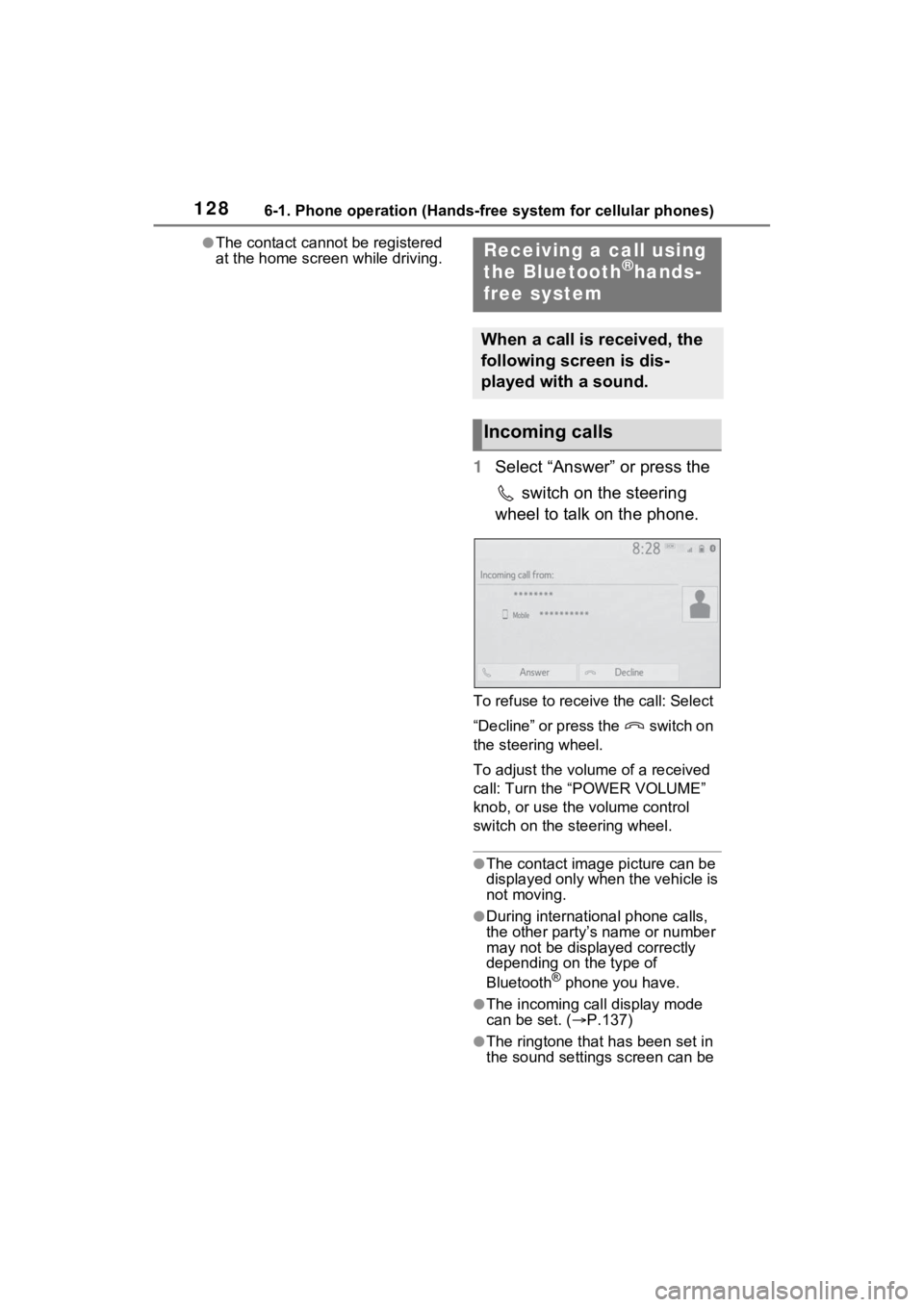
1Select “Answer” or press the
switch on the steering
wheel to talk on the phone.
To refuse to receive the call: Select
“Decline” or press the switch on
the steering wheel.
To adjust the volume of a received
call: Turn the “POWER VOLUME”
knob, or use the volume control
switch on the steering wheel.
●The contact image picture can be
displayed only when the vehicle is
not moving.
●During international phone calls,
the other party’s name or number
may not be displayed correctly
depending on the type of
Bluetooth
® phone you have.
●The incoming call display mode
can be set. ( P.137)
●The ringtone that has been set in
the sound settings screen can be
Receiving a call using
the Bluetooth®hands-
free system
When a call is received, the
following screen is dis-
played with a sound.
Incoming calls
Page 131 of 176
1336-1. Phone operation (Hands-free system for cellular phones)
6
Phone
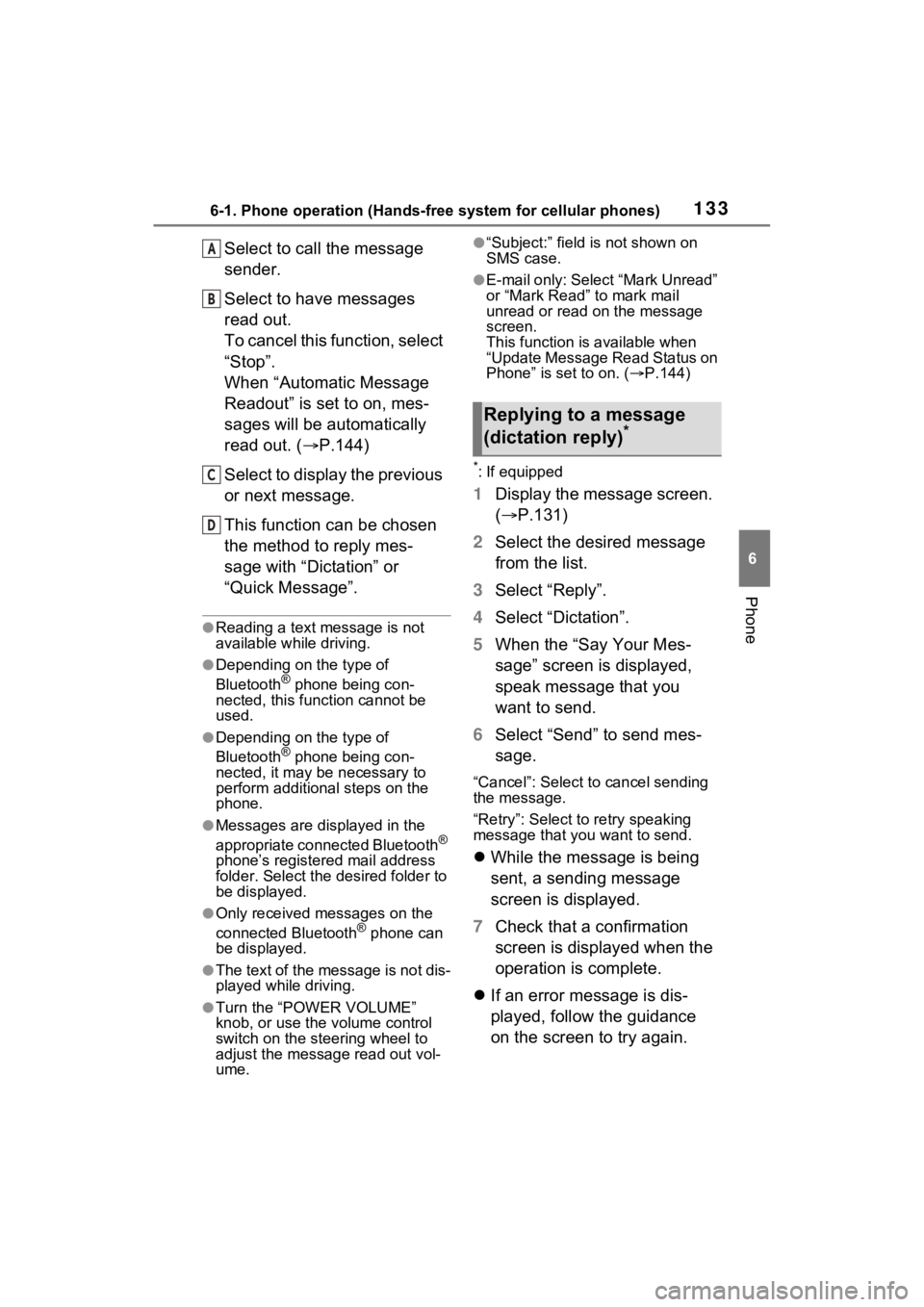
Select to call the message
sender.
Select to have messages
read out.
To cancel this function, select
“Stop”.
When “Automatic Message
Readout” is set to on, mes-
sages will be automatically
read out. (P.144)
Select to display the previous
or next message.
This function can be chosen
the method to reply mes-
sage with “Dictation” or
“Quick Message”.
●Reading a text m essage is not
available while driving.
●Depending on the type of
Bluetooth® phone being con-
nected, this function cannot be
used.
●Depending on the type of
Bluetooth® phone being con-
nected, it may be necessary to
perform additional steps on the
phone.
●Messages are displayed in the
appropriate connected Bluetooth®
phone’s registered mail address
folder. Select the desired folder to
be displayed.
●Only received messages on the
connected Bluetooth® phone can
be displayed.
●The text of the message is not dis-
played while driving.
●Turn the “POWER VOLUME”
knob, or use the volume control
switch on the steering wheel to
adjust the message read out vol-
ume.
●“Subject:” field is not shown on
SMS case.
●E-mail only: Select “Mark Unread”
or “Mark Read” to mark mail
unread or read on the message
screen.
This function is available when
“Update Message Read Status on
Phone” is set to on. ( P.144)
*: If equipped
1 Display the message screen.
( P.131)
2 Select the desired message
from the list.
3 Select “Reply”.
4 Select “Dictation”.
5 When the “Say Your Mes-
sage” screen is displayed,
speak message that you
want to send.
6 Select “Send” to send mes-
sage.
“Cancel”: Select to cancel sending
the message.
“Retry”: Select to retry speaking
message that you want to send.
While the message is being
sent, a sending message
screen is displayed.
7 Check that a confirmation
screen is displayed when the
operation is complete.
If an error message is dis-
played, follow the guidance
on the screen to try again.
A
B
C
D
Replying to a message
(dictation reply)*