service TOYOTA PRIUS PRIME 2021 Accessories, Audio & Navigation (in English)
[x] Cancel search | Manufacturer: TOYOTA, Model Year: 2021, Model line: PRIUS PRIME, Model: TOYOTA PRIUS PRIME 2021Pages: 310, PDF Size: 6.79 MB
Page 279 of 310
279
1. Entune App Suite OVERVIEW
PRIUS PRIME_Navi_OM47D79U_(U)
20.04.15 12:52
Entune App Suite
9
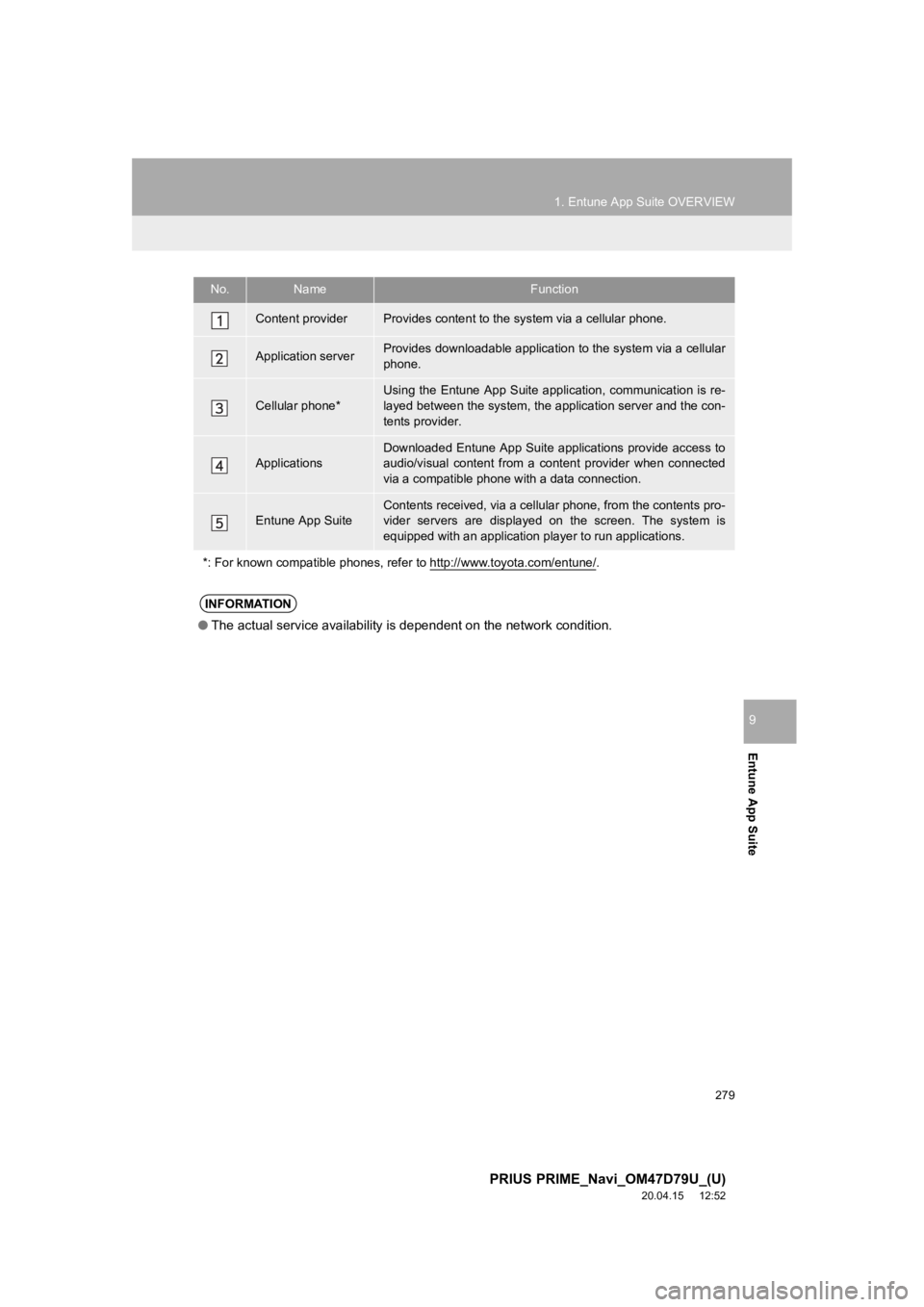
No.NameFunction
Content providerProvides content to the system via a cellular phone.
Application serverProvides downloadable application to the system via a cellular
phone.
Cellular phone*
Using the Entune App Suite appl ication, communication is re-
layed between the system, the application server and the con-
tents provider.
Applications
Downloaded Entune App Suite applications provide access to
audio/visual content from a content provider when connected
via a compatible phone with a data connection.
Entune App SuiteContents received, via a cellular phone, from the contents pro-
vider servers are displayed on the screen. The system is
equipped with an application pl ayer to run applications.
*: For known compatible phones, r efer to http://www.toyota.com/entune/
.
INFORMATION
●The actual service availability is dependent on the network con dition.
Page 280 of 310

280
1. Entune App Suite OVERVIEW
PRIUS PRIME_Navi_OM47D79U_(U)
20.04.15 12:52
Entune App suite does not require an acti-
vation fee or monthly recurring fees.
Services requiring a separate contract can
also be used.*
*: For details, refer to
http://www.toy ota.com/entune/
or call
1-800-331-4331.
Entune App Suite is available in the con-
tiguous United States, D.C. and Alaska.
The following personal data can be
deleted from the system and returned to
their default settings:
• Downloaded applications
• Downloaded application content
• Input history
BEFORE USING THE
FUNCTION
SUBSCRIPTION
AVAILABILITY OF SERVICE
INFORMATION
●When using Entune App Suite, depend-
ing on the details of your cellular phone
contract, data usage fees may apply.
Confirm data usage fees before using
this service.
● In this section, the required actions to
activate applications, connect a cellular
phone to the system and registration
steps for Entune App Suite are
explained. For details regarding Entune
App Suite operations and each of the
applications, refer to
http://www.toyota.com/entune/
.
● The actual service availability is depen-
dent on the network condition.
INITIALIZING PERSONAL
DATA
The personal data used in applications
can be removed from the system.
( P.74)
INFORMATION
● Once initialized, data will be erased from
the system. Pay close attention when
initializing the data.
Page 282 of 310
282
PRIUS PRIME_Navi_OM47D79U_(U)
20.04.15 12:52
2. Entune App Suite OPERATION
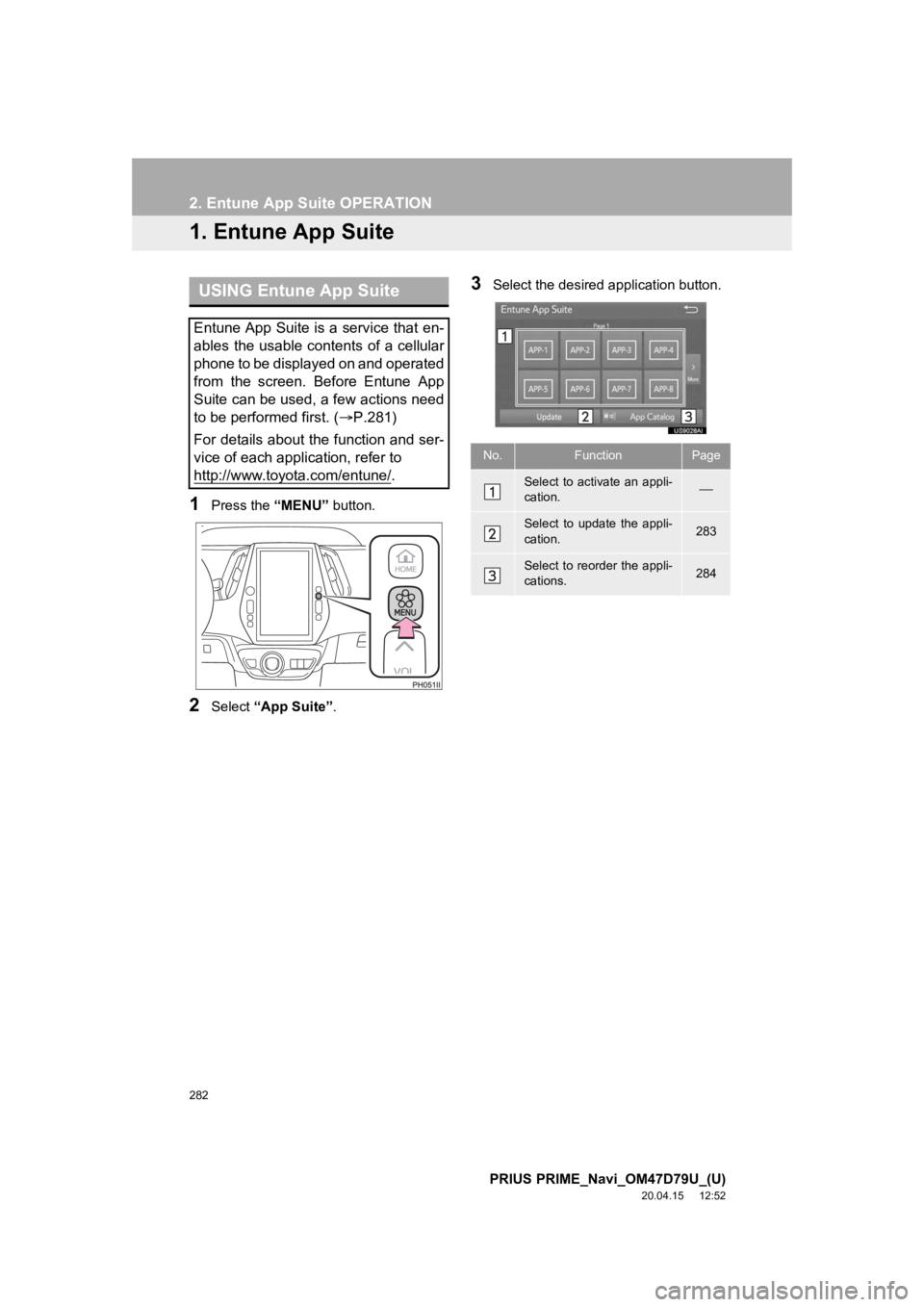
1. Entune App Suite
1Press the “MENU” button.
2Select “App Suite” .
3Select the desired application button.USING Entune App Suite
Entune App Suite is a service that en-
ables the usable contents of a cellular
phone to be displayed on and operated
from the screen. Before Entune App
Suite can be used, a few actions need
to be performed first. ( P.281)
For details about the function and ser-
vice of each application, refer to
http://www.toyota.com/entune/
.
No.FunctionPage
Select to activate an appli-
cation.
Select to update the appli-
cation.283
Select to reorder the appli-
cations.284
Page 285 of 310
285
2. Entune App Suite OPERATION
PRIUS PRIME_Navi_OM47D79U_(U)
20.04.15 12:52
Entune App Suite
9
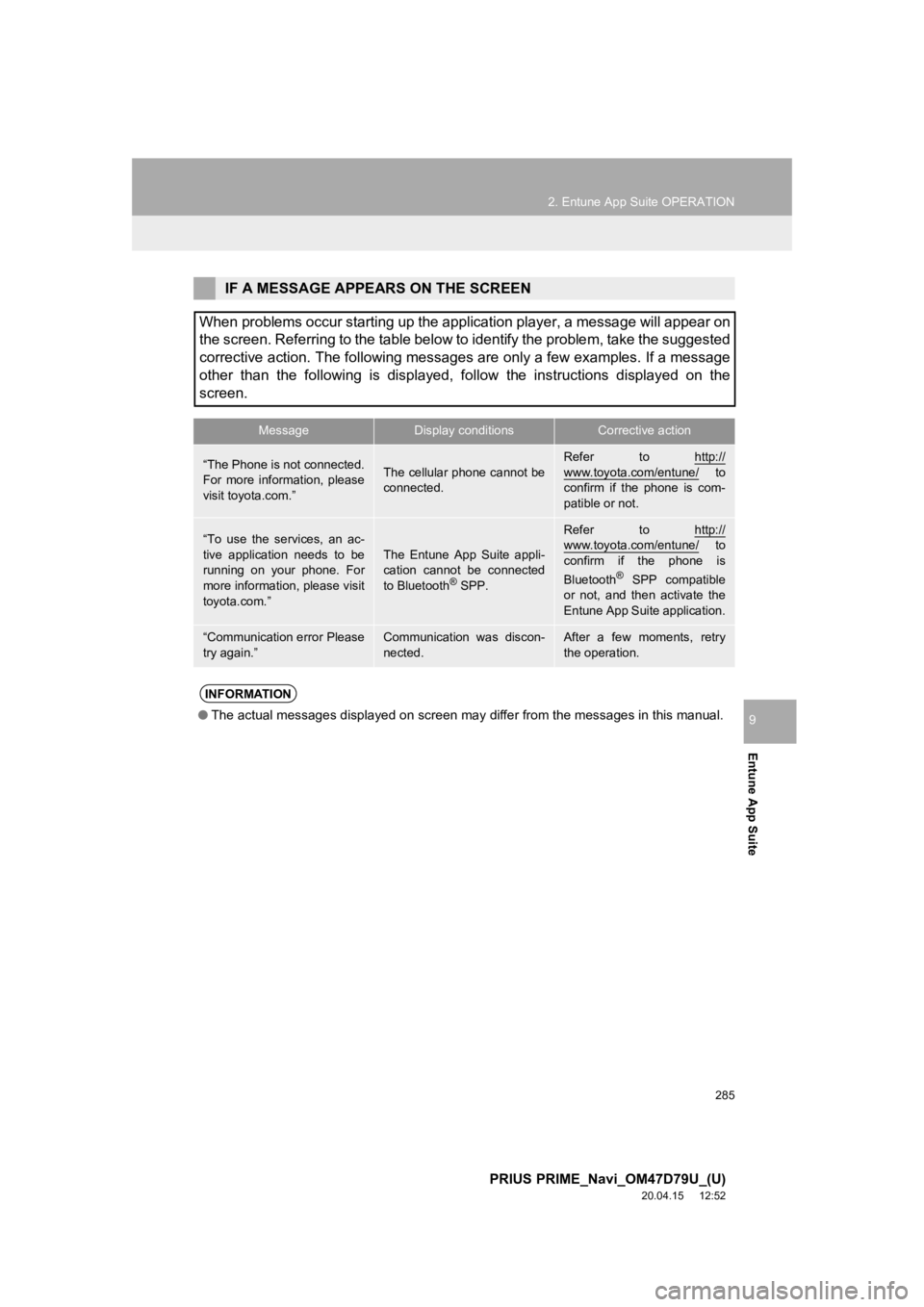
IF A MESSAGE APPEARS ON THE SCREEN
When problems occur starting up the application player, a messa ge will appear on
the screen. Referring to the table below to identify the proble m, take the suggested
corrective action. The following messages are only a few examples. If a message
other than the following is displayed, follow the instructions displayed on the
screen.
MessageDisplay conditionsCorrective action
“The Phone is not connected.
For more information, please
visit toyota.com.”The cellular phone cannot be
connected.
Refer to http://
www.toyota.com/entune/ to
confirm if the phone is com-
patible or not.
“To use the services, an ac-
tive application needs to be
running on your phone. For
more information, please visit
toyota.com.”The Entune App Suite appli-
cation cannot be connected
to Bluetooth
® SPP.
Refer to http://www.toyota.com/entune/ to
confirm if the phone is
Bluetooth
® SPP compatible
or not, and then activate the
Entune App Suite application.
“Communication error Please
try again.”Communication was discon-
nected.After a few moments, retry
the operation.
INFORMATION
● The actual messages displayed on screen may differ from the mes sages in this manual.
Page 286 of 310
286
2. Entune App Suite OPERATION
PRIUS PRIME_Navi_OM47D79U_(U)
20.04.15 12:52
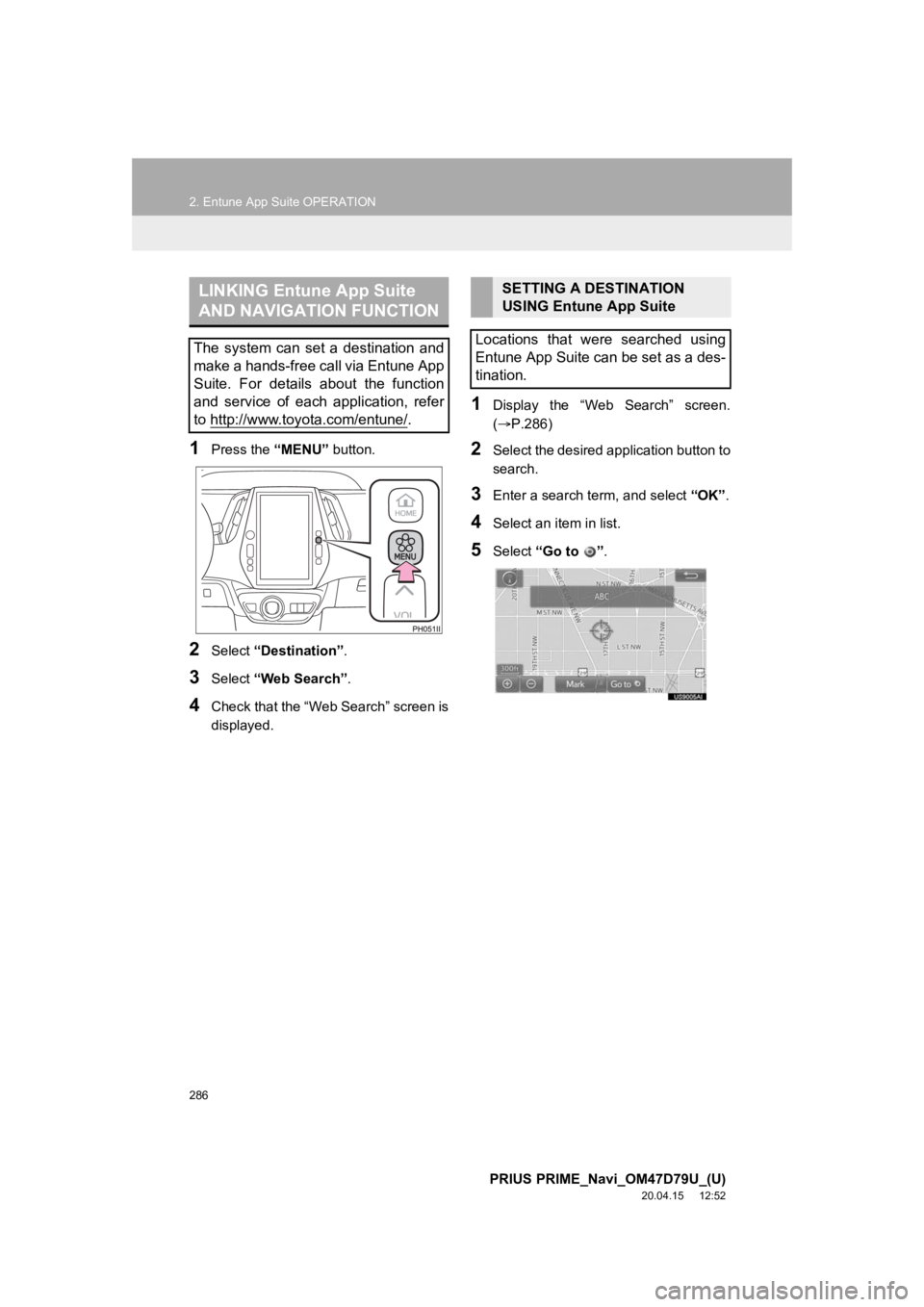
1Press the “MENU” button.
2Select “Destination” .
3Select “Web Search” .
4Check that the “Web Search” screen is
displayed.
1Display the “Web Search” screen.
(P.286)
2Select the desired application button to
search.
3Enter a search t erm, and select “OK”.
4Select an item in list.
5Select “Go to ”.
LINKING Entune App Suite
AND NAVIGATION FUNCTION
The system can set a destination and
make a hands-free call via Entune App
Suite. For details about the function
and service of each application, refer
to http://www.toyota.com/entune/
.
SETTING A DESTINATION
USING Entune App Suite
Locations that were searched using
Entune App Suite can be set as a des-
tination.
Page 288 of 310
288
2. Entune App Suite OPERATION
PRIUS PRIME_Navi_OM47D79U_(U)
20.04.15 12:52
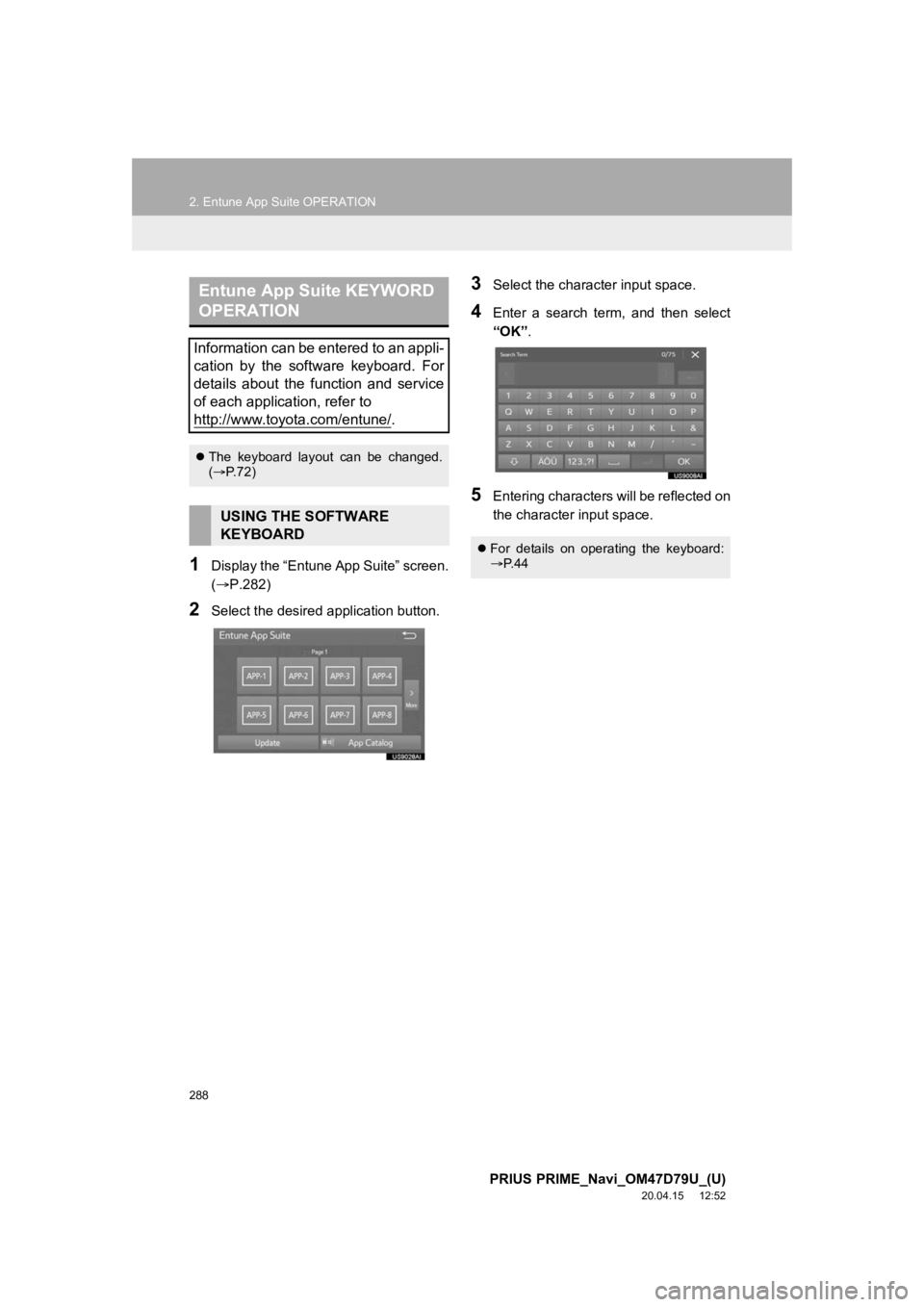
1Display the “Entune App Suite” screen.
(P.282)
2Select the desired application button.
3Select the character input space.
4Enter a search term, and then select
“OK”.
5Entering characters will be reflected on
the character input space.
Entune App Suite KEYWORD
OPERATION
Information can be entered to an appli-
cation by the software keyboard. For
details about the function and service
of each application, refer to
http://www.toyota.com/entune/
.
The keyboard layout can be changed.
( P. 7 2 )
USING THE SOFTWARE
KEYBOARD
For details on operating the keyboard:
P. 4 4
Page 294 of 310

294
ALPHABETICAL INDEX
PRIUS PRIME_Navi_OM47D79U_(U)
20.04.15 12:52
A
AM/FM radio ............................................. 89Available HD Radio™ Technology ........ 95
Caching a radio program ....................... 92
Overview ............................................... 89
Preset button screen ............................. 91
Radio broadcast data system ................ 94
Selecting a station from the list ............. 92
Troubleshooting guide ........................... 97
Using HD Radio™ Technology ............. 95
Apple CarPlay
®......................................... 68
Establishing an Apple CarPlay connection ......................................... 68
Troubleshooting..................................... 70
Audio remote controls ............................. 119
Audio settings ......................................... 121 Audio settings screen .......................... 121
Audio system ....... ..................................... 81
AUX......................................................... 118 Overview ............................................. 118
B
Basic function...................................... 12, 35
Basic information before operation ........... 36
Basic operation ................................. 82, 204
Bluetooth
® audio ..................................... 113
Connecting a Bluetooth® device ......... 117
Listening to Bluetooth® audio .............. 117
Overview ............................................. 113
Bluetooth
® phone message function ...... 179
Calling the message sender ................ 183
Checking messages ............................ 181
Message inbox screen ........................ 179
Receiving a message .......................... 180
Replying to a message (Quick reply) .................................... 182
C
Calling on the Bluetooth® phone .............170
By call history ......................................171
By contacts list.....................................172
By dial pad ...........................................174
By favorites list ....................................171
By off hook switch................................174
Capacitive touch switches .........................38
Casual speech recognization ..................139
Command list ..........................................140
Connectivity settings .................................51
Controls overview......................................12
D
Data services settings .............................150 Setting download methods ..................150
Destination search ..................................223
Destination search screen.......................223
Detailed navigation settings ....................261 Screens for navigation settings ...........261
E
Editing route ............................................246Adding destinations .............................247
Deleting destinations ...........................247
Detour setting ......................................249
Reordering destinations.......................247
Selecting route type .............................248
Setting route preferences ....................248
Starting from adjacent road .................250
Entering letters and numbers/ list screen operation ..............................44
Entering letters and numbers ................44
List screen .............................................45
ALPHABETICAL INDEX
Page 295 of 310

295
PRIUS PRIME_Navi_OM47D79U_(U)
20.04.15 12:52
Entune App Suite ............................ 277, 282Entune App Suite keyword operation.......................................... 288
Fuel application ................................... 289
Linking Entune App Suite and navigation function........................... 286
Using Entune App Suite ...................... 282
Entune App Suite operation .................... 282
Entune App Suite overview..................... 278
Entune App Suite service ....................... 278 Before using the function .................... 280
Preparation before using Entune App Suite ................................................ 281
Entune App Suite settings ...................... 291
F
Function index .......................................... 32
G
General settings........................................ 72
General settings screen ........................ 72
GPS (Global positioning system) ............ 272 Limitations of the navigation system ............ .......................... ....... 272
I
Information .............................................. 147
“Information” screen.................................. 24
Initial screen.............................................. 36
Internet radio........................................... 104
Listening to internet radio .................... 104
iPod......................................................... 10 9
iPod audio ........................................... 112
Overview ............................................. 109
L
Linking multi-information display and navigation system........ .......................... 50
M
Map database version and covered
area ..................................................... 275
About the map data ............................. 276
Map information................................... 275
Map screen ............................................... 16 Display areas......................................... 18
Status display ........................................ 20
Map screen information .......................... 213 Displaying information about the icon where the cursor is set ............. 218
Displaying map information ................. 213
Standard map icons ............................ 219
Map screen operation ............................. 207
Adjusting location in small increments ....................................... 212
Current position display ....................... 207
Map scale ............................................ 208
Orientation of the map ......................... 208
Screen scroll operation........................ 211
Switching the map mode ..................... 209
Media operation ...................................... 105
Memory points ........................................ 251
Memory points settings ........................... 251 Deleting previous destinations ............ 260
Setting up address book...................... 255
Setting up areas to avoid..................... 258
Setting up home .................................. 252
Setting up preset destinations ............. 253
Menu screen ............................................. 14
Mobile assistant ...................................... 144
Mobile assistant operation ...................... 144
Page 298 of 310

298
ALPHABETICAL INDEX
PRIUS PRIME_Navi_OM47D79U_(U)
20.04.15 12:52
T
Talking on the Bluetooth® phone ............ 176
Incoming call waiting ........................... 178
Things you should know ......................... 161
If you notice any symptoms ................. 161
Tips for operating the audio system ........ 123
Tips for the navigation system ................ 272
Touch screen gestures ............................. 40
Touch screen operation ............................ 41
Traffic information ................................... 220 Displaying traffic information on the map ............................................ 222
Traffic settings......................................... 265 Auto avoid traffic.................................. 266
My traffic routes ................................... 267
Screen for traffic settings..................... 265
Troubleshooting ...................................... 195
Typical voice guidance prompts.............. 245
U
USB memory........................................... 105 Overview ............................................. 105
USB audio ........................................... 108
USB video ........................................... 108
Useful information ................................... 148
V
Vehicle settings .........................................76
Maintenance ..........................................76
Voice command system ..................131, 132
Using the voice command system .......132
Voice command system operation ......133
Voice command system oper ation ..........132
Voice settings ............................................75 Voice settings screen ............................75
W
What to do if... ........................................195
X
XM Satellite Radio.....................................98Displaying the radio ID ........................101
HOW TO SUBSCRIBE TO SiriusXM
Radio Services .................................100
If the satellite radio tuner malfunctions .....................................102
Overview................................................98
Selecting a channel from the list..........101