traffic TOYOTA PRIUS PRIME 2023 User Guide
[x] Cancel search | Manufacturer: TOYOTA, Model Year: 2023, Model line: PRIUS PRIME, Model: TOYOTA PRIUS PRIME 2023Pages: 680, PDF Size: 14.97 MB
Page 169 of 680
1693-1. Instrument cluster
3
Vehicle status information and indicators
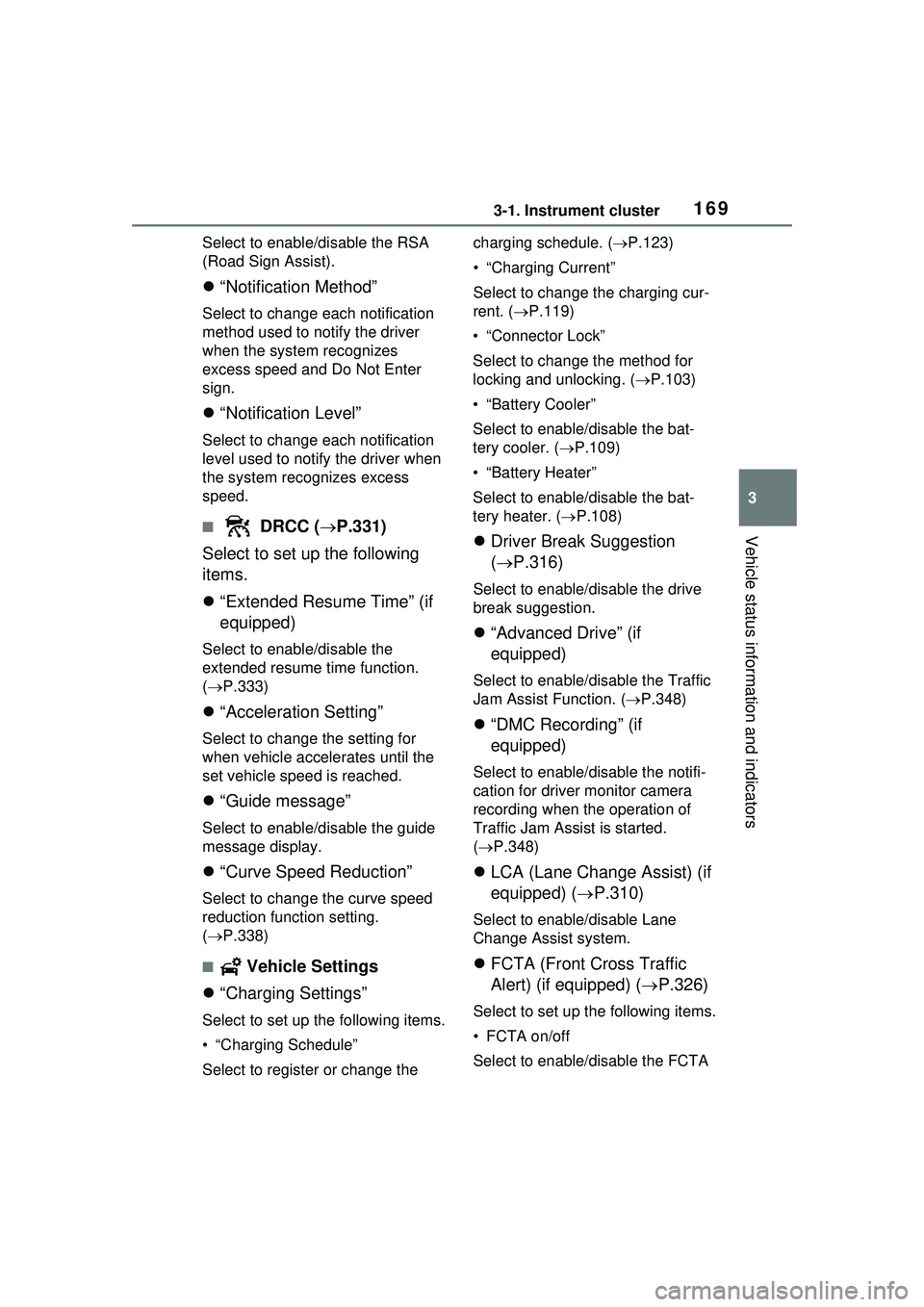
Select to enable/disable the RSA
(Road Sign Assist).
“Notification Method”
Select to change each notification
method used to notify the driver
when the system recognizes
excess speed and Do Not Enter
sign.
“Notification Level”
Select to change each notification
level used to notify the driver when
the system recognizes excess
speed.
■ DRCC ( P.331)
Select to set up the following
items.
“Extended Resume Time” (if
equipped)
Select to enable/disable the
extended resume time function.
( P.333)
“Acceleration Setting”
Select to change the setting for
when vehicle accelerates until the
set vehicle speed is reached.
“Guide message”
Select to enable/disable the guide
message display.
“Curve Speed Reduction”
Select to change the curve speed
reduction function setting.
( P.338)
■ Vehicle Settings
“Charging Settings”
Select to set up the following items.
• “Charging Schedule”
Select to register or change the charging schedule. (
P.123)
• “Charging Current”
Select to change the charging cur-
rent. ( P.119)
• “Connector Lock”
Select to change the method for
locking and unlocking. ( P.103)
• “Battery Cooler”
Select to enable /disable the bat-
tery cooler. ( P.109)
• “Battery Heater”
Select to enable /disable the bat-
tery heater. ( P.108)
Driver Break Suggestion
( P.316)
Select to enable/disable the drive
break suggestion.
“Advanced Drive” (if
equipped)
Select to enable/d isable the Traffic
Jam Assist Function. ( P.348)
“DMC Recording” (if
equipped)
Select to enable/disable the notifi-
cation for driver monitor camera
recording when the operation of
Traffic Jam Assist is started.
( P.348)
LCA (Lane Change Assist) (if
equipped) ( P.310)
Select to enable/disable Lane
Change Assist system.
FCTA (Front Cross Traffic
Alert) (if equipped) ( P.326)
Select to set up the following items.
• FCTA on/off
Select to enable/disable the FCTA
Page 237 of 680
237
5
5
Driving
Driving
5-1. Before drivingDriving the vehicle....... 239
Cargo and luggage ..... 246
Vehicle load limits ....... 249
Trailer towing .............. 250
Dinghy towing ............. 250
5-2. Driving procedures Power (ignition) switch 251
Transmission............... 256
Turn signal lever ......... 262
Parking brake .............. 263
Brake Hold .................. 266
5-3. Operating the lights and wipers
Headlight switch .......... 269
AHB (Automatic High Beam)........................ 272
Windshield wipers and washer....................... 275
5-4. Refueling Opening the fuel tank cap.................................. 279
5-5. Using the driving support systems
Toyota Safety Sense 3.0/Traffic Jam Assist soft-
ware update .............. 282
Toyota Safety Sense 3.0 .................................. 284
Driver monitor ............. 292PCS (Pre-Collision System)
.................................. 293
LTA (Lane Tracing Assist) .................................. 305
LCA (Lane Change Assist) .................................. 310
LDA (Lane Departure Alert) .................................. 313
PDA (Proactive driving assist) ........................ 320
FCTA (Front Cross Traffic Alert) .......................... 326
RSA (Road Sign Assist) .................................. 329
Dynamic radar cruise con- trol ............................. 331
Cruise control .............. 342
Emergency Driving Stop System ...................... 345
Traffic Jam Assist ........ 348
BSM (Blind Spot Monitor) .................................. 354
Safe Exit Assist ........... 359
Intuitive parking assist . 363
RCTA (Rear Cross Traffic Alert) function ............ 373
RCD (Rear Camera Detec- tion) function .............. 378
PKSB (Parking Support Brake) ........................ 382
Page 273 of 680
2735-3. Operating the lights and wipers
5
Driving
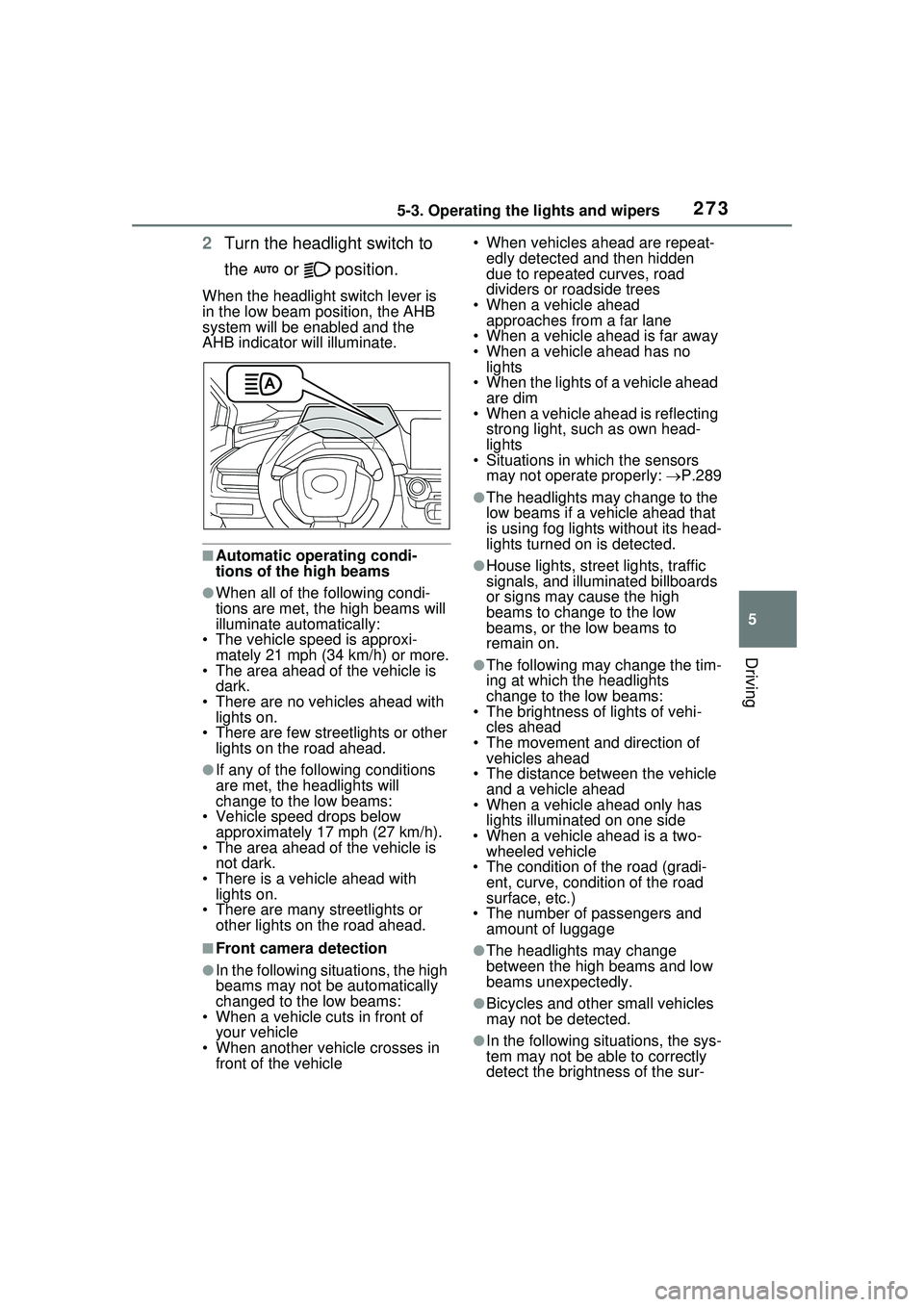
2Turn the headlight switch to
the or position.
When the headlight switch lever is
in the low beam position, the AHB
system will be enabled and the
AHB indicator will illuminate.
■Automatic operating condi-
tions of the high beams
●When all of the following condi-
tions are met, the high beams will
illuminate automatically:
• The vehicle speed is approxi-
mately 21 mph (34 km/h) or more.
• The area ahead of the vehicle is dark.
• There are no vehicles ahead with lights on.
• There are few streetlights or other
lights on the road ahead.
●If any of the following conditions
are met, the headlights will
change to the low beams:
• Vehicle speed drops below
approximately 17 mph (27 km/h).
• The area ahead of the vehicle is not dark.
• There is a vehicle ahead with lights on.
• There are many streetlights or
other lights on the road ahead.
■Front camera detection
●In the following situations, the high
beams may not be automatically
changed to the low beams:
• When a vehicle cuts in front of your vehicle
• When another vehicle crosses in front of the vehicle • When vehicles ahead are repeat-
edly detected and then hidden
due to repeated curves, road
dividers or roadside trees
• When a vehicle ahead approaches from a far lane
• When a vehicle ahead is far away
• When a vehicle ahead has no lights
• When the lights of a vehicle ahead are dim
• When a vehicle ahead is reflecting
strong light, such as own head-
lights
• Situations in which the sensors
may not operate properly: P.289
●The headlights may change to the
low beams if a vehicle ahead that
is using fog lights without its head-
lights turned on is detected.
●House lights, street lights, traffic
signals, and illuminated billboards
or signs may cause the high
beams to change to the low
beams, or the low beams to
remain on.
●The following may change the tim-
ing at which the headlights
change to the low beams:
• The brightness of lights of vehi-
cles ahead
• The movement and direction of vehicles ahead
• The distance between the vehicle and a vehicle ahead
• When a vehicle ahead only has
lights illuminate d on one side
• When a vehicle ahead is a two- wheeled vehicle
• The condition of the road (gradi- ent, curve, condition of the road
surface, etc.)
• The number of passengers and amount of luggage
●The headlights may change
between the high beams and low
beams unexpectedly.
●Bicycles and other small vehicles
may not be detected.
●In the following situations, the sys-
tem may not be able to correctly
detect the brightness of the sur-
Page 274 of 680
2745-3. Operating the lights and wipers
roundings. This may cause the
low beams to remain on or the
high beams to flash or dazzle
pedestrians or vehicles ahead. In
such a case, it is necessary to
manually change between the
high beams and low beams.
• When there are lights similar to headlights or tail lights in the sur-
rounding area
• When headlights or tail lights of vehicles ahead are turned off,
dirty, changing color, or not aimed
properly
• When the headlights are repeat-
edly changing between the high
beams and low beams.
• When use of the high beams is
inappropriate or when the high
beams may be flashing or daz-
zling pedestrians or other drivers.
• When the vehicle is used in an area in which vehicles travel on
the opposite side of the road of
the country for which the vehicle
was designed, for example using
a vehicle designed for right-hand
traffic in a left-hand traffic area, or
vice versa
• When it is necessary to disable
the system: P.284
• Situations in which the sensors may not operate properly: P.289
■Temporarily reducing front
camera sensitivity
The sensitivity of the front camera
can be temporarily reduced.
1 Turn the power switch off with
the following conditions met.
●The headlight swit ch is in the
or position.
●The headlight switch lever is in the
low beam position.
●The automatic High Beam switch
is on.
2 Turn the power switch to ON.
3 Within 60 seconds after perform-
ing step 2, push the headlight
switch lever to the high beam
position then pull it to the original position quickly 10 times, then
leave the lever in its original
position.
4 If the sensitivity is changed, the
Automatic High Beam indicator
will blink 3 times.
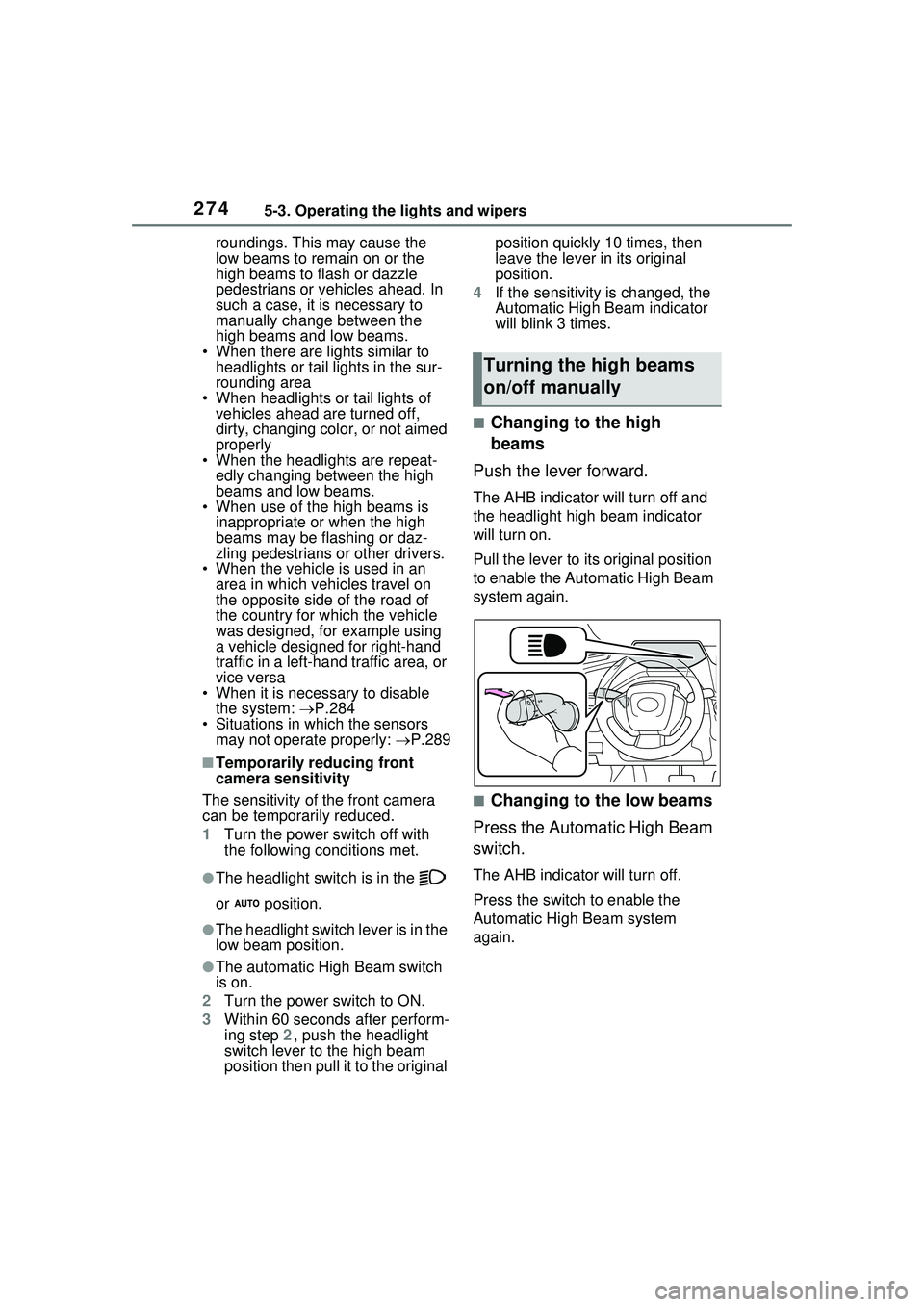
■Changing to the high
beams
Push the lever forward.
The AHB indicator will turn off and
the headlight high beam indicator
will turn on.
Pull the lever to its original position
to enable the Automatic High Beam
system again.
■Changing to the low beams
Press the Automatic High Beam
switch.
The AHB indicator will turn off.
Press the switch to enable the
Automatic High Beam system
again.
Turning the high beams
on/off manually
Page 282 of 680
2825-5. Using the driving support systems
5-5.Using the driving support systems
This Owner’s Manual contains
information for Ver.2. For the lat-
est information about the con-
trols, use, warnings/precautions,
etc. of each function of Toyota
Safety Sense 3.0/Traffic Jam
Assist, refer to the Digital
Owner’s Manual at the Owner’s
Manual website.If the software of this system
has been updated after initial
purchase of the vehicle, before
using this system, be sure to
read the Owner’s Manual which
corresponds to the software ver-
sion of the system.
■Precautions for use
●Be aware that some functions
may temporarily be disabled if a
legal or safety related issue
occurs.
●If a connected services contract
has not been entered or has
expired, software updates will not
be able to be performed wire-
lessly.
If the software of this system
has been updated after initial
purchase of the vehicle, to
access the appropriate Owner’s
Manual, it is necessary to check
the software version of the sys-
tem and then visit the Owner’s
Manual website.
■Checking the version using
OneApp
The software version of the sys-
tem can be checked using One-
App.
Toyota Safety Sense
3.0/Traffic Jam Assist
software update
It is necessary to enter a
connected services con-
tract, provided by Toyota, to
use these functions. For
details, contact your Toyota
dealer.
WARNING
■For safe use
When the Toyota Safety Sense
3.0/Traffic Jam Assist software is
updated, the operating methods
of functions may change. Using
this system without knowing the
correct operating methods may
lead to an accident resulting in
death or serious injury.
●Make sure to read the Digital
Owner’s Manual which corre-
sponds to the software version
of the system, available at the
Owner’s Manual website, before
using this system.
Content of the Toyota
Safety Sense 3.0/Traffic
Jam Assist Owner’s Man-
ual
Checking your vehicle’s
Toyota Safety Sense
3.0/Traffic Jam Assist ver-
sion
Page 283 of 680
2835-5. Using the driving support systems
5
Driving
■Selecting your vehicle’s
Toyota Safety Sense
3.0/Traffic Jam Assist ver-
sion
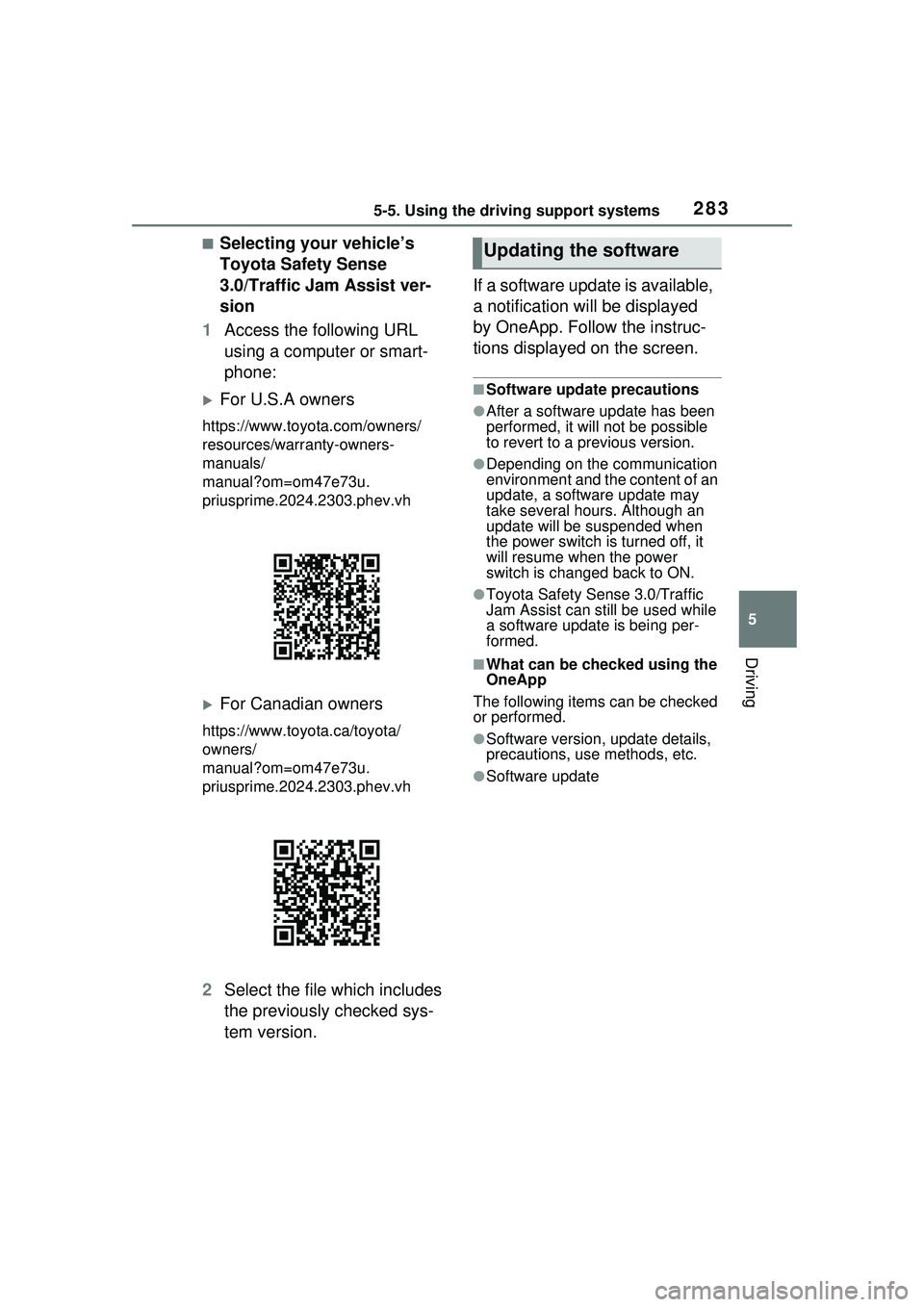
1 Access the following URL
using a computer or smart-
phone:
For U.S.A owners
https://www.toyo ta.com/owners/
resources/warr anty-owners-
manuals/
manual?om=om47e73u.
priusprime.2024.2303.phev.vh
For Canadian owners
https://www.toyota.ca/toyota/
owners/
manual?om=om47e73u.
priusprime.2024.2303.phev.vh
2 Select the file which includes
the previously checked sys-
tem version. If a software update is available,
a notification will be displayed
by OneApp. Follow the instruc-
tions displayed on the screen.
■Software update precautions
●After a software update has been
performed, it will not be possible
to revert to a previous version.
●Depending on the communication
environment and the content of an
update, a software update may
take several hours. Although an
update will be
suspended when
the power switch is turned off, it
will resume when the power
switch is changed back to ON.
●Toyota Safety Sense 3.0/Traffic
Jam Assist can still be used while
a software update is being per-
formed.
■What can be checked using the
OneApp
The following items can be checked
or performed.
●Software version, update details,
precautions, use methods, etc.
●Software update
Updating the software
Page 285 of 680
2855-5. Using the driving support systems
5
Driving
■AHB (Automatic High
Beam)
P.272
■PCS (Pre-Collision System)
P.293
■LTA (Lane Tracing Assist)
P.305
■LDA (Lane Departure Alert)
P.313
■LCA (Lane Change Assist)*
P.310
■FCTA (Front Cross Traffic
Alert)
*
P.326
■PDA (Proactive Driving
Assist)
P.320
■RSA (Road Sign Assist)*
P.329
■Dynamic radar cruise con-
trol
P.331
■Cruise control
P.342
■Emergency Driving Stop
System
P.345
■Traffic Jam Assist*
P.348
■Driver monitor*
P.292
*: If equipped
Various sensors are used to
obtain the necessary informa-
tion for system operation.
WARNING
●When using an automatic car
wash
●When a sensor is misaligned or
deformed due to a strong
impact being applied to the sen-
sor or the area around the sen-
sor
●When accessories which
obstruct a sensor or light are
temporarily installed to the vehi-
cle
●When a compact spare tire or
tire chains are installed to the
vehicle or an emergency tire
puncture repair kit has been
used
●When the tires are excessively
worn or the inflation pressure of
the tires is low
●When tires other than the manu-
facturer specified size are
installed
●When the vehicle cannot be
driven stably, due to a collision,
malfunction, etc.
Driving assist system
Sensors used by Toyota
Safety Sense 3.0
Page 289 of 680
2895-5. Using the driving support systems
5
Driving
■Precautions for use
It is necessary to enter a connected
services contract, provided by
Toyota, to use these functions. For
details, contact your Toyota dealer.
●LCA (Lane Change Assist)
P.310
●Radar Cruise Control: Extended
resume time
P.331
●Traffic Jam Assist
P.348
■Situations in which the sensors
may not operate properly
●When the height or inclination of
the vehicle has been changed due
to modifications
●When the windshield is dirty,
fogged up, cracked or damaged
●When the ambient temperature is
high or low
●When mud, water, snow, dead
insects, foreign matter, etc., is
attached to the front of the sensor
●When in inclement weather such
as heavy rain, fog, snow, or a
sandstorm
●When water, snow, dust, etc. is
thrown up in front of the vehicle, or
when driving through mist or
smoke
●When the headlights are not illu-
minated while driving in the dark,
such as at night or when in a tun-
nel
●When the lens of a headlight is
dirty and illumination is weak
●When the headlights are mis-
aligned
●When a headlight is malfunction-
ing
●When the headlights of another
vehicle, sunlight, or reflected light
shines directly into the front cam-
era
●When the brightness of the sur-
rounding area changes suddenly
●When driving near a TV tower,
broadcasting station, electric
power plant, radar equipped vehi-
cles, etc., or other location where
WARNING
●Do not subject the driver moni-
tor camera or its surrounding
area to strong impact.
If subjected to a strong impact,
the driver monitor camera may
move out of alignment and the
driver may no longer be detected
correctly. In this case, have the
vehicle inspected by your Toyota
dealer.
●Do not disassemble or modify
the driver monitor camera.
●Do not attach accessories,
stickers (including transparent
stickers), etc. to the driver moni-
tor camera or its surrounding
area.
●Do not allow the driver monitor
camera or its surrounding area
to get wet.
●Do not cover the driver monitor
camera or place anything in
front of it.
●Keep the lens of the driver mon-
itor camera free from damage.
●Do not touch the lens of the
driver monitor came ra or allow it
to become dirty.
When there is dirt or fingerprints
on the camera lens, clean it with a
dry, soft cloth so as to not mark or
damage it.
●When cleaning the lens, do not
use detergents or organic sol-
vents that may damage plastic.
Page 302 of 680
3025-5. Using the driving support systems
not operate properly.
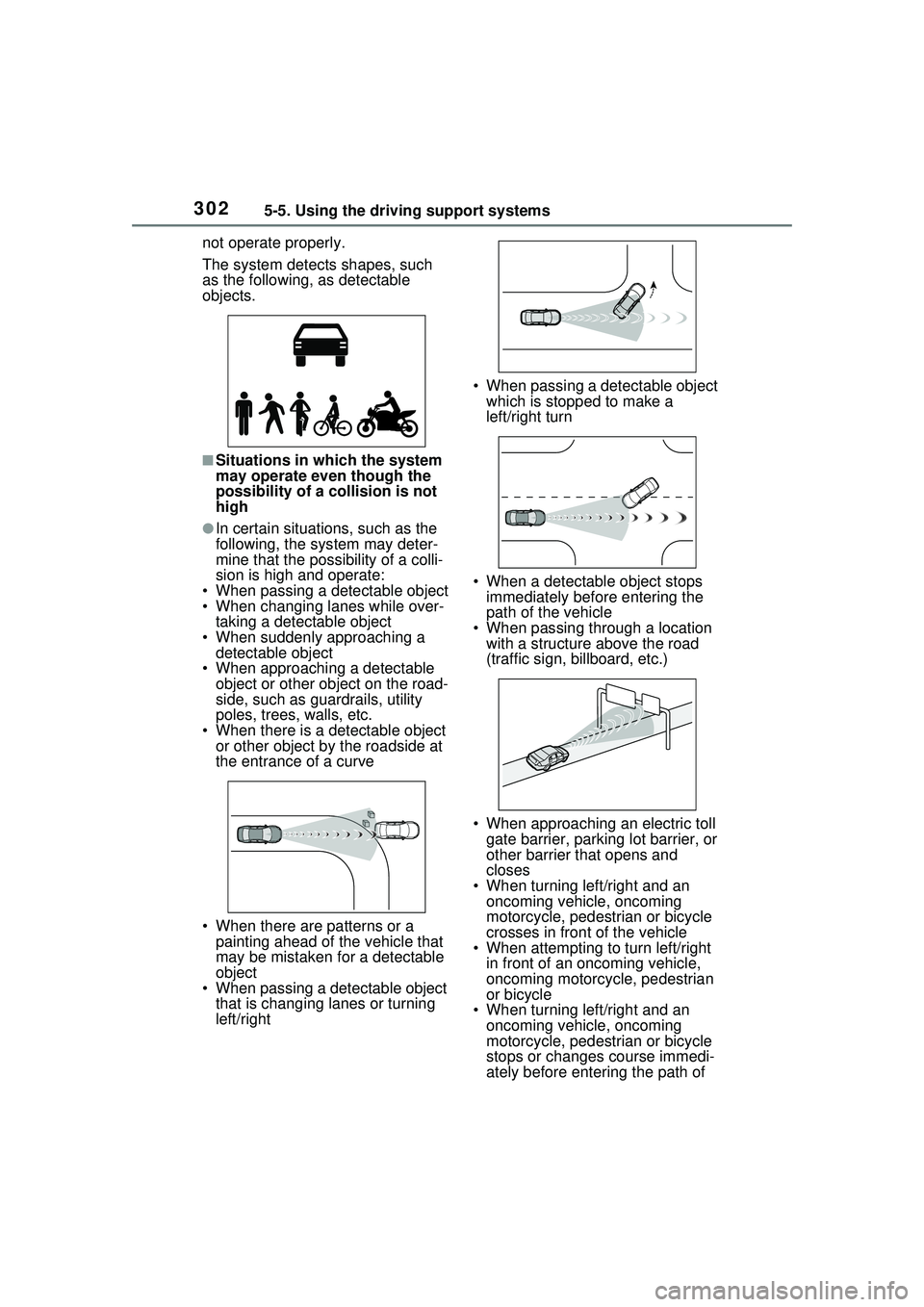
The system detects shapes, such
as the following, as detectable
objects.
■Situations in which the system
may operate even though the
possibility of a collision is not
high
●In certain situations, such as the
following, the system may deter-
mine that the possibility of a colli-
sion is high and operate:
• When passing a detectable object
• When changing lanes while over- taking a detectable object
• When suddenly approaching a detectable object
• When approaching a detectable
object or other object on the road-
side, such as guardrails, utility
poles, trees, walls, etc.
• When there is a detectable object or other object by the roadside at
the entrance of a curve
• When there are patterns or a painting ahead of the vehicle that
may be mistaken for a detectable
object
• When passing a detectable object
that is changing lanes or turning
left/right • When passing a detectable object
which is stopped to make a
left/right turn
• When a detectable object stops immediately before entering the
path of the vehicle
• When passing through a location with a structure above the road
(traffic sign, billboard, etc.)
• When approaching an electric toll gate barrier, parking lot barrier, or
other barrier that opens and
closes
• When turning left/right and an oncoming vehicle, oncoming
motorcycle, pedestrian or bicycle
crosses in front of the vehicle
• When attempting to turn left/right in front of an oncoming vehicle,
oncoming motorcycle, pedestrian
or bicycle
• When turning left/right and an
oncoming vehicle, oncoming
motorcycle, pedestrian or bicycle
stops or changes course immedi-
ately before entering the path of
Page 304 of 680
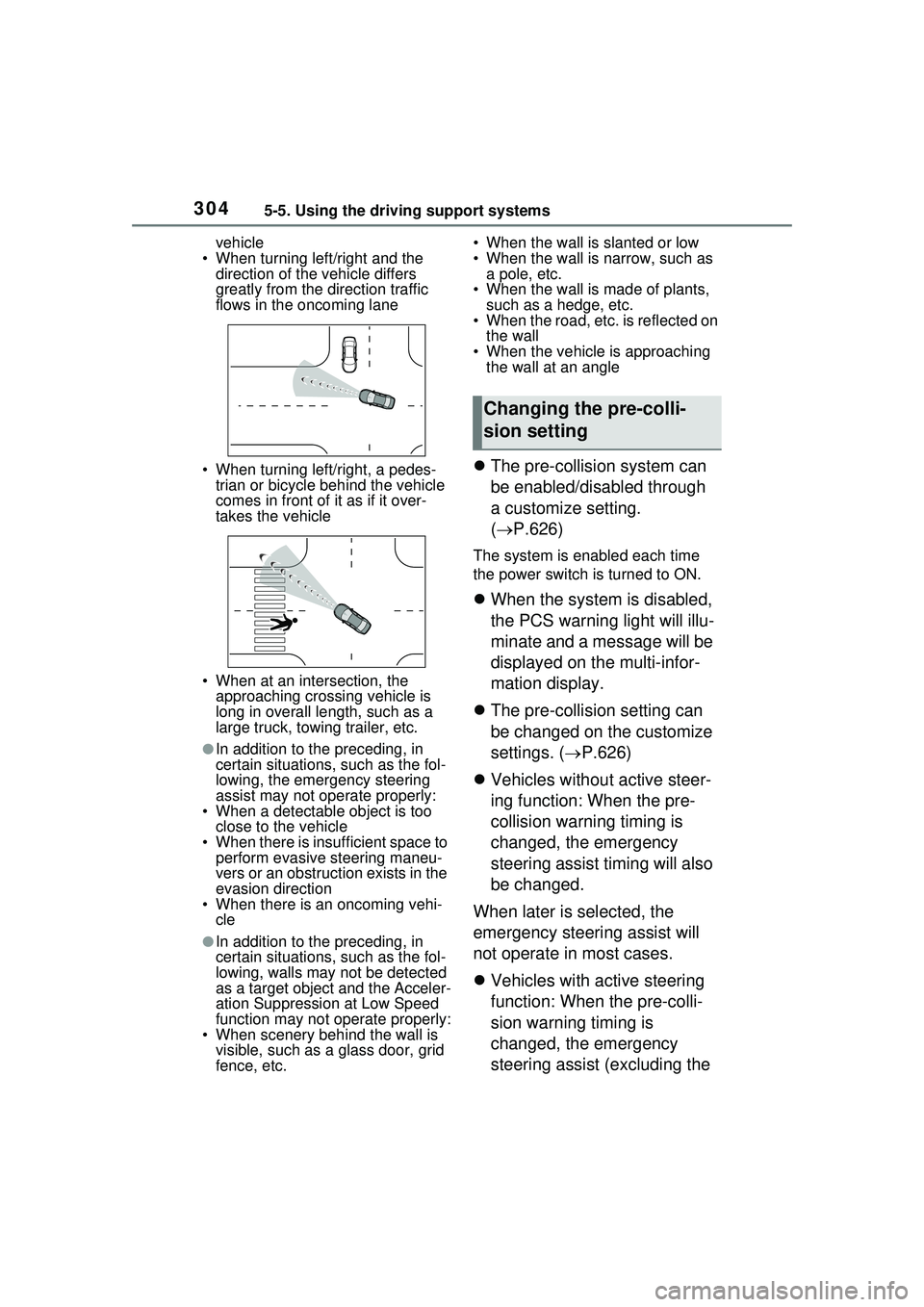
3045-5. Using the driving support systems
vehicle
• When turning left/right and the direction of the vehicle differs
greatly from the direction traffic
flows in the oncoming lane
• When turning left/right, a pedes- trian or bicycle behind the vehicle
comes in front of it as if it over-
takes the vehicle
• When at an intersection, the approaching crossing vehicle is
long in overall le ngth, such as a
large truck, towing trailer, etc.
●In addition to the preceding, in
certain situations, such as the fol-
lowing, the emergency steering
assist may not operate properly:
• When a detectable object is too
close to the vehicle
• When there is insufficient space to perform evasive steering maneu-
vers or an obstruction exists in the
evasion direction
• When there is an oncoming vehi-
cle
●In addition to the preceding, in
certain situations, such as the fol-
lowing, walls may not be detected
as a target object and the Acceler-
ation Suppression at Low Speed
function may not operate properly:
• When scenery behind the wall is visible, such as a glass door, grid
fence, etc. • When the wall is slanted or low
• When the wall is narrow, such as
a pole, etc.
• When the wall is made of plants, such as a hedge, etc.
• When the road, etc. is reflected on
the wall
• When the vehicle is approaching the wall at an angle
The pre-collision system can
be enabled/disabled through
a customize setting.
( P.626)
The system is enabled each time
the power switch is turned to ON.
When the system is disabled,
the PCS warning light will illu-
minate and a message will be
displayed on the multi-infor-
mation display.
The pre-collision setting can
be changed on the customize
settings. ( P.626)
Vehicles without active steer-
ing function: When the pre-
collision warning timing is
changed, the emergency
steering assist timing will also
be changed.
When later is selected, the
emergency steering assist will
not operate in most cases.
Vehicles with active steering
function: When the pre-colli-
sion warning timing is
changed, the emergency
steering assist (excluding the
Changing the pre-colli-
sion setting