disable TOYOTA PRIUS PRIME 2023 Owners Manual
[x] Cancel search | Manufacturer: TOYOTA, Model Year: 2023, Model line: PRIUS PRIME, Model: TOYOTA PRIUS PRIME 2023Pages: 680, PDF Size: 14.97 MB
Page 9 of 680
9
cle owner (or the lessee if the
vehicle is leased) has been
given
When officially requested by
the police, a court of law or a
government agency
When it is to be used by
Toyota in a lawsuit
When data is to be used
research purposes after pro-
cessing so that the data is not
tied to a specific vehicle or
vehicle owner
In addition to the above, Toyota
may disclose the data recorded
by the Toyota Safety Sense 3.0
to a third party in the following
situations:
When separate consent of the
vehicle owner (or the lessee if
the vehicle is leased) has
been given. This includes sit-
uations when the user sub-
scribes to an individual
service which is provided by a
second party and uses vehi-
cle recorded data, where the
provider has obtained the
user’s consent for providing
data to a third-party
When providing data to a
company involved in autono-
mous driving software, etc. for
the purpose of research and
development (technology,
product development, prod-
uct improvement, etc.) of
automated driving, advanced safety and map related tech-
nologies
When providing image data
and position information to a
company involved in map cre-
ation, etc. for the purpose of
research and development
map related technologies
When providing image data
and position information to a
local government for the pur-
pose of road maintenance,
etc.
When providing processed
image data and position infor-
mation to traffic condition
communication individual ser-
vices
When providing image data
from near a fire, or other area
that emergency services are
dispatched, to the fire depart-
ment of a local government
which has entered a separate
contract with Toyota
Image information recorded by the
vehicle can be erased by your
Toyota dealer.
The image recording function can
be disabled. However, if the function
is disabled, data from when systems
operate will not be available.
If you wish to stop the collection of
Toyota Safety Sense 3.0 data by the
Toyota servers for the purpose of
research and development and pro-
vision to individual services, contact
your Toyota dealer.
Page 42 of 680
421-1. For safe use
WARNING
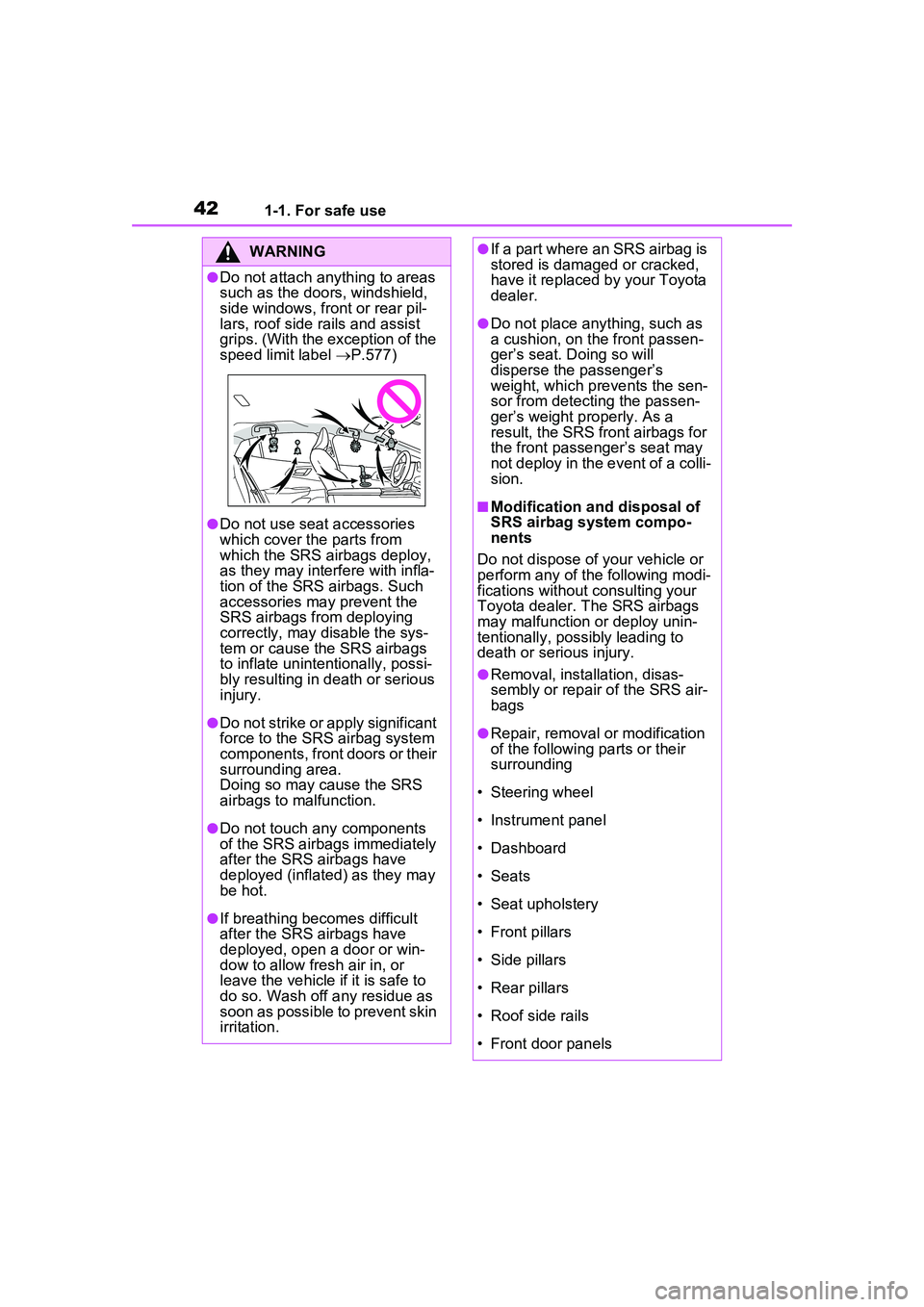
●Do not attach anything to areas
such as the doors, windshield,
side windows, front or rear pil-
lars, roof side rails and assist
grips. (With the exception of the
speed limit label P.577)
●Do not use seat accessories
which cover the parts from
which the SRS airbags deploy,
as they may inte rfere with infla-
tion of the SRS airbags. Such
accessories may prevent the
SRS airbags from deploying
correctly, may disable the sys-
tem or cause the SRS airbags
to inflate unintentionally, possi-
bly resulting in death or serious
injury.
●Do not strike or apply significant
force to the SRS airbag system
components, front doors or their
surrounding area.
Doing so may cause the SRS
airbags to malfunction.
●Do not touch any components
of the SRS airbags immediately
after the SRS airbags have
deployed (inflated) as they may
be hot.
●If breathing becomes difficult
after the SRS airbags have
deployed, open a door or win-
dow to allow fresh air in, or
leave the vehicle if it is safe to
do so. Wash off any residue as
soon as possible to prevent skin
irritation.
●If a part where an SRS airbag is
stored is damaged or cracked,
have it replaced by your Toyota
dealer.
●Do not place anything, such as
a cushion, on the front passen-
ger’s seat. Doing so will
disperse the passenger’s
weight, which prevents the sen-
sor from detecting the passen-
ger’s weight properly. As a
result, the SRS front airbags for
the front passenger’s seat may
not deploy in the event of a colli-
sion.
■Modification and disposal of
SRS airbag system compo-
nents
Do not dispose of your vehicle or
perform any of the following modi-
fications without consulting your
Toyota dealer. The SRS airbags
may malfunction or deploy unin-
tentionally, possibly leading to
death or serious injury.
●Removal, installation, disas-
sembly or repair of the SRS air-
bags
●Repair, removal or modification
of the following parts or their
surrounding
• Steering wheel
• Instrument panel
• Dashboard
• Seats
• Seat upholstery
• Front pillars
• Side pillars
• Rear pillars
• Roof side rails
• Front door panels
Page 143 of 680
1432-2. Charging
2
Plug-in hybrid system
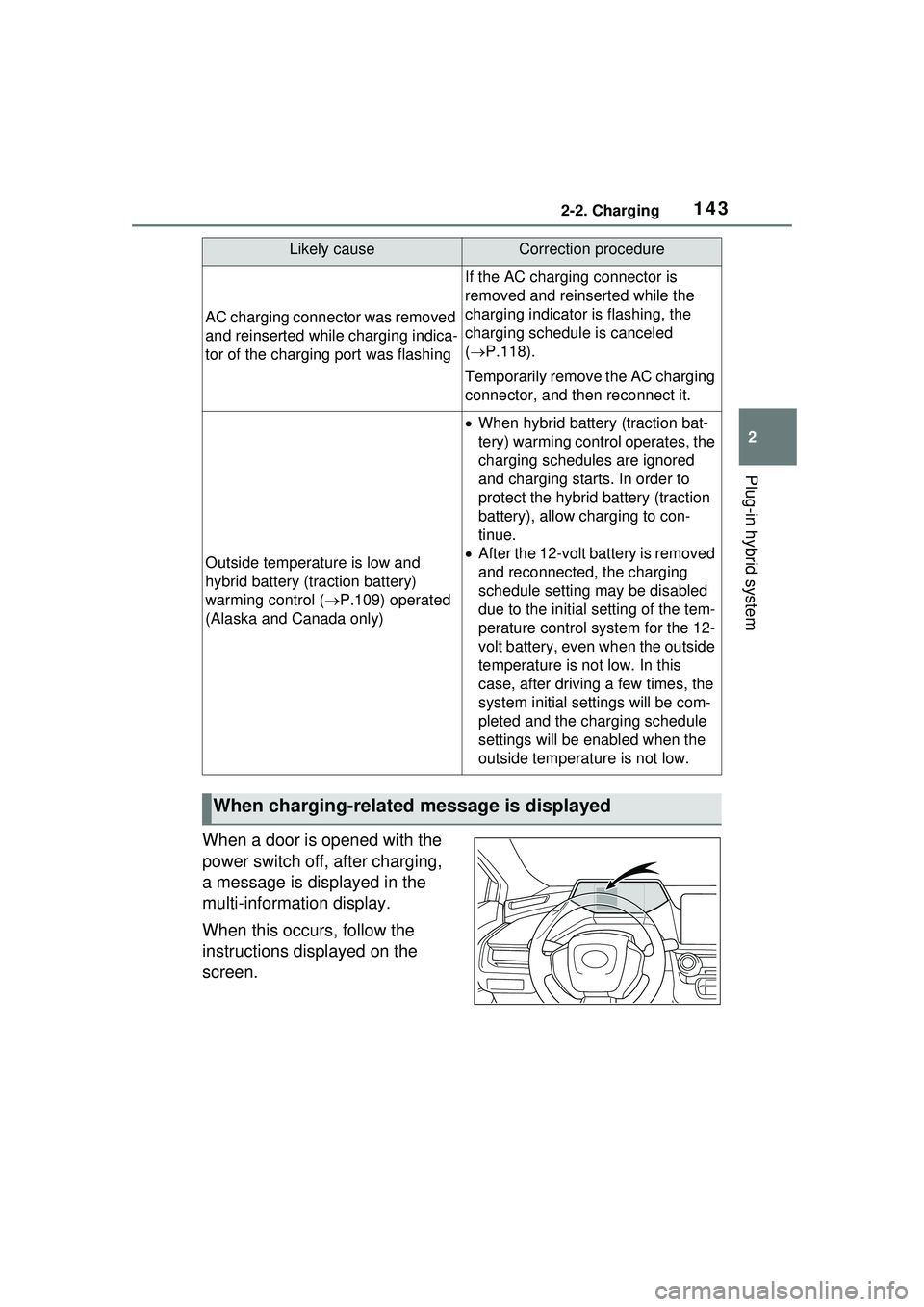
When a door is opened with the
power switch off, after charging,
a message is displayed in the
multi-information display.
When this occurs, follow the
instructions displayed on the
screen.
AC charging connector was removed
and reinserted while charging indica-
tor of the charging port was flashing
If the AC charging connector is
removed and reinserted while the
charging indicator is flashing, the
charging schedule is canceled
( P.118).
Temporarily remove the AC charging
connector, and then reconnect it.
Outside temperature is low and
hybrid battery (traction battery)
warming control ( P.109) operated
(Alaska and Canada only)
When hybrid battery (traction bat-
tery) warming control operates, the
charging schedules are ignored
and charging starts. In order to
protect the hybrid battery (traction
battery), allow charging to con-
tinue.
After the 12-volt battery is removed
and reconnected, the charging
schedule setting may be disabled
due to the initial setting of the tem-
perature control system for the 12-
volt battery, even when the outside
temperature is not low. In this
case, after driving a few times, the
system initial settings will be com-
pleted and the charging schedule
settings will be enabled when the
outside temperature is not low.
When charging-related message is displayed
Likely causeCorrection procedure
Page 167 of 680
1673-1. Instrument cluster
3
Vehicle status information and indicators
displayed on the screen can be
changed by using the meter
control switches.
■Setting procedure
1 Operate or of the
meter control switches and
select .
2 Operate or of the
meter control switches and
select the desired item.
• If the function is turned on and off or the volume, etc. is
changed on the setting
screen, the setting is changed
each time is pressed.
• For functions that allow oper- ation contents, display con-
tents, etc., of function to be
selected, the setting screen is
displayed by pressing and
holding . When the setting
screen is displayed, select the
setting or desired value (time,
etc.) with .
3 After changing the settings,
press of the meter control
switches.
■ LDA (Lane Departure
Alert) ( P.313)
Select to set up the following
items.
Lane Departure Alert on/off
Select to enable/disable Lane
Departure Alert system.
“Alert Options”
Select to set the alert type.
“Alert Timing”
Select to set the alert timing.
■ BSM (Blind Spot Moni-
tor) (if equipped) ( P.354)
Select to set up the following
items.
BSM (Blind Spot Monitor)
on/off
Select to enable/disable the BSM
system.
“Support timing”
Select to change the alert timing for
an approaching vehicle.
“Brightness”
Select to switch the brightness of
the outside rear view mirror indica-
tors. ( P.354)
“Buzzer alert”
Select to enable/disable the buzzer
alert which sounds when BSM sys-
tem is operated.
■ PCS (Pre-Collision Sys-
tem) ( P.293)
Select to set up the following
items.
PCS on/off
Select to enable/disable the pre-
collision system.
“Warning timing”
Select to change the pre-collision
warning timing.
■ PDA (Proactive driving
assist) ( P.320)
PDA on/off
Select to enable/disable the PDA
Page 168 of 680
1683-1. Instrument cluster
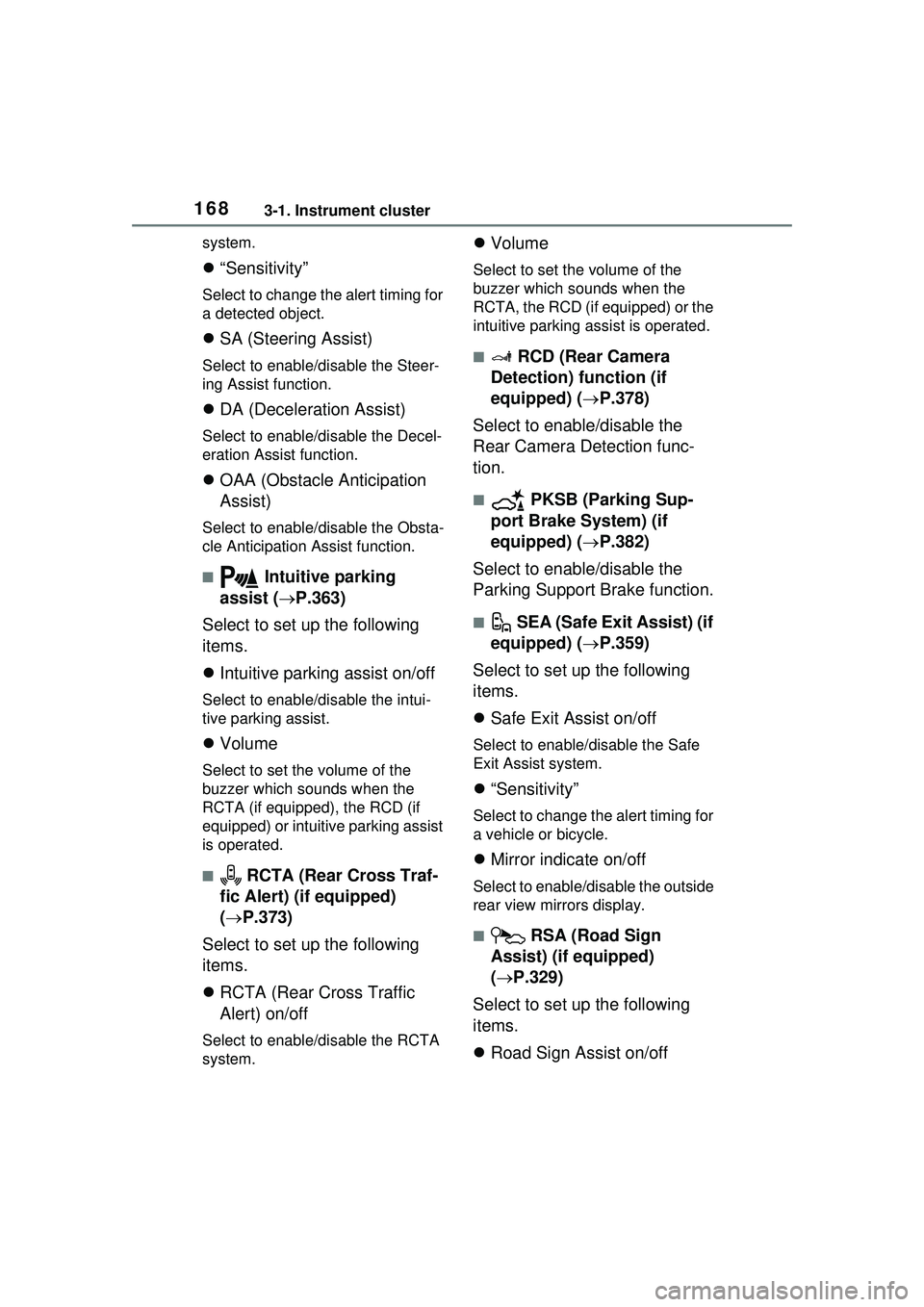
system.
“Sensitivity”
Select to change the alert timing for
a detected object.
SA (Steering Assist)
Select to enable/disable the Steer-
ing Assist function.
DA (Deceleration Assist)
Select to enable/disable the Decel-
eration Assist function.
OAA (Obstacle Anticipation
Assist)
Select to enable/disable the Obsta-
cle Anticipation Assist function.
■ Intuitive parking
assist ( P.363)
Select to set up the following
items.
Intuitive parking assist on/off
Select to enable/disable the intui-
tive parking assist.
Volume
Select to set the volume of the
buzzer which sounds when the
RCTA (if equipped), the RCD (if
equipped) or intuitive parking assist
is operated.
■ RCTA (Rear Cross Traf-
fic Alert) (if equipped)
( P.373)
Select to set up the following
items.
RCTA (Rear Cross Traffic
Alert) on/off
Select to enable/disable the RCTA
system.
Volume
Select to set the volume of the
buzzer which sounds when the
RCTA, the RCD (if equipped) or the
intuitive parking as sist is operated.
■ RCD (Rear Camera
Detection) function (if
equipped) ( P.378)
Select to enable/disable the
Rear Camera Detection func-
tion.
■ PKSB (Parking Sup-
port Brake System) (if
equipped) ( P.382)
Select to enable/disable the
Parking Support Brake function.
■ SEA (Safe Exit Assist) (if
equipped) ( P.359)
Select to set up the following
items.
Safe Exit Assist on/off
Select to enable/d isable the Safe
Exit Assist system.
“Sensitivity”
Select to change the alert timing for
a vehicle or bicycle.
Mirror indicate on/off
Select to enable/disable the outside
rear view mirrors display.
■ RSA (Road Sign
Assist) (if equipped)
( P.329)
Select to set up the following
items.
Road Sign Assist on/off
Page 169 of 680
1693-1. Instrument cluster
3
Vehicle status information and indicators
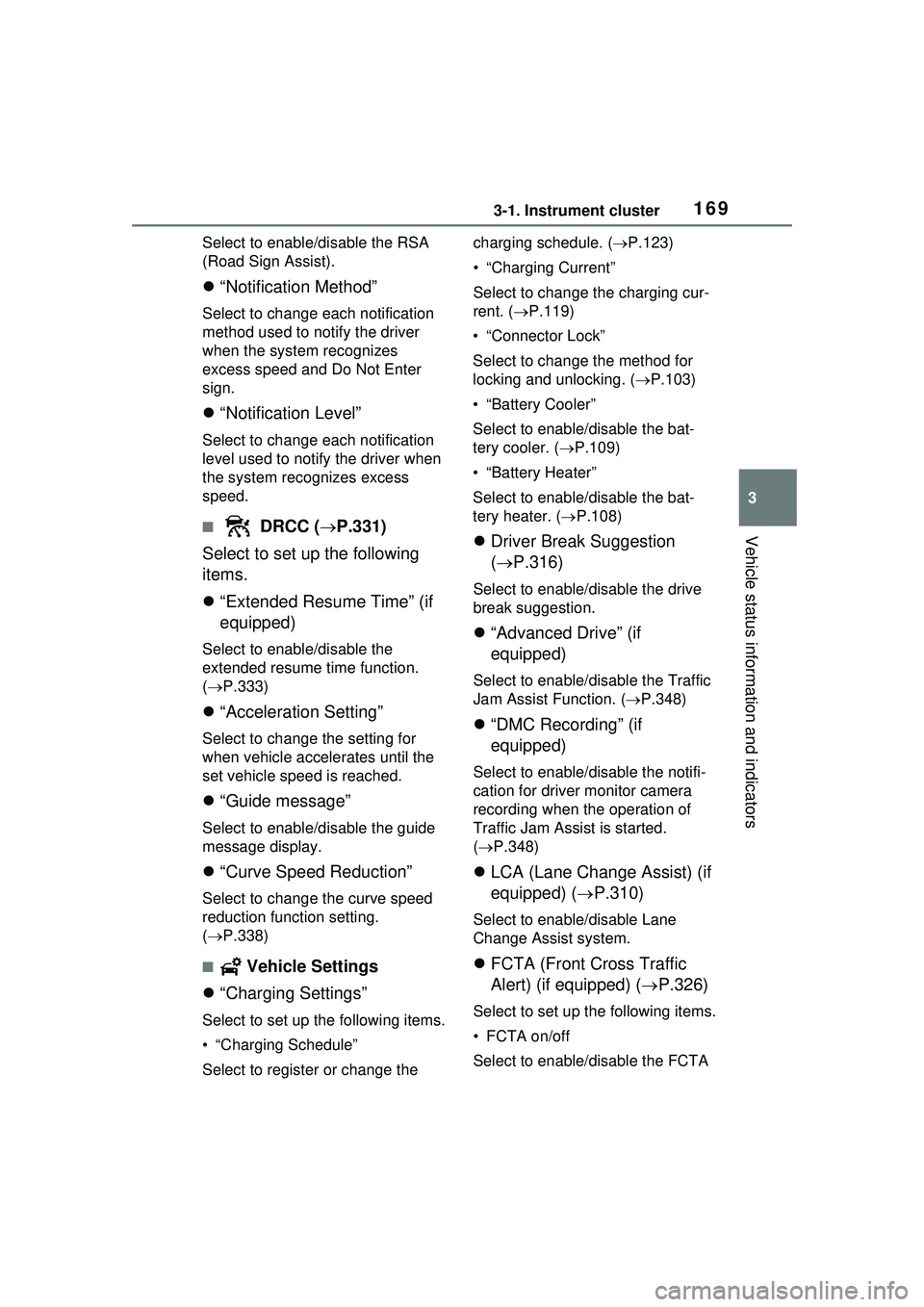
Select to enable/disable the RSA
(Road Sign Assist).
“Notification Method”
Select to change each notification
method used to notify the driver
when the system recognizes
excess speed and Do Not Enter
sign.
“Notification Level”
Select to change each notification
level used to notify the driver when
the system recognizes excess
speed.
■ DRCC ( P.331)
Select to set up the following
items.
“Extended Resume Time” (if
equipped)
Select to enable/disable the
extended resume time function.
( P.333)
“Acceleration Setting”
Select to change the setting for
when vehicle accelerates until the
set vehicle speed is reached.
“Guide message”
Select to enable/disable the guide
message display.
“Curve Speed Reduction”
Select to change the curve speed
reduction function setting.
( P.338)
■ Vehicle Settings
“Charging Settings”
Select to set up the following items.
• “Charging Schedule”
Select to register or change the charging schedule. (
P.123)
• “Charging Current”
Select to change the charging cur-
rent. ( P.119)
• “Connector Lock”
Select to change the method for
locking and unlocking. ( P.103)
• “Battery Cooler”
Select to enable /disable the bat-
tery cooler. ( P.109)
• “Battery Heater”
Select to enable /disable the bat-
tery heater. ( P.108)
Driver Break Suggestion
( P.316)
Select to enable/disable the drive
break suggestion.
“Advanced Drive” (if
equipped)
Select to enable/d isable the Traffic
Jam Assist Function. ( P.348)
“DMC Recording” (if
equipped)
Select to enable/disable the notifi-
cation for driver monitor camera
recording when the operation of
Traffic Jam Assist is started.
( P.348)
LCA (Lane Change Assist) (if
equipped) ( P.310)
Select to enable/disable Lane
Change Assist system.
FCTA (Front Cross Traffic
Alert) (if equipped) ( P.326)
Select to set up the following items.
• FCTA on/off
Select to enable/disable the FCTA
Page 170 of 680
1703-1. Instrument cluster
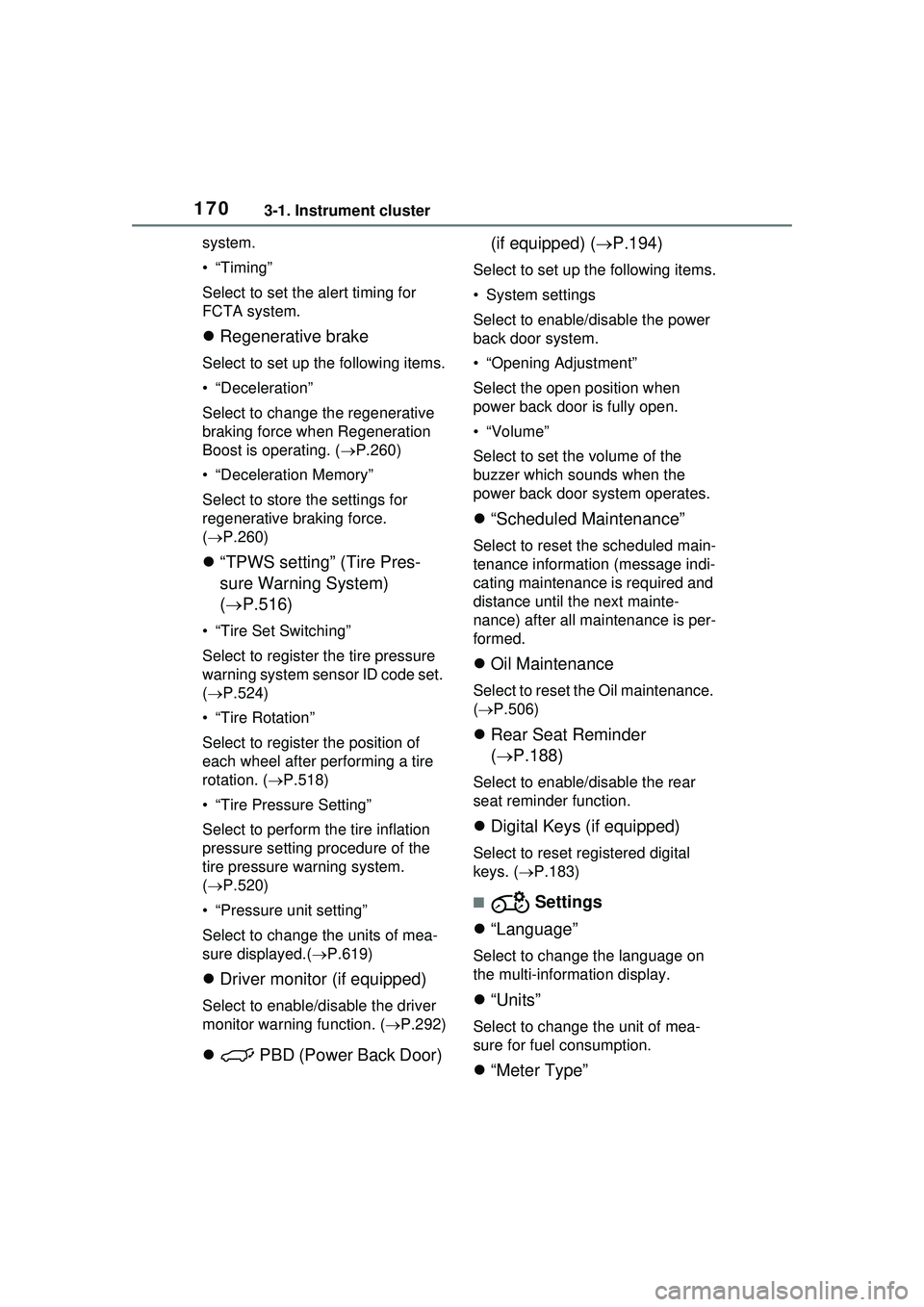
system.
•“Timing”
Select to set the alert timing for
FCTA system.
Regenerative brake
Select to set up the following items.
• “Deceleration”
Select to change the regenerative
braking force when Regeneration
Boost is operating. ( P.260)
• “Deceleration Memory”
Select to store the settings for
regenerative braking force.
( P.260)
“TPWS setting” (Tire Pres-
sure Warning System)
( P.516)
• “Tire Set Switching”
Select to register the tire pressure
warning system sensor ID code set.
( P.524)
• “Tire Rotation”
Select to register the position of
each wheel after performing a tire
rotation. ( P.518)
• “Tire Pressure Setting”
Select to perform the tire inflation
pressure setting procedure of the
tire pressure warning system.
( P.520)
• “Pressure unit setting”
Select to change the units of mea-
sure displayed.( P.619)
Driver monitor (if equipped)
Select to enable/disable the driver
monitor warning function. ( P.292)
PBD (Power Back Door) (if equipped) (
P.194)
Select to set up the following items.
• System settings
Select to enable/d isable the power
back door system.
• “Opening Adjustment”
Select the open position when
power back door is fully open.
•“Volume”
Select to set the volume of the
buzzer which sounds when the
power back door system operates.
“Scheduled Maintenance”
Select to reset the scheduled main-
tenance information (message indi-
cating maintenance is required and
distance until the next mainte-
nance) after all maintenance is per-
formed.
Oil Maintenance
Select to reset th e Oil maintenance.
( P.506)
Rear Seat Reminder
( P.188)
Select to enable/disable the rear
seat reminder function.
Digital Keys (if equipped)
Select to reset registered digital
keys. ( P.183)
■ Settings
“Language”
Select to change the language on
the multi-information display.
“Units”
Select to change the unit of mea-
sure for fuel consumption.
“Meter Type”
Page 171 of 680
1713-1. Instrument cluster
3
Vehicle status information and indicators
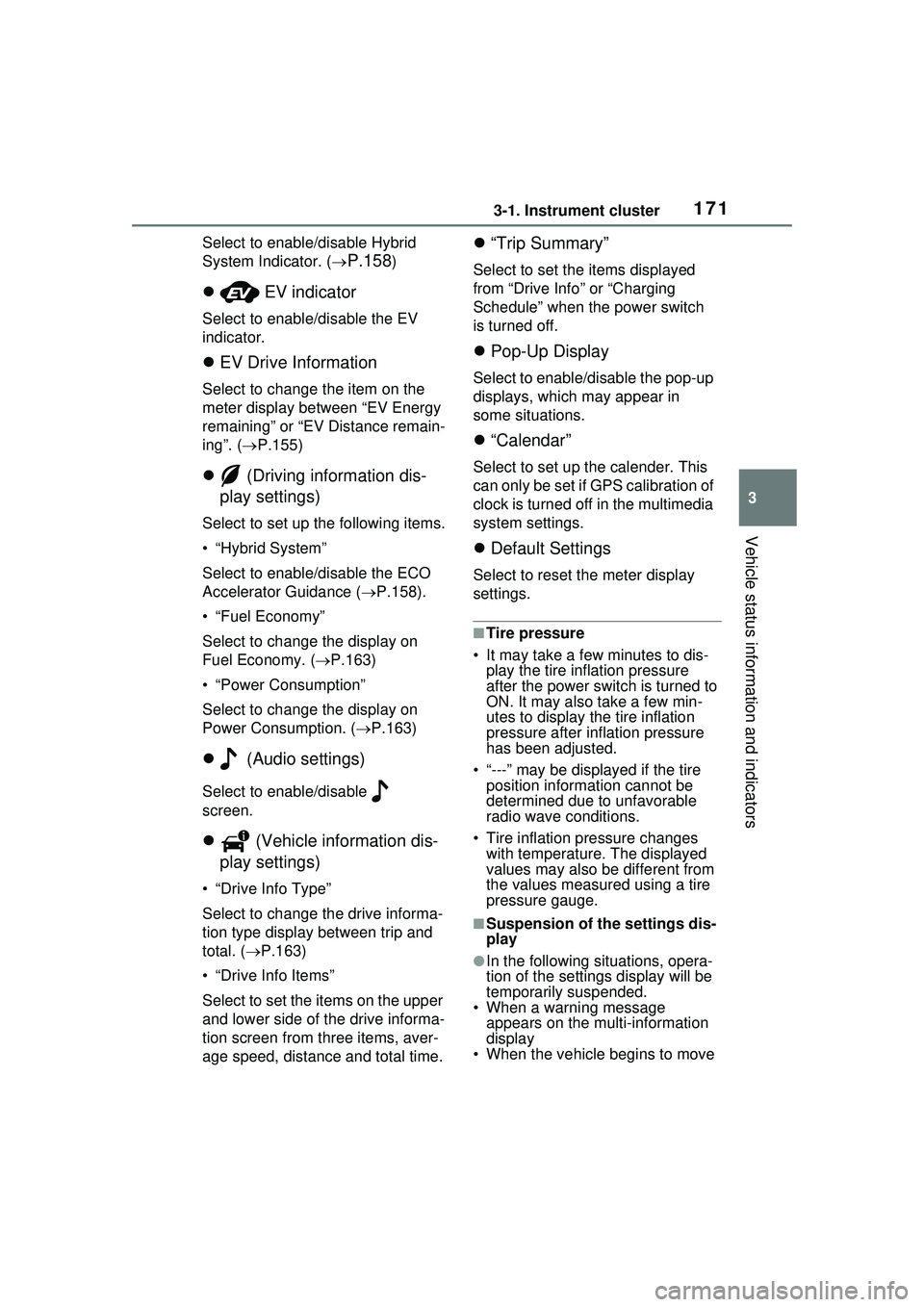
Select to enable/disable Hybrid
System Indicator. (
P.158)
EV indicator
Select to enable/disable the EV
indicator.
EV Drive Information
Select to change the item on the
meter display between “EV Energy
remaining” or “EV Distance remain-
ing”. ( P.155)
(Driving information dis-
play settings)
Select to set up the following items.
• “Hybrid System”
Select to enable/disable the ECO
Accelerator Guidance ( P.158).
• “Fuel Economy”
Select to change the display on
Fuel Economy. ( P.163)
• “Power Consumption”
Select to change the display on
Power Consumption. ( P.163)
(Audio settings)
Select to enable/disable
screen.
(Vehicle information dis-
play settings)
• “Drive Info Type”
Select to change the drive informa-
tion type display between trip and
total. ( P.163)
• “Drive Info Items”
Select to set the items on the upper
and lower side of the drive informa-
tion screen from three items, aver-
age speed, distance and total time.
“Trip Summary”
Select to set the items displayed
from “Drive Info ” or “Charging
Schedule” when the power switch
is turned off.
Pop-Up Display
Select to enable/disable the pop-up
displays, which may appear in
some situations.
“Calendar”
Select to set up the calender. This
can only be set if GPS calibration of
clock is turned off in the multimedia
system settings.
Default Settings
Select to reset the meter display
settings.
■Tire pressure
• It may take a few minutes to dis- play the tire inflation pressure
after the power switch is turned to
ON. It may also take a few min-
utes to display the tire inflation
pressure after inflation pressure
has been adjusted.
• “---” may be displayed if the tire position information cannot be
determined due to unfavorable
radio wave conditions.
• Tire inflation pressure changes with temperature. The displayed
values may also be different from
the values measured using a tire
pressure gauge.
■Suspension of the settings dis-
play
●In the following situations, opera-
tion of the settings display will be
temporarily suspended.
• When a warning message appears on the multi-information
display
• When the vehicle begins to move
Page 172 of 680
1723-1. Instrument cluster
●Settings for functions not
equipped to the vehicle are not
displayed.
●When a function is turned off, the
related settings for that function
are not selectable.
Select to display warning mes-
sages and measures to be
taken if a malfunction is
detected. (P.566)
Displays suggestions to the
driver in the following situations.
To select a response to a dis-
played suggestion, use the
meter control switches.
■Suggestion to enable the
power back door (if
equipped)
If the power back door system is
disabled (setting on set to
off) and the power back door
switch on the instrument panel
is operated, a suggestion mes-
sage will be displayed asking if
you wish to enable the power
back door system. To enable
the power back door system,
select “Yes”.
After enabling the power back door
system, press the power back door
switch again to open or close the
power back door.
■Suggestion to turn off the
headlights
If the headlights are left on for a
certain amount of time after the
power switch has been turned
off, a suggestion message will
be displayed.
When the headlight switch is in
the AUTO position: The mes-
sage asking if you wish to turn
the headlights off is displayed.
To turn the headlights off, select
“Yes”.
If the driver’s door is opened after
the power switch is turned off, this
suggestion message will not be dis-
played.
■Customization
The suggestion function can be
turned on/off. (Customizable fea-
tures: P.619)
WARNING
■Cautions during setting up
the display
As the hybrid system needs to be
operating during setting up the
display, ensure that the vehicle is
parked in a place with adequate
ventilation. In a closed area such
as a garage, exhaust gases
including harmful carbon monox-
ide (CO) may collect and enter
the vehicle. This may lead to
death or a serious health hazard.
NOTICE
■During setting up the display
To prevent 12-volt battery dis-
charge, ensure that the hybrid
system is operating while setting
up the display features.
Warning message display
Suggestion function
Page 184 of 680
1844-1. Key information
Be sure to carry the electronic
key of the vehicle if traveling
to a location with unreliable
communications.
If the smartphone battery is
depleted, the smartphone
cannot be used as Digital
Key. If the battery level is low,
be sure to charge the smart-
phone prior to going out.
The Digital Key system is
related to the smart key sys-
tem. If the smart key system
has been deactivated in the
vehicle customization setting,
the Digital Key will also be
disabled.
Depending on the radio wave
environment, the Digital Key
may not be able to be used.
( P.205)
When transferring vehicle
ownership, make sure to
delete the Digital Keys.
If the vehicle is not operated
for 14 days or more, the Digi-
tal Key will not connect auto-
matically. Therefore, it may
take some time before the
system operates after a door
handle is touched.
A part of the services may be
stopped for a certain period of
time due to server mainte-
nance. However, registered
Digital Keys can be used
during the maintenance.
A smartphone with the Digital Key App enabled will be able
to lock and unlock the doors,
start the hybrid system and
perform any other operations
as same as the electronic key
of the vehicle. Be especially
careful not to lose the smart-
phone or allow it to be stolen.
If the smartphone is lost or
stolen, contact your Toyota
dealer immediately.
When taking your vehicle to a
Toyota dealer for an inspec-
tion or repairs, make sure to
bring an electronic key.
With the Digital Key alone, no
vehicle lights will illuminate
when approached to the vehi-
cle. Also, with the Digital Key
alone, some functions, such
as the power back door’s
close & lock (walk-away)
function, etc., cannot be used.