fuel TOYOTA PRIUS V 2012 Accessories, Audio & Navigation (in English)
[x] Cancel search | Manufacturer: TOYOTA, Model Year: 2012, Model line: PRIUS V, Model: TOYOTA PRIUS V 2012Pages: 409, PDF Size: 6.88 MB
Page 283 of 409
283
7
INFORMATION
PRIUS v (US) NAVI 47675U
11.05.17 14:28
2. XM FUNCTION-OVERVIEW
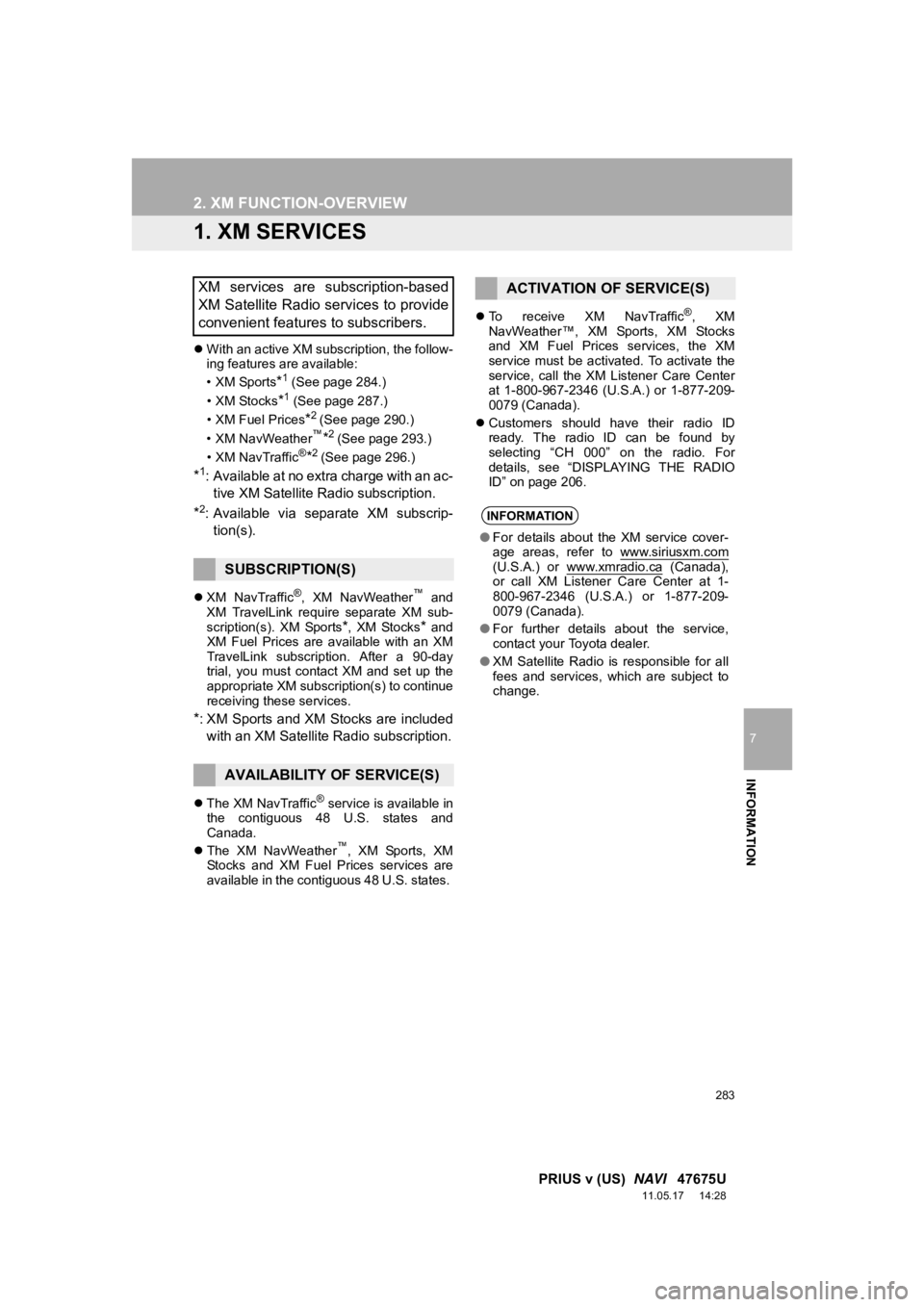
1. XM SERVICES
With an active XM subscription, the follow-
ing features are available:
•XM Sports
*1 (See page 284.)
• XM Stocks
*1 (See page 287.)
• XM Fuel Prices
*2 (See page 290.)
• XM NavWeather™*2 (See page 293.)
•XM NavTraffic®*2 (See page 296.)
*1: Available at no extra charge with an ac- tive XM Satellite Radio subscription.
*2: Available via separate XM subscrip- tion(s).
XM NavTraffic®, XM NavWeather™ and
XM TravelLink require separate XM sub-
scription(s). XM Sports
*, XM Stocks* and
XM Fuel Prices are available with an XM
TravelLink subscription. After a 90-day
trial, you must contact XM and set up the
appropriate XM subscription(s) to continue
receiving these services.
*: XM Sports and XM Stocks are included
with an XM Satellite Radio subscription.
The XM NavTraffic® service is available in
the contiguous 48 U.S. states and
Canada.
The XM NavWeather
™, XM Sports, XM
Stocks and XM Fuel Prices services are
available in the contiguous 48 U.S. states.
To receive XM NavTraffic
®, XM
NavWeather™, XM Sports, XM Stocks
and XM Fuel Prices services, the XM
service must be activated. To activate the
service, call the XM Listener Care Center
at 1-800-967-2346 (U.S .A.) or 1-877-209-
0079 (Canada).
Customers should have their radio ID
ready. The radio ID can be found by
selecting “CH 000” on the radio. For
details, see “DISPLAYING THE RADIO
ID” on page 206.
XM services are subscription-based
XM Satellite Radio services to provide
convenient features to subscribers.
SUBSCRIPTION(S)
AVAILABILITY OF SERVICE(S)
ACTIVATION OF SERVICE(S)
INFORMATION
●For details about the XM service cover-
age areas, refer to www.siriusxm.com
(U.S.A.) or www.xmradio.ca (Canada),
or call XM Listener Care Center at 1-
800-967-2346 (U.S.A.) or 1-877-209-
0079 (Canada).
● For further details about the service,
contact your Toyota dealer.
● XM Satellite Radio is responsible for all
fees and services, which are subject to
change.
Page 290 of 409
290
3. XM FUNCTION OPERATION
PRIUS v (US) NAVI 47675U
11.05.17 14:28
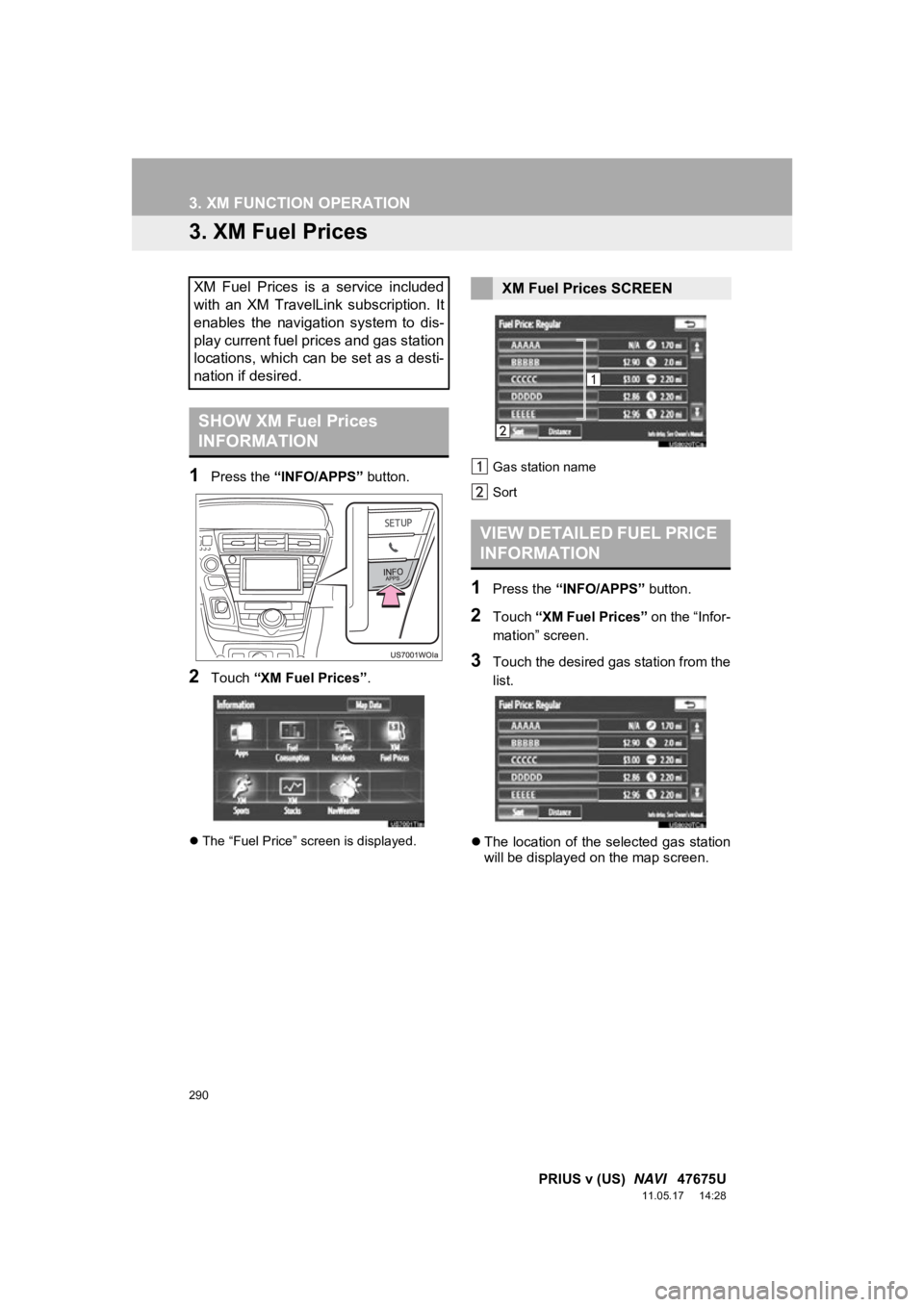
3. XM Fuel Prices
1Press the “INFO/APPS” button.
2Touch “XM Fuel Prices” .
The “Fuel Price” screen is displayed. Gas station name
Sort
1Press the
“INFO/APPS” button.
2Touch “XM Fuel Prices” on the “Infor-
mation” screen.
3Touch the desired gas station from the
list.
The location of the selected gas station
will be displayed on the map screen.
XM Fuel Prices is a service included
with an XM TravelLink subscription. It
enables the navigation system to dis-
play current fuel prices and gas station
locations, which can be set as a desti-
nation if desired.
SHOW XM Fuel Prices
INFORMATION
XM Fuel Prices SCREEN
VIEW DETAILED FUEL PRICE
INFORMATION
Page 291 of 409
291
3. XM FUNCTION OPERATION
7
INFORMATION
PRIUS v (US) NAVI 47675U
11.05.17 14:28
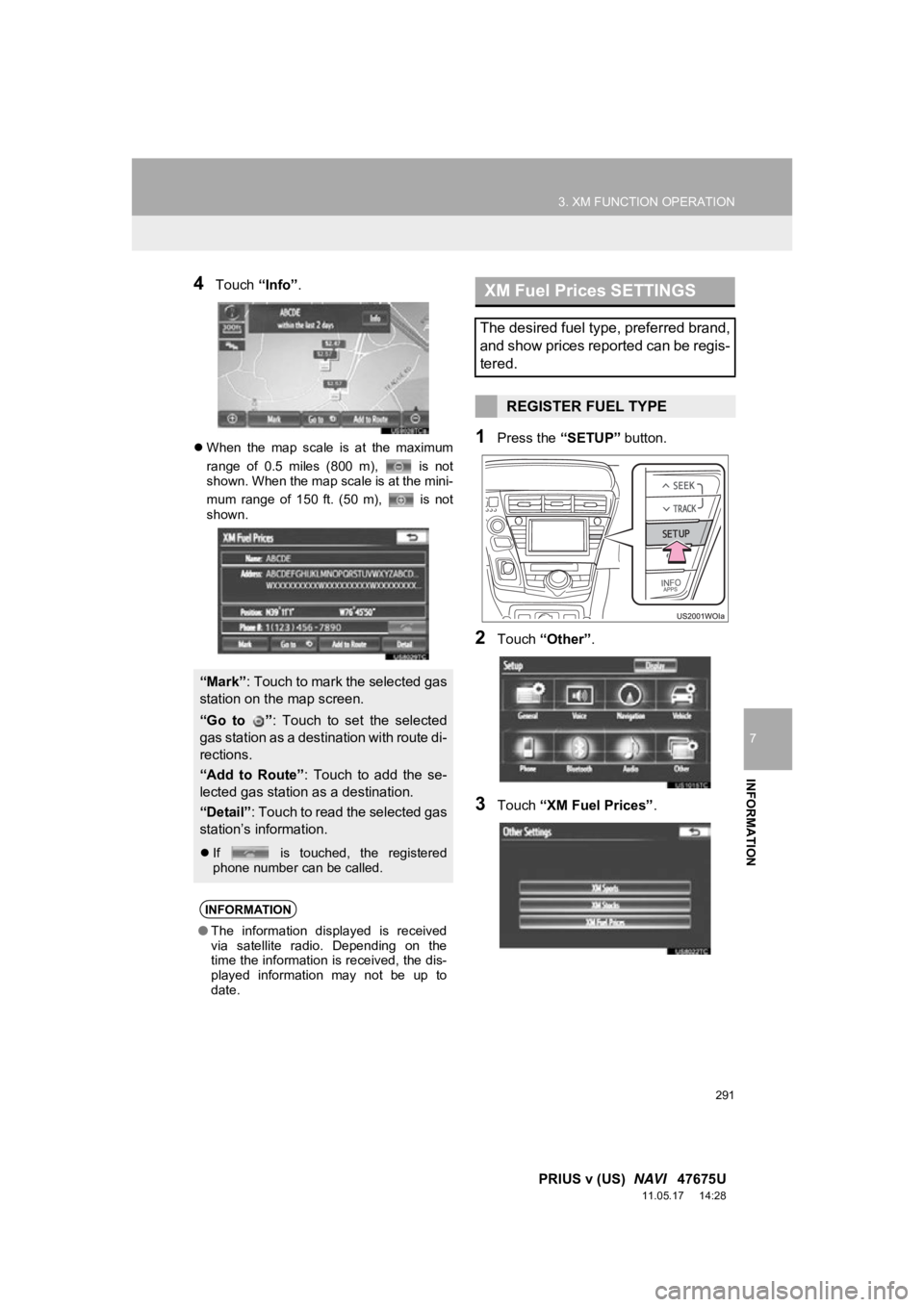
4Touch “Info”.
When the map scale is at the maximum
range of 0.5 miles (800 m), is not
shown. When the map scale is at the mini-
mum range of 150 ft. (50 m), is not
shown.1Press the “SETUP” button.
2Touch “Other” .
3Touch “XM Fuel Prices” .
“Mark”: Touch to mark the selected gas
station on the map screen.
“Go to ” : Touch to set the selected
gas station as a destination with route di-
rections.
“Add to Route” : Touch to add the se-
lected gas station as a destination.
“Detail” : Touch to read the selected gas
station’s information.
If is touched, the registered
phone number can be called.
INFORMATION
●The information displayed is received
via satellite radio. Depending on the
time the information is received, the dis-
played information may not be up to
date.
XM Fuel Prices SETTINGS
The desired fuel type, preferred brand,
and show prices reported can be regis-
tered.
REGISTER FUEL TYPE
Page 292 of 409
292
3. XM FUNCTION OPERATION
PRIUS v (US) NAVI 47675U
11.05.17 14:28
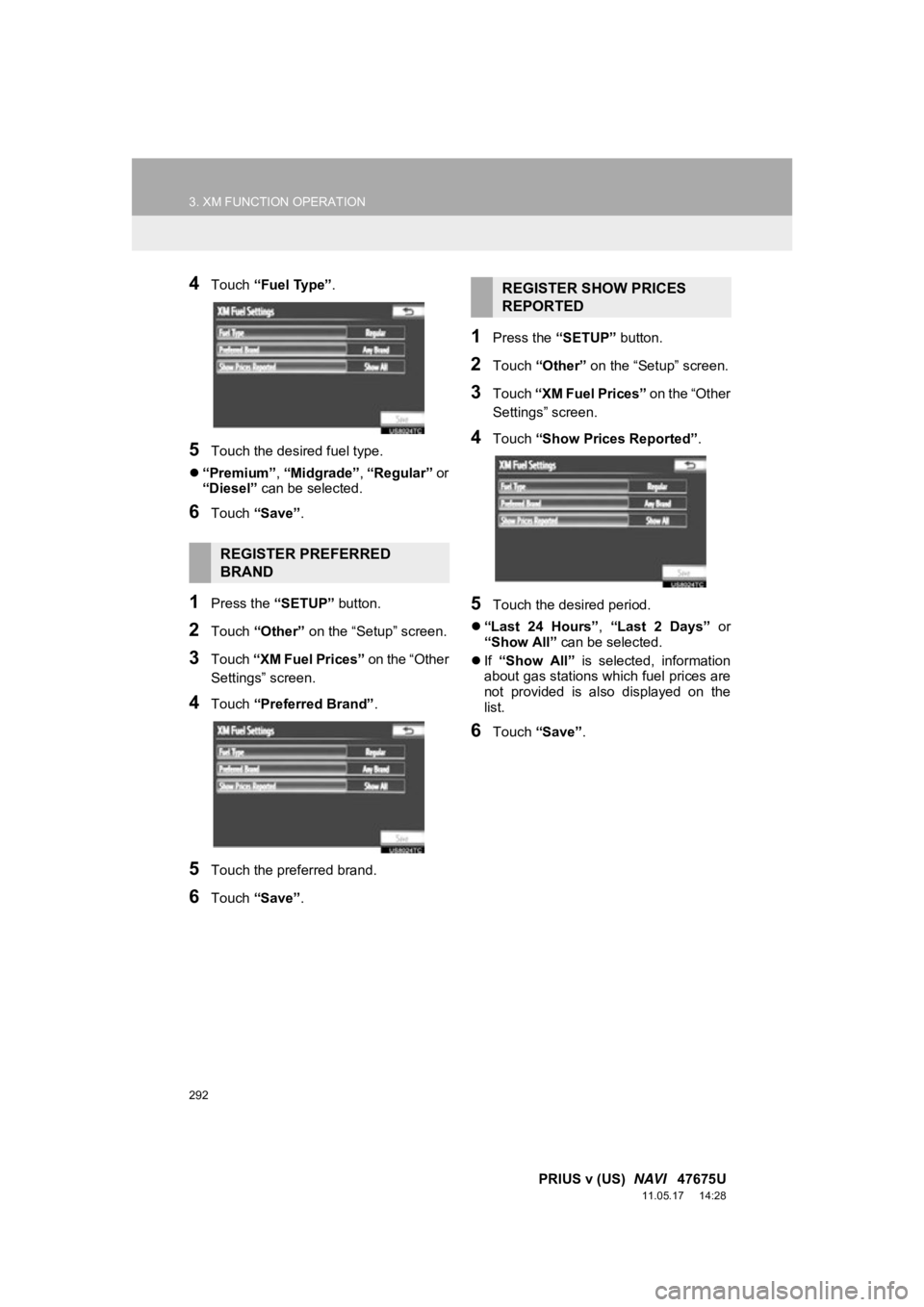
4Touch “Fuel Type” .
5Touch the desired fuel type.
“Premium”, “Midgrade”, “Regular” or
“Diesel” can be selected.
6Touch “Save” .
1Press the “SETUP” button.
2Touch “Other” on the “Setup” screen.
3Touch “XM Fuel Prices” on the “Other
Settings” screen.
4Touch “Preferred Brand” .
5Touch the preferred brand.
6Touch “Save” .
1Press the “SETUP” button.
2Touch “Other” on the “Setup” screen.
3Touch “XM Fuel Prices” on the “Other
Settings” screen.
4Touch “Show Prices Reported” .
5Touch the desired period.
“Last 24 Hours” , “Last 2 Days” or
“Show All” can be selected.
If “Show All” is selected, information
about gas stations which fuel prices are
not provided is also displayed on the
list.
6Touch “Save” .
REGISTER PREFERRED
BRAND
REGISTER SHOW PRICES
REPORTED
Page 299 of 409
299
7
INFORMATION
PRIUS v (US) NAVI 47675U
11.05.17 14:28
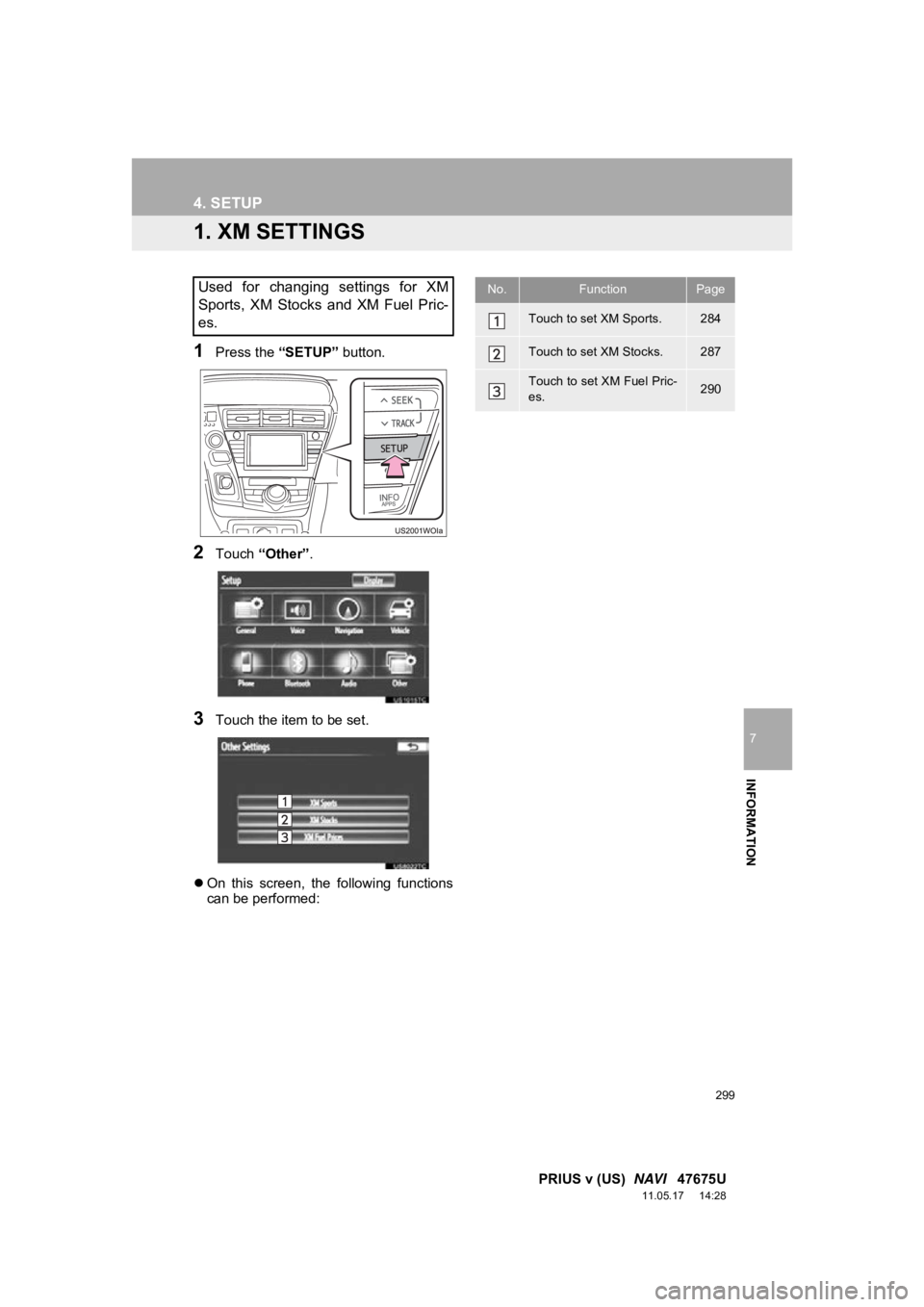
4. SETUP
1. XM SETTINGS
1Press the “SETUP” button.
2Touch “Other” .
3Touch the item to be set.
On this screen, the following functions
can be performed:
Used for changing settings for XM
Sports, XM Stocks and XM Fuel Pric-
es.No.FunctionPage
Touch to set XM Sports.284
Touch to set XM Stocks.287
Touch to set XM Fuel Pric-
es.290
Page 377 of 409
377
PRIUS v (US) NAVI 47675U
11.05.17 11:24
C
Call on the Bluetooth® phone ................. 141
By call history ...................................... 143
By dial ................................................. 141
By phonebook ..................................... 141
By POI call .......................................... 147
By speed dial....................................... 143
By voice recognition ............................ 145
Calling using an SMS/MMS message .......................................... 147
CD........................................................... 212
CLOSE button......................................... 190
Color ................................................. 47, 223
Command list .......................................... 275
Contrast ............................................ 31, 223
Current position calibration ..................... 116
Current position display ............................ 33
D
Deleting destinations ................................ 85
Deleting personal data .............................. 51
Deleting previous destinations ................ 109
Deleting set destinations........................... 72
DEST button ............................................. 10
“Destination” screen.................................. 20
Destination search .................................... 56
By “Address” ......................................... 58
By “Address Book” ................................ 67
By “Coordinates” ................................... 71
By “Emergency” .................................... 68
By home ................................................ 57
By “Intersection & Freeway” .................. 68
By “Map”................................................ 71
By “Point of Interest” ............................. 61
By preset destinations ........................... 57
By “Previous Destinations” .................... 67
Selecting the search area ..................... 56 Detailed navigation settings .................... 111
Detour setting............................................ 86
Dial .................................................. 141, 145
Distance and time to destination ............... 83
DSP control ............................................. 195
DVD ........................................................ 212
DVD player.............................................. 212
DVD options ........................................ 221
DVD player and DVD video disc information ....................................... 230
Ejecting a disc ..................................... 212
If the player malfunctions .................... 229
Inserting a disc .................................... 212
Operating a DVD disc.......................... 218
Playing a disc ...................................... 213
Playing a DVD disc.............................. 219
Playing an audio disc .......................... 213
Playing an MP3/WMA disc .................. 215
E
Emergency ................................................ 68
Entune..................................................... 302
Expanded voice commands .................... 274
F
FM ........................................................... 198
Fuel consumption.................................... 280
Function index........................................... 18
G
General settings ........................................ 43
GPS (Global Positioning System) ..... 10, 125
H
HD Radio™ ............................................. 201
Heading-up screen.................................... 41
Home ...................................... 12, 17, 57, 96
Page 380 of 409
380
ALPHABETICAL INDEX
PRIUS v (US) NAVI 47675U
11.05.17 11:24
V
Vehicle settings ....................................... 119
Maintenance ........................................ 119
Vehicle customization.......................... 124
Voice command system .................. 193, 266 Steering switches for the voice command system ................... 266
Voice recognition .................................... 145
Voice settings............................................ 52
Voice volume ............................................ 53
W
WMA ....................................... 215, 256, 258
X
XM Fuel Prices........................................ 290
Show XM Fuel Prices information ....... 290
View detailed fuel price information..... 290
XM Fuel Prices settings....................... 291
XM NavTraffic
®....................................... 296
Show traffic event ................................ 296
Show XM Navtraffic
® information ........ 297
XM NavWeather™ .................................. 293 Show XM NavWeather
™
information ....................................... 293
Weather information ............................ 294
Weather warnings ............................... 295
XM NavWeather™ indicator ................ 295
XM Satellite Radio broadcast.................. 205 Channel category ................................ 207
Displaying the radio ID ........................ 206
Displaying the title and name .............. 208
How to subscribe to an XM Satellite Radio ........................... 205
If the satellite radio tuner malfunctions..................................... 209
Listening to satellite radio .................... 206
Presetting a channel............................ 207
Selecting a channel ............................. 207 XM Sports ...............................................284
Receive sports information ..................284
XM Sports settings ..............................285
XM Stocks ...............................................287
Receive stock data ..............................287
XM Stocks settings ..............................288
Z
Zoom in button ..........................................10
Zoom out button ........................................10