fuel TOYOTA PRIUS V 2012 Accessories, Audio & Navigation (in English)
[x] Cancel search | Manufacturer: TOYOTA, Model Year: 2012, Model line: PRIUS V, Model: TOYOTA PRIUS V 2012Pages: 409, PDF Size: 6.88 MB
Page 7 of 409

7
1
2
3
4
5
6
7
8
9
PRIUS v (US) NAVI 47675U
11.05.17 14:27
1. PHONE OPERATION .................... 130
QUICK REFERENCE .......................... 130
PHONE (HANDS-FREE SYSTEM
FOR CELLULAR PHONE) ................ 132
REGISTER A Bluetooth
® PHONE ....... 137
CALL ON THE Bluetooth® PHONE ..... 141
RECEIVE ON THE Bluetooth®
PHONE ............................................. 148
TALK ON THE Bluetooth
® PHONE ..... 149
Bluetooth® PHONE MESSAGE
FUNCTION........................................ 152
2. SETUP ........................................... 155
PHONE SETTINGS ............................. 155
Bluetooth® SETTINGS ........................ 177
1. AUDIO/VIDEO SYSTEM OPERATION ................................ 190
QUICK REFERENCE .......................... 190
SOME BASICS .................................... 192
RADIO OPERATION ........................... 198
HD Radio™ TECHNOLOGY
INFORMATION ................................. 201
RADIO OPERATION (XM Satellite Radio BROADCAST) ........................ 205
RADIO OPERATION (INTERNET RADIO BROADCAST) ...................... 211
DVD PLAYER OPERATION................ 212
USB MEMORY OPERATION .............. 232
iPod OPERATION ............................... 237
Bluetooth
® AUDIO OPERATION ......... 241
AUDIO/VIDEO REMOTE CONTROLS (STEERING SWITCHES) ................. 250
AUDIO/VIDEO SYSTEM OPERATING HINTS ......................... 252
2. SETUP ........................................... 262
AUDIO SETTINGS .............................. 262
1. VOICE COMMAND SYSTEM OPERATION................................ 266
VOICE COMMAND SYSTEM .............. 266
NATURAL SPEECH INFORMATION
(ENGLISH ONLY) ............................. 272
EXPANDED VOICE COMMANDS ....... 274
COMMAND LIST ................................. 275
1. INFORMATION DISPLAY ............. 280
FUEL CONSUMPTION ........................ 280
MAP DATABASE VERSION AND COVERAGE AREA ........................... 281
2. XM FUNCTION-O VERVIEW ......... 283
XM SERVICES .................................... 283
3. XM FUNCTION OPERATION ....... 284
XM Sports ............................................ 284
XM Stocks ............................................ 287
XM Fuel Prices..................................... 290
XM NavWeather™ ............................... 293
XM NavTraffic
®.................................... 296
4. SETUP ........................................... 299
XM SETTINGS..................................... 299
4PHONE
5AUDIO/VIDEO SYSTEM
6VOICE COMMAND SYSTEM
7INFORMATION
Page 23 of 409
23
3. QUICK REFERENCE
1
QUICK GUIDE
PRIUS v (US) NAVI 47675U
11.05.17 14:27
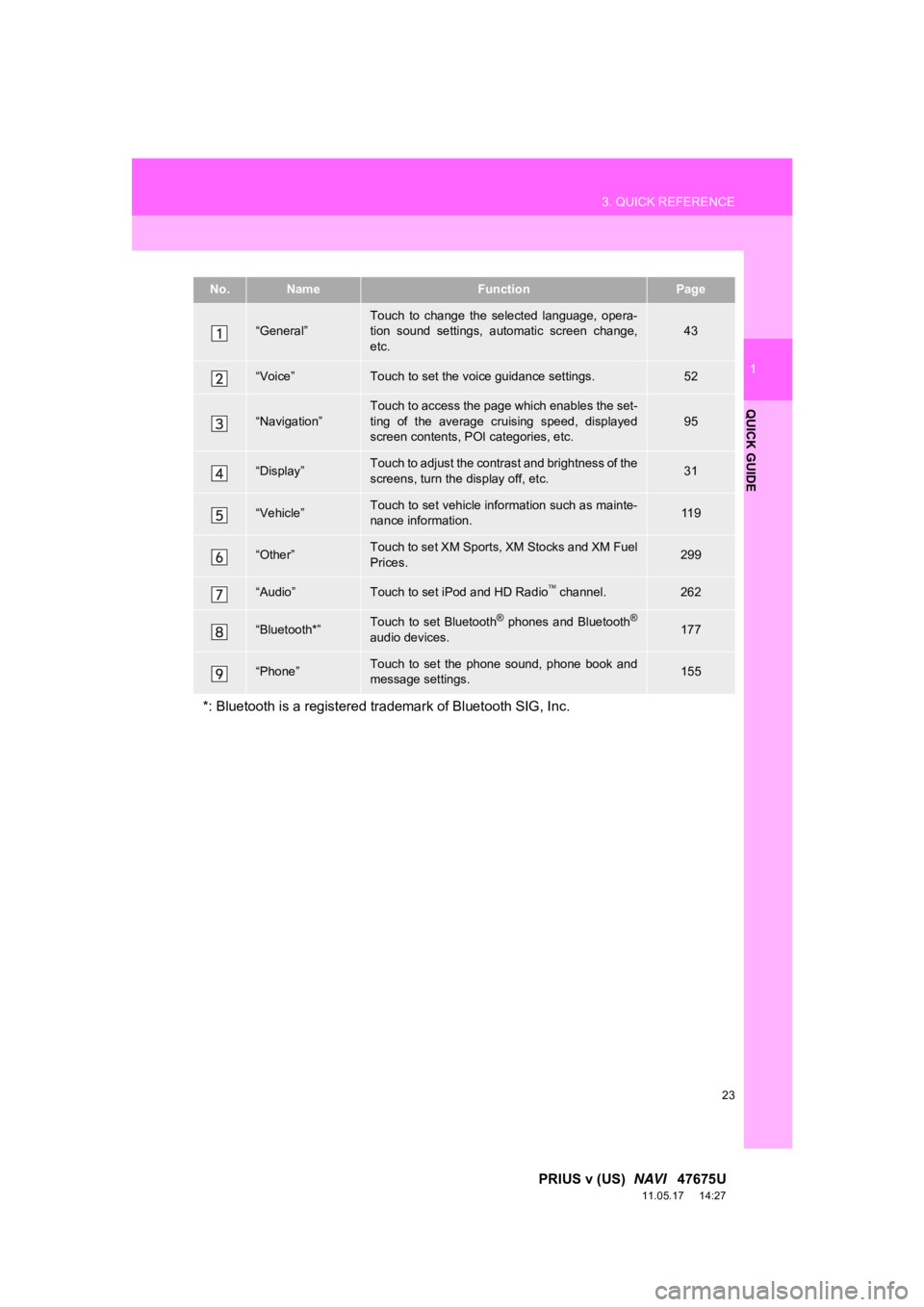
No.NameFunctionPage
“General”Touch to change the selected language, opera-
tion sound settings, automatic screen change,
etc.43
“Voice”Touch to set the voice guidance settings.52
“Navigation”
Touch to access the page which enables the set-
ting of the average cruising speed, displayed
screen contents, POI categories, etc.
95
“Display”Touch to adjust the contrast and brightness of the
screens, turn the display off, etc.31
“Vehicle”Touch to set vehicle information such as mainte-
nance information.11 9
“Other”Touch to set XM Sports, XM Stocks and XM Fuel
Prices.299
“Audio”Touch to set iPod and HD Radio channel.262
“Bluetooth*”Touch to set Bluetooth® phones and Bluetooth®
audio devices.177
“Phone”Touch to set the phone sound, phone book and
message settings.155
*: Bluetooth is a registered tr ademark of Bluetooth SIG, Inc.
Page 24 of 409
24
3. QUICK REFERENCE
PRIUS v (US) NAVI 47675U
11.05.17 14:27
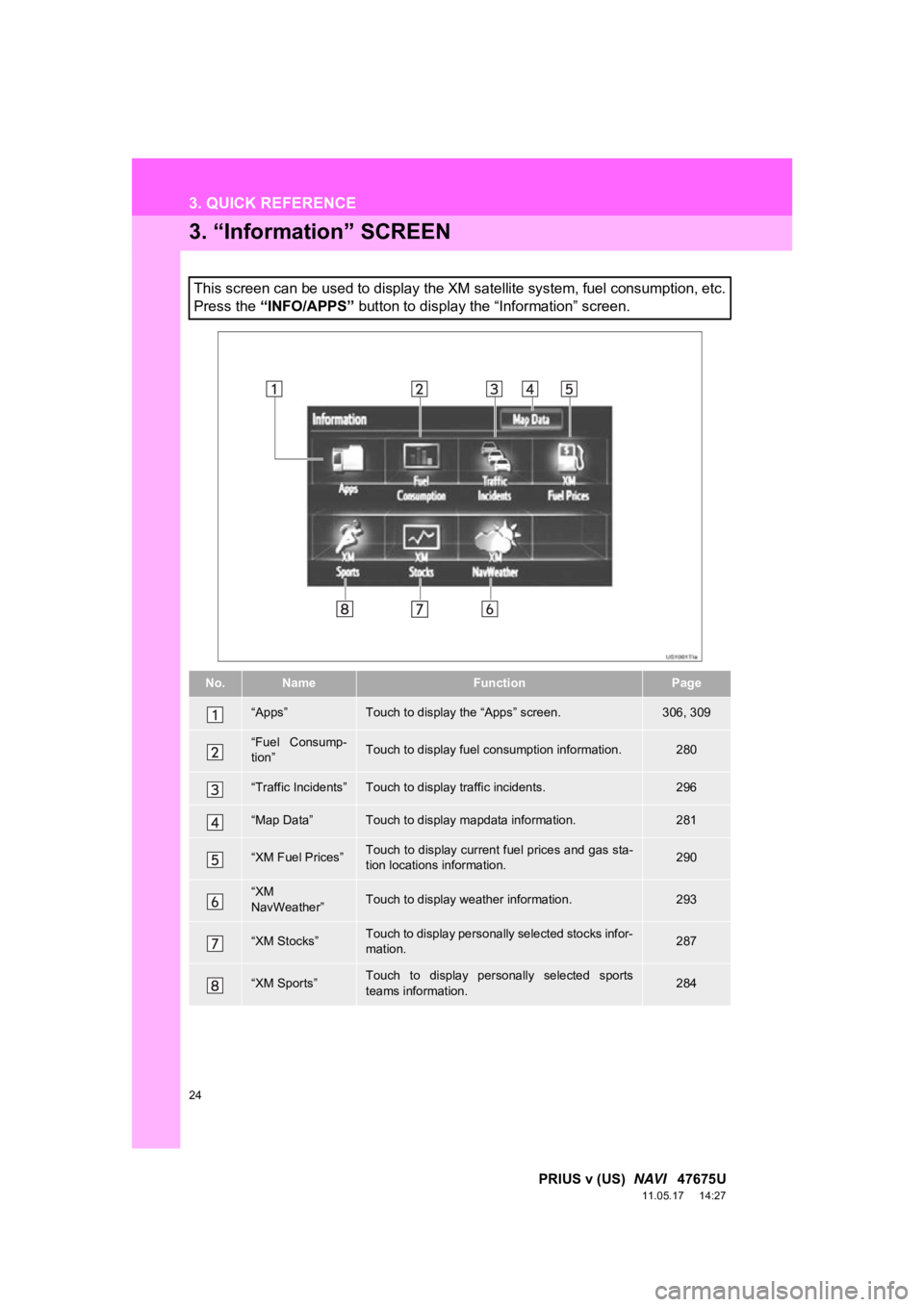
3. “Information” SCREEN
This screen can be used to display the XM satellite system, fuel consumption, etc.
Press the “INFO/APPS” button to display the “Information” screen.
No.NameFunctionPage
“Apps”Touch to display the “Apps” screen.306, 309
“Fuel Consump-
tion”Touch to display fuel consumption information.280
“Traffic Incidents”Touch to display traffic incidents.296
“Map Data”Touch to display mapdata information.281
“XM Fuel Prices”Touch to display current fuel prices and gas sta-
tion locations information.290
“XM
NavWeather”Touch to display weather information.293
“XM Stocks”Touch to display personally selected stocks infor-
mation.287
“XM Sports”Touch to display personally selected sports
teams information.284
Page 38 of 409
38
1. BASIC INFORMATION BEFORE OPERATION
PRIUS v (US) NAVI 47675U
11.05.17 14:27
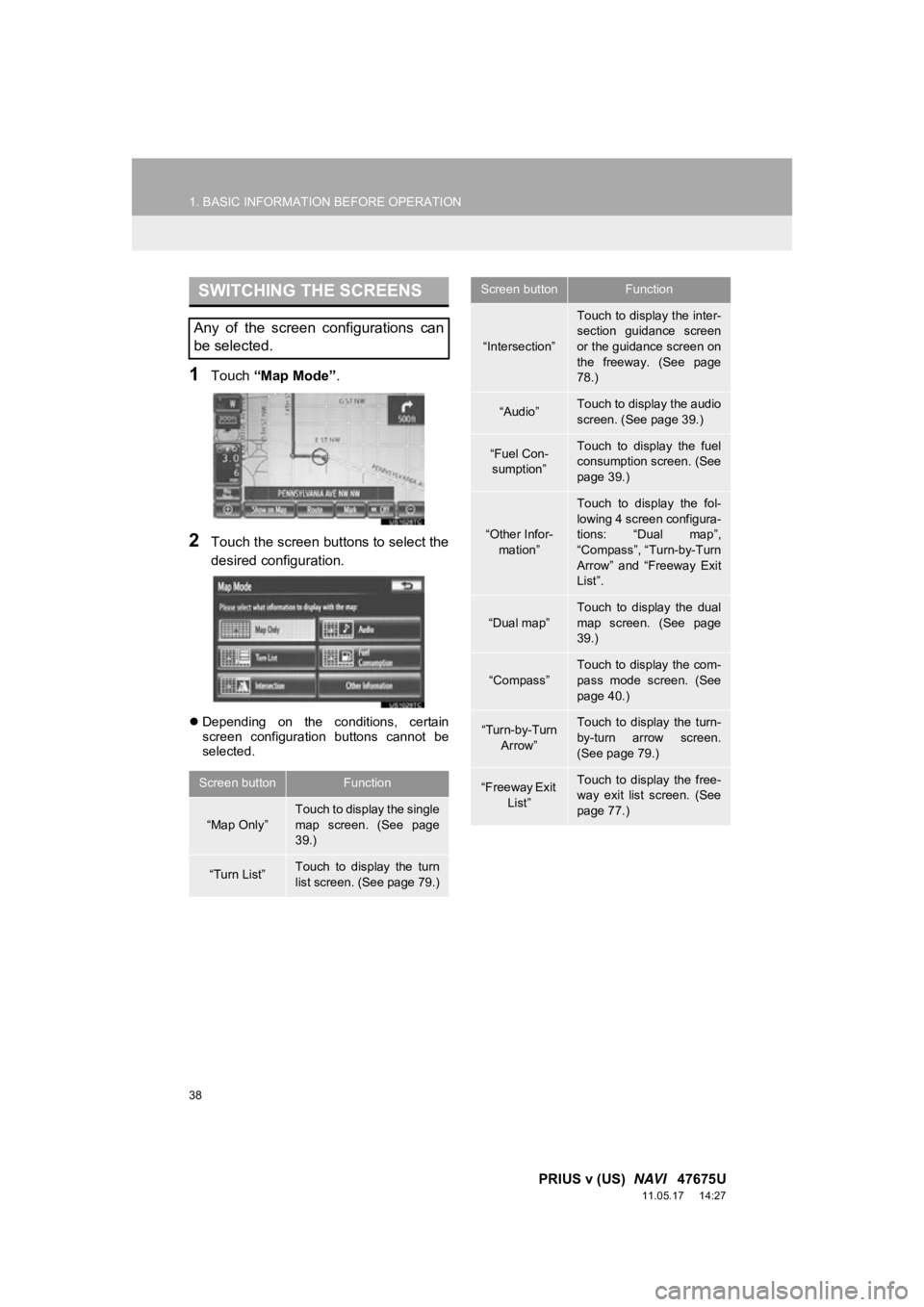
1Touch “Map Mode” .
2Touch the screen buttons to select the
desired configuration.
Depending on the conditions, certain
screen configuration buttons cannot be
selected.
SWITCHING THE SCREENS
Any of the screen configurations can
be selected.
Screen buttonFunction
“Map Only”
Touch to display the single
map screen. (See page
39.)
“Turn List”Touch to display the turn
list screen. (See page 79.)
“Intersection”
Touch to display the inter-
section guidance screen
or the guidance screen on
the freeway. (See page
78.)
“Audio”Touch to display the audio
screen. (See page 39.)
“Fuel Con-
sumption”Touch to display the fuel
consumption screen. (See
page 39.)
“Other Infor- mation”
Touch to display the fol-
lowing 4 screen configura-
tions: “Dual map”,
“Compass”, “Turn-by-Turn
Arrow” and “Freeway Exit
List”.
“Dual map”
Touch to display the dual
map screen. (See page
39.)
“Compass”Touch to display the com-
pass mode screen. (See
page 40.)
“Turn-by-Turn Arrow”Touch to display the turn-
by-turn arrow screen.
(See page 79.)
“Freeway Exit
List”Touch to display the free-
way exit list screen. (See
page 77.)
Screen buttonFunction
Page 39 of 409
39
1. BASIC INFORMATION BEFORE OPERATION
2
BASIC FUNCTION
PRIUS v (US) NAVI 47675U
11.05.17 14:27
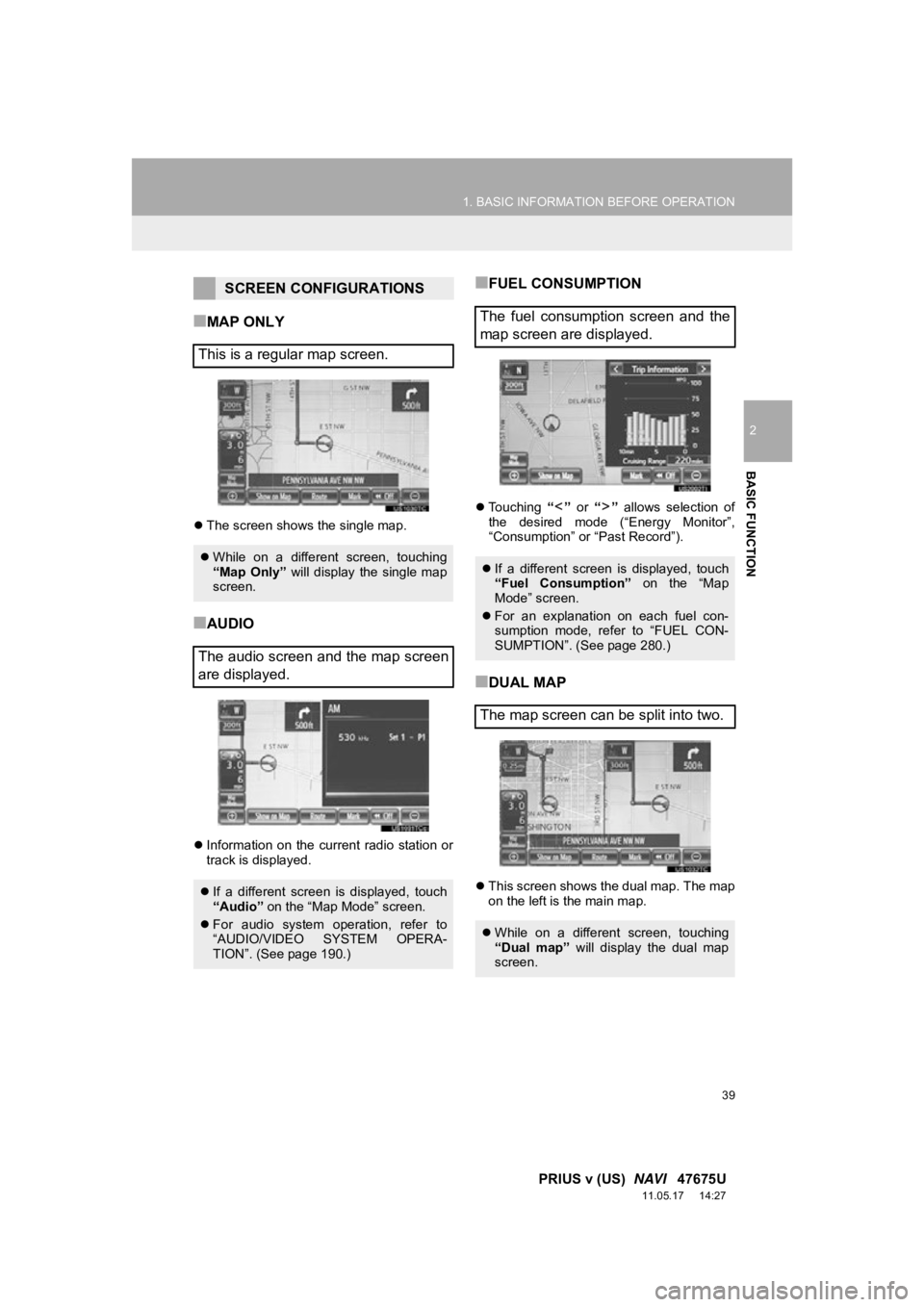
■MAP ONLY
The screen shows the single map.
■AUDIO
Information on the current radio station or
track is displayed.
■FUEL CONSUMPTION
Touching “” or “” allows selection of
the desired mode (“Energy Monitor”,
“Consumption” or “Past Record”).
■DUAL MAP
This screen shows the dual map. The map
on the left is the main map.
SCREEN CONFIGURATIONS
This is a regular map screen.
While on a different screen, touching
“Map Only” will display the single map
screen.
The audio screen and the map screen
are displayed.
If a different screen is displayed, touch
“Audio” on the “Map Mode” screen.
For audio system operation, refer to
“AUDIO/VIDEO SYSTEM OPERA-
TION”. (See page 190.)
The fuel consumption screen and the
map screen are displayed.
If a different screen is displayed, touch
“Fuel Consumption” on the “Map
Mode” screen.
For an explanation on each fuel con-
sumption mode, refer to “FUEL CON-
SUMPTION”. (See page 280.)
The map screen can be split into two.
While on a different screen, touching
“Dual map” will display the dual map
screen.
Page 147 of 409
147
1. PHONE OPERATION
4
PHONE
PRIUS v (US) NAVI 47675U
11.05.17 14:27
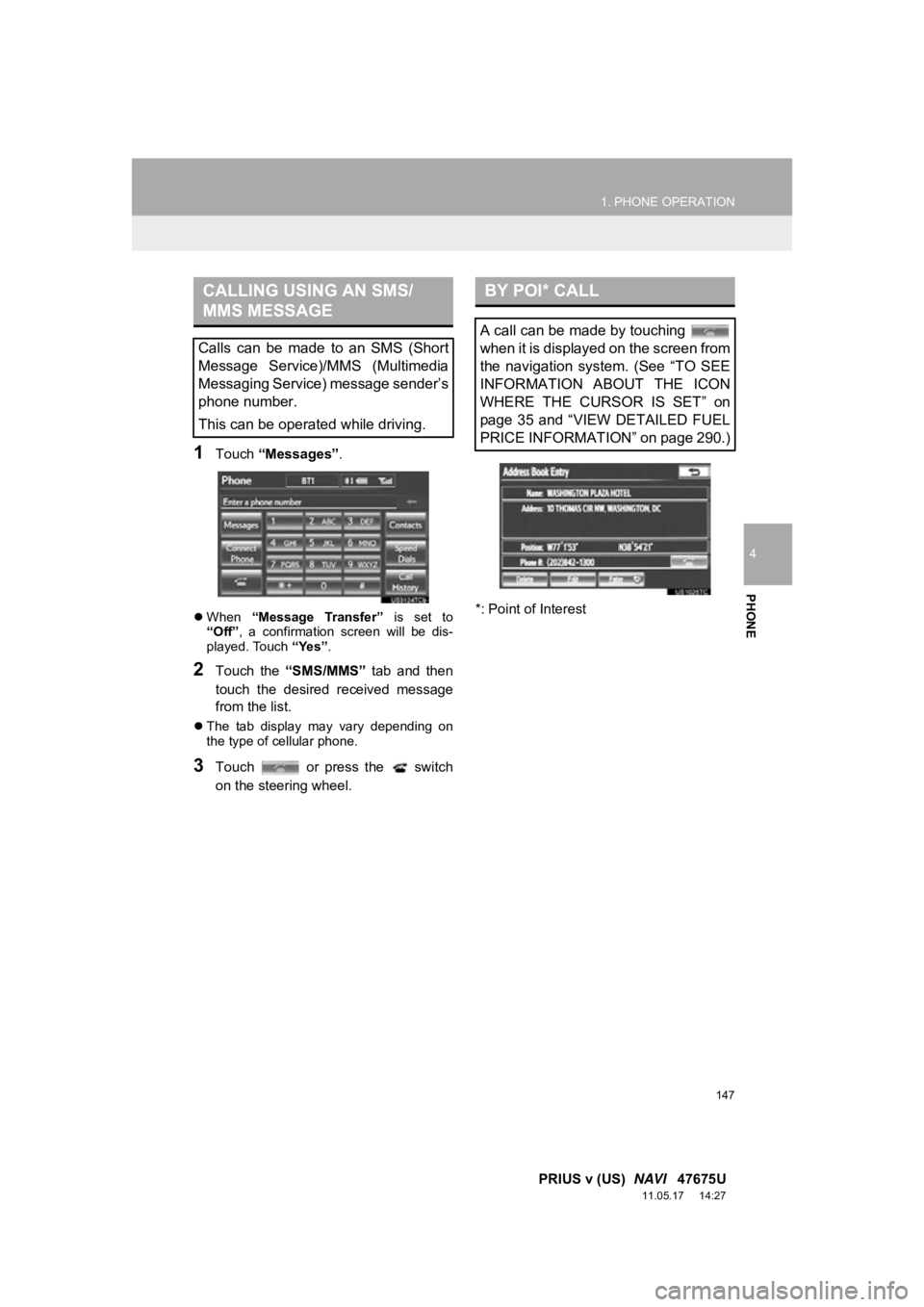
1Touch “Messages” .
When “Message Transfer” is set to
“Off” , a confirmation screen will be dis-
played. Touch “Yes”.
2Touch the “SMS/MMS” tab and then
touch the desired received message
from the list.
The tab display may vary depending on
the type of cellular phone.
3Touch or press the switch
on the steering wheel. *: Point of Interest
CALLING USING AN SMS/
MMS MESSAGE
Calls can be made to an SMS (Short
Message Service)/MMS (Multimedia
Messaging Service) message sender’s
phone number.
This can be operated while driving.
BY POI* CALL
A call can be made by touching
when it is displayed on the screen from
the navigation system. (See “TO SEE
INFORMATION ABOUT THE ICON
WHERE THE CURSOR IS SET” on
page 35 and “VIEW DETAILED FUEL
PRICE INFORMATION” on page 290.)
Page 272 of 409
272
1. VOICE COMMAND SYSTEM OPERATION
PRIUS v (US) NAVI 47675U
11.05.17 14:27
2. NATURAL SPEECH INFORMATION (ENGLISH ONLY)
*: Say the desired artist name or album
name in the place of the “<>”.
Due to natural language speech recog-
nition technology, this system enables
recognition of a command when spo-
ken naturally. However, the system
cannot recognize every variation of
each command. In some situations, it
is possible to omit the command for the
procedure and directly state the de-
sired operation. Not all voice com-
mands are displayed in the short cut
menu.
INFORMATION
● The “Set a Destination”, “Use the
Phone”, “Play Music” and “Get Informa-
tion” commands displayed on the “Short-
cut Menu” screen can be operated using
natural language speech recognition
technology.
● If the command cannot be recognized
completely, the command input screen
will be displayed. (Search results will be
shown based on the part of the com-
mand that was recognized.)
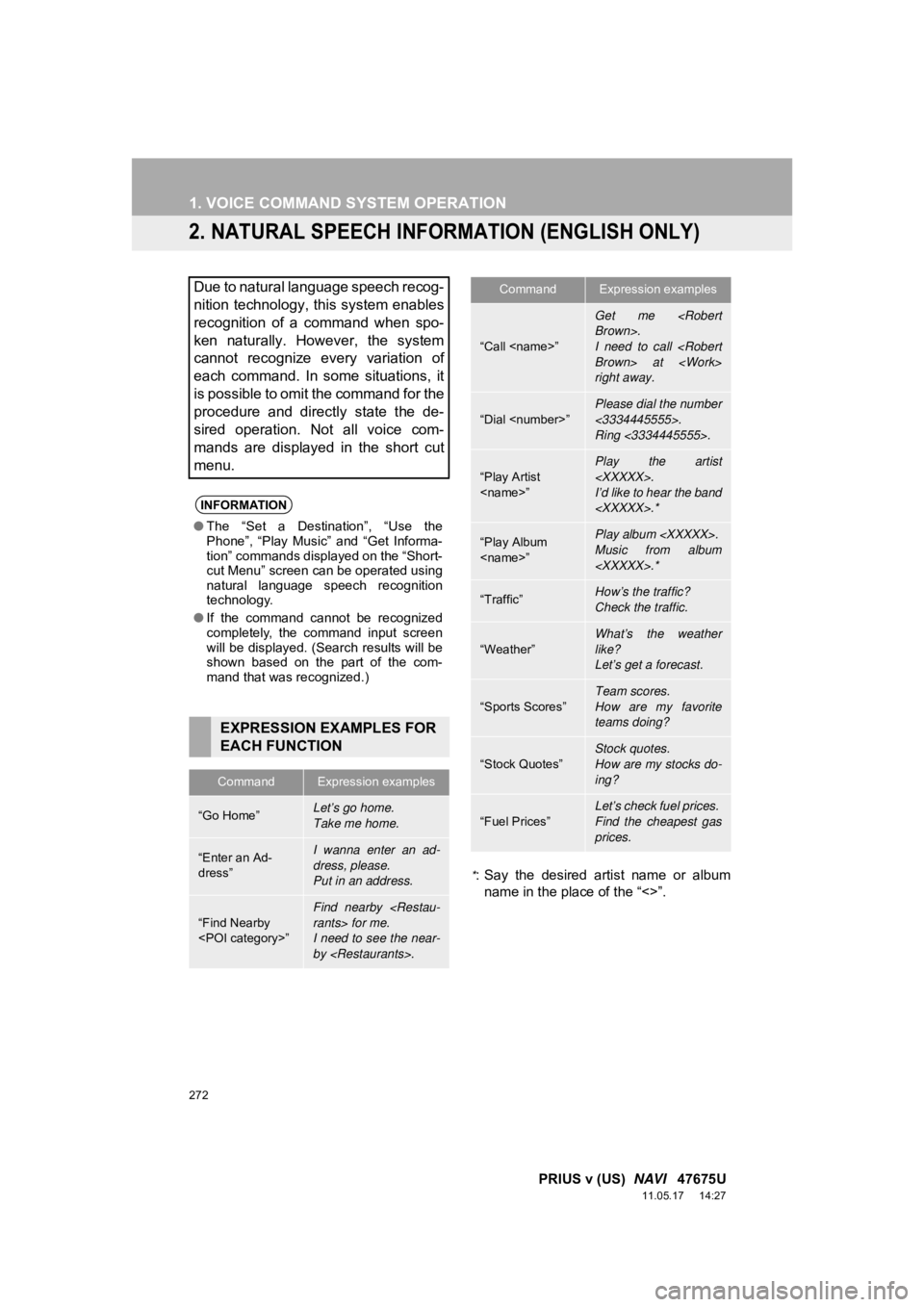
EXPRESSION EXAMPLES FOR
EACH FUNCTION
CommandExpression examples
“Go Home”Let’s go home.
Take me home.
“Enter an Ad-
dress”I wanna enter an ad-
dress, please.
Put in an address.
“Find Nearby
I need to see the near-
by
“Call
Get me
I need to call
right away.
“Dial
<3334445555>.
Ring <3334445555>.
“Play Artist
Play the artist
I’d like to hear the band
“Play Album
Music from album
“Traffic”How’s the traffic?
Check the traffic.
“Weather”
What’s the weather
like?
Let’s get a forecast.
“Sports Scores”
Team scores.
How are my favorite
teams doing?
“Stock Quotes”Stock quotes.
How are my stocks do-
ing?
“Fuel Prices”
Let’s check fuel prices.
Find the cheapest gas
prices.
CommandExpression examples
Page 277 of 409
277
1. VOICE COMMAND SYSTEM OPERATION
6
VOICE COMMAND SYSTEM
PRIUS v (US) NAVI 47675U
11.05.17 14:27
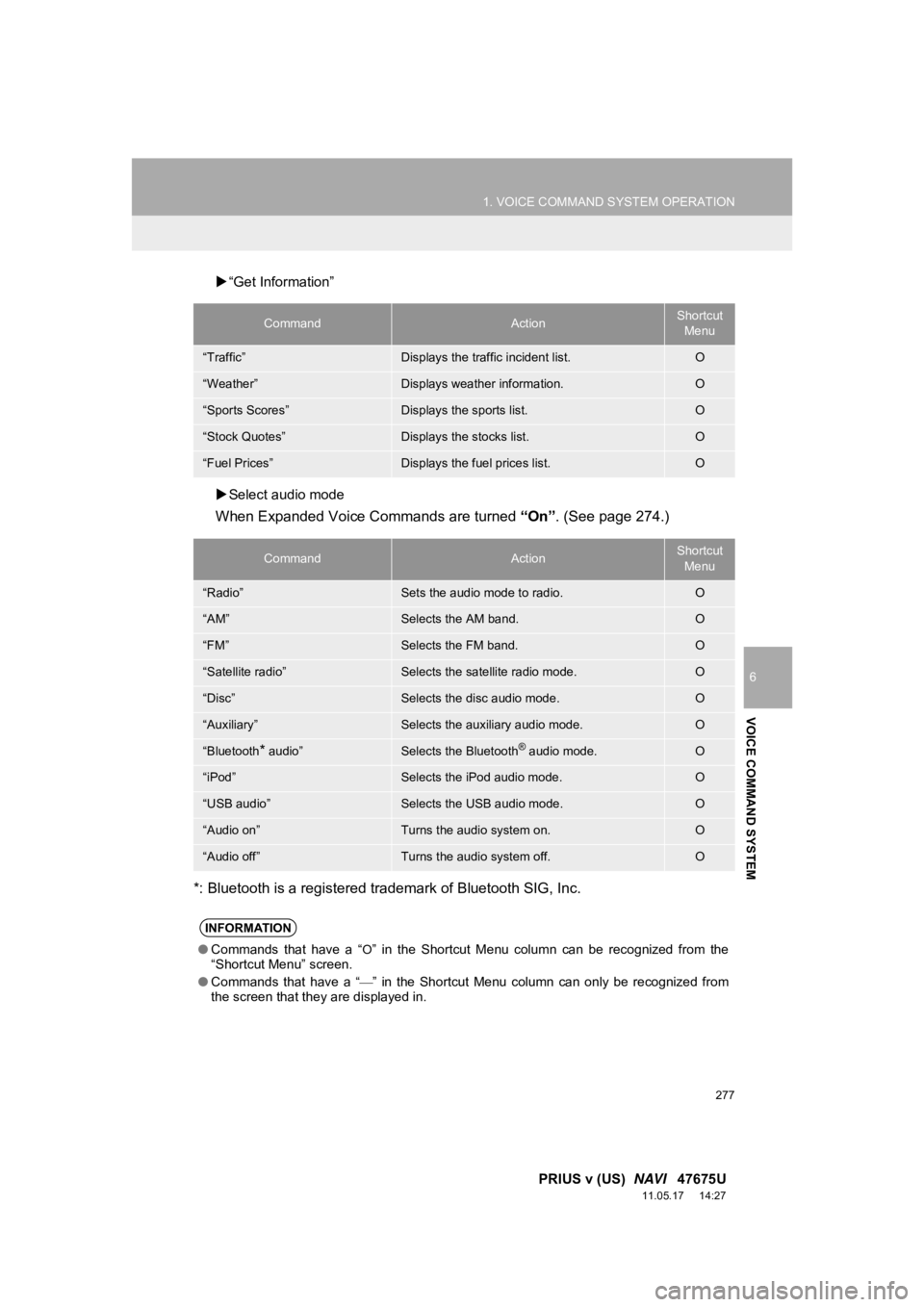
“Get Information”
Select audio mode
When Expanded Voice Commands are turned “On”. (See page 274.)
*: Bluetooth is a registered trademark of Bluetooth SIG, Inc.
CommandActionShortcut Menu
“Traffic”Displays the traffic incident list.O
“Weather”Displays weather information.O
“Sports Scores”Displays the sports list.O
“Stock Quotes”Displays the stocks list.O
“Fuel Prices”Displays the fuel prices list.O
CommandActionShortcut Menu
“Radio”Sets the audio mode to radio.O
“AM”Selects the AM band.O
“FM”Selects the FM band.O
“Satellite radio”Selects the satellite radio mode.O
“Disc”Selects the disc audio mode.O
“Auxiliary”Selects the auxiliary audio mode.O
“Bluetooth* audio”Selects the Bluetooth® audio mode.O
“iPod”Selects the iPod audio mode.O
“USB audio”Selects the USB audio mode.O
“Audio on”Turns the audio system on.O
“Audio off”Turns the audio system off.O
INFORMATION
● Commands that have a “O” in the Shortcut Menu column can be recognized from the
“Shortcut Menu” screen.
● Commands that have a “
” in the Shortcut Menu column can only be recognized from
the screen that they are displayed in.
Page 279 of 409
7
279
1
2
3
4
5
6
7
8
9
PRIUS v (US) NAVI 47675U
11.05.17 11:24
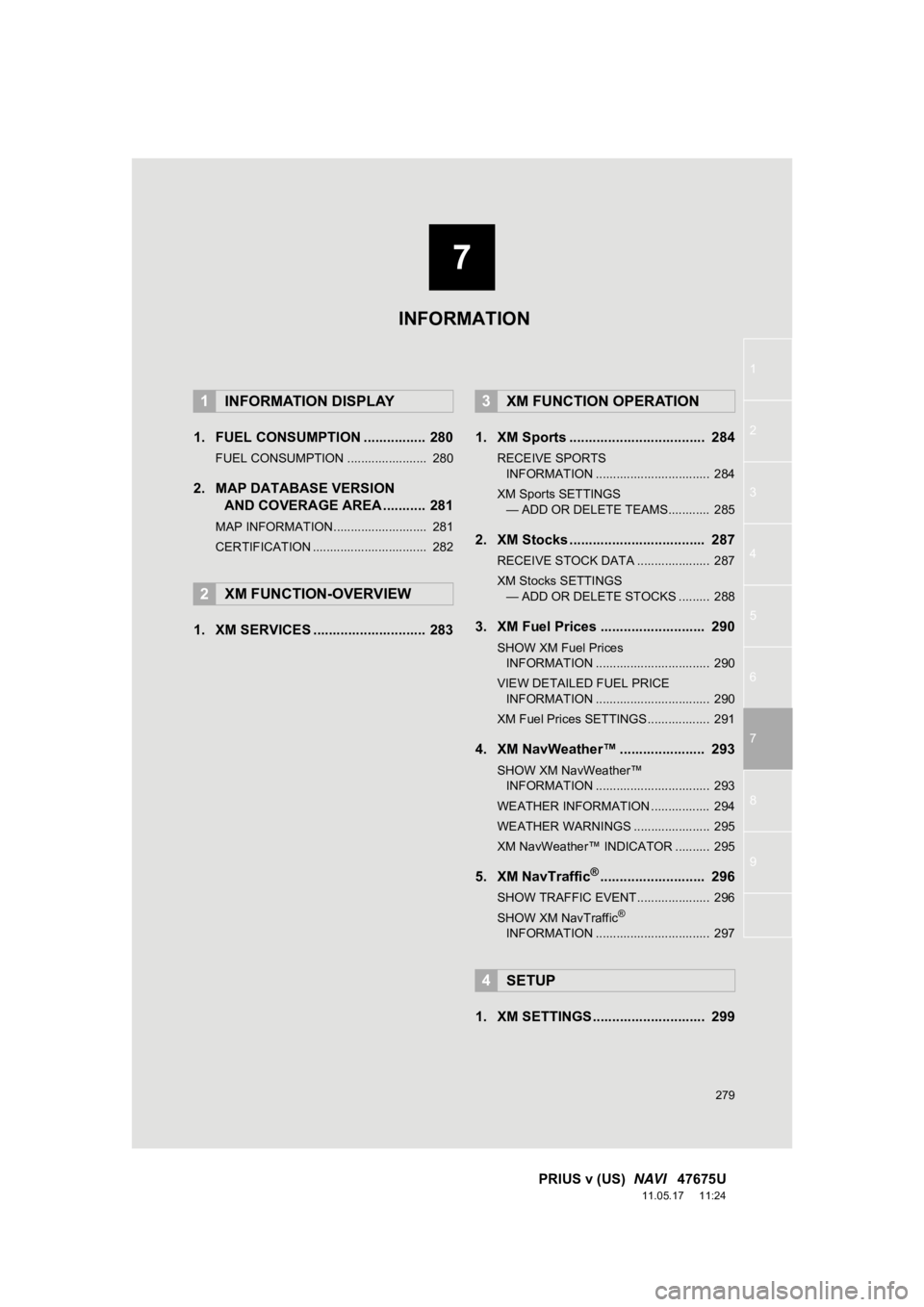
1. FUEL CONSUMPTION ................ 280
FUEL CONSUMPTION ....................... 280
2. MAP DATABASE VERSION
AND COVERAGE AREA ........... 281
MAP INFORMATION........................... 281
CERTIFICATION ................................. 282
1. XM SERVICES ............................. 283 1. XM Sports ................................... 284
RECEIVE SPORTS
INFORMATION ................................. 284
XM Sports SETTINGS — ADD OR DELETE TEAMS............ 285
2. XM Stocks ................................... 287
RECEIVE STOCK DATA ..................... 287
XM Stocks SETTINGS
— ADD OR DELETE STOCKS ......... 288
3. XM Fuel Prices ........................... 290
SHOW XM Fuel Prices
INFORMATION ................................. 290
VIEW DETAILED FUEL PRICE INFORMATION ................................. 290
XM Fuel Prices SETTINGS.................. 291
4. XM NavWeather™ ...................... 293
SHOW XM NavWeather™ INFORMATION ................................. 293
WEATHER INFORMATION ................. 294
WEATHER WARNINGS ...................... 295
XM NavWeather™ INDICATOR .......... 295
5. XM NavTraffic®........................... 296
SHOW TRAFFIC EVENT..................... 296
SHOW XM NavTraffic®
INFORMATION ................................. 297
1. XM SETTINGS............................. 299
1INFORMATION DISPLAY
2XM FUNCTION-OVERVIEW
3XM FUNCTION OPERATION
4SETUP
INFORMATION
Page 280 of 409

280
PRIUS v (US) NAVI 47675U
11.05.17 11:24
1. INFORMATION DISPLAY
1. FUEL CONSUMPTION
Energy monitor
Consumption
Past record
FUEL CONSUMPTION
Fuel consumption information, such as
that shown below, can be displayed on
the screen. For details see Section 1-1
of “Owner’s Manual”.