ESP TOYOTA PRIUS V 2018 Owner's Guide
[x] Cancel search | Manufacturer: TOYOTA, Model Year: 2018, Model line: PRIUS V, Model: TOYOTA PRIUS V 2018Pages: 607, PDF Size: 41.96 MB
Page 299 of 607
PRIUS v_OM_OM47B78U_(U)
2975-6. Using an external device
5
Audio system
■About iPod
●“Made for iPod” and “Made for iPhone” mean that an electronic accessory
has been designed to connect specifically to iPod or iPhone, respectively,
and has been certified by the developer to meet Apple performance stan-
dards.
● Apple is not responsible for the operation of this device or its compliance
with safety and regulatory standards. Please note that the use of this acces-
sory with iPod or iPhone may affect wireless performance.
● iPhone, iPod, iPod classic, iPod nano, and iPod touch are trademarks of
Apple Inc., registered in the U.S. and other countries. Lightning is a trade-
mark of Apple Inc.
■ iPod cover art
●Depending on the iPod and songs in the iPod, iPod cover art may be dis-
played.
● This function can be changed to on/off. ( P. 279)
● It may take time to display iPod cover art, and the iPod may not be operated
while the cover art display is in process.
● Only iPod cover art that is saved in JPEG format can be displayed.
■ iPod functions
●When an iPod is connected and the audio source is changed to iPod mode,
the iPod will resume play from the same point in which it was last used.
● Depending on the iPod that is connected to the system, certain functions
may not be available. If a function is unavailable due to a malfunction (as
opposed to a system specification), disconnecting the device and recon-
necting it may resolve the problem.
● While connected to the system, the iPod cannot be operated with its own
controls. It is necessary to use the controls of the vehicle’s audio system
instead.
● When the battery level of an iPod is very low, the iPod may not operate. If
so, charge the iPod before use.
● Compatible models ( P. 299)
Page 303 of 607
PRIUS v_OM_OM47B78U_(U)
3015-6. Using an external device
5
Audio system
■USB memory functions
●Depending on the USB memory device that is connected to the system, the
device itself may not be operable and certain functions may not be avail-
able. If the device is inoperable or a function is unavailable due to a mal-
function (as opposed to a system specification), disconnecting the device
and reconnecting it may resolve the problem.
● If the USB memory device still does not begin operation after being discon-
nected and reconnected, format the memory.
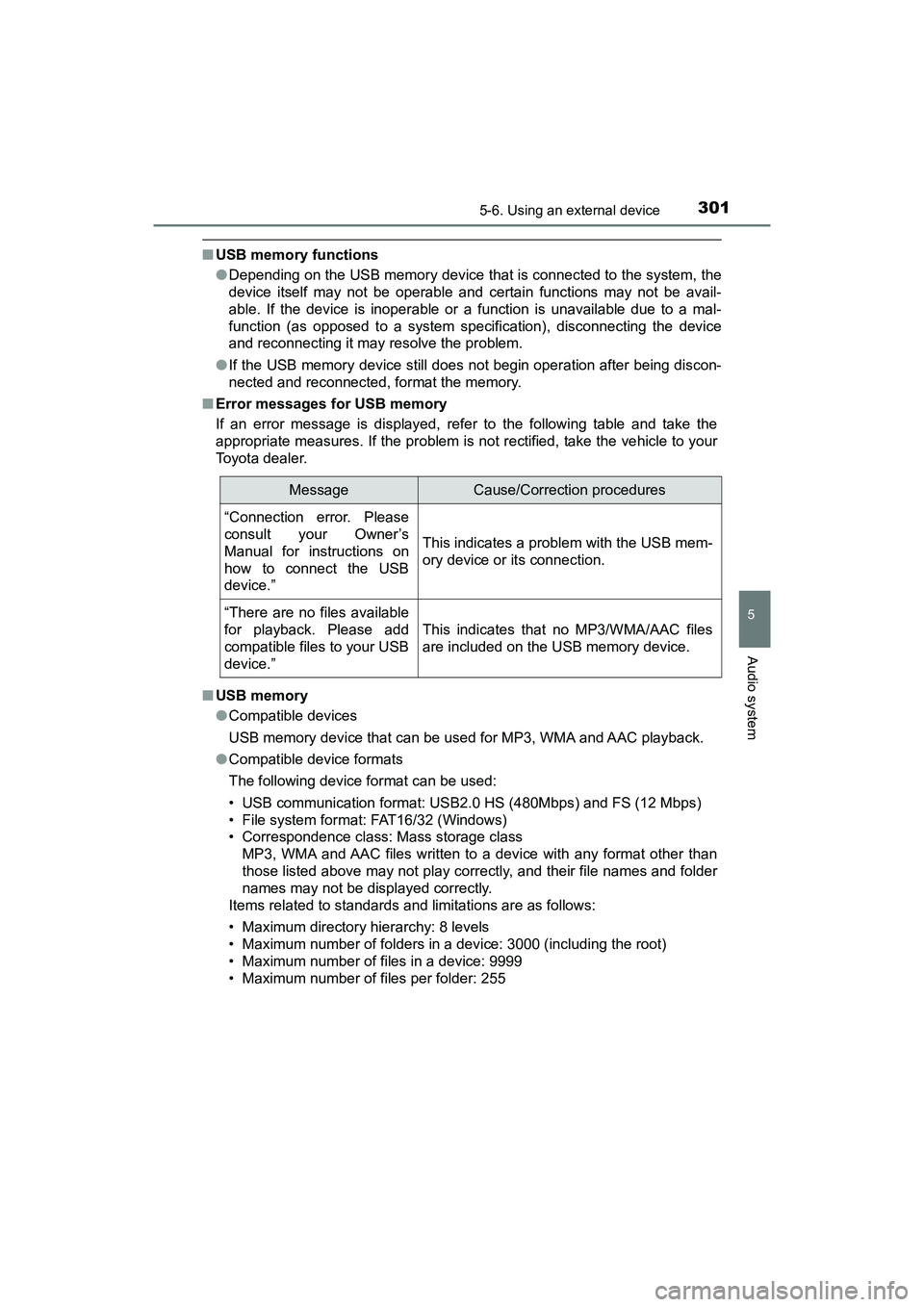
■ Error messages for USB memory
If an error message is displayed, refer to the following table and take the
appropriate measures. If the problem is not rectified, take the vehicle to your
Toyota dealer.
■ USB memory
●Compatible devices
USB memory device that can be used for MP3, WMA and AAC playback.
● Compatible device formats
The following device format can be used:
• USB communication format: USB2.0 HS (480Mbps) and FS (12 Mbps)
• File system format: FAT16/32 (Windows)
• Correspondence class: Mass storage class
MP3, WMA and AAC files written to a device with any format other than
those listed above may not play correctly, and their file names and folder
names may not be displayed correctly.
Items related to standards and limitations are as follows:
• Maximum directory hierarchy: 8 levels
• Maximum number of folders in a device: 3000 (including the root)
• Maximum number of files in a device: 9999
• Maximum number of files per folder: 255
MessageCause/Correction procedures
“Connection error. Please
consult your Owner’s
Manual for instructions on
how to connect the USB
device.”
This indicates a problem with the USB mem-
ory device or its connection.
“There are no files available
for playback. Please add
compatible files to your USB
device.”
This indicates that no MP3/WMA/AAC files
are included on the USB memory device.
Page 313 of 607
311
PRIUS v_OM_OM47B78U_(U)
5-7. Connecting Bluetooth®
5
Audio system
Registering a Bluetooth® device
Display the “Bluetooth* Setup” screen. (P. 308)
Select “Add”.
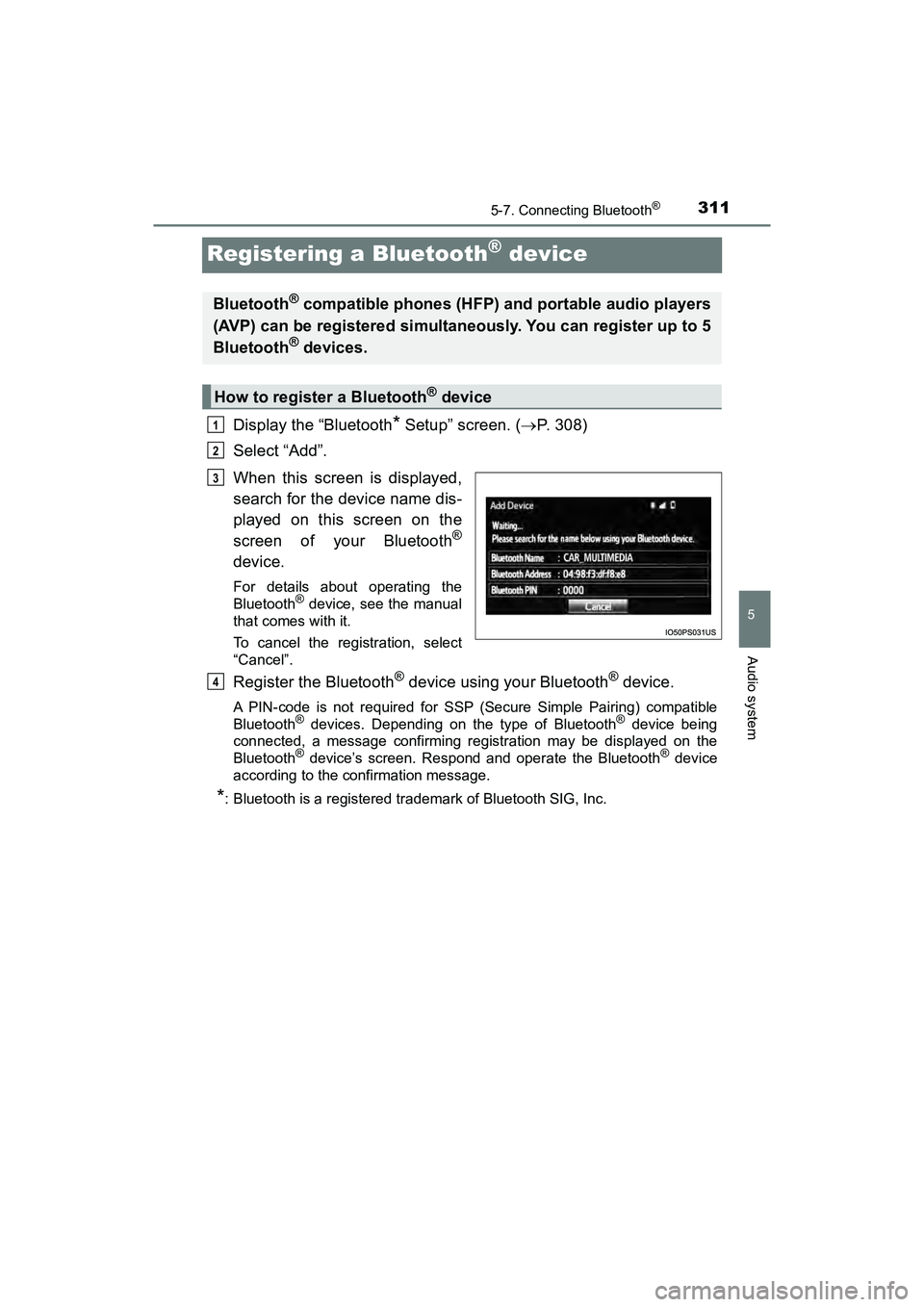
When this screen is displayed,
search for the device name dis-
played on this screen on the
screen of your Bluetooth
®
device.
For details about operating the
Bluetooth® device, see the manual
that comes with it.
To cancel the registration, select
“Cancel”.
Register the Bluetooth® device using your Bluetooth® device.
A PIN-code is not required for SSP (Secure Simple Pairing) compatible
Bluetooth® devices. Depending on the type of Bluetooth® device being
connected, a message confirming registration may be displayed on the
Bluetooth
® device’s screen. Respond and operate the Bluetooth® device
according to the confirmation message.
*: Bluetooth is a registered trademark of Bluetooth SIG, Inc.
Bluetooth® compatible phones (HFP) and portable audio players
(AVP) can be registered simultaneously. You can register up to 5
Bluetooth
® devices.
How to register a Bluetooth® device
1
2
3
4
Page 334 of 607
3325-9. Bluetooth® phone
PRIUS v_OM_OM47B78U_(U)
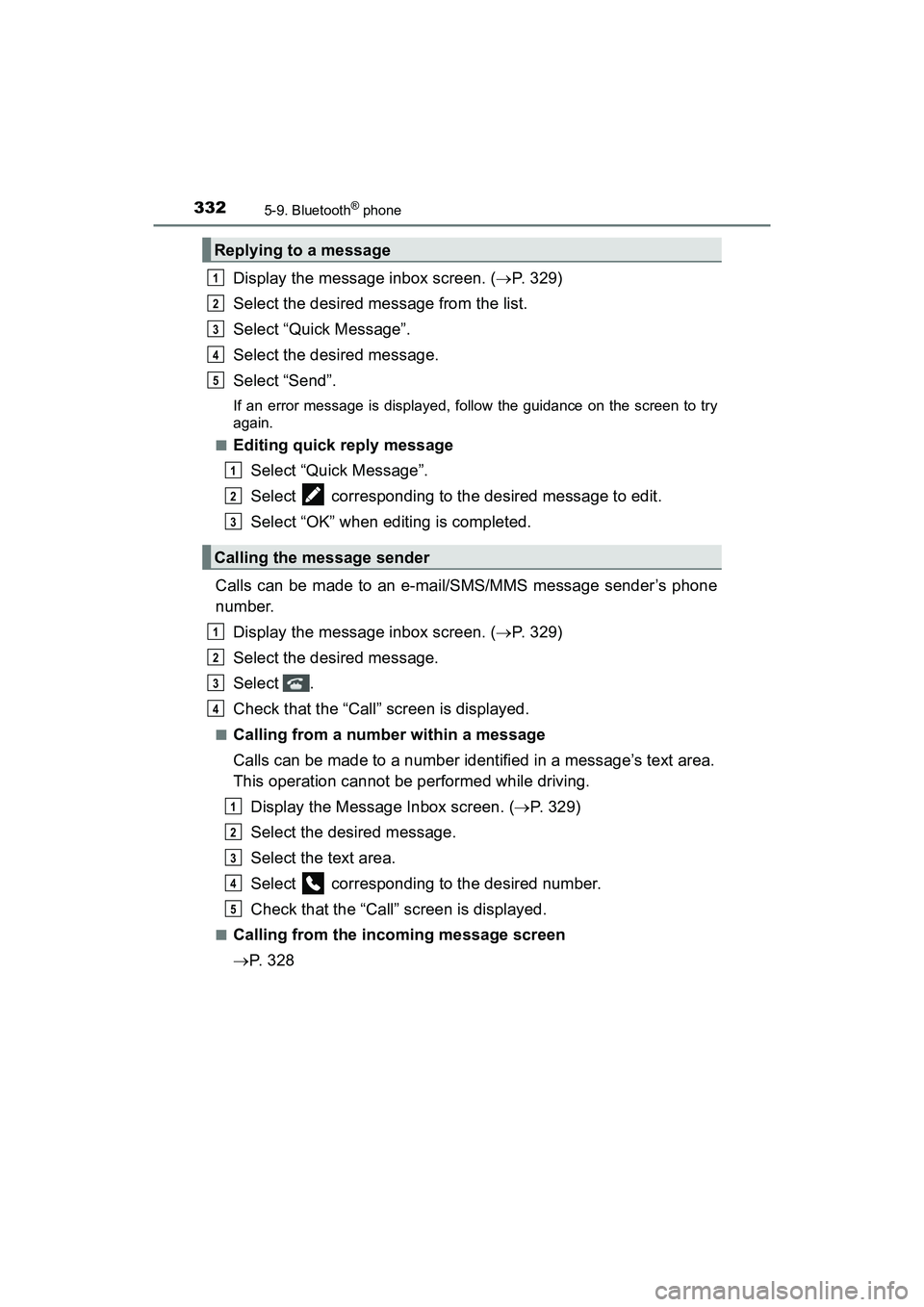
Display the message inbox screen. (P. 329)
Select the desired message from the list.
Select “Quick Message”.
Select the desired message.
Select “Send”.
If an error message is displayed, follow the guidance on the screen to try
again.
■
Editing quick reply message
Select “Quick Message”.
Select corresponding to the desired message to edit.
Select “OK” when editing is completed.
Calls can be made to an e-mail/SMS/MMS message sender’s phone
number. Display the message inbox screen. ( P. 329)
Select the desired message.
Select .
Check that the “Call” screen is displayed.
■Calling from a number within a message
Calls can be made to a number identified in a message’s text area.
This operation cannot be performed while driving. Display the Message Inbox screen. ( P. 329)
Select the desired message.
Select the text area.
Select corresponding to the desired number.
Check that the “Call” screen is displayed.
■Calling from the incoming message screen
P. 3 2 8
Replying to a message
Calling the message sender
1
2
3
4
5
1
2
3
1
2
3
4
1
2
3
4
5
Page 340 of 607
3385-9. Bluetooth® phone
PRIUS v_OM_OM47B78U_(U)
For PBAP compatible Bluetooth® phones, this function is available
when “Automatic Transfer” is set to off. ( P. 335)
Select “Edit Contacts”.
Select the desired contact.
Select corresponding to the desired name or number.
For editing the name
Follow the steps in “Registering a new contact to the contact list”
from . ( P. 337)
For editing the number
Follow the steps in “Registering a new contact to the contact list”
from . ( P. 337)
■Editing the contacts in a different way (From the “Contact
Details” screen)
Display the phone screen. ( P. 319)
Select the “Contacts”, “Call History” tab or the “Favorites” tab and
select the desired contact.
Select “Edit Contacts”.
“E-mail Addresses”: Select to display all registered e-mail addresses for
the contact.
Follow the steps in “Editing the contact data” from .
( P. 338)
Editing the contact data
1
2
3
4
2
4
3
1
2
3
43
Page 351 of 607
PRIUS v_OM_OM47B78U_(U)
3495-10. Bluetooth®
5
Audio system
■Bluetooth® antenna
The antenna is built into the display.
If the Bluetooth
® device is behind the seat or in the glove box or console box,
or is touching or covered by metal objects, the connection status may deterio-
rate.
■ Battery charge/signal status
●This display may not correspond exactl y with the portable audio player or
cellular phone itself.
● This system does not have a charging function.
● The portable audio player or cellular phone battery will be depleted quickly
when the device is connected to Bluetooth
®.
■ When using the Bluetooth
® audio and hands-free system at the same
time
The following problems may occur.
● The Bluetooth
® audio connection may be interrupted.
● Noise may be heard during Bluetooth
® audio playback.
■ About the contact in this system
The following data is stored for every registered cellular phone. When
another phone is connecting, you cannot read the registered data.
●Contact data
● Call history
● Favorite
● Message
When removing a Bluetooth
® phone from the system, the above-mentioned
data is also deleted.
■ About Bluetooth
®
The Bluetooth® word mark and logos are
registered trademarks owned by
Bluetooth SIG, Inc. and any use of such
marks by Panasonic Corporation is under
license. Other trademarks and trade
names are those of their respective own-
ers.
Page 359 of 607
PRIUS v_OM_OM47B78U_(U)
3575-11. Using the voice command system
5
Audio system
The Mobile Assistant feature will activate Apple’s Siri® Eyes Free
mode via the steering wheel switches. To operate the Mobile Assis-
tant, a compatible cellular phone must be registered and connected to
this system via Bluetooth
®. ( P. 307)
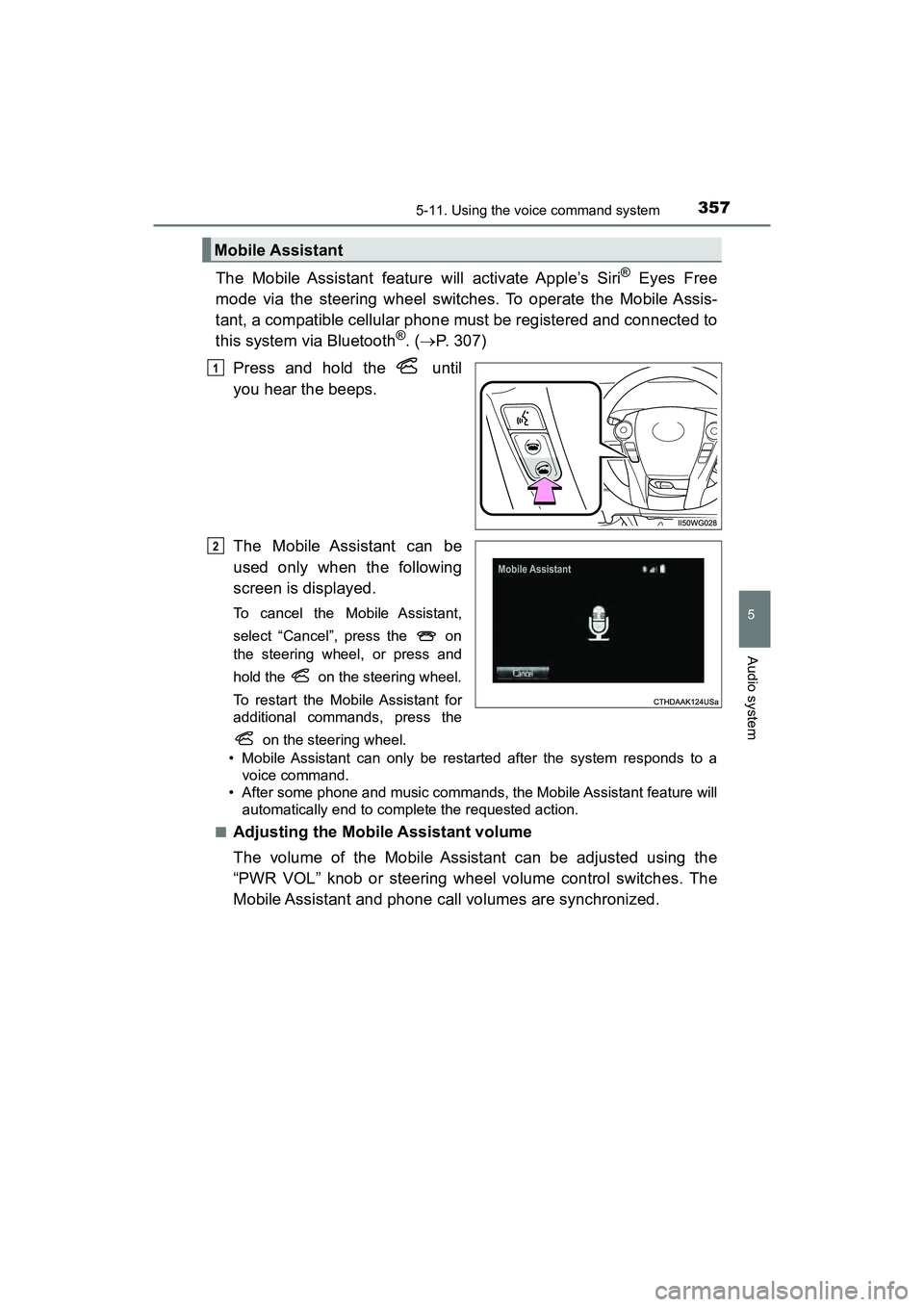
Press and hold the until
you hear the beeps.
The Mobile Assistant can be
used only when the following
screen is displayed.
To cancel the Mobile Assistant,
select “Cancel”, press the on
the steering wheel, or press and
hold the on the steering wheel.
To restart the Mobile Assistant for
additional commands, press the on the steering wheel.
• Mobile Assistant can only be restarted after the system responds to a voice command.
• After some phone and music commands, the Mobile Assistant feature will automatically end to complete the requested action.
■
Adjusting the Mobile Assistant volume
The volume of the Mobile Assistant can be adjusted using the
“PWR VOL” knob or steering wheel volume control switches. The
Mobile Assistant and phone call volumes are synchronized.
Mobile Assistant
1
2
Page 401 of 607
PRIUS v_OM_OM47B78U_(U)
3997-1. Maintenance and care
7
Maintenance and care
●Remove dirt and dust using a vacuum cleaner.
● Wipe it off with a soft cloth dampened with neutral detergent diluted
to approximately 1%.
● Wring out any excess water from the cloth and thoroughly wipe off
remaining traces of detergent and water.
■Caring for leather areas
Toyota recommends cleaning the interior of the vehicle at least twice a year to
maintain the quality of the vehicle’s interior.
■ Shampooing the carpets
There are several commercial foaming-type cleaners available. Use a sponge
or brush to apply the foam. Rub in overlapping circles. Do not use water.
Wipe dirty surfaces and let them dry. Excellent results are obtained by keep-
ing the carpet as dry as possible.
■ Seat belts
Clean with mild soap and lukewarm water using a cloth or sponge. Also
check the belts periodically for excessive wear, fraying or cuts.
Cleaning the synthetic leather areas
WARNING
■Water in the vehicle
●Do not splash or spill liquid in the vehicle, such as on the floor, in the
hybrid battery (traction battery) air intake vent, and in the luggage com-
partment.
Doing so may cause the hybrid battery (traction battery), electrical compo-
nents, etc. to malfunction or catch fire.
● Do not get any of the SRS components or wiring in the vehicle interior wet.
(P. 4 3 )
An electrical malfunction may cause the airbags to deploy or not function
properly, resulting in death or serious injury.
■ Cleaning the interior (especially instrument panel)
Do not use polish wax or polish cleaner . The instrument panel may reflect
off the windshield, obstructing the driver’s view and leading to an accident,
resulting in death or serious injury.
Page 402 of 607
400
PRIUS v_OM_OM47B78U_(U)
7-1. Maintenance and care
NOTICE
■Cleaning detergents
●Do not use the following types of detergent, as they may discolor the vehi-
cle interior or cause streaks or damage to painted surfaces:
• Non-seat portions: Organic substances such as benzene or gasoline,
alkaline or acidic solutions, dye, and bleach
• Seats: Alkaline or acidic solutions, such as thinner, benzene, and alco- hol
● Do not use polish wax or polish cleaner. The instrument panel’s or other
interior part’s painted surface may be damaged.
■ Preventing damage to leather surfaces
Observe the following precautions to avoid damage to and deterioration of
leather surfaces:
● Remove any dust or dirt from leather surfaces immediately.
● Do not expose the vehicle to direct sunlight for extended periods of time.
Park the vehicle in the shade, especially during summer.
● Do not place items made of vinyl, plastic, or containing wax on the uphol-
stery, as they may stick to the leather surface if the vehicle interior heats
up significantly.
■ Water on the floor
Do not wash the vehicle floor with water.
Vehicle systems such as the audio system may be damaged if water comes
into contact with electrical components such as the audio system above or
under the floor of the vehicle. Water may also cause the body to rust.
■ When cleaning the inside of the windshield
Do not allow glass cleaner to contact the lens. Also, do not touch the lens.
(P. 200)
■ Cleaning the inside of the rear window
●Do not use glass cleaner to clean the rear window, as this may cause
damage to the rear window defogger heater wires. Use a cloth dampened
with lukewarm water to gently wipe the window clean. Wipe the window in
strokes running parallel to the heater wires.
● Be careful not to scratch or damage the heater wires.
Page 403 of 607
401
PRIUS v_OM_OM47B78U_(U)
7-2. Maintenance
7
Maintenance and care
Maintenance requirements
General maintenance should be performed on a daily basis. This can
be done by yourself or by a Toyota dealer.
Scheduled maintenance should be performed at specified intervals
according to the maintenance schedule.
For details about maintenance items and schedules, refer to the “Sched-
uled Maintenance Guide” or “Owner’s Manual Supplement”.
You can perform some maintenance procedures by yourself.
Please be aware that do-it-yourself maintenance may affect warranty
coverage.
The use of Toyota repair manuals is recommended.
For details about warranty coverage, refer to the separate “Owner’s War-
ranty Information Booklet” or “Owner’s Manual Supplement”.
To ensure safe and economical driving, day-to-day care and reg-
ular maintenance are essential. It is the owner’s responsibility to
perform regular checks. Toyota recommends the following main-
tenance:
General maintenance
Scheduled maintenance
Do-it-yourself maintenance