reset TOYOTA PROACE 2016 User Guide
[x] Cancel search | Manufacturer: TOYOTA, Model Year: 2016, Model line: PROACE, Model: TOYOTA PROACE 2016Pages: 516, PDF Size: 91.65 MB
Page 225 of 516
225
Road Sign Assist
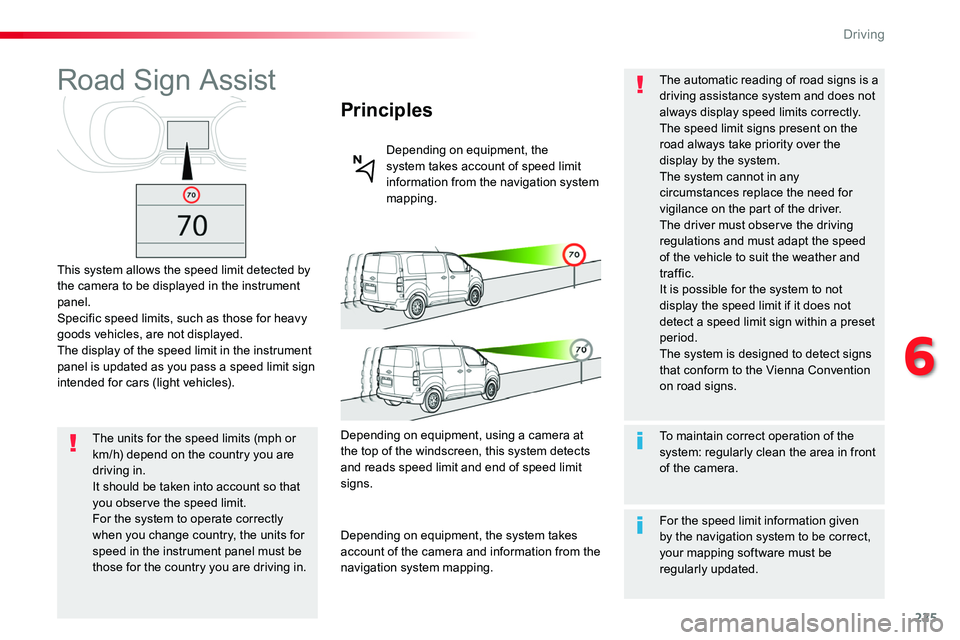
This system allows the speed limit detected by the camera to be displayed in the instrument panel.Specific speed limits, such as those for heavy goods vehicles, are not displayed.The display of the speed limit in the instrument panel is updated as you pass a speed limit sign intended for cars (light vehicles).
Principles
Depending on equipment, the system takes account of speed limit information from the navigation system mapping.
The units for the speed limits (mph or km/h) depend on the country you are driving in.It should be taken into account so that you observe the speed limit.For the system to operate correctly when you change country, the units for speed in the instrument panel must be those for the country you are driving in.
Depending on equipment, using a camera at the top of the windscreen, this system detects and reads speed limit and end of speed limit signs.
Depending on equipment, the system takes account of the camera and information from the navigation system mapping.
To maintain correct operation of the system: regularly clean the area in front of the camera.
The automatic reading of road signs is a driving assistance system and does not always display speed limits correctly.The speed limit signs present on the road always take priority over the display by the system.The system cannot in any circumstances replace the need for vigilance on the part of the driver.
The driver must observe the driving regulations and must adapt the speed of the vehicle to suit the weather and traffic.It is possible for the system to not display the speed limit if it does not detect a speed limit sign within a preset period.The system is designed to detect signs that conform to the Vienna Convention on road signs.
For the speed limit information given by the navigation system to be correct, your mapping software must be regularly updated.
6
Driving
Page 250 of 516
250
Driver Attention Alert
The system resets itself if one of the following conditions is met:- engine running, the vehicle has been stationary for more than 15 minutes,- the ignition has been switched off for a few minutes,- the driver's seat belt is unfastened and their door is open.
As soon as the speed of the vehicle drops below 40 mph (65 km/h), the system goes into standby.The driving time is counted again once the speed is above 40 mph (65 km/h).
The system cannot in any circumstances replace the need for vigilance on the part of the driver.Do not take the wheel if you are tired.
The system triggers an alert once it detects that the driver has not taken a break after two hours of driving at a speed above 40 mph (65 km/h).
It is recommended that you take a break as soon as you feel tired or at least every two hours.Depending on version, the vehicle either has the "Driving time warning system" only, or this combined with the "Driver Attention Alert".
Driving time warning
With the audio system
In the "Personalisation-configuration" menu, activate/deactivate "Fatigue Detection System".
Activation / Deactivation
The system is activated or deactivated via the vehicle configuration menu.
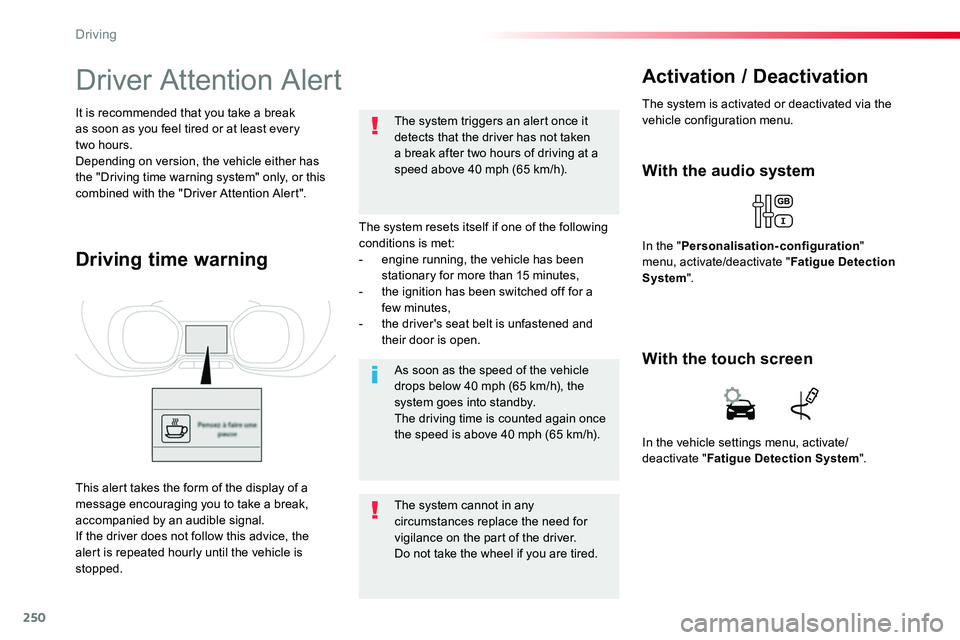
This alert takes the form of the display of a message encouraging you to take a break, accompanied by an audible signal.If the driver does not follow this advice, the alert is repeated hourly until the vehicle is stopped.
In the vehicle settings menu, activate/deactivate "Fatigue Detection System".
With the touch screen
Driving
Page 324 of 516
324
Do not force the lever as locking will not be possible if the clamp is not
positioned correctly; start the procedure again.
Disconnecting the battery
In order to maintain an adequate state of charge for starting the engine, it is recommended that the battery be disconnected if the vehicle is taken out of service for a long period.Wait 2 minutes after switching off the ignition before disconnecting the battery.F close the windows and the doors before disconnecting the battery,F switch off all electrical consumers (audio system, wipers, lighting, ...),F switch off the ignition and wait for four minutes.Having exposed the battery, it is only necessary to disconnect the (+) terminal.
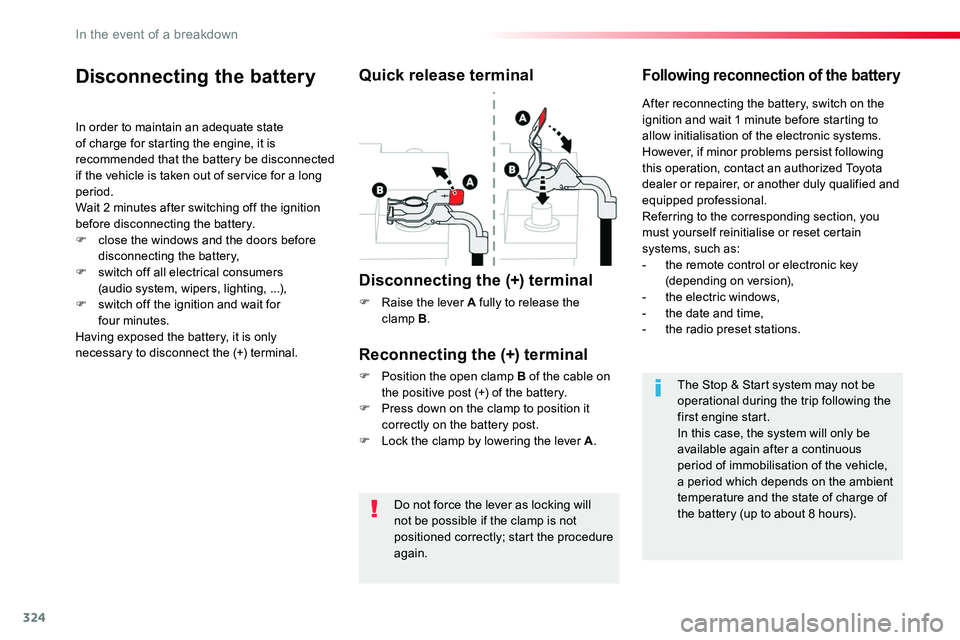
Quick release terminal
Disconnecting the (+) terminal
F Raise the lever A fully to release the clamp B.
Following reconnection of the battery
Reconnecting the (+) terminal
F Position the open clamp B of the cable on the positive post (+) of the battery.F Press down on the clamp to position it correctly on the battery post.F Lock the clamp by lowering the lever A.
After reconnecting the battery, switch on the ignition and wait 1 minute before starting to allow initialisation of the electronic systems.However, if minor problems persist following this operation, contact an authorized Toyota dealer or repairer, or another duly qualified and equipped professional.Referring to the corresponding section, you must yourself reinitialise or reset certain systems, such as:- the remote control or electronic key (depending on version),- the electric windows,- the date and time,- the radio preset stations.
The Stop & Start system may not be operational during the trip following the first engine start.In this case, the system will only be available again after a continuous period of immobilisation of the vehicle, a period which depends on the ambient temperature and the state of charge of the battery (up to about 8 hours).
In the event of a breakdown
Page 343 of 516
343
12:13
23 °C531 kHz
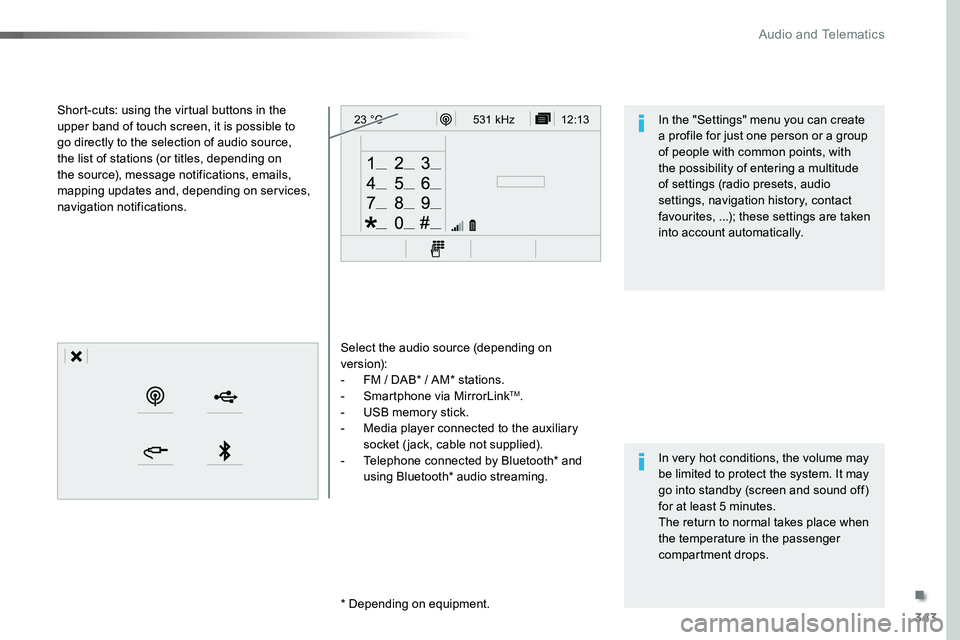
Select the audio source (depending on version):- FM / DAB* / AM* stations.- Smartphone via MirrorLinkTM.- USB memory stick.- Media player connected to the auxiliary socket (jack, cable not supplied).- Telephone connected by Bluetooth* and using Bluetooth* audio streaming.
* Depending on equipment.
Short-cuts: using the virtual buttons in the upper band of touch screen, it is possible to go directly to the selection of audio source, the list of stations (or titles, depending on the source), message notifications, emails, mapping updates and, depending on services, navigation notifications.
In very hot conditions, the volume may be limited to protect the system. It may go into standby (screen and sound off) for at least 5 minutes.The return to normal takes place when the temperature in the passenger compartment drops.
In the "Settings" menu you can create a profile for just one person or a group of people with common points, with the possibility of entering a multitude of settings (radio presets, audio settings, navigation history, contact favourites, ...); these settings are taken into account automatically.
.
Audio and Telematics
Page 344 of 516
344
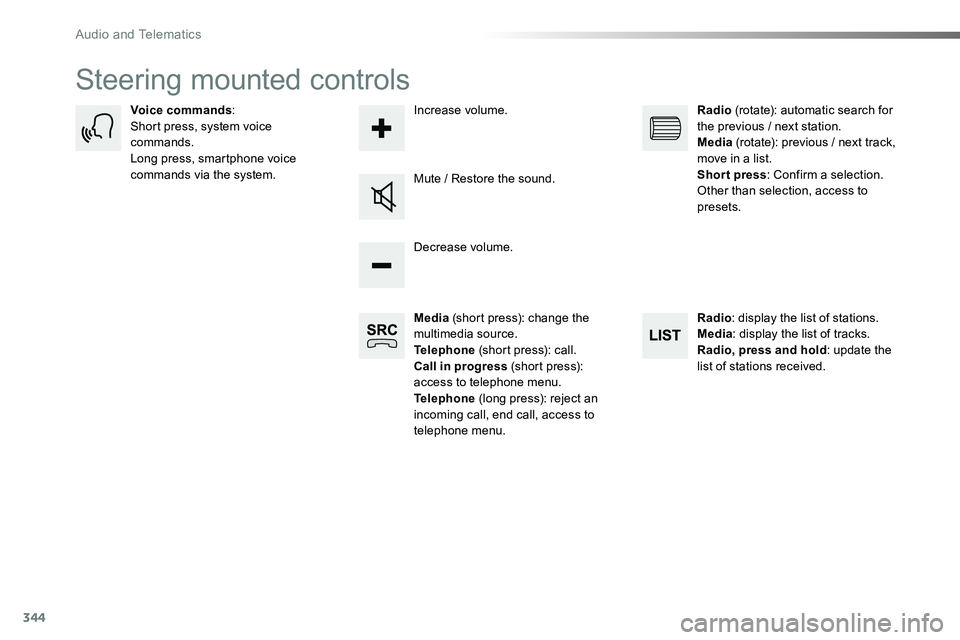
Steering mounted controls
Media (short press): change the multimedia source.Telephone (short press): call.Call in progress (short press): access to telephone menu.Telephone (long press): reject an incoming call, end call, access to telephone menu.
Decrease volume.
Voice commands:Short press, system voice commands.Long press, smartphone voice commands via the system.Mute / Restore the sound.
Radio (rotate): automatic search for the previous / next station.Media (rotate): previous / next track, move in a list.Short press: Confirm a selection. Other than selection, access to presets.
Radio: display the list of stations.Media: display the list of tracks.Radio, press and hold: update the list of stations received.
Increase volume.
Audio and Telematics
Page 349 of 516
349
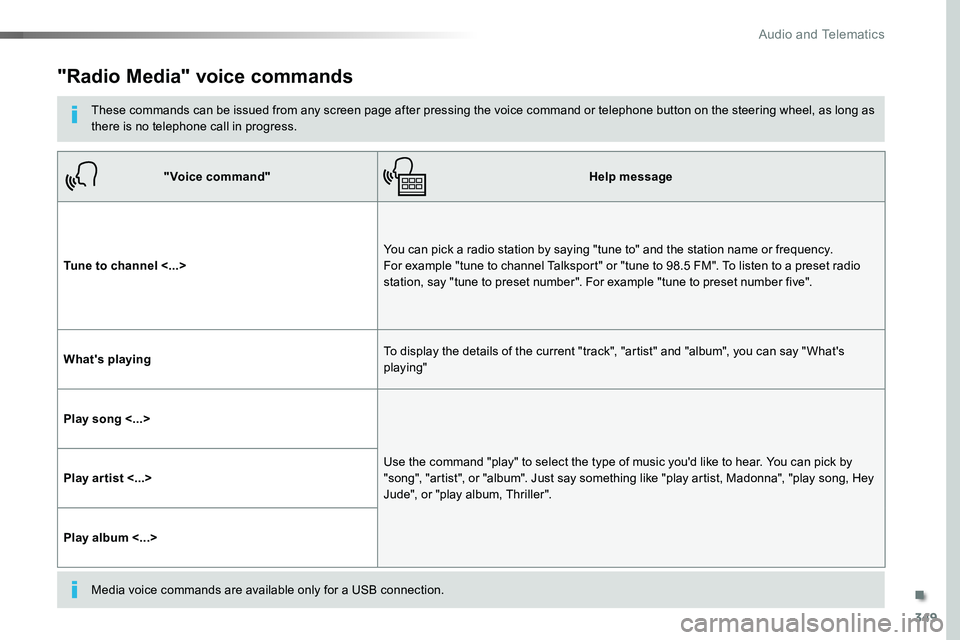
"Radio Media" voice commands
These commands can be issued from any screen page after pressing the voice command or telephone button on the steering wheel, as long as there is no telephone call in progress.
"Voice command"Help message
Tune to channel <...>You can pick a radio station by saying "tune to" and the station name or frequency. For example "tune to channel Talksport" or "tune to 98.5 FM". To listen to a preset radio station, say "tune to preset number". For example "tune to preset number five".
What's playingTo display the details of the current "track", "artist" and "album", you can say " What's playing"
Play song <...>
Use the command "play" to select the type of music you'd like to hear. You can pick by "song", "artist", or "album". Just say something like "play artist, Madonna", "play song, Hey Jude", or "play album, Thriller".Play ar tist <...>
Play album <...>
Media voice commands are available only for a USB connection.
.
Audio and Telematics
Page 389 of 516
389
3
2
4
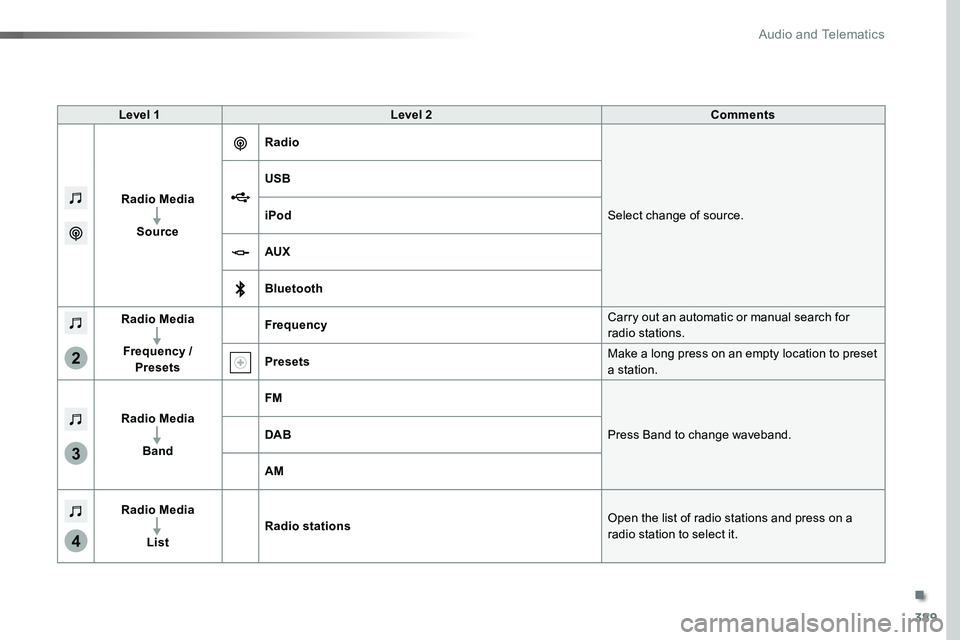
Level 1Level 2Comments
Radio Media
Source
Radio
Select change of source.
USB
iPod
AUX
Bluetooth
Radio Media
Frequency / Presets
FrequencyCarry out an automatic or manual search for radio stations.
PresetsMake a long press on an empty location to preset a station.
Radio Media
Band
FM
Press Band to change waveband.DAB
AM
Radio Media
List
Radio stationsOpen the list of radio stations and press on a
radio station to select it.
.
Audio and Telematics
Page 391 of 516
391
5
12
8
6
13
14
15
9
7
10
11
1
1
1
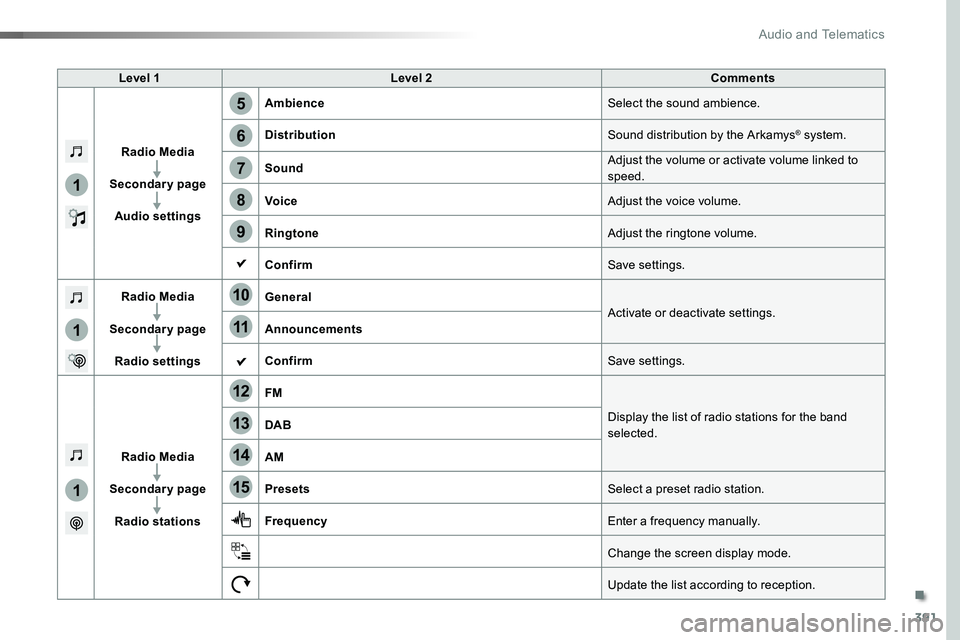
Level 1Level 2Comments
Radio Media
Secondary page
Audio settings
AmbienceSelect the sound ambience.
DistributionSound distribution by the Arkamys® system.
SoundAdjust the volume or activate volume linked to speed.
VoiceAdjust the voice volume.
RingtoneAdjust the ringtone volume.
ConfirmSave settings.
Radio Media
Secondary page
Radio settings
GeneralActivate or deactivate settings.Announcements
ConfirmSave settings.
Radio Media
Secondary page
Radio stations
FM
Display the list of radio stations for the band selected.DAB
AM
PresetsSelect a preset radio station.
FrequencyEnter a frequency manually.
Change the screen display mode.
Update the list according to reception.
.
Audio and Telematics
Page 394 of 516
394
1
2
2
2
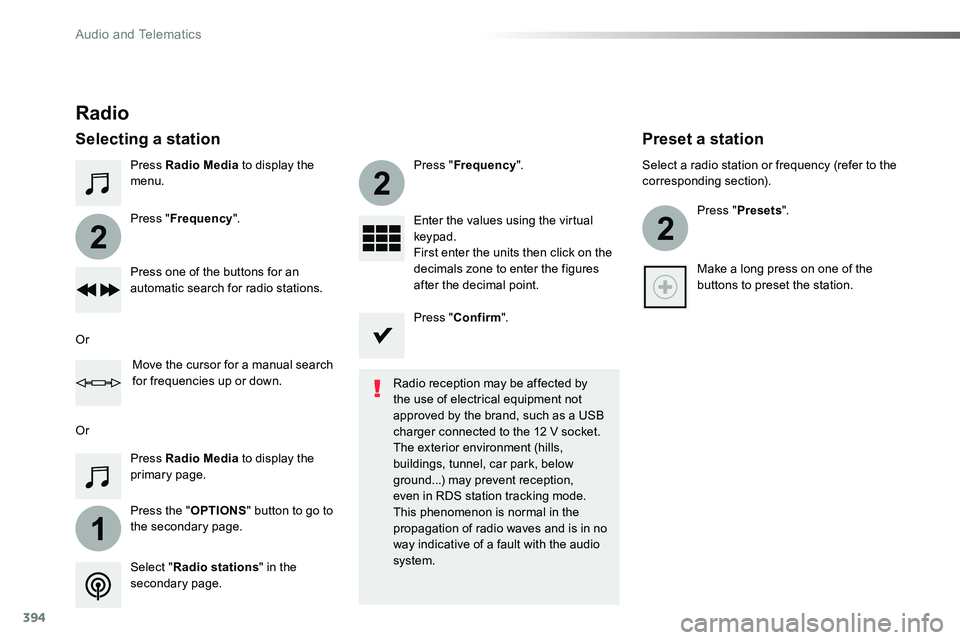
Press Radio Media to display the menu.
Press the "OPTIONS" button to go to the secondary page.
Press "Frequency".
Press "Frequency".
Enter the values using the virtual keypad.First enter the units then click on the decimals zone to enter the figures after the decimal point.Press one of the buttons for an automatic search for radio stations.
Press Radio Media to display the primary page.
Radio
Selecting a station
Radio reception may be affected by the use of electrical equipment not approved by the brand, such as a USB
charger connected to the 12 V socket.The exterior environment (hills, buildings, tunnel, car park, below ground...) may prevent reception, even in RDS station tracking mode. This phenomenon is normal in the propagation of radio waves and is in no way indicative of a fault with the audio system.Select "Radio stations" in the secondary page.
Or
Or
Move the cursor for a manual search for frequencies up or down.
Select a radio station or frequency (refer to the corresponding section).
Press "Presets".
Make a long press on one of the buttons to preset the station.
Preset a station
Press "Confirm".
Audio and Telematics
Page 396 of 516
396
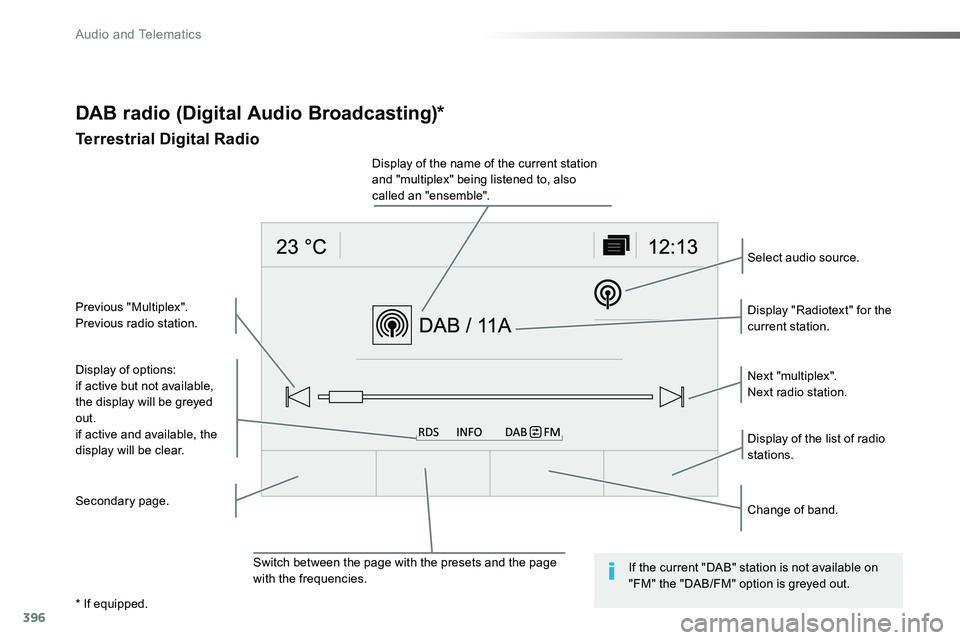
Display of options:if active but not available, the display will be greyed out.
if active and available, the display will be clear.
Display "Radiotext" for the current station.
Switch between the page with the presets and the page with the frequencies.
Change of band.
Display of the name of the current station and "multiplex" being listened to, also called an "ensemble".
Display of the list of radio stations.
Next "multiplex".Next radio station.
Secondary page.
Select audio source.
Previous "Multiplex".Previous radio station.
DAB radio (Digital Audio Broadcasting)*
Terrestrial Digital Radio
If the current "DAB" station is not available on "FM" the "DAB/FM" option is greyed out.
* If equipped.
Audio and Telematics