TOYOTA PROACE 2017 Workshop Manual
PROACE 2017
TOYOTA
TOYOTA
https://www.carmanualsonline.info/img/14/60393/w960_60393-0.png
TOYOTA PROACE 2017 Workshop Manual
Page 383 of 516
383
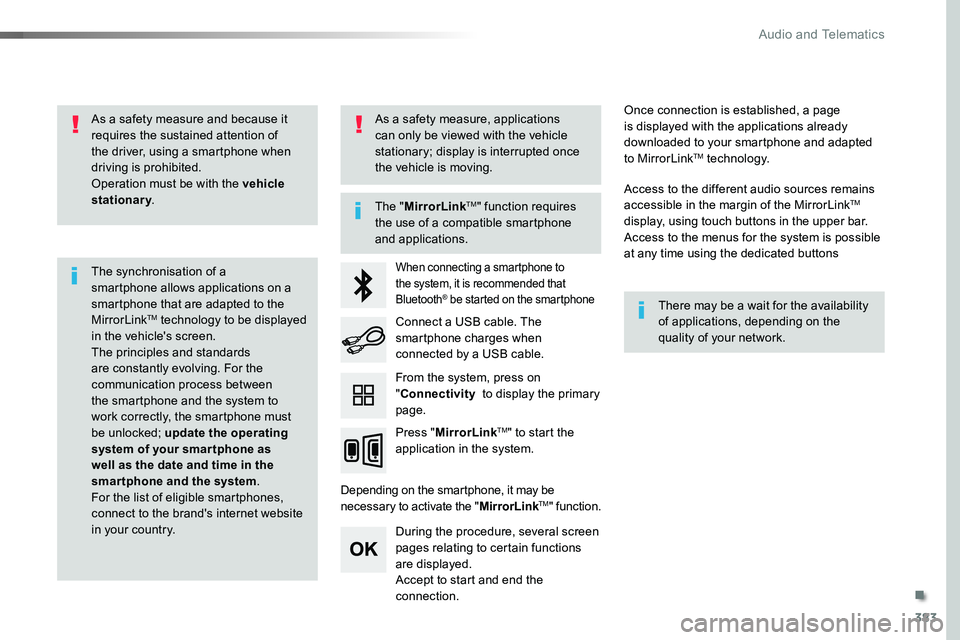
As a safety measure and because it requires the sustained attention of the driver, using a smartphone when driving is prohibited.Operation must be with the vehicle stationary.
The synchronisation of a smartphone allows applications on a smartphone that are adapted to the MirrorLinkTM technology to be displayed in the vehicle's screen.The principles and standards are constantly evolving. For the communication process between the smartphone and the system to work correctly, the smartphone must be unlocked; update the operating system of your smar tphone as well as the date and time in the smartphone and the system.For the list of eligible smartphones, connect to the brand's internet website in your country.
The "MirrorLinkTM" function requires the use of a compatible smartphone
and applications.
There may be a wait for the availability of applications, depending on the quality of your network.
When connecting a smartphone to the system, it is recommended that Bluetooth® be started on the smartphone
Depending on the smartphone, it may be necessary to activate the "MirrorLinkTM" function.
During the procedure, several screen pages relating to certain functions are displayed.Accept to start and end the connection.
Connect a USB cable. The smartphone charges when connected by a USB cable.
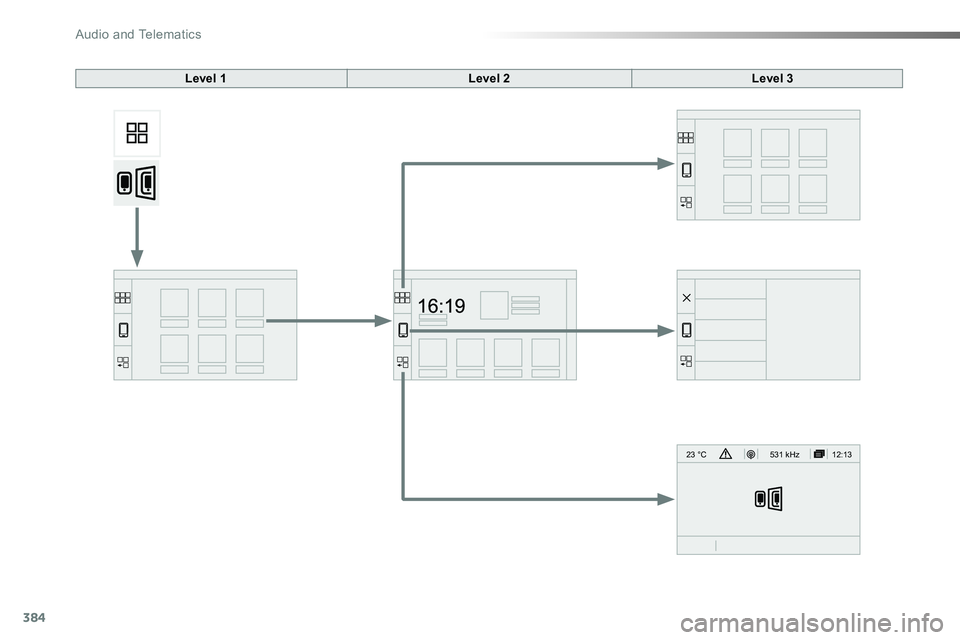
Press "MirrorLinkTM" to start the application in the system.
Once connection is established, a page is displayed with the applications already downloaded to your smartphone and adapted to MirrorLinkTM technology.
Access to the different audio sources remains accessible in the margin of the MirrorLinkTM display, using touch buttons in the upper bar.Access to the menus for the system is possible at any time using the dedicated buttons
From the system, press on "Connectivity to display the primary page.
As a safety measure, applications can only be viewed with the vehicle stationary; display is interrupted once the vehicle is moving.
.
Audio and Telematics
Page 384 of 516
384
12:13
23 °C531 kHz
Level 1Level 2Level 3
Audio and Telematics
Page 385 of 516
385
Level 1Level 2Level 3Comments
Connectivity
MirrorLinkTM
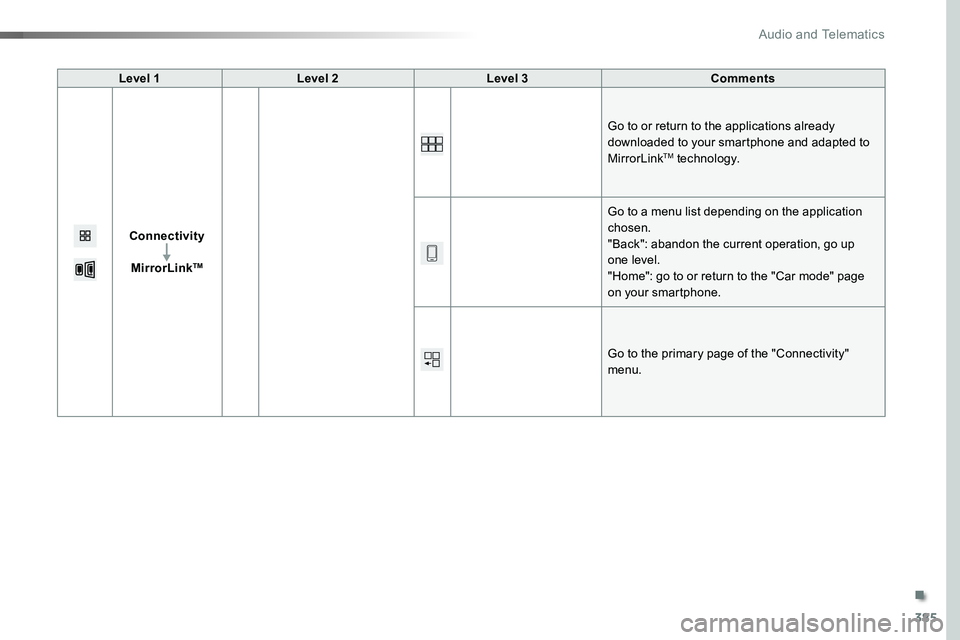
Go to or return to the applications already downloaded to your smartphone and adapted to MirrorLinkTM technology.
Go to a menu list depending on the application chosen."Back": abandon the current operation, go up one level."Home": go to or return to the "Car mode" page on your smartphone.
Go to the primary page of the "Connectivity" menu.
.
Audio and Telematics
Page 388 of 516
388
FM/87.5 MHz
87.5MHz 12:13
23 °C 87.5 MHz
2143
FM/87.5 MHz
87.5MHz 12:13
87.5 MHz
23 °C
AM/531 kHz
PO
kHz 12:13
23 °C 531 kHz
2134
Radio Media
Level 1Level 2
Radio stations
Audio and Telematics
Page 389 of 516
389
3
2
4
Level 1Level 2Comments
Radio Media
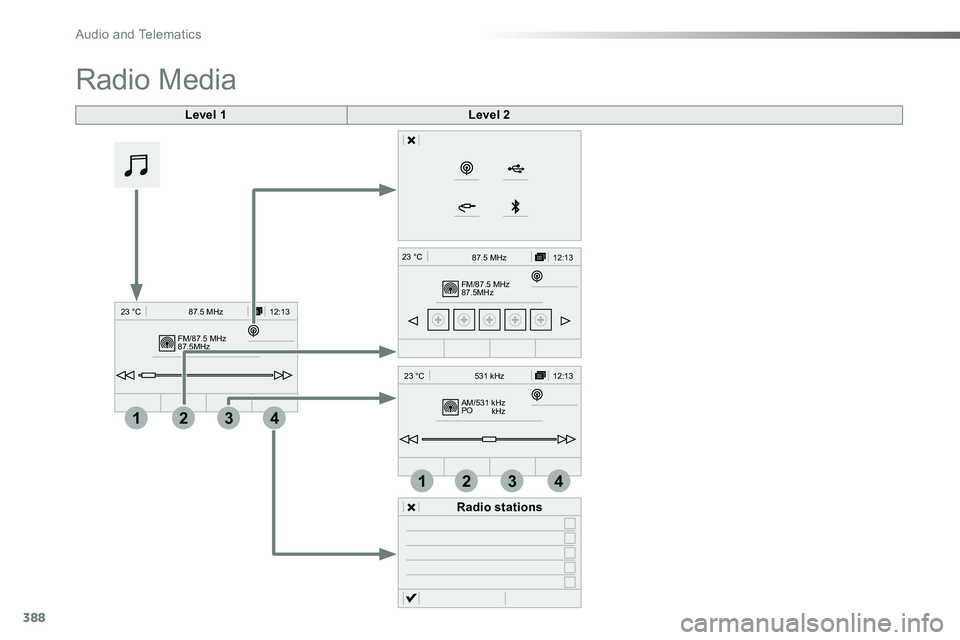
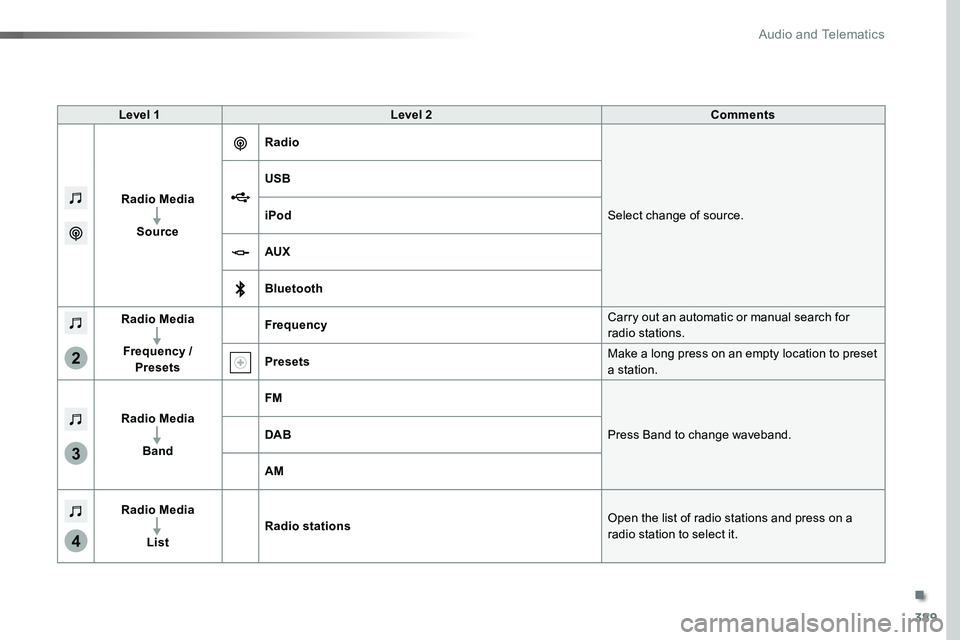
Source
Radio
Select change of source.
USB
iPod
AUX
Bluetooth
Radio Media
Frequency / Presets
FrequencyCarry out an automatic or manual search for radio stations.
PresetsMake a long press on an empty location to preset a station.
Radio Media
Band
FM
Press Band to change waveband.DAB
AM
Radio Media
List
Radio stationsOpen the list of radio stations and press on a
radio station to select it.
.
Audio and Telematics
Page 390 of 516
390
1
96785
1011
13141512
9
9
6
6
7
7
8
8
5
5
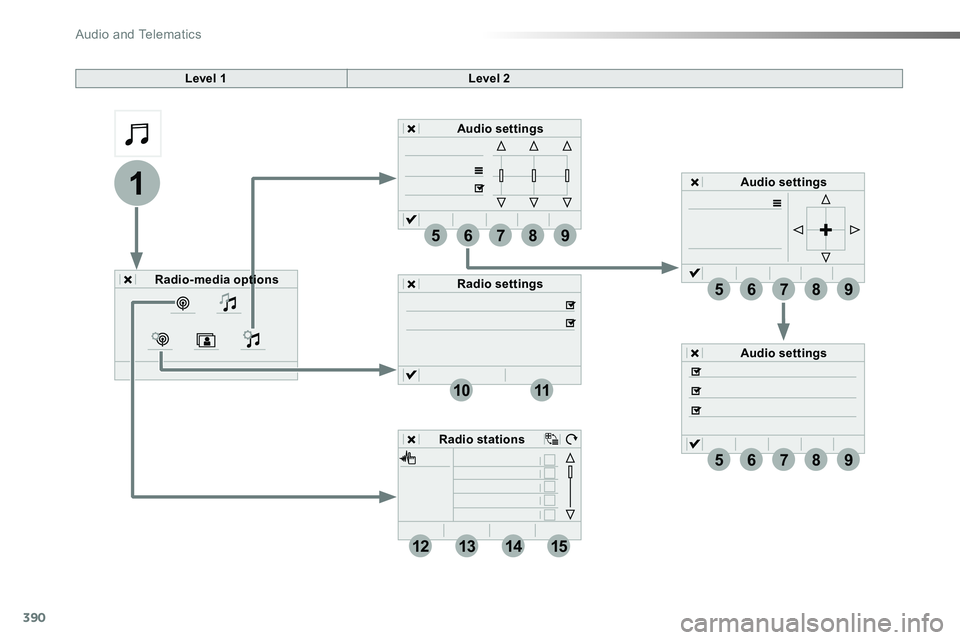
Level 1Level 2
Radio-media options
Audio settings
Audio settings
Audio settings
Radio settings
Radio stations
Audio and Telematics
Page 391 of 516
391
5
12
8
6
13
14
15
9
7
10
11
1
1
1
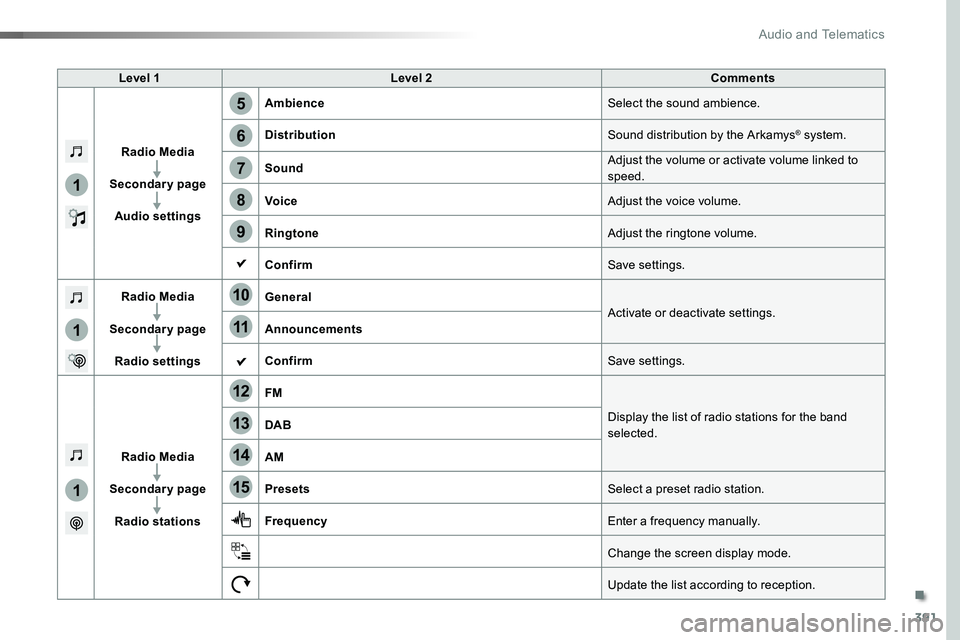
Level 1Level 2Comments
Radio Media
Secondary page
Audio settings
AmbienceSelect the sound ambience.
DistributionSound distribution by the Arkamys® system.
SoundAdjust the volume or activate volume linked to speed.
VoiceAdjust the voice volume.
RingtoneAdjust the ringtone volume.
ConfirmSave settings.
Radio Media
Secondary page
Radio settings
GeneralActivate or deactivate settings.Announcements
ConfirmSave settings.
Radio Media
Secondary page
Radio stations
FM
Display the list of radio stations for the band selected.DAB
AM
PresetsSelect a preset radio station.
FrequencyEnter a frequency manually.
Change the screen display mode.
Update the list according to reception.
.
Audio and Telematics
Page 392 of 516
392
21
1
1718192016
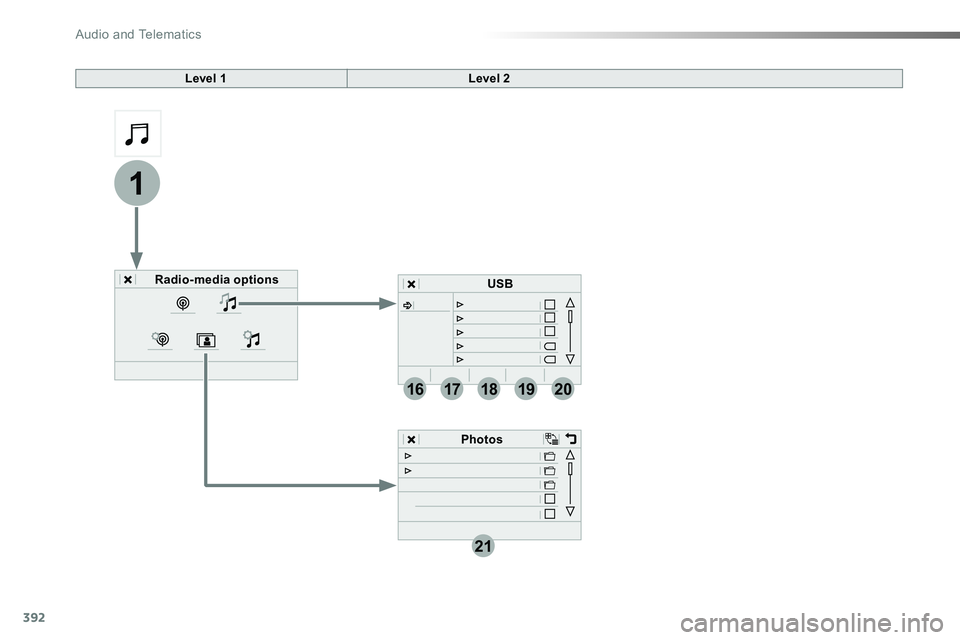
Level 1Level 2
Radio-media options
Photos
USB
Audio and Telematics
Page 393 of 516
393
17
20
18
21
19
1
1
16
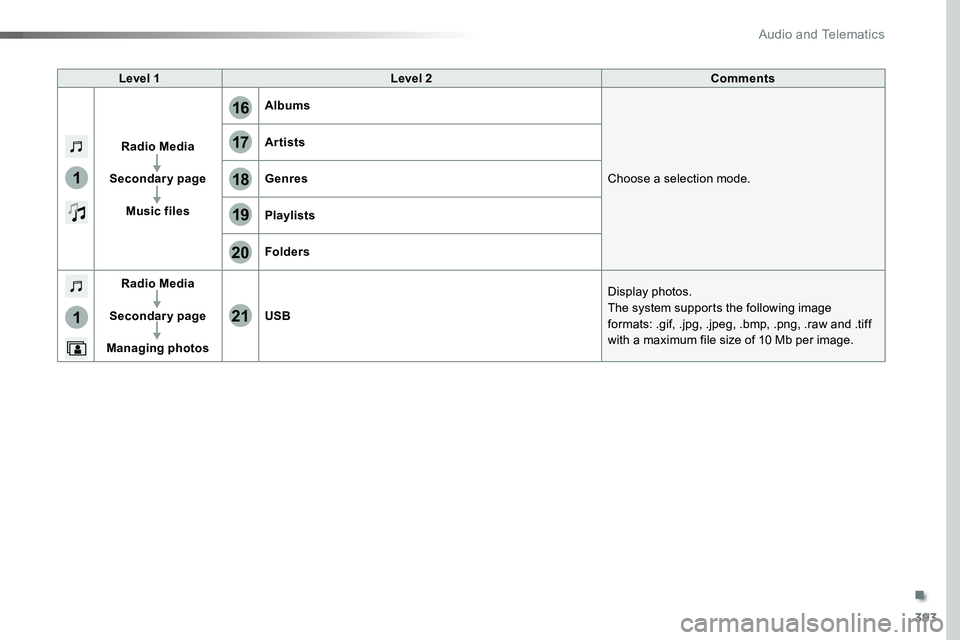
Level 1Level 2Comments
Radio Media
Secondary page
Music files
Albums
Choose a selection mode.
Artists
Genres
Playlists
Folders
Radio Media
Secondary page
Managing photos
USB
Display photos.The system supports the following image formats: .gif, .jpg, .jpeg, .bmp, .png, .raw and .tiff with a maximum file size of 10 Mb per image.
.
Audio and Telematics
Page 394 of 516
394
1
2
2
2
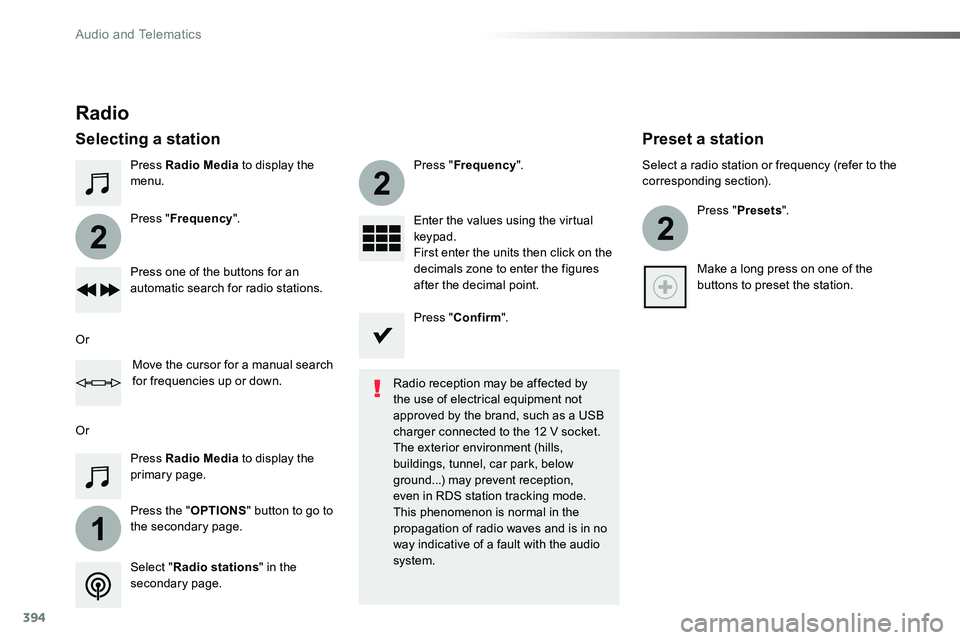
Press Radio Media to display the menu.
Press the "OPTIONS" button to go to the secondary page.
Press "Frequency".
Press "Frequency".
Enter the values using the virtual keypad.First enter the units then click on the decimals zone to enter the figures after the decimal point.Press one of the buttons for an automatic search for radio stations.
Press Radio Media to display the primary page.
Radio
Selecting a station
Radio reception may be affected by the use of electrical equipment not approved by the brand, such as a USB
charger connected to the 12 V socket.The exterior environment (hills, buildings, tunnel, car park, below ground...) may prevent reception, even in RDS station tracking mode. This phenomenon is normal in the propagation of radio waves and is in no way indicative of a fault with the audio system.Select "Radio stations" in the secondary page.
Or
Or
Move the cursor for a manual search for frequencies up or down.
Select a radio station or frequency (refer to the corresponding section).
Press "Presets".
Make a long press on one of the buttons to preset the station.
Preset a station
Press "Confirm".
Audio and Telematics