drive TOYOTA PROACE 2021 Owners Manual
[x] Cancel search | Manufacturer: TOYOTA, Model Year: 2021, Model line: PROACE, Model: TOYOTA PROACE 2021Pages: 360, PDF Size: 70.79 MB
Page 252 of 360
252
Towing
Procedure for having your vehicle towed or for towing another vehicle using a removable mechanical device.
NOTIC E
General recommendationsObserve the legislation in force in the country
where you are driving.Ensure that the weight of the towing vehicle is higher than that of the towed vehicle.The driver must remain at the wheel of the towed vehicle and must have a valid driving licence.When towing a vehicle with all four wheels on the ground, always use an approved towbar; ropes and straps are prohibited.The towing vehicle must move off gently.When the vehicle is towed with its engine off, there is no longer braking and steering assistance.
WARNI NG
A professional recovery service must be called if:– broken down on a motorway or main road;– not possible to put the gearbox into neutral, unlock the steering, or release the parking brake;– not possible to tow a vehicle with an
automatic gearbox, with the engine running;– towing with only two wheels on the ground;– four-wheel drive vehicle;– no approved towbar available.
WARNI NG
Before towing the vehicle, it is essential to put the vehicle in free-wheeling mode.For more information on Free-wheeling, refer to the corresponding section.
NOTIC E
Electric motorAn electric vehicle cannot under any circumstances be used to tow another vehicle.However, it may be used, for example, to exit a rut.
WARNI NG
With a manual gearbox, place the gear lever in neutral.With an automatic gearbox, place the gear selector in position N.Failure to adhere to this instruction may lead to damage to some braking components and the lack of braking assistance on restarting the engine.
Page 253 of 360
253
In the event of a breakdown
8
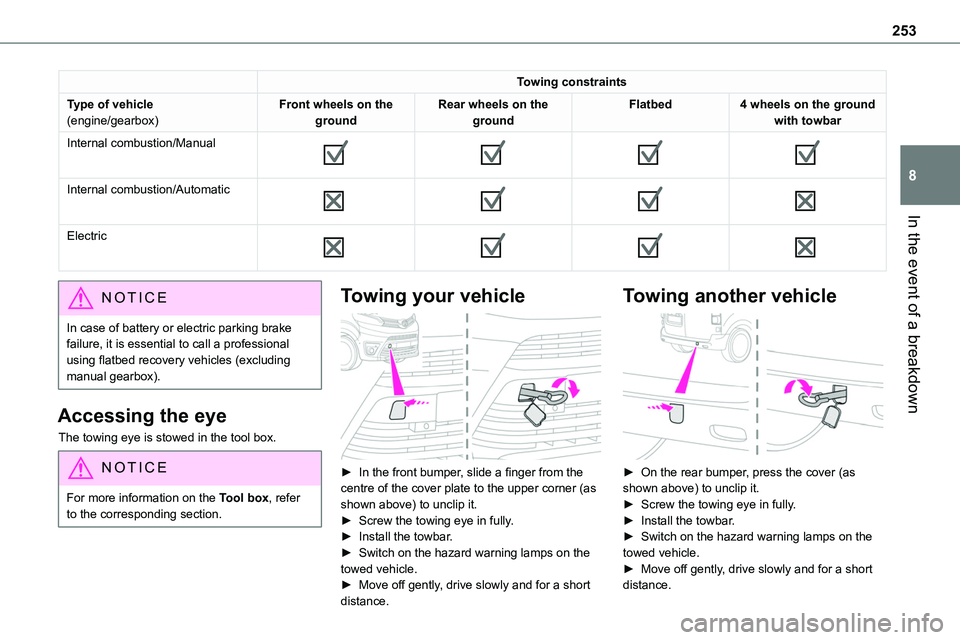
Towing constraints
Type of vehicle(engine/gearbox)Front wheels on the groundRear wheels on the groundFlatbed4 wheels on the ground with towbar
Internal combustion/Manual
Internal combustion/Automatic
Electric
NOTIC E
In case of battery or electric parking brake failure, it is essential to call a professional using flatbed recovery vehicles (excluding manual gearbox).
Accessing the eye
The towing eye is stowed in the tool box.
NOTIC E
For more information on the Tool box, refer to the corresponding section.
Towing your vehicle
► In the front bumper, slide a finger from the centre of the cover plate to the upper corner (as shown above) to unclip it.► Screw the towing eye in fully.► Install the towbar.► Switch on the hazard warning lamps on the towed vehicle.
► Move off gently, drive slowly and for a short distance.
Towing another vehicle
► On the rear bumper, press the cover (as shown above) to unclip it.► Screw the towing eye in fully.► Install the towbar.► Switch on the hazard warning lamps on the towed vehicle.► Move off gently, drive slowly and for a short
distance.
Page 259 of 360
259
Technical data
9
Motor and towed loads - Electric
Electric motor
Electric motor
TechnologySynchronous with permanent magnets
Max. power : EC standard (kW)/(hp)100/136
Traction battery
TechnologyLithium-Ion
Battery packS: 18 modules (L1/L2/L3)XL: 27 modules (L2/L3)*
Installed capacity (kWh)50 or 75
Domestic chargingMode 2
Alternating current (AC) voltageRating (A)23010 or 16
Accelerated chargingMode 3
Alternating current (AC) voltageRating (A)230 (single-phase or three-phase)16 or 32
Superfast chargingMode 4
Direct current (DC) voltage400
* Battery pack not available for right-hand drive PROACE VERSO vehicles.
Page 264 of 360
264
Identification markings
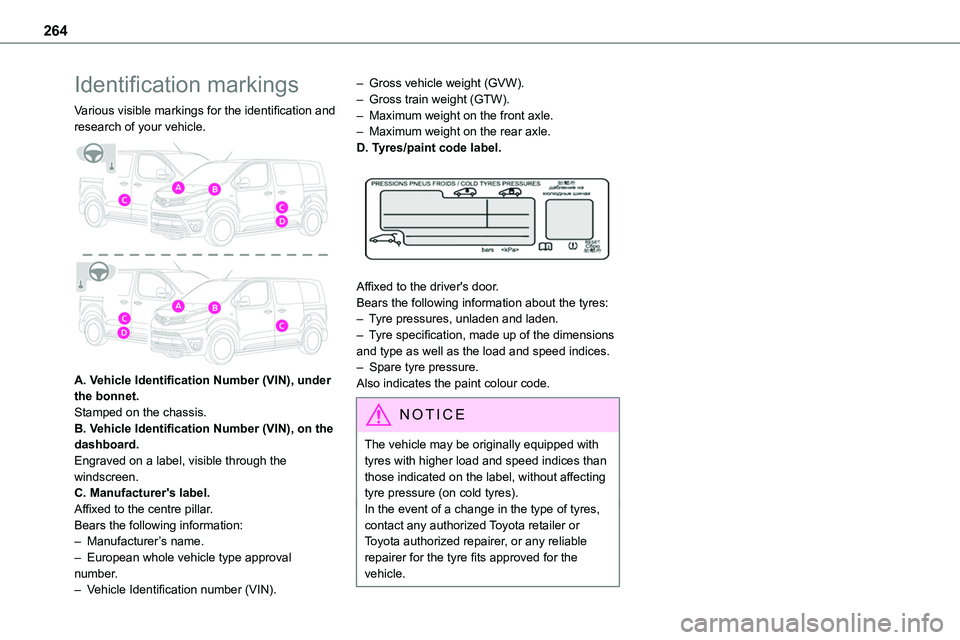
Various visible markings for the identification and research of your vehicle.
A. Vehicle Identification Number (VIN), under the bonnet.Stamped on the chassis.B. Vehicle Identification Number (VIN), on the
dashboard.Engraved on a label, visible through the windscreen.C. Manufacturer's label.Affixed to the centre pillar.Bears the following information:– Manufacturer’s name.– European whole vehicle type approval number.– Vehicle Identification number (VIN).
– Gross vehicle weight (GVW).– Gross train weight (GTW).– Maximum weight on the front axle.– Maximum weight on the rear axle.D. Tyres/paint code label.
Affixed to the driver's door.Bears the following information about the tyres:– Tyre pressures, unladen and laden.– Tyre specification, made up of the dimensions and type as well as the load and speed indices.– Spare tyre pressure.Also indicates the paint colour code.
NOTIC E
The vehicle may be originally equipped with tyres with higher load and speed indices than those indicated on the label, without affecting tyre pressure (on cold tyres).In the event of a change in the type of tyres, contact any authorized Toyota retailer or Toyota authorized repairer, or any reliable repairer for the tyre fits approved for the vehicle.
Page 265 of 360
265
Bluetooth® audio system
10
Bluetooth® audio system
NOTIC E
The different functions and settings described vary according to the version and configuration of your vehicle.
WARNI NG
As a safety measure and because it requires sustained attention by the driver, the pairing of a Bluetooth mobile telephone with the Bluetooth hands-free system of your audio system must be done with the vehicle stationary and the ignition on.
WARNI NG
Your audio system is coded in such a way that it will only operate in your vehicle.All work on the system must be carried out exclusively by a dealer or qualified workshop, to avoid any risk of electrocution, fire or mechanical faults.
NOTIC E
To avoid discharging the battery, the audio system may switch off after a few minutes if the engine is not running.
First steps
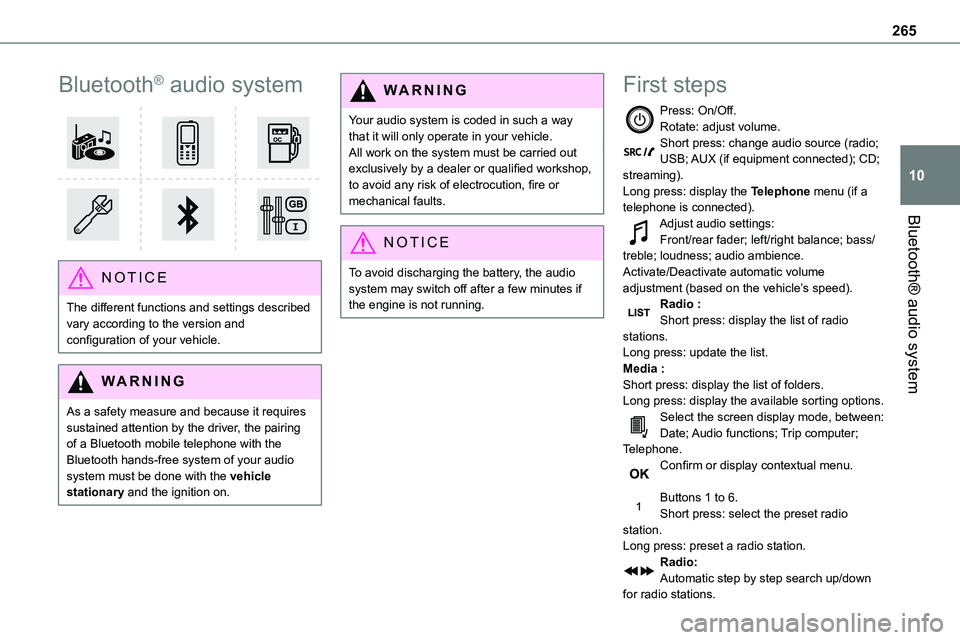
Press: On/Off.Rotate: adjust volume.Short press: change audio source (radio; USB; AUX (if equipment connected); CD; streaming).Long press: display the Telephone menu (if a telephone is connected).
Adjust audio settings:Front/rear fader; left/right balance; bass/treble; loudness; audio ambience.Activate/Deactivate automatic volume adjustment (based on the vehicle’s speed).Radio :Short press: display the list of radio stations.Long press: update the list.Media :Short press: display the list of folders.Long press: display the available sorting options.Select the screen display mode, between:Date; Audio functions; Trip computer; Telephone.Confirm or display contextual menu.
Buttons 1 to 6.Short press: select the preset radio station.Long press: preset a radio station.Radio:Automatic step by step search up/down for radio stations.
Page 273 of 360
273
Bluetooth® audio system
10
Telephone
Pairing a Bluetooth®
telephone
WARNI NG
As a safety measure and because they require prolonged attention on the part of the driver, the operations for pairing of the Bluetooth mobile telephone with the Bluetooth hands-free system of your audio system must be carried out with the vehicle stationary and the ignition on.
NOTIC E
Activate the telephone's Bluetooth function and ensure that it is "visible to all" (telephone configuration).
NOTIC E
The services available depend on the network, the SIM card and the compatibility of the Bluetooth telephone used.Check the instructions for your telephone and with your service provider for the services to which you have access.
Procedure from the telephone
Select the name of the system in the list of devices detected.
Procedure from the system
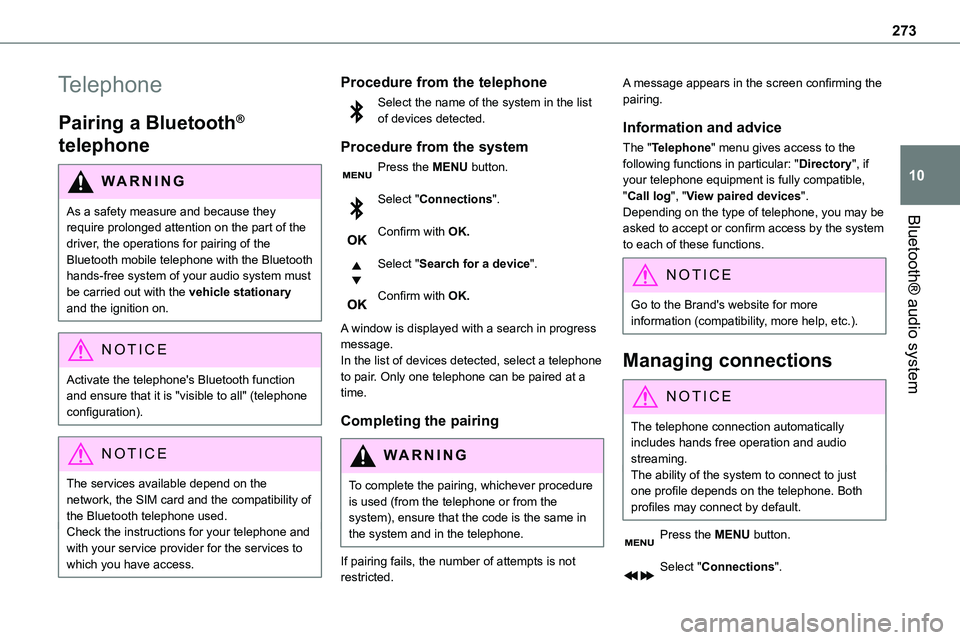
Press the MENU button.
Select "Connections".
Confirm with OK.
Select "Search for a device".
Confirm with OK.
A window is displayed with a search in progress message.In the list of devices detected, select a telephone to pair. Only one telephone can be paired at a time.
Completing the pairing
WARNI NG
To complete the pairing, whichever procedure is used (from the telephone or from the system), ensure that the code is the same in
the system and in the telephone.
If pairing fails, the number of attempts is not restricted.
A message appears in the screen confirming the pairing.
Information and advice
The "Telephone" menu gives access to the following functions in particular: "Directory", if your telephone equipment is fully compatible, "Call log", "View paired devices".Depending on the type of telephone, you may be
asked to accept or confirm access by the system to each of these functions.
NOTIC E
Go to the Brand's website for more information (compatibility, more help, etc.).
Managing connections
NOTIC E
The telephone connection automatically includes hands free operation and audio streaming.The ability of the system to connect to just one profile depends on the telephone. Both profiles may connect by default.
Press the MENU button.
Select "Connections".
Page 278 of 360
278
TOYOTA Pro Touch
Multimedia audio system -
Applications - Bluetooth®
telephone
NOTIC E
The functions and settings described vary according to the vehicle version and configuration, as well as the country of sale.
WARNI NG
For safety reasons and because they require sustained attention by the driver, the following operations must be carried out with the vehicle stationary and the ignition on:– Pairing the smartphone with the system via Bluetooth.– Using the smartphone.
– Connecting to the CarPlay® or Android Auto applications (certain applications stop displaying when the vehicle is moving).– Changing the system settings and configuration.
NOTIC E
The system is protected so that it only operates in the vehicle.The message Energy economy mode is displayed when the system is about to go into standby.
First steps
With the engine running, a press mutes the sound.With the ignition off, a press turns the system on.Increase or decrease the volume using the wheel or the "plus" or "minus" buttons (depending on the equipment).Use the buttons on either side of or below the
touch screen to access the menus, then press the virtual buttons on the touch screen.Depending on the model, use the "Source" and "Menu" buttons on the left of the touch screen to access the menus, then press the virtual buttons on the touch screen.At all times it is possible to display the rolling menus by pressing the screen briefly with three fingers.All touch-sensitive areas on the screen are white.On pages with multiple tabs at the bottom of the screen, you can switch between pages either by tapping the tab for the desired page or by swiping the pages to the left or right with your finger.Press in the shaded area to go back up a level or confirm.Press the back arrow to go back a level or confirm.
Page 283 of 360
283
TOYOTA Pro Touch
11
Press in the shaded area to confirm.
NOTIC E
RDS station tracking may not be available nationwide, as many radio stations do not cover 100 % of the country. This explains the loss of reception of the station during a journey.
Displaying text information
The "Radio Text" function displays information transmitted by the radio station relating to the station or the currently playing song.Press Radio Media to display the main page.Press the "OPTIONS" button to access the secondary page.Activate/deactivate "News".
Press in the shaded area to confirm.
Playing TA messages
The TA (Traffic Announcement) function gives priority to TA alert messages. To operate, this function needs good reception of a radio station
that transmits this type of message. While traffic information is being broadcast, the current media is automatically interrupted so that the TA message can be heard. Normal play of the
previously playing media resumes at the end of the message.Press Radio Media to display the main page.Press the "OPTIONS" button to access the secondary page.Activate/deactivate "TA".
Press in the shaded area to confirm.
Audio settings
Press Radio Media to display the main page.Press the "OPTIONS" button to access the secondary page.Press "Audio settings".
Select the "Tone", "Balance", "Sound", "Voice" or "Ringtones" tab to configure the sound settings.Press the back arrow to confirm.
NOTIC E
In the "Tone" tab, the Ambience, Bass, Medium and Treble sound settings are different and independent for each audio source.In the "Balance” tab, the All passengers, Driver and Front only settings are common to all sources.
In the "Sound” tab, activate or deactivate "Volume linked to speed", "Auxiliary input" and "Touch tones".
WARNI NG
The balance/distribution (or spatialisation with the Arkamys© system) uses audio processing to adjust the sound quality according to the number of passengers in the vehicle.
NOTIC E
Onboard audio: Arkamys Sound Staging© optimises the sound distribution inside the passenger compartment.
Page 293 of 360
293
TOYOTA Pro Touch with navigation system
12
TOYOTA Pro Touch with
navigation system
GPS navigation -
Applications - Multimedia
audio system - Bluetooth®
telephone
NOTIC E
The functions and settings described vary according to the vehicle version and configuration, as well as the country of sale.
WARNI NG
For safety reasons and because they require sustained attention by the driver, the following operations must be carried out with the vehicle stationary and the ignition on:– Pairing the smartphone with the system via Bluetooth.– Using the smartphone.
– Connecting to the CarPlay® or Android Auto applications (certain applications stop displaying when the vehicle is moving).– Watching a video (the video stops when the vehicle starts to move again).– Changing the system settings and configuration.
NOTIC E
The system is protected so that it only operates in the vehicle.The message Energy economy mode is displayed when the system is about to go into standby.
NOTIC E
System and map updates can be downloaded from the Brand's website.The update procedure is also available there.
First steps
With the engine running, a press mutes the sound.With the ignition off, a press turns the system on.Increase or decrease the volume using the wheel or the "plus" or "minus" buttons (depending on the equipment).Use the menu buttons on either side of or below
the touch screen for access to the menus, then press the virtual buttons in the touch screen.Depending on the model, use the "Source" or "Menu" buttons to access the rolling menus, then press the virtual buttons in the touch screen.Display the rolling menus at any time by pressing the screen briefly with three fingers.All of the touch areas of the screen are white.Press the back arrow to go back a level.Press "OK" to confirm.
WARNI NG
The touch screen is of the "capacitive" type.To clean the screen, use a soft, non-abrasive cloth (e.g. spectacles cloth) with no additional product.Do not use sharp objects on the screen.Do not touch the screen with wet hands.
Certain information is displayed permanently in the side bars or in the upper bar of the touch screen (depending on equipment):
Page 315 of 360
315
TOYOTA Pro Touch with navigation system
12
Settings
Audio settings
Press Settings to display the main page.
Select "Audio settings".
Then select "Ambience", "Position"; "Sound",
"Voice" or "Ringtone".Press "OK" to save the settings.
NOTIC E
The balance/distribution (or spatialisation with the Arkamys© system) uses audio processing to adjust the sound quality according to the number of passengers in the vehicle.Available only with the front and rear speaker configuration.
NOTIC E
The Ambience setting (choice of 6 ambiences) and the Bass, Medium and Treble sound settings are different and independent for each audio source.Activate or deactivate "Loudness".The "Position” settings (All passengers, Driver and Front only) are common to all
sources.Activate or deactivate "Touch tones", "Volume linked to speed" and "Auxiliary input".
NOTIC E
Onboard audio: Arkamys Sound Staging© optimises the sound distribution inside the passenger compartment.
Configuring profiles
Press Settings to display the main page.
Press the "OPTIONS" button to access the secondary page.Select "Setting of the profiles".
Select "Profile 1", "Profile 2", "Profile 3” or "Common profile".Press this button to enter a name for the profile using the virtual keypad.
Press "OK" to confirm.
Press this button to add a photograph to the profile.Insert a USB memory stick containing the photograph in the USB port.Select the photograph.Press "OK" to accept the transfer of the photograph.
Press "OK" again to save the settings.
NOTIC E
The location for the photograph is square; the system reshapes the original photograph if in another format.
Press this button to reset the selected profile.
WARNI NG
Resetting the selected profile activates the English language by default.
Select a "Profile" (1 or 2 or 3) to link "Audio settings" with it.Select "Audio settings".
Then select "Ambience", "Position"; "Sound", "Voice" or "Ringtone".Press "OK" to save the selected profile’s
settings.