wheel TOYOTA PROACE 2021 Repair Manual
[x] Cancel search | Manufacturer: TOYOTA, Model Year: 2021, Model line: PROACE, Model: TOYOTA PROACE 2021Pages: 360, PDF Size: 70.79 MB
Page 253 of 360
253
In the event of a breakdown
8
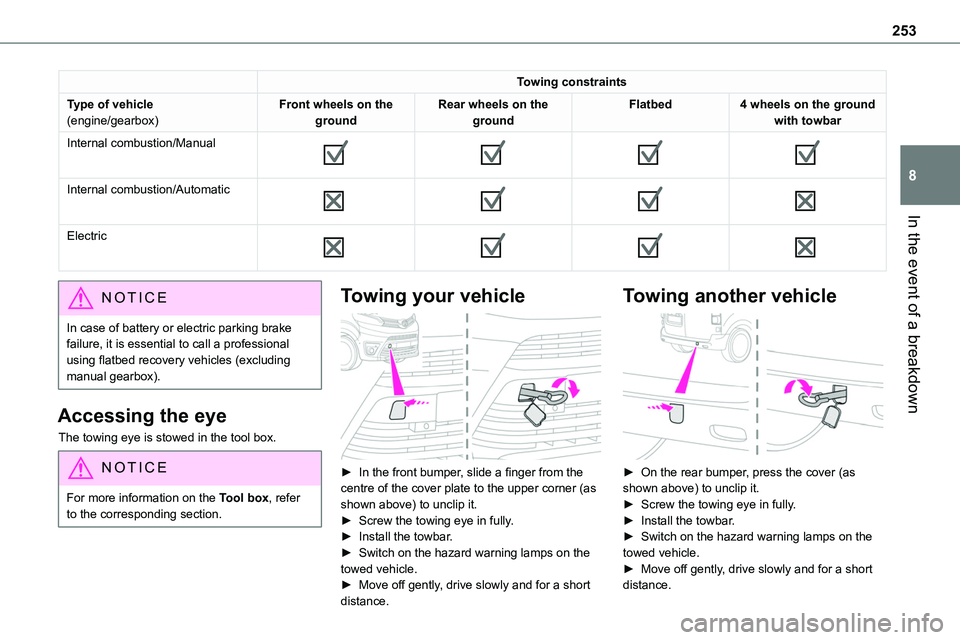
Towing constraints
Type of vehicle(engine/gearbox)Front wheels on the groundRear wheels on the groundFlatbed4 wheels on the ground with towbar
Internal combustion/Manual
Internal combustion/Automatic
Electric
NOTIC E
In case of battery or electric parking brake failure, it is essential to call a professional using flatbed recovery vehicles (excluding manual gearbox).
Accessing the eye
The towing eye is stowed in the tool box.
NOTIC E
For more information on the Tool box, refer to the corresponding section.
Towing your vehicle
► In the front bumper, slide a finger from the centre of the cover plate to the upper corner (as shown above) to unclip it.► Screw the towing eye in fully.► Install the towbar.► Switch on the hazard warning lamps on the towed vehicle.
► Move off gently, drive slowly and for a short distance.
Towing another vehicle
► On the rear bumper, press the cover (as shown above) to unclip it.► Screw the towing eye in fully.► Install the towbar.► Switch on the hazard warning lamps on the towed vehicle.► Move off gently, drive slowly and for a short
distance.
Page 267 of 360
267
Bluetooth® audio system
10
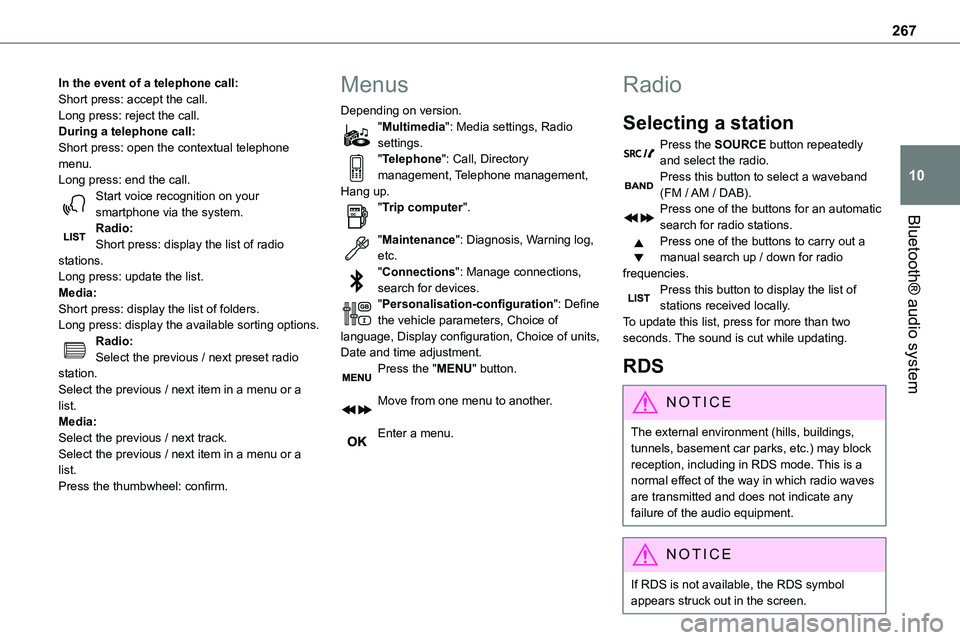
In the event of a telephone call:Short press: accept the call.Long press: reject the call.During a telephone call:Short press: open the contextual telephone menu.Long press: end the call.Start voice recognition on your smartphone via the system.
Radio:Short press: display the list of radio stations.Long press: update the list.Media:Short press: display the list of folders.Long press: display the available sorting options.Radio:Select the previous / next preset radio station.Select the previous / next item in a menu or a list.Media:Select the previous / next track.Select the previous / next item in a menu or a list.Press the thumbwheel: confirm.
Menus
Depending on version."Multimedia": Media settings, Radio settings."Telephone": Call, Directory management, Telephone management, Hang up."Trip computer".
"Maintenance": Diagnosis, Warning log, etc."Connections": Manage connections, search for devices."Personalisation-configuration": Define the vehicle parameters, Choice of language, Display configuration, Choice of units, Date and time adjustment.Press the "MENU" button.
Move from one menu to another.
Enter a menu.
Radio
Selecting a station
Press the SOURCE button repeatedly and select the radio.Press this button to select a waveband (FM / AM / DAB).Press one of the buttons for an automatic
search for radio stations.Press one of the buttons to carry out a manual search up / down for radio frequencies.Press this button to display the list of stations received locally.To update this list, press for more than two seconds. The sound is cut while updating.
RDS
NOTIC E
The external environment (hills, buildings, tunnels, basement car parks, etc.) may block reception, including in RDS mode. This is a normal effect of the way in which radio waves are transmitted and does not indicate any failure of the audio equipment.
NOTIC E
If RDS is not available, the RDS symbol appears struck out in the screen.
Page 274 of 360
274
Press OK to confirm.
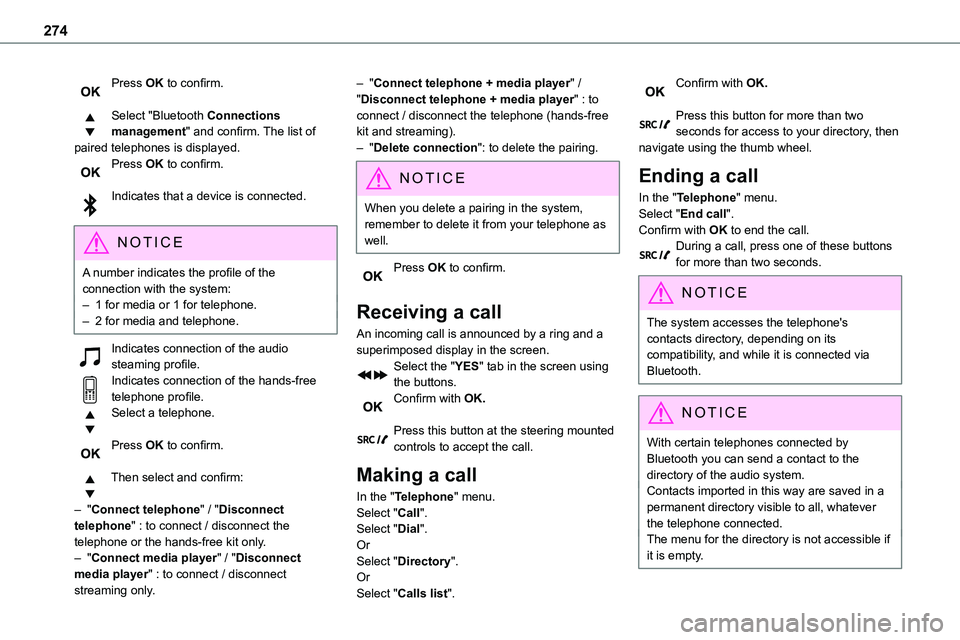
Select "Bluetooth Connections management" and confirm. The list of paired telephones is displayed.Press OK to confirm.
Indicates that a device is connected.
NOTIC E
A number indicates the profile of the connection with the system:– 1 for media or 1 for telephone.– 2 for media and telephone.
Indicates connection of the audio steaming profile.Indicates connection of the hands-free telephone profile.Select a telephone.
Press OK to confirm.
Then select and confirm:
– "Connect telephone" / "Disconnect telephone" : to connect / disconnect the
telephone or the hands-free kit only.– "Connect media player" / "Disconnect media player" : to connect / disconnect streaming only.
– "Connect telephone + media player" / "Disconnect telephone + media player" : to connect / disconnect the telephone (hands-free kit and streaming).– "Delete connection": to delete the pairing.
NOTIC E
When you delete a pairing in the system, remember to delete it from your telephone as well.
Press OK to confirm.
Receiving a call
An incoming call is announced by a ring and a superimposed display in the screen.Select the "YES" tab in the screen using the buttons.Confirm with OK.
Press this button at the steering mounted controls to accept the call.
Making a call
In the "Telephone" menu.Select "Call".Select "Dial".
OrSelect "Directory".OrSelect "Calls list".
Confirm with OK.
Press this button for more than two seconds for access to your directory, then navigate using the thumb wheel.
Ending a call
In the "Telephone" menu.Select "End call".
Confirm with OK to end the call.During a call, press one of these buttons for more than two seconds.
NOTIC E
The system accesses the telephone's contacts directory, depending on its compatibility, and while it is connected via Bluetooth.
NOTIC E
With certain telephones connected by Bluetooth you can send a contact to the directory of the audio system.Contacts imported in this way are saved in a permanent directory visible to all, whatever the telephone connected.The menu for the directory is not accessible if it is empty.
Page 278 of 360
278
TOYOTA Pro Touch
Multimedia audio system -
Applications - Bluetooth®
telephone
NOTIC E
The functions and settings described vary according to the vehicle version and configuration, as well as the country of sale.
WARNI NG
For safety reasons and because they require sustained attention by the driver, the following operations must be carried out with the vehicle stationary and the ignition on:– Pairing the smartphone with the system via Bluetooth.– Using the smartphone.
– Connecting to the CarPlay® or Android Auto applications (certain applications stop displaying when the vehicle is moving).– Changing the system settings and configuration.
NOTIC E
The system is protected so that it only operates in the vehicle.The message Energy economy mode is displayed when the system is about to go into standby.
First steps
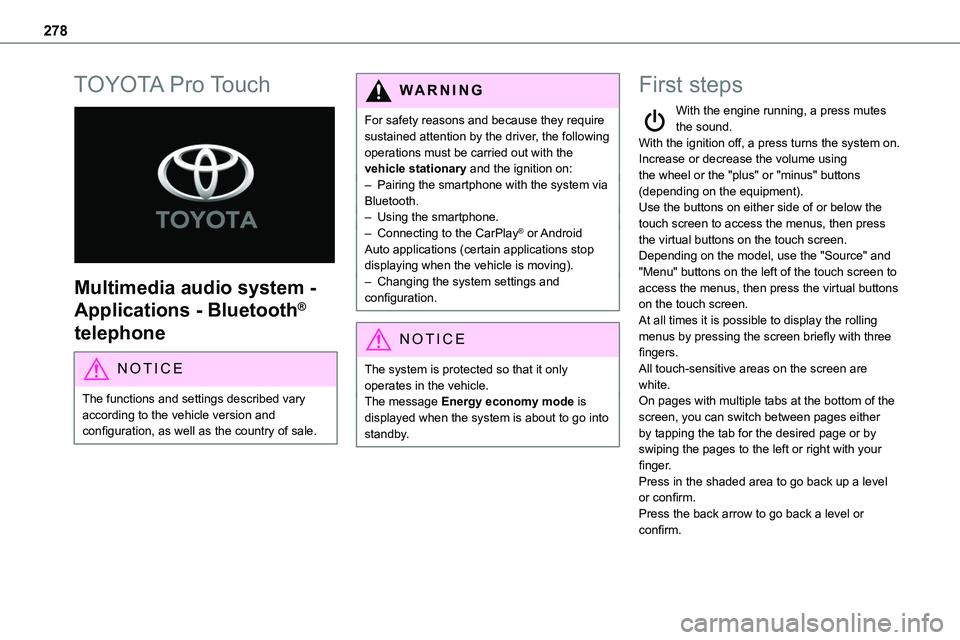
With the engine running, a press mutes the sound.With the ignition off, a press turns the system on.Increase or decrease the volume using the wheel or the "plus" or "minus" buttons (depending on the equipment).Use the buttons on either side of or below the
touch screen to access the menus, then press the virtual buttons on the touch screen.Depending on the model, use the "Source" and "Menu" buttons on the left of the touch screen to access the menus, then press the virtual buttons on the touch screen.At all times it is possible to display the rolling menus by pressing the screen briefly with three fingers.All touch-sensitive areas on the screen are white.On pages with multiple tabs at the bottom of the screen, you can switch between pages either by tapping the tab for the desired page or by swiping the pages to the left or right with your finger.Press in the shaded area to go back up a level or confirm.Press the back arrow to go back a level or confirm.
Page 280 of 360
280
Steering mounted controls -
Type 2
Voice commands:This control is located on the steering wheel or at the end of the lighting control stalk (depending on equipment).
Short press, smartphone voice commands via the system.Increase volume.
Decrease volume.Mute by pressing the volume increase and decrease buttons simultaneously (depending on equipment).Restore the sound by pressing one of the two volume buttons.Media (short press): change the multimedia source.Telephone (short press): start telephone call.Call in progress (short press): access telephone menu.Telephone (long press): reject an incoming call, end call; when no call is in progress, access telephone menu.Radio (rotate): automatic search for the previous/next station.Media (rotate): previous/next track, move in a list.
Short press: confirm a selection; if nothing selected, access to presets.Radio: display the list of stations.Media: display the list of tracks.Radio (press and hold): update the list of stations received.
Menus
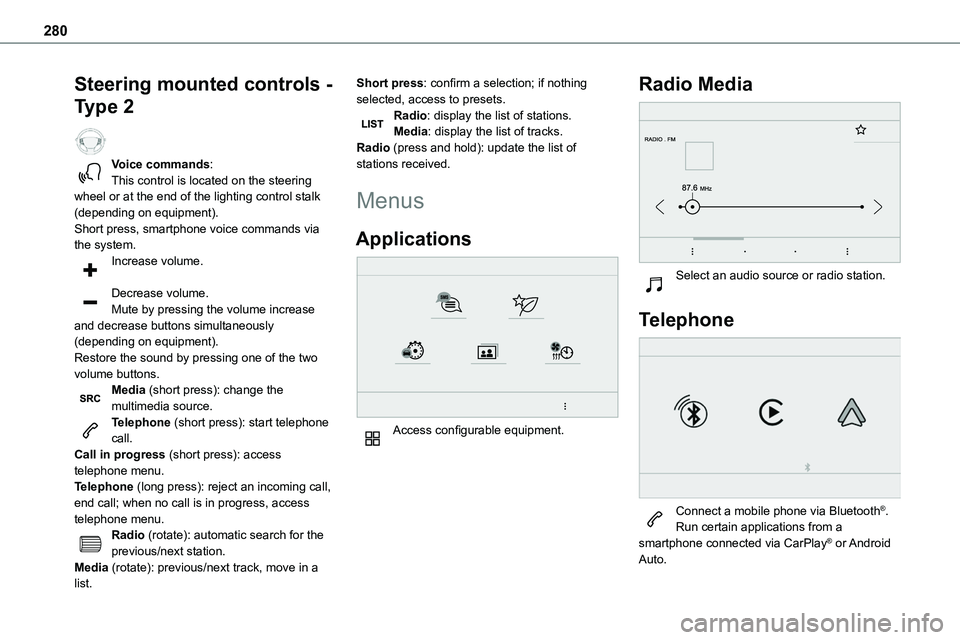
Applications
Access configurable equipment.
Radio Media
Select an audio source or radio station.
Telephone
Connect a mobile phone via Bluetooth®.Run certain applications from a smartphone connected via CarPlay® or Android Auto.
Page 293 of 360
293
TOYOTA Pro Touch with navigation system
12
TOYOTA Pro Touch with
navigation system
GPS navigation -
Applications - Multimedia
audio system - Bluetooth®
telephone
NOTIC E
The functions and settings described vary according to the vehicle version and configuration, as well as the country of sale.
WARNI NG
For safety reasons and because they require sustained attention by the driver, the following operations must be carried out with the vehicle stationary and the ignition on:– Pairing the smartphone with the system via Bluetooth.– Using the smartphone.
– Connecting to the CarPlay® or Android Auto applications (certain applications stop displaying when the vehicle is moving).– Watching a video (the video stops when the vehicle starts to move again).– Changing the system settings and configuration.
NOTIC E
The system is protected so that it only operates in the vehicle.The message Energy economy mode is displayed when the system is about to go into standby.
NOTIC E
System and map updates can be downloaded from the Brand's website.The update procedure is also available there.
First steps
With the engine running, a press mutes the sound.With the ignition off, a press turns the system on.Increase or decrease the volume using the wheel or the "plus" or "minus" buttons (depending on the equipment).Use the menu buttons on either side of or below
the touch screen for access to the menus, then press the virtual buttons in the touch screen.Depending on the model, use the "Source" or "Menu" buttons to access the rolling menus, then press the virtual buttons in the touch screen.Display the rolling menus at any time by pressing the screen briefly with three fingers.All of the touch areas of the screen are white.Press the back arrow to go back a level.Press "OK" to confirm.
WARNI NG
The touch screen is of the "capacitive" type.To clean the screen, use a soft, non-abrasive cloth (e.g. spectacles cloth) with no additional product.Do not use sharp objects on the screen.Do not touch the screen with wet hands.
Certain information is displayed permanently in the side bars or in the upper bar of the touch screen (depending on equipment):
Page 294 of 360
294
– Air conditioning status information (depending on version), and direct access to the corresponding menu.– Go directly to the audio source selection option, to view the list of radio stations (or list of titles depending on the source).– Go to the "Notifications" of messages, emails, map updates and, depending on the services, the navigation notifications.
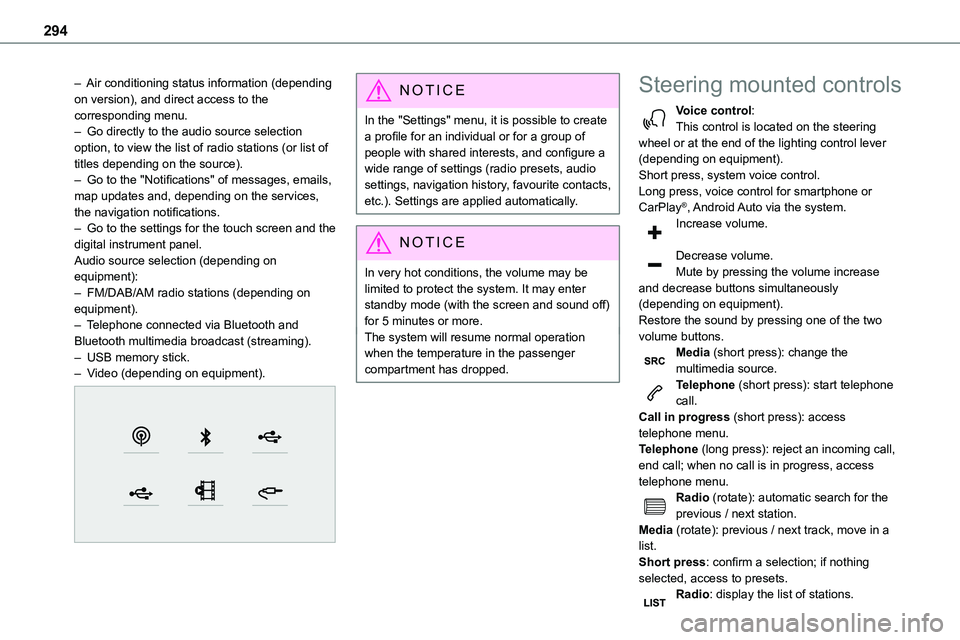
– Go to the settings for the touch screen and the digital instrument panel.Audio source selection (depending on equipment):– FM/DAB/AM radio stations (depending on equipment).– Telephone connected via Bluetooth and Bluetooth multimedia broadcast (streaming).– USB memory stick.– Video (depending on equipment).
NOTIC E
In the "Settings" menu, it is possible to create a profile for an individual or for a group of people with shared interests, and configure a wide range of settings (radio presets, audio settings, navigation history, favourite contacts, etc.). Settings are applied automatically.
NOTIC E
In very hot conditions, the volume may be limited to protect the system. It may enter standby mode (with the screen and sound off) for 5 minutes or more.The system will resume normal operation when the temperature in the passenger compartment has dropped.
Steering mounted controls
Voice control:This control is located on the steering wheel or at the end of the lighting control lever (depending on equipment).Short press, system voice control.Long press, voice control for smartphone or CarPlay®, Android Auto via the system.
Increase volume.
Decrease volume.Mute by pressing the volume increase and decrease buttons simultaneously (depending on equipment).Restore the sound by pressing one of the two volume buttons.Media (short press): change the multimedia source.Telephone (short press): start telephone call.Call in progress (short press): access telephone menu.Telephone (long press): reject an incoming call, end call; when no call is in progress, access telephone menu.Radio (rotate): automatic search for the previous / next station.Media (rotate): previous / next track, move in a list.Short press: confirm a selection; if nothing selected, access to presets.Radio: display the list of stations.
Page 296 of 360
296
Vehicle
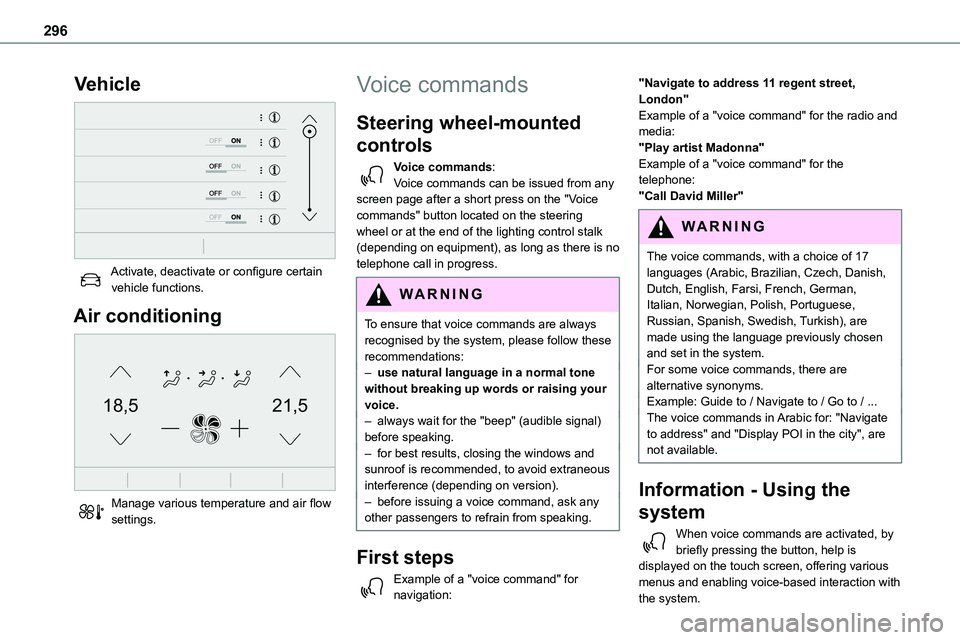
Activate, deactivate or configure certain vehicle functions.
Air conditioning
21,518,5
Manage various temperature and air flow settings.
Voice commands
Steering wheel-mounted
controls
Voice commands:Voice commands can be issued from any screen page after a short press on the "Voice commands" button located on the steering
wheel or at the end of the lighting control stalk (depending on equipment), as long as there is no telephone call in progress.
WARNI NG
To ensure that voice commands are always recognised by the system, please follow these recommendations: – use natural language in a normal tone without breaking up words or raising your voice.– always wait for the "beep" (audible signal) before speaking.– for best results, closing the windows and sunroof is recommended, to avoid extraneous interference (depending on version).– before issuing a voice command, ask any other passengers to refrain from speaking.
First steps
Example of a "voice command" for navigation:
"Navigate to address 11 regent street, London"Example of a "voice command" for the radio and media:"Play artist Madonna"Example of a "voice command" for the telephone:"Call David Miller"
WARNI NG
The voice commands, with a choice of 17 languages (Arabic, Brazilian, Czech, Danish, Dutch, English, Farsi, French, German, Italian, Norwegian, Polish, Portuguese, Russian, Spanish, Swedish, Turkish), are made using the language previously chosen and set in the system.For some voice commands, there are alternative synonyms.Example: Guide to / Navigate to / Go to / ...The voice commands in Arabic for: "Navigate to address" and "Display POI in the city", are not available.
Information - Using the
system
When voice commands are activated, by briefly pressing the button, help is displayed on the touch screen, offering various menus and enabling voice-based interaction with the system.
Page 320 of 360
320
Recording event data
Electronic control units are installed in your vehicle. These control units process data received from the vehicle's sensors, for example, or data they generate themselves or exchange with each other. Some of these control units are required for the correct operation of your vehicle, some others assist you while driving (driving or
manoeuvring aids), while others provide comfort or infotainment functions.The following contains general information about how data is processed within the vehicle.You will find additional information about the specific data which is downloaded, stored and transmitted to third parties and what it is used for in your vehicle under the keyword "Data protection". This information is directly associated with the references for the functions in question contained in the corresponding vehicle handbook, or in the general terms and conditions of sale.This information is also available online.
Vehicle operating data
The control units process the data used for the operation of the vehicle. This data includes, for example: – Information about the state of the vehicle (e.g. speed, travel time, lateral acceleration, wheel rotation rate, fastened seat belts display). – Environmental conditions (e.g. temperature, rain sensor, distance sensor).
As a general rule, this data is temporary, is not stored for longer than one operating cycle and is only used within the vehicle itself. The control units often record this data (including the vehicle's key). This function allows either the temporary or permanent storage of information about the state of the vehicle, stresses on components, servicing requirements, as well as events and technical errors. Depending on the vehicle's equipment level, the data stored is as follows: – Operating state of system components (e.g. filling level, tyre pressures, battery charge status). – Faults and malfunctions in important system components (e.g. lamps, brakes). – System reactions in specific driving situations (e.g. deployment of an airbag, triggering of stability control and braking systems). – Information about events which have damaged the vehicle.
– For electric and rechargeable hybrid vehicles, the traction battery charge level and the estimated driving range. In particular circumstances (e.g. if the vehicle has detected a malfunction), it may be necessary to record data which would otherwise simply not be stored. When taking your vehicle in for servicing (e.g. repairs, maintenance), the stored operating
data may be read along with the vehicle's identification number and used if necessary. The personnel working for the servicing network (e.g. garages, manufacturers) or third parties (e.g. roadside assistance agents) may read the vehicle's data. This also applies to work carried out under warranty and quality assurance measures. This data is generally read via the OBD (On-Board Diagnostics) port fitted by law to the vehicle. It is used to report on the technical state of the vehicle or its components and facilitates the diagnosis of malfunctions, in compliance with warranty obligations and for quality improvement. This data, in particular the information relating to stress on components, technical events, operator errors and other malfunctions, is sent to the Manufacturer, if necessary, along with the vehicle's identification number. The Manufacturer's liability may also be engaged. The Manufacturer may also use the operating data taken from the vehicle for product recalls. This data may also be used to check the
Page 321 of 360
321
Event data recorders
13
customer's warranty and any claims made under warranty. Any malfunctions stored in the vehicle may be reset by an after-sales service company during servicing or repair work, or at your request.
Comfort and infotainment
functions
Comfort settings and personalised settings
may be saved in the vehicle and modified or reinitialised at any time. Depending on the vehicle's equipment level, this may include: – Seat and steering wheel position settings. – Chassis and air conditioning settings. – Personalised settings such as the interior lighting. You can enter your own data into the functions of your vehicle's audio and telematic system, as part of the selected functionalities. Depending on the vehicle's equipment level, this may include: – Multimedia data such as music, videos or photos to be read by an integrated multimedia system. – Address book data to be used with an integrated hands-free system or with an integrated navigation system. – Entered destinations. – Data regarding the use of online services. This data for the comfort and infotainment functions may be stored locally in the vehicle
or saved to a device that you have connected to the vehicle (e.g. smartphone, USB memory stick or MP3 player). Data that you have entered yourself may be deleted at any time. This data may also be transmitted outside the vehicle at your request, particularly when using online services in line with the settings that you have selected.
Smartphone integration
(e.g. Android Auto® or
Apple®CarPlay®)
If your vehicle is equipped accordingly, you can connect your smartphone or another mobile device to the vehicle in order to operate it using the vehicle's integrated controls. Images and sounds from the smartphone can be transmitted through the audio and telematics system. Specific information is simultaneously sent to your smartphone. Depending on the type of integration, this includes data such as location, day/night mode and other general information about the vehicle. For more information, please refer to the user instructions for the vehicle or the audio and telematics system.Integrating a smartphone allows you to use its applications, such as a navigation app or music player. No other integration between the smartphone and the vehicle is possible, in particular active access to vehicle data. How the data is processed subsequently is determined by the supplier of the application being used.
The ability the change settings depends on the application in question and on the operating system installed on your smartphone.
Online services
If your vehicle is connected to a wireless network, data can be exchanged between your vehicle and other systems. Connection to a wireless network is made possible via a
transmitter located in your vehicle or a mobile device that you have provided (e.g. smartphone). The online services can be used via this wireless connection. These include online services and applications (apps) provided to you by the Manufacturer or other suppliers.
Exclusive services
As regards the Manufacturer's online services, the corresponding functions are described by the Manufacturer in an appropriate medium (e.g. handbook, Manufacturer's website) and the information about data protection is provided. Personal data may be used for online services. The exchange of data for this purpose takes place over a secure connection, using for example the Manufacturer's dedicated computer systems. The collection, processing and use of personal data for the development of services are carried out solely on the basis of a legal authorisation, for example in the case of a legal emergency call system or a contractual agreement or else under a consent agreement.