usb format TOYOTA PROACE CITY 2021 User Guide
[x] Cancel search | Manufacturer: TOYOTA, Model Year: 2021, Model line: PROACE CITY, Model: TOYOTA PROACE CITY 2021Pages: 272, PDF Size: 60.75 MB
Page 223 of 272
223
TOYOTA Connect Radio
11
Frequently asked
questions
The following information groups together the answers to the most frequently asked questions concerning the system.
Radio
The reception quality of the tuned radio station gradually deteriorates or the station presets are not working (no sound, 87.5 MHz is displayed, etc.).The vehicle is too far from the selected station’s transmitter, or no transmitter is present in the geographical area.► Activate the "RDS" function in the upper bar to enable the system to check whether there is a more powerful transmitter in the geographical area.The environment (hills, buildings, tunnels, basement car parks, etc.) is blocking reception, including in RDS mode.This is a perfectly normal phenomenon, and is
not indicative of an audio system malfunction.The aerial is missing or has been damaged (for example while entering a car wash or underground car park).► Have the aerial checked by a dealer.I cannot find some radio stations in the list of received stations.The name of the radio station changes.The station is no longer received or its name has
changed in the list.
► Press the round arrow on the "List" tab on the "Radio" page.Some radio stations send other information in place of their name (the title of the song for example).The system interprets these details as the station name.► Press the round arrow on the "List" tab on the "Radio" page.
Media
Playback of my USB memory stick starts only after a very long wait (around 2 to 3 minutes).Some files supplied with the memory stick may greatly slow down access to reading the memory stick (multiplication by 10 of the cataloguing time).► Delete the files supplied with the memory stick and limit the number of sub-folders in the file structure on the memory stick. Some characters in information about the currently playing media are not displayed correctly.
The audio system is unable to process certain types of character.► Use standard characters to name tracks and folders.Playback of streaming files does not start.The connected device does not automatically launch playback.► Start playback from the device.Track names and playing times are not
displayed on the audio streaming screen.
The Bluetooth profile does not allow the transfer of this information.
Telephone
I cannot connect my Bluetooth telephone.The telephone's Bluetooth function may be switched off or the telephone may not be visible.► Check that the telephone has Bluetooth switched on.► Check in the telephone settings that it is "visible to all".The Bluetooth telephone is not compatible with the system.► Check the compatibility of the telephone on the Brand's website (services).Android Auto and CarPlay do not work.Android Auto and CarPlay may not activate if the USB cables are of poor quality.► Use genuine USB cables to ensure compatibility.The volume of the telephone connected in Bluetooth mode is inaudible.The volume depends on both the system and the
telephone.► Increase the volume of the audio system, to maximum if required, and increase the volume of the telephone if necessary.Ambient noise affects the quality of the telephone call.► Reduce ambient noise (close windows, reduce ventilation, slow down, etc.).The contacts are not listed in alphabetical
order.
Page 234 of 272
234
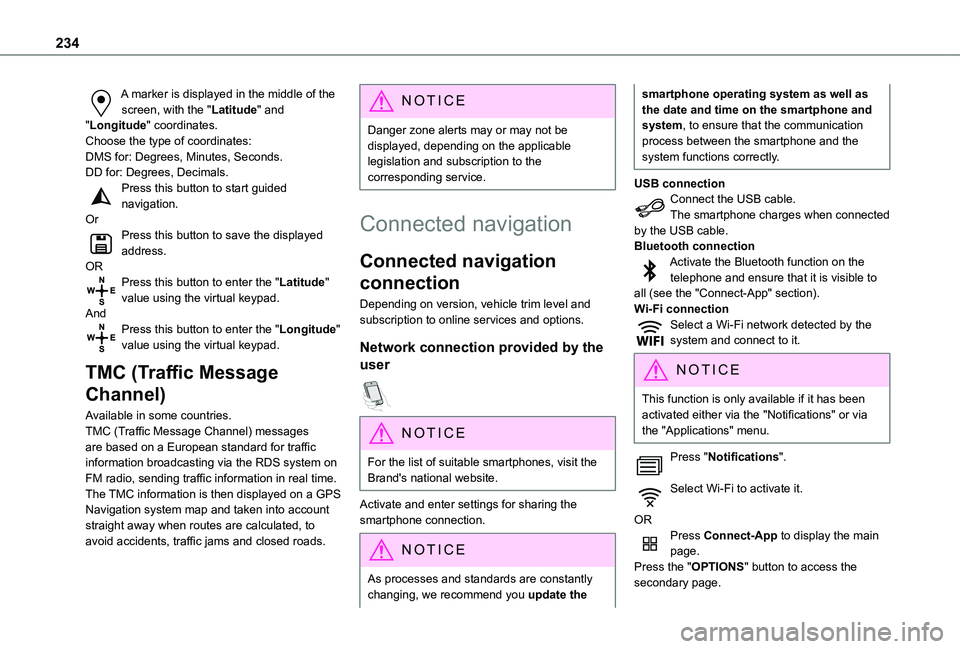
A marker is displayed in the middle of the screen, with the "Latitude" and "Longitude" coordinates.Choose the type of coordinates:DMS for: Degrees, Minutes, Seconds.DD for: Degrees, Decimals.Press this button to start guided navigation.OrPress this button to save the displayed address.ORPress this button to enter the "Latitude" value using the virtual keypad.AndPress this button to enter the "Longitude" value using the virtual keypad.
TMC (Traffic Message
Channel)
Available in some countries.TMC (Traffic Message Channel) messages
are based on a European standard for traffic information broadcasting via the RDS system on FM radio, sending traffic information in real time. The TMC information is then displayed on a GPS Navigation system map and taken into account straight away when routes are calculated, to avoid accidents, traffic jams and closed roads.
NOTIC E
Danger zone alerts may or may not be displayed, depending on the applicable legislation and subscription to the corresponding service.
Connected navigation
Connected navigation
connection
Depending on version, vehicle trim level and subscription to online services and options.
Network connection provided by the
user
NOTIC E
For the list of suitable smartphones, visit the Brand's national website.
Activate and enter settings for sharing the smartphone connection.
NOTIC E
As processes and standards are constantly changing, we recommend you update the
smartphone operating system as well as the date and time on the smartphone and system, to ensure that the communication process between the smartphone and the system functions correctly.
USB connectionConnect the USB cable.The smartphone charges when connected by the USB cable.Bluetooth connectionActivate the Bluetooth function on the telephone and ensure that it is visible to all (see the "Connect-App" section).Wi-Fi connectionSelect a Wi-Fi network detected by the system and connect to it.
NOTIC E
This function is only available if it has been activated either via the "Notifications" or via the "Applications" menu.
Press "Notifications".
Select Wi-Fi to activate it.
ORPress Connect-App to display the main page.Press the "OPTIONS" button to access the secondary page.
Page 235 of 272
235
TOYOTA Connect Nav
12
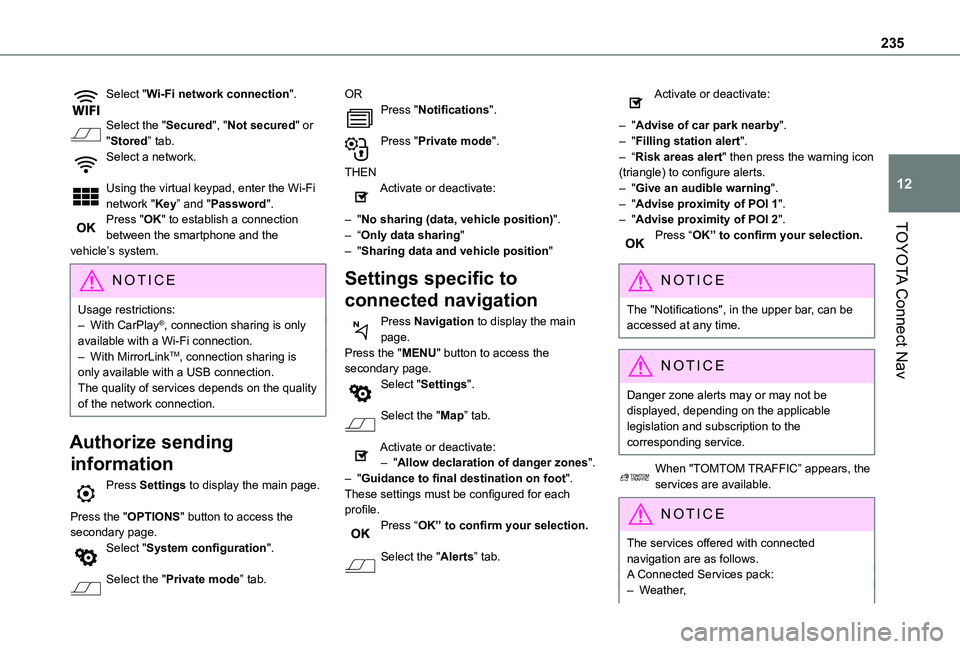
Select "Wi-Fi network connection".
Select the "Secured", "Not secured" or "Stored” tab.Select a network.
Using the virtual keypad, enter the Wi-Fi network "Key” and "Password".Press "OK" to establish a connection between the smartphone and the vehicle’s system.
NOTIC E
Usage restrictions:– With CarPlay®, connection sharing is only available with a Wi-Fi connection.– With MirrorLinkTM, connection sharing is only available with a USB connection.The quality of services depends on the quality of the network connection.
Authorize sending
information
Press Settings to display the main page.
Press the "OPTIONS" button to access the secondary page.Select "System configuration".
Select the "Private mode” tab.
ORPress "Notifications".
Press "Private mode".
THENActivate or deactivate:
– "No sharing (data, vehicle position)".– “Only data sharing"– "Sharing data and vehicle position"
Settings specific to
connected navigation
Press Navigation to display the main page.Press the "MENU" button to access the secondary page.Select "Settings".
Select the "Map” tab.
Activate or deactivate:– "Allow declaration of danger zones".– "Guidance to final destination on foot".These settings must be configured for each profile.Press “OK” to confirm your selection.
Select the "Alerts” tab.
Activate or deactivate:
– "Advise of car park nearby".– "Filling station alert".– “Risk areas alert" then press the warning icon (triangle) to configure alerts.– "Give an audible warning".– "Advise proximity of POI 1".– "Advise proximity of POI 2".Press “OK” to confirm your selection.
NOTIC E
The "Notifications", in the upper bar, can be accessed at any time.
NOTIC E
Danger zone alerts may or may not be displayed, depending on the applicable legislation and subscription to the corresponding service.
When "TOMTOM TRAFFIC” appears, the services are available.
NOTIC E
The services offered with connected navigation are as follows.A Connected Services pack:– Weather,
Page 237 of 272
237
TOYOTA Connect Nav
12
Applications
USB ports
Depending on equipment, for more information on the USB ports compatible with CarPlay®, MirrorLinkTM or Android Auto applications, refer to the "Ease of use and comfort" section.
NOTIC E
For the list of suitable smartphones, visit the Brand's national website.
NOTIC E
Synchronising a smartphone enables users to display applications that support the smartphone’s MirrorLinkCarPlay®, TM or Android Auto technology on the vehicle’s screen. For CarPlay® technology, the CarPlay® function must first be activated on the smartphone.In all cases, the smartphone must be unlocked, to enable the communication process between the smartphone and the system to function.As principles and standards are constantly changing, we recommend keeping the smartphone's operating system up-to-
date, together with the date and time on the smartphone and the system.
Connectivity
Press Applications to display the main page.Press "Connectivity" to access the CarPlay®, MirrorLinkTM or Android Auto functions.
CarPlay® smartphone
connection
Connect a USB cable. The smartphone charges when connected by a USB cable.Press "Telephone" to display the CarPlay® interface.OrConnect a USB cable. The smartphone charges when connected by a USB cable.From the system, press "Applications" to display the main page.Press "Connectivity" to access the "CarPlay®” function.Press "CarPlay" to display the CarPlay® interface.
NOTIC E
On connecting the USB cable, the CarPlay® function deactivates the system's Bluetooth® mode.
NOTIC E
When the USB cable is disconnected and the ignition is switched off then back on, the system will not automatically switch to Radio Media mode; the source must be changed manually.
MirrorLinkTM smartphone
connection
NOTIC E
The "MirrorLinkTM" function requires a compatible smartphone and compatible applications.You can check that your telephone is compatible on the Brand's website (services).
When connecting a smartphone to the system, we recommend enabling Bluetooth® on the smartphone.Connect a USB cable. The smartphone charges when connected by a USB cable.From the system, press "Applications" to display the main page.Press "Connectivity" to access the "MirrorLinkTM” function.Press "MirrorLinkTM" to start the application in the system.
Page 242 of 272
242
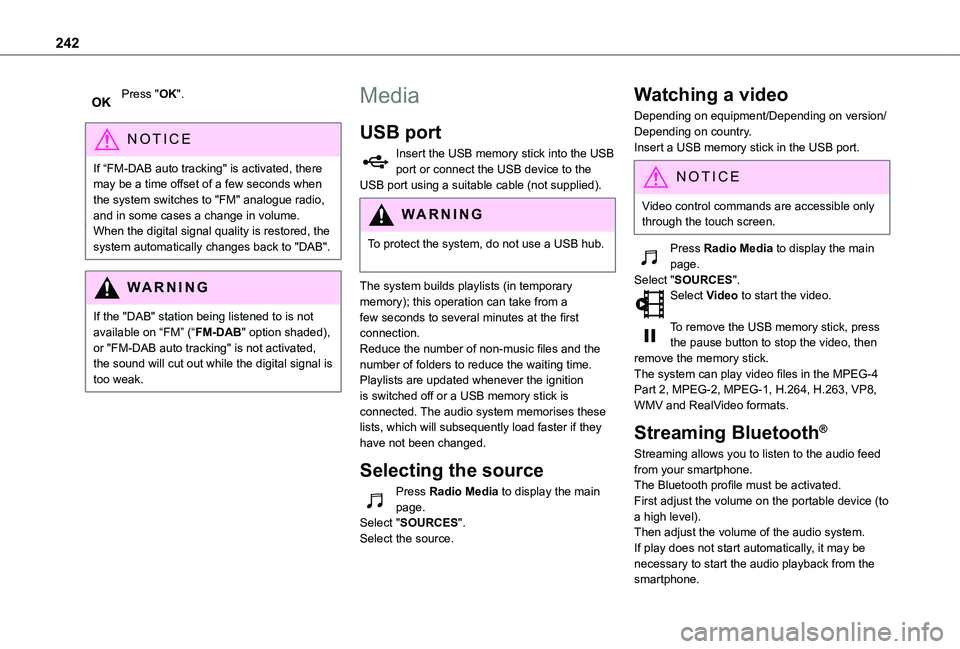
Press "OK".
NOTIC E
If “FM-DAB auto tracking" is activated, there may be a time offset of a few seconds when the system switches to "FM" analogue radio, and in some cases a change in volume.When the digital signal quality is restored, the
system automatically changes back to "DAB".
WARNI NG
If the "DAB" station being listened to is not available on “FM” (“FM-DAB" option shaded), or "FM-DAB auto tracking" is not activated, the sound will cut out while the digital signal is too weak.
Media
USB port
Insert the USB memory stick into the USB port or connect the USB device to the USB port using a suitable cable (not supplied).
WARNI NG
To protect the system, do not use a USB hub.
The system builds playlists (in temporary memory); this operation can take from a few seconds to several minutes at the first connection.Reduce the number of non-music files and the number of folders to reduce the waiting time.Playlists are updated whenever the ignition is switched off or a USB memory stick is connected. The audio system memorises these lists, which will subsequently load faster if they have not been changed.
Selecting the source
Press Radio Media to display the main page.Select "SOURCES".Select the source.
Watching a video
Depending on equipment/Depending on version/Depending on country.Insert a USB memory stick in the USB port.
NOTIC E
Video control commands are accessible only through the touch screen.
Press Radio Media to display the main page.Select "SOURCES".Select Video to start the video.
To remove the USB memory stick, press the pause button to stop the video, then remove the memory stick.The system can play video files in the MPEG-4 Part 2, MPEG-2, MPEG-1, H.264, H.263, VP8, WMV and RealVideo formats.
Streaming Bluetooth®
Streaming allows you to listen to the audio feed from your smartphone.The Bluetooth profile must be activated.First adjust the volume on the portable device (to a high level).Then adjust the volume of the audio system.If play does not start automatically, it may be necessary to start the audio playback from the smartphone.
Page 243 of 272
243
TOYOTA Connect Nav
12
Control is from the portable device or by using the system's touch buttons.
NOTIC E
Once connected in streaming mode, the smartphone is considered to be a media source.
Connecting Apple® players
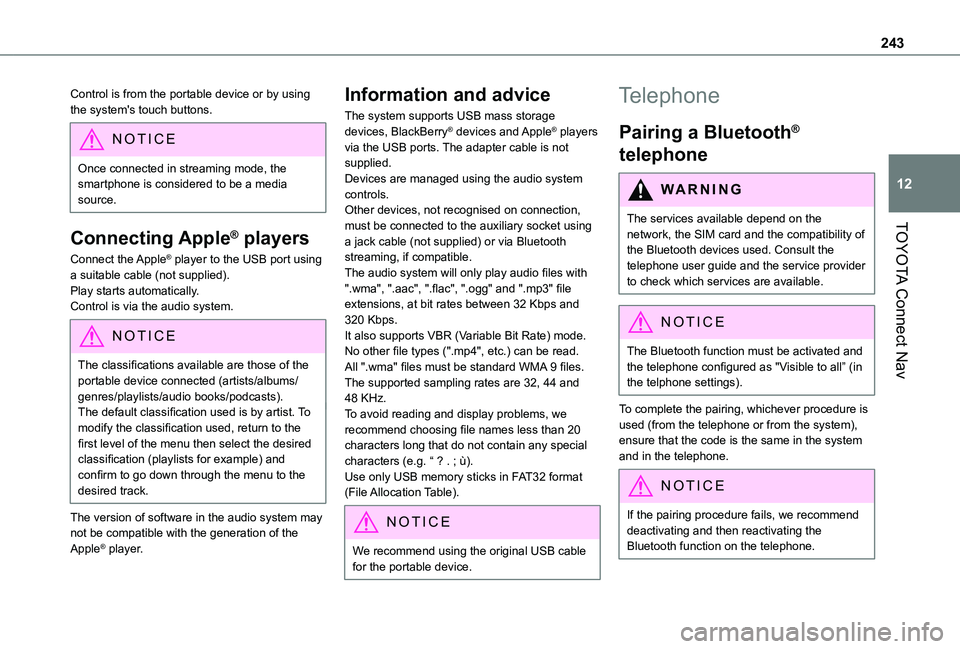
Connect the Apple® player to the USB port using a suitable cable (not supplied).Play starts automatically.Control is via the audio system.
NOTIC E
The classifications available are those of the portable device connected (artists/albums/genres/playlists/audio books/podcasts).The default classification used is by artist. To modify the classification used, return to the first level of the menu then select the desired classification (playlists for example) and confirm to go down through the menu to the desired track.
The version of software in the audio system may not be compatible with the generation of the
Apple® player.
Information and advice
The system supports USB mass storage devices, BlackBerry® devices and Apple® players via the USB ports. The adapter cable is not supplied.Devices are managed using the audio system controls.Other devices, not recognised on connection, must be connected to the auxiliary socket using a jack cable (not supplied) or via Bluetooth streaming, if compatible.The audio system will only play audio files with ".wma", ".aac", ".flac", ".ogg" and ".mp3" file extensions, at bit rates between 32 Kbps and 320 Kbps.It also supports VBR (Variable Bit Rate) mode.No other file types (".mp4", etc.) can be read.All ".wma" files must be standard WMA 9 files.The supported sampling rates are 32, 44 and 48 KHz.To avoid reading and display problems, we recommend choosing file names less than 20
characters long that do not contain any special characters (e.g. “ ? . ; ù).Use only USB memory sticks in FAT32 format (File Allocation Table).
NOTIC E
We recommend using the original USB cable for the portable device.
Telephone
Pairing a Bluetooth®
telephone
WARNI NG
The services available depend on the network, the SIM card and the compatibility of
the Bluetooth devices used. Consult the telephone user guide and the service provider to check which services are available.
NOTIC E
The Bluetooth function must be activated and the telephone configured as "Visible to all” (in the telphone settings).
To complete the pairing, whichever procedure is used (from the telephone or from the system), ensure that the code is the same in the system and in the telephone.
NOTIC E
If the pairing procedure fails, we recommend deactivating and then reactivating the Bluetooth function on the telephone.
Page 247 of 272
247
TOYOTA Connect Nav
12
The "Position” settings (All passengers, Driver and Front only) are common to all sources.Activate or deactivate "Touch tones", "Volume linked to speed" and "Auxiliary input".
NOTIC E
Onboard audio: Arkamys Sound Staging©
optimises the sound distribution inside the passenger compartment.
Configuring profiles
Press Settings to display the main page.
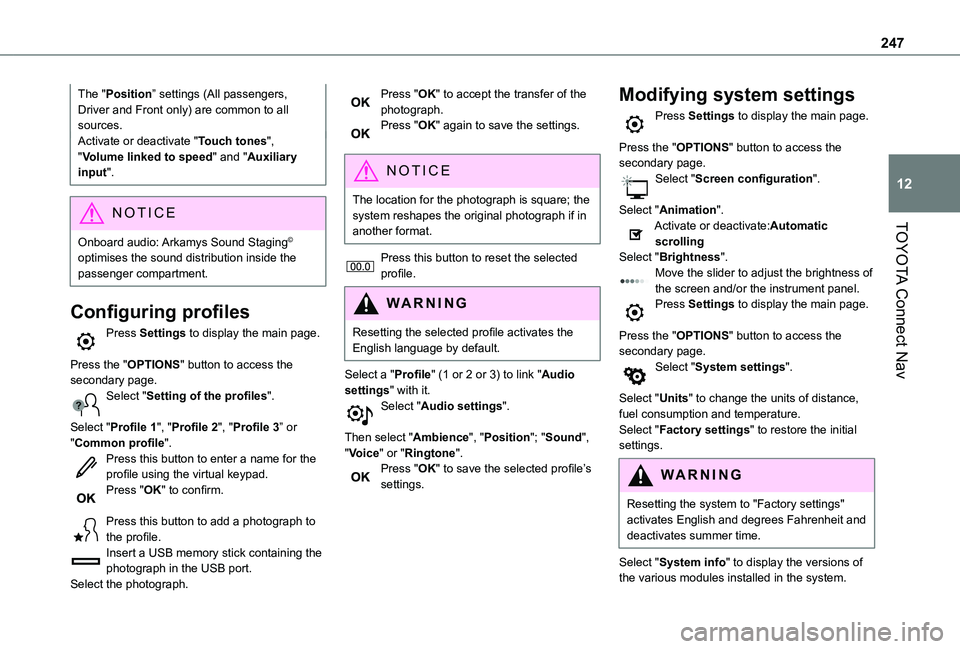
Press the "OPTIONS" button to access the secondary page.Select "Setting of the profiles".
Select "Profile 1", "Profile 2", "Profile 3” or "Common profile".Press this button to enter a name for the profile using the virtual keypad.Press "OK" to confirm.
Press this button to add a photograph to the profile.Insert a USB memory stick containing the photograph in the USB port.Select the photograph.
Press "OK" to accept the transfer of the photograph.Press "OK" again to save the settings.
NOTIC E
The location for the photograph is square; the system reshapes the original photograph if in another format.
Press this button to reset the selected profile.
WARNI NG
Resetting the selected profile activates the English language by default.
Select a "Profile" (1 or 2 or 3) to link "Audio settings" with it.Select "Audio settings".
Then select "Ambience", "Position"; "Sound", "Voice" or "Ringtone".Press "OK" to save the selected profile’s settings.
Modifying system settings
Press Settings to display the main page.
Press the "OPTIONS" button to access the secondary page.Select "Screen configuration".
Select "Animation".Activate or deactivate:Automatic scrollingSelect "Brightness".Move the slider to adjust the brightness of the screen and/or the instrument panel.Press Settings to display the main page.
Press the "OPTIONS" button to access the secondary page.Select "System settings".
Select "Units" to change the units of distance, fuel consumption and temperature.Select "Factory settings" to restore the initial
settings.
WARNI NG
Resetting the system to "Factory settings" activates English and degrees Fahrenheit and deactivates summer time.
Select "System info" to display the versions of the various modules installed in the system.
Page 250 of 272
250
Radio
The reception quality of the tuned radio station gradually deteriorates or the station presets are not working (no sound, 87.5 MHz is displayed, etc.).The vehicle is too far from the selected station’s transmitter, or no transmitter is present in the geographical area.► Activate the "RDS" function by means of the short-cut menu to enable the system to check whether there is a more powerful transmitter in the geographical area.The aerial is missing or has been damaged (for example while entering a car wash or underground car park).► Have the aerial checked by a dealer.The environment (hills, buildings, tunnels, basement car parks, etc.) is blocking reception, including in RDS mode.This is a perfectly normal phenomenon, and is not indicative of an audio system malfunction.I cannot find some radio stations in the list of
stations received.The name of the radio station changes.The station is no longer received or its name has changed in the list.Some radio stations send other information in place of their name (the title of the song for example).The system interprets these details as the station name.
► Press the "Update list" button in the "Radio stations” secondary menu.
Media
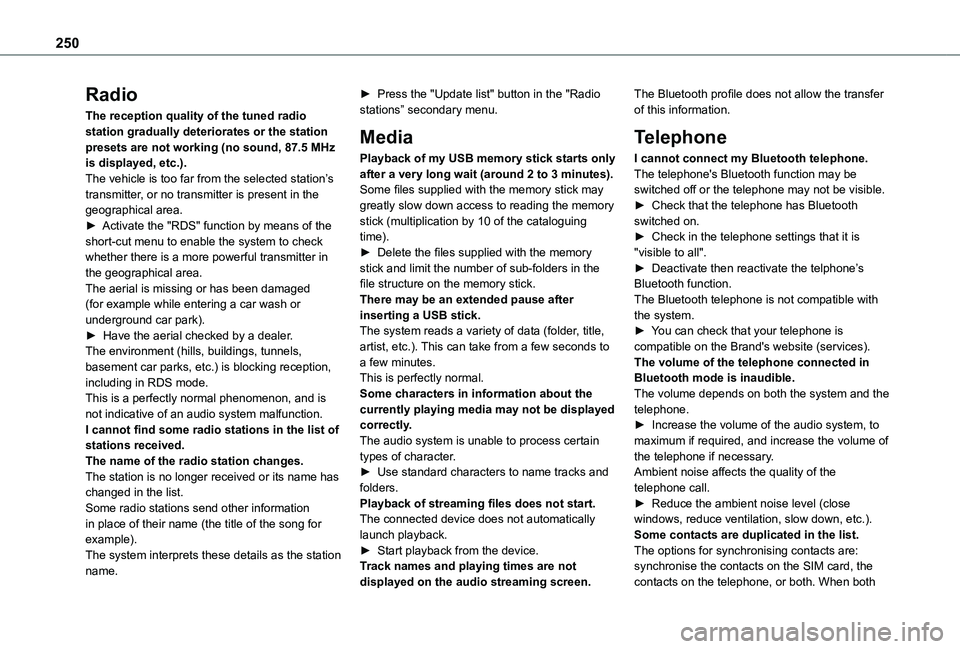
Playback of my USB memory stick starts only after a very long wait (around 2 to 3 minutes).Some files supplied with the memory stick may greatly slow down access to reading the memory stick (multiplication by 10 of the cataloguing time).► Delete the files supplied with the memory stick and limit the number of sub-folders in the file structure on the memory stick.There may be an extended pause after inserting a USB stick.The system reads a variety of data (folder, title, artist, etc.). This can take from a few seconds to a few minutes.This is perfectly normal.Some characters in information about the currently playing media may not be displayed correctly.The audio system is unable to process certain
types of character.► Use standard characters to name tracks and folders.Playback of streaming files does not start.The connected device does not automatically launch playback.► Start playback from the device.Track names and playing times are not displayed on the audio streaming screen.
The Bluetooth profile does not allow the transfer of this information.
Telephone
I cannot connect my Bluetooth telephone.The telephone's Bluetooth function may be switched off or the telephone may not be visible.► Check that the telephone has Bluetooth switched on.► Check in the telephone settings that it is "visible to all".► Deactivate then reactivate the telphone’s Bluetooth function.The Bluetooth telephone is not compatible with the system.► You can check that your telephone is compatible on the Brand's website (services).The volume of the telephone connected in Bluetooth mode is inaudible.The volume depends on both the system and the telephone.► Increase the volume of the audio system, to maximum if required, and increase the volume of
the telephone if necessary.Ambient noise affects the quality of the telephone call.► Reduce the ambient noise level (close windows, reduce ventilation, slow down, etc.).Some contacts are duplicated in the list.The options for synchronising contacts are: synchronise the contacts on the SIM card, the contacts on the telephone, or both. When both
Page 257 of 272
257
Alphabetical index
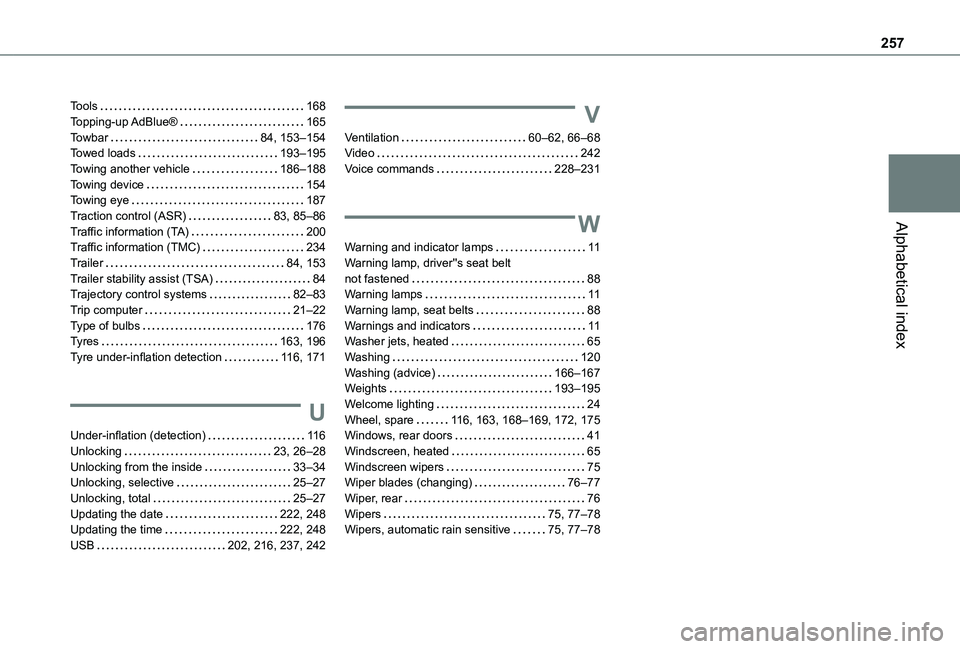
Tools 168Topping-up AdBlue® 165Towbar 84, 153–154Towed loads 193–195Towing another vehicle 186–188Towing device 154Towing eye 187Traction control (ASR) 83, 85–86Traffic information (TA) 200Traffic information (TMC) 234Trailer 84, 153Trailer stability assist (TSA) 84Trajectory control systems 82–83Trip computer 21–22Type of bulbs 176Tyres 163, 196Tyre under-inflation detection 11 6, 171
U
Under-inflation (detection) 11 6
Unlocking 23, 26–28Unlocking from the inside 33–34Unlocking, selective 25–27Unlocking, total 25–27Updating the date 222, 248Updating the time 222, 248USB 202, 216, 237, 242
V
Ventilation 60–62, 66–68Video 242Voice commands 228–231
W
Warning and indicator lamps 11Warning lamp, driver''s seat belt not fastened 88Warning lamps 11Warning lamp, seat belts 88Warnings and indicators 11Washer jets, heated 65Washing 120Washing (advice) 166–167Weights 193–195Welcome lighting 24Wheel, spare 11 6, 163, 168–169, 172, 175Windows, rear doors 41
Windscreen, heated 65Windscreen wipers 75Wiper blades (changing) 76–77Wiper, rear 76Wipers 75, 77–78Wipers, automatic rain sensitive 75, 77–78