TOYOTA PROACE VERSO 2016 Repair Manual
PROACE VERSO 2016
TOYOTA
TOYOTA
https://www.carmanualsonline.info/img/14/60469/w960_60469-0.png
TOYOTA PROACE VERSO 2016 Repair Manual
Page 356 of 504
356
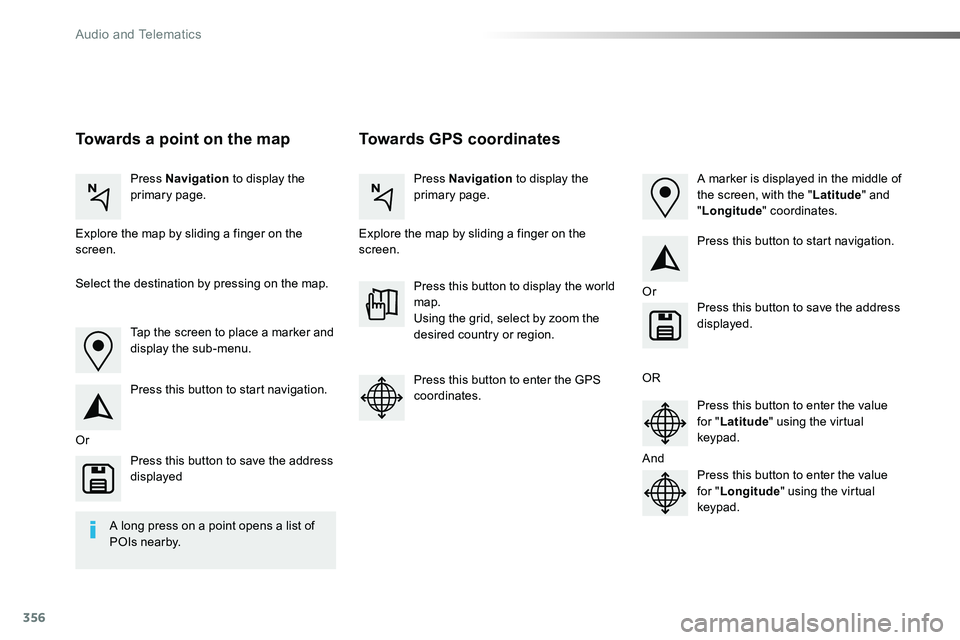
Towards GPS coordinatesTowards a point on the map
Press Navigation to display the primary page.Press Navigation to display the primary page.
Explore the map by sliding a finger on the screen.Explore the map by sliding a finger on the screen.
Tap the screen to place a marker and display the sub-menu.
Or
Or
OR
And
Select the destination by pressing on the map.
Press this button to start navigation.
Press this button to start navigation.
Press this button to display the world map.Using the grid, select by zoom the desired country or region.
Press this button to save the address displayed
Press this button to save the address displayed.
Press this button to enter the GPS coordinates.Press this button to enter the value for "Latitude" using the virtual keypad.
Press this button to enter the value for "Longitude" using the virtual keypad.
A marker is displayed in the middle of the screen, with the "Latitude" and "Longitude" coordinates.
A long press on a point opens a list of
POIs nearby.
Audio and Telematics
Page 357 of 504
357
TMC (Traffic Message
Channel)
TMC (Traffic Message Channel) is a European standard on the broadcasting of traffic information via the RDS system on FM radio, transmitting traffic information in real time.The TMC information is then displayed on a GPS Navigation system map and taken into account straight away during navigation, so as to avoid accidents, traffic jams and closed roads.
The display of danger areas depends on the legislation in force and subscription to the service.
.
Audio and Telematics
Page 358 of 504
358
12:13
23 °C
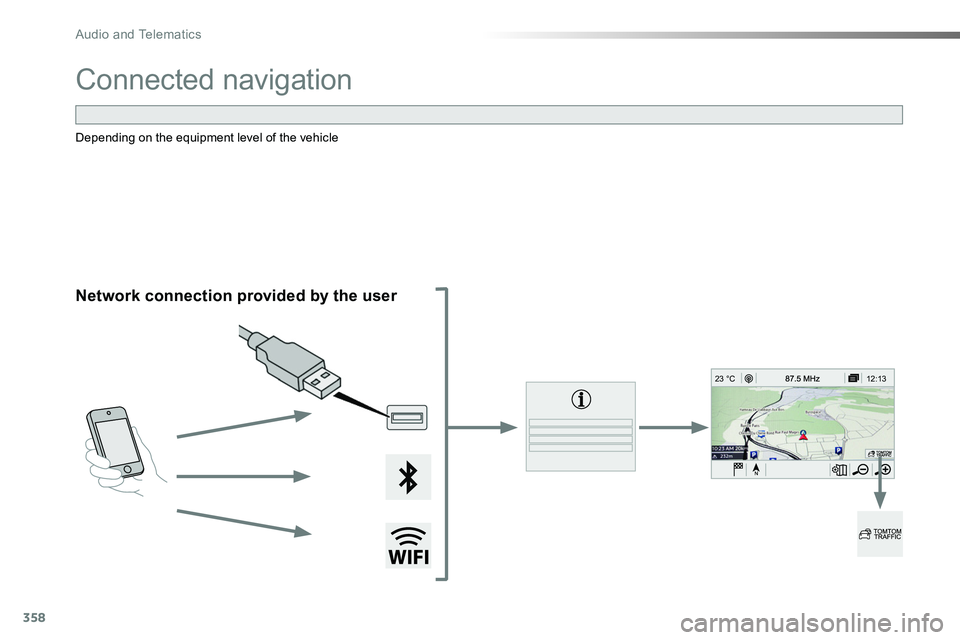
Connected navigation
Network connection provided by the user
Depending on the equipment level of the vehicle
Audio and Telematics
Page 359 of 504
359
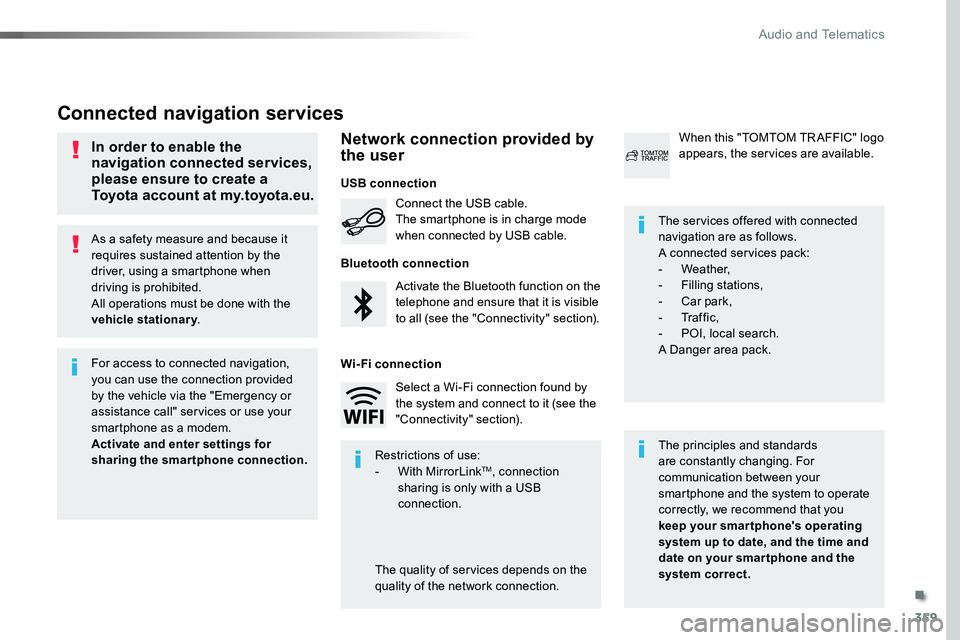
As a safety measure and because it requires sustained attention by the driver, using a smartphone when driving is prohibited.All operations must be done with the vehicle stationary.
Connected navigation services
The principles and standards are constantly changing. For communication between your smartphone and the system to operate correctly, we recommend that you keep your smar tphone's operating system up to date, and the time and date on your smar tphone and the system correct.
The services offered with connected navigation are as follows.A connected services pack:- Weather,- Filling stations,- Car park,- Tr a f f i c ,- POI, local search.A Danger area pack.
Activate the Bluetooth function on the telephone and ensure that it is visible to all (see the "Connectivity" section).
Connect the USB cable.The smartphone is in charge mode when connected by USB cable.
When this "TOMTOM TR AFFIC" logo appears, the services are available.
For access to connected navigation, you can use the connection provided by the vehicle via the "Emergency or assistance call" services or use your smartphone as a modem.Activate and enter settings for sharing the smartphone connection.Restrictions of use:- With MirrorLinkTM, connection sharing is only with a USB connection.
The quality of services depends on the quality of the network connection.
Select a Wi-Fi connection found by the system and connect to it (see the "Connectivity" section).
USB connection
Network connection provided by the user
Bluetooth connection
Wi-Fi connection
In order to enable the navigation connected services, please ensure to create a Toyota account at my.toyota.eu.
.
Audio and Telematics
Page 360 of 504
360
12:1323 °C
12:13
23 °C
1
12:13
23 °C
12:13
23 °C
7
2728262930
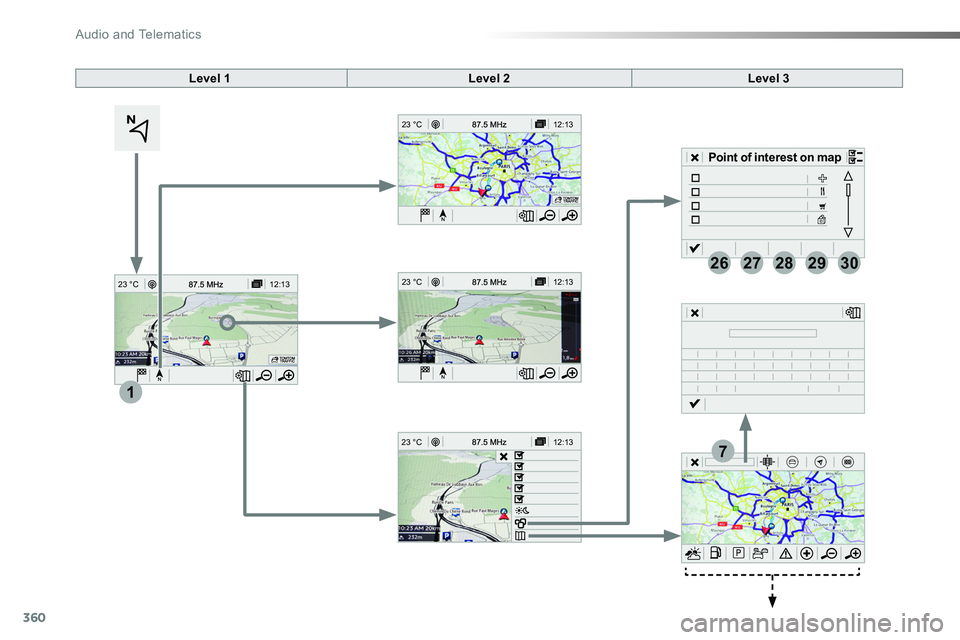
Level 1Level 2Level 3
Point of interest on map
Audio and Telematics
Page 361 of 504
361
7
28
27
26
29
30
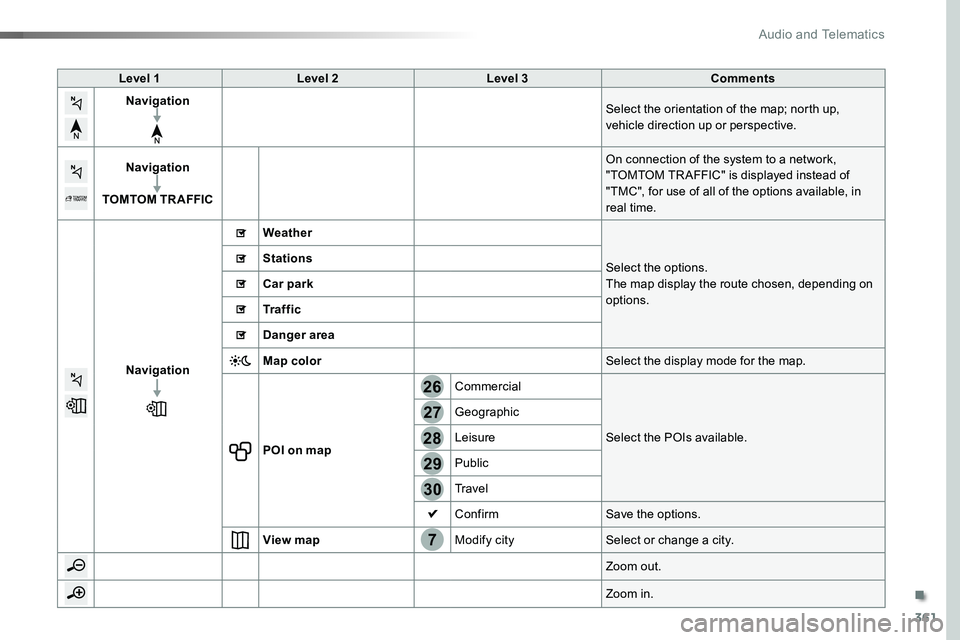
Level 1Level 2Level 3Comments
NavigationSelect the orientation of the map; north up, vehicle direction up or perspective.
Navigation
TOMTOM TR AFFIC
On connection of the system to a network, "TOMTOM TR AFFIC" is displayed instead of "TMC", for use of all of the options available, in real time.
Navigation
Weather
Select the options.The map display the route chosen, depending on options.
Stations
Car park
Tr a f f i c
Danger area
Map colorSelect the display mode for the map.
POI on map
Commercial
Select the POIs available.
Geographic
Leisure
Public
Travel
ConfirmSave the options.
View mapModify citySelect or change a city.
Zoom out.
Zoom in.
.
Audio and Telematics
Page 362 of 504
362
3132
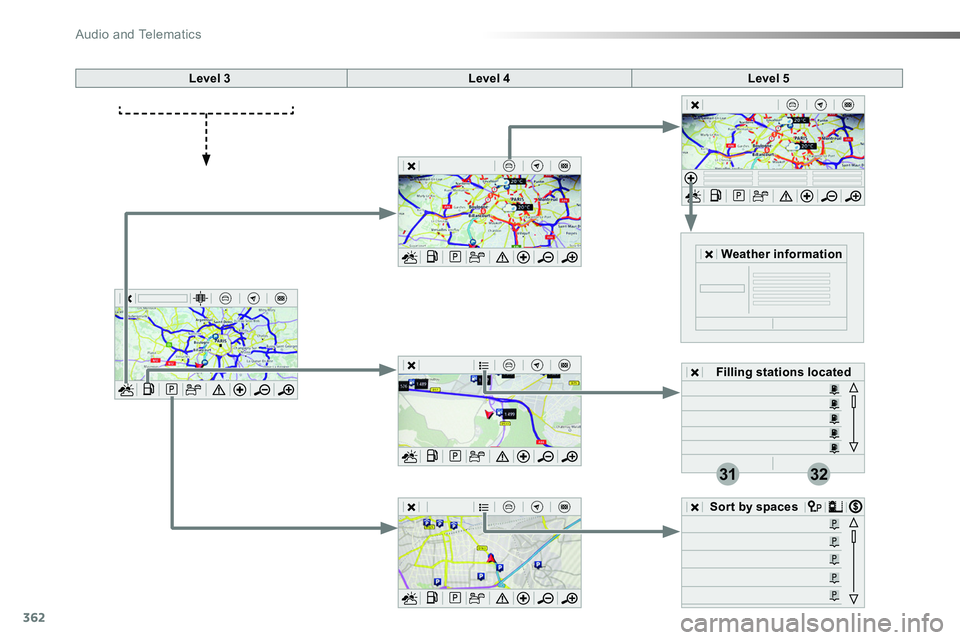
Level 3Level 4Level 5
Filling stations located
Sort by spaces
Weather information
Audio and Telematics
Page 363 of 504
363
31
32
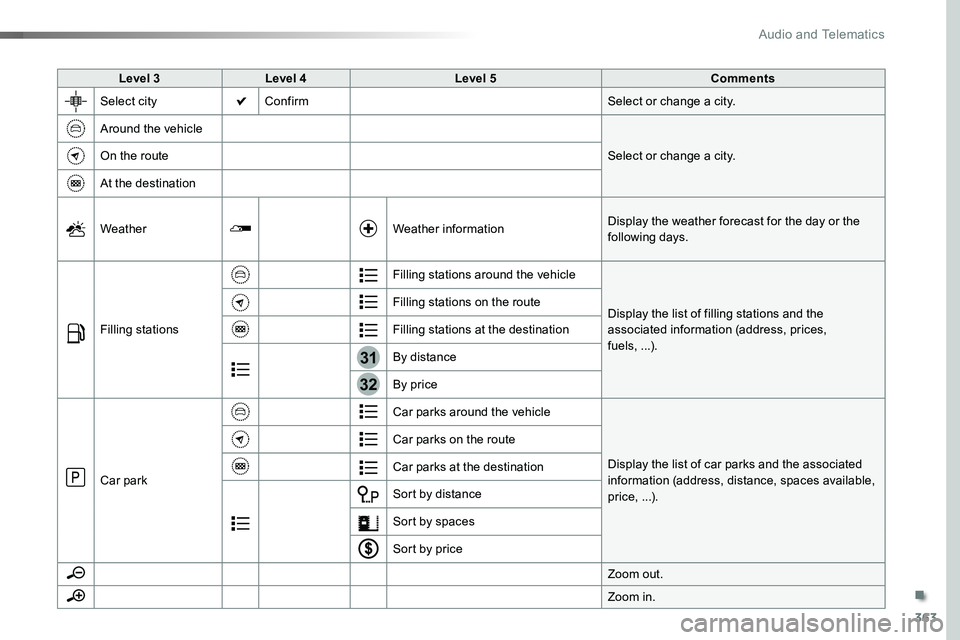
Level 3Level 4Level 5Comments
Select cityConfirmSelect or change a city.
Around the vehicle
Select or change a city.On the route
At the destination
WeatherWeather informationDisplay the weather forecast for the day or the following days.
Filling stations
Filling stations around the vehicle
Display the list of filling stations and the associated information (address, prices, fuels, ...).
Filling stations on the route
Filling stations at the destination
By distance
By price
Car park
Car parks around the vehicle
Display the list of car parks and the associated information (address, distance, spaces available, price, ...).
Car parks on the route
Car parks at the destination
Sort by distance
Sort by spaces
Sort by price
Zoom out.
Zoom in.
.
Audio and Telematics
Page 364 of 504
364
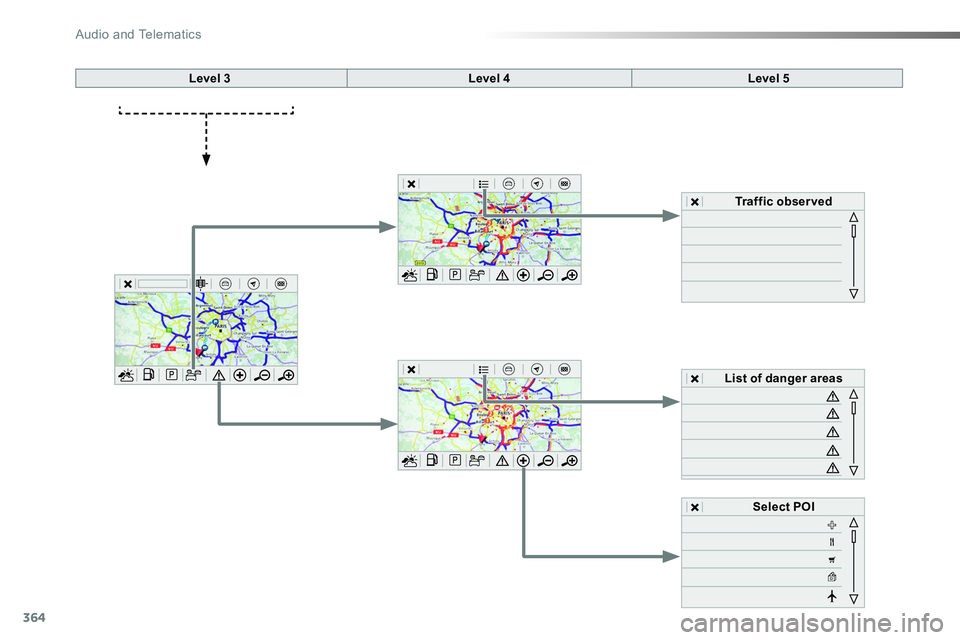
Level 3Level 4Level 5
Select POI
List of danger areas
Traffic observed
Audio and Telematics
Page 365 of 504
365
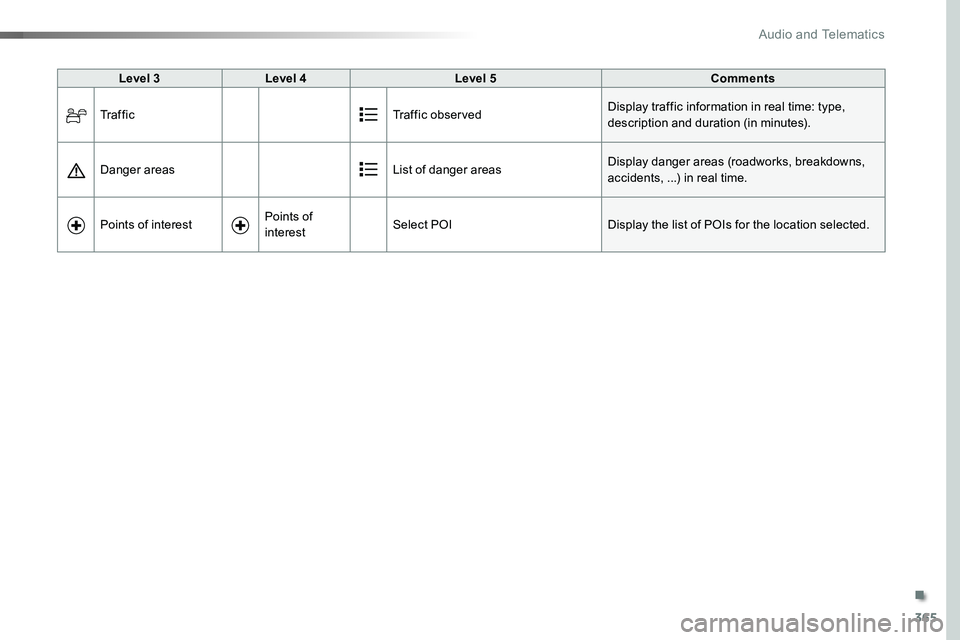
Level 3Level 4Level 5Comments
Tr a f f i cTraffic observedDisplay traffic information in real time: type, description and duration (in minutes).
Danger areasList of danger areasDisplay danger areas (roadworks, breakdowns, accidents, ...) in real time.
Points of interestPoints of
interestSelect POIDisplay the list of POIs for the location selected.
.
Audio and Telematics