radio TOYOTA PROACE VERSO 2019 User Guide
[x] Cancel search | Manufacturer: TOYOTA, Model Year: 2019, Model line: PROACE VERSO, Model: TOYOTA PROACE VERSO 2019Pages: 505, PDF Size: 56.59 MB
Page 336 of 505
335
12:13
23 °C12:13
23 °C531 kHz
FM/87.5 MHz
87.5MH z 12:13
23 °C 87.5 MHz
12:13
23 °C531 kH z12:13
23 °C
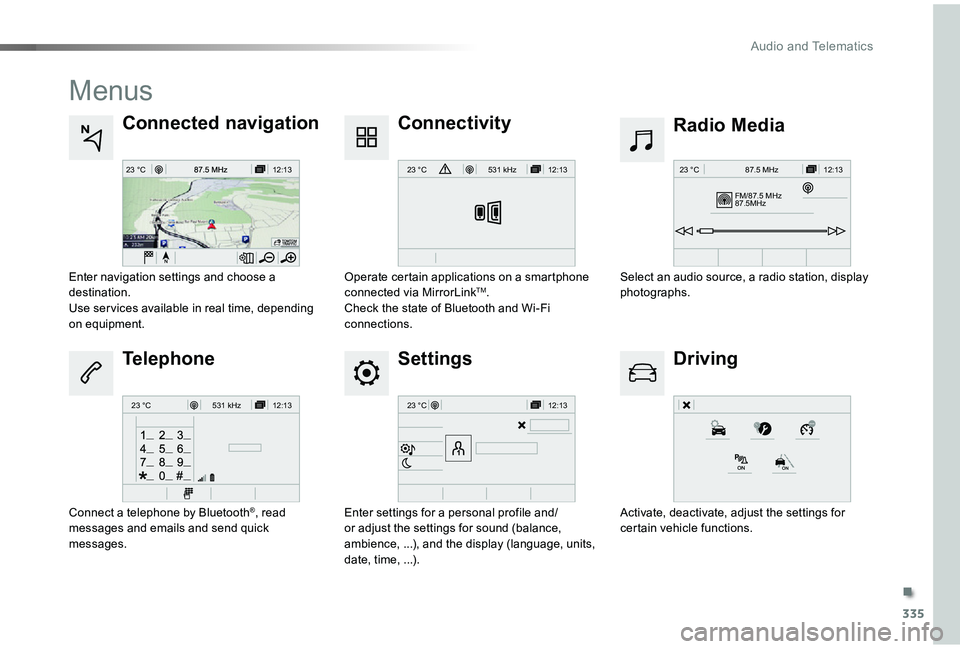
Menus
Settings
Radio MediaConnected navigation
Driving
Connectivity
Telephone
Enter settings for a personal profile and/or adjust the settings for sound (balance, ambience, ...), and the display (language, units, date, time, ...).
Select an audio source, a radio station, display photographs.Enter navigation settings and choose a destination.Use ser vices available in real time, depending on equipment.
Activate, deactivate, adjust the settings for certain vehicle functions.
Operate certain applications on a smartphone connected via MirrorLinkTM.Check the state of Bluetooth and Wi-Fi connections.
Connect a telephone by Bluetooth®, read messages and emails and send quick messages.
.
Audio and Telematics
Page 337 of 505
336
Voice commands
First stepsSteering mounted controlsInformation - Using the system
Press the Push To Talk button and tell me what you'd like after the tone. Remember you can interrupt me at any time by pressing this button. If you press it again while I'm waiting for you to speak, it'll end the conversation. If you need to start over, say "cancel". If you want to undo something, say "undo". And to get information and tips at any time, just say "help". If you ask to me do something and there's some information missing that I need, I'll give you some examples or take you through it step by step. There's more information available in "novice" mode. You can set the dialogue mode to "expert" when you feel comfortable.
To ensure that voice commands are always recognised by the system, please obser ve the following recommendations:- speak in a normal tone without breaking up words or raising your voice.- always wait for the "beep" (audible signal) before speaking.- for best operation, it is recommended that the windows and opening roof (if fitted) be closed to avoid inter ference from extraneous noises.- before making a voice command, ask other passengers to not speak.
The voice commands, with a choice of 12 languages (English, French, Italian, Spanish, German, Dutch, Portuguese, Polish, Turkish, Russian, Arabic, Brazilian), are made using the language previously chosen and set in the system.
The voice commands in Arabic for: "Navigate to address" and "Display POI
in the city", are not available.
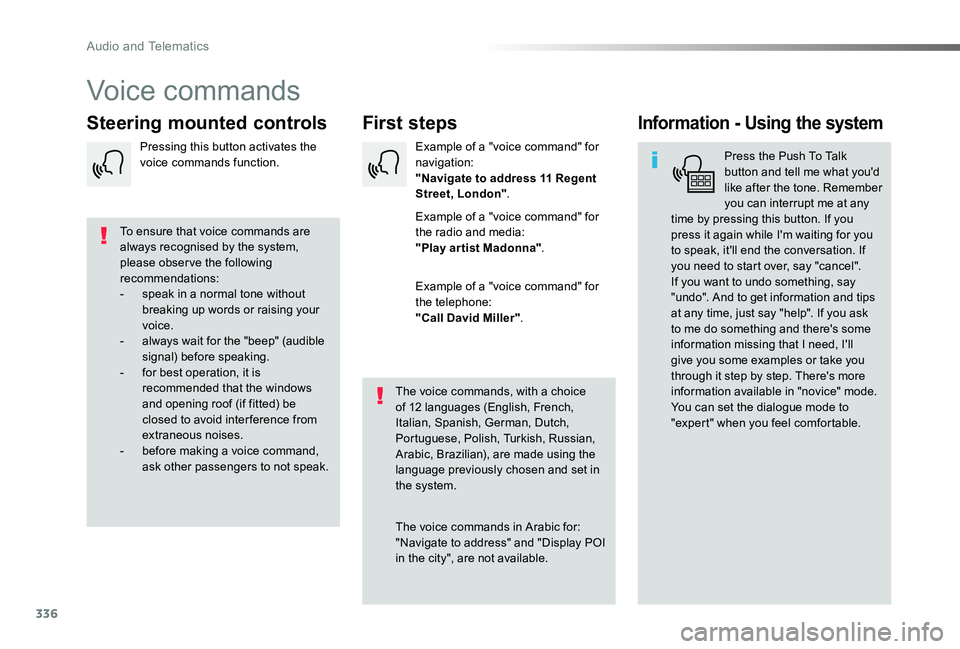
Example of a "voice command" for navigation:"Navigate to address 11 Regent Street, London".
Example of a "voice command" for the radio and media:"Play ar tist Madonna".
Example of a "voice command" for the telephone:"Call David Miller".
Pressing this button activates the voice commands function.
Audio and Telematics
Page 338 of 505
337
Global voice commands
These commands can be made from any screen page after pressing the voice command or telephone button located on the steering wheel, as long as there is no telephone call in progress.
"Voice command"Help message
Help
There are lots of topics I can help you with. You can say: "help with phone", "help with navigation", "help with media" or "help with radio". For an over view on how to use voice controls, you can say "help with voice c o nt ro ls".
Voice command help
Navigation help
Radio help
Media help
Telephone help
Set dialogue mode as <...>Select "beginner" or "expert" mode.
Select profile <...>Select profile 1, 2 or 3.
Ye s
Say "yes" if I got that right. Other wise, say "no" and we'll start that again.
No
.
Audio and Telematics
Page 340 of 505
339
"Radio Media" voice commands
These commands can be issued from any screen page after pressing the voice command or telephone button on the steering wheel, as long as there is no telephone call in progress.
"Voice command"Help message
Tune to channel <...>You can pick a radio station by saying "tune to" and the station name or frequency. For example "tune to channel Talksport" or "tune to 98.5 FM". To listen to a preset radio station, say "tune to preset number". For example "tune to preset number five".
What's playingTo display the details of the current "track", "artist" and "album", you can say " What's playing"
Play song <...>
Use the command "play" to select the type of music you'd like to hear. You can pick by "song", "artist", or "album". Just say something like "play artist, Madonna", "play song, Hey Jude", or "play album, Thriller".Play ar tist <...>
Play album <...>
Media voice commands are available only for a USB connection.
.
Audio and Telematics
Page 358 of 505
357
TMC (Traffic Message
Channel)
TMC (Traffic Message Channel) is a European standard on the broadcasting of traffic information via the RDS system on FM radio, transmitting traffic information in real time.The TMC information is then displayed on a GPS Navigation system map and taken into account straight away during navigation, so as to avoid accidents, traffic jams and closed roads.
The display of danger areas depends on the legislation in force and subscription to the ser vice.
.
Audio and Telematics
Page 379 of 505
378
FM/87.5 MHz
87.5MHz 12:13
23 °C 87.5 MHz
2143
FM/87.5 MHz
87.5MHz 12:13
87.5 MHz
23 °C
AM/531 kHz
PO
kHz 12:13
23 °C 531 kHz
2134
Radio Media
Level 1Level 2
Radio stations
Audio and Telematics
Page 380 of 505
379
3
2
4
Level 1Level 2Comments
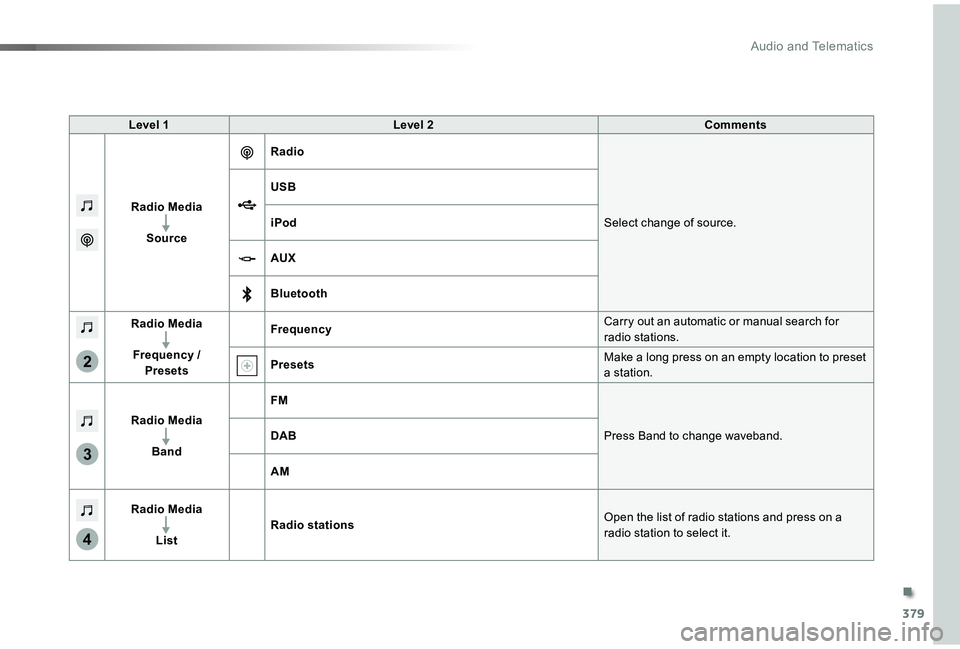
Radio Media
Source
Radio
Select change of source.
USB
iPod
AUX
Bluetooth
Radio Media
Frequency / Presets
FrequencyCarry out an automatic or manual search for radio stations.
PresetsMake a long press on an empty location to preset a station.
Radio Media
Band
FM
Press Band to change waveband.DAB
AM
Radio Media
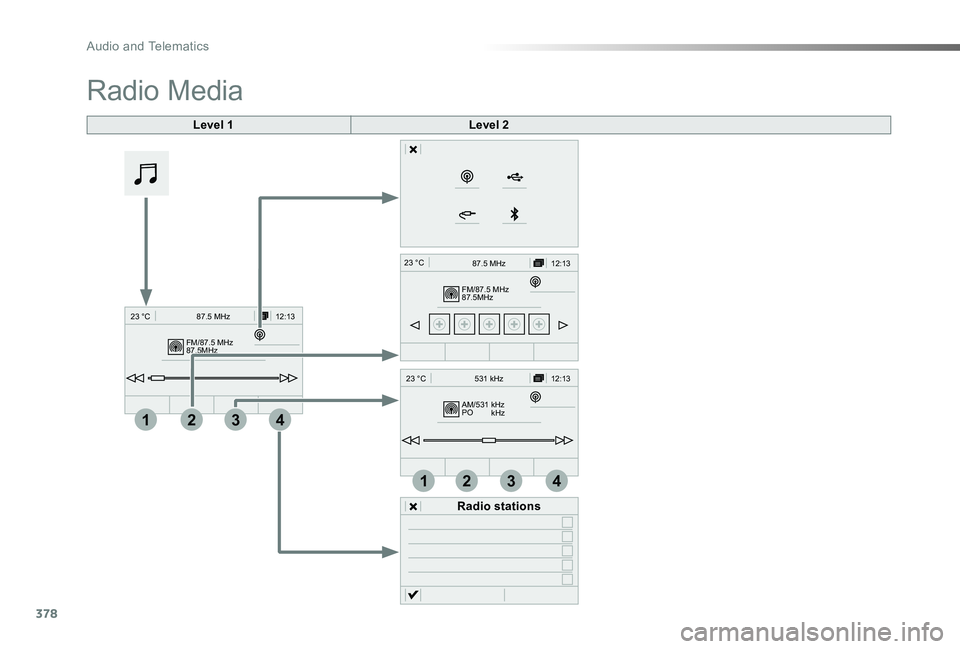
ListRadio stationsOpen the list of radio stations and press on a radio station to select it.
.
Audio and Telematics
Page 381 of 505
380
1
96785
1011
13141512
9
9
6
6
7
7
8
8
5
5
Level 1Level 2
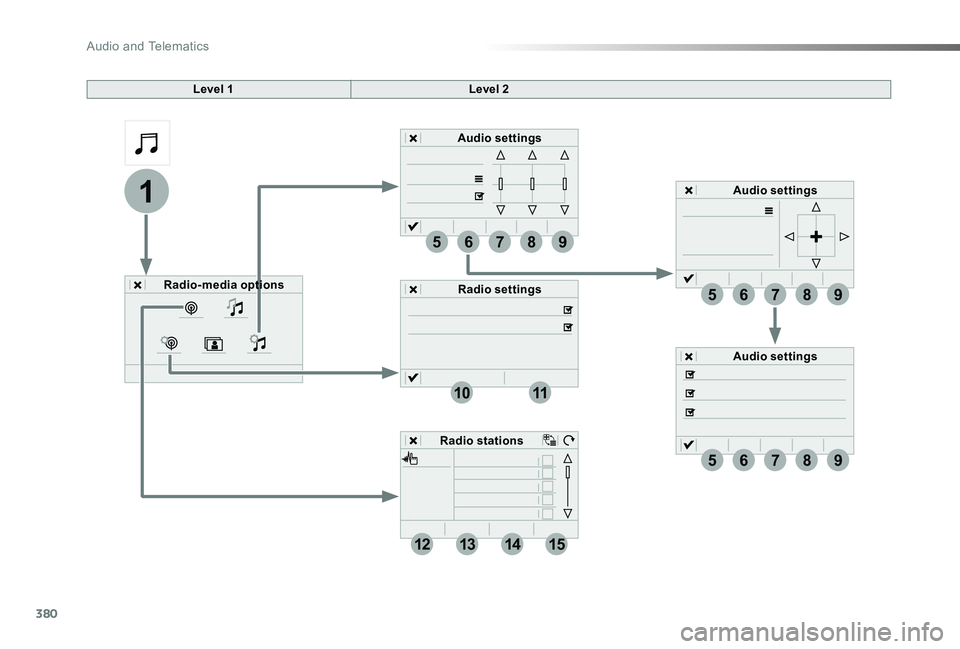
Radio-media options
Audio settings
Audio settings
Audio settings
Radio settings
Radio stations
Audio and Telematics
Page 382 of 505
381
5
12
8
6
13
14
15
9
7
10
11
1
1
1
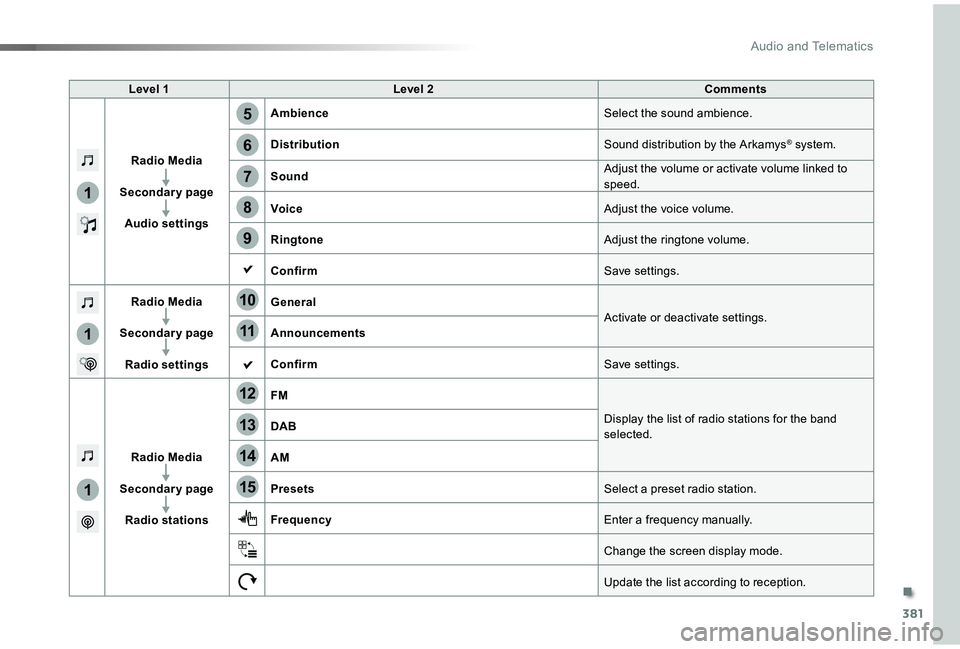
Level 1Level 2Comments
Radio Media
Secondary page
Audio settings
AmbienceSelect the sound ambience.
DistributionSound distribution by the Arkamys® system.
SoundAdjust the volume or activate volume linked to speed.
VoiceAdjust the voice volume.
RingtoneAdjust the ringtone volume.
ConfirmSave settings.
Radio Media
Secondary page
Radio settings
GeneralActivate or deactivate settings.Announcements
ConfirmSave settings.
Radio Media
Secondary page
Radio stations
FM
Display the list of radio stations for the band selected.DAB
AM
PresetsSelect a preset radio station.
FrequencyEnter a frequency manually.
Change the screen display mode.
Update the list according to reception.
.
Audio and Telematics
Page 383 of 505
382
21
1
1718192016
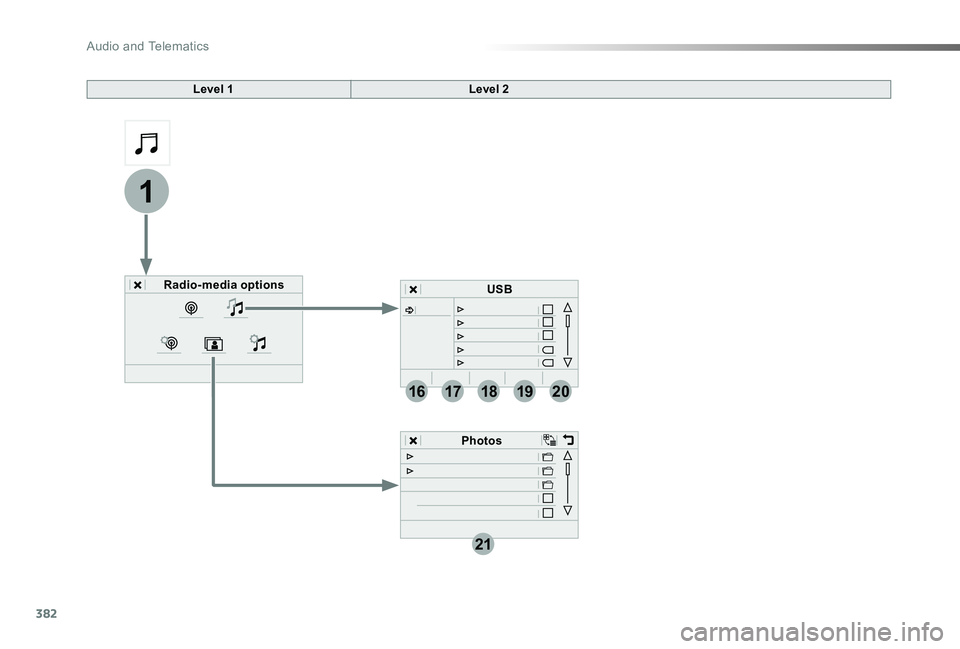
Level 1Level 2
Radio-media options
Photos
USB
Audio and Telematics