steering TOYOTA PROACE VERSO 2020 Service Manual
[x] Cancel search | Manufacturer: TOYOTA, Model Year: 2020, Model line: PROACE VERSO, Model: TOYOTA PROACE VERSO 2020Pages: 418, PDF Size: 39.32 MB
Page 331 of 418
331
Toyota Pro Touch with
navigation system
GPS navigation -
Applications - Multimedia
audio system - Bluetooth®
telephone
The various functions and settings described differ according to the version and configuration of the vehicle.
For safety reasons and because they require continued attention on the part of the driver, the following operations must be carried out with the vehicle stationary and the ignition switched off:- Using a smartphone.- Pairing a Bluetooth mobile phone to the hands-free Bluetooth system of the audio system.- Smartphone connection operations for CarPlay®, MirrorLinkTM or Android Auto (certain applications interrupt their display when the vehicle starts to move again).- Watching a video (the video stops when the vehicle starts to move again).- The configuration of profiles.
The system is protected in such a way that it will only operate in the vehicle.The display of the message Energy Economy Mode signals that a change to standby is imminent.
First steps
With the engine running, a press mutes the sound.With the ignition off, a press turns the system on.
Increase or decrease the volume using the wheel or the "plus" or "minus" buttons (depending on the equipment).
Use the menu buttons on either side of or below the touch screen for access to the menus, then press the virtual buttons in the touch screen.
Depending on the model, use the "Source" or "Menu" buttons to access the rolling menus, then press the virtual buttons in the touch screen.
Display the rolling menus at any time by pressing the screen briefly with three fingers.
All of the touch areas of the screen are white.Press the back arrow to go back a level.Press "OK" to confirm.
ContentsFirst steps 331Steering mounted controls 332Menus 333Voice commands 334Navigation 342Connected navigation 344Applications 347Radio 350DAB (Digital Audio Broadcasting) radio 352Media 352Telephone 354Frequently asked questions 360
.
Toyota Pro Touch with navigation system
Page 332 of 418
332
The touch screen is of the "capacitive" type.To clean the screen, use a soft, non-abrasive cloth (e.g. spectacles cloth) with no additional product.Do not use sharp objects on the screen.Do not touch the screen with wet hands.
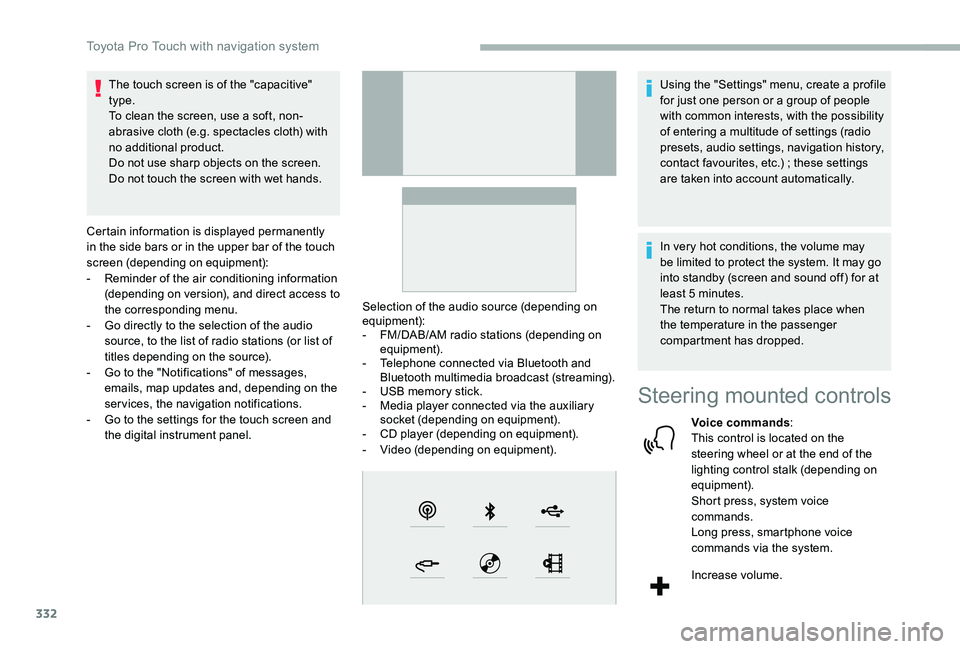
Certain information is displayed permanently in the side bars or in the upper bar of the touch screen (depending on equipment):- Reminder of the air conditioning information (depending on version), and direct access to the corresponding menu.- Go directly to the selection of the audio source, to the list of radio stations (or list of titles depending on the source).- Go to the "Notifications" of messages, emails, map updates and, depending on the services, the navigation notifications.- Go to the settings for the touch screen and the digital instrument panel.
Selection of the audio source (depending on equipment):- FM/DAB/AM radio stations (depending on equipment).- Telephone connected via Bluetooth and Bluetooth multimedia broadcast (streaming).- USB memory stick.- Media player connected via the auxiliary socket (depending on equipment).- CD player (depending on equipment).- Video (depending on equipment).
Using the "Settings" menu, create a profile for just one person or a group of people with common interests, with the possibility of entering a multitude of settings (radio presets, audio settings, navigation history, contact favourites, etc.) ; these settings are taken into account automatically.
In very hot conditions, the volume may be limited to protect the system. It may go into standby (screen and sound off) for at least 5 minutes.The return to normal takes place when the temperature in the passenger compartment has dropped.
Steering mounted controls
Voice commands:This control is located on the steering wheel or at the end of the lighting control stalk (depending on equipment).Short press, system voice commands.Long press, smartphone voice commands via the system.
Increase volume.
Toyota Pro Touch with navigation system
Page 334 of 418
334
21,518,5
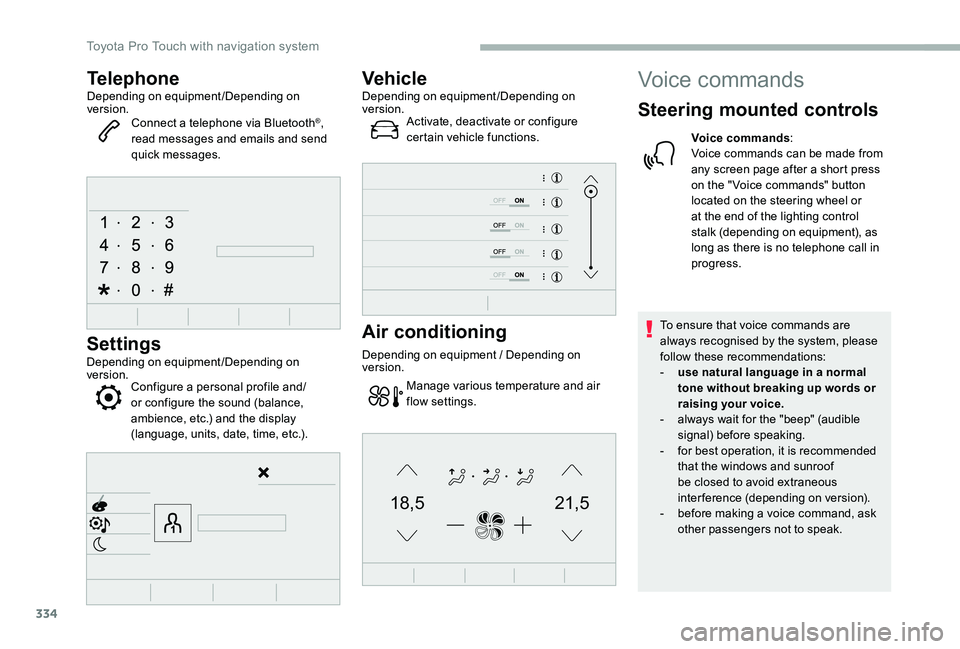
TelephoneDepending on equipment/Depending on version.Connect a telephone via Bluetooth®, read messages and emails and send quick messages.
Settings
Depending on equipment/Depending on version.Configure a personal profile and/or configure the sound (balance, ambience, etc.) and the display (language, units, date, time, etc.).
VehicleDepending on equipment/Depending on version.Activate, deactivate or configure certain vehicle functions.
Air conditioning
Depending on equipment / Depending on version.
Manage various temperature and air flow settings.
Voice commands
Steering mounted controls
Voice commands:Voice commands can be made from any screen page after a short press on the " Voice commands" button located on the steering wheel or at the end of the lighting control stalk (depending on equipment), as long as there is no telephone call in progress.
To ensure that voice commands are always recognised by the system, please follow these recommendations:- use natural language in a normal tone without breaking up words or raising your voice.- always wait for the "beep" (audible signal) before speaking.- for best operation, it is recommended that the windows and sunroof be closed to avoid extraneous interference (depending on version).- before making a voice command, ask other passengers not to speak.
Toyota Pro Touch with navigation system
Page 356 of 418
356
Select "Bluetooth connection" to display the list of paired devices.
Press on the name of the telephone chosen in the list to disconnect it.Press again to connect it.
Deleting a telephone
Select the basket at top right of the screen to display a basket alongside the telephone chosen.
Press the basket alongside the telephone chosen to delete it.
Receiving a call
An incoming call is announced by a ring and a superimposed display in the screen.
Make a short press on the steering mounted telephone button to accept an incoming call.
And
Make a long press
on the steering mounted telephone button to reject the call.
Or
Select "End call" on the touch screen.
Making a call
Using the telephone is not recommended while driving.Park the vehicle.Make the call using the steering mounted controls.
Calling a new number
Press Telephone to display the primary page.
Enter the phone number using the digital keypad.
Press "Call" to start the call.
Calling a contact
Press Telephone to display the primary page.
Or make a long press
on the steering mounted telephone button.
Select "Contact".
Select the desired contact from the list offered.
Select "Call".
Calling a recently used
number
Press Telephone to display the primary page.
Or
Make a long press
on the steering mounted telephone button.
Select "Calls".
Select the desired contact from the list offered.
It is always possible to make a call directly from the telephone ; as a safety measure, first park the vehicle.
Toyota Pro Touch with navigation system
Page 367 of 418
367
To y o t a P r o To u c h
Multimedia audio system -
Applications - Bluetooth®
telephone
The various functions and settings described differ according to the version and configuration of the vehicle.
For safety reasons and because they require continued attention on the part of the driver, the following operations must be carried out with the vehicle stationary and the ignition on:- Using a smartphone.- Pairing a Bluetooth mobile phone to the hands-free Bluetooth system of the car radio.- Smartphone connection operations for CarPlay®, MirrorLinkTM or Android Auto (certain applications interrupt their display when the vehicle starts to move again).- The configuration of profiles.
The system is protected in such a way that it will only operate in the vehicle.The display of the message Energy Economy Mode signals that a change to standby is imminent.
First steps
With the engine running, a press mutes the sound.With the ignition off, a press turns the system on.
Increase or decrease the volume using the wheel or the "plus" or "minus" buttons (depending on the equipment).
Use the buttons on either side of or below the touch screen for access to the menus, then press the virtual buttons in the touch screen.
Depending on the model, use the "Source" or "Menu" buttons on the left of the touch screen for access to the menus, then press the virtual buttons in the touch screen.
At all times it is possible to display the rolling menus by pressing the screen briefly with three fingers.
All of the touch areas of the screen are white.For pages with multiple tabs at the bottom of
the screen, it is possible to switch between pages either by tapping the tab for the desired page, or by using a finger, sliding the pages to the left or to the right.Press in the grey zone to go back up a level or to confirm.
ContentsFirst steps 367Steering mounted controls 368Menus 369Applications 371R adi o 371DAB (Digital Audio Broadcasting) radio 373M e d i a 3 74Telephone 376Frequently asked questions 382
.
Toyota Pro Touch
Page 368 of 418
368
The touch screen is of the "capacitive" type.To clean the screen, use a soft, non-abrasive cloth (e.g. spectacles cloth) with no additional product.Do not use sharp objects on the screen.Do not touch the screen with wet hands.
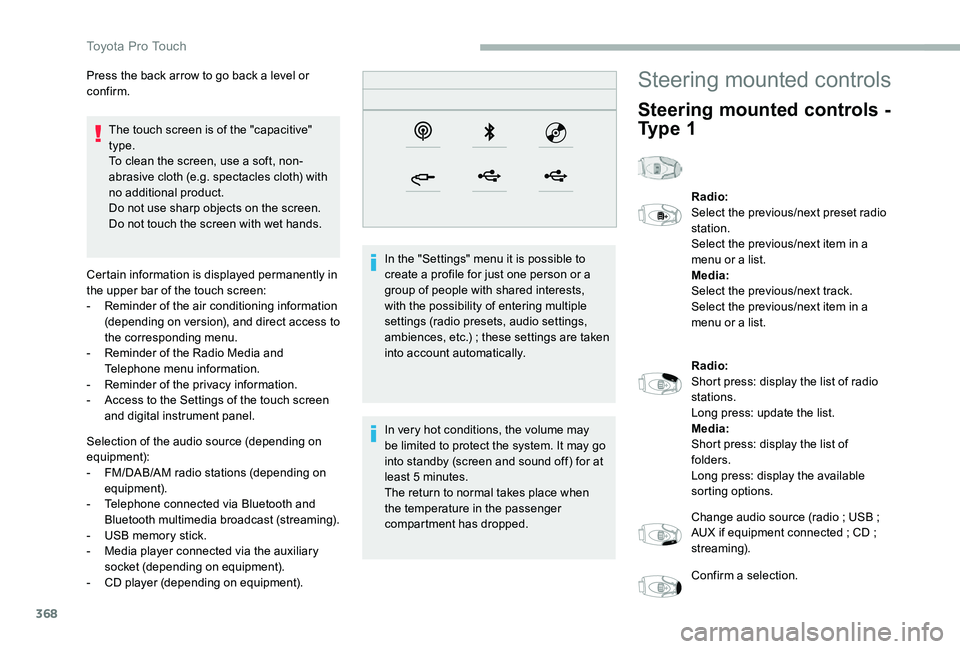
Certain information is displayed permanently in the upper bar of the touch screen:- Reminder of the air conditioning information (depending on version), and direct access to the corresponding menu.- Reminder of the Radio Media and Telephone menu information.- Reminder of the privacy information.- Access to the Settings of the touch screen and digital instrument panel.
Selection of the audio source (depending on
equipment):- FM/DAB/AM radio stations (depending on equipment).- Telephone connected via Bluetooth and Bluetooth multimedia broadcast (streaming).- USB memory stick.- Media player connected via the auxiliary socket (depending on equipment).- CD player (depending on equipment).
In the "Settings" menu it is possible to create a profile for just one person or a group of people with shared interests, with the possibility of entering multiple settings (radio presets, audio settings, ambiences, etc.) ; these settings are taken into account automatically.
In very hot conditions, the volume may
be limited to protect the system. It may go into standby (screen and sound off) for at least 5 minutes.The return to normal takes place when the temperature in the passenger compartment has dropped.
Press the back arrow to go back a level or confirm.Steering mounted controls
Steering mounted controls -
Ty p e 1
Radio:Select the previous/next preset radio station.Select the previous/next item in a menu or a list.Media:Select the previous/next track.Select the previous/next item in a menu or a list.
Radio:Short press: display the list of radio stations.Long press: update the list.Media:Short press: display the list of folders.Long press: display the available sorting options.
Change audio source (radio ; USB ; AUX if equipment connected ; CD ; streaming).
Confirm a selection.
Toyota Pro Touch
Page 369 of 418
369
Increase volume.
Decrease volume.
Mute/restore sound by simultaneously pressing the increase and decrease volume buttons.
Steering mounted controls
- Type 2
Voice commands:This control is located on the steering wheel or at the end of the lighting control stalk (depending on equipment).Short press, smartphone voice commands via the system.
Increase volume.
Decrease volume.Mute by pressing the volume increase and decrease buttons
simultaneously (depending on equipment).Restore the sound by pressing one of the two volume buttons.
Media (short press): change the multimedia source.
Telephone (short press): start telephone call.Call in progress (short press): access telephone menu.Telephone (long press): reject an incoming call, end call ; when no call is in progress, access telephone menu.
Radio (rotate): automatic search for the previous/next station.Media (rotate): previous/next track, move in a list.Short press: confirm a selection ; if nothing selected, access to presets.
Radio: display the list of stations.Media: display the list of tracks.Radio (press and hold): update the list of stations received.
Menus
Applications
Depending on equipment/Depending on version.
Access configurable equipment.
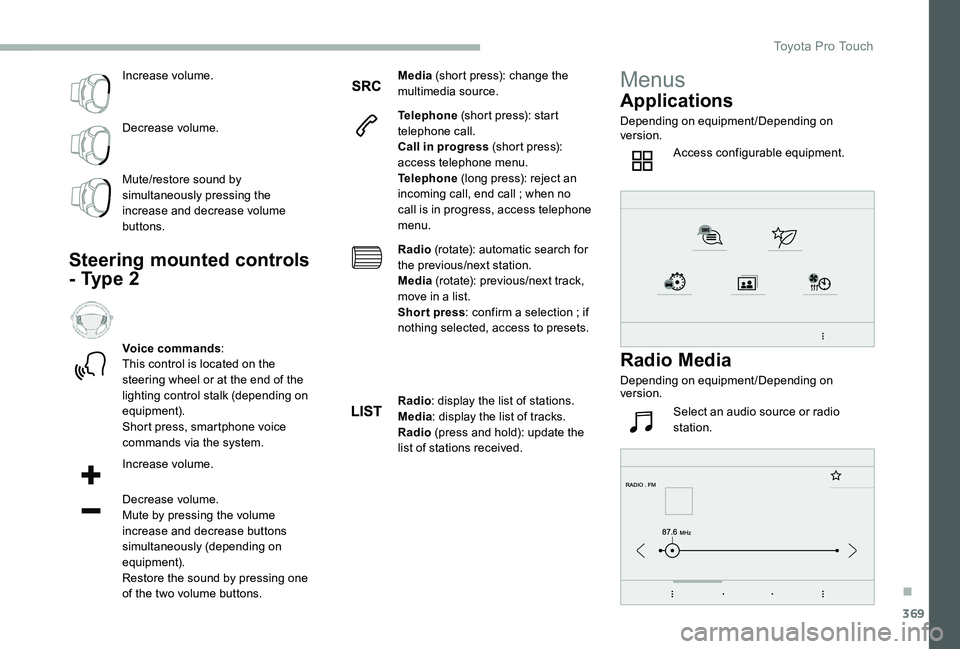
Radio Media
Depending on equipment/Depending on version.
Select an audio source or radio station.
.
Toyota Pro Touch
Page 379 of 418
379
The system offers to connect the telephone with 3 profiles:- "Telephone" (hands-free kit, telephone only),- "Audio streaming" (streaming: wireless playing of the audio files on the telephone),- "Internet data".
Select one or more profiles.
Press "OK" to confirm.
The ability of the system to connect to just one profile depends on the telephone.All three profiles may connect by default.
The ser vices available depend on the network, the SIM card and the compatibility of the Bluetooth devices used. Check the user guide for the telephone and with the ser vice provider for the available ser vices.
The profiles compatible with the system are: HFP, OPP, PBAP, A 2DP, AVRCP, MAP and PAN.
Go to the Brand's website for more information (compatibility, additional help, etc.).
Managing paired telephones
This function allows the connection or disconnection of a device as well as the deletion of a pairing.
Press Telephone to display the primary page.
Press the "TEL" button to go to the secondary page.
Press "Bluetooth connection" to display the list of paired devices.
Press on the name of the telephone chosen in the list to disconnect it.Press again to connect it.
Deleting a telephone
Press the basket at the top right of the screen to display a basket alongside the telephone chosen.
Press the basket alongside the telephone chosen to delete it.
Making a call
Using the telephone is not recommended while driving.Parking the vehicle.
Make the call using the steering mounted controls.
Calling a new number
Press Telephone to display the primary page.
Enter the phone number using the digital keypad.
Or
Press "End call".
Receiving a call
An incoming call is announced by a ring and a superimposed display in the screen.
Make a short press on the steering mounted PHONE button to accept an incoming call.
And
Make a long press
on the steering mounted PHONE button to reject the call.
.
Toyota Pro Touch
Page 380 of 418
380
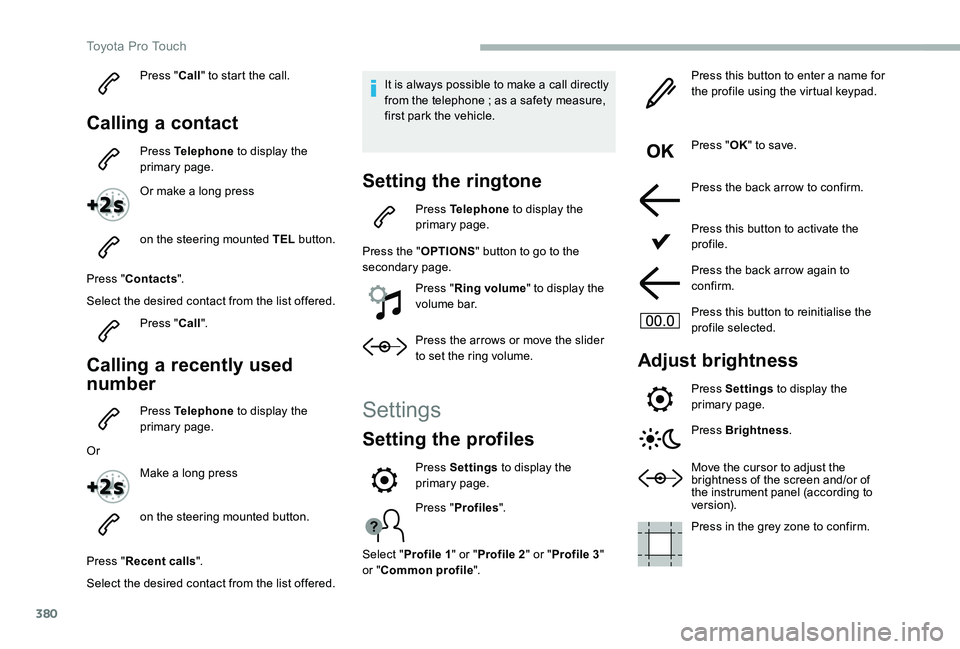
Press "Call" to start the call.
Calling a contact
Press Telephone to display the primary page.
Or make a long press
on the steering mounted TEL button.
Press "Contacts".
Select the desired contact from the list offered.
Press "Call".
Calling a recently used
number
Press Telephone to display the primary page.
Or
Make a long press
on the steering mounted button.
Press "Recent calls".
Select the desired contact from the list offered.
It is always possible to make a call directly from the telephone ; as a safety measure, first park the vehicle.
Setting the ringtone
Press Telephone to display the primary page.
Press the "OPTIONS" button to go to the secondary page.
Press "Ring volume" to display the volume bar.
Press the arrows or move the slider to set the ring volume.
Settings
Setting the profiles
Press "Profiles".
Select "Profile 1" or "Profile 2" or "Profile 3" or "Common profile".
Press this button to enter a name for the profile using the virtual keypad.
Press "OK" to save.
Press the back arrow to confirm.
Press this button to activate the profile.
Press the back arrow again to confirm.
Press this button to reinitialise the profile selected.
Adjust brightness
Press Settings to display the primary page.
Press Brightness.
Move the cursor to adjust the brightness of the screen and/or of the instrument panel (according to ve r s i o n).
Press in the grey zone to confirm.
Press Settings to display the primary page.
Toyota Pro Touch
Page 387 of 418
387
Toyota Radio Bluetooth
ContentsFirst steps 388
Steering mounted controls - Type 1 389
Steering mounted controls - Type 2 390
Menus 391
Radio 392
DAB (Digital Audio Broadcasting) radio 394
Media 396
Telephone 401
Frequently asked questions 406
Your audio system is coded in such a way that it will only operate in your vehicle.
The different functions and adjustments described vary according to the version and configuration of your vehicle.
As a safety measure and because it requires the sustained attention of the driver, the pairing of your Bluetooth telephone to the Bluetooth hands-free audio system must only be carried out with the vehicle stationary and the ignition on.To avoid discharging the battery, the audio system may switch off after a few minutes if the engine is not running.
.
Audio and Telematics