radio controls TOYOTA PROACE VERSO EV 2020 Owners Manual
[x] Cancel search | Manufacturer: TOYOTA, Model Year: 2020, Model line: PROACE VERSO EV, Model: TOYOTA PROACE VERSO EV 2020Pages: 360, PDF Size: 68.91 MB
Page 3 of 360
3
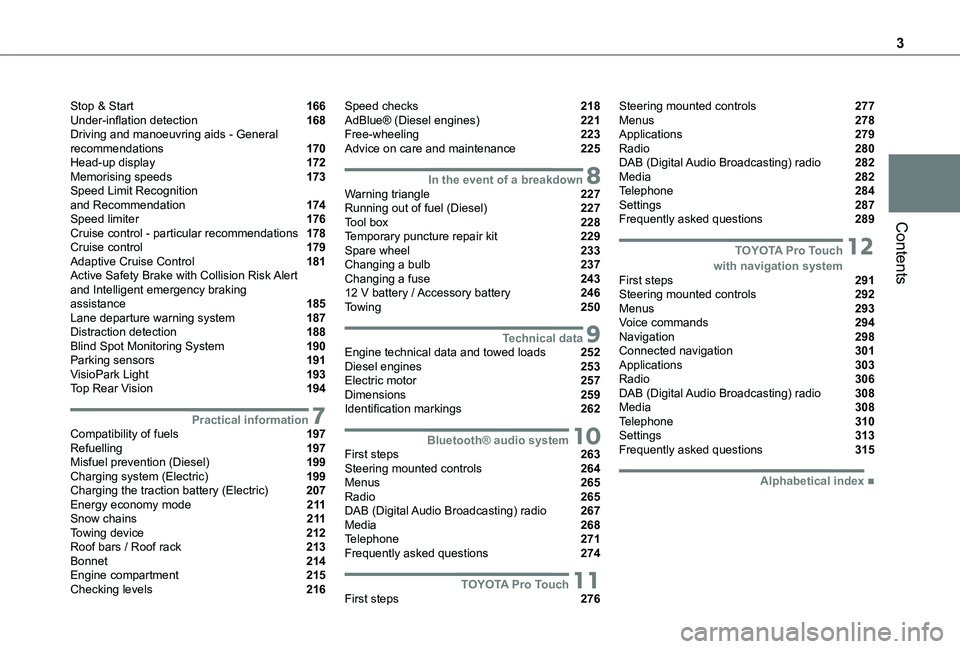
Contents
Stop & Start 166Under-inflation detection 168Driving and manoeuvring aids - General recommendations 170Head-up display 172Memorising speeds 173Speed Limit Recognition and Recommendation 174Speed limiter 176Cruise control - particular recommendations 178Cruise control 179Adaptive Cruise Control 181Active Safety Brake with Collision Risk Alert and Intelligent emergency braking assistance 185Lane departure warning system 187Distraction detection 188Blind Spot Monitoring System 190Parking sensors 191VisioPark Light 193Top Rear Vision 194
7Practical informationCompatibility of fuels 197Refuelling 197Misfuel prevention (Diesel) 199Charging system (Electric) 199Charging the traction battery (Electric) 207Energy economy mode 2 11Snow chains 2 11Towing device 212Roof bars / Roof rack 213Bonnet 214Engine compartment 215Checking levels 216
Speed checks 218AdBlue® (Diesel engines) 221Free-wheeling 223Advice on care and maintenance 225
8In the event of a breakdownWarning triangle 227Running out of fuel (Diesel) 227Tool box 228Temporary puncture repair kit 229Spare wheel 233Changing a bulb 237Changing a fuse 24312 V battery / Accessory battery 246Towing 250
9Technical dataEngine technical data and towed loads 252Diesel engines 253Electric motor 257Dimensions 259Identification markings 262
10Bluetooth® audio systemFirst steps 263Steering mounted controls 264Menus 265Radio 265DAB (Digital Audio Broadcasting) radio 267Media 268Telephone 271Frequently asked questions 274
11TOYOTA Pro TouchFirst steps 276
Steering mounted controls 277Menus 278Applications 279Radio 280DAB (Digital Audio Broadcasting) radio 282Media 282Telephone 284Settings 287Frequently asked questions 289
12 TOYOTA Pro Touch with navigation systemFirst steps 291Steering mounted controls 292Menus 293Voice commands 294Navigation 298Connected navigation 301Applications 303Radio 306DAB (Digital Audio Broadcasting) radio 308Media 308Telephone 310Settings 313Frequently asked questions 315
■ Alphabetical index
Page 26 of 360
26
Touch screen
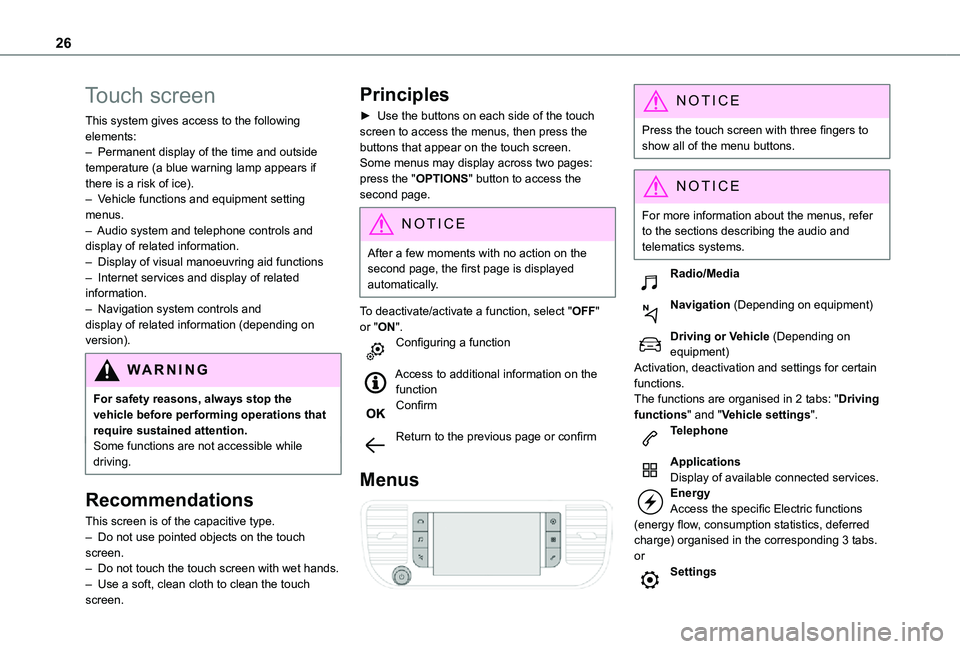
This system gives access to the following elements:– Permanent display of the time and outside temperature (a blue warning lamp appears if there is a risk of ice).– Vehicle functions and equipment setting menus.– Audio system and telephone controls and display of related information.– Display of visual manoeuvring aid functions– Internet services and display of related information.– Navigation system controls and display of related information (depending on version).
WARNI NG
For safety reasons, always stop the vehicle before performing operations that require sustained attention.Some functions are not accessible while driving.
Recommendations
This screen is of the capacitive type.– Do not use pointed objects on the touch screen.– Do not touch the touch screen with wet hands.– Use a soft, clean cloth to clean the touch screen.
Principles
► Use the buttons on each side of the touch screen to access the menus, then press the buttons that appear on the touch screen.Some menus may display across two pages: press the "OPTIONS" button to access the second page.
NOTIC E
After a few moments with no action on the second page, the first page is displayed automatically.
To deactivate/activate a function, select "OFF" or "ON".Configuring a function
Access to additional information on the functionConfirm
Return to the previous page or confirm
Menus
NOTIC E
Press the touch screen with three fingers to show all of the menu buttons.
NOTIC E
For more information about the menus, refer to the sections describing the audio and
telematics systems.
Radio/Media
Navigation (Depending on equipment)
Driving or Vehicle (Depending on equipment)Activation, deactivation and settings for certain functions.The functions are organised in 2 tabs: "Driving functions" and "Vehicle settings".Telephone
ApplicationsDisplay of available connected services.EnergyAccess the specific Electric functions (energy flow, consumption statistics, deferred charge) organised in the corresponding 3 tabs.orSettings
Page 264 of 360
264
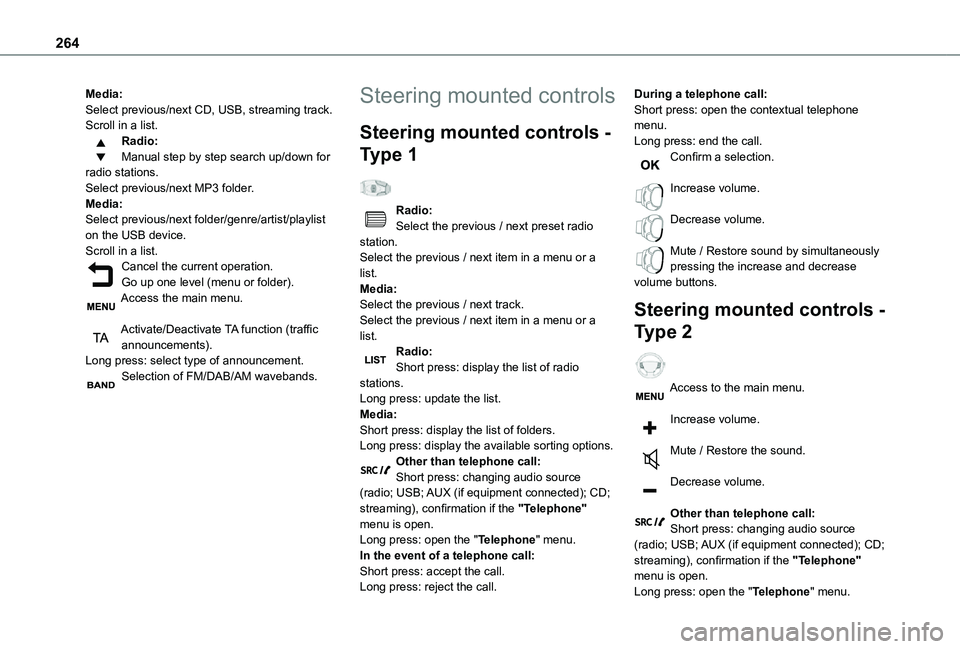
Media:Select previous/next CD, USB, streaming track.Scroll in a list.Radio:Manual step by step search up/down for radio stations.Select previous/next MP3 folder.Media:Select previous/next folder/genre/artist/playlist on the USB device.Scroll in a list.Cancel the current operation.Go up one level (menu or folder).Access the main menu.
Activate/Deactivate TA function (traffic announcements).Long press: select type of announcement.Selection of FM/DAB/AM wavebands.
Steering mounted controls
Steering mounted controls -
Type 1
Radio:Select the previous / next preset radio station.Select the previous / next item in a menu or a list.Media:Select the previous / next track.Select the previous / next item in a menu or a list.Radio:Short press: display the list of radio stations.Long press: update the list.Media:Short press: display the list of folders.
Long press: display the available sorting options.Other than telephone call:Short press: changing audio source (radio; USB; AUX (if equipment connected); CD; streaming), confirmation if the "Telephone" menu is open.Long press: open the "Telephone" menu.In the event of a telephone call:Short press: accept the call.Long press: reject the call.
During a telephone call:Short press: open the contextual telephone menu.Long press: end the call.Confirm a selection.
Increase volume.
Decrease volume.
Mute / Restore sound by simultaneously pressing the increase and decrease volume buttons.
Steering mounted controls -
Type 2
Access to the main menu.
Increase volume.
Mute / Restore the sound.
Decrease volume.
Other than telephone call:Short press: changing audio source (radio; USB; AUX (if equipment connected); CD; streaming), confirmation if the "Telephone" menu is open.Long press: open the "Telephone" menu.
Page 277 of 360
277
TOYOTA Pro Touch
11
WARNI NG
The touch screen is of the "capacitive" type.To clean the screen, use a soft, non-abrasive cloth (e.g. spectacles cloth) with no additional product.Do not use sharp objects on the screen.Do not touch the screen with wet hands.
Certain information is displayed permanently in the upper bar of the touch screen:– Air conditioning status information (depending on version), and direct access to the corresponding menu.– Radio Media and Telephone menu status information.– Privacy status information.– Access to the touch screen and digital instrument panel settings.Audio source selection (depending on equipment):– FM/DAB/AM radio stations (depending on equipment).
– Telephone connected via Bluetooth and Bluetooth multimedia broadcast (streaming).– USB Memory stick.
NOTIC E
In the "Settings" menu, it is possible to create a profile for an individual or for a group of people with shared interests, and configure a wide range of settings (radio presets, audio settings, ambiences, etc.). Settings are applied automatically.
NOTIC E
In very hot conditions, the volume may be limited to protect the system. It may enter standby mode (with the screen and sound off) for 5 minutes or more.The system will resume normal operation when the temperature in the passenger compartment has dropped.
Steering mounted controls
Steering mounted controls -
Type 1
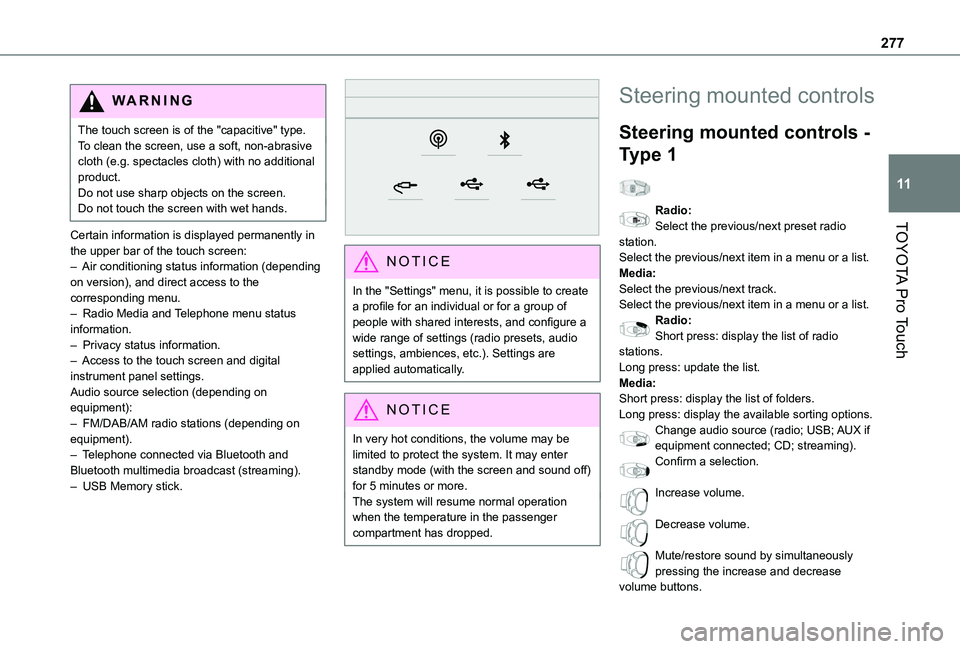
Radio:Select the previous/next preset radio station.Select the previous/next item in a menu or a list.Media:Select the previous/next track.Select the previous/next item in a menu or a list.Radio:Short press: display the list of radio stations.Long press: update the list.Media:Short press: display the list of folders.Long press: display the available sorting options.Change audio source (radio; USB; AUX if
equipment connected; CD; streaming).Confirm a selection.
Increase volume.
Decrease volume.
Mute/restore sound by simultaneously pressing the increase and decrease volume buttons.
Page 278 of 360
278
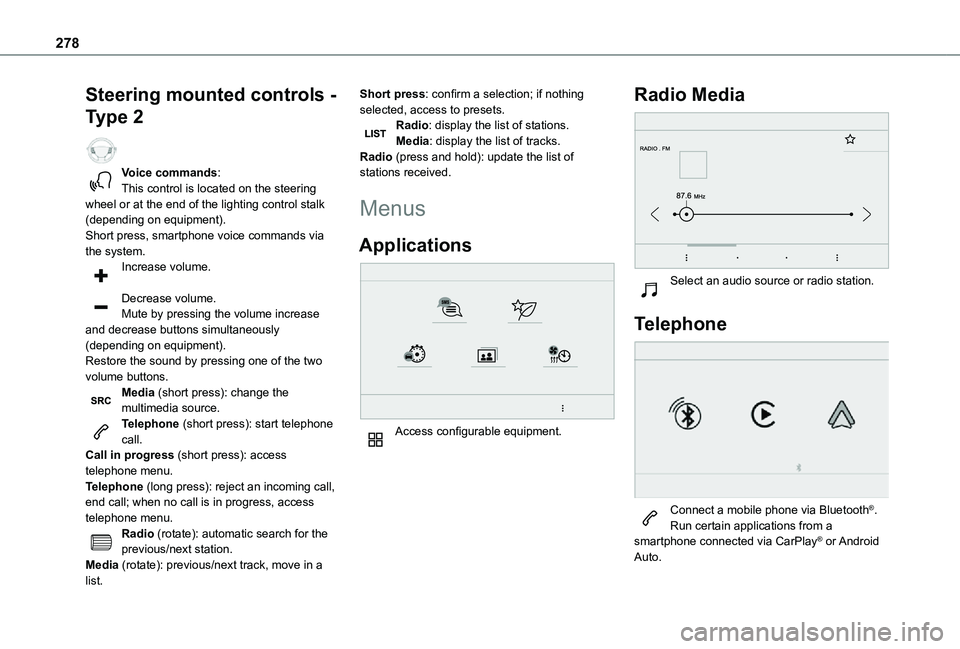
Steering mounted controls -
Type 2
Voice commands:This control is located on the steering wheel or at the end of the lighting control stalk (depending on equipment).Short press, smartphone voice commands via the system.Increase volume.
Decrease volume.Mute by pressing the volume increase and decrease buttons simultaneously (depending on equipment).Restore the sound by pressing one of the two volume buttons.Media (short press): change the multimedia source.Telephone (short press): start telephone call.
Call in progress (short press): access telephone menu.Telephone (long press): reject an incoming call, end call; when no call is in progress, access telephone menu.Radio (rotate): automatic search for the previous/next station.Media (rotate): previous/next track, move in a list.
Short press: confirm a selection; if nothing selected, access to presets.Radio: display the list of stations.Media: display the list of tracks.Radio (press and hold): update the list of stations received.
Menus
Applications
Access configurable equipment.
Radio Media
Select an audio source or radio station.
Telephone
Connect a mobile phone via Bluetooth®.Run certain applications from a smartphone connected via CarPlay® or Android Auto.
Page 292 of 360
292
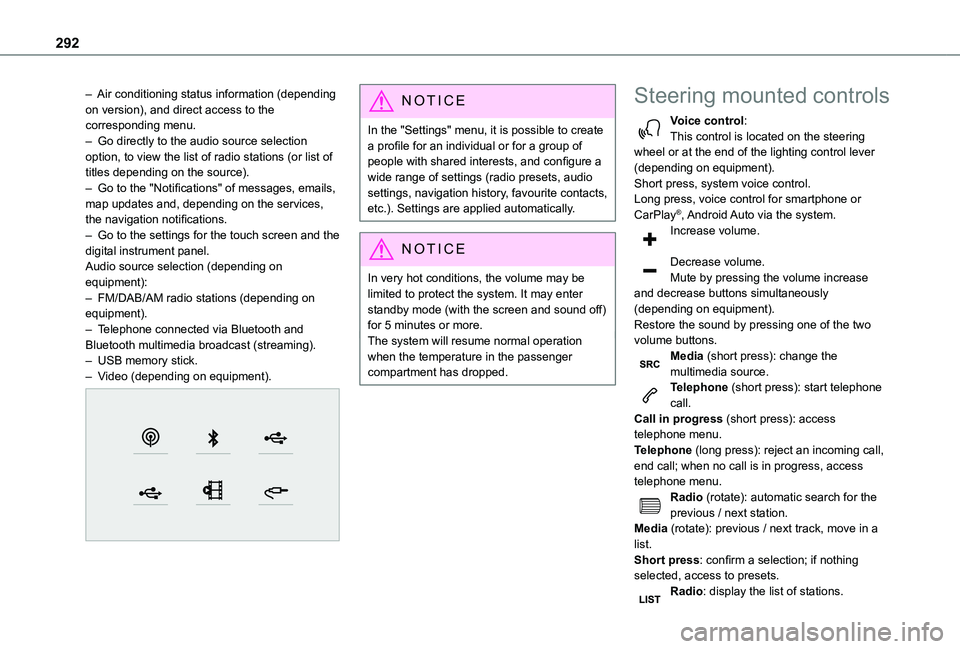
– Air conditioning status information (depending on version), and direct access to the corresponding menu.– Go directly to the audio source selection option, to view the list of radio stations (or list of titles depending on the source).– Go to the "Notifications" of messages, emails, map updates and, depending on the services, the navigation notifications.– Go to the settings for the touch screen and the digital instrument panel.Audio source selection (depending on equipment):– FM/DAB/AM radio stations (depending on equipment).– Telephone connected via Bluetooth and Bluetooth multimedia broadcast (streaming).– USB memory stick.– Video (depending on equipment).
NOTIC E
In the "Settings" menu, it is possible to create a profile for an individual or for a group of people with shared interests, and configure a wide range of settings (radio presets, audio settings, navigation history, favourite contacts, etc.). Settings are applied automatically.
NOTIC E
In very hot conditions, the volume may be limited to protect the system. It may enter standby mode (with the screen and sound off) for 5 minutes or more.The system will resume normal operation when the temperature in the passenger compartment has dropped.
Steering mounted controls
Voice control:This control is located on the steering wheel or at the end of the lighting control lever (depending on equipment).Short press, system voice control.Long press, voice control for smartphone or CarPlay®, Android Auto via the system.Increase volume.
Decrease volume.Mute by pressing the volume increase and decrease buttons simultaneously (depending on equipment).Restore the sound by pressing one of the two volume buttons.Media (short press): change the multimedia source.Telephone (short press): start telephone call.Call in progress (short press): access telephone menu.
Telephone (long press): reject an incoming call, end call; when no call is in progress, access telephone menu.Radio (rotate): automatic search for the previous / next station.Media (rotate): previous / next track, move in a list.Short press: confirm a selection; if nothing selected, access to presets.Radio: display the list of stations.
Page 294 of 360
294
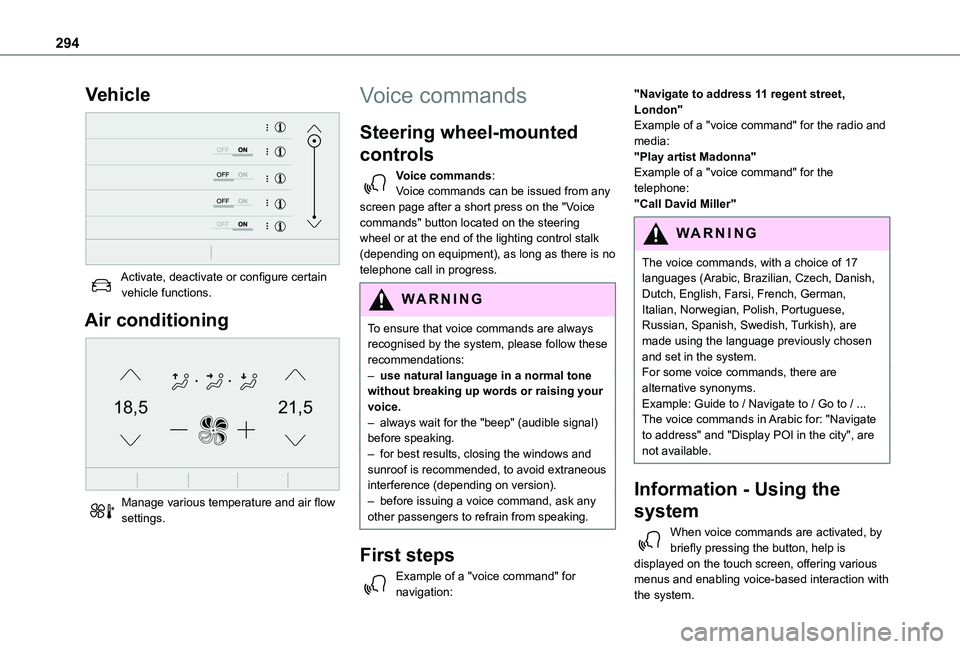
Vehicle
Activate, deactivate or configure certain vehicle functions.
Air conditioning
21,518,5
Manage various temperature and air flow settings.
Voice commands
Steering wheel-mounted
controls
Voice commands:Voice commands can be issued from any screen page after a short press on the "Voice commands" button located on the steering wheel or at the end of the lighting control stalk (depending on equipment), as long as there is no telephone call in progress.
WARNI NG
To ensure that voice commands are always recognised by the system, please follow these recommendations: – use natural language in a normal tone without breaking up words or raising your voice.– always wait for the "beep" (audible signal) before speaking.– for best results, closing the windows and sunroof is recommended, to avoid extraneous interference (depending on version).– before issuing a voice command, ask any other passengers to refrain from speaking.
First steps
Example of a "voice command" for navigation:
"Navigate to address 11 regent street, London"Example of a "voice command" for the radio and media:"Play artist Madonna"Example of a "voice command" for the telephone:"Call David Miller"
WARNI NG
The voice commands, with a choice of 17 languages (Arabic, Brazilian, Czech, Danish, Dutch, English, Farsi, French, German, Italian, Norwegian, Polish, Portuguese, Russian, Spanish, Swedish, Turkish), are made using the language previously chosen and set in the system.For some voice commands, there are alternative synonyms.Example: Guide to / Navigate to / Go to / ...The voice commands in Arabic for: "Navigate to address" and "Display POI in the city", are not available.
Information - Using the
system
When voice commands are activated, by briefly pressing the button, help is displayed on the touch screen, offering various menus and enabling voice-based interaction with the system.
Page 295 of 360
295
TOYOTA Pro Touch with navigation system
12
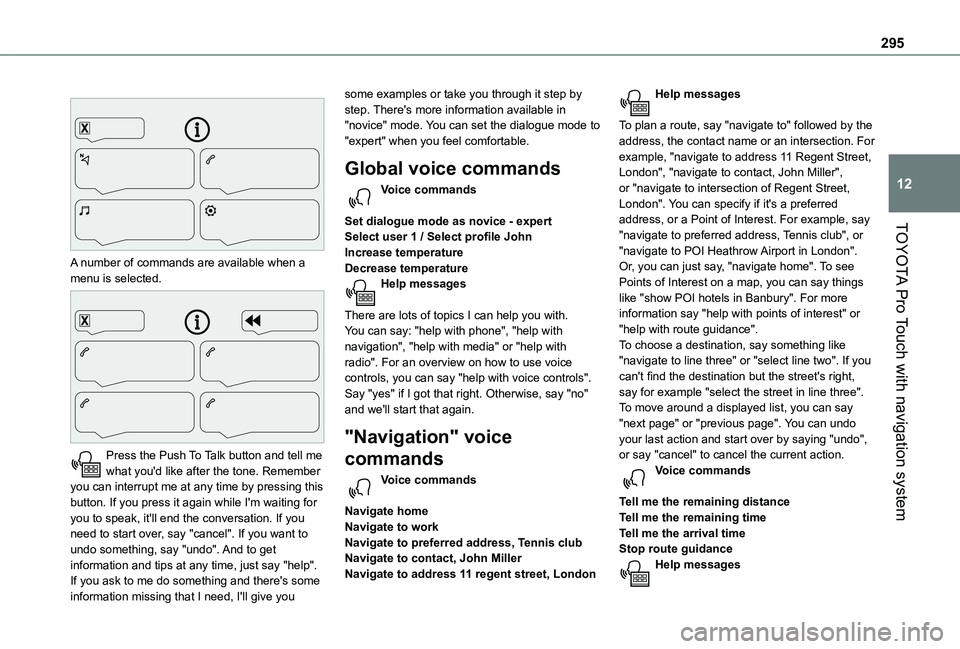
A number of commands are available when a menu is selected.
Press the Push To Talk button and tell me what you'd like after the tone. Remember you can interrupt me at any time by pressing this button. If you press it again while I'm waiting for you to speak, it'll end the conversation. If you need to start over, say "cancel". If you want to undo something, say "undo". And to get information and tips at any time, just say "help". If you ask to me do something and there's some information missing that I need, I'll give you
some examples or take you through it step by step. There's more information available in "novice" mode. You can set the dialogue mode to "expert" when you feel comfortable.
Global voice commands
Voice commands
Set dialogue mode as novice - expertSelect user 1 / Select profile JohnIncrease temperatureDecrease temperatureHelp messages
There are lots of topics I can help you with. You can say: "help with phone", "help with navigation", "help with media" or "help with radio". For an overview on how to use voice controls, you can say "help with voice controls".Say "yes" if I got that right. Otherwise, say "no" and we'll start that again.
"Navigation" voice
commands
Voice commands
Navigate homeNavigate to workNavigate to preferred address, Tennis clubNavigate to contact, John MillerNavigate to address 11 regent street, London
Help messages
To plan a route, say "navigate to" followed by the address, the contact name or an intersection. For example, "navigate to address 11 Regent Street, London", "navigate to contact, John Miller", or "navigate to intersection of Regent Street, London". You can specify if it's a preferred address, or a Point of Interest. For example, say "navigate to preferred address, Tennis club", or "navigate to POI Heathrow Airport in London". Or, you can just say, "navigate home". To see Points of Interest on a map, you can say things like "show POI hotels in Banbury". For more information say "help with points of interest" or "help with route guidance".To choose a destination, say something like "navigate to line three" or "select line two". If you can't find the destination but the street's right, say for example "select the street in line three". To move around a displayed list, you can say "next page" or "previous page". You can undo your last action and start over by saying "undo",
or say "cancel" to cancel the current action.Voice commands
Tell me the remaining distanceTell me the remaining timeTell me the arrival timeStop route guidanceHelp messages
Page 309 of 360
309
TOYOTA Pro Touch with navigation system
12
Watching a video
Depending on equipment/Depending on version/Depending on country.Insert a USB memory stick in the USB port.
NOTIC E
Video control commands are accessible only through the touch screen.
Press Radio Media to display the main page.Select "SOURCES".Select Video to start the video.
To remove the USB memory stick, press the pause button to stop the video, then remove the memory stick.The system can play video files in the MPEG-4 Part 2, MPEG-2, MPEG-1, H.264, H.263, VP8, WMV and RealVideo formats.
Streaming Bluetooth®
Streaming allows you to listen to the audio feed from your smartphone.The Bluetooth profile must be activated.First adjust the volume on the portable device (to a high level).Then adjust the volume of the audio system.If play does not start automatically, it may be necessary to start the audio playback from the smartphone.
Control is from the portable device or by using the system's touch buttons.
NOTIC E
Once connected in streaming mode, the smartphone is considered to be a media source.
Connecting Apple® players
Connect the Apple® player to the USB port using a suitable cable (not supplied).Play starts automatically.Control is via the audio system.
NOTIC E
The classifications available are those of the portable device connected (artists/albums/genres/playlists/audio books/podcasts).The default classification used is by artist. To modify the classification used, return to the first level of the menu then select the desired classification (playlists for example) and confirm to go down through the menu to the desired track.
The version of software in the audio system may not be compatible with the generation of the
Apple® player.
Information and advice
The system supports USB mass storage devices, BlackBerry® devices and Apple® players via the USB ports. The adapter cable is not supplied.Devices are managed using the audio system controls.Other devices, not recognised on connection, must be connected via Bluetooth streaming, if compatible.The audio system will only play audio files with ".wma", ".aac", ".flac", ".ogg" and ".mp3" file extensions, at bit rates between 32 Kbps and 320 Kbps.It also supports VBR (Variable Bit Rate) mode.No other file types (".mp4", etc.) can be read.All ".wma" files must be standard WMA 9 files.The supported sampling rates are 32, 44 and 48 KHz.To avoid reading and display problems, we recommend choosing file names less than 20 characters long that do not contain any special
characters (e.g. “ ? . ; ù).Use only USB memory sticks in FAT32 format (File Allocation Table).
NOTIC E
We recommend using the original USB cable for the portable device.
Page 323 of 360
323
Alphabetical index
Remote control 30–35, 37, 150Remote functions 209Remotely operable functions (Electric) 28, 96Removing a wheel 235–237Removing the mat 75Replacing bulbs 237–238, 241, 243Replacing fuses 243–245Replacing the air filter 219Replacing the oil filter 219Replacing the passenger compartment filter 218Reservoir, screenwash 217Resetting the trip recorder 23Reversing camera 171, 193–194, 196Reversing lamp 241, 243Roof bars 213Running out of fuel (Diesel) 227
S
Safety, children 121, 124–125, 127–128, 134–136, 142, 143, 143–144, 144
Saturation of the particle filter (Diesel) 219Screen, instrument panel 24Screen menu map 284Screen, multifunction (with audio system) 265Screenwash, front 106Screenwash, rear 107SCR (Selective Catalytic Reduction) 21, 221Seat and bench seat, rear, fixed 63, 66–67Seat and bench seat, rear, on rails 63, 68–70Seat angle 52
Seat belts 11 6–11 9, 127Seat belts, rear 11 8Seat, bench front, 2-seat 55, 11 8Seat, rear bench 63Seats, electric 53–54Seats, front 52–54Seats, heated 55–56Seat(s), individual, rear, on rails 70–72, 11 8Seats, rear 64–70, 125Selector, gear 160Sensors (warnings) 171Serial number, vehicle 262Service indicator 18Servicing 18, 218, 220Settings, equipment 26–27Settings, system 287, 314Sidelamps 99, 238, 240–241, 243Side repeater 240Silent vehicle warning sound (Electric) 111, 149Sliding side door, electric 35–36, 41–42, 44Sliding side door, hands-free 45–46Sliding side window 82
Smart Cargo 59–61Smart Entry & Start 30–31, 151, 153–154Smartphone 28Snow chains 168, 2 11–212, 234Snow chains, link 2 11, 234Socket, 12 V accessory 75, 77Socket, 220 V 78Speed limiter 173, 175–178Speed limit recognition 174–175, 177, 180, 183–185
Speedometer 171Sport mode 165Stability control (ESC) 11 2, 11 4–11 6Starting a Diesel engine 197Starting the engine 150, 153Starting the vehicle 151, 154, 159–163Starting using another battery 154, 247Station, radio 265, 280, 306–307Stay, bonnet 215–216Steering mounted controls, audio 264, 277–278, 292Steering wheel, adjustment 57Stickers, customising ~ Stickers, expressive 226Stopping the vehicle 153–154, 160–163Stop & Start 25, 88, 166–167, 197, 214, 218, 249Storage 55, 62, 73–74, 76Storage compartments 76Storage wells 73–74, 76Stowing rings 79Sunshine sensor 87Super-fast charging (Electric) 208, 210, 257Suspension 220
Switching off the engine 150, 152–153Synchronising the remote control 39
T
Table of weights 253Table position 53Table, retractable sliding 83–85Tables, aircraft 76