phone TOYOTA PROACE VERSO EV 2021 Owners Manual
[x] Cancel search | Manufacturer: TOYOTA, Model Year: 2021, Model line: PROACE VERSO EV, Model: TOYOTA PROACE VERSO EV 2021Pages: 360, PDF Size: 68.91 MB
Page 3 of 360
3
Contents
Stop & Start 166Under-inflation detection 168Driving and manoeuvring aids - General recommendations 170Head-up display 172Memorising speeds 173Speed Limit Recognition and Recommendation 174Speed limiter 176Cruise control - particular recommendations 178Cruise control 179Adaptive Cruise Control 181Active Safety Brake with Collision Risk Alert and Intelligent emergency braking assistance 185Lane departure warning system 187Distraction detection 188Blind Spot Monitoring System 190Parking sensors 191VisioPark Light 193Top Rear Vision 194
7Practical informationCompatibility of fuels 197Refuelling 197Misfuel prevention (Diesel) 199Charging system (Electric) 199Charging the traction battery (Electric) 207Energy economy mode 2 11Snow chains 2 11Towing device 212Roof bars / Roof rack 213Bonnet 214Engine compartment 215Checking levels 216
Speed checks 218AdBlue® (Diesel engines) 221Free-wheeling 223Advice on care and maintenance 225
8In the event of a breakdownWarning triangle 227Running out of fuel (Diesel) 227Tool box 228Temporary puncture repair kit 229Spare wheel 233Changing a bulb 237Changing a fuse 24312 V battery / Accessory battery 246Towing 250
9Technical dataEngine technical data and towed loads 252Diesel engines 253Electric motor 257Dimensions 259Identification markings 262
10Bluetooth® audio systemFirst steps 263Steering mounted controls 264Menus 265Radio 265DAB (Digital Audio Broadcasting) radio 267Media 268Telephone 271Frequently asked questions 274
11TOYOTA Pro TouchFirst steps 276
Steering mounted controls 277Menus 278Applications 279Radio 280DAB (Digital Audio Broadcasting) radio 282Media 282Telephone 284Settings 287Frequently asked questions 289
12 TOYOTA Pro Touch with navigation systemFirst steps 291Steering mounted controls 292Menus 293Voice commands 294Navigation 298Connected navigation 301Applications 303Radio 306DAB (Digital Audio Broadcasting) radio 308Media 308Telephone 310Settings 313Frequently asked questions 315
■ Alphabetical index
Page 26 of 360
26
Touch screen
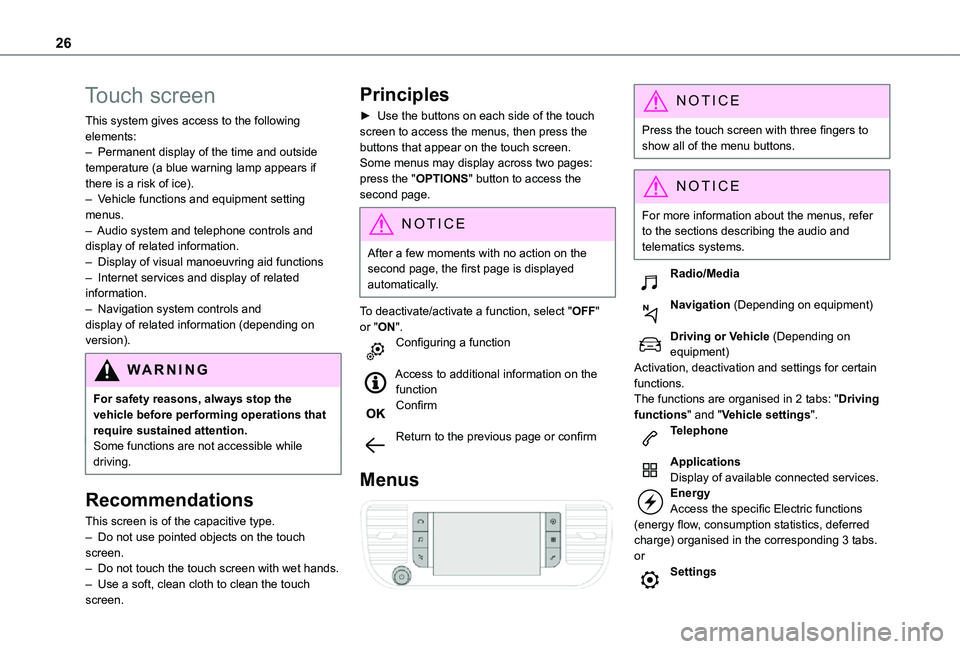
This system gives access to the following elements:– Permanent display of the time and outside temperature (a blue warning lamp appears if there is a risk of ice).– Vehicle functions and equipment setting menus.– Audio system and telephone controls and display of related information.– Display of visual manoeuvring aid functions– Internet services and display of related information.– Navigation system controls and display of related information (depending on version).
WARNI NG
For safety reasons, always stop the vehicle before performing operations that require sustained attention.Some functions are not accessible while driving.
Recommendations
This screen is of the capacitive type.– Do not use pointed objects on the touch screen.– Do not touch the touch screen with wet hands.– Use a soft, clean cloth to clean the touch screen.
Principles
► Use the buttons on each side of the touch screen to access the menus, then press the buttons that appear on the touch screen.Some menus may display across two pages: press the "OPTIONS" button to access the second page.
NOTIC E
After a few moments with no action on the second page, the first page is displayed automatically.
To deactivate/activate a function, select "OFF" or "ON".Configuring a function
Access to additional information on the functionConfirm
Return to the previous page or confirm
Menus
NOTIC E
Press the touch screen with three fingers to show all of the menu buttons.
NOTIC E
For more information about the menus, refer to the sections describing the audio and
telematics systems.
Radio/Media
Navigation (Depending on equipment)
Driving or Vehicle (Depending on equipment)Activation, deactivation and settings for certain functions.The functions are organised in 2 tabs: "Driving functions" and "Vehicle settings".Telephone
ApplicationsDisplay of available connected services.EnergyAccess the specific Electric functions (energy flow, consumption statistics, deferred charge) organised in the corresponding 3 tabs.orSettings
Page 27 of 360
27
Instruments
1
Main settings for the audio system and touch screen.Audio system on/off.Volume adjustment/mute.
Upper bar
Certain information is displayed permanently in the upper bar of the touch screen:– Time and outside temperature (a blue warning lamp appears if there is a risk of ice).– Reminder of information from the Radio Media and Telephone menus and navigation instructions (depending on equipment).– Notifications.– Access to the Settings.
Energy menu
Depending on version, this is accessible either:– directly, by pressing the button near the touch screen.– via the Applications menu.
Flow
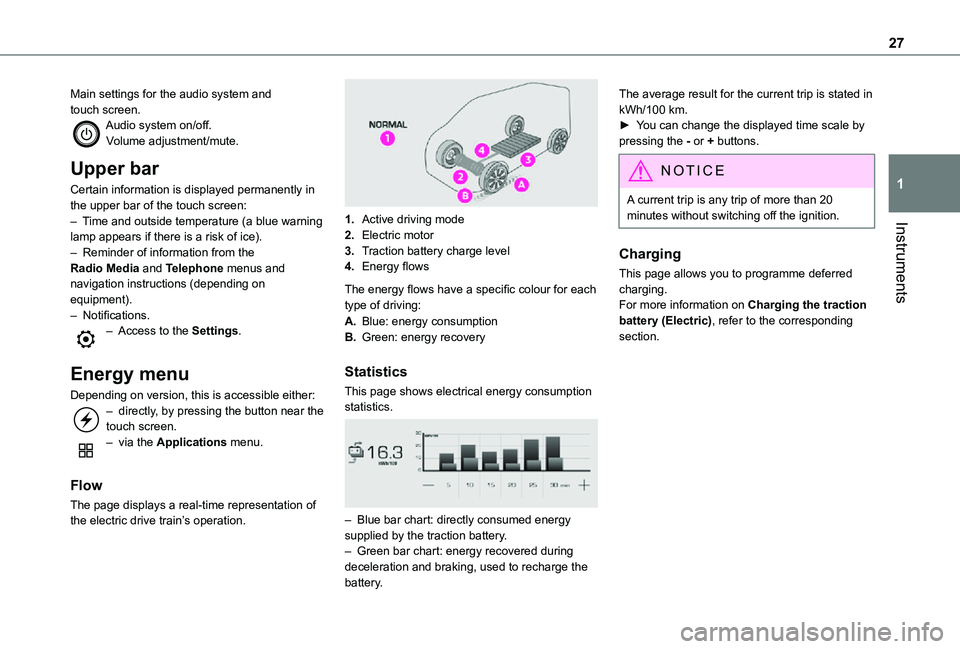
The page displays a real-time representation of the electric drive train’s operation.
1.Active driving mode
2.Electric motor
3.Traction battery charge level
4.Energy flows
The energy flows have a specific colour for each type of driving:
A.Blue: energy consumption
B.Green: energy recovery
Statistics
This page shows electrical energy consumption statistics.
– Blue bar chart: directly consumed energy supplied by the traction battery.– Green bar chart: energy recovered during deceleration and braking, used to recharge the battery.
The average result for the current trip is stated in kWh/100 km.► You can change the displayed time scale by pressing the - or + buttons.
NOTIC E
A current trip is any trip of more than 20 minutes without switching off the ignition.
Charging
This page allows you to programme deferred charging.For more information on Charging the traction battery (Electric), refer to the corresponding section.
Page 28 of 360
28
Remotely-operable
functions (Electric)
(Available soon)
In addition to all the functions of the MyToyota application that you can access from a smartphone, you can access the following functions:– Battery charge management (Deferred charging).
– Temperature pre-conditioning management.– Consultation of the state of charge and range of the vehicle.
Installation procedure
► Download the MyToyota app from the appropriate online store for your smartphone.► Create an account.► Enter the vehicle’s V.I.N. (code beginning with "VF" on the vehicle registration document).For more information on Identification markings, refer to the corresponding section.
NOTIC E
Network coverageIn order to be able to use the various remotely operable features, ensure that your vehicle is located in an area covered by the mobile network.A lack of network coverage may prevent communication with the vehicle (for example, if it is in an underground car park). In such cases, the application will display a message indicating that the connection with the vehicle could not be established.
Setting the date and time
Without Bluetooth® audio
system
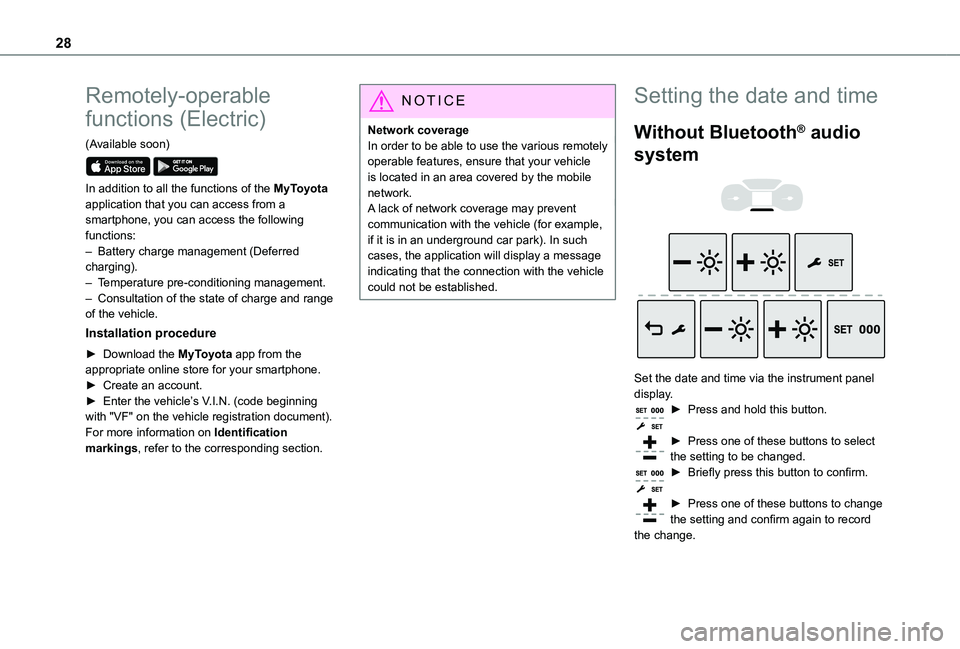
Set the date and time via the instrument panel display.► Press and hold this button.
► Press one of these buttons to select the setting to be changed.► Briefly press this button to confirm.
► Press one of these buttons to change the setting and confirm again to record the change.
Page 32 of 360
32
WARNI NG
Locking the vehicleDriving with the doors locked could make it more difficult for the emergency services to enter the passenger compartment in an emergency.As a safety precaution, remove the key from the ignition or take the electronic key with you when leaving the vehicle, even for a short time.
NOTIC E
Purchasing a second-hand vehicleHave the key codes memorised by any authorized Toyota retailer or Toyota authorized repairer, or any reliable repairer, to ensure that the keys in your possession are the only ones able to start the vehicle.
WARNI NG
To preserve the battery charge in the electronic key and the vehicle's battery, the "hands-free" functions are set to hibernation mode after 21 days without use. To restore these functions, press one of the remote control buttons or start the engine with the electronic key in the reader.For more information on starting with the Smart Entry & Start system, refer to the corresponding section.
NOTIC E
Electrical interferenceThe electronic key may not operate if close to certain electronic devices such as telephones (switched on or on standby) or laptop computers, strong magnetic fields, etc.
WARNI NG
Accumulations (water, dust, grime, salt, etc.) on the inner surface of the door handle may affect detection.If cleaning the inner surface of the door handle using a cloth does not restore detection, contact any authorized Toyota retailer or Toyota authorized repairer, or any reliable repairer.A sudden splash of water (stream of water, high pressure jet washer, etc.) may be identified by the system as the desire to open the vehicle.
Unlocking/Complete or
selective unlocking
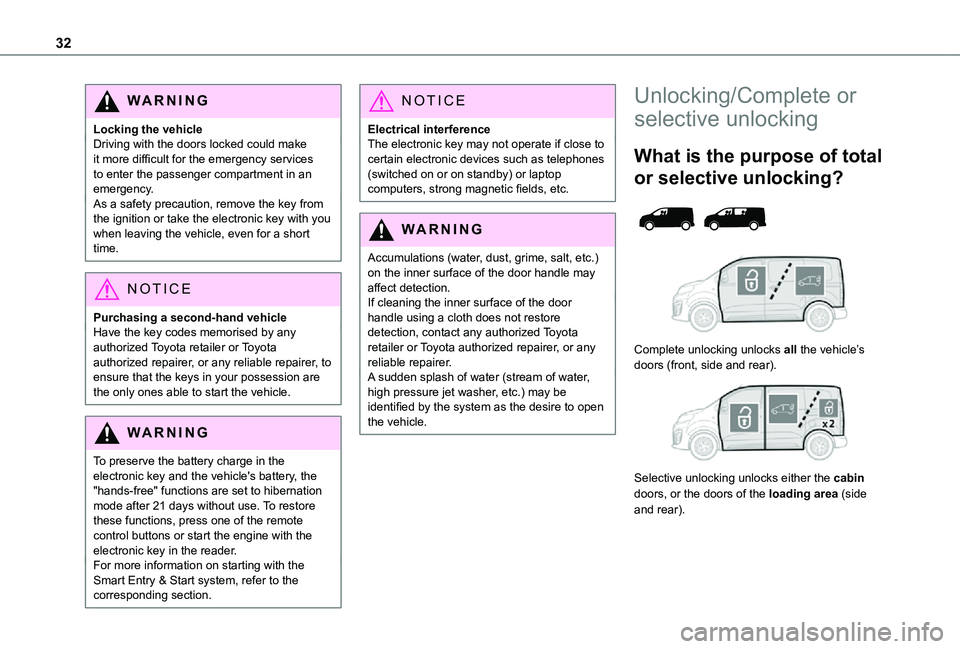
What is the purpose of total
or selective unlocking?
Complete unlocking unlocks all the vehicle’s doors (front, side and rear).
Selective unlocking unlocks either the cabin doors, or the doors of the loading area (side and rear).
Page 46 of 360

46
NOTIC E
Make the movement without interruption and do not repeat it immediately afterwards or several times.If the door does not open, wait about 2 seconds before trying again.Do not keep the foot in the air.
NOTIC E
Confirmation that the door is going to open or close is signalled by the direction indicators flashing for a few seconds, accompanied by an audible signal.The movement of the door is reversed if the movement of the foot takes place during the manoeuvre.If the vehicle is so equipped, the electric door mirrors fold/unfold on locking/unlocking the vehicle.
Automatic locking
The vehicle locks itself following the hands-free closing of the sliding door.
NOTIC E
If your vehicle is not fitted with an alarm, locking is signalled by the fixed illumination of the direction indicators for about two seconds.Depending on your version, the door mirrors fold at the same time.
Activation/Deactivation
With audio system or touch screen
By default, hands-free access is activated.The "Hands-Free Tailgate Access" function or automatic vehicle locking when the sliding door is closed is activated and deactivated via the vehicle configuration menu.
Malfunction
An audible signal repeated three times while using the function indicates a fault with the system.Contact any authorized Toyota retailer or Toyota authorized repairer, or any reliable repairer to have the system checked.
NOTIC E
If the "Hands-free tailgate access self-locking" option is selected in the vehicle menu and after closing the door, check that the vehicle is properly locked.Locking will not take place:– if the ignition is on,– if one of the doors or the tailgate is open,– if a "Smart Entry & Start" remote control is inside the vehicle. If a number of gestures with your foot have no effect, wait a few seconds before starting again.The system is automatically deactivated in heavy rain or with accumulations of snow.If it does not work, make sure that the remote control is not exposed to a source of electromagnetic interference (smartphone, etc.).Operation may be affected if using a prosthetic leg.This system may not work correctly if your
vehicle is fitted with a towbar.
Page 78 of 360
78
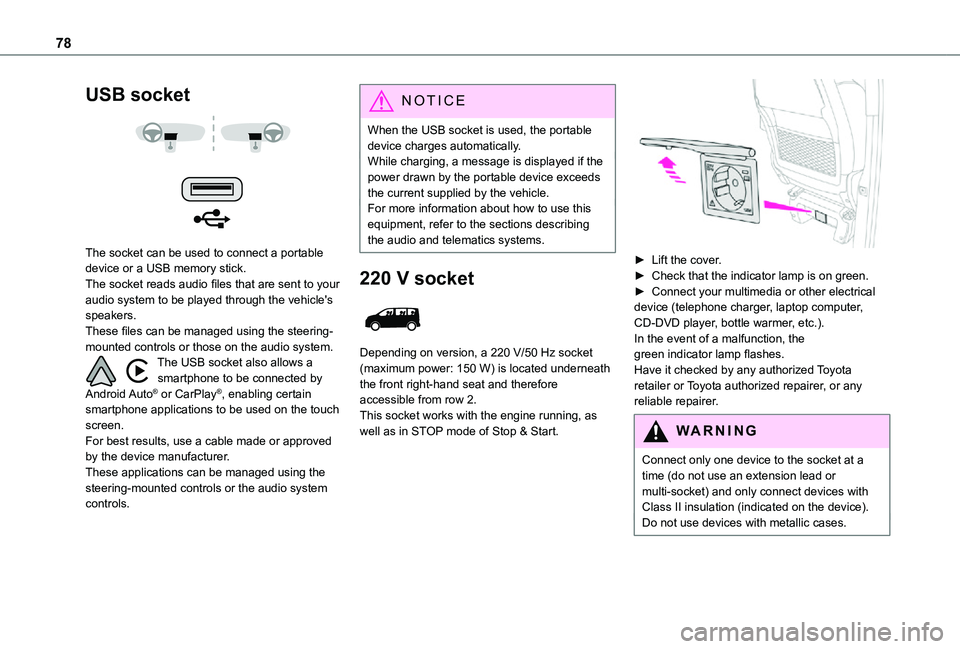
USB socket
The socket can be used to connect a portable device or a USB memory stick.The socket reads audio files that are sent to your audio system to be played through the vehicle's speakers.These files can be managed using the steering-mounted controls or those on the audio system.The USB socket also allows a smartphone to be connected by Android Auto® or CarPlay®, enabling certain smartphone applications to be used on the touch screen.For best results, use a cable made or approved by the device manufacturer.These applications can be managed using the steering-mounted controls or the audio system controls.
NOTIC E
When the USB socket is used, the portable device charges automatically.While charging, a message is displayed if the power drawn by the portable device exceeds the current supplied by the vehicle.For more information about how to use this equipment, refer to the sections describing the audio and telematics systems.
220 V socket
Depending on version, a 220 V/50 Hz socket (maximum power: 150 W) is located underneath the front right-hand seat and therefore accessible from row 2.This socket works with the engine running, as well as in STOP mode of Stop & Start.
► Lift the cover.► Check that the indicator lamp is on green.► Connect your multimedia or other electrical device (telephone charger, laptop computer, CD-DVD player, bottle warmer, etc.).In the event of a malfunction, the green indicator lamp flashes.Have it checked by any authorized Toyota retailer or Toyota authorized repairer, or any reliable repairer.
WARNI NG
Connect only one device to the socket at a time (do not use an extension lead or multi-socket) and only connect devices with Class II insulation (indicated on the device).Do not use devices with metallic cases.
Page 96 of 360
96
NOTIC E
To avoid the risks of poisoning or suffocation, the additional heating must not be used, even for short periods, in a closed environment such as a garage or workshop which is not equipped with an exhaust gas extraction system.
WARNI NG
Do not park the vehicle on a flammable surface (for example: dry grass, fallen leaves, paper, etc.) - risk of fire!
NOTIC E
Have the additional heating checked at least once a year, at the beginning of winter.For maintenance and repairs, you must only contact any authorized Toyota retailer or Toyota authorized repairer, or any reliable repairer.
A/C preconditioning
(Electric)
This function allows you to programme the temperature in the passenger compartment to reach a pre-defined, non-modifiable temperature (approx. 21°C) before you enter the vehicle, on the days and at the times of your choice.This function is available when the vehicle is connected or not connected.
Programming
With Bluetooth® audio system
Temperature pre-conditioning is not available with the Bluetooth® audio system.
With TOYOTA Pro Touch or TOYOTA Pro Touch with navigation system
Programming can be carried out from a smartphone using the MyToyota application (Available soon).For more information on the Remotely-operable
functions, refer to the corresponding section.
With TOYOTA Pro Touch with navigation system
In the Applications menu:
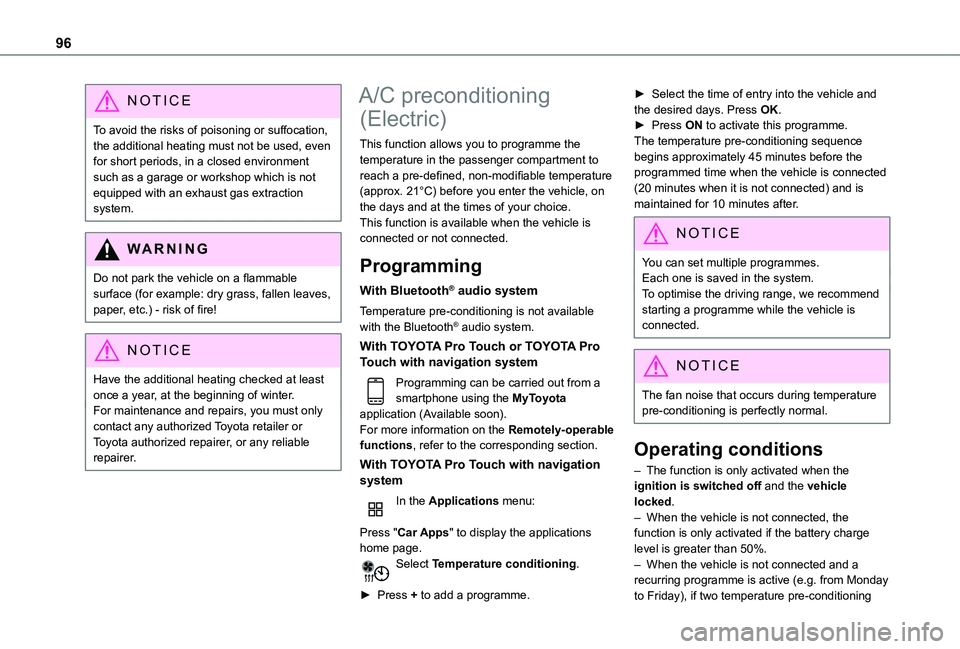
Press "Car Apps" to display the applications home page.Select Temperature conditioning.
► Press + to add a programme.
► Select the time of entry into the vehicle and the desired days. Press OK.► Press ON to activate this programme.The temperature pre-conditioning sequence begins approximately 45 minutes before the programmed time when the vehicle is connected (20 minutes when it is not connected) and is maintained for 10 minutes after.
NOTIC E
You can set multiple programmes.Each one is saved in the system.To optimise the driving range, we recommend starting a programme while the vehicle is connected.
NOTIC E
The fan noise that occurs during temperature pre-conditioning is perfectly normal.
Operating conditions
– The function is only activated when the ignition is switched off and the vehicle locked.– When the vehicle is not connected, the function is only activated if the battery charge
level is greater than 50%.– When the vehicle is not connected and a recurring programme is active (e.g. from Monday to Friday), if two temperature pre-conditioning
Page 210 of 360
210
On a smartphone or tablet (GSM), with TOYOTA Pro Touch or TOYOTA Pro Touch with navigation systemYou can programme the deferred charging function at any time via the MyToyota application (Available soon).For more information on Remote functions, refer to the corresponding section.In the vehicle, with TOYOTA Pro Touch with navigation system► In the Energy touch screen menu, select the Charge page.► Set the charging start time.► Press OK.The setting is saved in the system.
Activation
NOTIC E
Deferred charging is only possible with modes 2 and 3.
► After programming the deferred charging, connect your vehicle to the desired charging equipment.
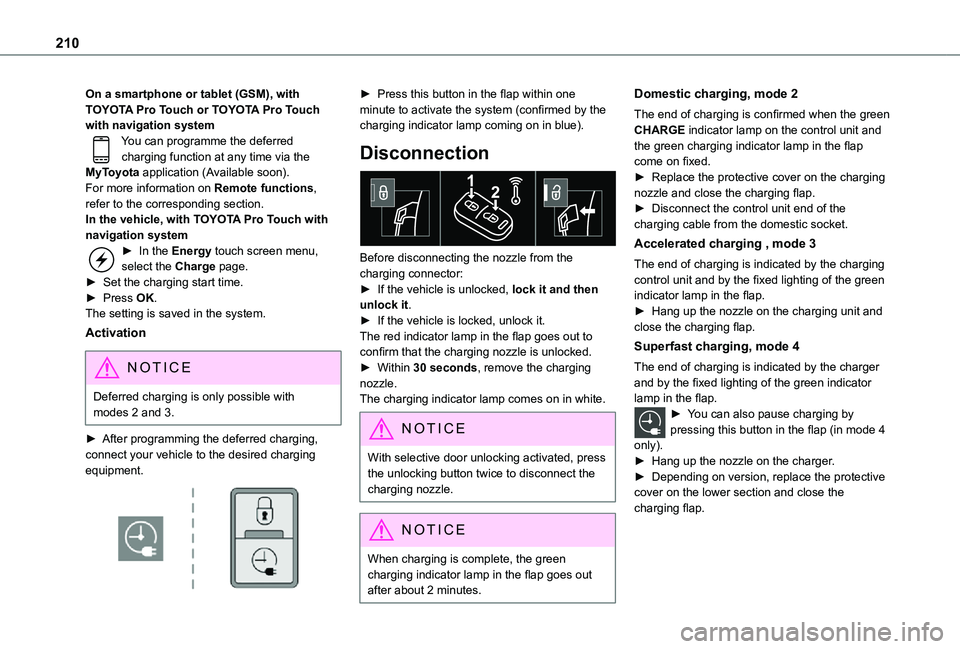
► Press this button in the flap within one minute to activate the system (confirmed by the charging indicator lamp coming on in blue).
Disconnection
Before disconnecting the nozzle from the charging connector:► If the vehicle is unlocked, lock it and then unlock it.► If the vehicle is locked, unlock it.The red indicator lamp in the flap goes out to confirm that the charging nozzle is unlocked.► Within 30 seconds, remove the charging nozzle.The charging indicator lamp comes on in white.
NOTIC E
With selective door unlocking activated, press the unlocking button twice to disconnect the charging nozzle.
NOTIC E
When charging is complete, the green charging indicator lamp in the flap goes out after about 2 minutes.
Domestic charging, mode 2
The end of charging is confirmed when the green CHARGE indicator lamp on the control unit and the green charging indicator lamp in the flap come on fixed.► Replace the protective cover on the charging nozzle and close the charging flap.► Disconnect the control unit end of the charging cable from the domestic socket.
Accelerated charging , mode 3
The end of charging is indicated by the charging control unit and by the fixed lighting of the green indicator lamp in the flap.► Hang up the nozzle on the charging unit and close the charging flap.
Superfast charging, mode 4
The end of charging is indicated by the charger and by the fixed lighting of the green indicator lamp in the flap.► You can also pause charging by pressing this button in the flap (in mode 4
only).► Hang up the nozzle on the charger.► Depending on version, replace the protective cover on the lower section and close the charging flap.
Page 211 of 360
2 11
Practical information
7
Energy economy mode
System which manages the duration of use of certain functions to conserve a sufficient level of charge in the battery.After switching off the engine and for a maximum cumulative period of around 40 minutes, you can continue to use functions such as the audio and telematics system, the wipers, the dipped beam headlamps, the courtesy lamps, etc.
Switching to the mode
A message indicating that the vehicle has switched to economy mode is displayed on the instrument panel screen and the active functions are put on standby.
NOTIC E
If a telephone call is in progress at the time, it will be maintained for around 10 minutes using your audio system’s hands-free system.
Exiting the mode
These functions will be automatically reactivated the next time the vehicle is used.In order to restore the use of these functions immediately, start the engine and let it run:– for less than 10 minutes, to use the equipment for approximately 5 minutes,– for more than 10 minutes, to use the equipment for approximately 30 minutes.
Let the engine run for the duration specified to ensure that the battery charge is sufficient.Do not repeatedly and continuously restart the engine in order to charge the battery.
WARNI NG
A flat battery prevents the engine from starting.For more information on the 12 V battery,
refer to the corresponding section.
Load reduction mode
System that manages the use of certain functions according to the level of charge remaining in the battery.When the vehicle is being driven, the load reduction function temporarily deactivates certain functions, such as the air conditioning and the heated rear screen.The deactivated functions are reactivated automatically as soon as conditions permit.
Snow chains
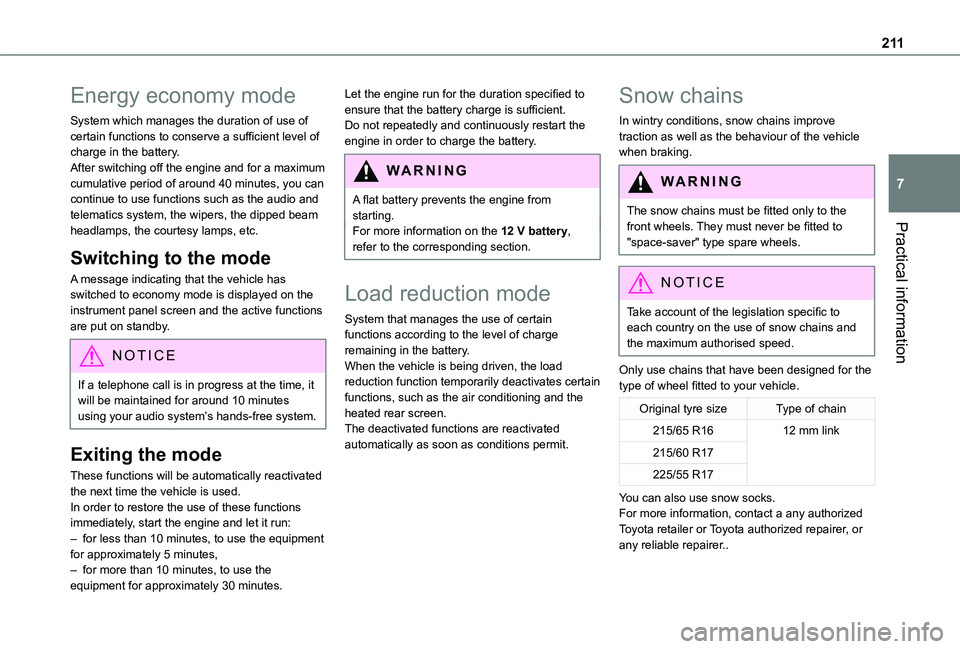
In wintry conditions, snow chains improve traction as well as the behaviour of the vehicle when braking.
WARNI NG
The snow chains must be fitted only to the front wheels. They must never be fitted to "space-saver" type spare wheels.
NOTIC E
Take account of the legislation specific to each country on the use of snow chains and the maximum authorised speed.
Only use chains that have been designed for the type of wheel fitted to your vehicle.
Original tyre sizeType of chain
215/65 R1612 mm link
215/60 R17
225/55 R17
You can also use snow socks.For more information, contact a any authorized Toyota retailer or Toyota authorized repairer, or
any reliable repairer..