phone TOYOTA RAV4 2017 XA40 / 4.G Service Manual
[x] Cancel search | Manufacturer: TOYOTA, Model Year: 2017, Model line: RAV4, Model: TOYOTA RAV4 2017 XA40 / 4.GPages: 741, PDF Size: 19.55 MB
Page 421 of 741
420
RAV4_OM_OM0R005U_(U)
5-17. Using an external device
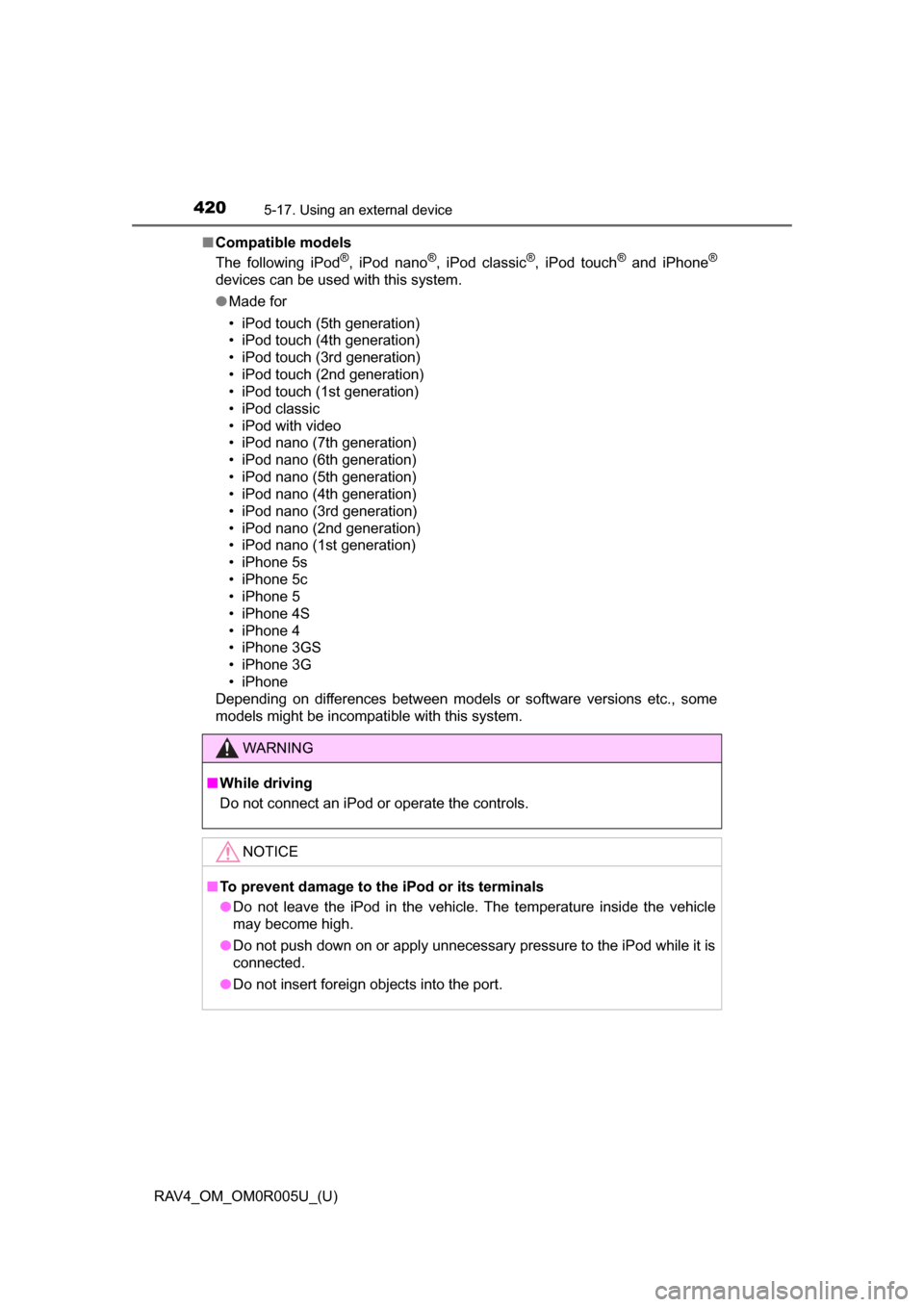
■Compatible models
The following iPod®, iPod nano®, iPod classic®, iPod touch® and iPhone®
devices can be used with this system.
●Made for
• iPod touch (5th generation)
• iPod touch (4th generation)
• iPod touch (3rd generation)
• iPod touch (2nd generation)
• iPod touch (1st generation)
• iPod classic
• iPod with video
• iPod nano (7th generation)
• iPod nano (6th generation)
• iPod nano (5th generation)
• iPod nano (4th generation)
• iPod nano (3rd generation)
• iPod nano (2nd generation)
• iPod nano (1st generation)
• iPhone 5s
• iPhone 5c
• iPhone 5
• iPhone 4S
• iPhone 4
• iPhone 3GS
• iPhone 3G
• iPhone
Depending on differences between models or software versions etc., some
models might be incompatible with this system.
WARNING
■ While driving
Do not connect an iPod or operate the controls.
NOTICE
■To prevent damage to the iPod or its terminals
● Do not leave the iPod in the vehicle. The temperature inside the vehicle
may become high.
● Do not push down on or apply unnecessary pressure to the iPod while it is
connected.
● Do not insert foreign objects into the port.
Page 428 of 741
427
RAV4_OM_OM0R005U_(U)
5-18. Connecting Bluetooth®
5
Audio system
Preparations to use wireless communica-
tion
The following can be performed using Bluetooth® wireless com-
munication:
■A portable audio player can be operated and listened to via
audio system
■Hands-free phone calls can be made via a cellular phone
In order to use wireless communication, register and connect a
Bluetooth
® device by performing the following procedures.
Page 429 of 741

428
RAV4_OM_OM0R005U_(U)
5-18. Connecting Bluetooth®
Device registration/connection flow
1. Register the Bluetooth® device to be used with audio sys-
tem ( →P. 430, 431, 432)
2. Connect the Bluetooth® device to be used
( → P. 434)
To be used for audio To be used for hands-free
phone
3. Start Bluetooth® connec-
tion ( →P. 434)3. Start Bluetooth® connec-
tion ( →P. 434)
4. Check connection status
(→ P. 439)4. Check connection status
(→ P. 442)
5. Use Bluetooth® audio
( → P. 440)5. Use Bluetooth® phone
( → P. 441)
Page 432 of 741
431
RAV4_OM_OM0R005U_(U)
5-18. Connecting Bluetooth®
5
Audio system
Registering a Bluetooth® phone for the first
time
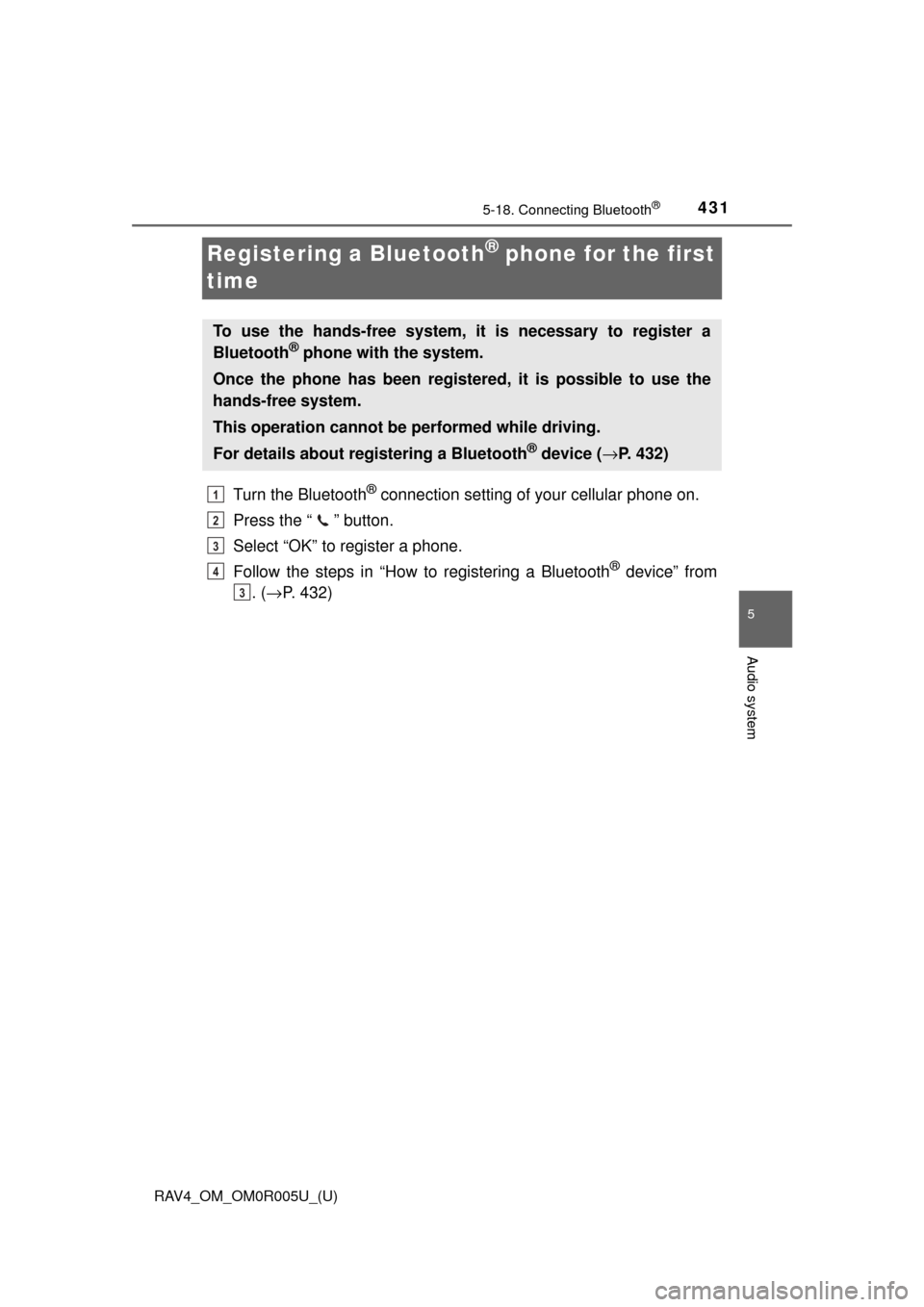
Turn the Bluetooth® connection setting of your cellular phone on.
Press the “ ” button.
Select “OK” to register a phone.
Follow the steps in “How to registering a Bluetooth
® device” from
. ( → P. 432)
To use the hands-free system, it is necessary to register a
Bluetooth® phone with the system.
Once the phone has been registered, it is possible to use the
hands-free system.
This operation cannot be performed while driving.
For details about registering a Bluetooth
® device ( →P. 432)
1
2
3
4
3
Page 433 of 741
432
RAV4_OM_OM0R005U_(U)
5-18. Connecting Bluetooth®
Registering a Bluetooth® device
Display the “Bluetooth* Setup” screen. (→P. 429)
*: Bluetooth is a registered trademark of Bluetooth SIG, Inc.
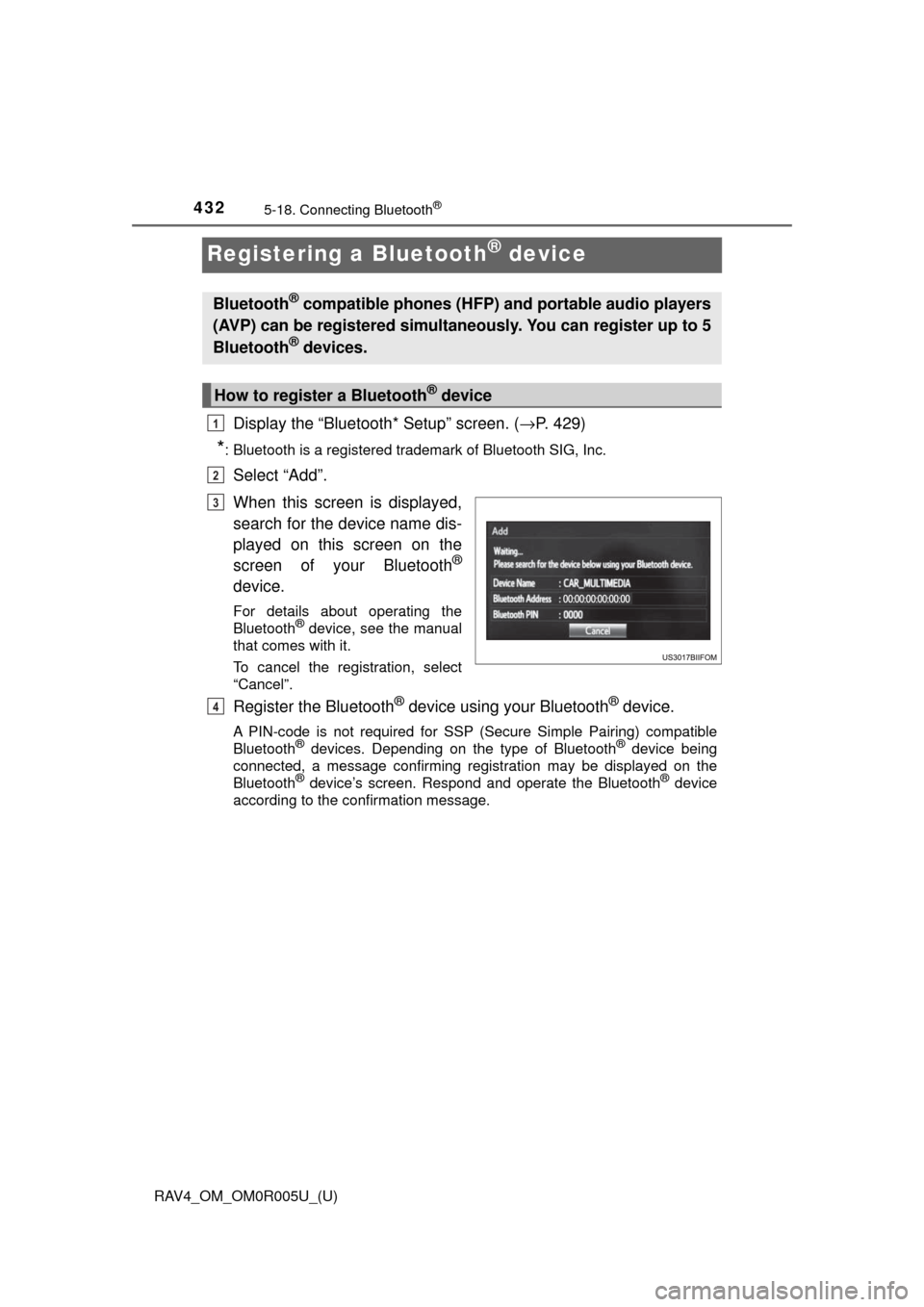
Select “Add”.
When this screen is displayed,
search for the device name dis-
played on this screen on the
screen of your Bluetooth
®
device.
For details about operating the
Bluetooth® device, see the manual
that comes with it.
To cancel the registration, select
“Cancel”.
Register the Bluetooth® device using your Bluetooth® device.
A PIN-code is not required for SSP (Secure Simple Pairing) compatible
Bluetooth® devices. Depending on the type of Bluetooth® device being
connected, a message confirming registration may be displayed on the
Bluetooth
® device’s screen. Respond and operate the Bluetooth® device
according to the confirmation message.
Bluetooth® compatible phones (HFP) and portable audio players
(AVP) can be registered simultaneously. You can register up to 5
Bluetooth
® devices.
How to register a Bluetooth® device
1
2
3
4
Page 434 of 741
RAV4_OM_OM0R005U_(U)
4335-18. Connecting Bluetooth®
5
Audio system
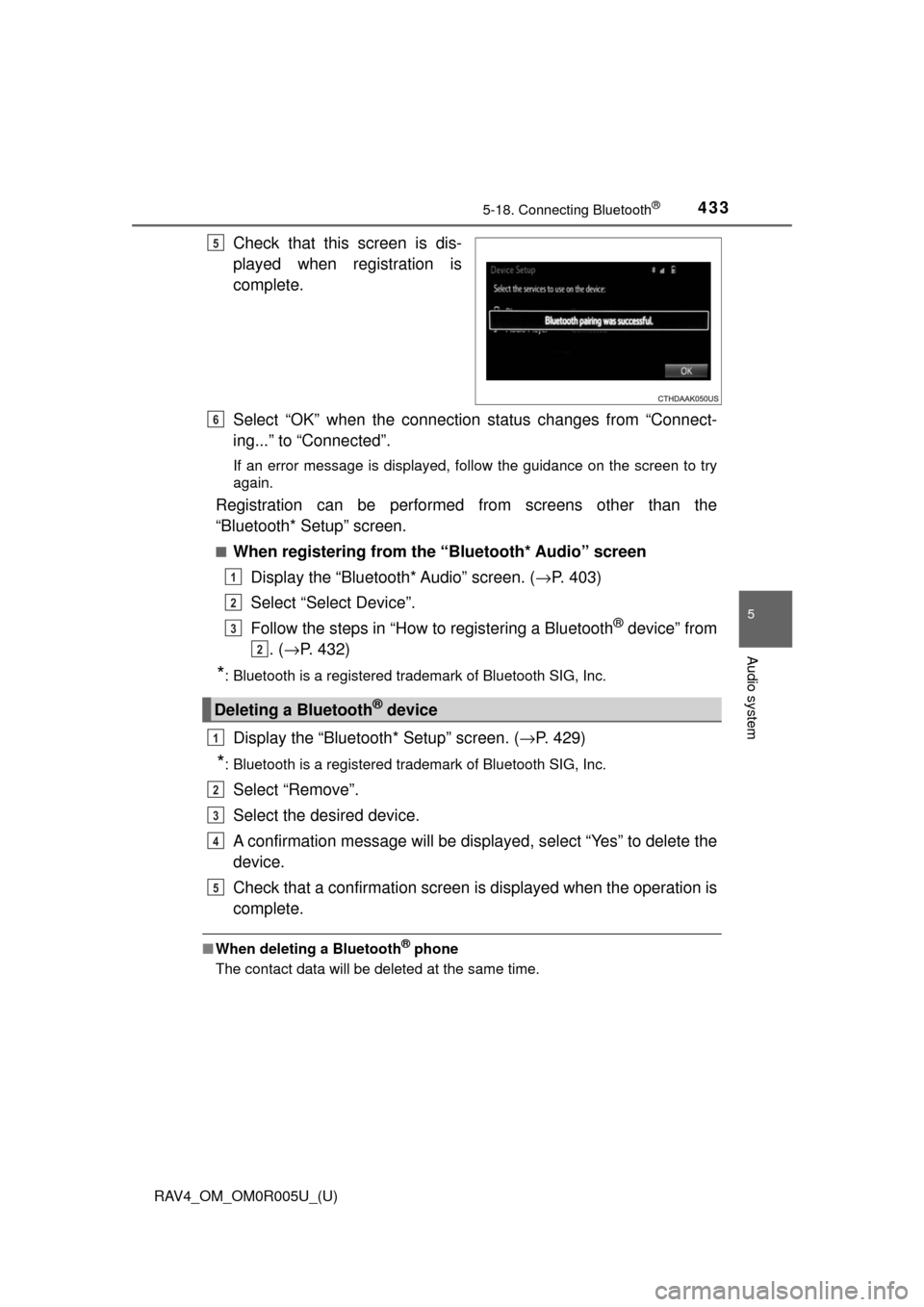
Check that this screen is dis-
played when registration is
complete.
Select “OK” when the connection status changes from “Connect-
ing...” to “Connected”.
If an error message is displayed, follow the guidance on the screen to try
again.
Registration can be performed from screens other than the
“Bluetooth* Setup” screen.
■When registering from the “Bluetooth* Audio” screenDisplay the “Bluetooth* Audio” screen. ( →P. 403)
Select “Select Device”.
Follow the steps in “How to registering a Bluetooth
® device” from
. ( → P. 432)
*: Bluetooth is a registered trademark of Bluetooth SIG, Inc.
Display the “Bluetooth* Setup” screen. ( →P. 429)
*: Bluetooth is a registered trademark of Bluetooth SIG, Inc.
Select “Remove”.
Select the desired device.
A confirmation message will be displa yed, select “Yes” to delete the
device.
Check that a confirmation screen is displayed when the operation is
complete.
■ When deleting a Bluetooth® phone
The contact data will be deleted at the same time.
5
Deleting a Bluetooth® device
6
1
2
3
2
1
2
3
4
5
Page 435 of 741
434
RAV4_OM_OM0R005U_(U)
5-18. Connecting Bluetooth®
Connecting a Bluetooth® device
Press the “SETUP” button.
Select “Bluetooth*”.
*: Bluetooth is a registered trademark of Bluetooth SIG, Inc.
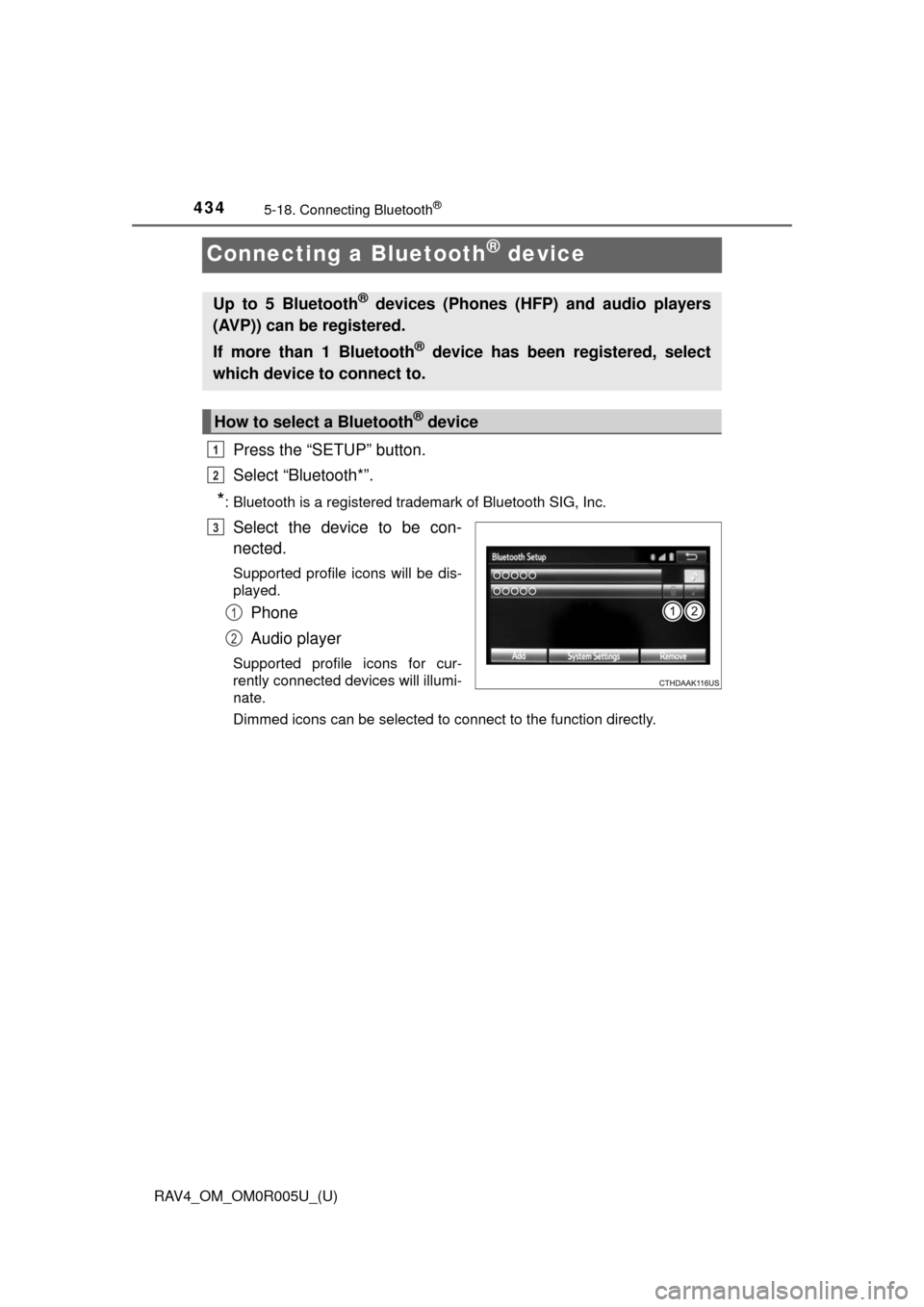
Select the device to be con-
nected.
Supported profile icons will be dis-
played.
Phone
Audio player
Supported profile icons for cur-
rently connected devices will illumi-
nate.
Dimmed icons can be selected to connect to the function directly.
Up to 5 Bluetooth® devices (Phones (HFP) and audio players
(AVP)) can be registered.
If more than 1 Bluetooth
® device has been registered, select
which device to connect to.
How to select a Bluetooth® device
1
2
3
1
2
Page 436 of 741
RAV4_OM_OM0R005U_(U)
4355-18. Connecting Bluetooth®
5
Audio system
To turn auto connection mode on, set “Bluetooth* Power” to on.
(→ P. 437)
When you register a phone, auto connection will be activated. Always
set it to this mode and leave the Bluetooth
® phone in a place where a
connection can be established.
When the engine switch is turned to the “ACC” or “ON” position (vehicles
without smart key system) or ACCESSORY or IGNITION ON mode (vehi-
cles with smart key system), the system will search for a nearby cellular
phone you have registered.
Next, the system automatically connects with the most recent of the
phones connected to in the past. Then, the connection result is displayed.
*: Bluetooth is a registered trademark of Bluetooth SIG, Inc.
When auto connection has failed or “Bluetooth* Power” is turned off,
you must connec t the Bluetooth® device manually.
*: Bluetooth is a registered trademark of Bluetooth SIG, Inc.
Follow the steps in “Connecting a Bluetooth® device” from .
( → P. 434)
■When connecting from the Bluetooth® audio control screen
Registering an additional device
Select “Select Device” on the Bluetooth
® audio control screen.
For more information: → P. 4 3 2
Selecting a registered device
Select “Select Device” on the Bluetooth
® audio control screen.
For more information: → P. 4 3 4
■Reconnecting a Bluetooth® phone
If the system cannot connect due to poor signal strength with the engine
switch in the “ACC” or “ON” position (vehicles without smart key system) or
ACCESSORY or IGNITION ON mode (vehicles with smart key system), the
system will automatically attempt to reconnect.
If the phone is turned off, the system will not attempt to reconnect. In this
case, the connection must be made manually, or the phone must be rese-
lected.
Auto connection
Manual connection
1
Page 437 of 741
436
RAV4_OM_OM0R005U_(U)
5-18. Connecting Bluetooth®
Displaying a Bluetooth® device details
Display the “Bluetooth* Setup” screen. (→P. 429)
*: Bluetooth is a registered trademark of Bluetooth SIG, Inc.
Select the device.
Select “Device Info”.
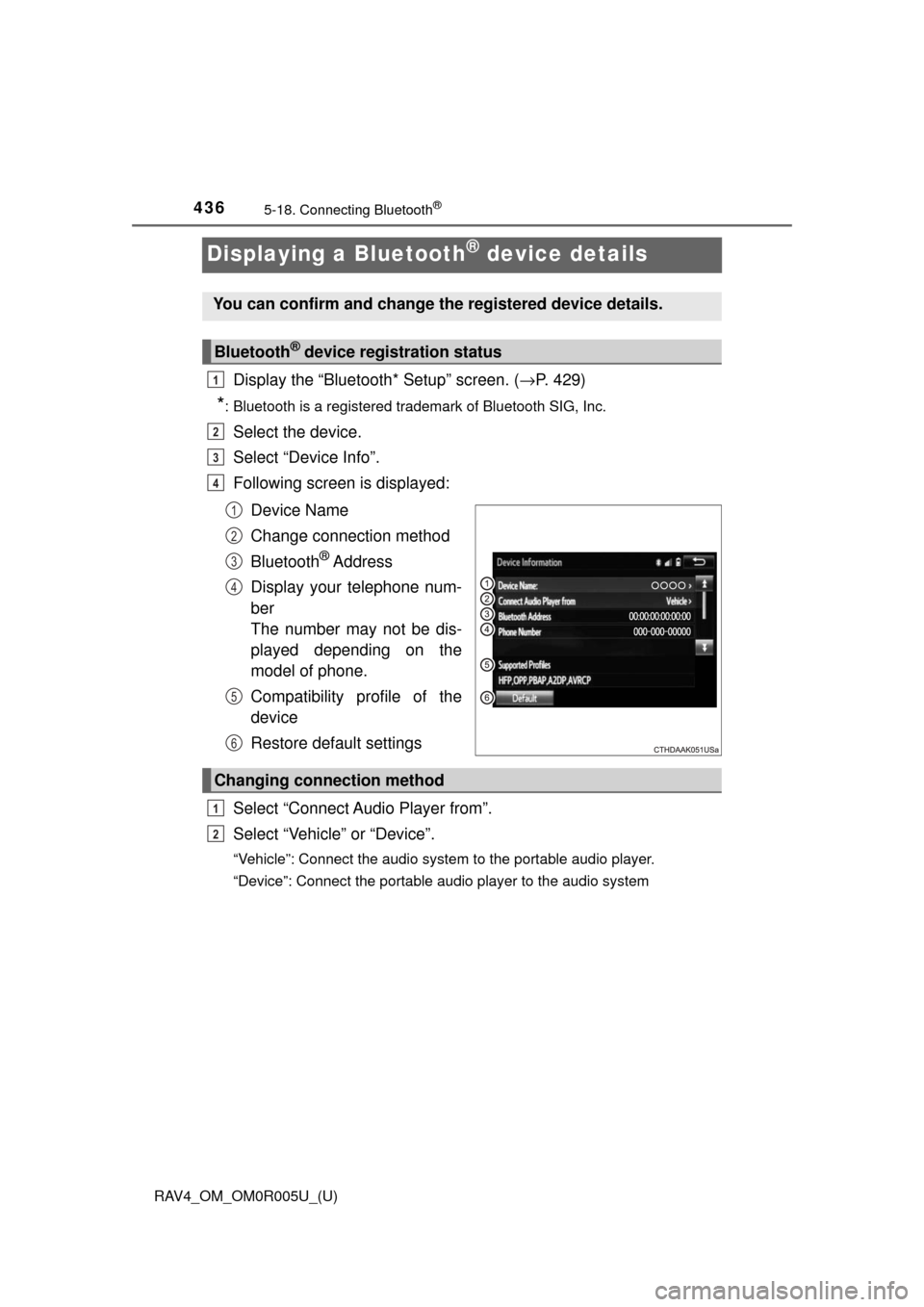
Following screen is displayed:
Device Name
Change connection method
Bluetooth
® Address
Display your telephone num-
ber
The number may not be dis-
played depending on the
model of phone.
Compatibility profile of the
device
Restore default settings
Select “Connect Audio Player from”.
Select “Vehicle ” or “Device”.
“Vehicle”: Connect the audio system to the portable audio player.
“Device”: Connect the portable audio player to the audio system
You can confirm and change the registered device details.
Bluetooth® device registration status
1
2
3
4
1
2
3
4
5
6
Changing connection method
1
2
Page 438 of 741
437
RAV4_OM_OM0R005U_(U)
5-18. Connecting Bluetooth®
5
Audio system
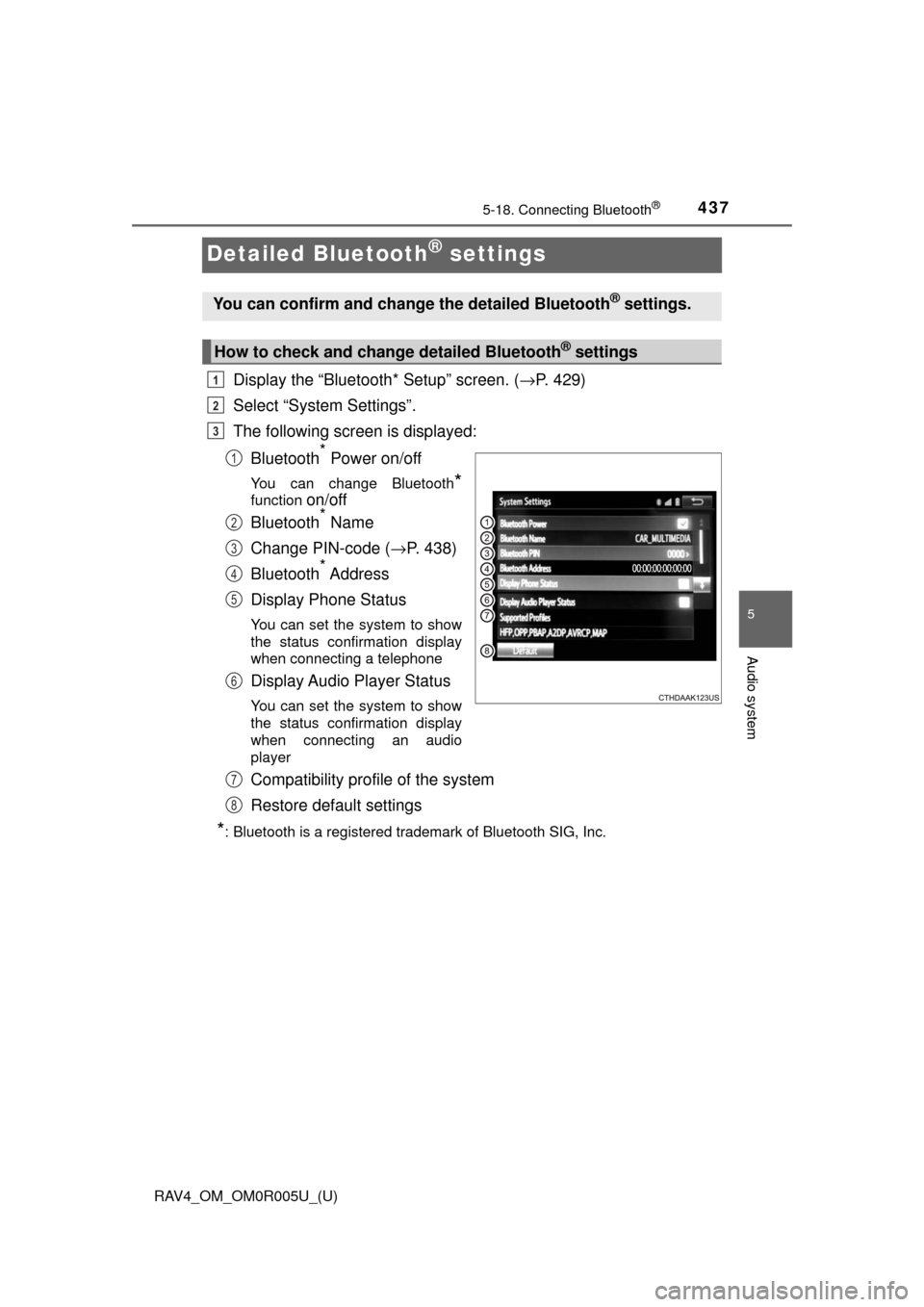
Detailed Bluetooth® settings
Display the “Bluetooth* Setup” screen. (→P. 429)
Select “System Settings”.
The following screen is displayed:
Bluetooth
* Power on/off
You can change Bluetooth*
function on/off
Bluetooth* Name
Change PIN-code ( →P. 438)
Bluetooth
* Address
Display Phone Status
You can set the system to show
the status confirmation display
when connecting a telephone
Display Audio Player Status
You can set the system to show
the status confirmation display
when connecting an audio
player
Compatibility profile of the system
Restore default settings
*: Bluetooth is a registered trademark of Bluetooth SIG, Inc.
You can confirm and change the detailed Bluetooth® settings.
How to check and change detailed Bluetooth® settings
1
2
3
1
2
3
4
5
6
7
8