key TOYOTA RAV4 2018 (in English) Manual PDF
[x] Cancel search | Manufacturer: TOYOTA, Model Year: 2018, Model line: RAV4, Model: TOYOTA RAV4 2018Pages: 744, PDF Size: 13.78 MB
Page 285 of 744
RAV4_OM_OM0R012U_(U)
2854-5. Using the driving support systems
4
Driving
You can change the buzzer sound volume and the screen operating
conditions.
Vehicles with Entune Audio
Press the “SETUP” button.
Select “Vehicle” on the screen.
Select “TOYOTA Park Assi st Settings” on the screen.
Select the desired item.
Vehicles with Entune Audio Pl us or Entune Premium Audio with
Navigation
Press the “APPS” button.
Select “Setup” on the screen.
Select “Vehicle” on the screen.
Select “TOYOTA Park Assi st Settings” on the screen.
Select the desired item.
● The buzzer sound volume can be adjusted.
● On or off can be selected for intuitive parking assist display.
● Front or rear center sensors display and tone indication can be set.
■The intuitive parking assist can be operated when
●Front corner sensors:
• The engine switch is in the “ON” position (vehicles without smart \
key sys-
tem) or the engine switch is turned to IGNITION ON mode (vehicles with
smart key system).
• The shift lever is in a position other than P.
• The vehicle speed is less than approximately 6 mph (10 km/h).
● Front center sensors:
• The engine switch is in the “ON” position (vehicles without smart \
key sys-
tem) or the engine switch is turned to IGNITION ON mode (vehicles with
smart key system).
• The shift lever is in a position other than P or R.
• The vehicle speed is less than about 6 mph (10 km/h).
● Rear corner and rear center sensors:
• The engine switch is in the “ON” position (vehicles without smart \
key sys-
tem) or the engine switch is turned to IGNITION ON mode (vehicles with
smart key system).
• The shift lever is in R.
Setting up intuitive parking assist
1
2
3
4
1
2
3
4
5
Page 290 of 744
290
RAV4_OM_OM0R012U_(U)
4-5. Using the driving support systems
■Screen description
Vehicles without smart key system
The rear view monitor system scr een will be displayed if the shift
lever is shifted to R while the engin e switch is in the “ON” position.
Vehicles with smart key system
The rear view monitor system scr een will be displayed if the shift
lever is shifted to R while the engine switch is in IGNITION ON
mode.
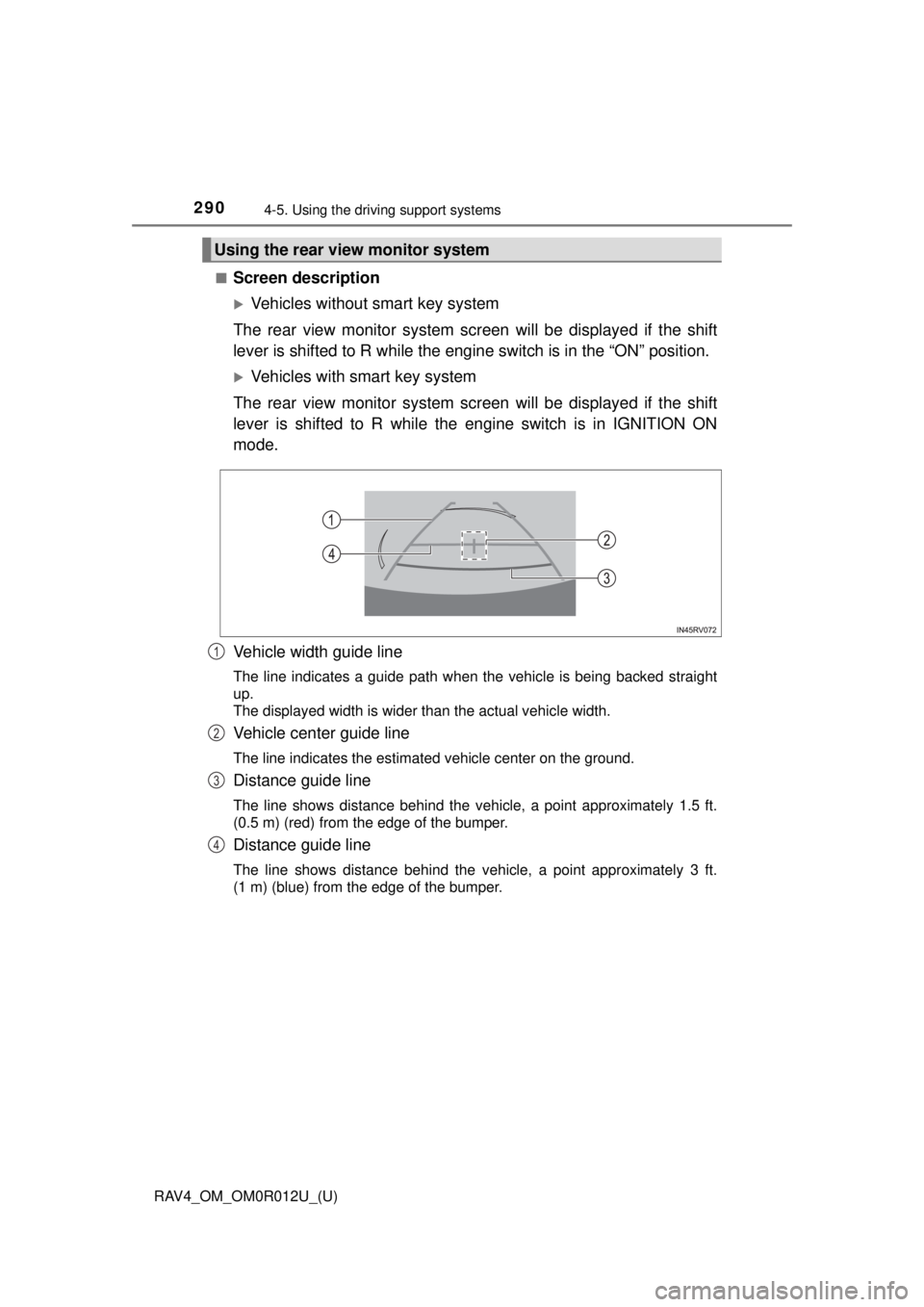
Vehicle width guide line
The line indicates a guide path when the vehicle is being backed straight
up.
The displayed width is wider than the actual vehicle width.
Vehicle center guide line
The line indicates the estimated vehicle center on the ground.
Distance guide line
The line shows distance behind the vehicle, a point approximately 1.5 ft.
(0.5 m) (red) from the edge of the bumper.
Distance guide line
The line shows distance behind the vehicle, a point approximately 3 ft.
(1 m) (blue) from the edge of the bumper.
Using the rear view monitor system
1
2
3
4
Page 299 of 744
299
RAV4_OM_OM0R012U_(U)
4-5. Using the driving support systems
4
Driving
All-wheel drive lock switch (AWD models)
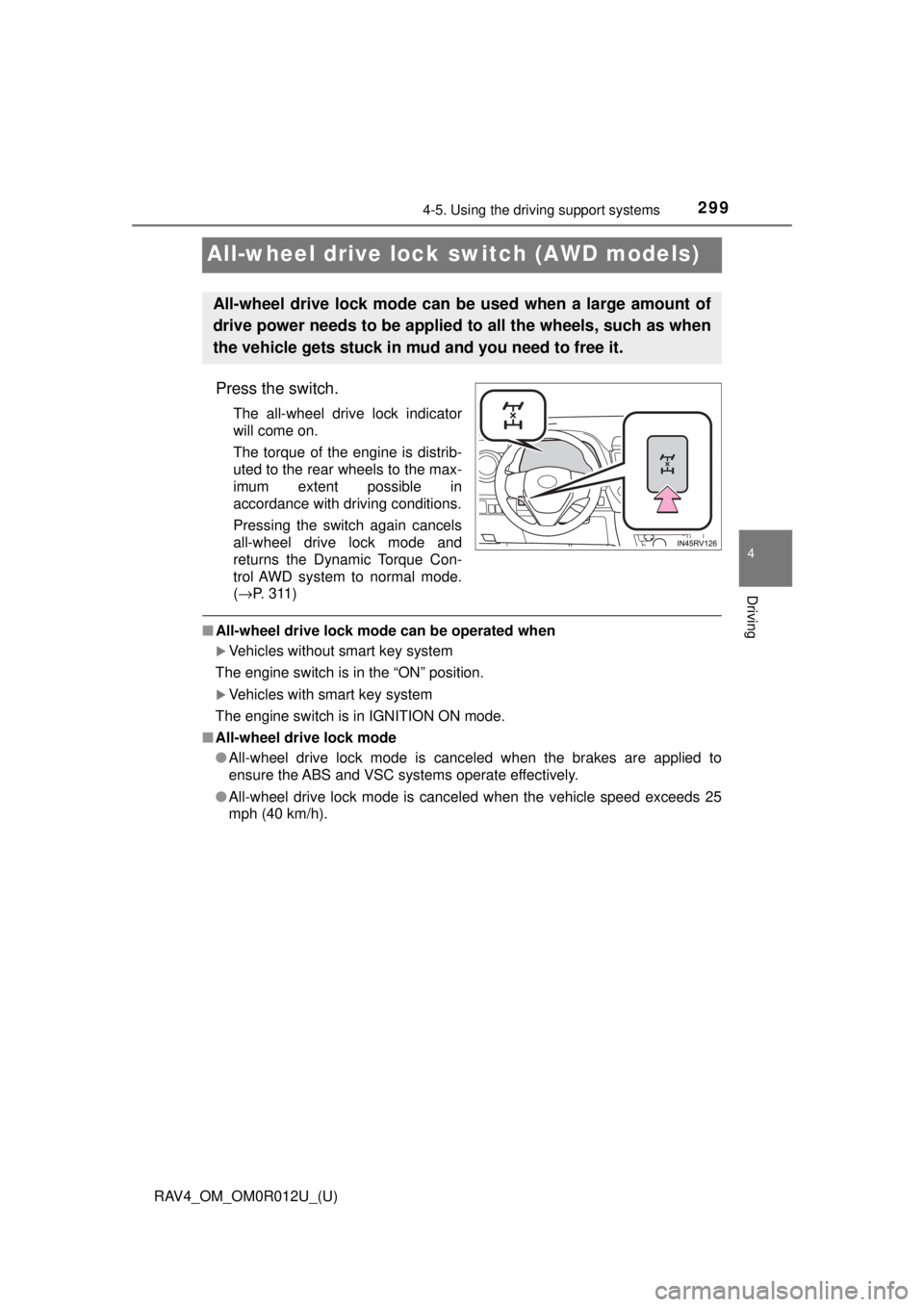
Press the switch.
The all-wheel drive lock indicator
will come on.
The torque of the engine is distrib-
uted to the rear wheels to the max-
imum extent possible in
accordance with driving conditions.
Pressing the switch again cancels
all-wheel drive lock mode and
returns the Dynamic Torque Con-
trol AWD system to normal mode.
(→P. 311)
■ All-wheel drive lock mode can be operated when
Vehicles without smart key system
The engine switch is in the “ON” position.
Vehicles with smart key system
The engine switch is in IGNITION ON mode.
■ All-wheel drive lock mode
●All-wheel drive lock mode is canceled when the brakes are applied to
ensure the ABS and VSC systems operate effectively.
● All-wheel drive lock mode is cancel ed when the vehicle speed exceeds 25
mph (40 km/h).
All-wheel drive lock mode can be used when a large amount of
drive power needs to be applied to all the wheels, such as when
the vehicle gets stuck in mud and you need to free it.
Page 313 of 744
RAV4_OM_OM0R012U_(U)
3134-5. Using the driving support systems
4
Driving
■Turning off the TRAC/VSC/Trailer Sway Control systems
To turn the TRAC/VSC/Trailer Sway Control systems off, press and hold
for more than 3 seconds while the vehicle is stopped.
“Traction Control Turned Off” will be shown and the VSC OFF indicator light
will come on.
*
Press again to turn the systems back on.
*: On vehicles with pre-collision system, pre-collision brake assist and pre-
collision braking will also be disabled. The PCS warning light will come on
and the message will be shown on the multi-information display. ( →P. 242)
■ When the “AUTO LSD” indicator light flashes even if the VSC OFF
switch has not been pressed (2WD models)
TRAC, AUTO LSD and hill-start assist control cannot be operated. Contact
your Toyota dealer.
■ When the message is displayed on th e multi-information display show-
ing that TRAC has been disabled even if the VSC OFF switch has not
been pressed (AWD models)
TRAC and hill-start assist control cannot be operated. Contact your Toyota
dealer.
■ Sounds and vibrations caused by the ABS, brake assist, VSC/Trailer
Sway Control, TRAC and hill-start assist control systems
● A sound may be heard from the engine compartment when the brake pedal
is depressed repeatedly, when the engine is started or just after the vehicle
begins to move. This sound does not indicate that a malfunction has
occurred in any of these systems.
● Any of the following conditions may occur when the above systems are
operating. None of these indicates that a malfunction has occurred.
• Vibrations may be felt through the vehicle body and steering.
• A motor sound may be heard after the vehicle comes to a stop.
• The brake pedal may pulsate slightly after the ABS is activated.
• The brake pedal may move down slightly after the ABS is activated.
■ EPS operation sound
When the steering wheel is operated, a motor sound (whirring sound) may be
heard. This does not indicate a malfunction.
■ Automatic reactivation of TRAC an d VSC/Trailer Sway Control systems
After turning the TRAC and VSC/Trailer Sway Control systems off, the sys-
tems will be automatically re-enabled in the following situations:
● When the engine switch is turned to the “LOCK” position (vehicles without
smart key system) or off (vehicles with smart key system).
● If only the TRAC system is turned off, the TRAC will turn on when vehicle
speed increases.
If both the TRAC and VSC/Trailer Sway Control systems are turned off,
automatic re-enabling will not occur when vehicle speed increases.
Page 366 of 744
366
RAV4_OM_OM0R012U_(U)
5-6. Using Bluetooth® devices
*: Bluetooth is a registered trademark of Bluetooth SIG, Inc.
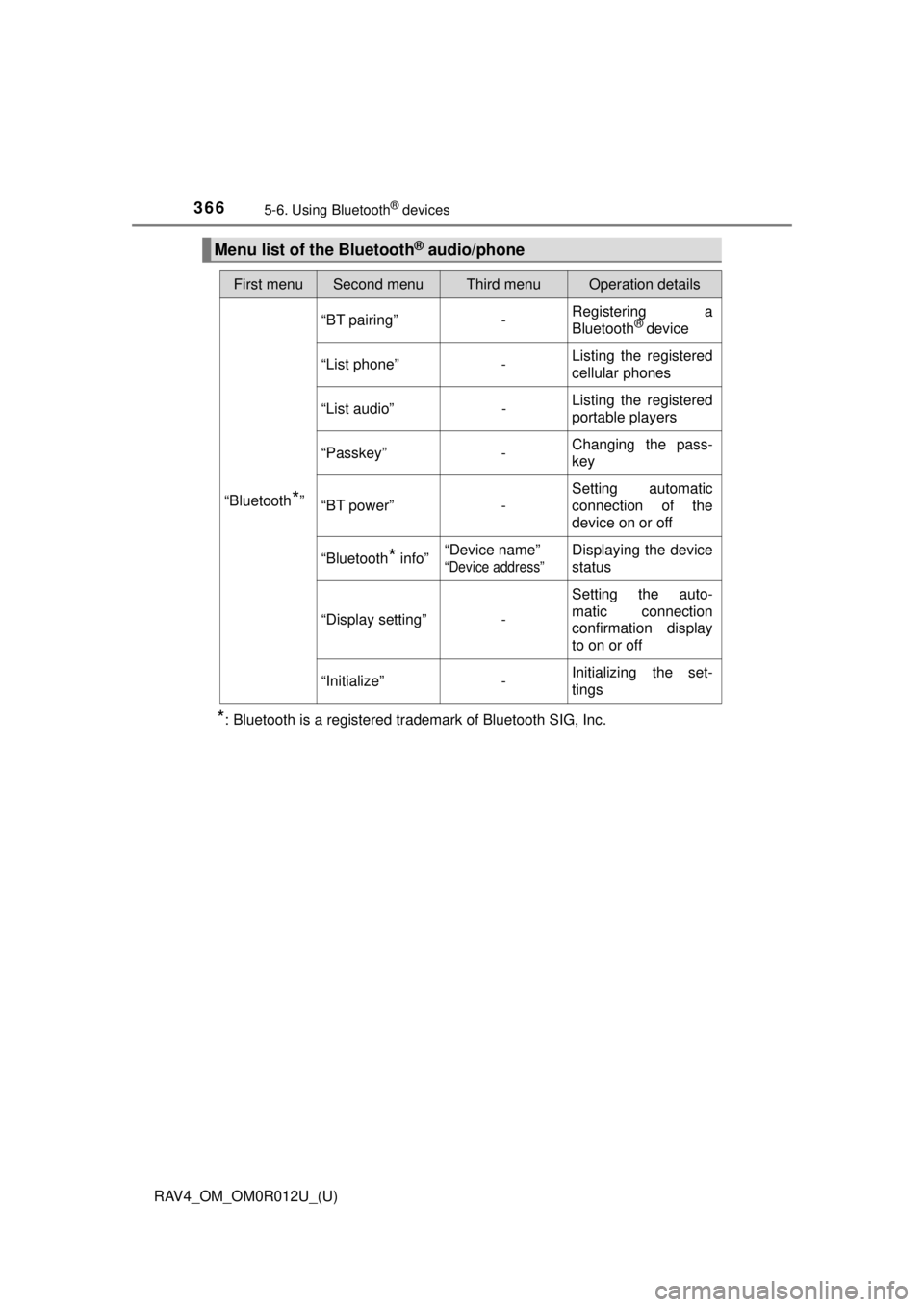
Menu list of the Bluetooth® audio/phone
First menuSecond menuThird menuOperation details
“Bluetooth*”
“BT pairing”-Registering a
Bluetooth® device
“List phone”
-Listing the registered
cellular phones
“List audio”
-Listing the registered
portable players
“Passkey”
-Changing the pass-
key
“BT power”
-Setting automatic
connection of the
device on or off
“Bluetooth
* info” “Device name” “Device address”
Displaying the device
status
“Display setting” - Setting the auto-
matic connection
confirmation display
to on or off
“Initialize” - Initializing the set-
tings
Page 369 of 744
369
RAV4_OM_OM0R012U_(U)
5-6. Using Bluetooth® devices
5
Audio system
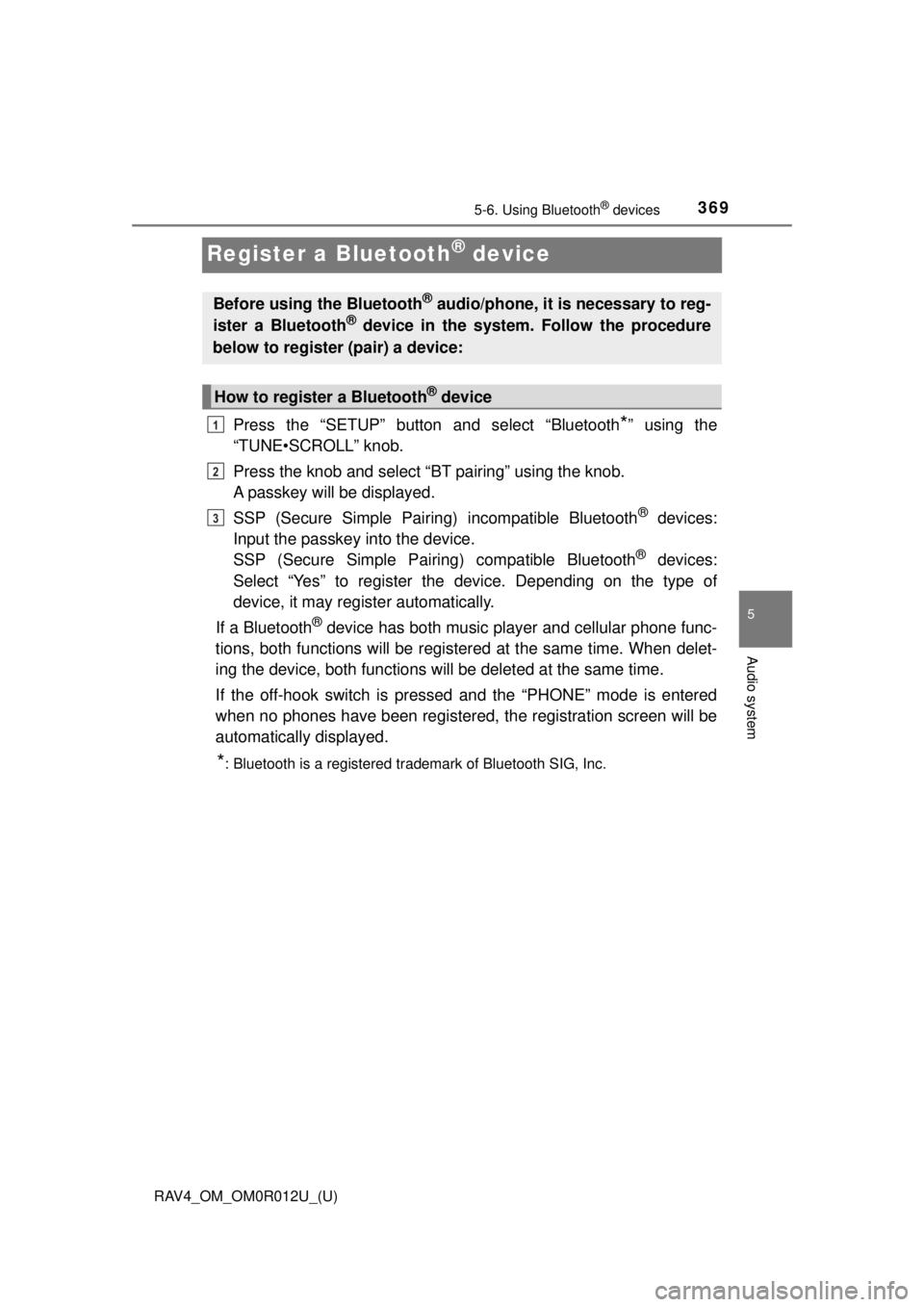
Register a Bluetooth® device
Press the “SETUP” button and select “Bluetooth*” using the
“TUNE•SCROLL” knob.
Press the knob and select “BT pairing” using the knob.
A passkey will be displayed.
SSP (Secure Simple Pairing) incompatible Bluetooth
® devices:
Input the passkey into the device.
SSP (Secure Simple Pairin g) compatible Bluetooth
® devices:
Select “Yes” to register the device. Depending on the type of
device, it may register automatically.
If a Bluetooth
® device has both music player and cellular phone func-
tions, both functions will be register ed at the same time. When delet-
ing the device, both functions will be deleted at the same time.
If the off-hook switch is presse d and the “PHONE” mode is entered
when no phones have been registered, the registration screen will be
automatically displayed.
*: Bluetooth is a registered trademark of Bluetooth SIG, Inc.
Before using the Bluetooth® audio/phone, it is necessary to reg-
ister a Bluetooth® device in the system. Follow the procedure
below to register (pair) a device:
How to register a Bluetooth® device
1
2
3
Page 370 of 744
370
RAV4_OM_OM0R012U_(U)
5-7. “SETUP” menu
Using the “SETUP” menu (“Bluetooth*”
menu)
∗
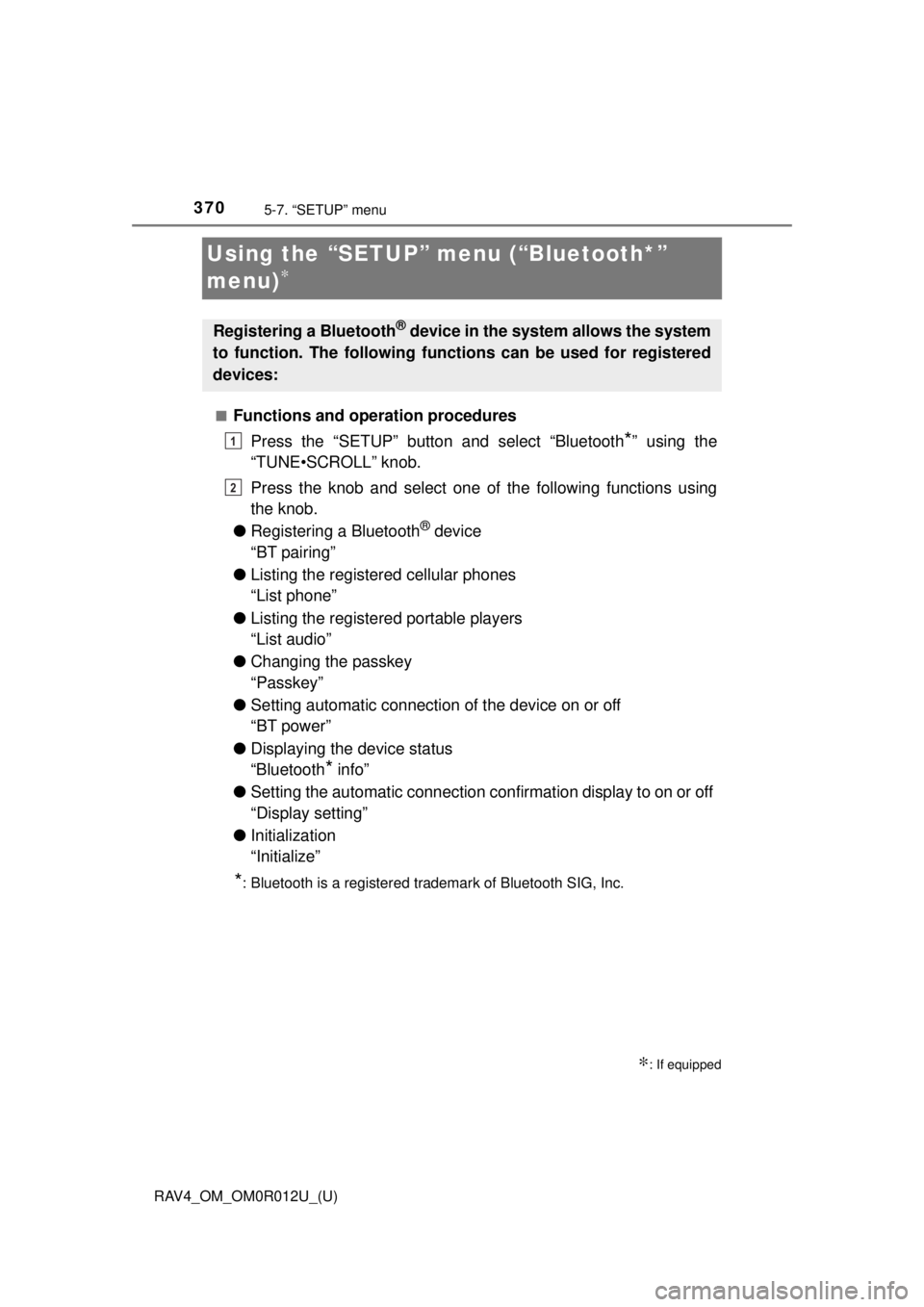
■Functions and operation proceduresPress the “SETUP” button and select “Bluetooth
*” using the
“TUNE•SCROLL” knob.
Press the knob and select one of the following functions using
the knob.
● Registering a Bluetooth
® device
“BT pairing”
● Listing the registered cellular phones
“List phone”
● Listing the registered portable players
“List audio”
● Changing the passkey
“Passkey”
● Setting automatic connection of the device on or off
“BT power”
● Displaying the device status
“Bluetooth
* info”
● Setting the automatic connection confirmation display to on or off
“Display setting”
● Initialization
“Initialize”
*: Bluetooth is a registered trademark of Bluetooth SIG, Inc.
∗: If equipped
Registering a Bluetooth® device in the system allows the system
to function. The following functi ons can be used for registered
devices:
1
2
Page 373 of 744
RAV4_OM_OM0R012U_(U)
3735-7. “SETUP” menu
5
Audio system
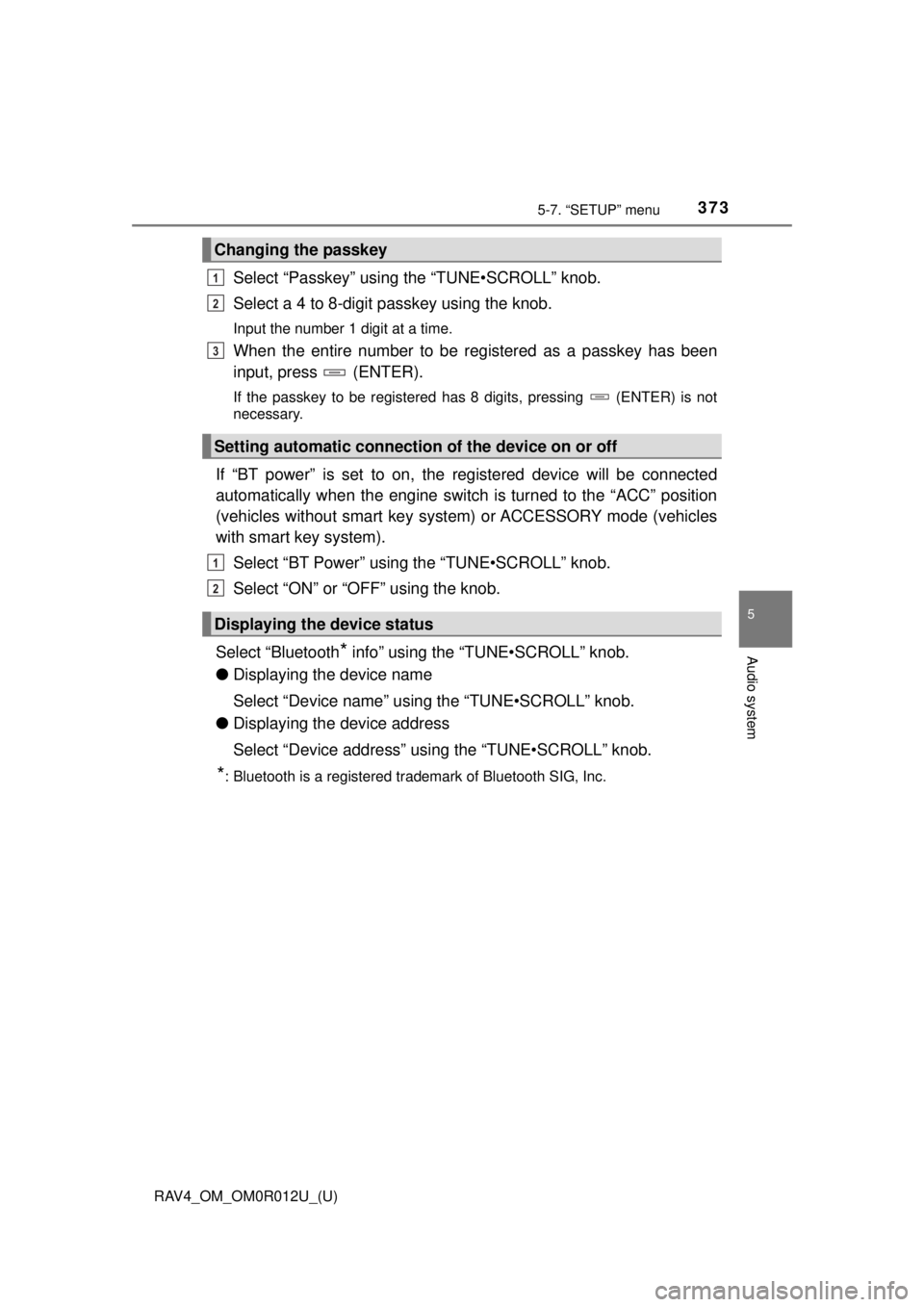
Select “Passkey” using the “TUNE•SCROLL” knob.
Select a 4 to 8-digit passkey using the knob.
Input the number 1 digit at a time.
When the entire number to be registered as a passkey has been
input, press (ENTER).
If the passkey to be registered has 8 digits, pressing (ENTER) is not
necessary.
If “BT power” is set to on, the registered device will be connected
automatically when the engine switch is turned to the “ACC” position
(vehicles without smart key syst em) or ACCESSORY mode (vehicles
with smart key system).
Select “BT Power” using the “TUNE•SCROLL” knob.
Select “ON” or “OFF” using the knob.
Select “Bluetooth
* info” using the “TUNE•SCROLL” knob.
● Displaying the device name
Select “Device name” using the “TUNE•SCROLL” knob.
● Displaying the device address
Select “Device address” using the “TUNE•SCROLL” knob.
*: Bluetooth is a registered trademark of Bluetooth SIG, Inc.
Changing the passkey
Setting automatic connection of the device on or off
Displaying the device status
1
2
3
1
2
Page 374 of 744
374
RAV4_OM_OM0R012U_(U)
5-7. “SETUP” menu
If the “Display setting” is set to on, the portable player connection sta-
tus will be displayed when the engine sw itch is turned to the “ACC” or
“ON” position (vehicles without sm art key system) or ACCESSORY or
IGNITION ON mode (vehicles with smart key system).
Select “Display setting” us ing the “TUNE•SCROLL” knob.
Select “ON” or “OFF” using the knob.
Select “Initialize” using the “TUNE•SCROLL” knob.
● Initializing the sound settings
Select “Sound setting” using the “TUNE•SCROLL” knob and press
(YES).
For details about sound settings: →P. 375
●Initializing the device information
Select “Car device info” using the “TUNE•SCROLL” knob and press
(YES).
Automatic connection of a portable device, automatic connection confirma-
tion display and the passkey will be initialized.
● Initializing all the settings
Select “All initialize” using the “TUNE•SCROLL” knob and press
(YES).
■The number of Bluetooth® device that can be registered
Up to 5 Bluetooth® device can be registered in the system.
■ Bluetooth
® audio/phone system functions
Certain functions may not be available during driving.
Setting the automatic connection confirmation display to on or off
Initialization
1
2
Page 392 of 744
392
RAV4_OM_OM0R012U_(U)
5-11. Using the audio system (Entune Audio)
Audio system (Entune Audio)
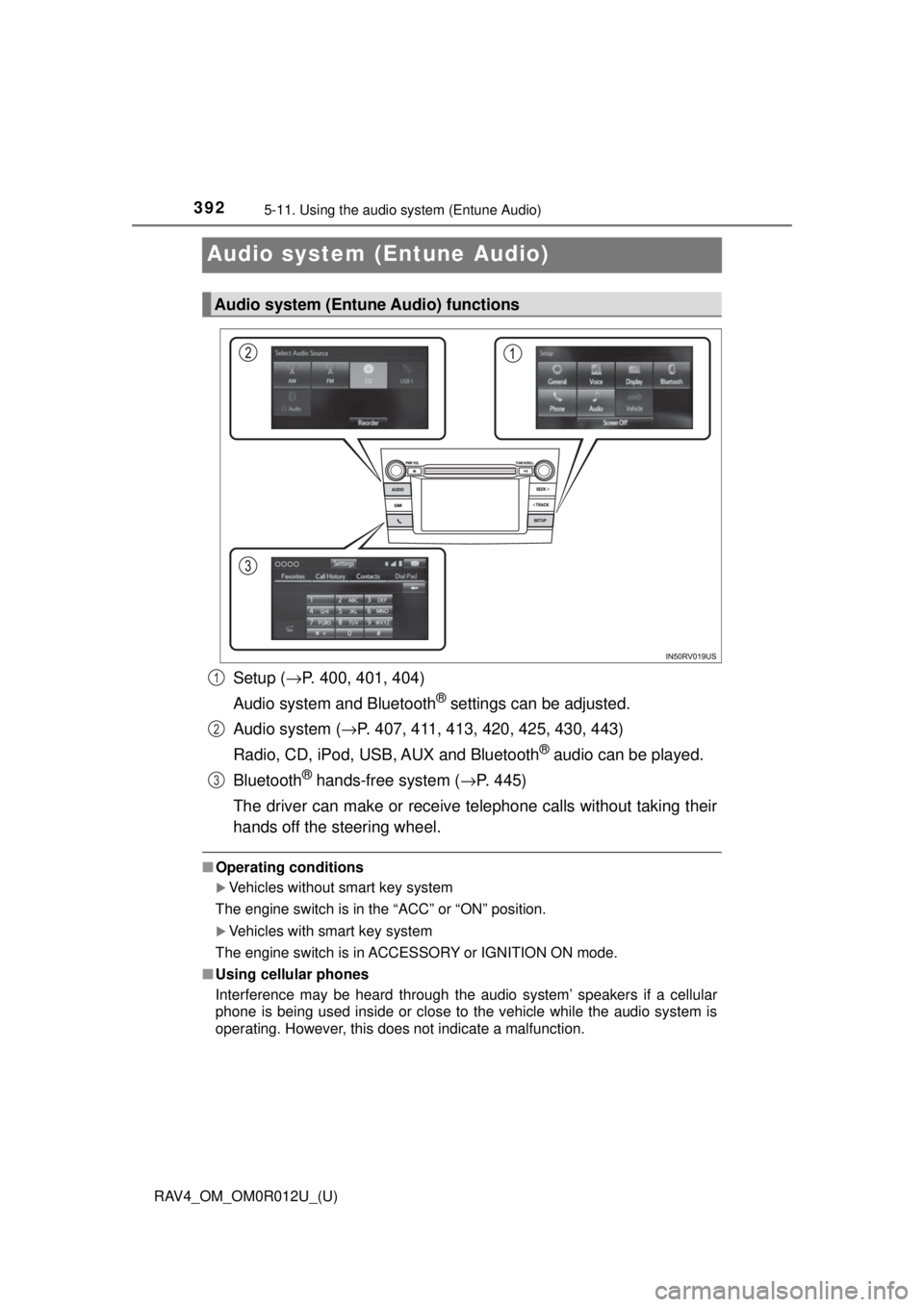
Setup (→P. 400, 401, 404)
Audio system and Bluetooth
® settings can be adjusted.
Audio system ( →P. 407, 411, 413, 420, 425, 430, 443)
Radio, CD, iPod, USB, AUX and Bluetooth
® audio can be played.
Bluetooth
® hands-free system (→ P. 445)
The driver can make or receive telephone calls without taking their
hands off the steering wheel.
■ Operating conditions
Vehicles without smart key system
The engine switch is in the “ACC” or “ON” position.
Vehicles with smart key system
The engine switch is in ACCESSORY or IGNITION ON mode.
■ Using cellular phones
Interference may be heard through the audio system’ speakers if a cellular
phone is being used inside or close to the vehicle while the audio system is
operating. However, this does not indicate a malfunction.
Audio system (Entune Audio) functions
1
2
3