change time TOYOTA RAV4 2021 (in English) Owner's Manual
[x] Cancel search | Manufacturer: TOYOTA, Model Year: 2021, Model line: RAV4, Model: TOYOTA RAV4 2021Pages: 748, PDF Size: 30.79 MB
Page 216 of 748
2164-3. Operating the lights and wipers
• The windshield is obscured by fog, mist, ice, dirt, etc.
• The windshield is cracked or dam- aged
• The front camera is deformed or
dirty
• When the temperature of the front
camera is extremely high
• Surrounding brightness levels are equal to those of h eadlights, tail
lights or fog lights
• When headlights or tail lights of vehicles ahead are turned off,
dirty, changing color, or not aimed
properly
• When the vehicle is hit by water,
snow, dust, etc. fr om a preceding
vehicle
• When driving thr ough an area of
intermittently changing brightness
and darkness
• When frequently and repeatedly driving ascending/descending
roads, or roads with rough, bumpy
or uneven surfaces (such as
stone-paved roads, gravel roads,
etc.)
• When frequently and repeatedly taking curves or driving on a wind-
ing road
• There is a highly reflective object
ahead of the vehicle, such as a
sign or mirror
• The back of a vehicle ahead is highly reflective, such as a con-
tainer on a truck
• The vehicle’s headlights are dam- aged or dirty, or are not aimed
properly
• The vehicle is listing or titling due to a flat tire, a trailer being towed,
etc.
• The high beam and low beam are repeatedly being switched
between in an abnormal manner
• The driver believes that the high beam may be causing problems
or distress to other drivers or
pedestrians nearby■If “Headlight System Malfunc-
tion Visit Your Dealer” is dis-
played on the multi-information
display
The system may be malfunctioning.
Have the vehicle inspected by your
Toyota dealer.
■Temporarily lowering sensor
sensitivity
The sensitivity of the sensor can be
temporarily lowered.
1 Turn the engine switch to OFF
while the following conditions are
met.
●The headlight switch is in or
position.
●The headlight switch lever is in
high beam position.
●Automatic High Beam switch is
on.
2 Turn the engine switch to ON.
3 Within 60 second s after step 2,
repeat pulling the headlight
switch lever to the original posi-
tion then pushing it to the high
beam position qui ckly 10 times,
then leave the lever in high beam
position.
4 If the sensitivity is changed, the
Automatic High Beam indicator
is turn on and off 3 times.
Automatic High Beam (headlights)
may turn on even when the vehicle
is stopped.
■Switching to the low beam
Pull the lever to original position.
The Automatic High Beam indicator
will turn off.
Push the lever away from you to
activate the Automatic High Beam
system again.
Turning the high beam
on/off manually
Page 231 of 748
2314-5. Using the driving support systems
4
Driving
●In the following situations, if the situation has changed (or the vehicle has
been driven for some time) and the normal operating conditions are
detected, the message will disappear and the system will become opera-
tional.
If the message does not disapp ear, contact your Toyota dealer.
• When the temperature around the radar sensor is outside of the opera-
tional range, such as when the vehicle is in the sun or in an e xtremely cold
environment
• When the front camera cannot d etect objects in front of the vehicle, such
as when driving in the dark, sno w, or fog, or when bright lights are shining
into the front camera
When the temperature around the
front camera is outside of the opera-
tional range, such as when the vehi-
cle is in the sun or in an extremely
cold environment
If the front camera is hot, such as
after the vehicle had been parked in
the sun, use the air conditioning sys-
tem to decrease the temperature
around the front camera.
If a sunshade was used when the
vehicle was parked, depending on its
type, the sunlight reflected from the
surface of the sunshade may cause
the temperature of the front camera
to become excessively high.
If the front camera is cold, such as
after the vehicle is parked in an
extremely cold environment, use the
air conditioning system to increase
the temperature around the front
camera.
The area in front o f the front camera
is obstructed, such as when the
hood is open or a sticker is attached
to the part of the win dshield in front
of the front camera.
Close the hood, rem ove the sticker,
etc. to clear the obstruction.
SituationActions
Page 234 of 748
2344-5. Using the driving support systems
■Enabling/disabling the pre-
collision system
The pre-collision system can be
enabled/disabled on the
screen ( P.94) of the multi-
information display.
The system is automatically
enabled each time the engine
switch is turned to ON.
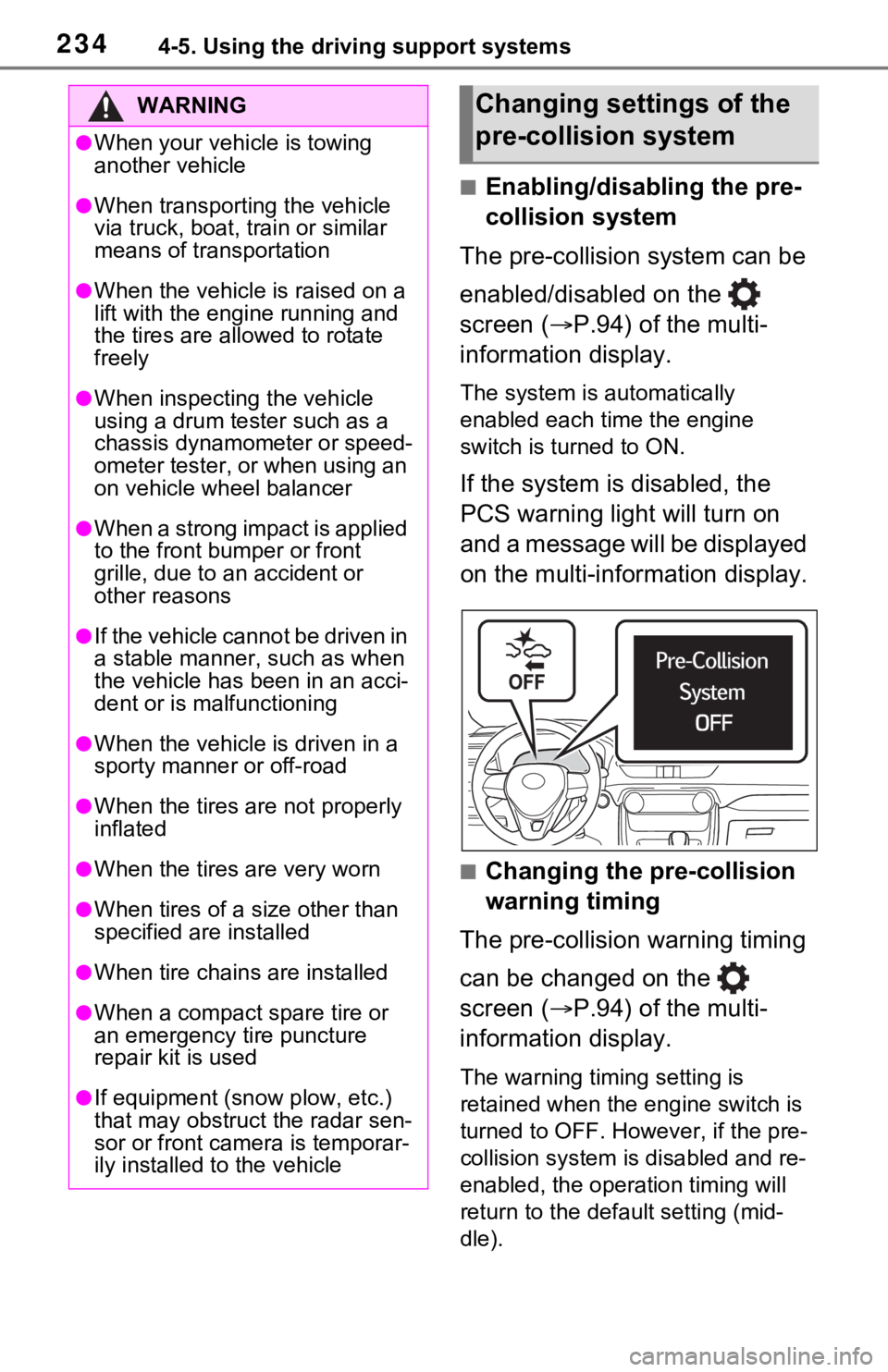
If the system is disabled, the
PCS warning light will turn on
and a message will be displayed
on the multi-information display.
■Changing the pre-collision
warning timing
The pre-collision warning timing
can be changed on the
screen ( P.94) of the multi-
information display.
The warning timing setting is
retained when the engine switch is
turned to OFF. However, if the pre-
collision system is disabled and re-
enabled, the operation timing will
return to the default setting (mid-
dle).
WARNING
●When your vehicle is towing
another vehicle
●When transporting the vehicle
via truck, boat, train or similar
means of transportation
●When the vehicle is raised on a
lift with the engine running and
the tires are allowed to rotate
freely
●When inspecting the vehicle
using a drum tester such as a
chassis dynamometer or speed-
ometer tester, or when using an
on vehicle wheel balancer
●When a strong impact is applied
to the front bumper or front
grille, due to a n accident or
other reasons
●If the vehicle cannot be driven in
a stable manner, such as when
the vehicle has been in an acci-
dent or is malfunctioning
●When the vehicle is driven in a
sporty manner or off-road
●When the tires are not properly
inflated
●When the tires are very worn
●When tires of a size other than
specified are installed
●When tire chains are installed
●When a compact spare tire or
an emergency tire puncture
repair kit is used
●If equipment (snow plow, etc.)
that may obstruct the radar sen-
sor or front camera is temporar-
ily installed to the vehicle
Changing settings of the
pre-collision system
Page 239 of 748
2394-5. Using the driving support systems
4
Driving
such as heavy rain, fog, snow or a
sandstorm
• When driving through steam or smoke
• When the surrounding area is dim, such as at dawn or dusk, or while
at night or in a t unnel, making a
detectable object appear to be
nearly the same color as its sur-
roundings
• When driving in a place where the surrounding brightness changes
suddenly, such as at the entrance
or exit of a tunnel
• After the engine has started the vehicle has not been driven for a
certain amount of time
• While making a left/right turn and for a few seconds after making a
left/right turn
• While driving on a curve and for a
few seconds after driving on a
curve
• If your vehicle is skidding
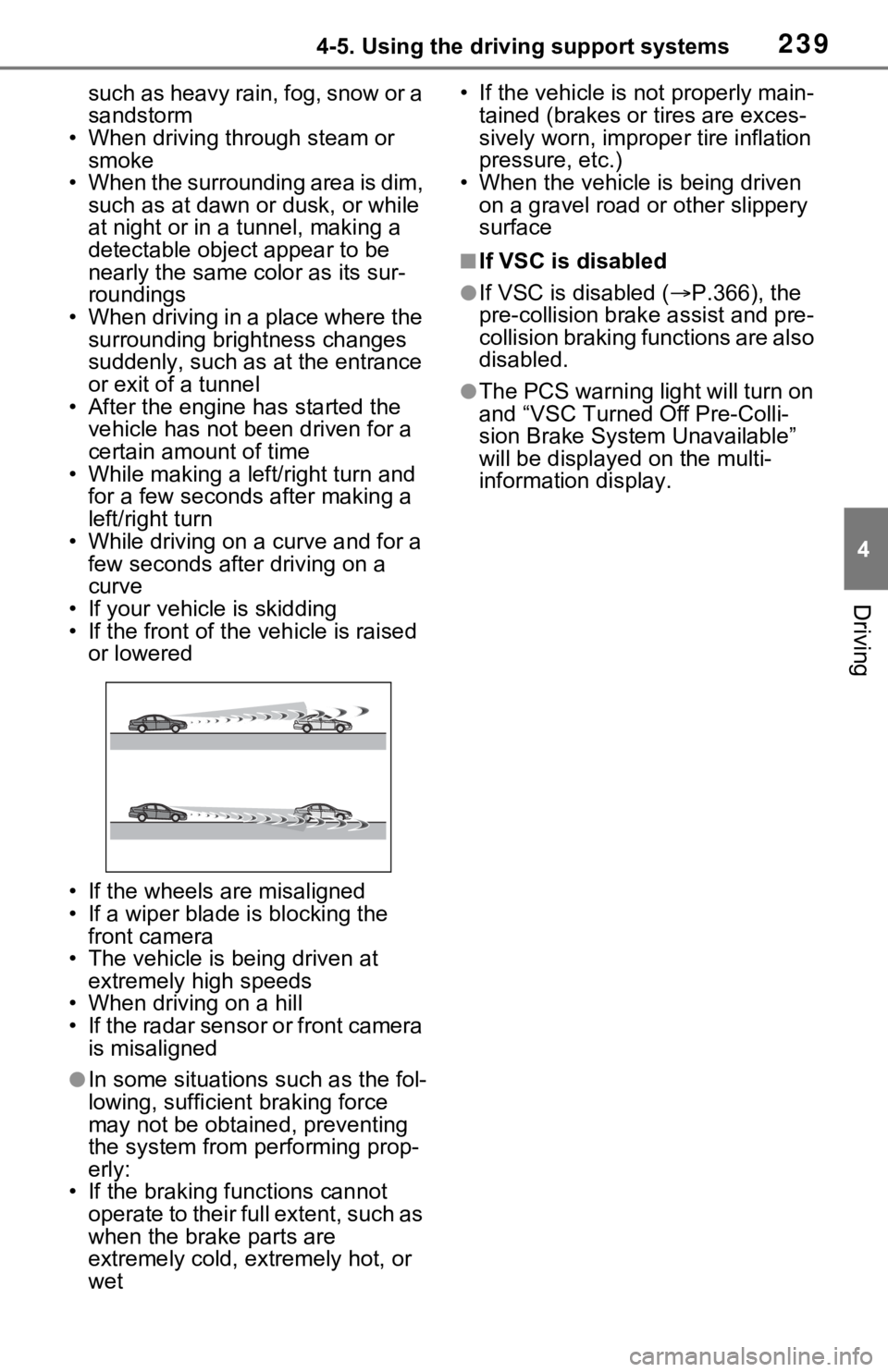
• If the front of the vehicle is raised or lowered
• If the wheels are misaligned
• If a wiper blade is blocking the front camera
• The vehicle is being driven at extremely high speeds
• When driving on a hill
• If the radar sensor or front camera is misaligned
●In some situations such as the fol-
lowing, sufficien t braking force
may not be obtained, preventing
the system from performing prop-
erly:
• If the braking functions cannot operate to their full extent, such as
when the brake parts are
extremely cold, extremely hot, or
wet • If the vehicle is not properly main-
tained (brakes or tires are exces-
sively worn, imprope r tire inflation
pressure, etc.)
• When the vehicle is being driven on a gravel road or other slippery
surface
■If VSC is disabled
●If VSC is disabled ( P.366), the
pre-collision brak e assist and pre-
collision braking functions are also
disabled.
●The PCS warning light will turn on
and “VSC Turned Off Pre-Colli-
sion Brake System Unavailable”
will be displayed on the multi-
information display.
Page 252 of 748
2524-5. Using the driving support systems
nizes a do not enter sign and
determines that your vehicle
has entered a no-entry area,
the displayed sign will flash
and a buzzer will sound.
Depending on the situation, a
notification function may not
operate properly.
■Setting procedure
P.94
■Automatic turn-off of RSA sign
display
In the following situations, displayed
speed limit sign and/or do not enter
signs will stop being displayed auto-
matically:
●No sign has been recognized for a
certain distance.
●The road changes due to a left or
right turn, etc.
In the following si tuations, stop and
yield signs will stop being displayed
automatically:
●The system determines that your
vehicle has passed the sign.
●The road changes due to a left or
right turn, etc.
■Conditions in which the func-
tion may not operate or detect
correctly
In the following situations, RSA
does not operate normally and may
not recognize signs, display the
incorrect sign, etc. However, this
does not indicate a malfunction.
●The front camera is misaligned
due to a strong impact being
applied to the sensor, etc.
●D i r t , s n o w , s t i c k e r s , e t c . a r e o n t h e
windshield near the front camera.
●In inclement weather such as
heavy rain, fog, snow or sand
storms
●Light from an oncoming vehicle, the sun, etc. ente
rs the front cam-
era.
●The sign is dirty, faded, tilted or
bent, and if an electronic sign, the
contrast is poor.
●All or part of the sign is hidden by
the leaves of a tree, a pole, etc.
●The sign is only visible to the front
camera for a short amount of time.
●The driving scene (turning, lane
change, etc.) is judged incorrectly.
●If a sign not appropriate for the
currently traveled lane, but the
sign exists directly after a freeway
branches, or in an adjacent lane
just before merging.
●Stickers are attached to the rear
of the preceding vehicle.
●A sign resembling a system com-
patible sign is recognized.
●Side road speed signs may be
detected and displayed (if posi-
tioned in sight of the front camera)
while the vehicle i s traveling on
the main road.
●Roundabout exit road speed signs
may be detected and displayed (if
positioned in si ght of the front
camera) while t raveling on a
roundabout.
●The front of the vehicle is raised or
lowered due to the carried load.
●The surrounding brightness is not
sufficient or changes suddenly.
●When a sign inte nded for trucks,
etc. is recognized.
●The speed information displayed
on the meter and on the naviga-
tion system may be different due
to the navigation system using
map data.
■Speed limit sign display
If the engine switch was last turned
off while a speed limit sign was dis-
played on the multi-information dis-
play, the same sign displays again
when the engine switch is turned to
ON.
Page 257 of 748
2574-5. Using the driving support systems
4
Driving
Example of constant speed cruising
When there are no vehicles ahead
The vehicle travels at the speed set by the driver.
Example of deceleration crui sing and follow-up cruising
When a preceding vehicle driving slower than the set speed
appears
When a vehicle is detected runni ng ahead of you, the system automatically
decelerates your vehicle. When a greater reduction in vehicle s peed is nec-
essary, the system applies the brakes (the stop lights will come on at this
time). The system will respond to changes i n the speed of the vehicle
ahead in order to maintain the ve hicle-to-vehicle distance set by the driver.
Approach warning warns you when the system cannot decelerate suffi-
ciently to prevent your vehicle from closing in on the vehicle ahead.
When the vehicle ahead of you st ops, your vehicle will also stop (vehicle is
stopped by system control). Afte r the vehicle ahead starts off, pressing the
“+RES” switch or depressing the accelerator pedal (start-off operation) will
resume follow-up cruising. If the start-off operation is not performed, system
control continues to keep your vehicle stopped.
When the turn signal lever is ope rated and your vehicle moves to an over-
taking lane while driving at 50 mph (80 km/h) or more, the vehi cle will accel-
erate to help to overt ake a passing vehicle.
The system’s identifi cation of what is an overtaking lane may be deter-
mined solely based on the location of the steering wheel in the vehicle (left
side driver position versus righ t side driver position.) If the vehicle is driven
to a region where the overtaking lane is on a different side fr om where the
vehicle is normally driven, the v ehicle may accelerate when the turn signal
lever is operated in the opposite direction to the overtaking l ane (e.g., if the
driver normally operates the vehicle in a region where the over taking lane is
to the right but then drives to a region where the overtaking l ane is to the
left, the vehicle may accelerate when the right turn signal is activated).
Example of acceleration
When there are no longer any preceding vehicles driving slower
than the set speed
The system accelerates until the set speed is reached. The system then
returns to constan t speed cruising.
1Press the cruise control main switch to activate the cruise
control.
Dynamic radar cruise control indi-
cator will come on and a message
will be displayed on
the multi-infor-
mation display. Press the switch
A
B
C
Setting the vehicle speed
(vehicle-to-vehicle dis-
tance control mode)
Page 258 of 748
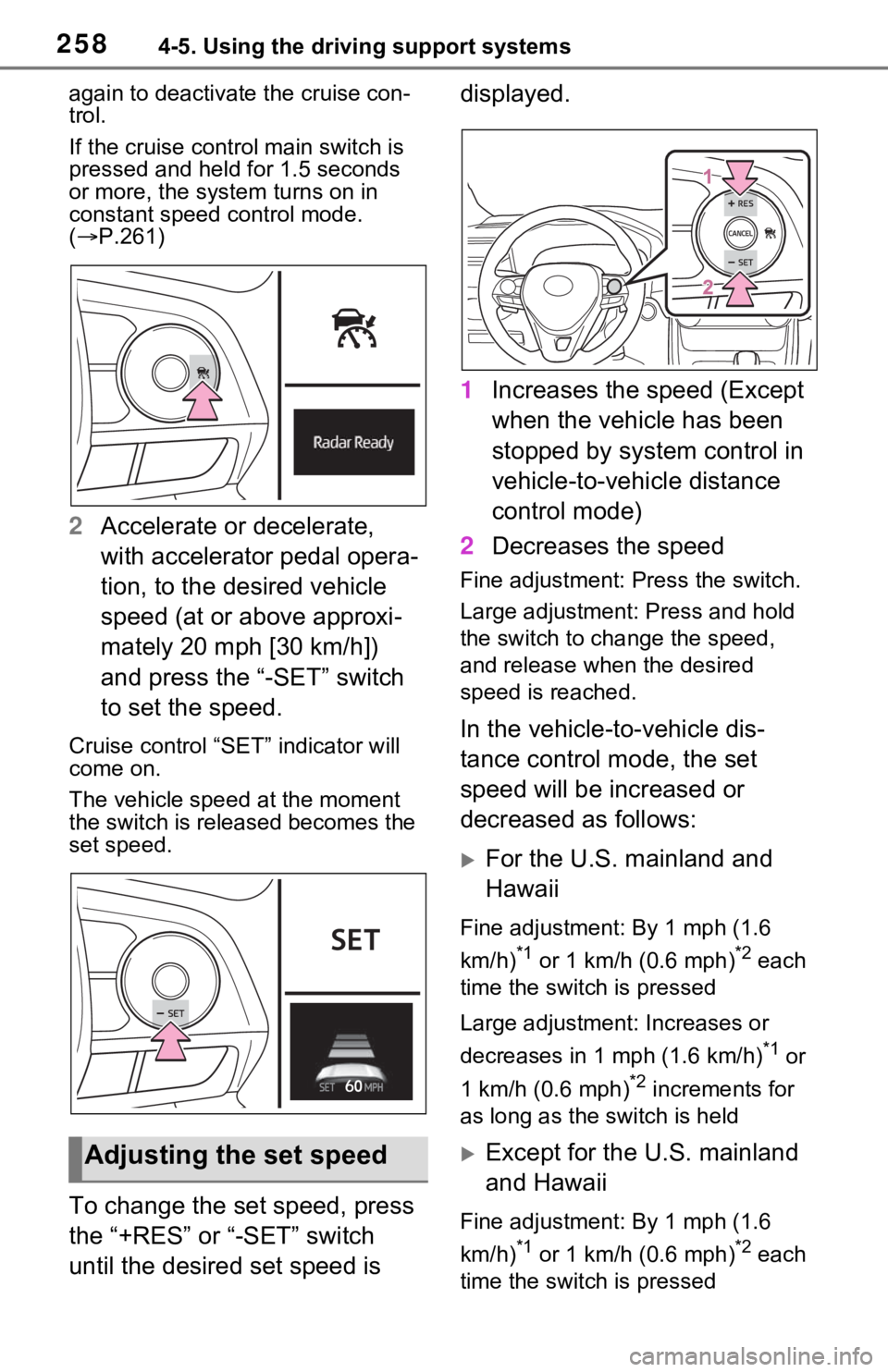
2584-5. Using the driving support systems
again to deactivate the cruise con-
trol.
If the cruise control main switch is
pressed and held for 1.5 seconds
or more, the syste m turns on in
constant speed control mode.
( P.261)
2 Accelerate or decelerate,
with accelerator pedal opera-
tion, to the desired vehicle
speed (at or above approxi-
mately 20 mph [30 km/h])
and press the “-SET” switch
to set the speed.
Cruise control “SET” indicator will
come on.
The vehicle speed at the moment
the switch is released becomes the
set speed.
To change the set speed, press
the “+RES” or “-SET” switch
until the desired set speed is displayed.
1
Increases the speed (Except
when the vehicle has been
stopped by system control in
vehicle-to-vehicle distance
control mode)
2 Decreases the speed
Fine adjustment: Press the switch.
Large adjustment: Press and hold
the switch to cha nge the speed,
and release when the desired
speed is reached.
In the vehicle-to-vehicle dis-
tance control mode, the set
speed will be increased or
decreased as follows:
For the U.S. mainland and
Hawaii
Fine adjustment: By 1 mph (1.6
km/h)
*1 or 1 km/h (0.6 mph)*2 each
time the switch is pressed
Large adjustment: Increases or
decreases in 1 mph (1.6 km/h)
*1 or
1 km/h (0.6 mph)
*2 increments for
as long as the switch is held
Except for the U.S. mainland
and Hawaii
Fine adjustment: By 1 mph (1.6
km/h)
*1 or 1 km/h (0.6 mph)*2 each
time the switch is pressed
Adjusting the set speed
Page 259 of 748
2594-5. Using the driving support systems
4
Driving
Large adjustment: Increases or
decreases in 5 mph (8 km/h)
*1 or 5
km/h (3.1 mph)
*2 increments for as
long as the switch is held
In the constant speed control
mode ( P.261), the set speed
will be increased or decreased
as follows:
Fine adjustment: By 1 mph (1.6
km/h)
*1 or 1 km/h (0.6 mph)*2 each
time the switch is pressed
Large adjustment: The speed will
continue to change while the switch
is held.
*1: When the set speed is shown in
“MPH”
*2: When the set speed is shown in “km/h”
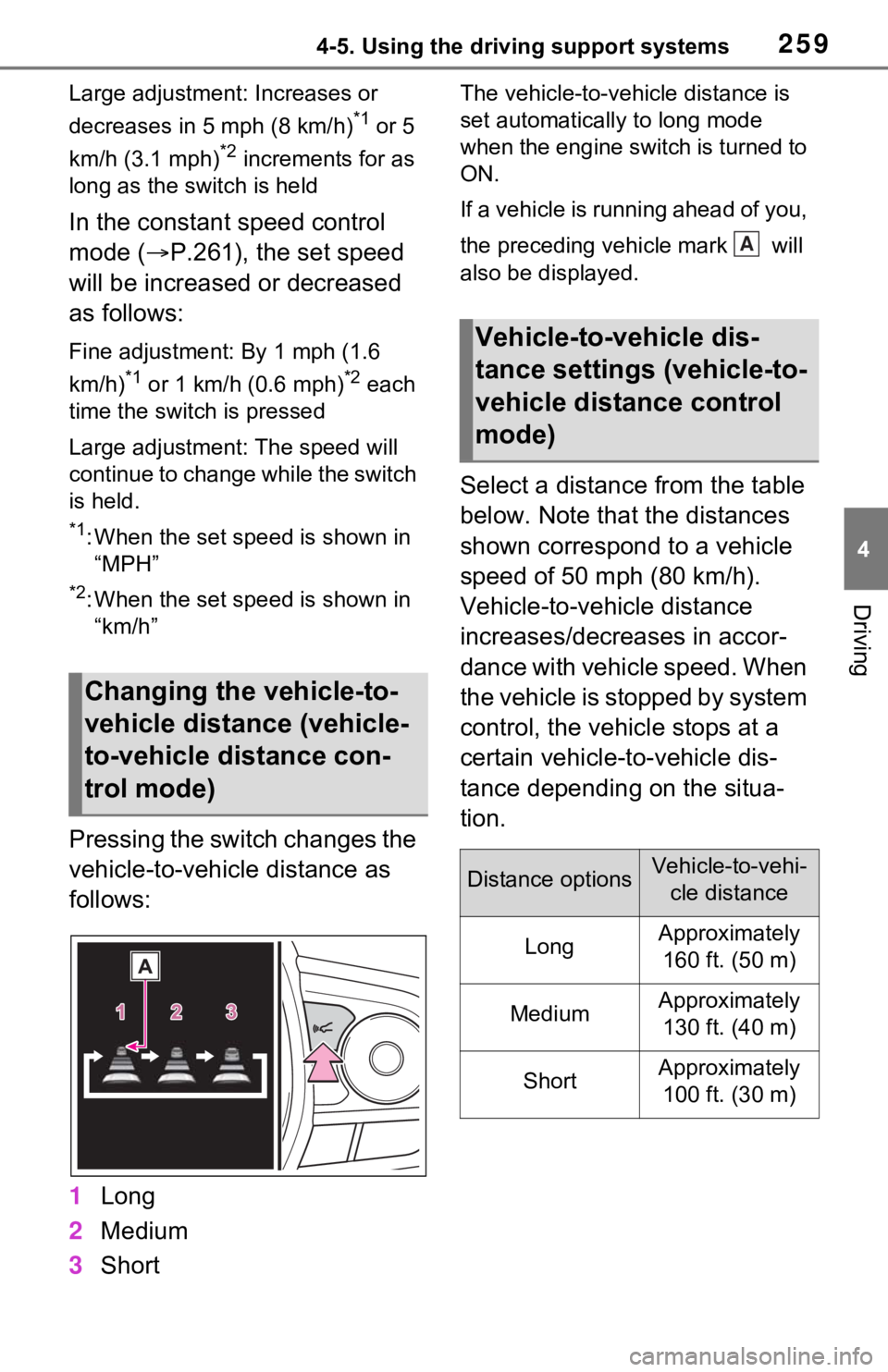
Pressing the switch changes the
vehicle-to-vehicle distance as
follows:
1 Long
2 Medium
3 Short
The vehicle-to-veh icle distance is
set automatically to long mode
when the engine switch is turned to
ON.
If a vehicle is running ahead of you,
the preceding vehicle mark will
also be displayed.
Select a distance from the table
below. Note that the distances
shown correspond to a vehicle
speed of 50 mph (80 km/h).
Vehicle-to-vehicle distance
increases/decreases in accor-
dance with vehicle speed. When
the vehicle is stopped by system
control, the vehicle stops at a
certain vehicle-to-vehicle dis-
tance depending on the situa-
tion.
Changing the vehicle-to-
vehicle distance (vehicle-
to-vehicle distance con-
trol mode)
Vehicle-to-vehicle dis-
tance settings (vehicle-to-
vehicle distance control
mode)
Distance optionsVehicle-to-vehi- cle distance
LongApproximately 160 ft. (50 m)
MediumApproximately 130 ft. (40 m)
ShortApproximately 100 ft. (30 m)
A
Page 262 of 748
![TOYOTA RAV4 2021 (in English) Owners Manual 2624-5. Using the driving support systems
(However, when the vehicle speed
is set while driving at below
approximately 20 mph [30 km/h],
the set speed will be set to
approximately 20 mph [30 km/h]](/img/14/42749/w960_42749-261.png "TOYOTA RAV4 2021 (in English) Owners Manual 2624-5. Using the driving support systems
(However, when the vehicle speed
is set while driving at below
approximately 20 mph [30 km/h],
the set speed will be set to
approximately 20 mph [30 km/h]")
2624-5. Using the driving support systems
(However, when the vehicle speed
is set while driving at below
approximately 20 mph [30 km/h],
the set speed will be set to
approximately 20 mph [30 km/h].)
■Accelerating after setting the
vehicle speed
The vehicle can accelerate by oper-
ating the accelerator pedal. After
accelerating, the set speed
resumes. However, during vehicle-
to-vehicle distance control mode,
the vehicle spee d may decrease
below the set speed in order to
maintain the distance to the preced-
ing vehicle.
■When the vehicle stops while
follow-up cruising
●Pressing the “+RES” switch while
the vehicle ahead stops will
resume follow-up cruising if the
vehicle ahead starts off within
approximately 3 seconds after the
switch is pressed.
●If the vehicle ahead starts off
within 3 seconds after your vehicle
stops, follow-up cruising will be
resumed.
■Automatic cancelation of vehi-
cle-to-vehicle d istance control
mode
Vehicle-to-vehicle distance control
mode is automatically canceled in
the following situations.
●VSC is activated.
●TRAC is activated for a period of
time.
●When the VSC or TRAC system is
turned off.
●The sensor cannot detect cor-
rectly because i t is covered in
some way.
●Pre-collision braking is activated.
●The parking brake is operated.
●The vehicle is stopped by system
control on a steep incline.
●The following are detected when
the vehicle has been stopped by system control:
• The driver is not wearing a seat belt.
• The driver’s door is opened.
• The vehicle has been stopped for
about 3 minutes
If vehicle-to-vehicle distance control
mode is automatically canceled for
any reasons other than the above,
there may be a malfunction in the
system. Contact your Toyota dealer.
■Automatic cancelation of con-
stant speed control mode
Constant speed control mode is
automatically cance led in the follow-
ing situations:
●Actual vehicle speed is more than
approximately 10 mph (16 km/h)
below the set vehicle speed.
●Actual vehicle speed falls below
approximately 20 mph (30 km/h).
●VSC is activated.
●TRAC is activated for a period of
time.
●W h en t he V S C o r T RA C sys te m is
turned off.
●Pre-collision braking is activated.
If constant speed control mode is
automatically canceled for any rea-
sons other than the above, there
may be a malfunction in the system.
Contact your Toyota dealer.
■Brake operation
A brake operation sound may be
heard and the brake pedal response
may change, but these are not mal-
functions.
■Warning messages and buzzers
for dynamic radar cruise con-
trol with full-speed range
Warning messages and buzzers are
used to indicate a system malfunc-
tion or to inform the driver of the
need for caution while driving. If a
warning message is shown on the
multi-information display, read the
Page 278 of 748
2784-5. Using the driving support systems
Pay particular attention to the fol-
lowing objects:
●Wires, fences, ropes, etc.
●Cotton, snow and other materials
that absorb sound waves
●Sharply-angled objects
●Low objects
●Tall objects with upper sections
projecting outwards in the direc-
tion of your vehicle
People may not be detected if they
are wearing certain types of cloth-
ing.
■Certification (Canada only)
This ISM device complies with
Canadian ICES-001.
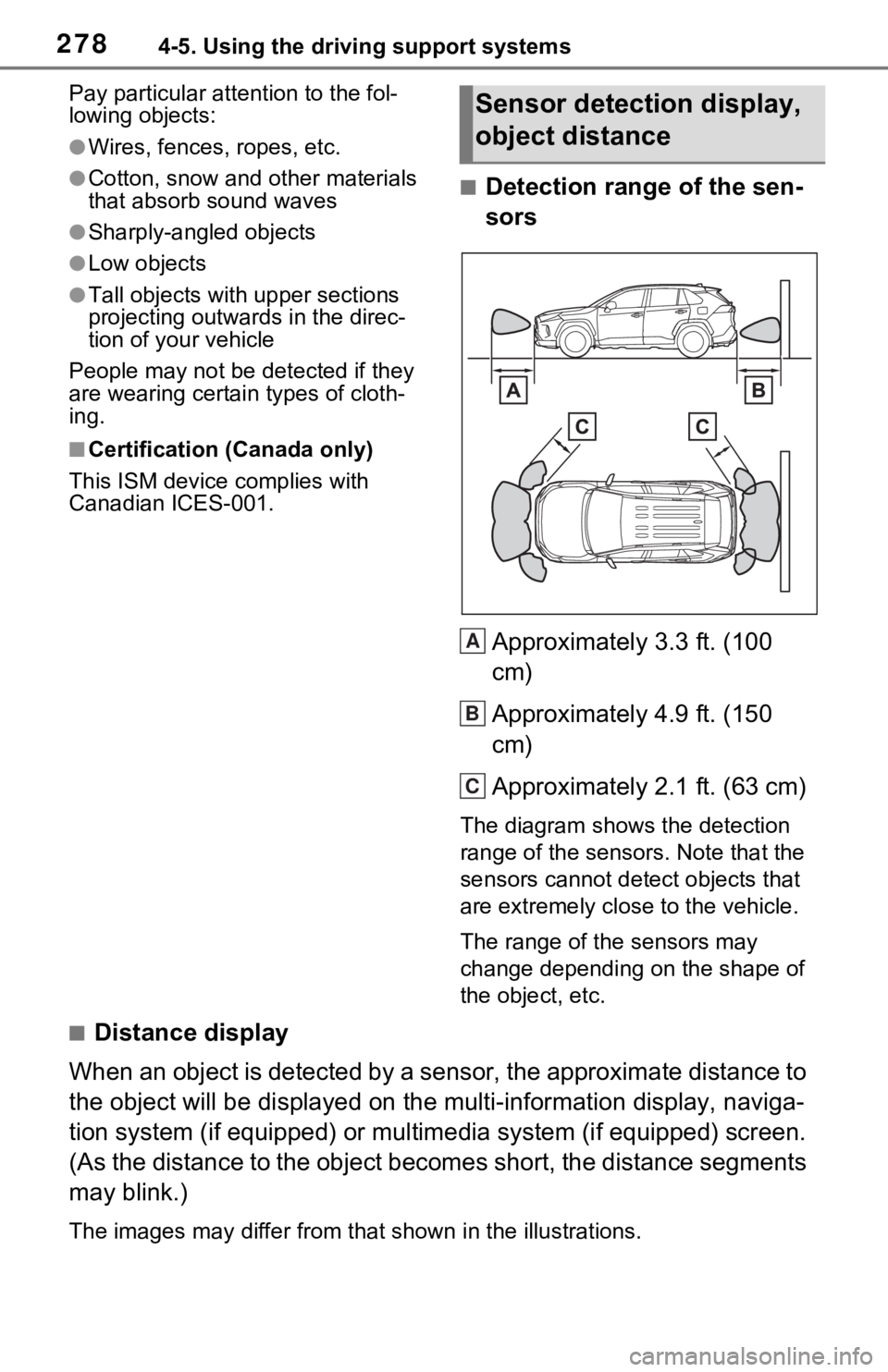
■Detection range of the sen-
sors
Approximately 3.3 ft. (100
cm)
Approximately 4.9 ft. (150
cm)
Approximately 2.1 ft. (63 cm)
The diagram shows the detection
range of the sensors. Note that the
sensors cannot detect objects that
are extremely clos e to the vehicle.
The range of the sensors may
change depending on the shape of
the object, etc.
■Distance display
When an object is detected by a sensor, the approximate distance to
the object will be displayed on the multi-information display, naviga-
tion system (if equipped) or multimedia system (if equipped) sc reen.
(As the distance to the object becomes short, the distance segm ents
may blink.)
The images may differ from that shown in the illustrations.
Sensor detection display,
object distance
A
B
C