display TOYOTA SEQUOIA 2010 2.G Workshop Manual
[x] Cancel search | Manufacturer: TOYOTA, Model Year: 2010, Model line: SEQUOIA, Model: TOYOTA SEQUOIA 2010 2.GPages: 660, PDF Size: 12.29 MB
Page 315 of 660
315
3-2. Using the audio system
3
Interior features
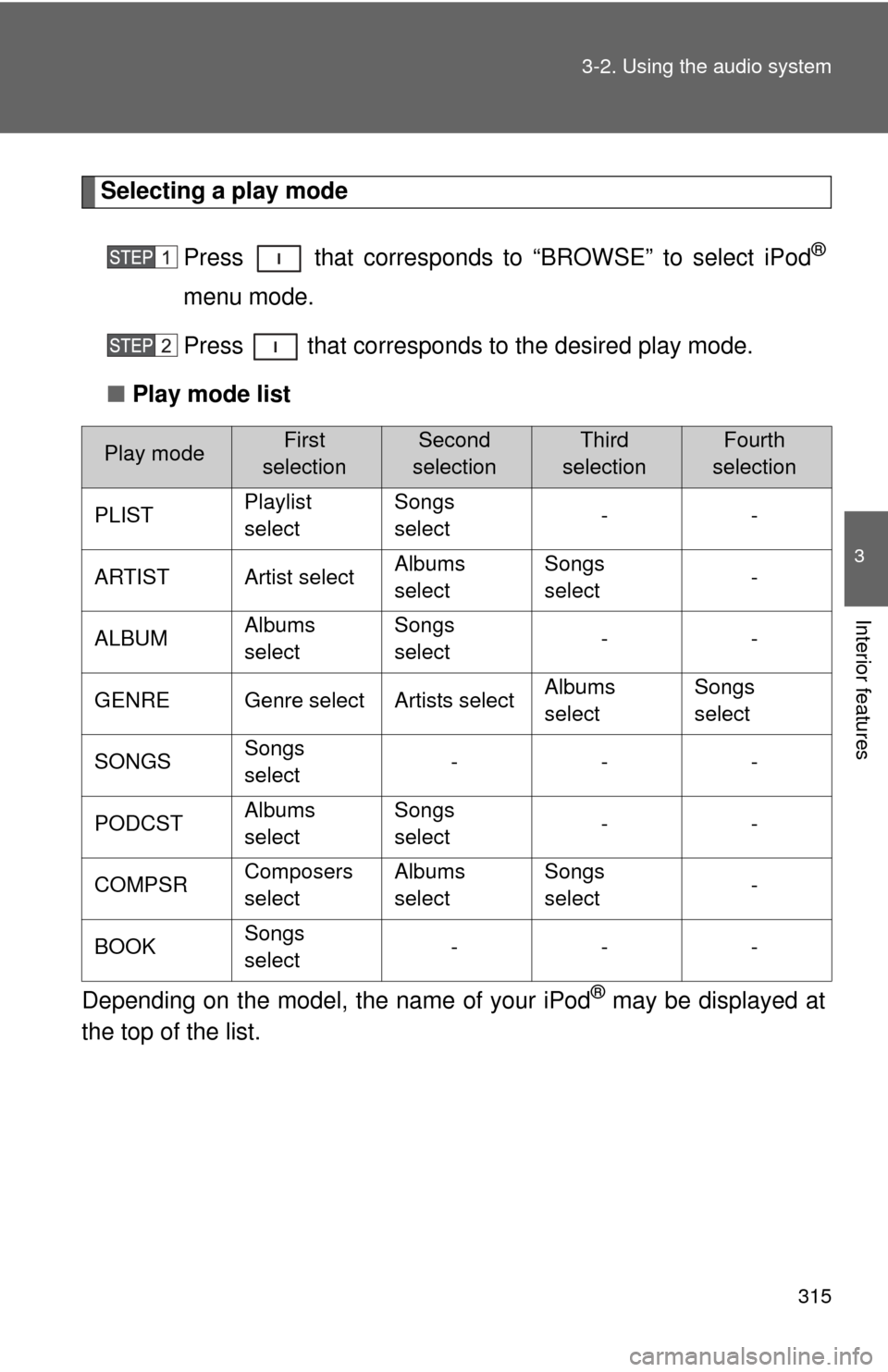
Selecting a play mode
Press that corresponds to “BROWSE” to select iPod
®
menu mode.
Press that corresponds to the desired play mode.
■ Play mode list
Depending on the model, the name of your iPod
® may be displayed at
the top of the list.
Play modeFirst
selectionSecond
selectionThird
selectionFourth
selection
PLIST Playlist
selectSongs
select
--
ARTIST Artist select Albums
selectSongs
select
-
ALBUM Albums
selectSongs
select
--
GENRE Genre select Artists select Albums
selectSongs
select
SONGS Songs
select ---
PODCST Albums
selectSongs
select
--
COMPSR Composers
selectAlbums
selectSongs
select
-
BOOK Songs
select ---
Page 316 of 660
316 3-2. Using the audio system
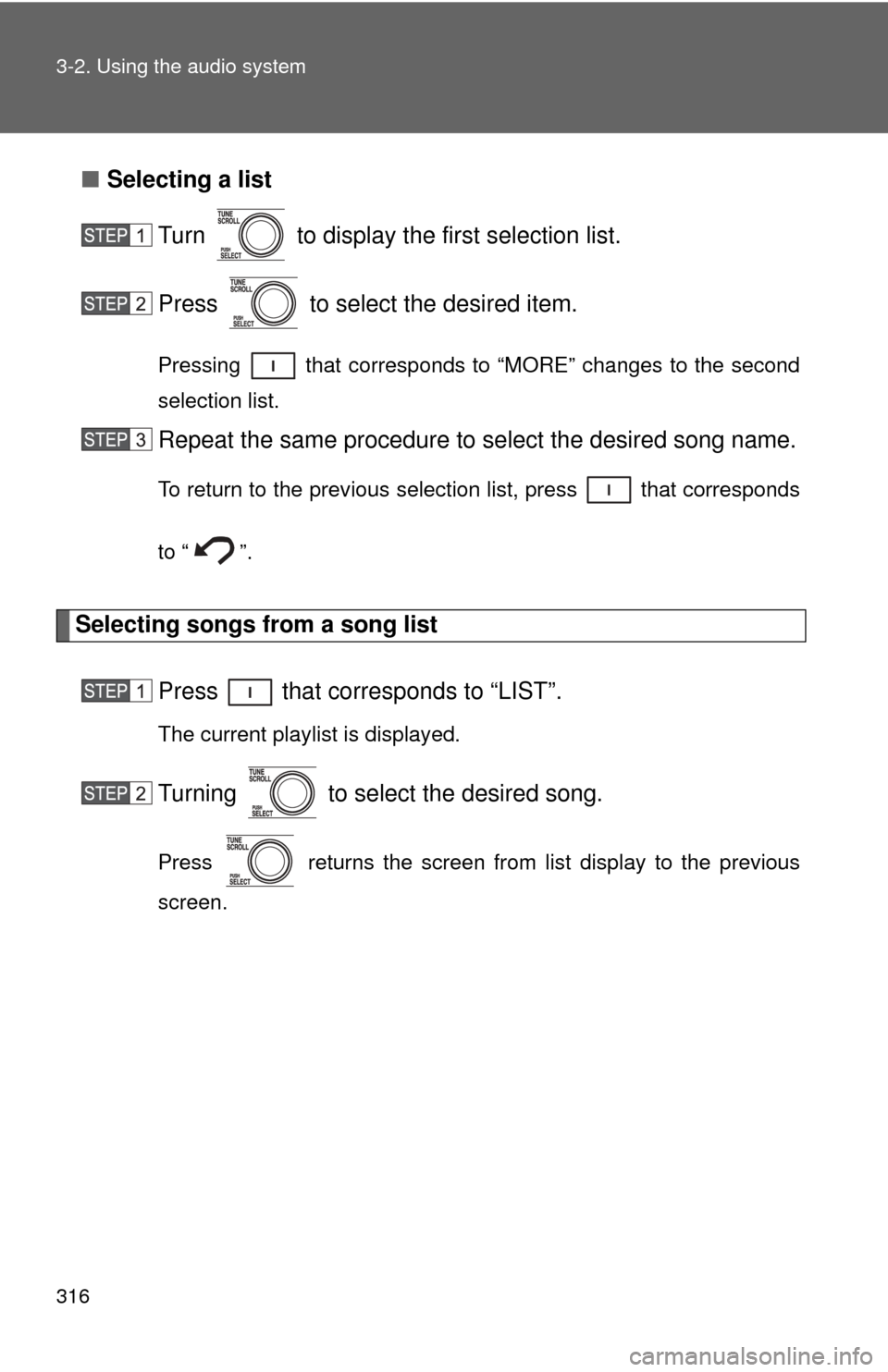
■Selecting a list
Turn to display the first selection list.
Press to select the desired item.
Pressing that corresponds to “MORE” changes to the second
selection list.
Repeat the same procedure to select the desired song name.
To return to the previous selection list, press that corresponds
to “ ”.
Selecting songs from a song list
Press that corresponds to “LIST”.
The current playlist is displayed.
Turning to select the desired song.
Press returns the screen from list display to the previous
screen.
Page 318 of 660
318 3-2. Using the audio system
Switching the displayPress .
Each time is pressed, the display changes in the following order:
Track title Track title/Artist name Track title/Album name Track
title/Elapsed time
■ About iPod®
iPod® is registered trademarks of Apple, Inc.
■ iPod
® player functions
● When an iPod
® player is connected and the audio source is changed to
iPod® player mode, the iPod® player will resume play from the same
point at which it was last used.
● Depending on the iPod
® player that is connected to the system, certain
functions may not be available. Disconnecting the device and reconnect-
ing it once again may resolve some malfunctions.
■ iPod
® player problems
To resolve most problems encountered when using your iPod
® player, dis-
connect your iPod® player from the vehicle iPod® player connection and
reset it.
For instructions on how to reset your iPod
® player, refer to your iPod® player
Owner’s Manual.
■ Error messages
“IPOD ERROR”:This indicates a problem in the iPod
® player, inside the USB
box or the connection between them.
“NO SONGS”:This indicates that there is no music data in the iPod
® player.
“UPDATE YOUR IPOD”:This indicates that the version of the iPod
® player is
not compatible.
Page 320 of 660
320
3-2. Using the audio system
Operating a USB memor y player
: If equipped
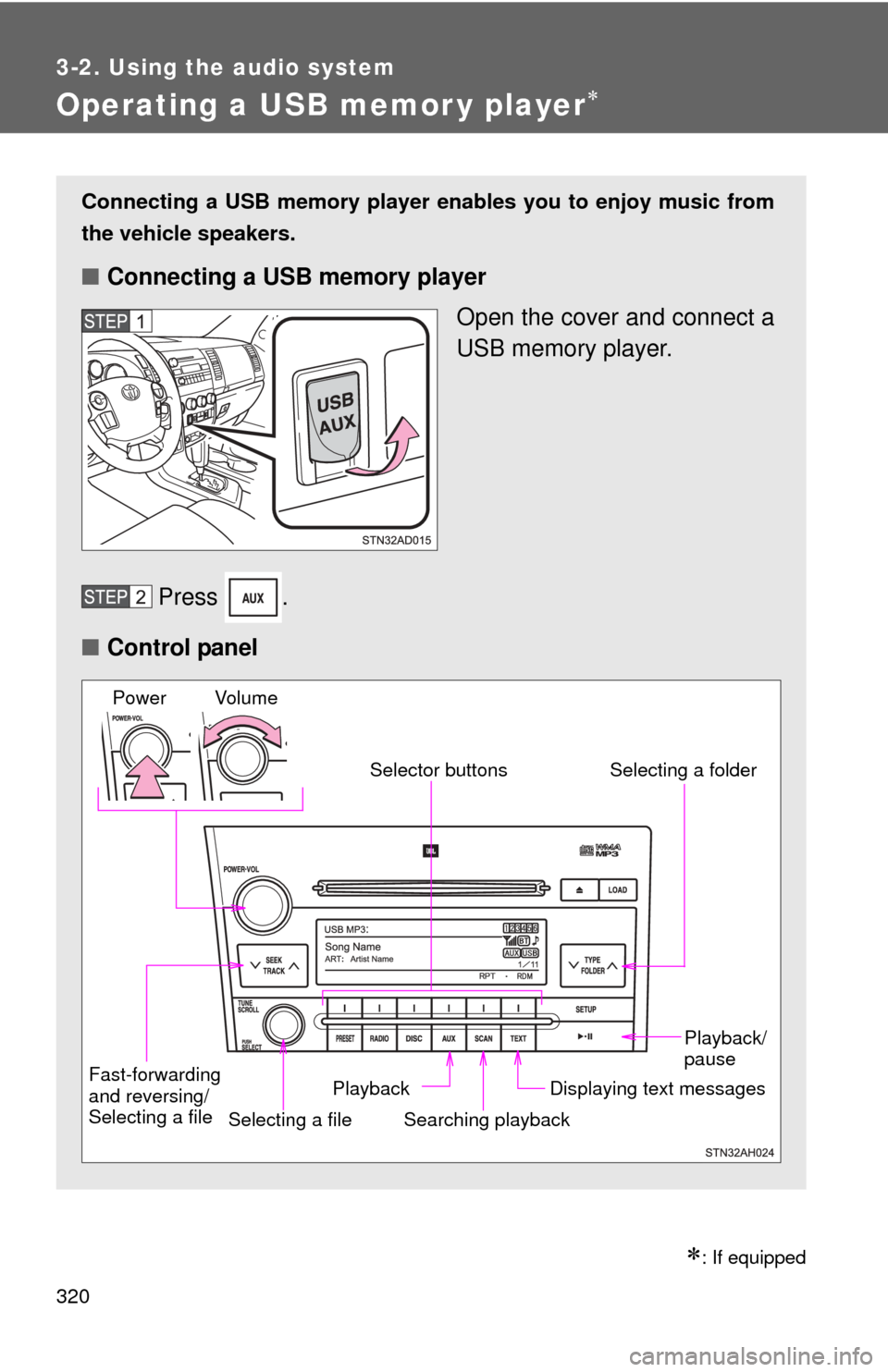
Connecting a USB memory player enables you to enjoy music from
the vehicle speakers.
■ Connecting a USB memory player
Open the cover and connect a
USB memory player.
Press .
■ Control panel
Fast-forwarding
and reversing/
Selecting a file
Selecting a file
Playback/
pause
Searching playback Displaying text messages
Selector buttons
Selecting a folder
Playback
Vo l u m e
Power
Page 323 of 660

323
3-2. Using the audio system
3
Interior features
Switching the display
Press .
Each time is pressed, the display changes in the following order:
Track title Track title/Artist name Track title/Album name Track
title/Elapsed time
■ USB memory player functions
Depending on the USB memory player that is connected to the system, cer-
tain functions may not be available. Disconnecting the device and recon-
necting it once again may resolve some malfunctions.
■ Error messages
“USB ERROR”:This indicates a problem in the USB memory player, in the
USB box or connection between them.
“NO MUSIC”: This indicates that no MP3/WMA files are included in the USB memory player.
Page 324 of 660
324 3-2. Using the audio system
■USB memory player
●Compatible device
USB memory players that can be used for MP3 and WMA playback.
Depending on the type of USB device, playback may not be possible.
● Compatible device formats
The following device formats can be used:
• USB communication formats: USB2.0 FS (12 mbps)
• File formats: FAT16/32 (Windows
®)
• Correspondence class: Mass storage class MP3 and WMA files written in any format other than those listed above
may not play correctly, and their file names and folder names may not
be displayed correctly.
Items related to standards and limitations are as follows:
• Maximum directory hierarchy: 8 levels
• Maximum number of folder in device: 999 (including the root)
• Maximum number of files in device: 65,025
• Maximum number of files per folder: 255
● MP3 and WMA files
MP3 (MPEG Audio LAYER 3) is a standard audio compression format.
Files can be compressed to approximately 1/10 of their original size using
MP3 compression.
WMA (Windows Media
® Audio) is a Microsoft® audio compression format.
This format compresses audio data to a size smaller than that of the MP3
format.
There is a limit to the MP3 and WMA file standards that can be used and to
the media/formats on which the files are recorded.
Page 328 of 660
328 3-2. Using the audio system
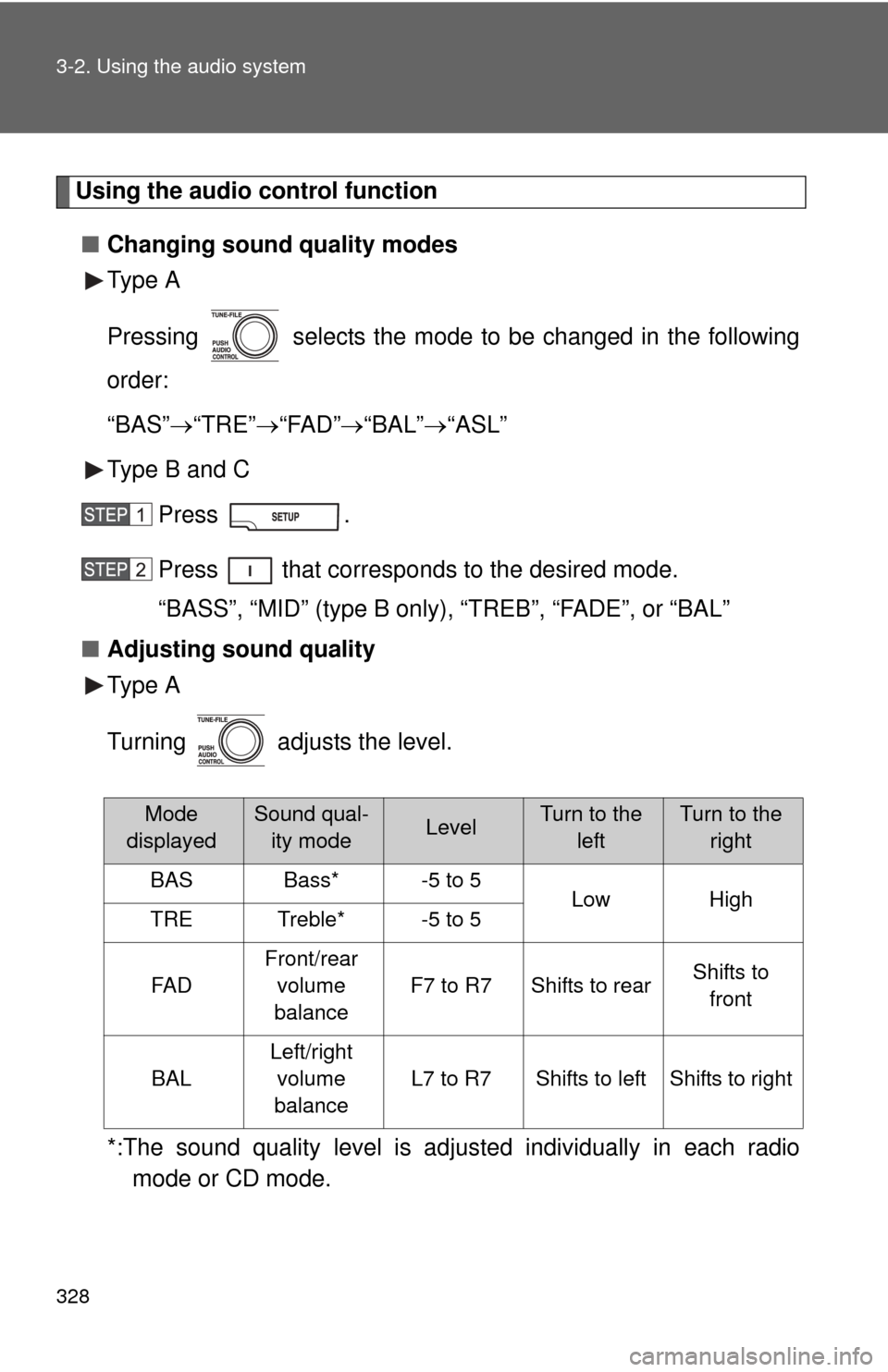
Using the audio control function■ Changing sound quality modes
Type A
Pressing selects the mode to be changed in the following
order:
“BAS” “TRE” “FAD” “BAL” “ASL”
Type B and C
Press .
Press that corresponds to the desired mode.
“BASS”, “MID” (type B only), “TREB”, “FADE”, or “BAL”
■ Adjusting sound quality
Type A
Turning adjusts the level.
*:The sound quality level is adjusted individually in each radio
mode or CD mode.
Mode
displayedSound qual- ity modeLevelTurn to the leftTurn to the right
BASBass*-5 to 5LowHighTRETreble*-5 to 5
FA D
Front/rear
volume
balance
F7 to R7Shifts to rearShifts to front
BAL
Left/right volume
balance
L7 to R7Shifts to leftShifts to right
Page 329 of 660
329
3-2. Using the audio system
3
Interior features
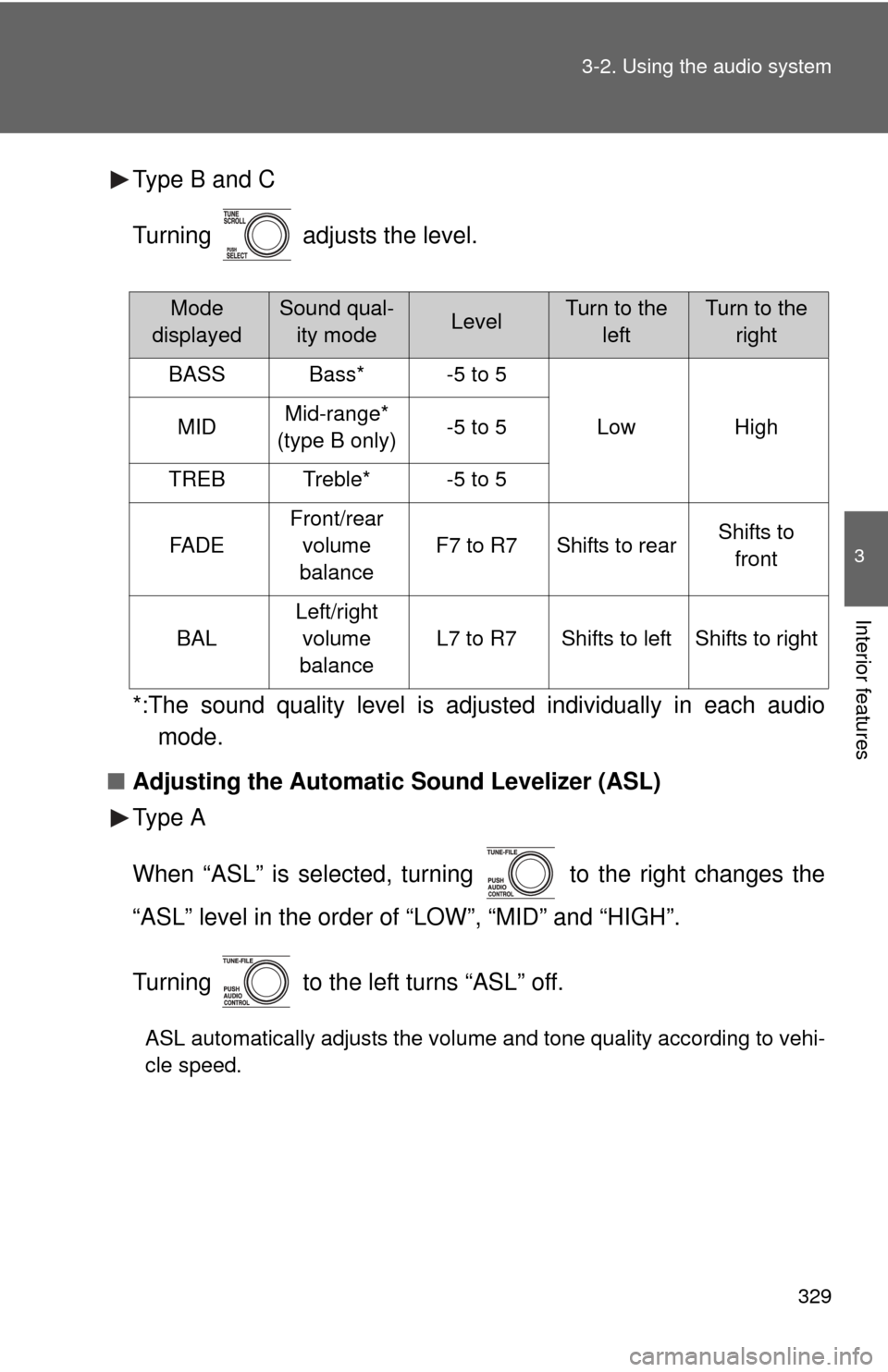
Type B and C
Turning adjusts the level.
*:The sound quality level is adjusted individually in each audio
mode.
■ Adjusting the Automatic Sound Levelizer (ASL)
Type A
When “ASL” is selected, turning to the right changes the
“ASL” level in the order of “LOW”, “MID” and “HIGH”.
Turning to the left turns “ASL” off.
ASL automatically adjusts the volume and tone quality according to vehi-
cle speed.
Mode
displayedSound qual- ity modeLevelTurn to the leftTurn to the right
BASSBass*-5 to 5
LowHighMIDMid-range*
(type B only)-5 to 5
TREBTreble*-5 to 5
FA D E
Front/rear volume
balance
F7 to R7Shifts to rearShifts to front
BAL
Left/right volume
balance
L7 to R7Shifts to leftShifts to right
Page 339 of 660
339
3-3. Using the Bluetooth® audio system
3
Interior features
Using the Bluetooth® audio system
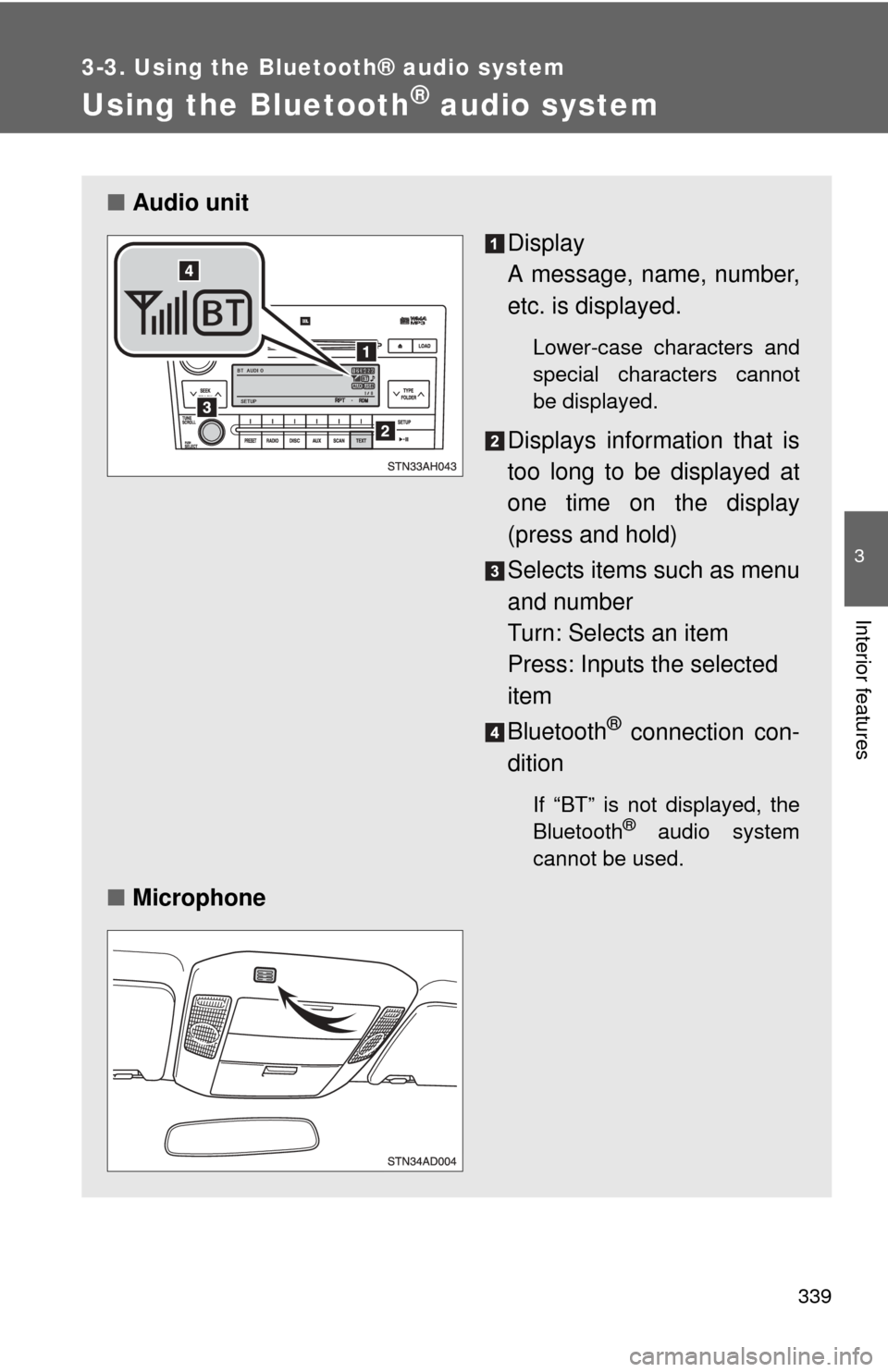
■Audio unit
Display
A message, name, number,
etc. is displayed.
Lower-case characters and
special characters cannot
be displayed.
Displays information that is
too long to be displayed at
one time on the display
(press and hold)
Selects items such as menu
and number
Turn: Selects an item
Press: Inputs the selected
item
Bluetooth
® connection con-
dition
If “BT” is not displayed, the
Bluetooth® audio system
cannot be used.
■ Microphone
Page 340 of 660

340 3-3. Using the Bluetooth® audio system
Operating the system using voice commandsBy following the voice guidance inst ructions output from the speaker,
voice commands enable the operation of the Bluetooth
® audio sys-
tem without the need to check the display or operate .
■ Operation procedure when using voice commands
Press the talk switch and follow the voice guidance instructions.
■ Auxiliary commands when using voice commands
The following auxiliary commands can be used when operating the
system using a voice command:
“Cancel”: Exits the Bluetooth
® audio system
“Repeat”: Repeats the previous voice guidance instruction
“Go back”: Returns to the previous procedure
“Help”: Reads aloud the function summary if a help comment is
registered for the selected function