buttons TOYOTA SEQUOIA 2013 2.G User Guide
[x] Cancel search | Manufacturer: TOYOTA, Model Year: 2013, Model line: SEQUOIA, Model: TOYOTA SEQUOIA 2013 2.GPages: 740, PDF Size: 15.34 MB
Page 362 of 740
362
3-2. Using the audio system
Optimal use of the audio system
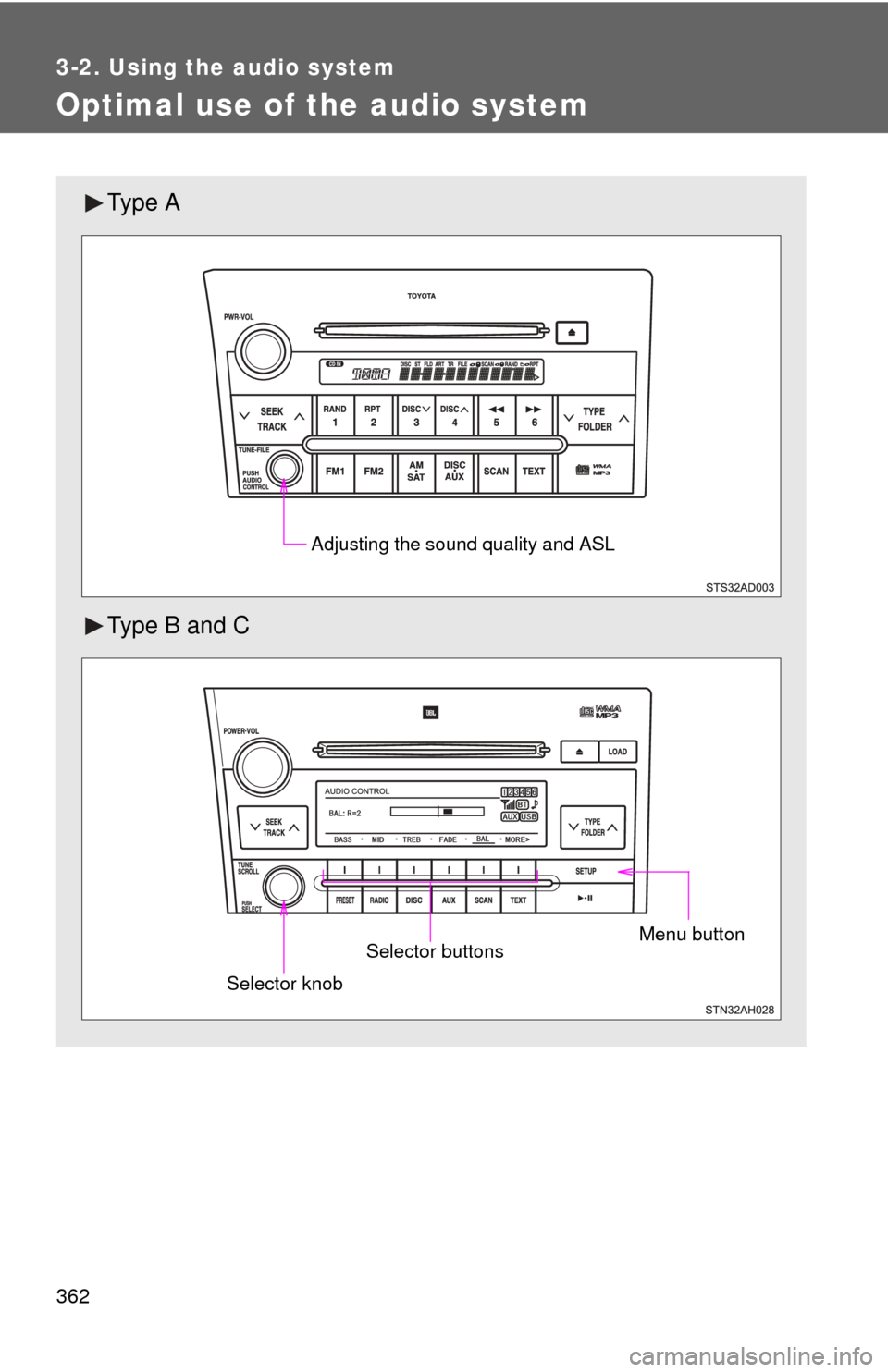
Ty p e A
Type B and C
Adjusting the sound quality and ASL
Menu buttonSelector buttons
Selector knob
Page 379 of 740
379
3-3. Using the Bluetooth® audio system
3
Interior features
Operating a Bluetooth® enabled por table player
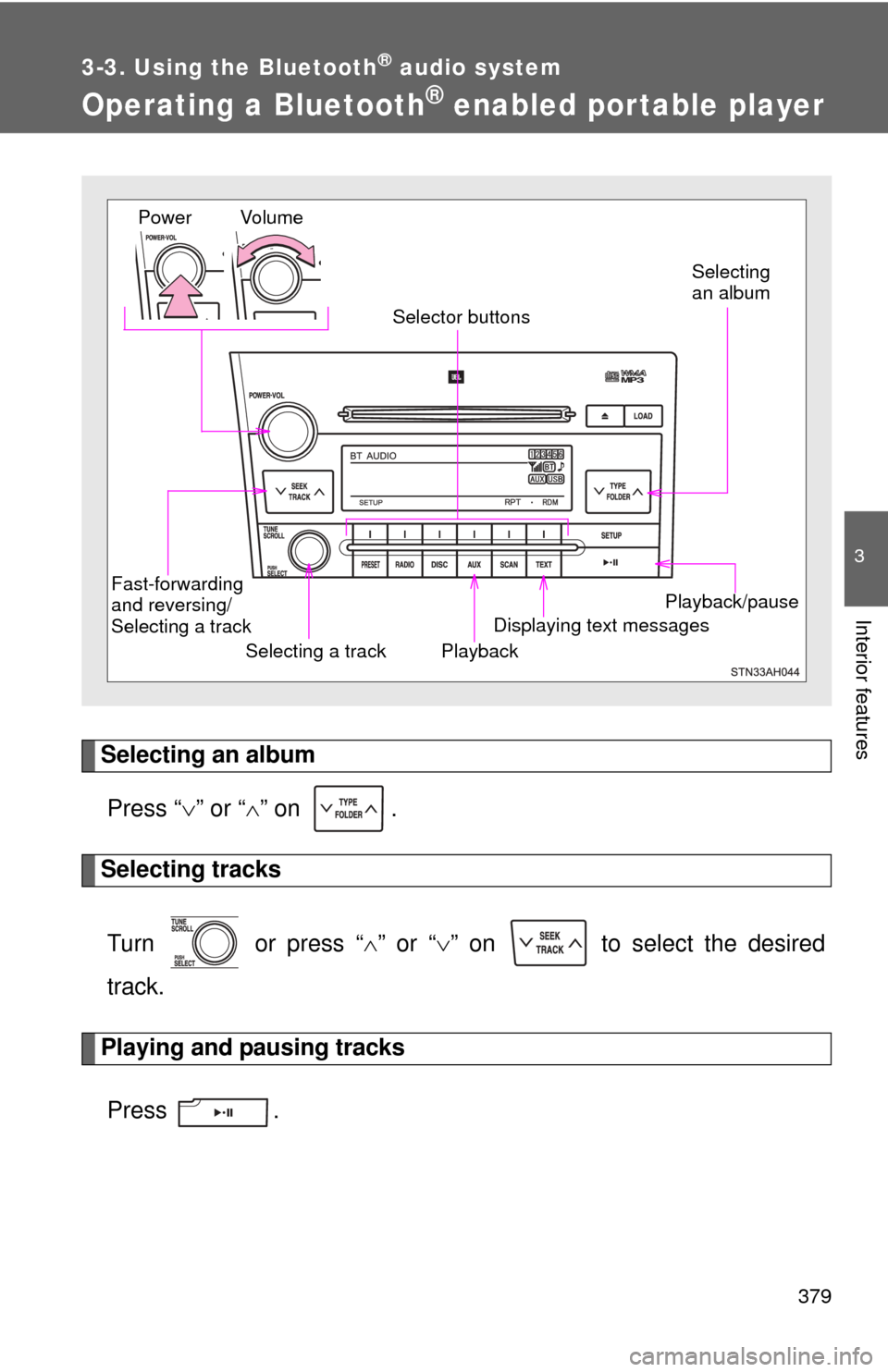
Selecting an albumPress “ ” or “ ” on .
Selecting tracks
Turn or press “ ” or “ ” on to select the desired
track.
Playing and pausing tracks
Press .
Playback/pause
Displaying text messages
Selecting a track
Selecting
an album
Fast-forwarding
and reversing/
Selecting a track Playback
Vo l u m e
Power
Selector buttons
Page 396 of 740
396 3-4. Using the rear seat entertainment system
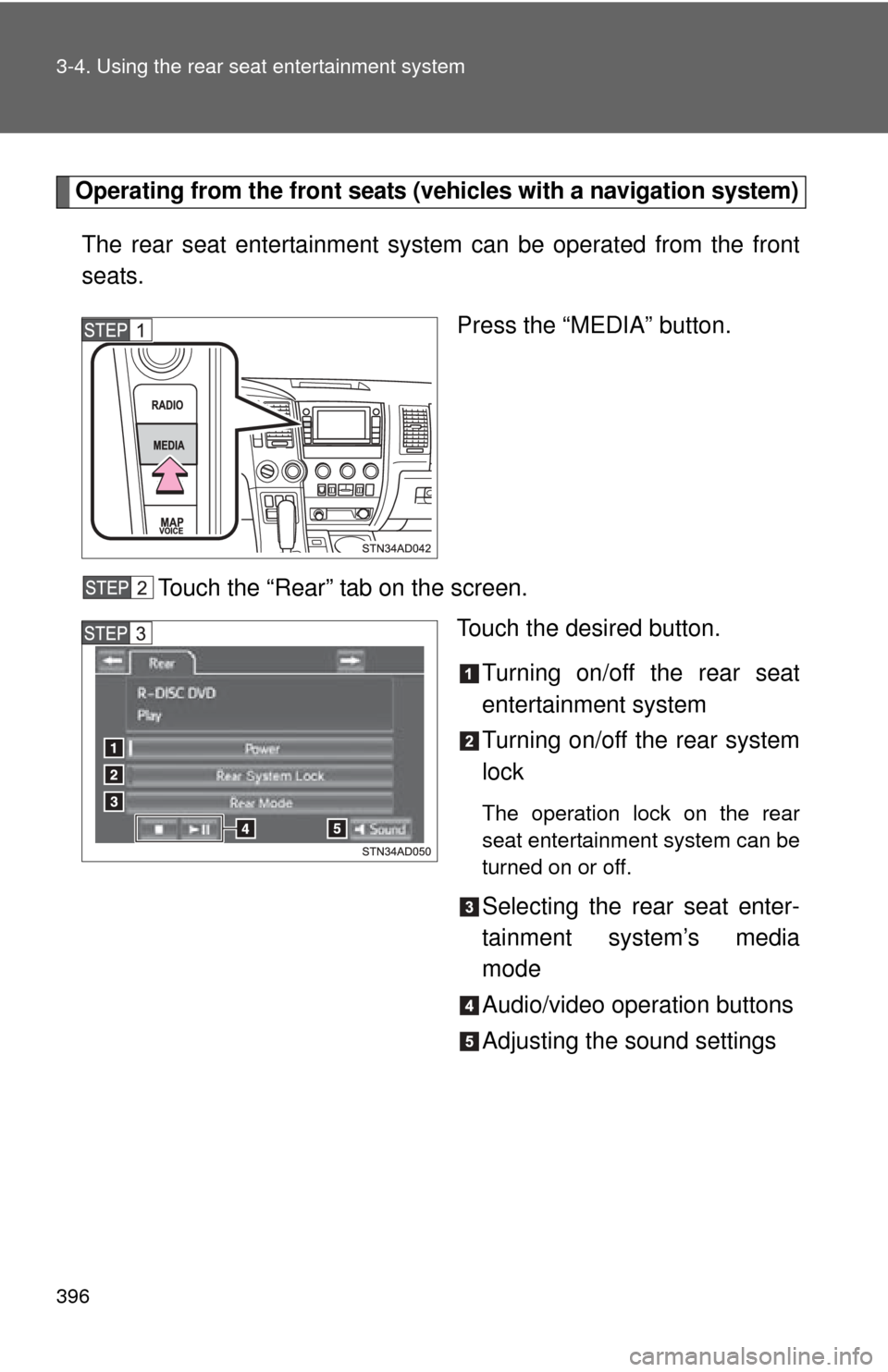
Operating from the front seats (vehicles with a navigation system)
The rear seat entertainment system can be operated from the front
seats.
Press the “MEDIA” button.
Touch the “Rear” tab on the screen. Touch the desired button.
Turning on/off the rear seat
entertainment system
Turning on/off the rear system
lock
The operation lock on the rear
seat entertainment system can be
turned on or off.
Selecting the rear seat enter-
tainment system’s media
mode
Audio/video operation buttons
Adjusting the sound settings
Page 398 of 740
398 3-4. Using the rear seat entertainment system
■SD card functions
●This system can play JPEG pictures and AVCHD video images that are
stored in an SD card. It does not support music playback.
● Local storage
• Some BD videos have a feature to memorize disc information, such as a
resume point, in a local storage. The rear seat entertainment system
uses an SD card as a local storage device. To use this function, insert an
SD card into the SD card slot.
• The SD card memory function may differ depending on the BD videos played.
• When an SD card that contains any kind of data is inserted, BD video disc information will not be stored into the SD card to protect the existing
data in the card. To use an SD card as a local storage, use another SD
card that does not contain any data.
■ Changing the color of the screen buttons (vehicles with a navigation
system)
By customizing the screen button colors of the navigation system, those of\
the rear seat entertainment system will also change.
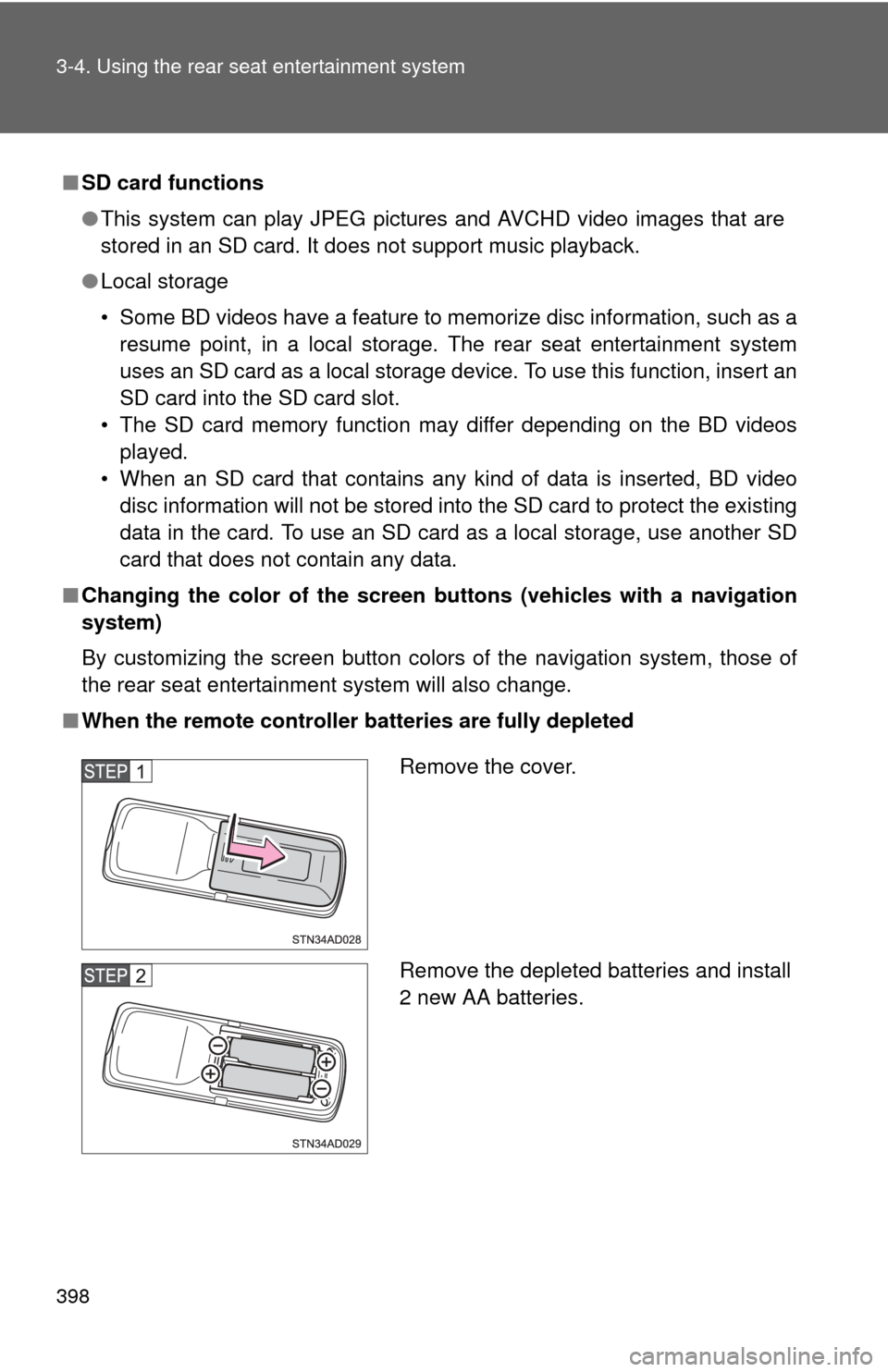
■ When the remote controller batteries are fully depleted
Remove the cover.
Remove the depleted batteries and install
2 new AA batteries.
Page 410 of 740
410 3-4. Using the rear seat entertainment system
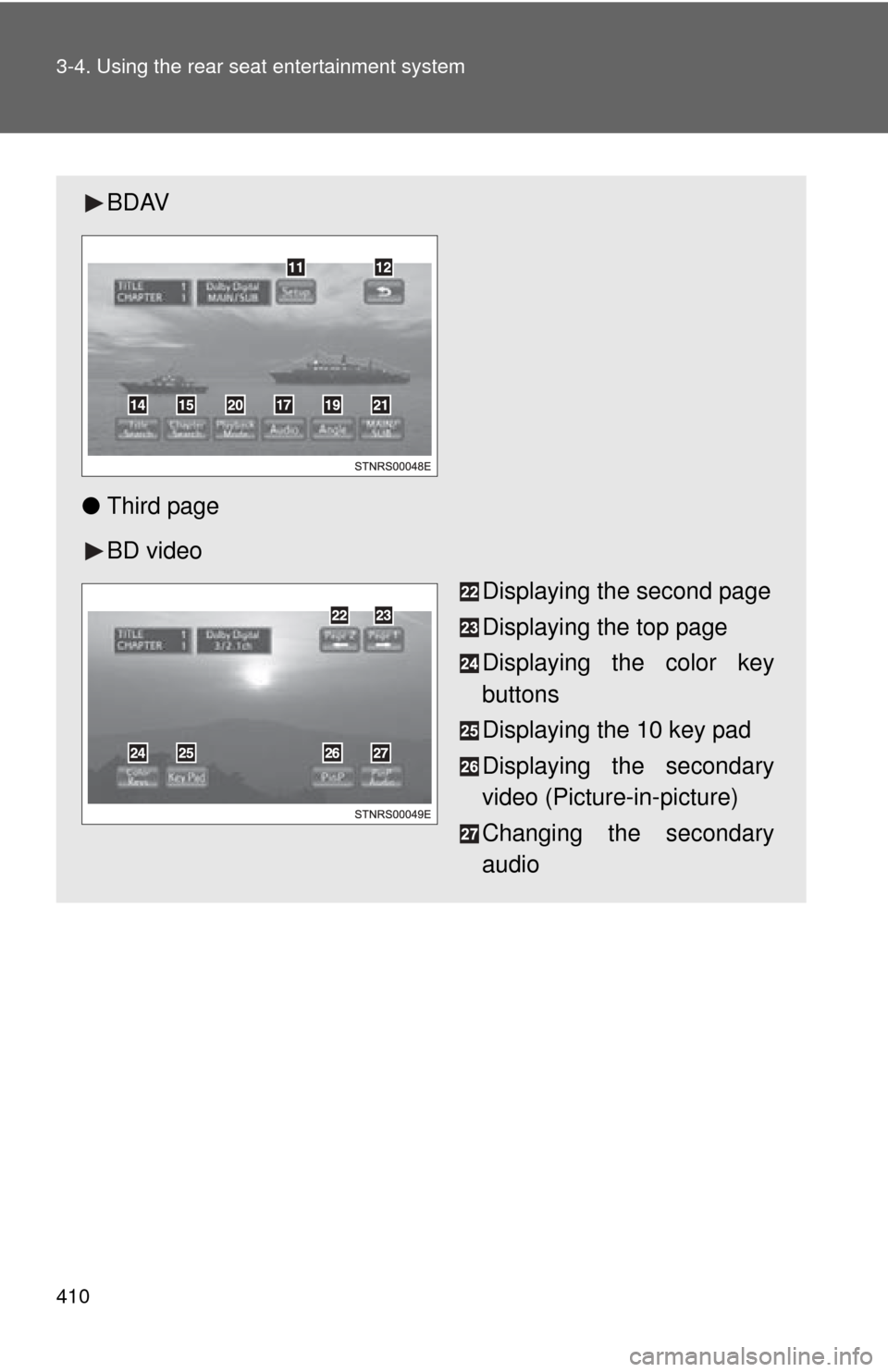
BDAV
● Third page
BD video
Displaying the second page
Displaying the top page
Displaying the color key
buttons
Displaying the 10 key pad
Displaying the secondary
video (Picture-in-picture)
Changing the secondary
audio
Page 412 of 740
412 3-4. Using the rear seat entertainment system
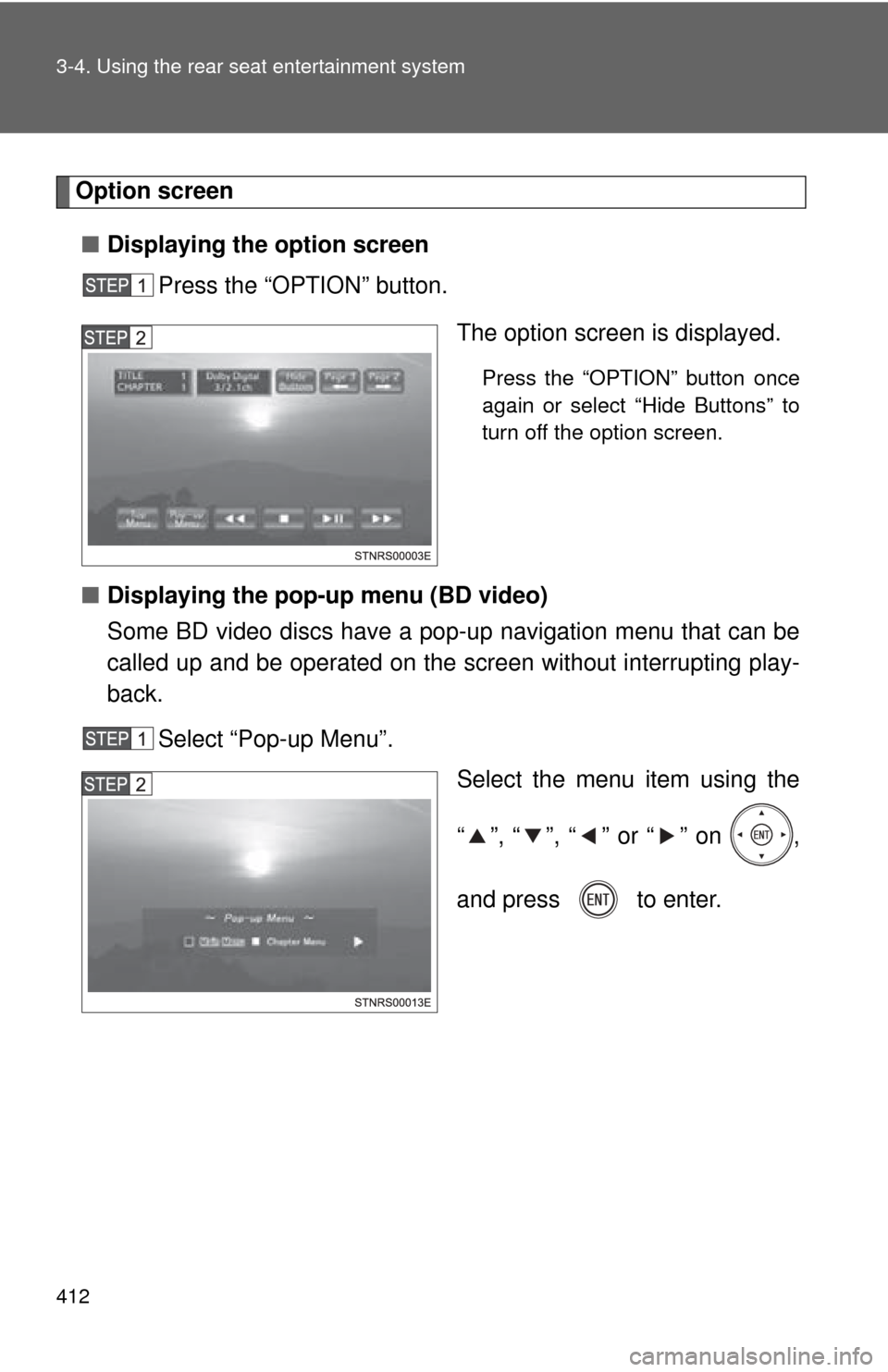
Option screen■ Displaying the option screen
Press the “OPTION” button.
The option screen is displayed.
Press the “OPTION” button once
again or select “Hide Buttons” to
turn off the option screen.
■ Displaying the pop-up menu (BD video)
Some BD video discs have a pop-up navigation menu that can be
called up and be operated on the screen without interrupting play-
back.
Select “Pop-up Menu”. Select the menu item using the
“ ”, “ ”, “ ” or “ ” on ,
and press to enter.
Page 417 of 740
417
3-4. Using the rear seat entertainment system
3
Interior features
■
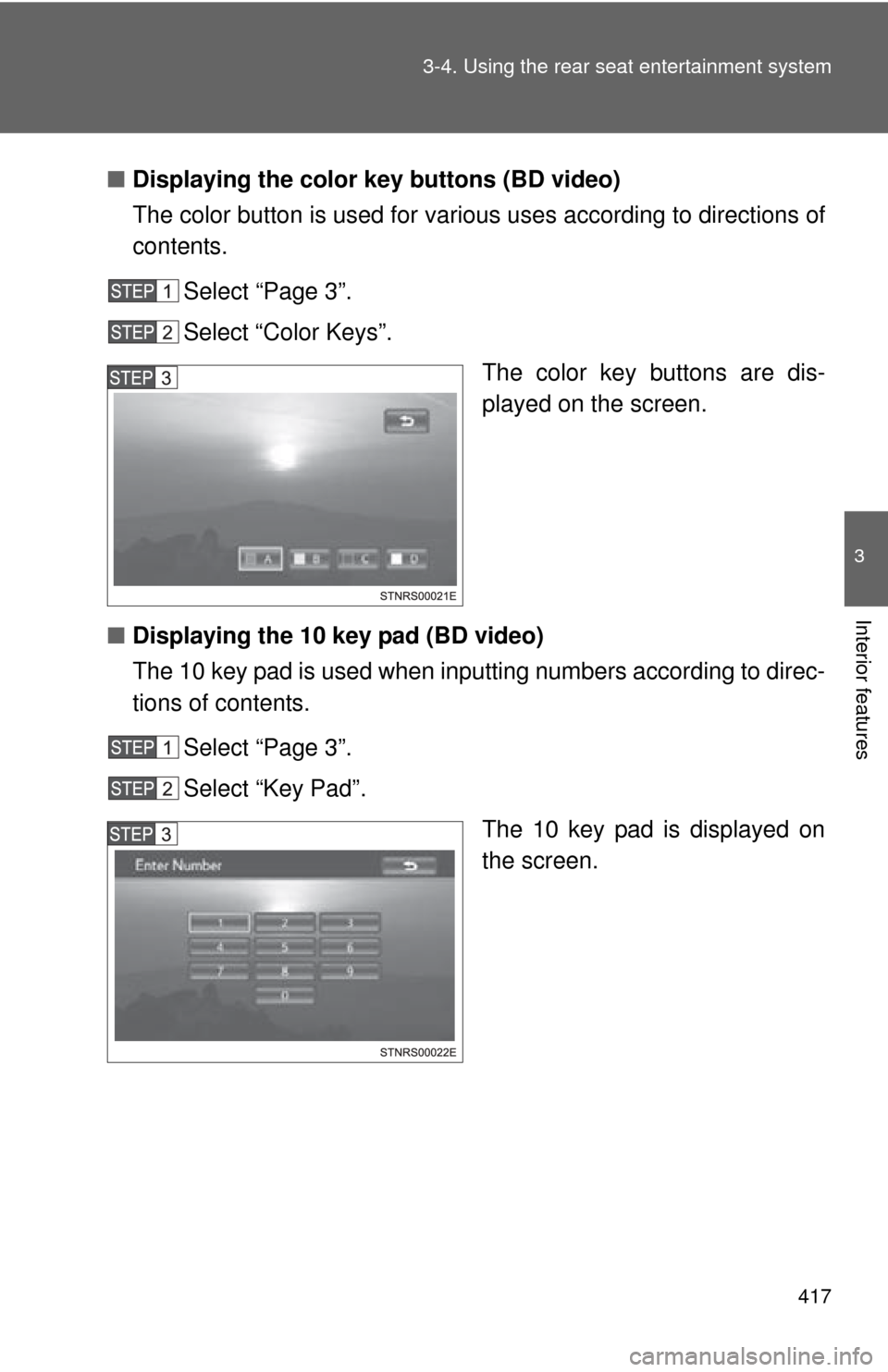
Displaying the color key buttons (BD video)
The color button is used for various uses according to directions of
contents.
Select “Page 3”.
Select “Color Keys”. The color key buttons are dis-
played on the screen.
■ Displaying the 10 key pad (BD video)
The 10 key pad is used when inputting numbers according to direc-
tions of contents.
Select “Page 3”.
Select “Key Pad”. The 10 key pad is displayed on
the screen.
Page 441 of 740
441
3-4. Using the rear seat entertainment system
3
Interior features
■
Option screen
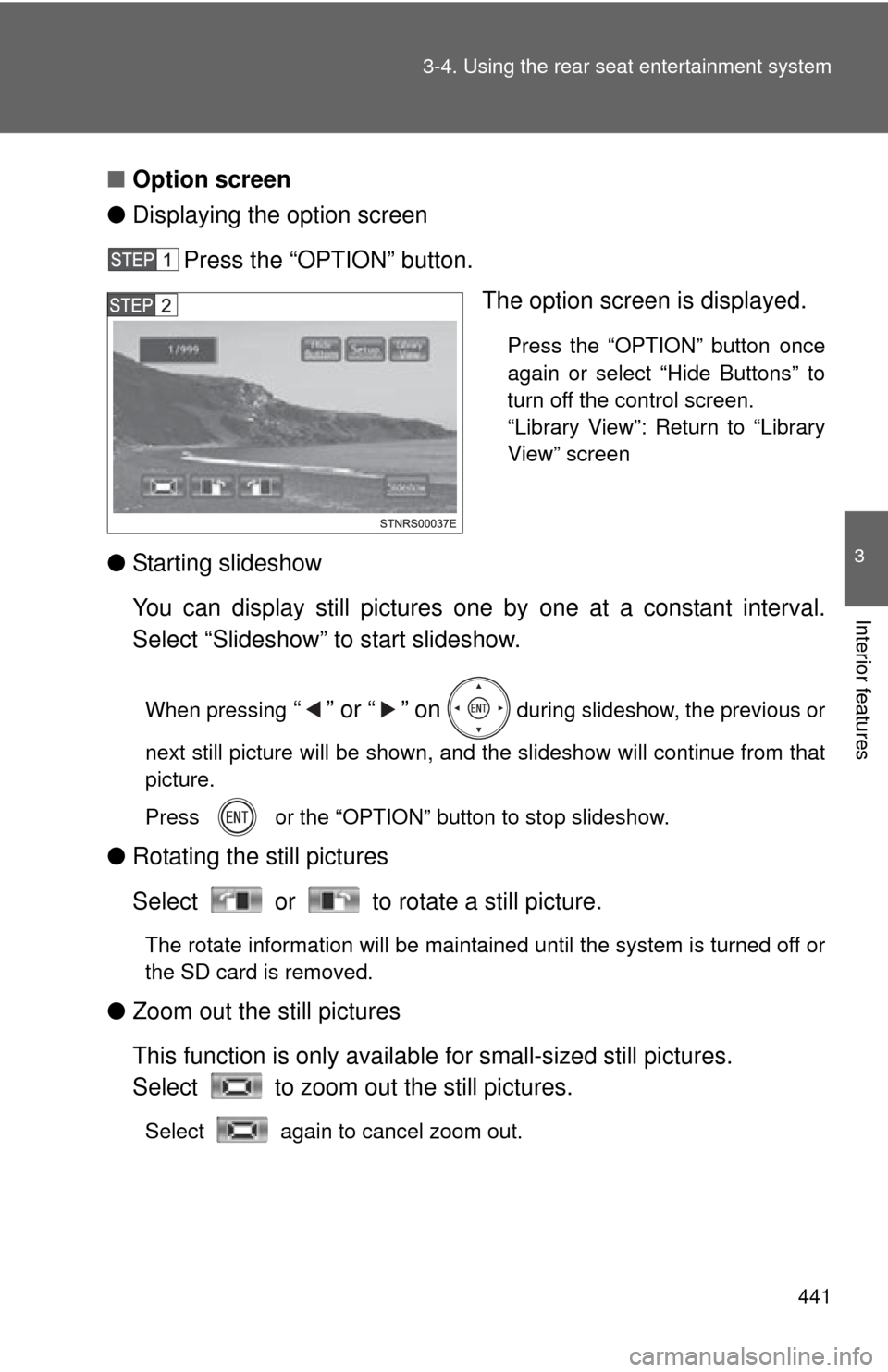
● Displaying the option screen
Press the “OPTION” button. The option screen is displayed.
Press the “OPTION” button once
again or select “Hide Buttons” to
turn off the control screen.
“Library View”: Return to “Library
View” screen
● Starting slideshow
You can display still pictures one by one at a constant interval.
Select “Slideshow” to start slideshow.
When pressing “” or “” on during slideshow, the previous or
next still picture will be shown, and the slideshow will continue from that
picture.
Press or the “OPTION” button to stop slideshow.
● Rotating the still pictures
Select or to rotate a still picture.
The rotate information will be maintained until the system is turned off or
the SD card is removed.
●Zoom out the still pictures
This function is only availabl e for small-sized still pictures.
Select to zoom out the still pictures.
Select again to cancel zoom out.
Page 535 of 740
535
3-8. Other interior features
3
Interior features
Garage door opener
The garage door opener (HomeLink® Universal Transceiver) is manufac-
tured under license from HomeLink®.
Programming the HomeLink® (for U.S.A. owners)
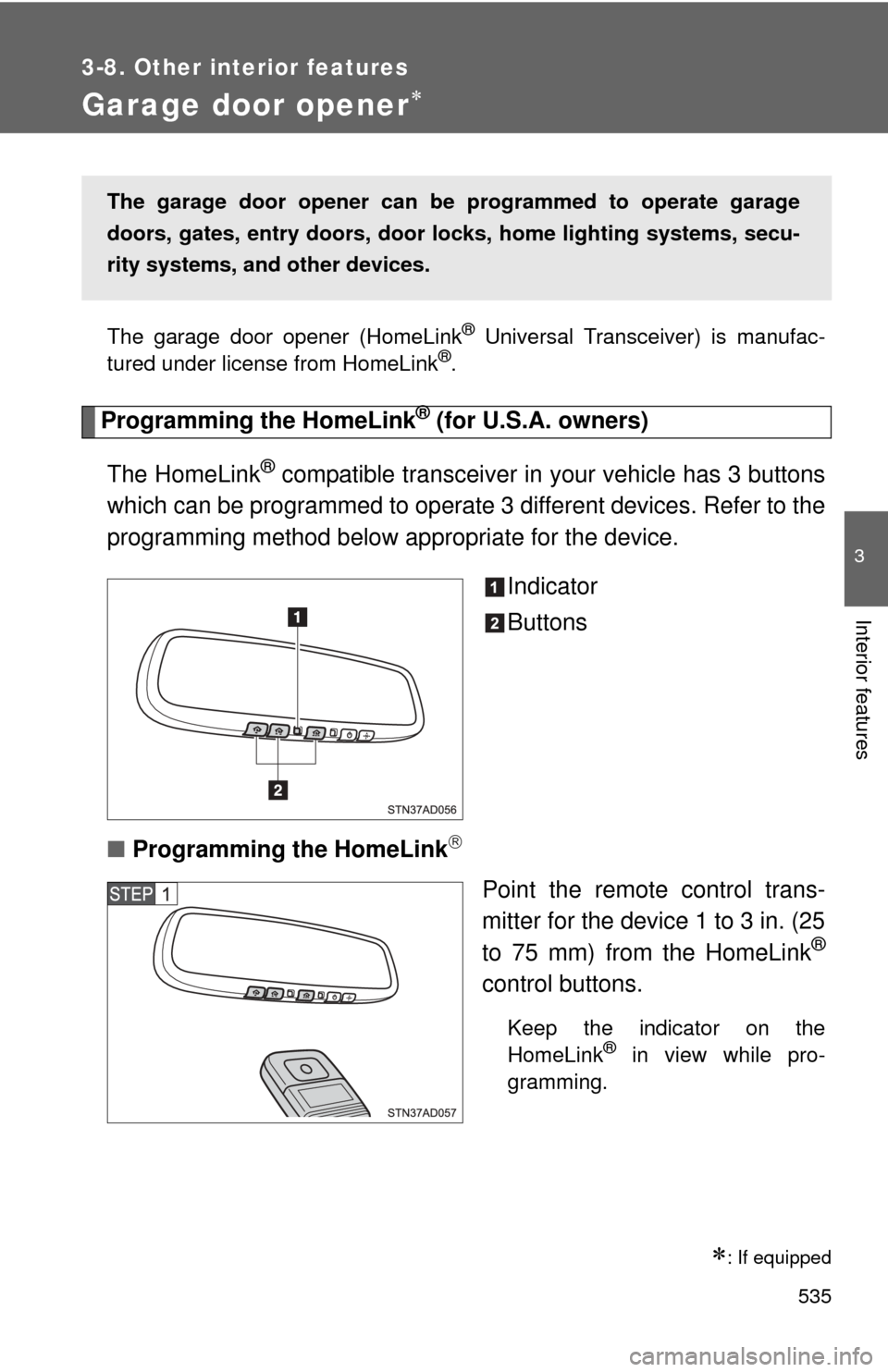
The HomeLink
® compatible transceiver in your vehicle has 3 buttons
which can be programmed to operate 3 different devices. Refer to the
programming method below appropriate for the device.
Indicator
Buttons
■ Programming the HomeLink
Point the remote control trans-
mitter for the device 1 to 3 in. (25
to 75 mm) from the HomeLink
®
control buttons.
Keep the indicator on the
HomeLink® in view while pro-
gramming.
: If equipped
The garage door opener can be programmed to operate garage
doors, gates, entry do ors, door locks, home lighting systems, secu-
rity systems, and other devices.
Page 536 of 740
536 3-8. Other interior features
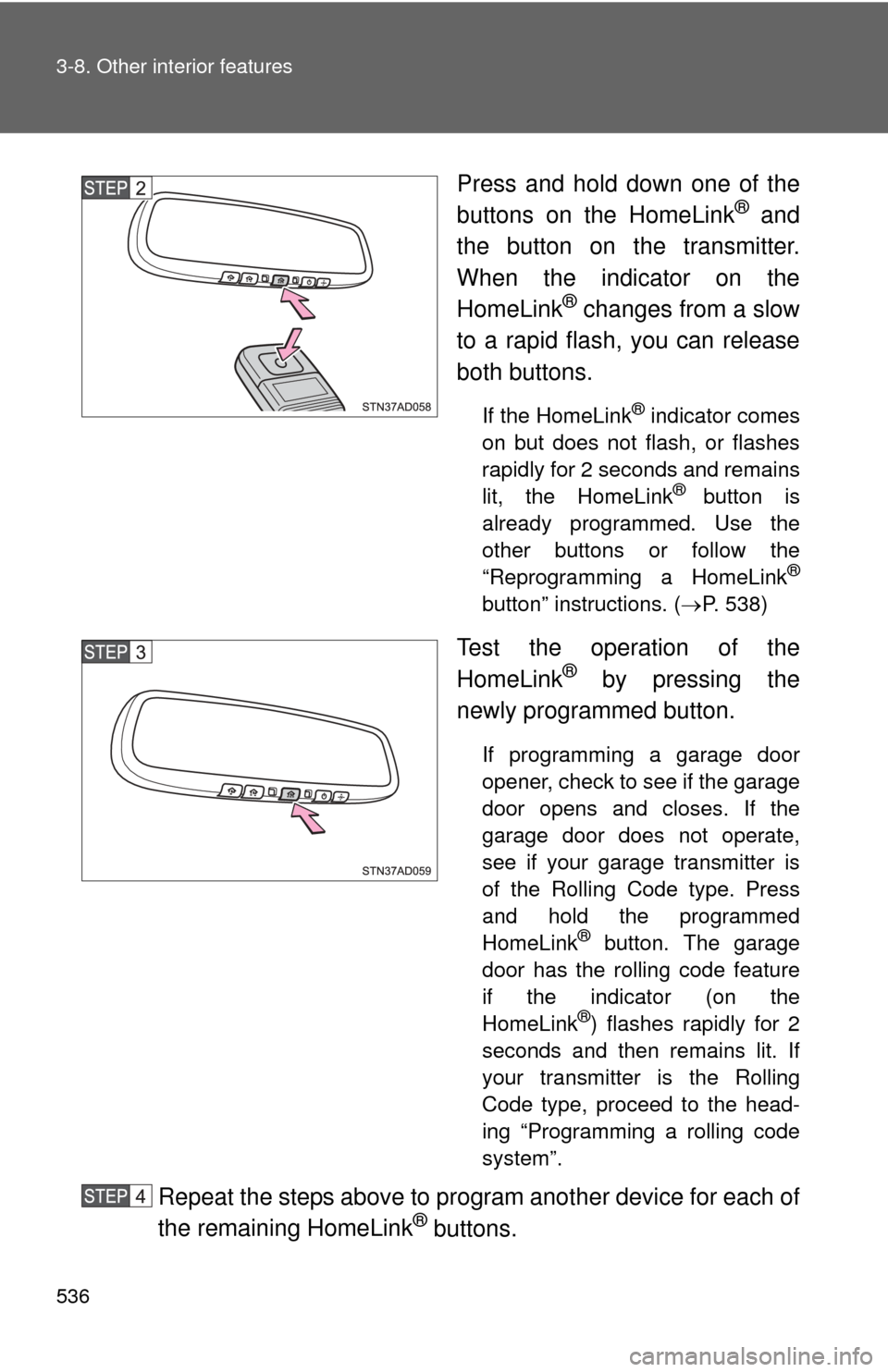
Press and hold down one of the
buttons on the HomeLink® and
the button on the transmitter.
When the indicator on the
HomeLink
® changes from a slow
to a rapid flash, you can release
both buttons.
If the HomeLink® indicator comes
on but does not flash, or flashes
rapidly for 2 seconds and remains
lit, the HomeLink
® button is
already programmed. Use the
other buttons or follow the
“Reprogramming a HomeLink
®
button” instructions. ( P. 538)
Test the operation of the
HomeLink® by pressing the
newly programmed button.
If programming a garage door
opener, check to see if the garage
door opens and closes. If the
garage door does not operate,
see if your garage transmitter is
of the Rolling Code type. Press
and hold the programmed
HomeLink
® button. The garage
door has the rolling code feature
if the indicator (on the
HomeLink
®) flashes rapidly for 2
seconds and then remains lit. If
your transmitter is the Rolling
Code type, proceed to the head-
ing “Programming a rolling code
system”.
Repeat the steps above to program another device for each of
the remaining HomeLink® buttons.