phone TOYOTA SEQUOIA 2013 2.G User Guide
[x] Cancel search | Manufacturer: TOYOTA, Model Year: 2013, Model line: SEQUOIA, Model: TOYOTA SEQUOIA 2013 2.GPages: 740, PDF Size: 15.34 MB
Page 378 of 740
378 3-3. Using the Bluetooth
® audio system
■When using a voice command
For numbers, say a combination of single digits from zero to nine.
Say the command correctly and clearly.
■ The system may not recognize your voice in the following situations:
●When driving on rough roads
● When driving at high speeds
● When air is blowing out of the vents onto the microphone
● When the air conditioning fan emits a loud noise
■ Operations that cannot be performed while driving
● Operating the system with
● Registering a portable player to the system
■ Changing the passkey
P. 384
Page 384 of 740
384 3-3. Using the Bluetooth
® audio system
Changing the passkeySelect “Set Passkey” using a voice command or .
Press the talk switch, say a 4 to 8-digit number, and select
“Confirm” using a voice command or .
When the entire number to be registered as a passkey has
been input, press again.
If the number to be registered has 8 digits, pressing of the knob is
not necessary.
Deleting a registered portable playerSelect “Delete Audio Player (Delete Audio)” using a voice
command or .
Select the portable player to be deleted by either of the follow-
ing methods and select “Confirm” using a voice command or
:
a. Press the talk switch and say the name of the desired por- table player.
b. Press the talk switch and say “List Audio Players”. When
the name of the desired portable player is read aloud, press
the talk switch.
If the portable player to be deleted is paired as a Bluetooth
® phone,
the registration of the mobile phone can be deleted at the same time.
A voice guidance instruction to delete a mobile phone is heard.
Select “Confirm” by using a voice command or .
Page 387 of 740
387
3
Interior features
3-4. Using the rear seat entertainment system
Rear seat enter tainment system features
: If equipped
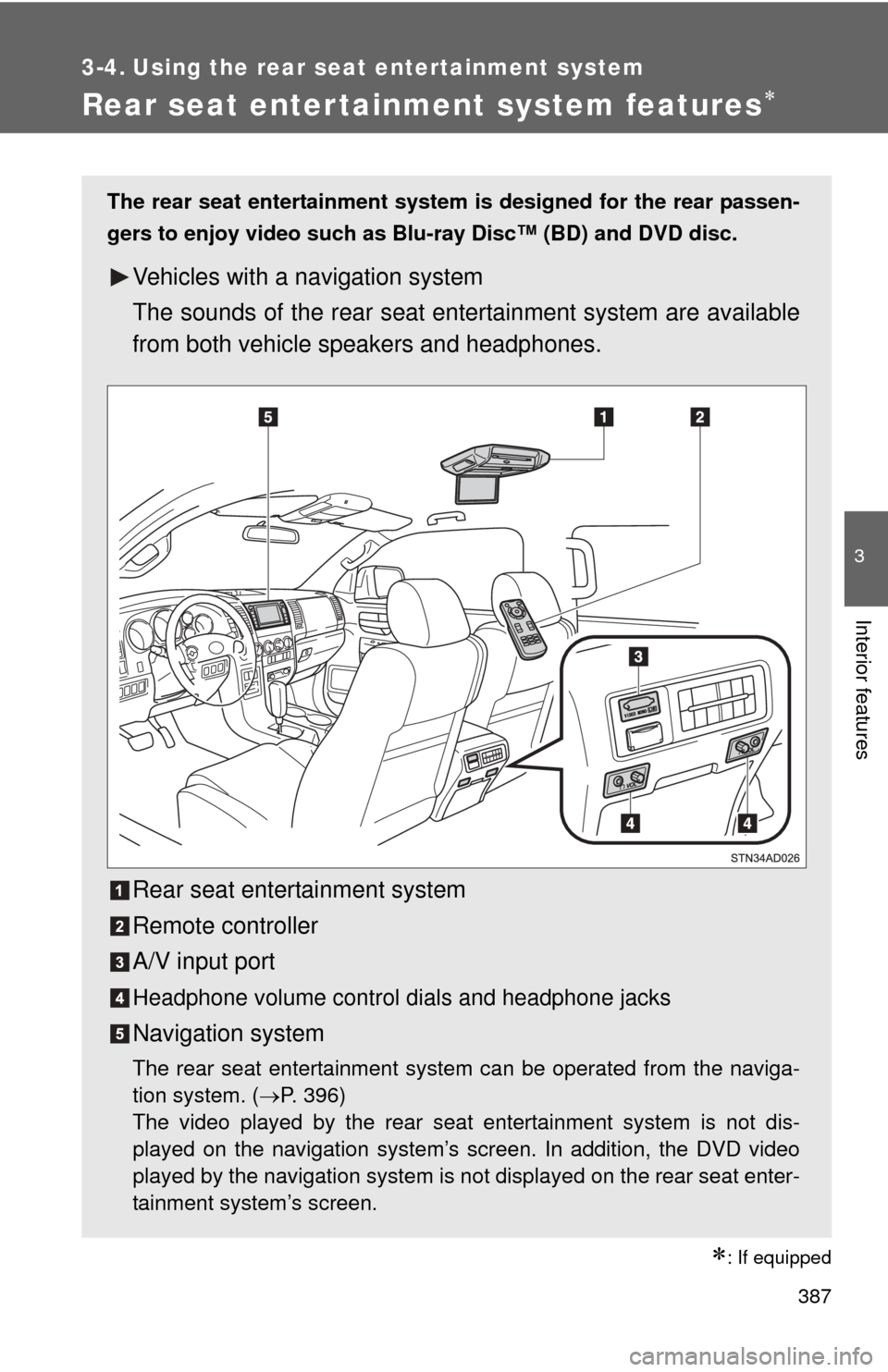
The rear seat entertainment system is designed for the rear passen-
gers to enjoy video such as Blu-ray Disc™ (BD) and DVD disc.
Vehicles with a navigation system
The sounds of the rear seat en tertainment system are available
from both vehicle speakers and headphones.
Rear seat entertainment system
Remote controller
A/V input port
Headphone volume control dials and headphone jacks
Navigation system
The rear seat entertainment system can be operated from the naviga-
tion system. (P. 396)
The video played by the rear seat entertainment system is not dis-
played on the navigation system’s screen. In addition, the DVD video
played by the navigation system is not displayed on the rear seat enter-
tainment system’s screen.
Page 388 of 740
388 3-4. Using the rear seat entertainment system
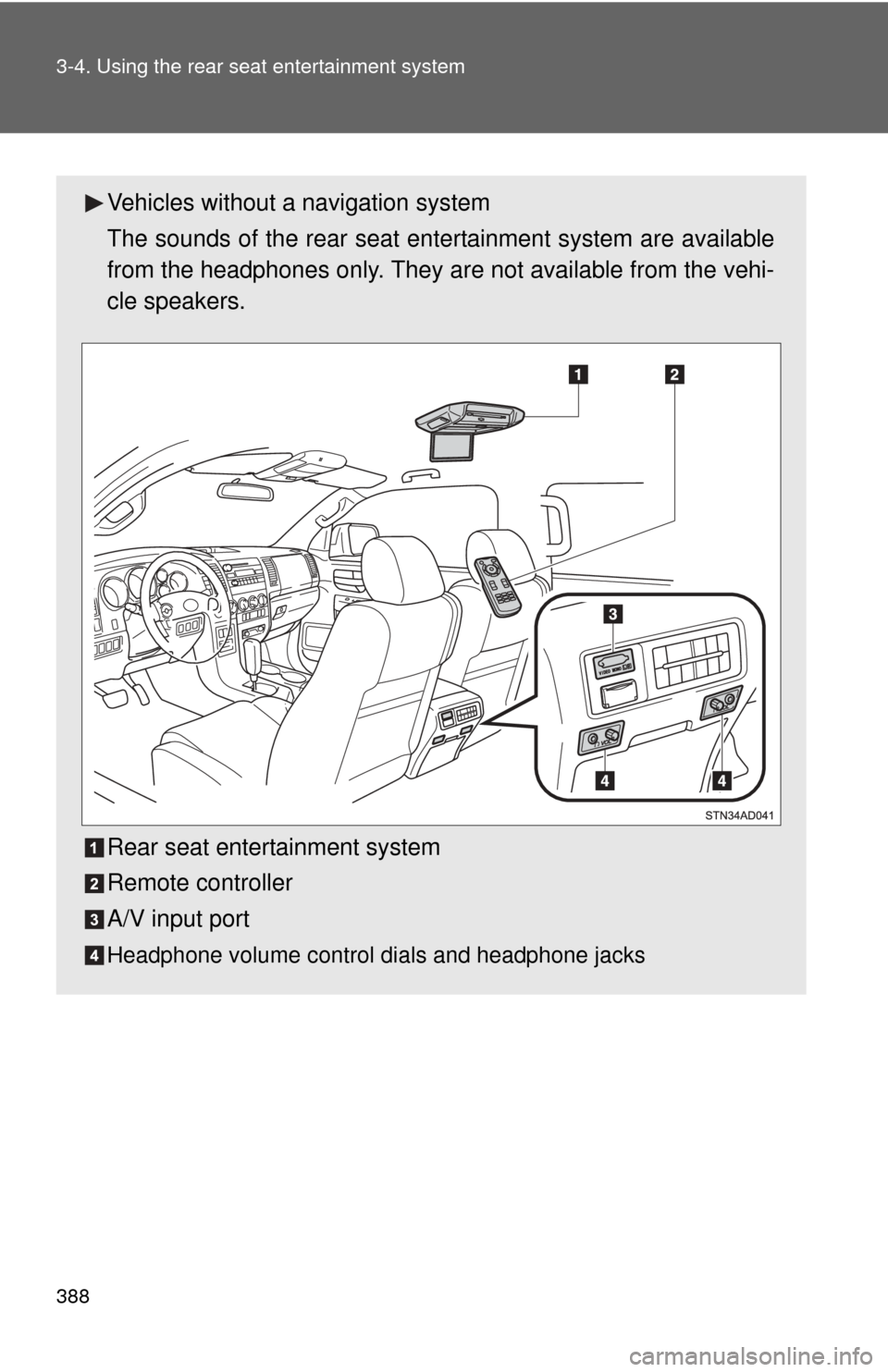
Vehicles without a navigation system
The sounds of the rear seat en tertainment system are available
from the headphones only. They ar e not available from the vehi-
cle speakers.
Rear seat entertainment system
Remote controller
A/V input port
Headphone volume control dials and headphone jacks
Page 393 of 740
393
3-4. Using the rear seat entertainment system
3
Interior features
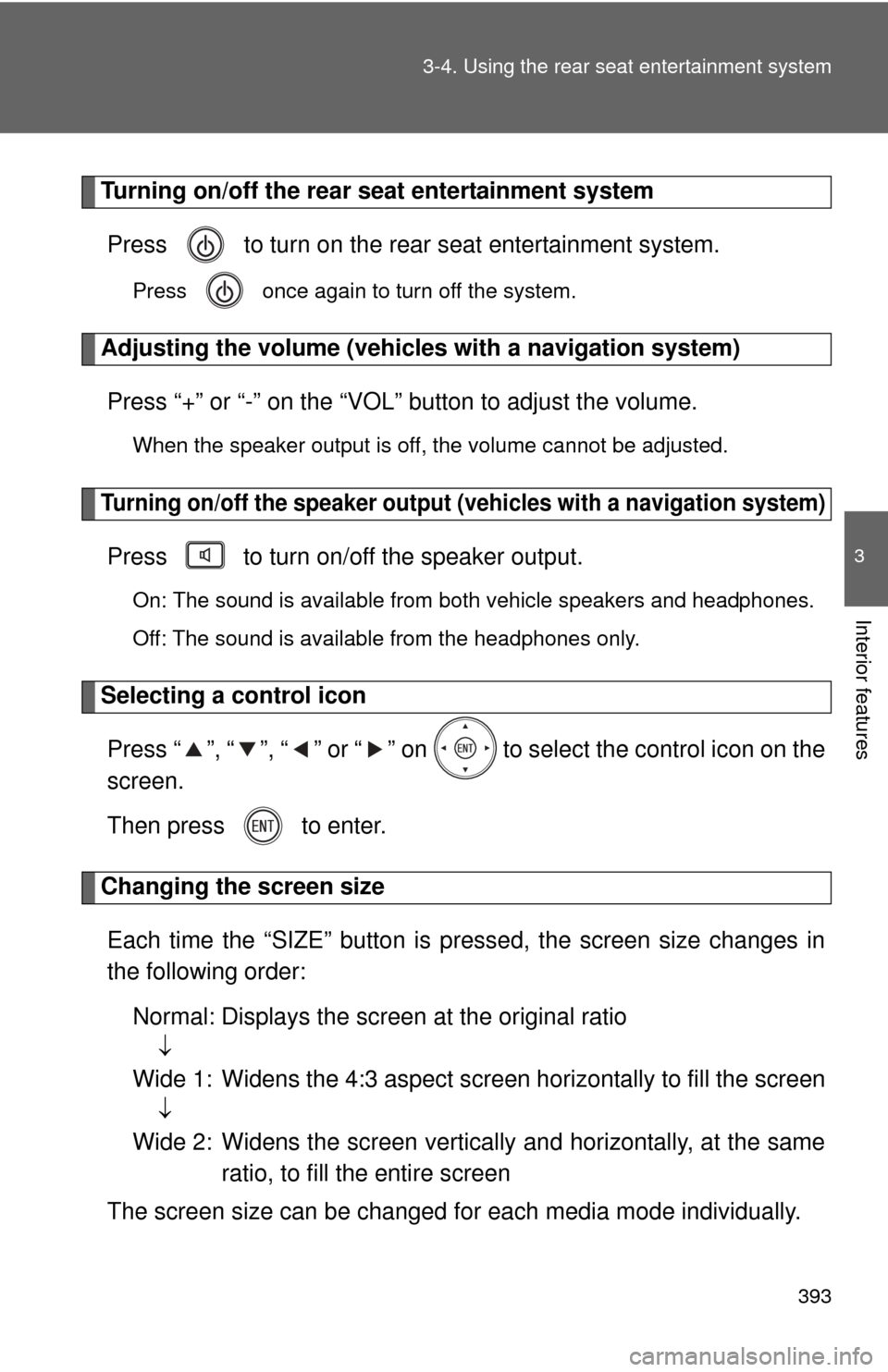
Turning on/off the rear seat entertainment system
Press to turn on the rear seat entertainment system.
Press once again to turn off the system.
Adjusting the volume (vehicles with a navigation system)
Press “+” or “-” on the “VOL” button to adjust the volume.
When the speaker output is off, the volume cannot be adjusted.
Turning on/off the speaker output (vehicles with a navigation system)
Press to turn on/off the speaker output.
On: The sound is available from both vehicle speakers and headphones.
Off: The sound is available from the headphones only.
Selecting a control icon Press “ ”, “ ”, “ ” or “ ” on to select the control icon on the
screen.
Then press to enter.
Changing the screen sizeEach time the “SIZE” button is pressed, the screen size changes in
the following order:
Normal: Displays the screen at the original ratio
Wide 1: Widens the 4:3 aspect screen horizontally to fill the screen
Wide 2: Widens the screen vertically and horizontally, at the same ratio, to fill th e entire screen
The screen size can be changed for each media mode individually.
Page 394 of 740
394 3-4. Using the rear seat entertainment system
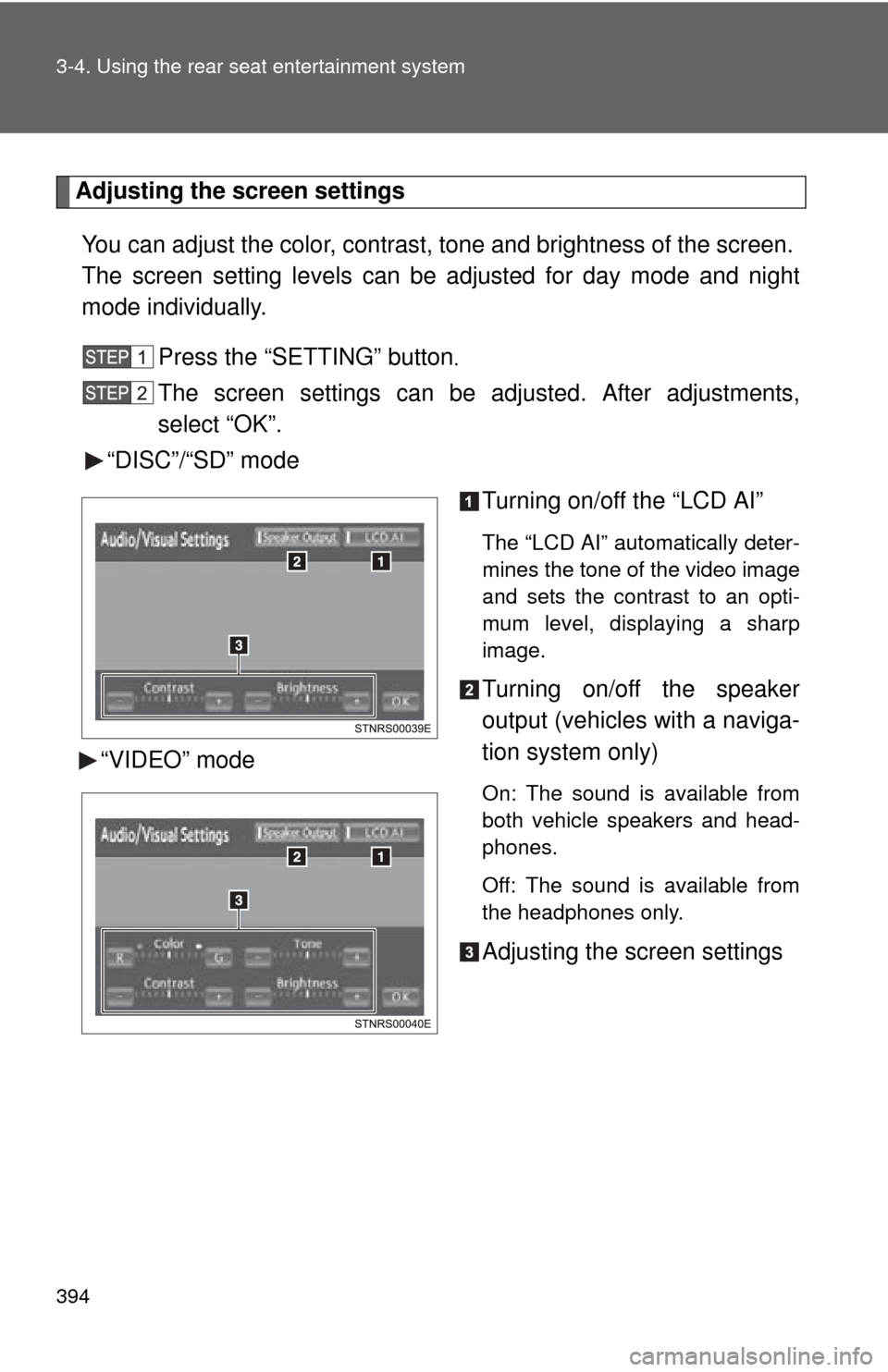
Adjusting the screen settingsYou can adjust the color, contrast, tone and brightness of the screen.
The screen setting le vels can be adjusted for day mode and night
mode individually.
Press the “SETTING” button
.
The screen settings can be adjusted. After adjustments,
select “OK”.
“DISC”/“SD” mode
Turning on/off the “LCD AI”
The “LCD AI” automatically deter-
mines the tone of the video image
and sets the contrast to an opti-
mum level, displaying a sharp
image.
Turning on/off the speaker
output (vehicles with a naviga-
tion system only)
On: The sound is available from
both vehicle speakers and head-
phones.
Off: The sound is available from
the headphones only.
Adjusting the screen settings
“VIDEO” mode
Page 395 of 740
395
3-4. Using the rear seat entertainment system
3
Interior features
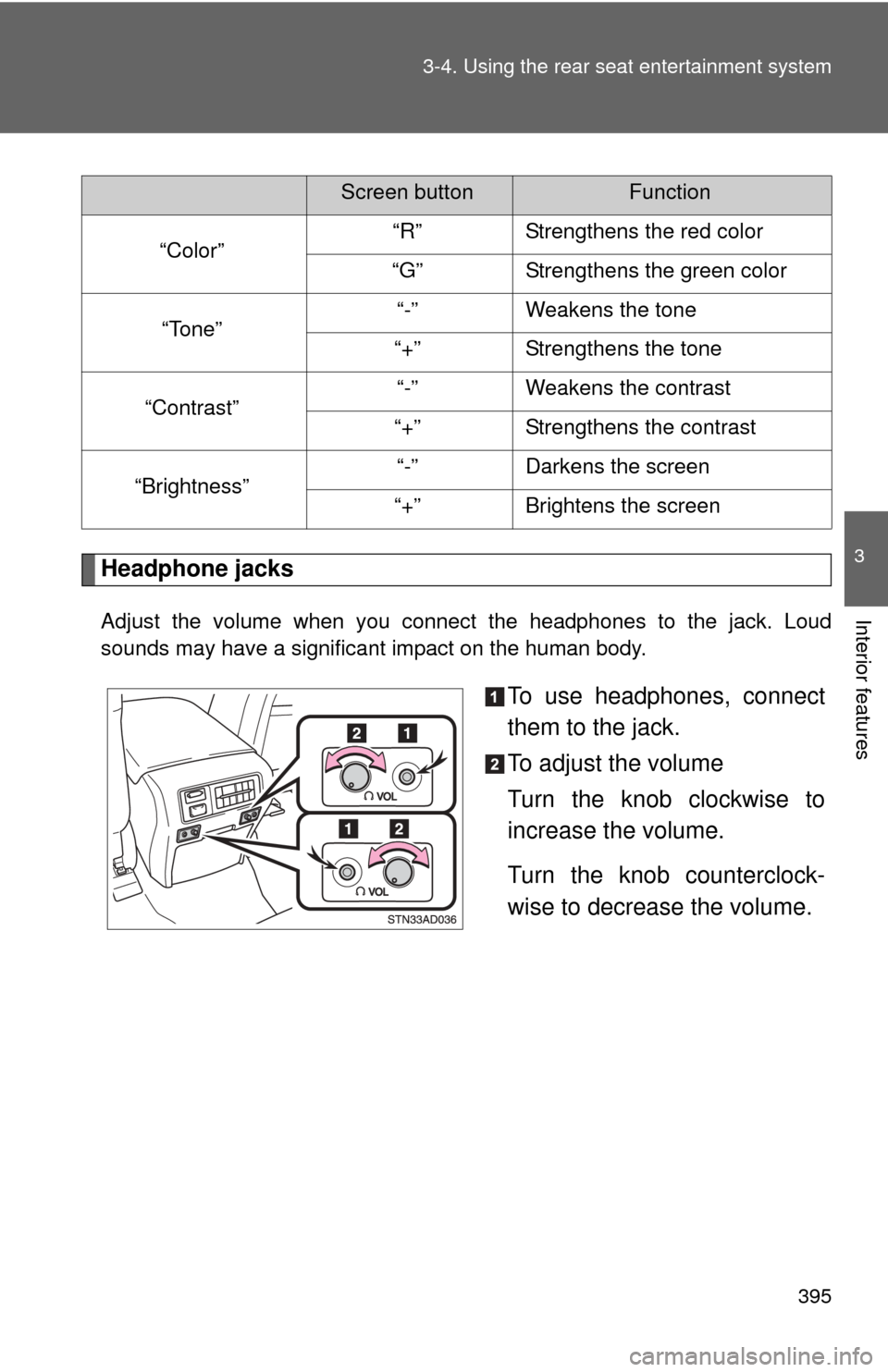
Headphone jacks
Adjust the volume when you connect the headphones to the jack. Loud
sounds may have a significant impact on the human body.
To use headphones, connect
them to the jack.
To adjust the volume
Turn the knob clockwise to
increase the volume.
Turn the knob counterclock-
wise to decrease the volume.
Screen buttonFunction
“Color” “R” Strengthens the red color
“G” Strengthens the green color
“Tone” “-”
Weakens the tone
“+” Strengthens the tone
“Contrast” “-”
Weakens the contrast
“+” Strengthens the contrast
“Brightness” “-”
Darkens the screen
“+” Brightens the screen
Page 399 of 740
399
3-4. Using the rear seat entertainment system
3
Interior features
■
If the remote controller batteries are discharged
The following symptoms may occur.
●The rear seat entertainment system control will not function properly.
● The operational range is reduced.
■ When replacing the AA batteries
●Batteries can be purchased at your Toyota dealer, electric appliance
shop, or camera stores.
● Replace only with the same or equivalent type recommended by a
Toyota dealer.
● Dispose of used batteries according to local laws.
■ Wireless headphones (sold separately)
●With some wireless headphones generally available in the market, it may
be difficult to catch signals properly. Toyota recommends the use of
Toyota genuine wireless headphones.
Please contact your Toyota dealer for further details.
● When the sound volume needs to be changed while a wireless head-
phone is used, adjust the volume using the wireless headphone’s volume
switch.
■ Copyrights and trademarks
●
Blu-ray Disc™, Blu-ray™, BD-Live™, BDXL™, and the logos are
trademarks of the Blu-ray Disc Association.
● Java is a registered trademark of Oracle and/or its affiliates.
Page 448 of 740
448
3-5. Using the hands-free phone system (for cellular phone)
Hands-free phone system (for cellular phone) features
: If equipped
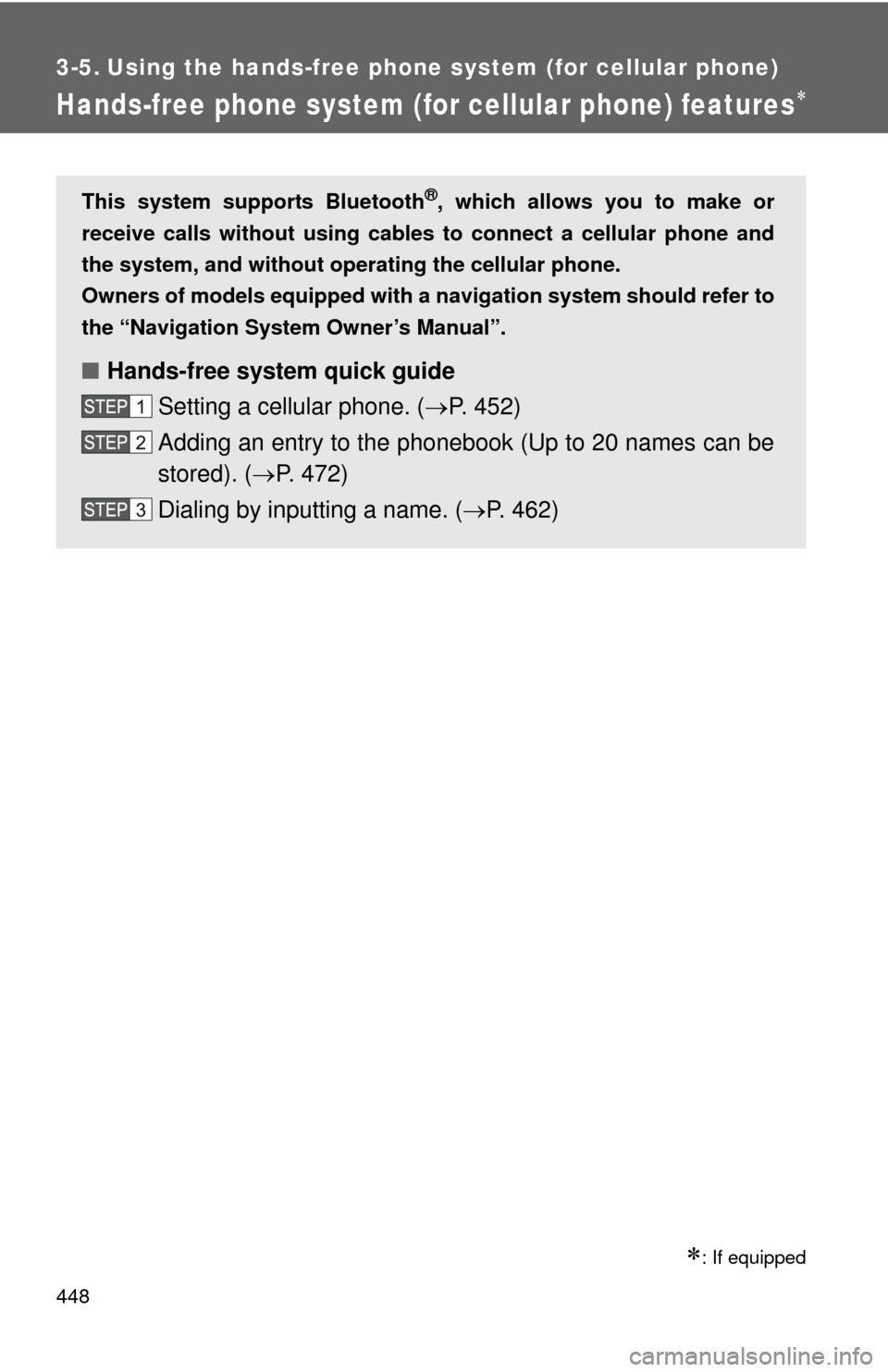
This system supports Bluetooth®, which allows you to make or
receive calls without using cables to connect a cellular phone and
the system, and without oper ating the cellular phone.
Owners of models equipped with a navigation system should refer to
the “Navigation System Owner’s Manual”.
■ Hands-free system quick guide
Setting a cellular phone. ( P. 452)
Adding an entry to the phonebook (Up to 20 names can be
stored). ( P. 472)
Dialing by inputting a name. ( P. 462)
Page 449 of 740
449
3-5. Using the hand
s-free phone system (for cellular phone)
3
Interior features
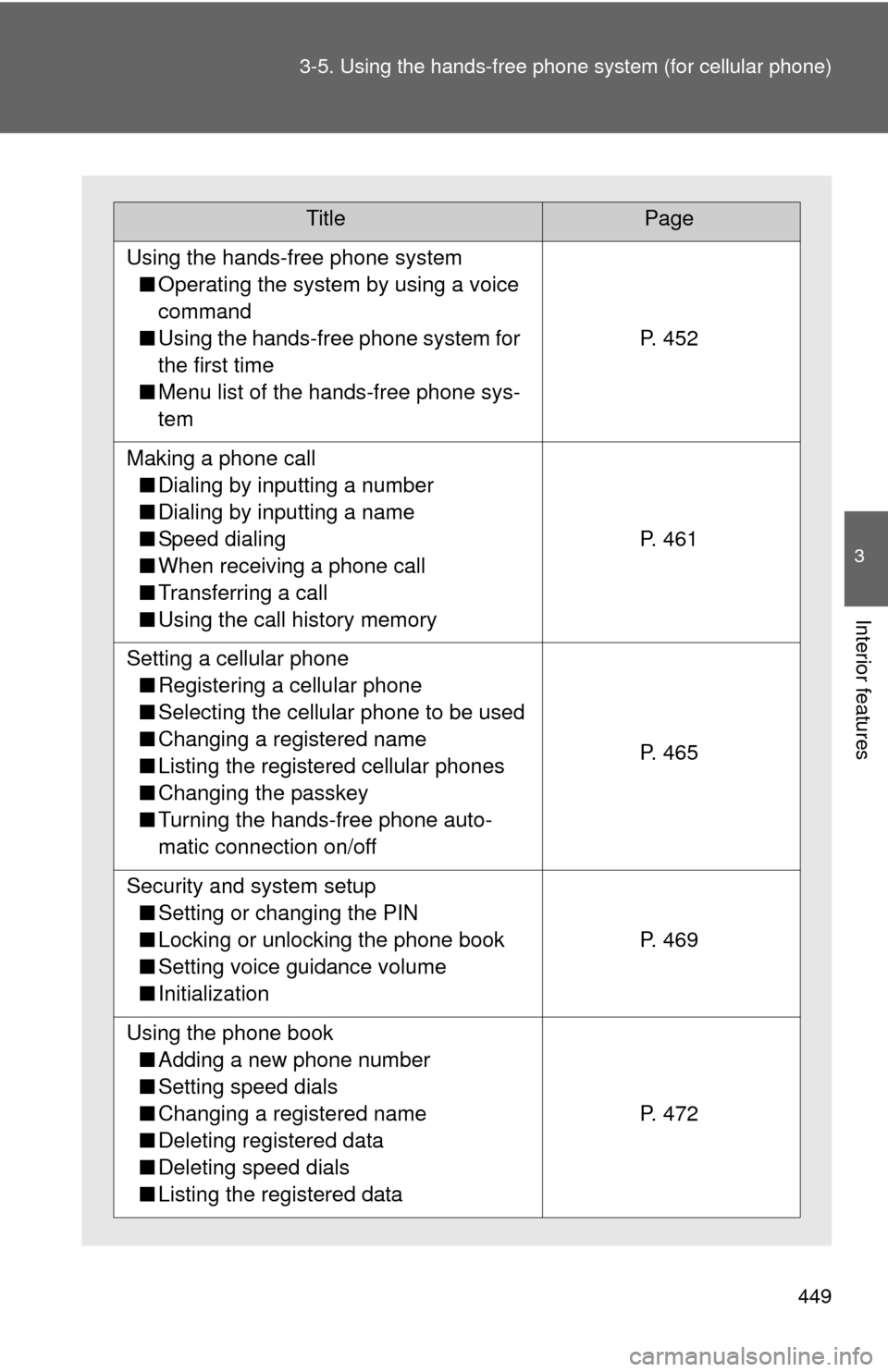
TitlePage
Using the hands-free phone system
■ Operating the system by using a voice
command
■ Using the hands-free phone system for
the first time
■ Menu list of the hands-free phone sys-
tem
P. 452
Making a phone call
■ Dialing by inputting a number
■ Dialing by inputting a name
■ Speed dialing
■ When receiving a phone call
■ Transferring a call
■ Using the call history memory
P. 461
Setting a cellular phone
■ Registering a cellular phone
■ Selecting the cellular phone to be used
■ Changing a registered name
■ Listing the registered cellular phones
■ Changing the passkey
■ Turning the hands-free phone auto-
matic connection on/off
P. 465
Security and system setup
■ Setting or changing the PIN
■ Locking or unlocking the phone book
■ Setting voice guidance volume
■ Initialization
P. 469
Using the phone book
■ Adding a new phone number
■ Setting speed dials
■ Changing a registered name
■ Deleting registered data
■ Deleting speed dials
■ Listing the registered data
P. 472