audio TOYOTA SEQUOIA 2014 2.G User Guide
[x] Cancel search | Manufacturer: TOYOTA, Model Year: 2014, Model line: SEQUOIA, Model: TOYOTA SEQUOIA 2014 2.GPages: 668, PDF Size: 13.86 MB
Page 327 of 668
327
3-2. Using the multimedia system
3
Interior features
Setup menu
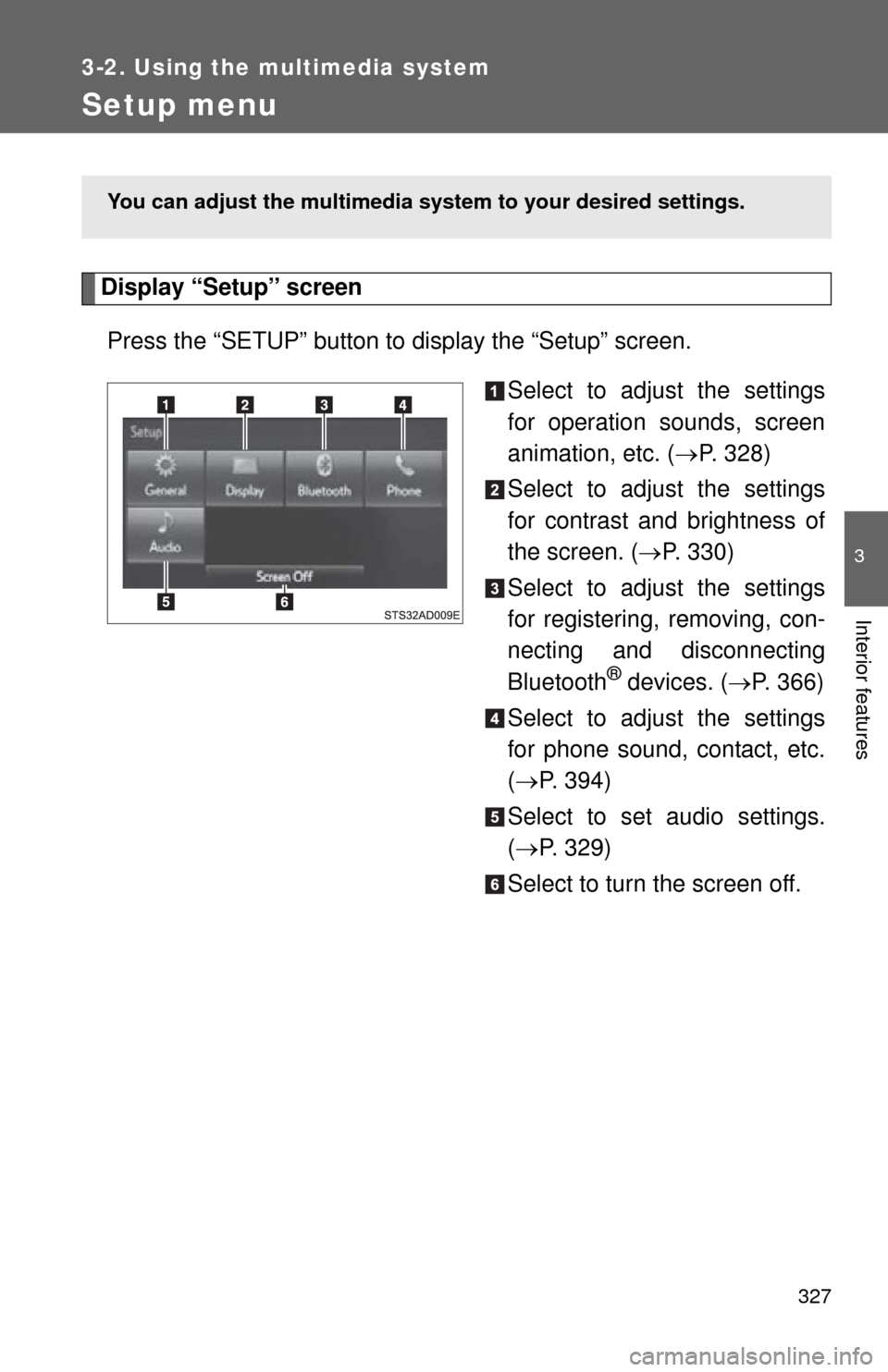
Display “Setup” screenPress the “SETUP” button to display the “Setup” screen. Select to adjust the settings
for operation sounds, screen
animation, etc. (P. 328)
Select to adjust the settings
for contrast and brightness of
the screen. ( P. 330)
Select to adjust the settings
for registering, removing, con-
necting and disconnecting
Bluetooth
® devices. ( P. 366)
Select to adjust the settings
for phone sound, contact, etc.
( P. 394)
Select to set audio settings.
( P. 329)
Select to turn the screen off.
You can adjust the multimedia s ystem to your desired settings.
Page 329 of 668
329
3-2. Using the multimedia system
3
Interior features
■
Delete personal data
Select “Delete Personal Data” on the “General Settings”
screen.
Select “Delete”.
Check carefully beforehand, as data cannot be retrieved once
deleted.
A confirmation screen will be displayed. Select “Yes”.
The following personal data will be deleted or changed to its
default settings.
• General settings
• Audio settings
• Phone settings
Audio settings
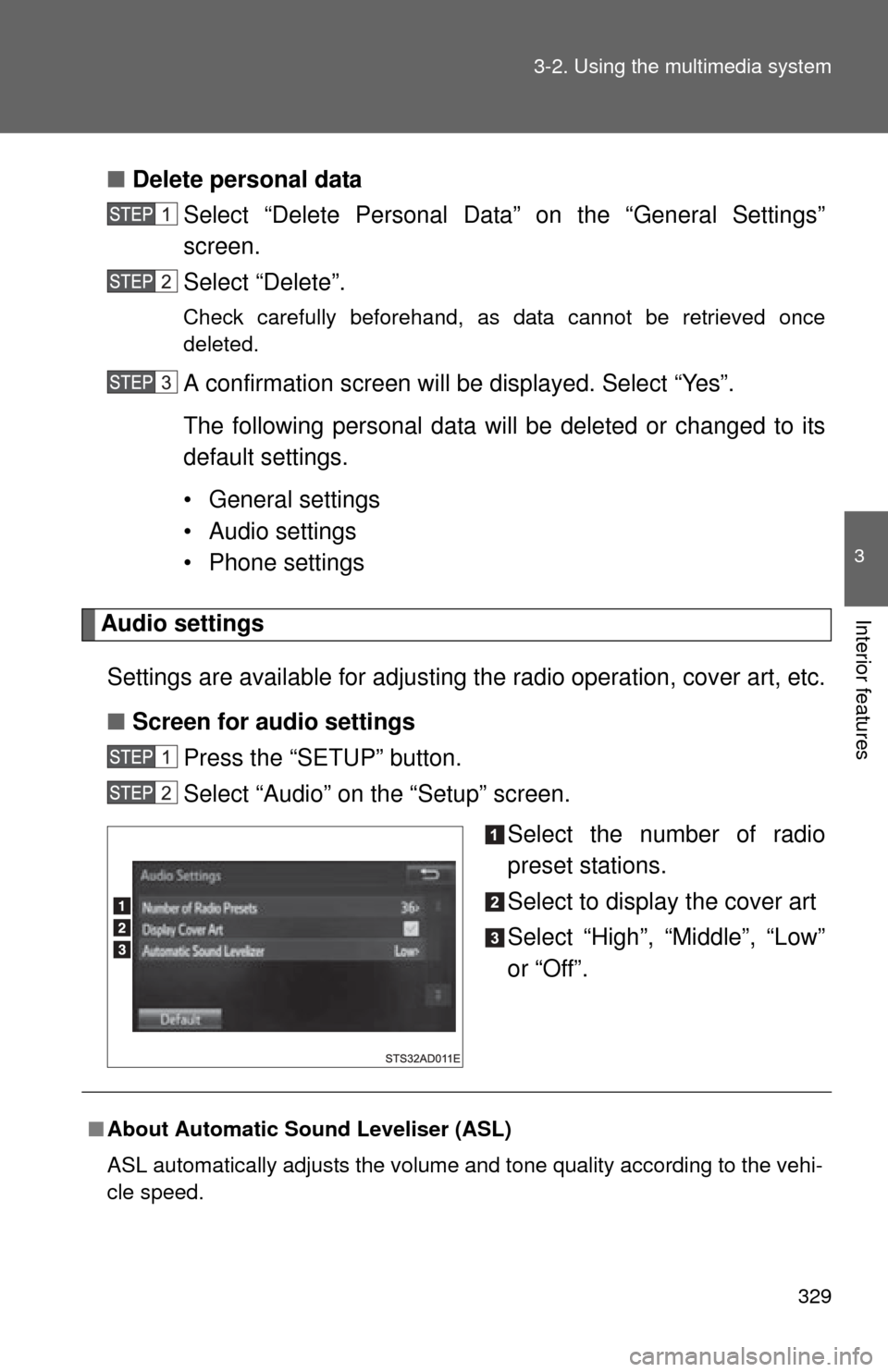
Settings are available for adjusting the radio operation, cover art, etc.
■ Screen for audio settings
Press the “SETUP” button.
Select “Audio” on the “Setup” screen.
Select the number of radio
preset stations.
Select to display the cover art
Select “High”, “Middle”, “Low”
or “Off”.
■About Automatic Sound Leveliser (ASL)
ASL automatically adjusts the volume and tone quality according to the vehi-
cle speed.
Page 331 of 668
331
3-2. Using the multimedia system
3
Interior features
Basic audio operations
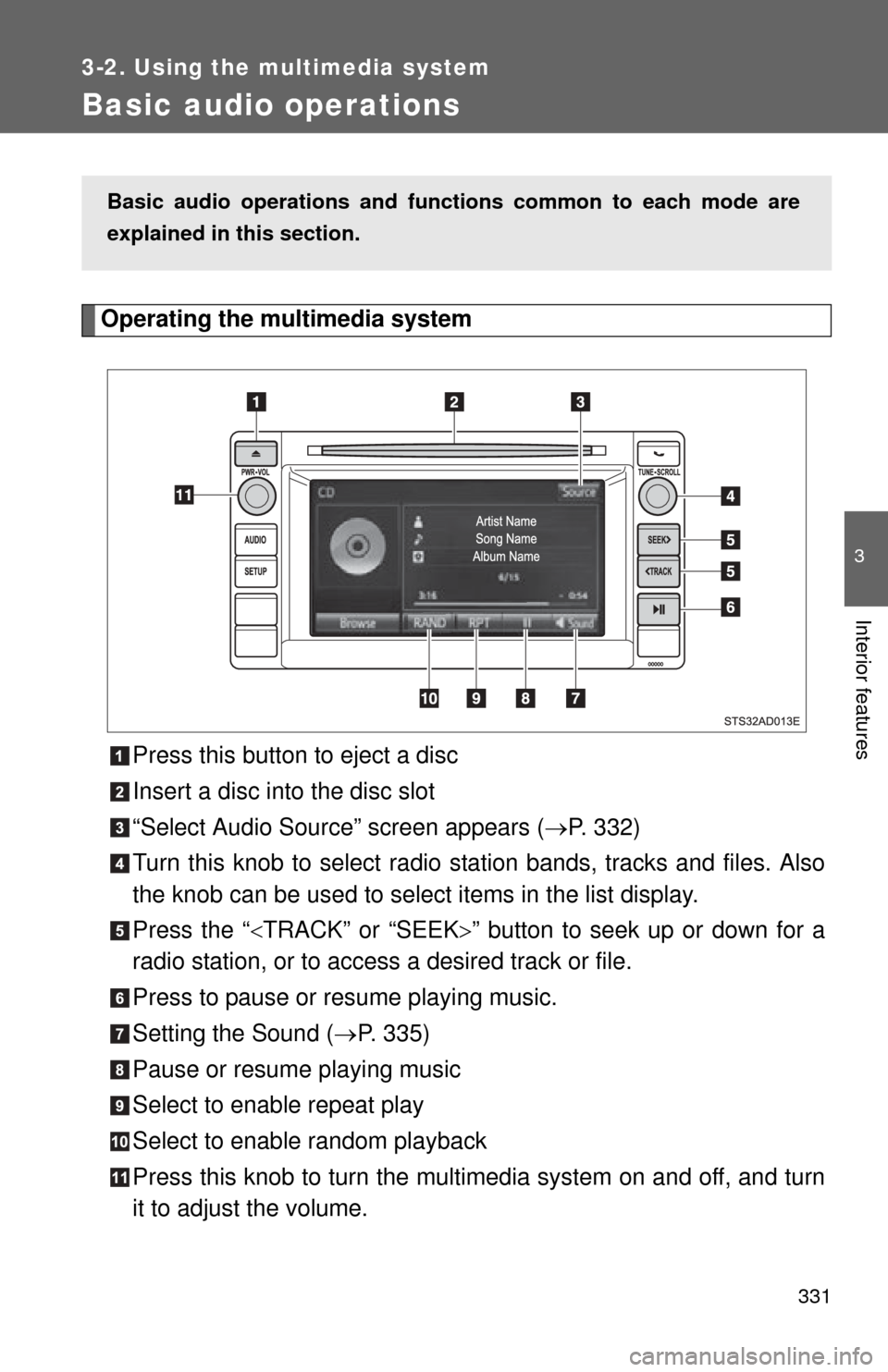
Operating the multimedia systemPress this button to eject a disc
Insert a disc into the disc slot
“Select Audio Source” screen appears ( P. 332)
Turn this knob to select radio station bands, tracks and files. Also
the knob can be used to select items in the list display.
Press the “ TRACK” or “SEEK ” button to seek up or down for a
radio station, or to access a desired track or file.
Press to pause or resume playing music.
Setting the Sound ( P. 335)
Pause or resume playing music
Select to enable repeat play
Select to enable random playback
Press this knob to turn the mult imedia system on and off, and turn
it to adjust the volume.
Basic audio operations and func tions common to each mode are
explained in this section.
Page 332 of 668
332 3-2. Using the multimedia system
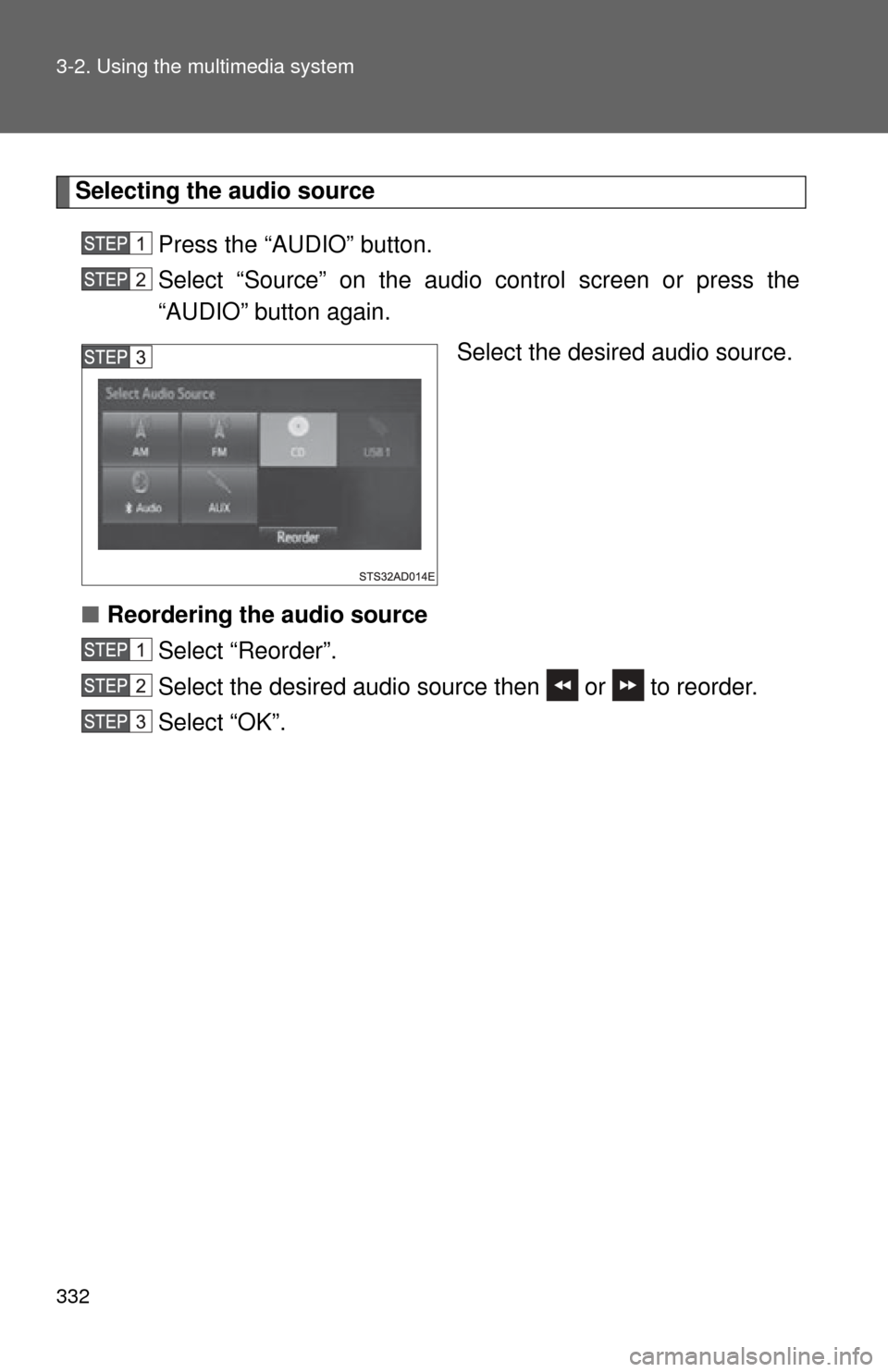
Selecting the audio source Press the “AUDIO” button.
Select “Source” on the audio control screen or press the
“AUDIO” button again. Select the desired audio source.
■ Reordering the audio source
Select “Reorder”.
Select the desired audio source then or to reorder.
Select “OK”.
Page 334 of 668
334 3-2. Using the multimedia system
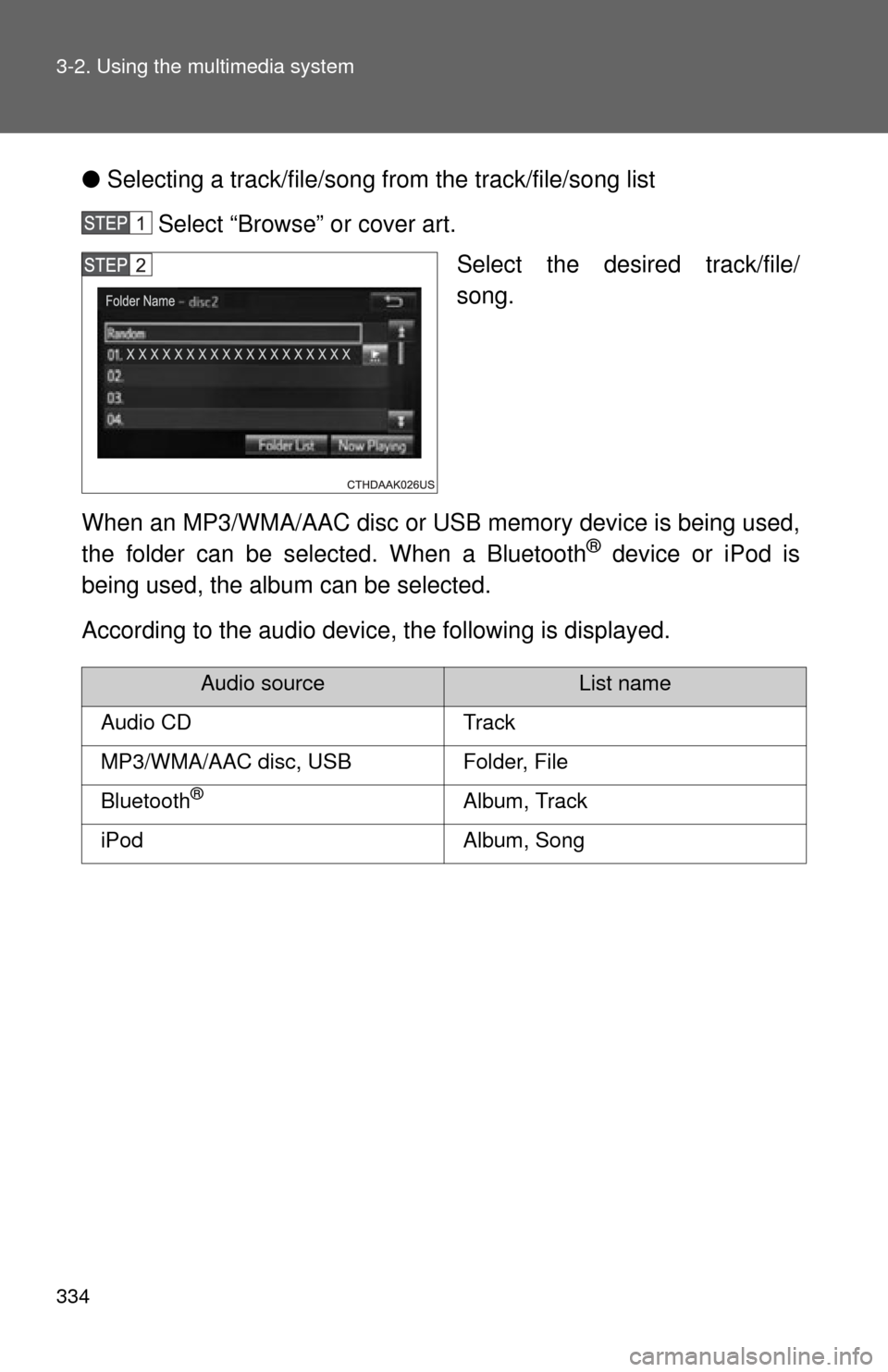
●Selecting a track/file/song fr om the track/file/song list
Select “Browse” or cover art. Select the desired track/file/
song.
When an MP3/WMA/AAC disc or USB memory device is being used,
the folder can be selected. When a Bluetooth
® device or iPod is
being used, the album can be selected.
According to the audio device, the following is displayed.
Audio sourceList name
Audio CDTrack
MP3/WMA/AAC disc, USBFolder, File
Bluetooth®Album, Track
iPodAlbum, Song
Page 335 of 668
335
3-2. Using the multimedia system
3
Interior features
Sound settings
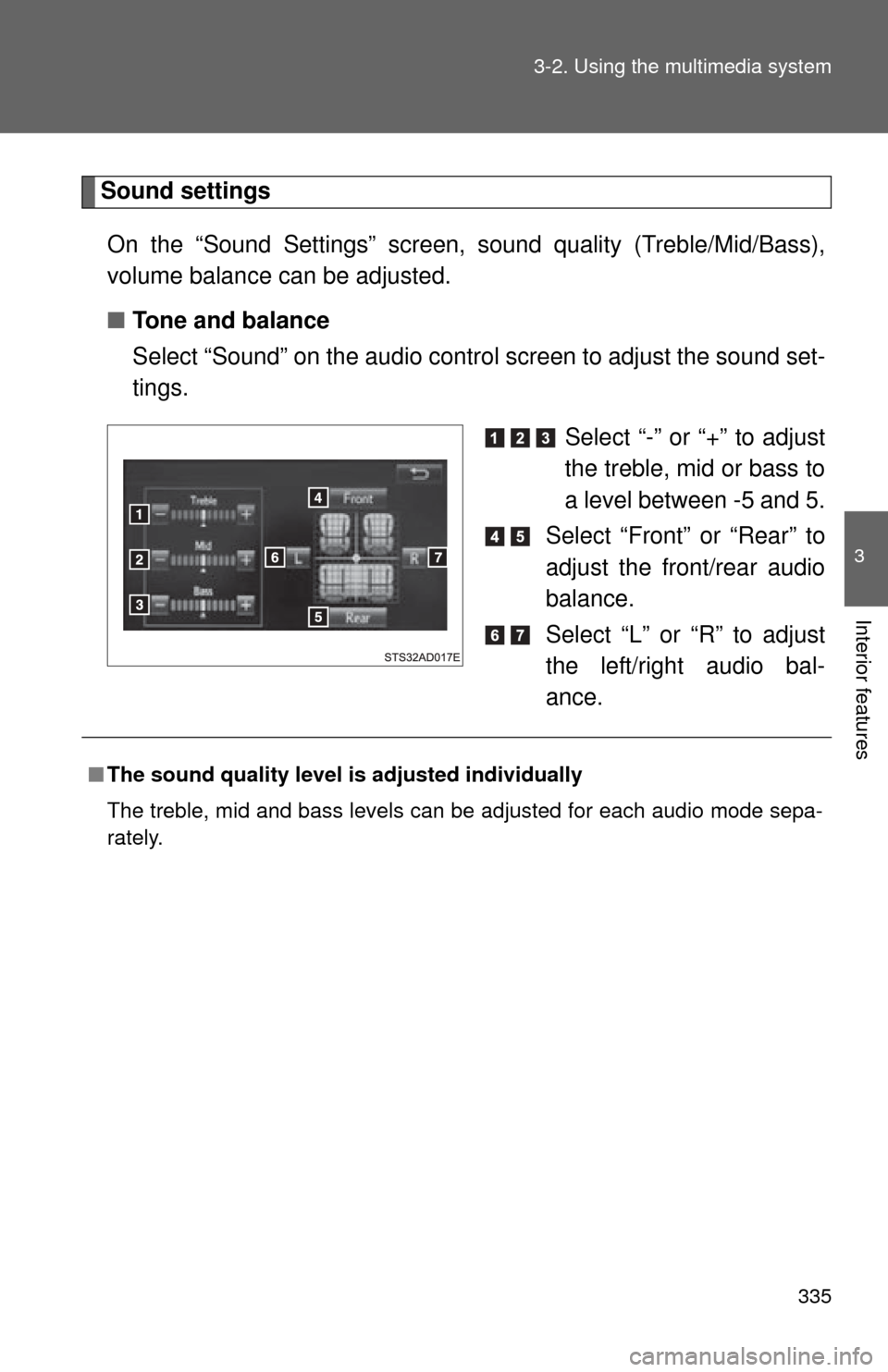
On the “Sound Settings” screen, sound quality (Treble/Mid/Bass),
volume balance can be adjusted.
■ Tone and balance
Select “Sound” on the audio contro l screen to adjust the sound set-
tings.
Select “-” or “+” to adjust
the treble, mid or bass to
a level between -5 and 5.
Select “Front” or “Rear” to
adjust the front/rear audio
balance.
Select “L” or “R” to adjust
the left/right audio bal-
ance.
■ The sound quality level is adjusted individually
The treble, mid and bass levels can be adjusted for each audio mode sepa-
rately.
Page 336 of 668
336
3-2. Using the multimedia system
Using the radio
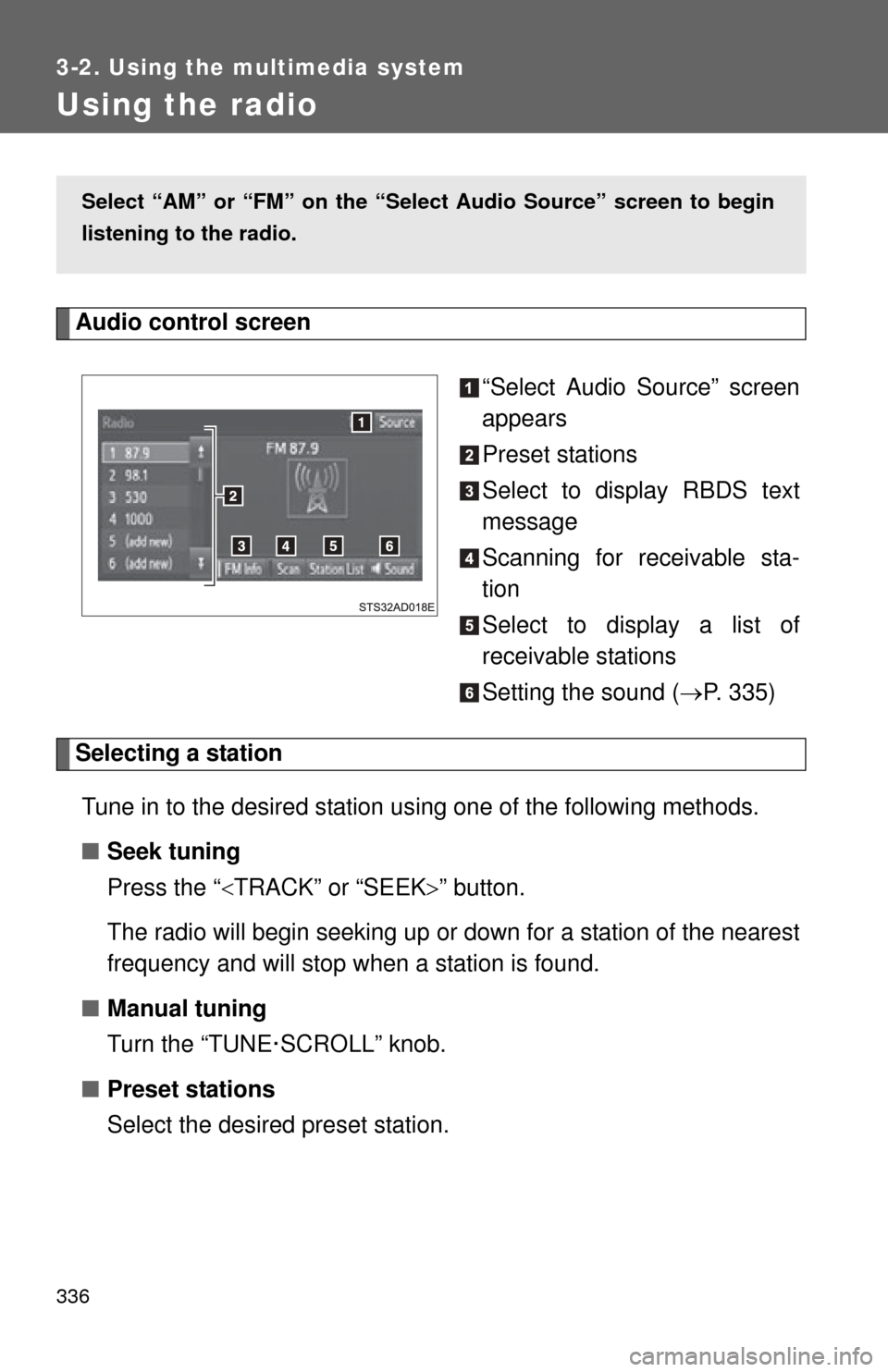
Audio control screen“Select Audio Source” screen
appears
Preset stations
Select to display RBDS text
message
Scanning for receivable sta-
tion
Select to display a list of
receivable stations
Setting the sound (P. 335)
Selecting a station
Tune in to the desired station using one of the following methods.
■ Seek tuning
Press the “ TRACK” or “SEEK ” button.
The radio will begin seeking up or down for a station of the nearest
frequency and will stop when a station is found.
■ Manual tuning
Turn the “TUNE·SCROLL” knob.
■ Preset stations
Select the desired preset station.
Select “AM” or “FM” on the “Sel ect Audio Source” screen to begin
listening to the radio.
Page 338 of 668
338
3-2. Using the multimedia system
Playing an audio CD and MP3/WMA/AAC discs
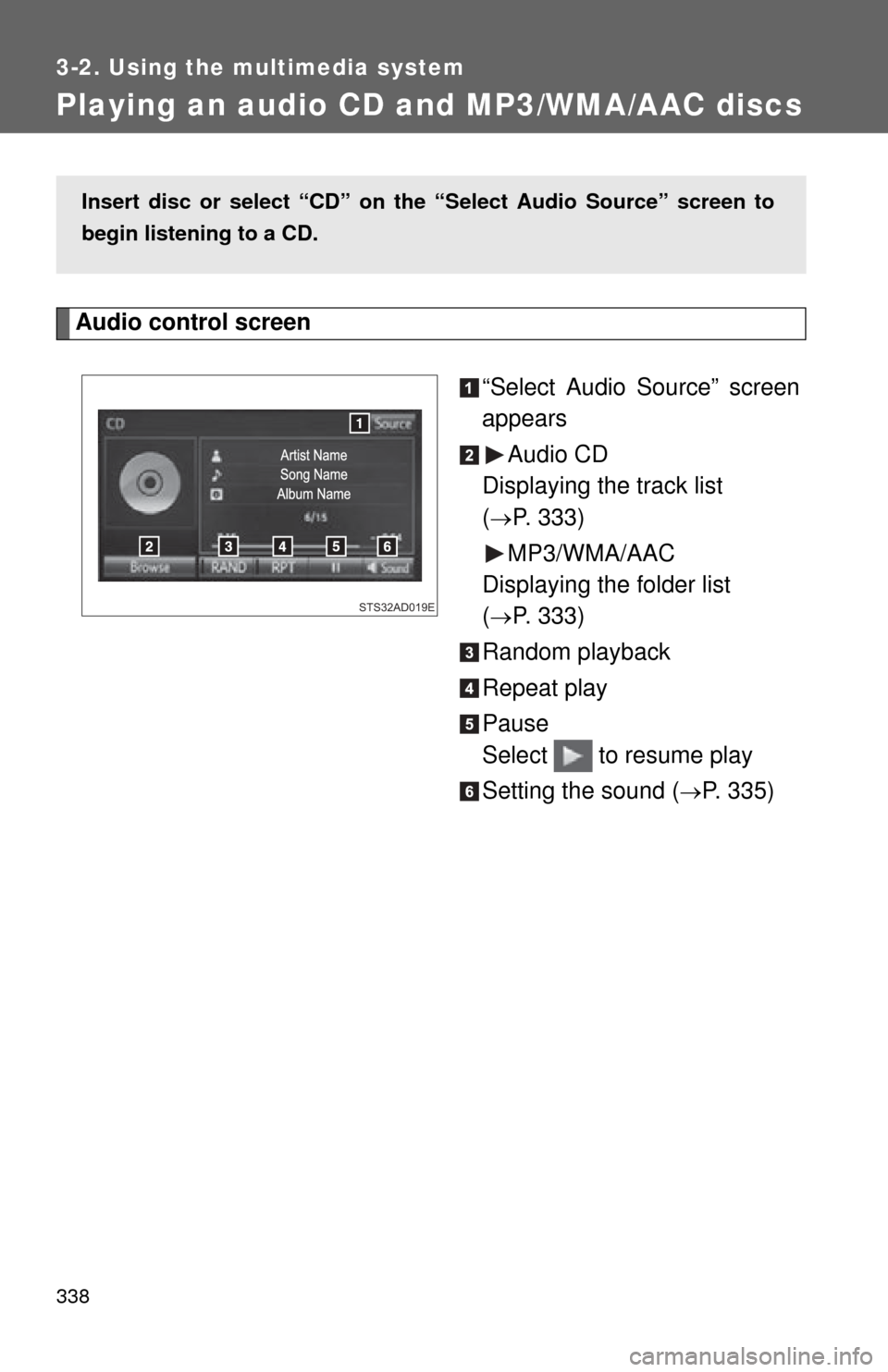
Audio control screen“Select Audio Source” screen
appearsAudio CD
Displaying the track list
(
P. 333)
MP3/WMA/AAC
Displaying the folder list
(
P. 333)
Random playback
Repeat play
Pause
Select to resume play
Setting the sound (
P. 335)
Insert disc or select “CD” on the “Select Audio Source” screen to
begin listening to a CD.
STS32AD019E
Page 340 of 668
340 3-2. Using the multimedia system
■Lens cleaners
Do not use lens cleaners. Doing so may damage the CD player.
■ MP3, WMA and AAC files
MP3 (MPEG Audio LAYER3) is a standard audio compression format.
Files can be compressed to approximately 1/10 of their original size by using
MP3 compression.
WMA (Windows Media Audio) is a Microsoft audio compression format.
This format compresses audio data to a size smaller than that of the MP3
format.
AAC is short for Advanced Audio Coding and refers to an audio compression
technology standard used with MPEG2 and MPEG4.
MP3, WMA and AAC file and media/formats compatibility are limited.
●MP3 file compatibility
• Compatible standards
MP3 (MPEG1 LAYER3, MPEG2 LSF LAYER3)
• Compatible sampling frequencies MPEG1 LAYER3: 32, 44.1, 48 (kHz)
MPEG2 LSF LAYER3: 16, 22.05, 24 (kHz)
• Compatible bit rates (compatible with VBR) MPEG1 LAYER3: 32-320 (kbps)
MPEG2 LSF LAYER3: 8-160 (kbps)
• Compatible channel modes: stereo, joint stereo, dual channel and monaural
● WMA file compatibility
• Compatible standards
WMA Ver. 7, 8, 9
• Compatible sampling frequencies 32, 44.1, 48 (kHz)
• Compatible bit rates (only compatible with 2-channel playback) Ver. 7, 8: CBR 48-192 (kbps)
Ver. 9: CBR 48-320 (kbps)
Page 341 of 668
341
3-2. Using the multimedia system
3
Interior features
●
AAC file compatibility
• Compatible standards
MPEG4/AAC-LC
• Compatible sampling frequencies 11.025/12/16/22.05/24/32/44.1/48 (kHz)
• Compatible bit rates 16-320 (kbps)
● Compatible media
Media that can be used for MP3, WMA and AAC playback are CD-Rs and
CD-RWs.
Playback in some instances may not be possible if the CD-R or CD-RW is
not finalized. Playback may not be possible or the audio may jump if the
disc is scratched or marked with fingerprints.
● Compatible disc formats
The following disc formats can be used.
• Disc formats: CD-ROM Mode 1 and Mode 2
CD-ROM XA Mode 2, Form 1 and Form 2
• File formats: ISO9660 Level 1, Level 2, (Romeo, Joliet) UDF (2.01 or lower)
MP3, WMA and AAC files written in any format other than those listed
above may not play correctly, and their file names and folder names may
not be displayed correctly.
Items related to standards and limitations are as follows.
• Maximum directory hierarchy: 8 levels (including the root)
• Maximum length of folder names/file names: 32 characters
• Maximum number of folders: 192 (including the root)
• Maximum number of files per disc: 255
● File names
The only files that can be recognized as MP3/WMA/AAC and played are
those with the extension .mp3, .wma or .m4a.
● Discs containing multi-session recordings
As the multimedia system is compatible with multi session discs, it is pos-
sible to play discs that contain MP3, WMA and AAC files. However, only
the first session can be played.