phone TOYOTA SEQUOIA 2015 2.G User Guide
[x] Cancel search | Manufacturer: TOYOTA, Model Year: 2015, Model line: SEQUOIA, Model: TOYOTA SEQUOIA 2015 2.GPages: 664, PDF Size: 13.16 MB
Page 344 of 664
344 3-2. Using the multimedia system
■About iPod
●“Made for iPod”, “Made for iPhone” and “Made for iPad” mean that an
electronic accessory has been designed to connect specifically to iPod or
iPhone, or iPad, respectively, and has been certified by the developer to
meet Apple performance standards.
● Apple is not responsible for the operation of this device or its compliance
with safety and regulatory standards. Please note that the use of this
accessory with iPod, iPhone or iPad may affect wireless performance.
● iPad, iPhone, iPod, iPod classic, iPod nano, and iPod touch are trade-
marks of Apple Inc., registered in the U.S. and other countries. Lightning
is a trademark of Apple Inc.
■ iPod cover art
●Depending on the iPod and songs in the iPod, iPod cover art may be dis-
played.
● This function can be changed to on/off. ( P. 327)
● It may take time to display iPod cover art, and the iPod may not be oper-
ated while the cover art display is in process.
● Only iPod cover art that is saved in JPEG format can be displayed.
Page 347 of 664

347
3-2. Using the multimedia system
3
Interior features
■
Compatible models
The following iPod
®, iPod nano®, iPod classic®, iPod touch® and iPhone®
devices can be used with this system.
●Made for
• iPod touch (5th generation)
• iPod touch (4th generation)
• iPod touch (3rd generation)
• iPod touch (2nd generation)
• iPod touch (1st generation)
• iPod classic
• iPod with video
• iPod nano (7th generation)
• iPod nano (6th generation)
• iPod nano (5th generation)
• iPod nano (4th generation)
• iPod nano (3rd generation)
• iPod nano (2nd generation)
• iPod nano (1st generation)
• iPhone 5
• iPhone 4S
• iPhone 4
• iPhone 3GS
• iPhone 3G
• iPhone
Depending on differences between models or software versions etc., some
models might be incompatible with this system.
CAUTION
■ While driving
Do not connect an iPod or operate the controls.
Page 355 of 664
355
3-2. Using the multimedia system
3
Interior features
Connecting Bluetooth®
The following can be performed using Bluetooth® wireless commu-
nication:
■ A portable audio player can be operated and listened to via
multimedia system
■ Hands-free phone calls can be made via a cellular phone
In order to use wireless communicat ion, register and connect a
Bluetooth
® device by performing the following procedures.
Page 356 of 664

356 3-2. Using the multimedia system
Device registration/connection flow
1. Register the Bluetooth® device to be used with Multimedia
system ( P. 358, 359)
2. Connect the Bluetooth® device to be used
( P. 361)
To be used for audio To be used for hands-free
phone
3. Start Bluetooth® connec-
tion ( P. 361)3. Start Bluetooth® connec-
tion ( P. 361)
4. Check connection status
( P. 377)4. Check connection status
( P. 379)
5. Use Bluetooth® audio
( P. 377)5. Use Bluetooth® phone
( P. 378)
Page 358 of 664
358 3-2. Using the multimedia system
Registering a Bluetooth® audio player for the first time
To use the Bluetooth
® Audio, it is necessary to register an audio
player with the system.
Once the player has been register ed, it is possible to use the
Bluetooth
® Audio.
This operation cannot be performed while driving.
For details about registering a Bluetooth
® device ( P. 359)
Turn the Bluetooth
® connection setting of your audio player
on.
This function is not available when the Bluetooth® connection setting
of your audio player is set to off.
Press the “AUDIO” button.
Select “ Audio” on the “Select Audio Source” screen.
Select “Select Device”.
Follow the steps in “How to registering a Bluetooth
® device”
from “STEP 2”. ( P. 359)
Registering a Bluetooth® phone for the first time
To use the hands-free system, it is necessary to register a Bluetooth
®
phone with the system.
Once the phone has been registered, it is possible to use the hands-
free system.
For details about registering a Bluetooth
® device ( P. 359)
Turn the Bluetooth
® connection setting of your cellular phone
on.
Press the button.
Select “OK” to register a phone.
Follow the steps in “How to registering a Bluetooth
® device”
from “STEP 2”. ( P. 359)
Page 359 of 664
359
3-2. Using the multimedia system
3
Interior features
Registering a Bluetooth® device
Bluetooth
® compatible phones (HFP) and portable audio players
(AVP) can be registered simultaneously. You can register up to 5
Bluetooth
® devices.
■ How to register a Bluetooth
® device
Display the “Bluetooth Setup” screen. ( P. 357)
Select “Add”.
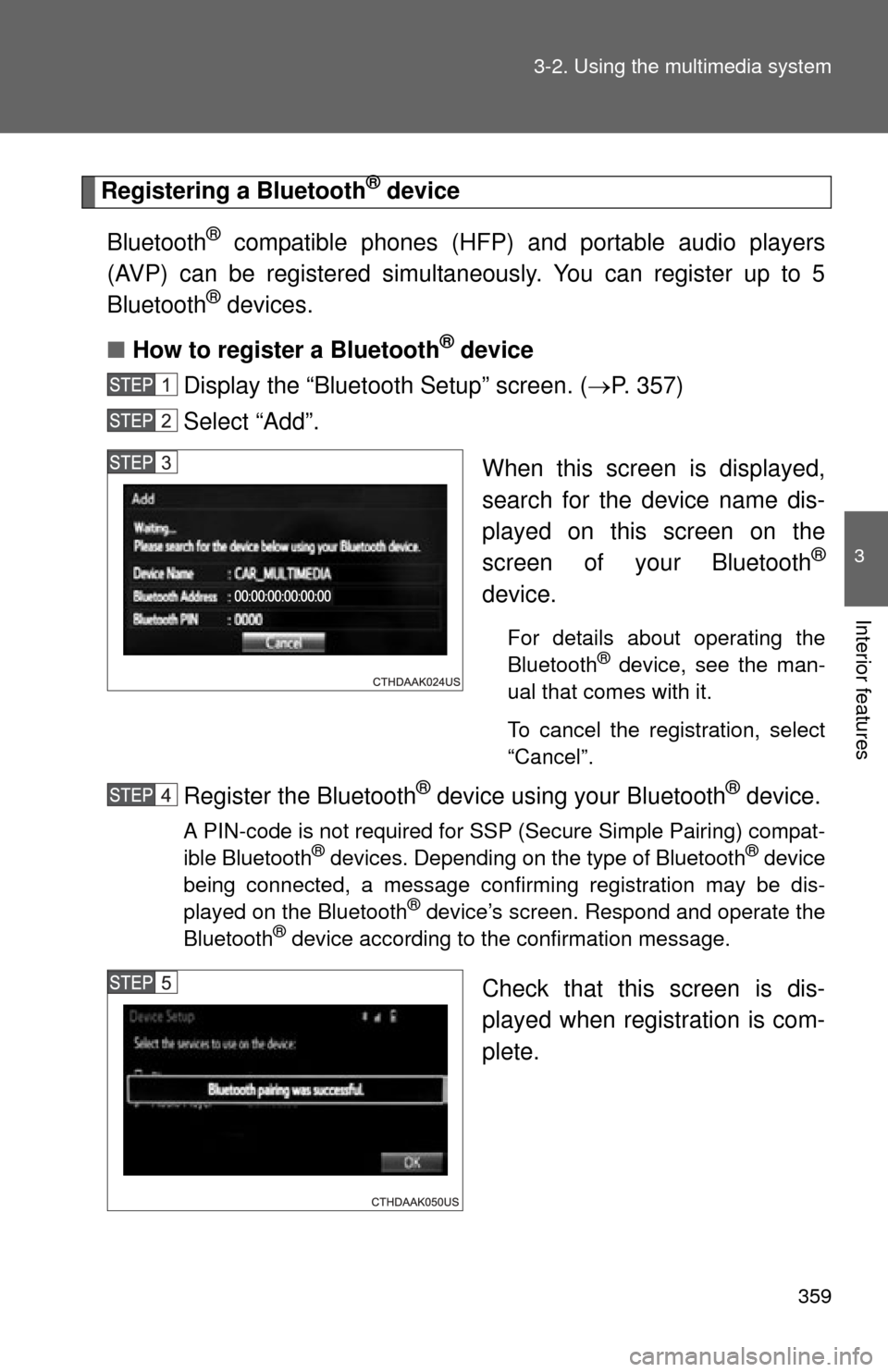
When this screen is displayed,
search for the device name dis-
played on this screen on the
screen of your Bluetooth
®
device.
For details about operating the
Bluetooth® device, see the man-
ual that comes with it.
To cancel the registration, select
“Cancel”.
Register the Bluetooth® device using your Bluetooth® device.
A PIN-code is not required for SSP (Secure Simple Pairing) compat-
ible Bluetooth® devices. Depending on the type of Bluetooth® device
being connected, a message confirming registration may be dis-
played on the Bluetooth
® device’s screen. Respond and operate the
Bluetooth® device according to the confirmation message.
Check that this screen is dis-
played when registration is com-
plete.
Page 361 of 664
361
3-2. Using the multimedia system
3
Interior features
Connecting a Bluetooth® device
Up to 5 Bluetooth
® devices (Phones (HFP) and audio players (AVP))
can be registered.
If more than 1 Bluetooth
® device has been registered, select which
device to connect to.
Press the “SETUP” button.
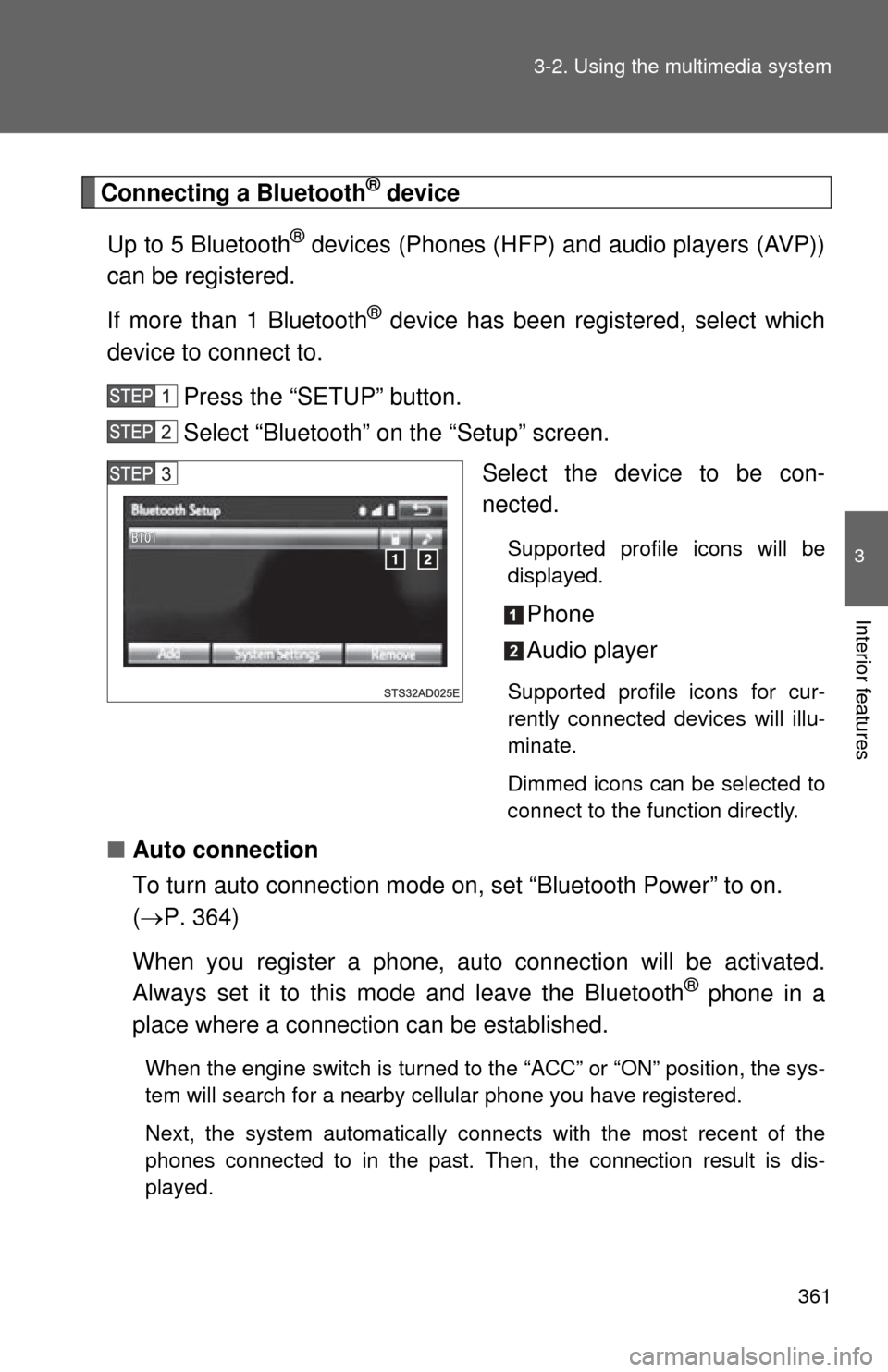
Select “Bluetooth” on the “Setup” screen. Select the device to be con-
nected.
Supported profile icons will be
displayed.
Phone
Audio player
Supported profile icons for cur-
rently connected devices will illu-
minate.
Dimmed icons can be selected to
connect to the function directly.
■Auto connection
To turn auto connection mode on, set “Bluetooth Power” to on.
( P. 364)
When you register a phone, au to connection will be activated.
Always set it to this mode and leave the Bluetooth
® phone in a
place where a connection can be established.
When the engine switch is turned to the “ACC” or “ON” position, the sys-
tem will search for a nearby cellular phone you have registered.
Next, the system automatically connects with the most recent of the
phones connected to in the past. Then, the connection result is dis-
played.
Page 362 of 664
362 3-2. Using the multimedia system
■Manual connection
When auto connection has failed or “Bluetooth Power” is turned
off, you must connect the Bluetooth
® device manually.
Follow the steps in “Connecting a Bluetooth
® device” from
“STEP 1”. ( P. 361)
■ Connecting a Bluetooth
® audio player
Registering an additional device
Select “Select Device” on the “Bluetooth Audio” screen.
For more information: P. 3 5 9
Selecting a registered device Select “Select Device” on the “Bluetooth Audio” screen.
For more information: P. 3 6 1
■Reconnecting a Bluetooth® phone
If the system cannot connect due to poor signal strength with the engine
switch in the “ACC” or “ON” position, the system will automatically attempt to
reconnect.
If the phone is turned off, the system will not attempt to reconnect. In this
case, the connection must be made manually, or the phone must be rese-
lected.
Page 363 of 664
363
3-2. Using the multimedia system
3
Interior features
Displaying a Bluetooth® device details
You can confirm and change the registered device details.
■ Bluetooth
® device registration status
Display the “Bluetooth Setup” screen. ( P. 357)
Select the device.
Select “Device Info”.
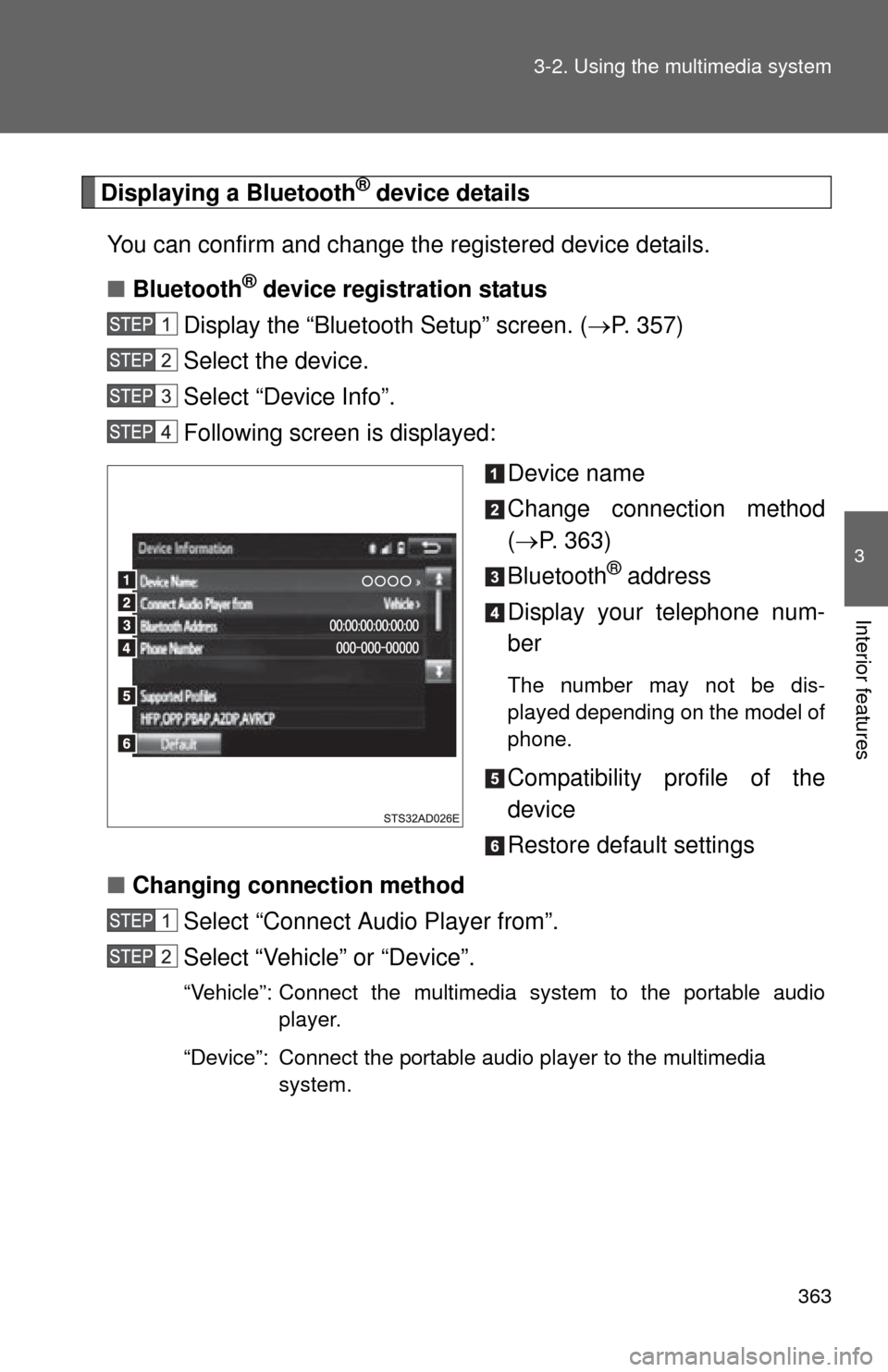
Following screen is displayed:
Device name
Change connection method
( P. 363)
Bluetooth
® address
Display your telephone num-
ber
The number may not be dis-
played depending on the model of
phone.
Compatibility profile of the
device
Restore default settings
■ Changing connection method
Select “Connect Audio Player from”.
Select “Vehicle” or “Device”.
“Vehicle”: Connect the multimedia system to the portable audio player.
“Device”: Connect the portable audio player to the multimedia system.
Page 364 of 664
364 3-2. Using the multimedia system
Detailed Bluetooth® system settings
You can confirm and change the detailed Bluetooth
® settings.
■ How to check and change detailed Bluetooth
® settings
Display the “Bluetooth Setup” screen. ( P. 357)
Select “System Settings”.
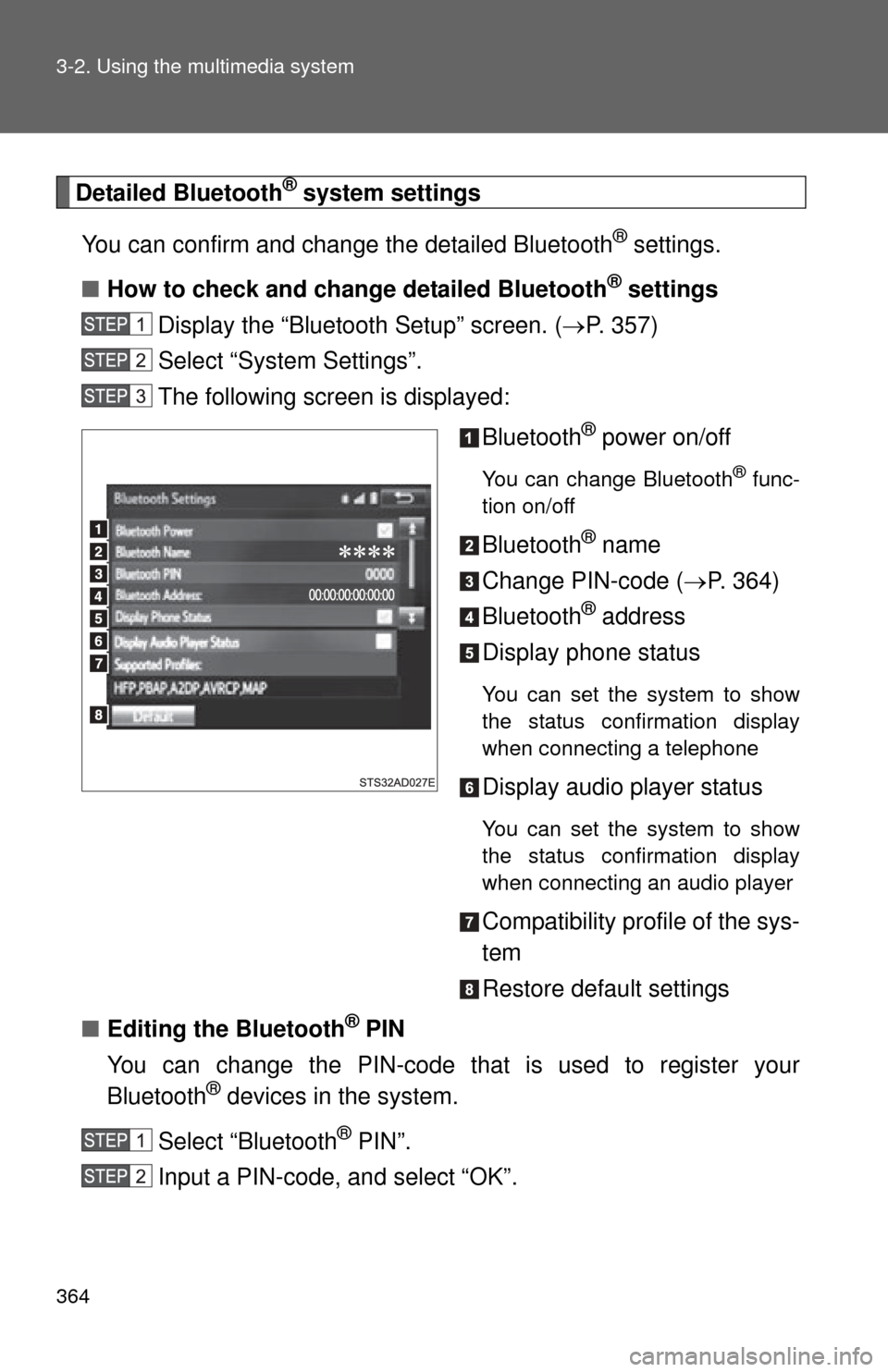
The following screen is displayed:
Bluetooth
® power on/off
You can change Bluetooth® func-
tion on/off
Bluetooth® name
Change PIN-code ( P. 364)
Bluetooth
® address
Display phone status
You can set the system to show
the status confirmation display
when connecting a telephone
Display audio player status
You can set the system to show
the status confirmation display
when connecting an audio player
Compatibility profile of the sys-
tem
Restore default settings
■ Editing the Bluetooth
® PIN
You can change the PIN-code that is used to register your
Bluetooth
® devices in the system.
Select “Bluetooth
® PIN”.
Input a PIN-code, and select “OK”.