key TOYOTA SIENNA 2018 Accessories, Audio & Navigation (in English)
[x] Cancel search | Manufacturer: TOYOTA, Model Year: 2018, Model line: SIENNA, Model: TOYOTA SIENNA 2018Pages: 435, PDF Size: 11.83 MB
Page 348 of 435
348
2. DESTINATION SEARCH
SIENNA_Navi+MM_OM08021U_(U)
17.08.16 10:05
1Select “Phone #” .
2Enter a phone number and select
“OK”.
If multiple locations with the same phone
number exist, the list screen will be dis-
played.
Vehicles without a smart key system
1Turn the engine switch to the “ACC” or
“ON” position.
Vehicles with a smart key system
1Turn the engine switch to ACCESSO-
RY or IGNITION ON mode.
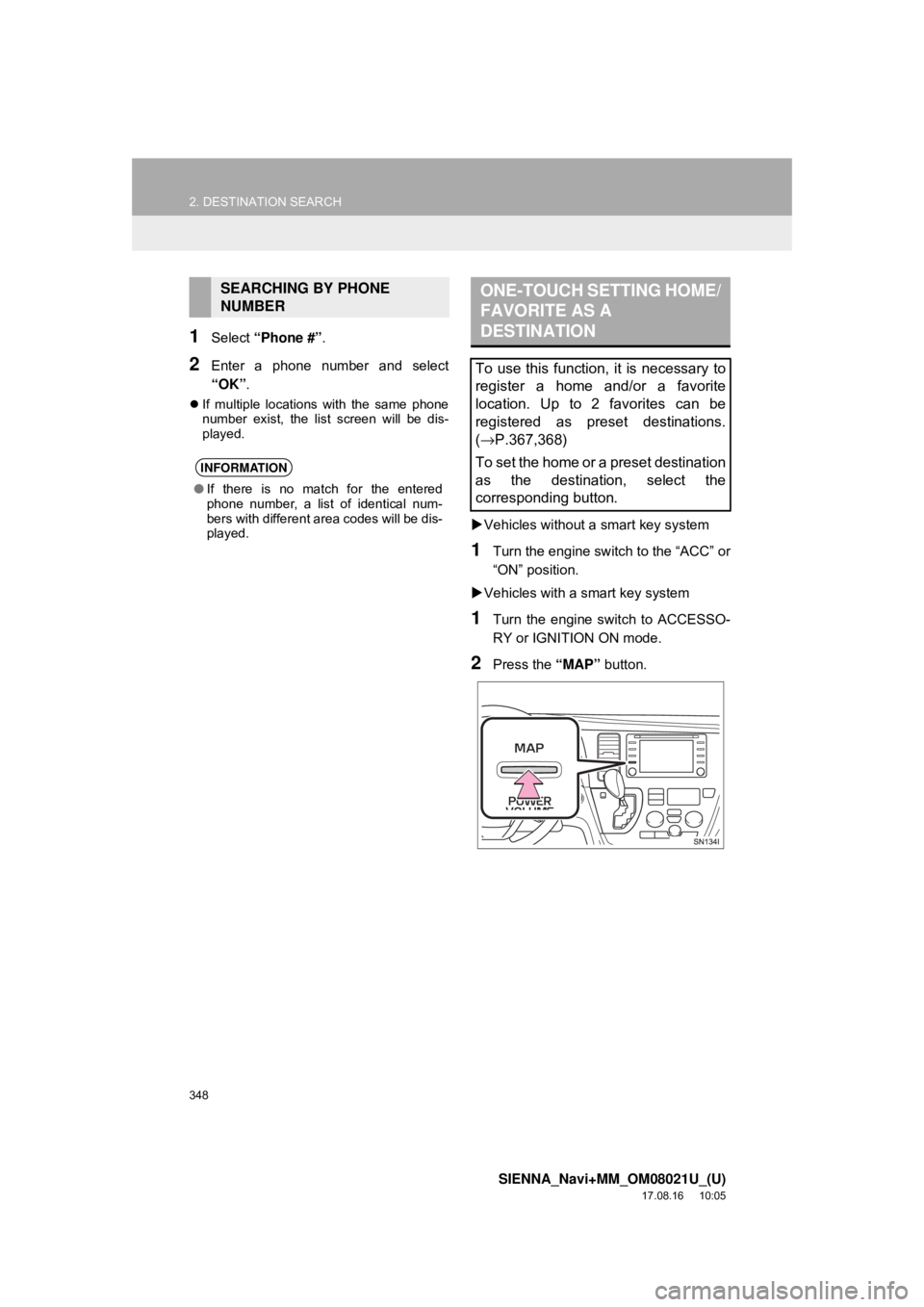
2Press the “MAP” button.
SEARCHING BY PHONE
NUMBER
INFORMATION
●If there is no match for the entered
phone number, a list of identical num-
bers with different area codes will be dis-
played.
ONE-TOUCH SETTING HOME/
FAVORITE AS A
DESTINATION
To use this function, it is necessary to
register a home and/or a favorite
location. Up to 2 favorites can be
registered as preset destinations.
(→P.367,368)
To set the home or a preset destination
as the destination, select the
corresponding button.
Page 401 of 435
401
2. Toyota Entune OPERATION
SIENNA_Navi+MM_OM08021U_(U)
17.08.16 10:05
Toyota Entune
9
1Display the application screen.
(→P.398)
2Select the desired application screen
button.
3Select the character entering space.
4Enter a search term, and then select
“OK”.
5Entering characters will be reflected on
the character entering space.
1Display the application screen.
(→P.398)
2Select the desired application screen
button.
3Press the talk switch. ( →P.200)
4Say the desired keyword.
Completion of the keyword will be
detected automatically.
5Search results will be displayed on the
screen.
ENTERING KEYWORD
OPERATION
A keyword can be entered to an appli-
cation by the software keyboard or
voice recognition function. For details
about the functions and services pro-
vided by each application, refer to
http://www.toyota.com/Entune/
.
The keyboard layout can be changed.
(→ P.61)
ENTERING A KEYWORD USING
THE SOFTWARE KEYBOARD
For details on operating the keyboard:
→P. 3 6
ENTERING A KEYWORD USING
THE VOICE RECOGNITION
FUNCTION
Page 429 of 435
429
SIENNA_Navi+MM_OM08021U_(U)
17.08.16 10:05
D
Data services settings............................. 218Setting download methods .................. 218
Destination search .................................. 340
Destination search operation .................. 340
One-touch setting home/favorite as a destination .................................... 348
Searching by address ......................... 344
Searching by contact........................... 344
Searching by destination assist connect ............................................ 343
Searching by emergency .................... 344
Searching by favorites list ................... 343
Searching by keyword ......................... 342
Searching by point of interest.............. 345
Searching by recent destinations ........ 343
Selecting search area ......................... 342
Setting home as destination ................ 342
Detailed navigation settings .................... 373 Screens for navigation settings ........... 373
Display when the outside rear view mirrors are retracted............................ 268
Screen display..................................... 268
Distance guide line display mode ........... 241 Screen description .............................. 241
Driver Easy Speak .......................... 120, 122
E
Entering letters and numbers/list screen operation ............................................... 36
Entering letters and numbers ................ 36
List screen ............................................. 37
Estimated course line display mode ....... 236 Parking ................................................ 238
Screen description .............................. 236
F
Function index........................................... 26
Functional overview ................................ 388
G
General settings ........................................ 61
General settings screen ........................ 61
GPS (Global Positioning System) ........... 383 Limitations of the navigation system ... 383
H
Home screen............................................. 16
Status display ........................................ 18
Home screen operation............................. 35
I
Information .............................................. 213
Information screen .................................. 214
Displaying information screen ............. 214
Initial screen .............................................. 30
Internet radio ............................................. 99 Listening to internet radio ...................... 99
iPod ......................................................... 106 Overview ............................................. 106
L
Linking multi-information display and the system ............................................. 42
Page 431 of 435
431
SIENNA_Navi+MM_OM08021U_(U)
17.08.16 10:05
Parking assist guide line display mode ... 239Parking ................................................ 240
Screen description .............................. 239
Peripheral monitoring system ................. 221
Phone ..................................................... 285
Phone operation (Hands-free system
for cellular phones).............................. 286
Phone settings ........................................ 305
Contact/call history settings screen..... 308
Message settings screen .................... 315
Notification settings screen ................. 307
Phone settings screen......................... 305
Sound settings screen......................... 306
Placing a call using the Bluetooth
®
hands-free system........ ....................... 291
By call history ...................................... 291
By contacts list .................................... 292
By favorites list .................................... 292
By home screen .................................. 295
By keypad ........................................... 294
Playing a Blu-ray Disc™ (BD) and DVD discs ........................................... 146
BD/DVD video discs ............................ 157
Operating the disc menu ..................... 147
Option screen ...................................... 147
Playing/pausing a disc ........................ 147
Remote controller ................................ 146
Turning on the BD/DVD mode ............ 147
Playing an audio CD and MP3/WMA/AAC discs ......................... 161
Control screen ..................................... 161
Fast forwarding or rewinding a track/file ........................................... 162
MP3/WMA/AAC files ........................... 163
Random playback ............................... 162
Remote controller ................................ 161
Repeat play ......................................... 162
Selecting a folder ................................ 162
Selecting a track/file ............................ 162
Turning on the CD mode ..................... 162 Playing an SD card ................................. 166
Deleting the BD history data................ 174
Fast forwarding or rewinding a chapter/track/file .............................. 167
Formatting the SD card ....................... 174
Main menu........................................... 166
Playing music ...................................... 167
Playing still pictures ............................. 168
Playing video ....................................... 170
Playing/pausing a SD card media ....... 167
Remote controller ................................ 166
SD card information............................. 174
Selecting a chapter/track/file ............... 167
Q
Quick guide ............................................... 11
Quick reference................... 20, 78, 286, 326
Map screen.......................................... 326
R
Radio operation......................................... 86
Rear seat entertainment system features ............................................... 134
Disc slot ............................................... 136
Discs that can be used ... ..................... 144
Display................................................. 135
Headphone jacks................................. 142
Operating from the front seats............. 143
Remote controller ................................ 137
SD card slot ......................................... 137
SD card that can be used .................... 145
Rear seat entertainment system operation ............................................. 134
Rear view monitor system ....................... 222
Driving precautions.............................. 222
Screen description............................... 224
Page 433 of 435

433
SIENNA_Navi+MM_OM08021U_(U)
17.08.16 10:05
T
Talking on the Bluetooth® hands-free
system ................................................. 297
Incoming call waiting ........................... 299
Things you should know ......... 230, 247, 282
If you notice any symptoms ........................ 230, 247, 282
Product license.................................... 283
Tips for operating the audio/visual system ................................................. 123
Tips for the navigation system ................ 383
Touch screen gestures ............................. 32
Touch screen operation ............................ 33
Toyota Entune ........................................ 387
Toyota Entune app suite connect ........... 398 Entering keyword operation ................ 401
Using Toyota Entune app suite connect ............................................ 398
Toyota Entune app suite connect settings ................................................ 402
Toyota Entune app suite connect settings screen ................................ 402
Toyota Entune operation ........................ 398
Toyota Entune-overview ......................... 388
Toyota parking assist monitor ................. 231 Driving precautions ............................. 231
Screen display..................................... 233
Using the system.......... ....................... 235 Toyota parking assist monitor
precautions .......................................... 242
Area displayed on screen .................... 242
Differences between the screen and the actual road ................................. 244
The camera ......................................... 243
When approaching three-dimensional objects ............................................. 245
Traffic information ................................... 336 Displaying traffic information on the map .................................................. 339
Traffic settings......................................... 377 Avoid traffic.......................................... 378
My traffic routes ................................... 379
Screen for traffic settings..................... 377
Troubleshooting ...................................... 317
Type A: Function achieved by using a smart phone or DCM ........................... 389
Before using the function..................... 391
Preparation before using Toyota Entune app suite connect ................ 392
Type B: Function achieved by using DCM and the system ...... ..................... 393
Before using the function..................... 394
Destination assist connect................... 394
Type C: Function achieved by using DCM .................................................... 396
Safety connect..................................... 396
Typical voice guidance prompts.............. 361