carplay TOYOTA SIENNA 2019 Accessories, Audio & Navigation (in English)
[x] Cancel search | Manufacturer: TOYOTA, Model Year: 2019, Model line: SIENNA, Model: TOYOTA SIENNA 2019Pages: 441, PDF Size: 9.89 MB
Page 213 of 441
213
1. VOICE COMMAND SYSTEM OPERATION
SIENNA_Navi+MM_OM08027U_(U)
18.05.08 11:51
VOICE COMMAND SYSTEM
4
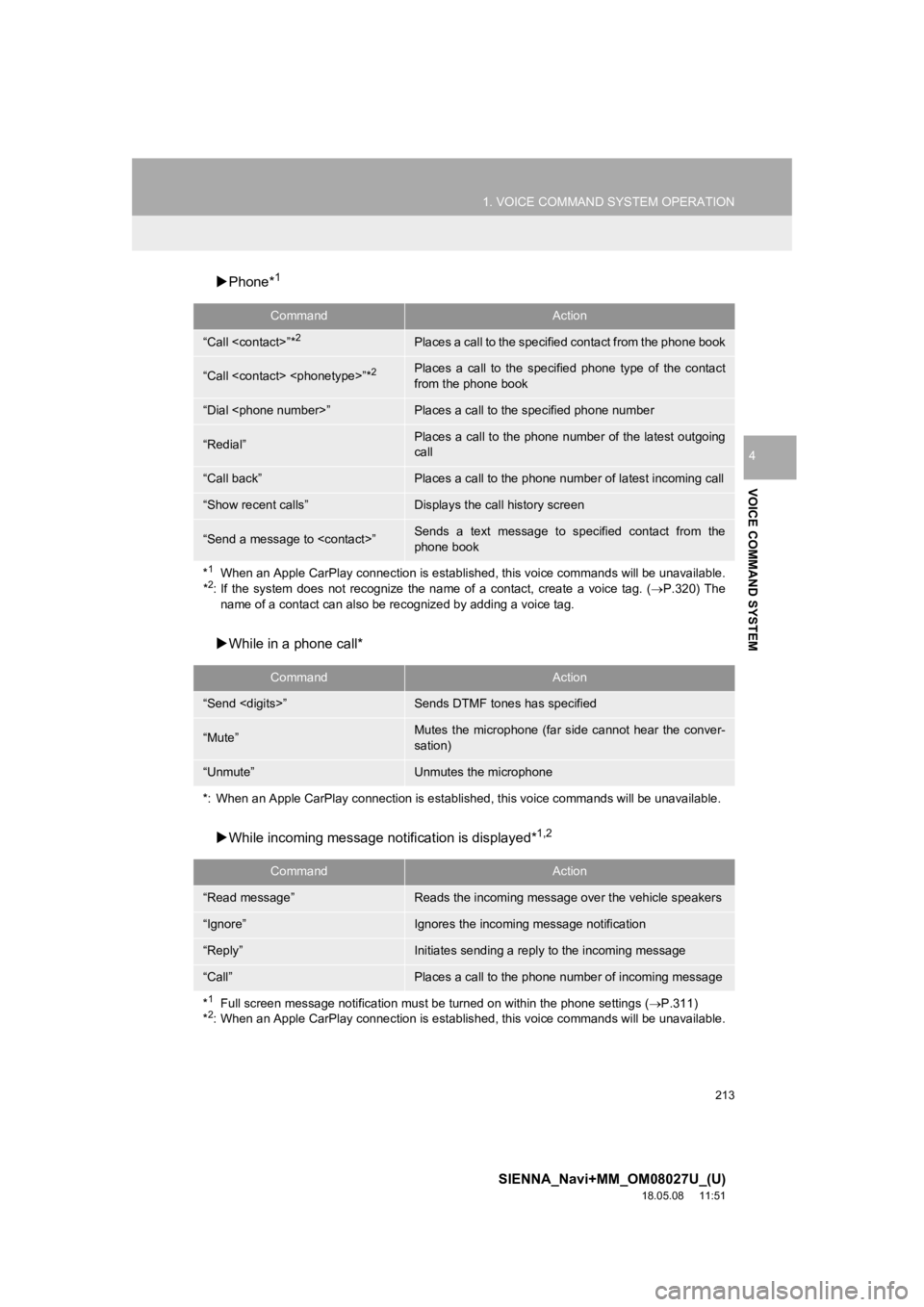
Phone*1
While in a phone call*
While incoming message not ification is displayed*
1,2
CommandAction
“Call
“Call
from the phone book
“Dial
“Redial”Places a call to the phone number of the latest outgoing
call
“Call back”Places a call to the phone num ber of latest incoming call
“Show recent calls”Displays the call history screen
“Send a message to
phone book
*
1When an Apple CarPlay connection is established, this voice commands will be unavailable.
*2: If the system does not recognize the name of a contact, create a voice tag. (P.320) The
name of a contact can also be re cognized by adding a voice tag.
CommandAction
“Send
“Mute”Mutes the microphone (far side cannot hear the conver-
sation)
“Unmute”Unmutes the microphone
*: When an Apple CarPlay connecti on is established, this voice commands will be unavailable.
CommandAction
“Read message”Reads the incoming message over the vehicle speakers
“Ignore”Ignores the incoming message notification
“Reply”Initiates sending a reply to the incoming message
“Call”Places a call to the phone number of incoming message
*
1Full screen message notification must be turned on within the phone settings ( P.311)
*2: When an Apple CarPlay connection is established, this voice commands will be unavailable.
Page 215 of 441
215
1. VOICE COMMAND SYSTEM OPERATION
SIENNA_Navi+MM_OM08027U_(U)
18.05.08 11:51
VOICE COMMAND SYSTEM
4
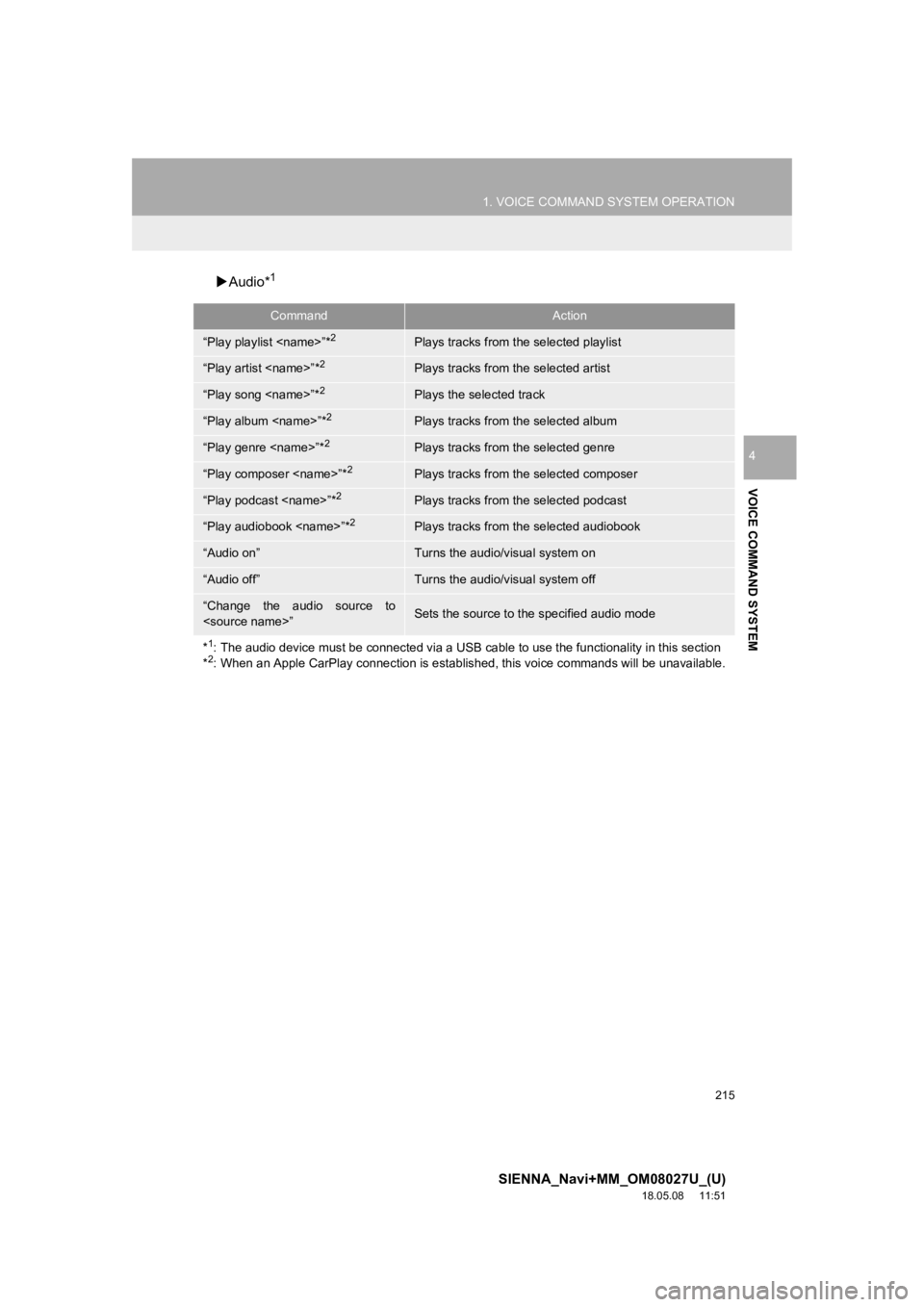
Audio*1
CommandAction
“Play playlist
“Play artist
“Play song
“Play album
“Play genre
“Play composer
“Play podcast
“Play audiobook
“Audio on”Turns the audio/visual system on
“Audio off”Turns the audio/visual system off
“Change the audio source to
*
1: The audio device must be connected via a USB cable to use the functionality in this section
*2: When an Apple CarPlay connection is established, this voice commands will be unavailable.
Page 216 of 441
216
1. VOICE COMMAND SYSTEM OPERATION
SIENNA_Navi+MM_OM08027U_(U)
18.05.08 11:51
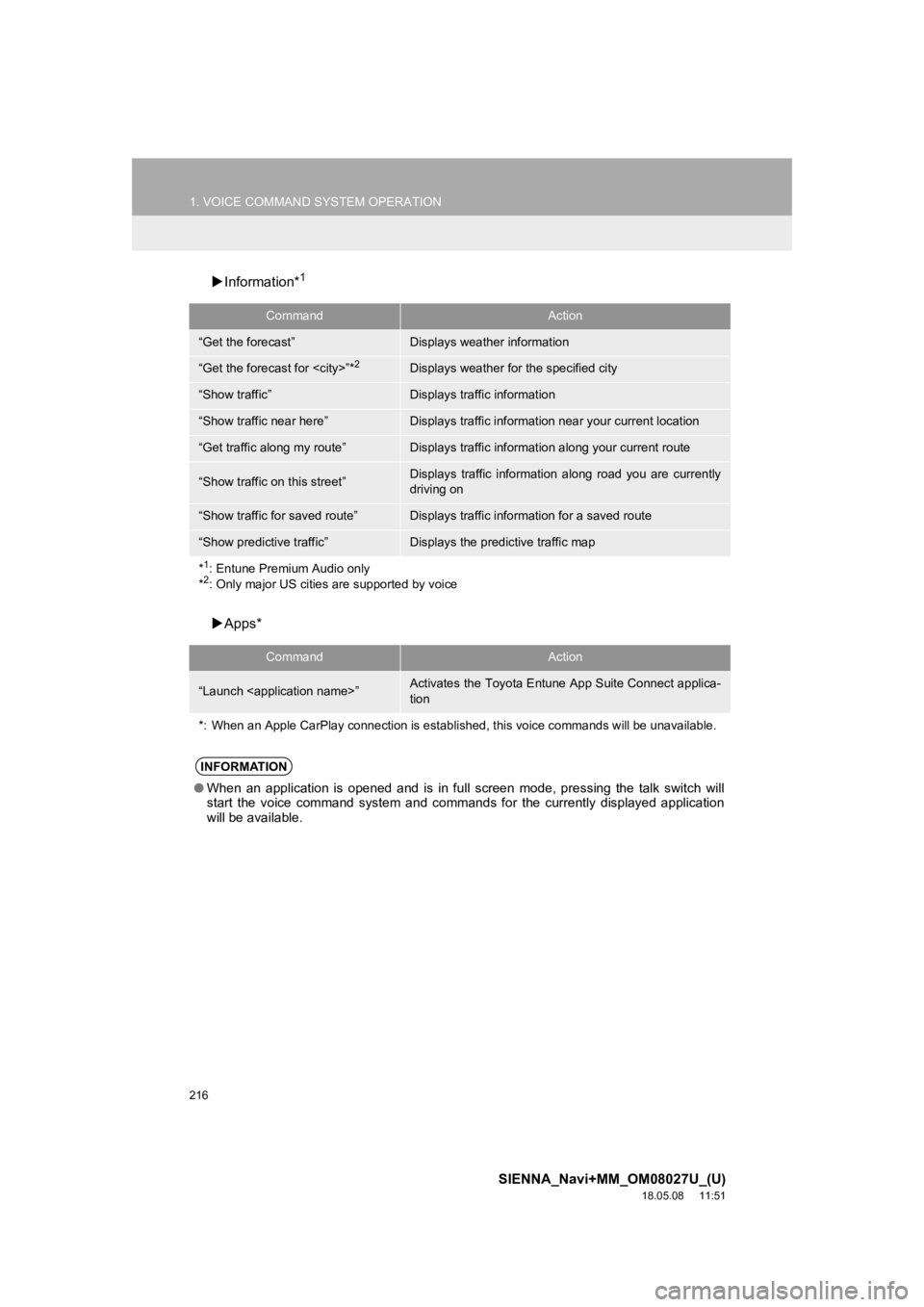
Information*1
Apps*
CommandAction
“Get the forecast”Displays weather information
“Get the forecast for
“Show traffic”Displays traffic information
“Show traffic near here”Displays traffic information near your current location
“Get traffic along my route”Displays traffic information along your current route
“Show traffic on this street”Displays traffic information along road you are currently
driving on
“Show traffic for saved route”Displays traffic information for a saved route
“Show predictive traffic”Displays the predictive traffic map
*
1: Entune Premium Audio only
*2: Only major US cities are supported by voice
CommandAction
“Launch
tion
*: When an Apple CarPlay connection is established, this voice commands will be unavailable.
INFORMATION
● When an application is opened and is in full screen mode, press ing the talk switch will
start the voice command system and commands for the currently d isplayed application
will be available.
Page 217 of 441
217
SIENNA_Navi+MM_OM08027U_(U)
18.05.08 11:51
VOICE COMMAND SYSTEM
4
2. MOBILE ASSISTANT OPERATION
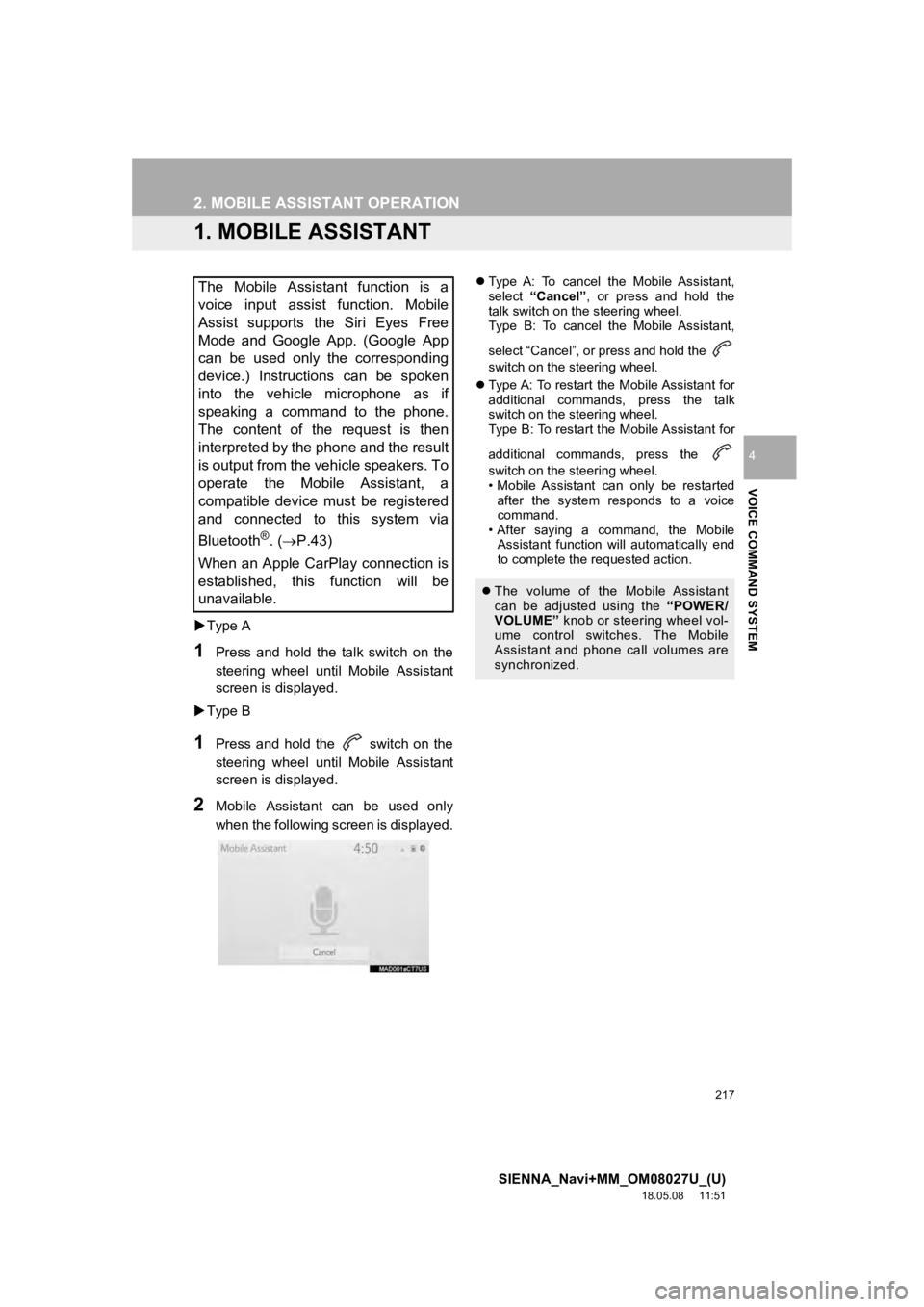
1. MOBILE ASSISTANT
Type A
1Press and hold the talk switch on the
steering wheel until Mobile Assistant
screen is di splayed.
Type B
1Press and hold the switch on the
steering wheel until Mobile Assistant
screen is di splayed.
2Mobile Assistant can be used only
when the following screen is displayed.
Type A: To cancel the Mobile Assistant,
select “Cancel”, or press and hold the
talk switch on the steering wheel.
Type B: To cancel the Mobile Assistant,
select “Cancel”, or press and hold the
switch on the steering wheel.
Type A: To restart the Mobile Assistant for
additional commands, press the talk
switch on the steering wheel.
Type B: To restart the Mobile Assistant for
additional commands, press the
switch on the steering wheel.
• Mobile Assistant can only be restarted
after the system responds to a voice
command.
• After saying a command, the Mobile Assistant function will automatically end
to complete the requested action.The Mobile Assistant function is a
voice input assist function. Mobile
Assist supports the Siri Eyes Free
Mode and Google App. (Google App
can be used only the corresponding
device.) Instructions can be spoken
into the vehicle microphone as if
speaking a command to the phone.
The content of the request is then
interpreted by the phone and the result
is output from the vehicle speakers. To
operate the Mobile Assistant, a
compatible device must be registered
and connected to this system via
Bluetooth
®. ( P.43)
When an Apple CarPlay connection is
established, this function will be
unavailable.
The volume of the Mobile Assistant
can be adjusted using the “POWER/
VOLUME” knob or steering wheel vol-
ume control switches. The Mobile
Assistant and phone call volumes are
synchronized.
Page 293 of 441
293
1. PHONE OPERATION (HANDS-FREE SYSTEM FOR CELLULAR PHONES)
SIENNA_Navi+MM_OM08027U_(U)
18.05.08 11:51
PHONE
7
2. SOME BASICS
The hands-free system enables calls
to be made and received without hav-
ing to take your hands off the steering
wheel.
This system supports Bluetooth
®.
Bluetooth
® is a wireless data system
that enables cellular phones to be used
without being connected by a cable or
placed in a cradle.
The operating procedure of the phone
is explained here.
When an Apple CarPlay connection is
established, this function will be un-
available.
WA R N I N G
● While driving, do not operate a cellular
phone.
● Your audio unit is fitted with Bluetooth
®
antennas. People with implantable car-
diac pacemakers, cardiac resynchroni-
zation therapy-pacemakers or
implantable cardioverter defibrillators
should maintain a reasonable distance
between themselves and the Bluetooth
®
antennas. The radio waves may affect
the operation of such devices.
● Before using Bluetooth
® devices, users
of any electrical medical device other
than implantable cardiac pacemakers,
cardiac resynchronization therapy-pace-
makers or implantable cardioverter
defibrillators should consult the manu-
facturer of the device for information
about its operation under the influence
of radio waves. Radio waves could have
unexpected effects on the operation of
such medical devices.
NOTICE
● Do not leave your cellular phone in the
vehicle. The temperature inside may rise
to a level that could damage the phone.
INFORMATION
●This system is not guaranteed to oper-
ate with all Bluetooth® devices.
● If your cellular phone does not support
Bluetooth
®, this system cannot function.
● In the following conditions, the system
may not function:
• The cellular phone is turned off.
• The current position is outside the
communication area.
• The cellular phone is not connected.
• The cellular phone has a low battery.
● When using the hands-free system or
Bluetooth
® audio and Wi-Fi® Hotspot
functions at the same time, the following
problems may occur:
• The Bluetooth
® connection may be
cut.
• Noise may be heard on the Bluetooth
®
audio playback.
• A noise may be heard during phone calls.
Page 294 of 441
294
1. PHONE OPERATION (HANDS-FREE SYSTEM FOR CELLULAR PHONES)
SIENNA_Navi+MM_OM08027U_(U)
18.05.08 11:51
Registering an add itional device
1Display the phone top screen.
(P.292)
2Select “Select Device” .
3Select “Add Device” .
When another Bluetooth® device is con-
nected, a confirmation screen will be dis-
played. To disconnect the Bluetooth
®
device, select “Yes”.
4Follow the steps in “REGISTERING A
Bluetooth
® PHONE FOR THE FIRST
TIME” from “STEP 5”. ( P.43)
Selecting a registered device
1Display the phone top screen.
(P.292)
2Select “Select Device” .
3Select the desired device to be con-
nected.
4Check that a confirmation screen is
displayed when the connection is com-
plete.
If an error message is displayed, follow
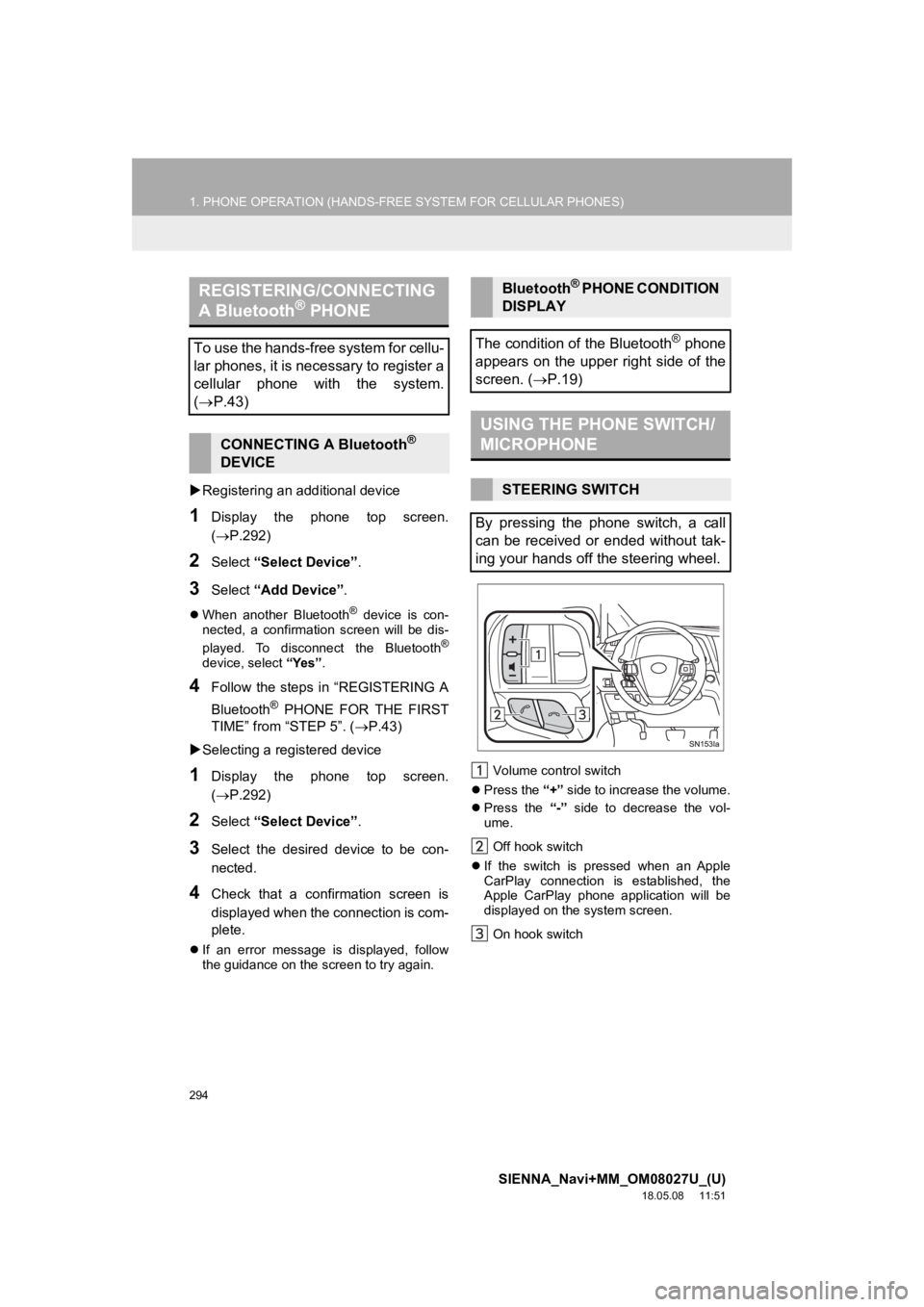
the guidance on the screen to try again. Volume control switch
Press the “+” side to increase the volume.
Press the “-” side to decrease the vol-
ume.
Off hook switch
If the switch is pressed when an Apple
CarPlay connection is established, the
Apple CarPlay phone application will be
displayed on t he system screen.
On hook switch
REGISTERING/CONNECTING
A Bluetooth® PHONE
To use the hands-free system for cellu-
lar phones, it is necessary to register a
cellular phone with the system.
( P.43)
CONNECTING A Bluetooth®
DEVICE
Bluetooth® PHONE CONDITION
DISPLAY
The condition of the Bluetooth
® phone
appears on the upper right side of the
screen. ( P.19)
USING THE PHONE SWITCH/
MICROPHONE
STEERING SWITCH
By pressing the phone switch, a call
can be received or ended without tak-
ing your hands off the steering wheel.
Page 434 of 441

434
ALPHABETICAL INDEX
SIENNA_Navi+MM_OM08027U_(U)
18.05.08 11:51
A
AM/FM/SiriusXM (SXM) radio ................... 91Available HD Radio™ technology ......... 98
Caching a radio program ....................... 94
Displaying the radio id ......................... 101
HD Radio™ troubleshooting guide ........ 99
If the satellite radio tuner malfunctions..................................... 102
Overview ............................................... 91
Presetting a station................................ 94
Radio broadcast data system ................ 97
Radio options ........................................ 97
Selecting a station from the list ............. 96
Using HD Radio™ technology............... 98
Apple CarPlay ........................................... 62
Audio settings ......................................... 125 Audio settings screen .......................... 125
Audio/visual remote controls ................... 122
Audio/visual system .................................. 79
AUX......................................................... 119 Overview ............................................. 119
B
Basic function...................................... 12, 29
Basic information before operation ........... 30
Basic operation ................................. 82, 332
Bluetooth
® audio ..................................... 114
Overview ............................................. 114
Registering/connecting a Bluetooth
®
device .............................................. 118 Bluetooth
® phone message function.......306
Calling the message sender ................310
Checking received messages..............307
Displaying the message screen...........306
Receiving a message ..........................306
Replying to a message (Dictation reply) ................................308
Replying to a message (Quick reply).....................................309
Buttons overview .......................................12
C
CD ...........................................................10 4
Overview..............................................104
Checking around the vehicle ...................260 Screen display .....................................260
Checking the front and around the vehicle .................................................261
Screen display .....................................261
Checking the rear and around the vehicle .................................................267
Guide lines displayed on the screen ..............................................269
Parking ................................................272
Screen display .....................................267
Checking the sides of the vehicle............264 Screen display .....................................264
Clock settings ............................................67
Command list ..........................................211
Connectivity settings .................................43
Copyrights and trademarks .....................194
Customizing the panoramic view monitor.................................................276
Changing the body color displayed in the panoramic view monitor .........276
ALPHABETICAL INDEX