ad blue TOYOTA TACOMA 2016 Accessories, Audio & Navigation (in English)
[x] Cancel search | Manufacturer: TOYOTA, Model Year: 2016, Model line: TACOMA, Model: TOYOTA TACOMA 2016Pages: 44, PDF Size: 1.75 MB
Page 1 of 44
00505NAV16ENPR2 Printed in U.S.A. 10/15
15-TCS-08947
CUSTOMER EXPERIENCE CENTER
1- 8 0 0 - 3 31- 4 3 31
ENTUNE™ SYSTEM
QUICK REFERENCE GUIDE
2016
ENTUNE™ AUDIO
- Audio System
- Bluetooth Functions
- Entune
® App Suite
- Scout
® GPS Link
- Integrated Navigation
Page 2 of 44
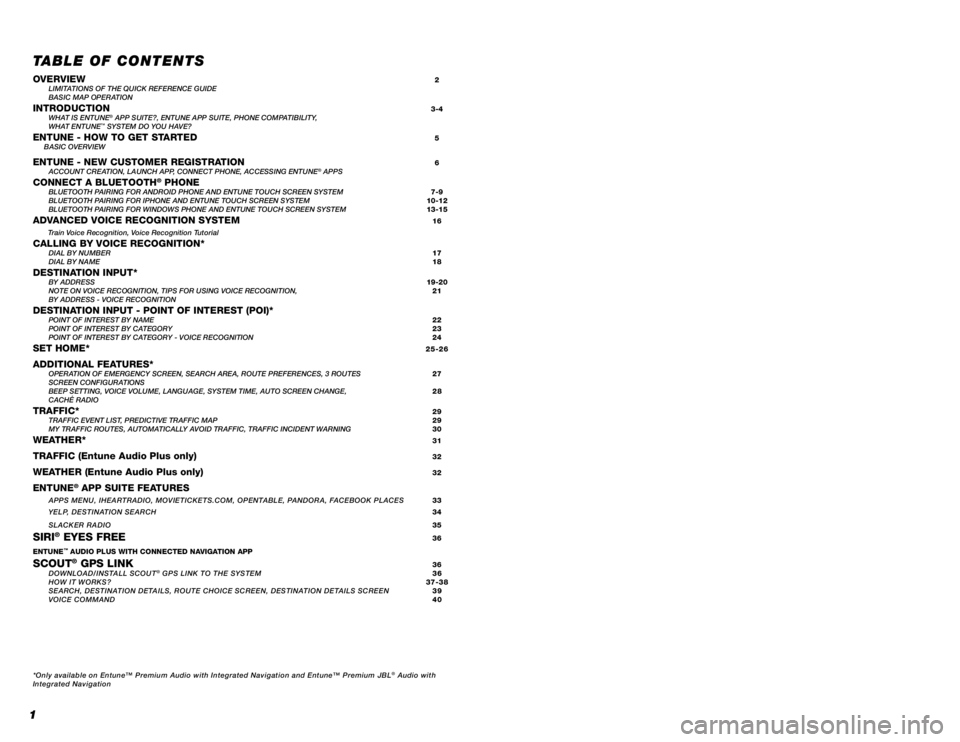
TABLE OF CONTENTS
OVERVIEW 2
LIMITATIONS OF THE QUICK REFERENCE GUIDE
BASIC MAP OPERATION
INTRODUCTION 3-4
WHAT IS ENTUNE® APP SUITE?, ENTUNE APP SUITE, PHONE COMPATIBILITY,
WHAT ENTUNE™ SYSTEM DO YOU HAVE?ENTUNE - HOW TO GET STARTED 5
BASIC OVERVIEW
ENTUNE - NEW CUSTOMER REGISTRATION 6
ACCOUNT CREATION, LAUNCH APP, CONNECT PHONE, ACCESSING ENTUNE® APPSCONNECT A BLUETOOTH® PHONE BLUETOOTH PAIRING FOR ANDROID PHONE AND ENTUNE TOUCH SCREEN SYSTEM 7-9
BLUETOOTH PAIRING FOR IPHONE AND ENTUNE TOUCH SCREEN SYSTEM 10-12
BLUETOOTH PAIRING FOR WINDOWS PHONE AND ENTUNE TOUCH SCREEN SYSTEM 13-15
ADVANCED VOICE RECOGNITION SYSTEM 16
Train Voice Recognition, Voice Recognition Tutorial
CALLING BY VOICE RECOGNITION*
DIAL BY NUMBER 17
DIAL BY NAME 18
DESTINATION INPUT* BY ADDRESS 19-20
NOTE ON VOICE RECOGNITION, TIPS FOR USING VOICE RECOGNITION, 21
BY ADDRESS - VOICE RECOGNITION
DESTINATION INPUT - POINT OF INTEREST (POI)* POINT OF INTEREST BY NAME 22
POINT OF INTEREST BY CATEGORY 23
POINT OF INTEREST BY CATEGORY - VOICE RECOGNITION 24
SET HOME* 25-26
ADDITIONAL FEATURES* OPERATION OF EMERGENCY SCREEN, SEARCH AREA, ROUTE PREFERENCES, 3 ROUTES 27
SCREEN CONFIGURATIONS
BEEP SETTING, VOICE VOLUME, LANGUAGE, SYSTEM TIME, AUTO SCREEN CHANGE, 28
CACHÉ RADIO
TRAFFIC* 29
TRAFFIC EVENT LIST, PREDICTIVE TRAFFIC MAP 29
MY TRAFFIC ROUTES, AUTOMATICALLY AVOID TRAFFIC, TRAFFIC INCIDENT WARNING 30
WEATHER* 31
TRAFFIC (Entune Audio Plus only) 32
WEATHER (Entune Audio Plus only) 32
ENTUNE® APP SUITE FEATURES
APPS MENU, IHEARTRADIO, MOVIETICKETS.COM, OPENTABLE, PANDORA, FACEBOOK PLACES 33 YELP, DESTINATION SEARCH 34
SLACKER RADIO
35
SIRI® EYES FREE 36
ENTUNE™ AUDIO PLUS WITH CONNECTED NAVIGATION APP
SCOUT® GPS LINK 36
DOWNLOAD/INSTALL SCOUT® GPS LINK TO THE SYSTEM 36
HOW IT WORKS? 37-38
SEARCH, DESTINATION DETAILS, ROUTE CHOICE SCREEN, DESTINATION DETAILS SCREEN 39
VOICE COMMAND 40
*Only available on Entune™ Premium Audio with Integrated Navigation and Entune™ Premium JBL
® Audio with
Integrated Navigation
1
Note
Page 4 of 44
3
- INTRODUCTION
STOPPLEASE READ
The available Entune® App Suite system is a collection of popular mobile
applications and data services integrated with select 2016 Toyota vehicles. Entune®
App Suite is subscription free.
Once the phone is connected to the vehicle using Bluetooth
® wireless technology,
Entune's App Suite features are operated using the vehicle's controls or, for
some services, by voice recognition. Entune
® App Suite includes mobile apps
for Destination Search, iHeartRadio, MovieTickets.com, OpenTable®, Pandora®,
Facebook Places, Yelp, and Slacker Radio. Data Services include Fuel Guide, Sports,
Stocks, Traffic and Weather. All apps and data services are subject to change
without notice. See www.toyota.com/entune for availability of apps and data
services.
In order to access Entune
® App Suite applications from your vehicle’s touch screen,
an Entune® App Suite compatible phone, the Entune mobile application and Entune®
App Suite are required. Use your smartphone to download the Entune™ mobile
application from the appropriate app store and register via the mobile application.
You may also register for Entune
® App Suite through myentune.com and visit www.
toyota.com/entune to learn more about the Entune® App Suite.
ENTUNE® APP SUITE*
WHAT IS ENTUNE® APP SUITE?
An Entune® App Suite compatible phone is required to use the additional features.
Check phone compatibility by one of the following methods:
•Visit: www.toyota.com/connect
•Call the Toyota Customer Experience
Center at 1-800-331-4331
Note: You do not need an Entune App Suite compatible phone to use
Bluetooth
® hands-free, Bluetooth audio or the navigation system.
To connect a Bluetooth Phone, refer to page 7.
PHONE COMPATIBILITY
Page 8 of 44
7
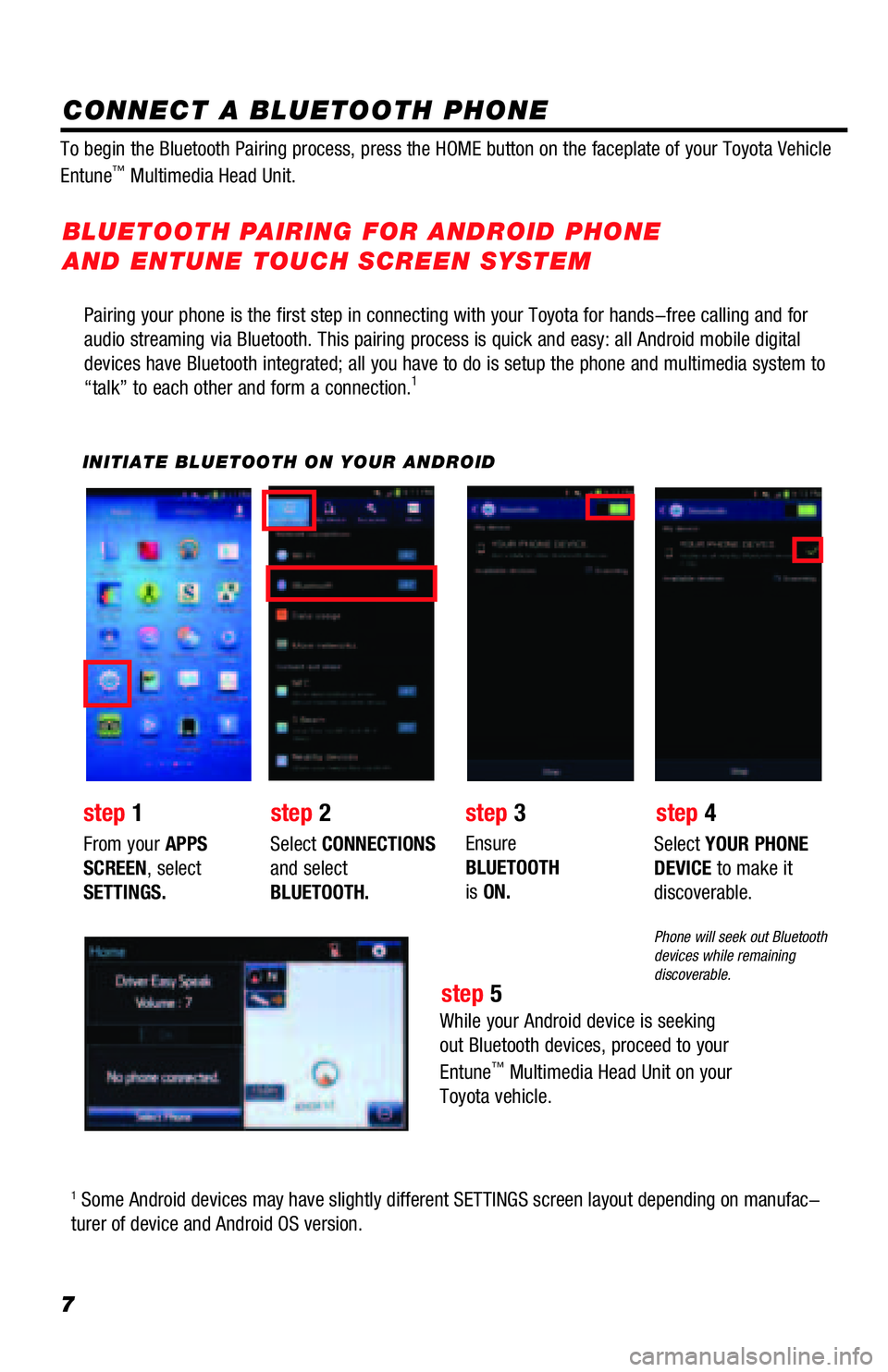
Pairing your phone is the first step in connecting with your Toyota for hands-free calling and for
audio streaming via Bluetooth. This pairing process is quick and easy: all Android mobile digital
devices have Bluetooth integrated; all you have to do is setup the phone and multimedia system to
“talk” to each other and form a connection.
1
INITIATE BLUETOOTH ON YOUR ANDROID
step 2step 1step 3
step 5
step 4
From your APPS
SCREEN, select
SETTINGS.Select CONNECTIONS
and select
BLUETOOTH.Ensure
BLUETOOTH
is ON.Select YOUR PHONE
DEVICE to make it
discoverable.
Phone will seek out Bluetooth
devices while remaining
discoverable.
While your Android device is seeking
out Bluetooth devices, proceed to your
Entune
™ Multimedia Head Unit on your
Toyota vehicle.
BLUETOOTH PAIRING FOR ANDROID PHONE
AND ENTUNE TOUCH SCREEN SYSTEM
1 Some Android devices may have slightly different SETTINGS screen layout depending on manufac-
turer of device and Android OS version. To begin the Bluetooth Pairing process, press the HOME button on the faceplate of your Toyota Vehicle
Entune
™ Multimedia Head Unit.
CONNECT A BLUETOOTH PHONE
Page 9 of 44
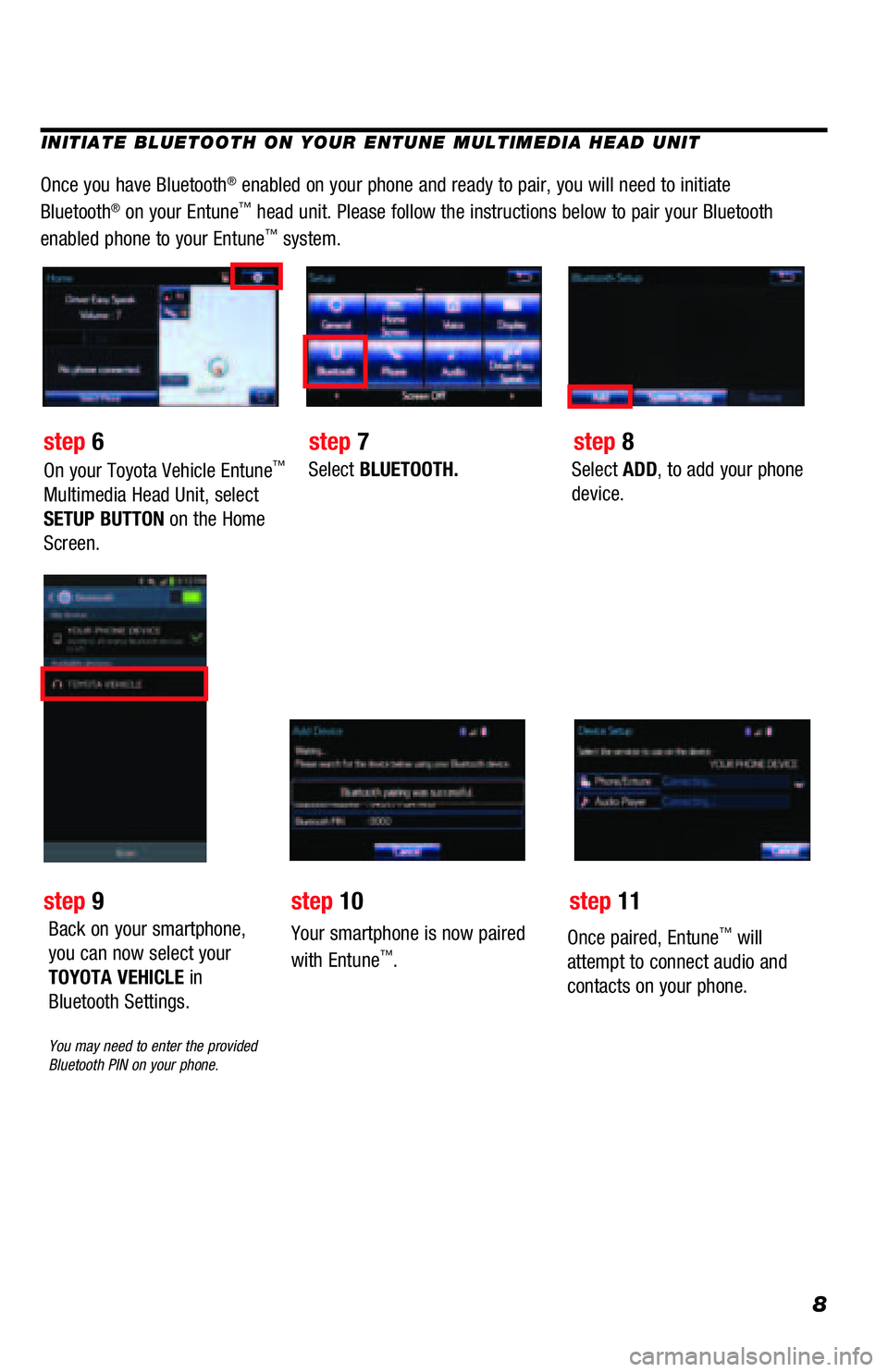
8
INITIATE BLUETOOTH ON YOUR ENTUNE MULTIMEDIA HEAD UNIT
Once you have Bluetooth® enabled on your phone and ready to pair, you will need to initiate
Bluetooth® on your Entune™ head unit. Please follow the instructions below to pair your Bluetooth
enabled phone to your Entune™ system.
On your Toyota Vehicle Entune™
Multimedia Head Unit, select
SETUP BUTTON on the Home
Screen.Select BLUETOOTH.Select ADD, to add your phone
device.
Back on your smartphone,
you can now select your
TOYOTA VEHICLE in
Bluetooth Settings.
You may need to enter the provided
Bluetooth PIN on your phone.
Your smartphone is now paired
with Entune™.
Once paired, Entune™ will
attempt to connect audio and
contacts on your phone.
step 6
step 9
step 7
step 10
step 8
step 11
Page 10 of 44
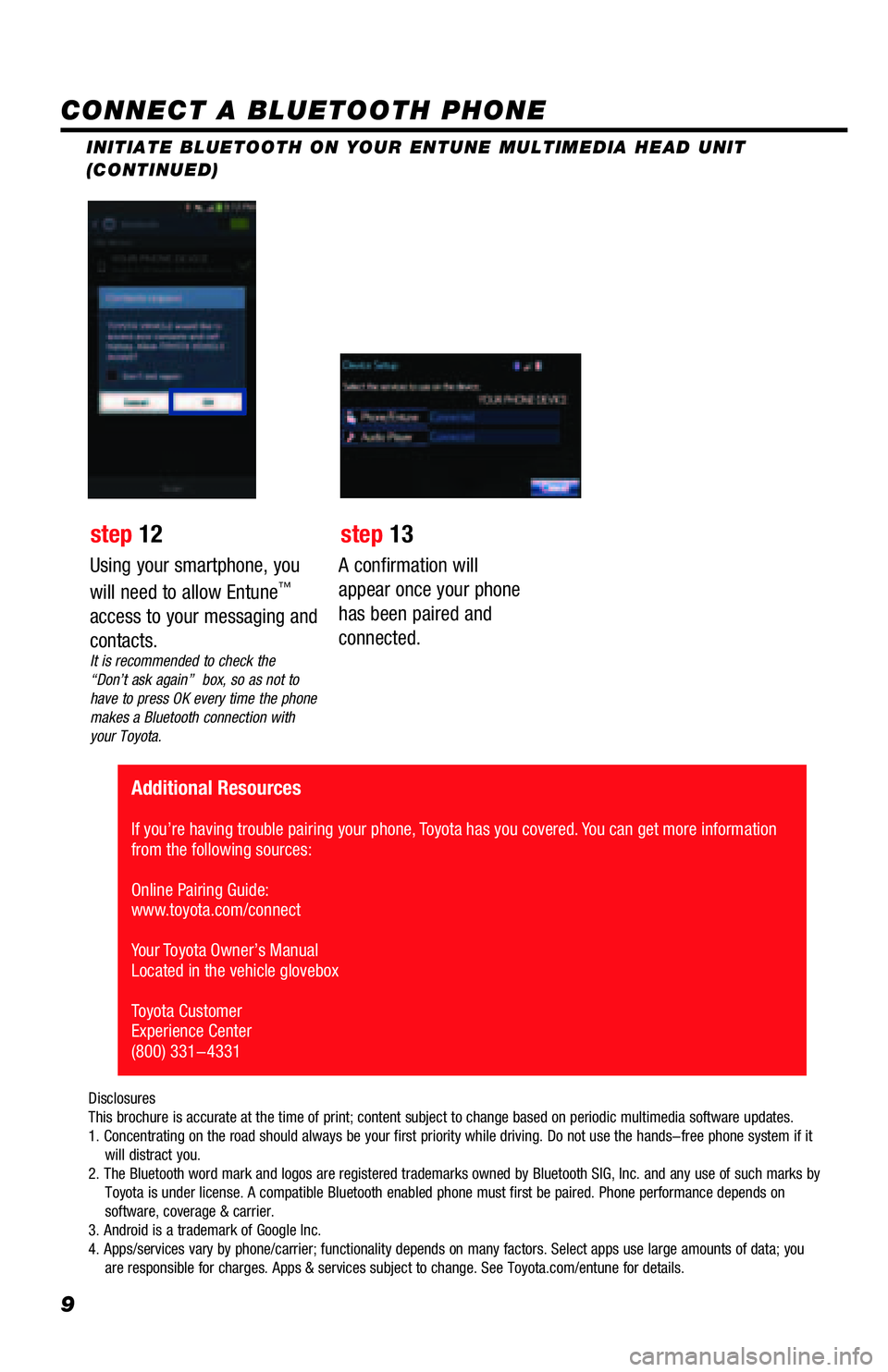
9
INITIATE BLUETOOTH ON YOUR ENTUNE MULTIMEDIA HEAD UNIT
(CONTINUED)
A confirmation will
appear once your phone
has been paired and
connected.
Additional Resources
If you’re having trouble pairing your phone, Toyota has you covered. You can get more information
from the following sources:
Online Pairing Guide:
www.toyota.com/connect
Your Toyota Owner’s Manual
Located in the vehicle glovebox
Toyota Customer
Experience Center
(800) 331-4331
Disclosures
This brochure is accurate at the time of print; content subject to change based on periodic multimedia software updates.
1. Concentrating on the road should always be your first priority while driving. Do not use the hands-free phone system if it
will distract you.
2. The Bluetooth word mark and logos are registered trademarks owned by Bluetooth SIG, Inc. and any use of such marks by
Toyota is under license. A compatible Bluetooth enabled phone must first be paired. Phone performance depends on
software, coverage & carrier.
3. Android is a trademark of Google Inc.
4. Apps/services vary by phone/carrier; functionality depends on many factors. Select apps use large amounts of data; you
are responsible for charges. Apps & services subject to change. See Toyota.com/entune for details.
Using your smartphone, you
will need to allow Entune™
access to your messaging and
contacts.
It is recommended to check the
“Don’t ask again” box, so as not to
have to press OK every time the phone
makes a Bluetooth connection with
your Toyota.
step 12 step 13
CONNECT A BLUETOOTH PHONE
Page 11 of 44
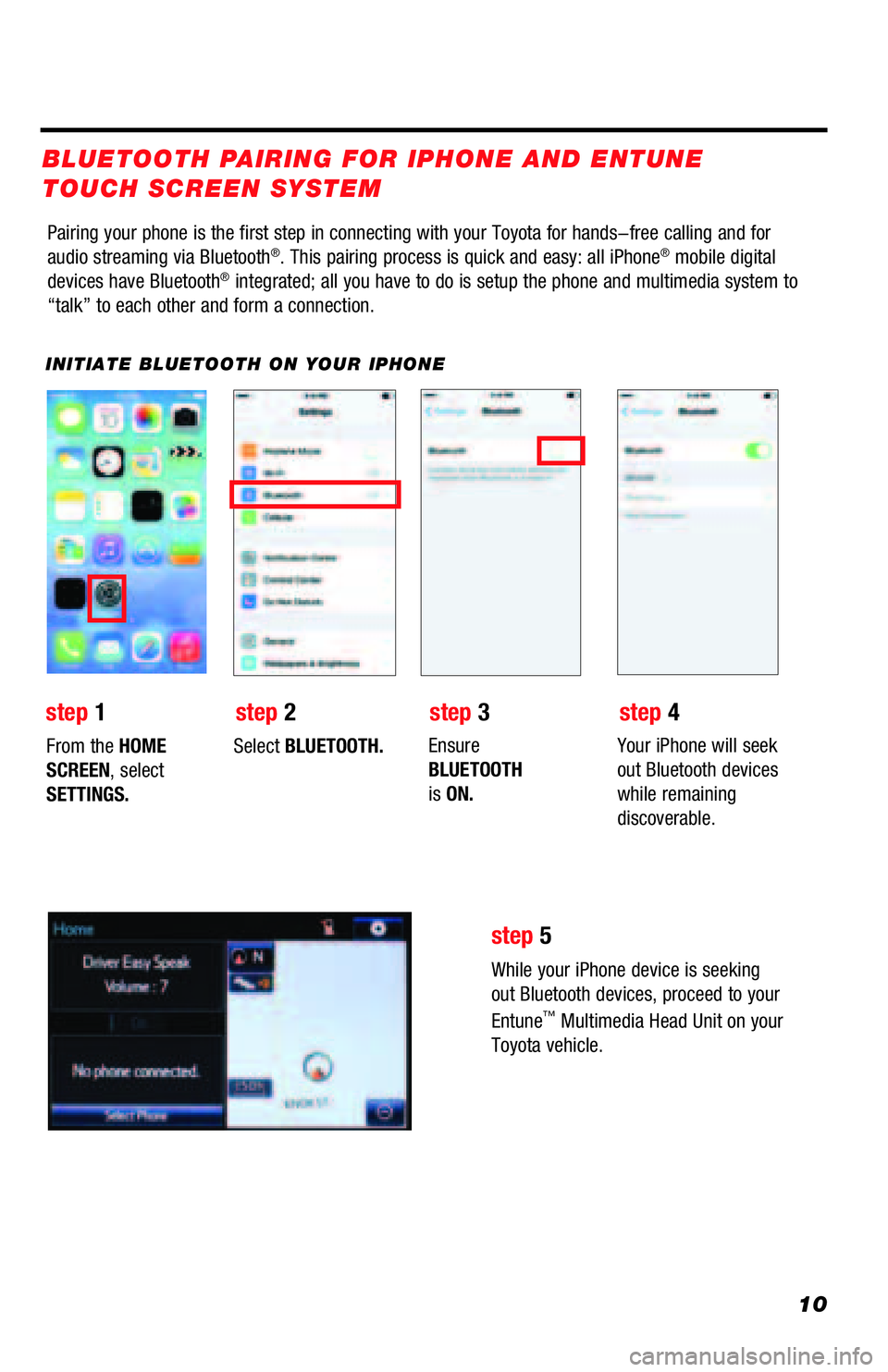
10
Pairing your phone is the first step in connecting with your Toyota for hands-free calling and for
audio streaming via Bluetooth®. This pairing process is quick and easy: all iPhone® mobile digital
devices have Bluetooth® integrated; all you have to do is setup the phone and multimedia system to
“talk” to each other and form a connection.
INITIATE BLUETOOTH ON YOUR IPHONE
From the HOME
SCREEN, select
SETTINGS.Select BLUETOOTH.Ensure
BLUETOOTH
is ON.Your iPhone will seek
out Bluetooth devices
while remaining
discoverable.
While your iPhone device is seeking
out Bluetooth devices, proceed to your
Entune
™ Multimedia Head Unit on your
Toyota vehicle.
BLUETOOTH PAIRING FOR IPHONE AND ENTUNE
TOUCH SCREEN SYSTEM
step
1step 2step 3step 4
step 5
Page 12 of 44
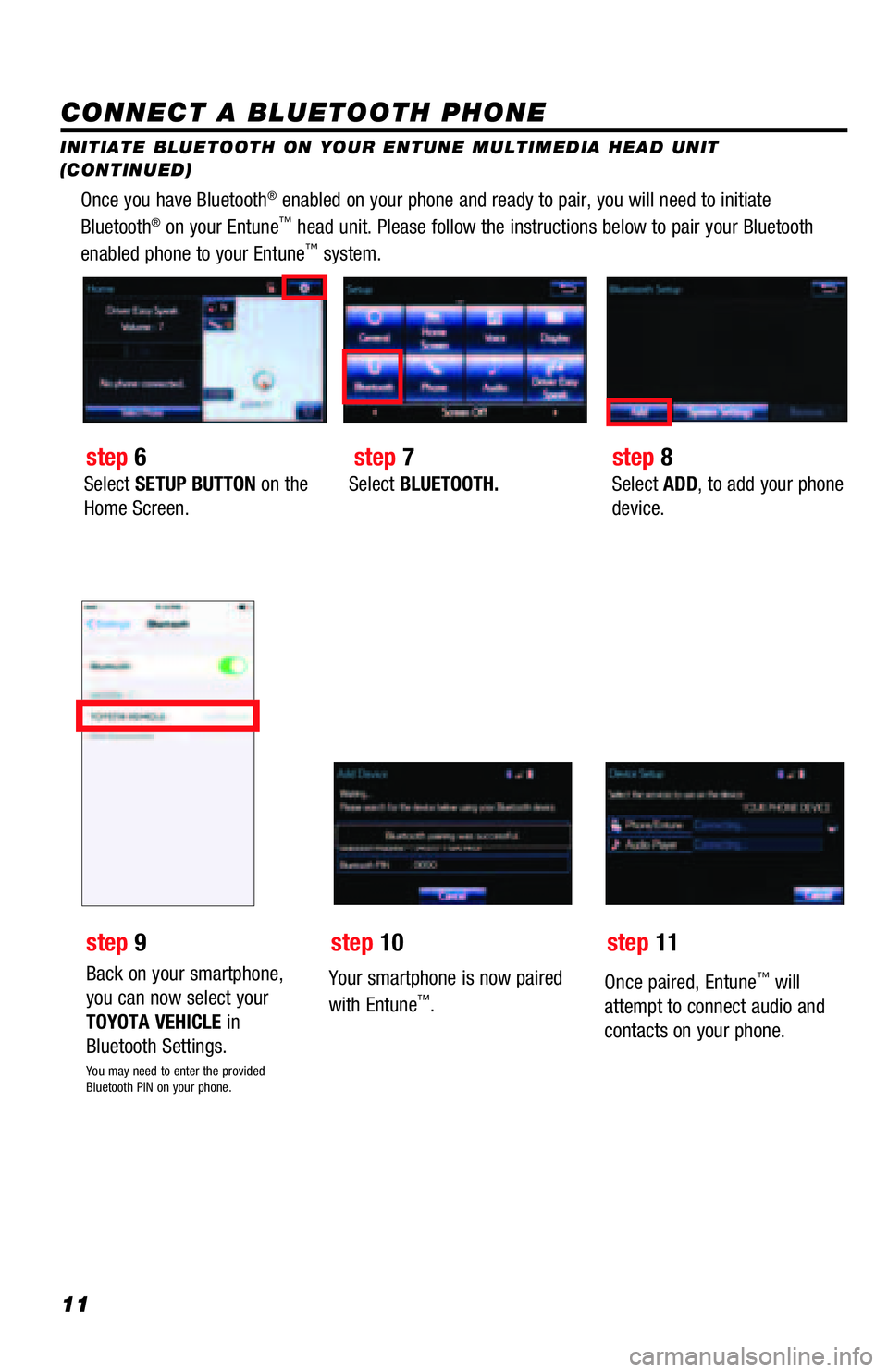
11
Once you have Bluetooth® enabled on your phone and ready to pair, you will need to initiate
Bluetooth® on your Entune™ head unit. Please follow the instructions below to pair your Bluetooth
enabled phone to your Entune™ system.
Select SETUP BUTTON on the
Home Screen.Select BLUETOOTH.Select ADD, to add your phone
device.
Back on your smartphone,
you can now select your
TOYOTA VEHICLE in
Bluetooth Settings.
You may need to enter the provided
Bluetooth PIN on your phone.
Your smartphone is now paired
with Entune™.
Once paired, Entune™ will
attempt to connect audio and
contacts on your phone.
step 6
step 9
step 7
step 10
step 8
step 11
CONNECT A BLUETOOTH PHONE
INITIATE BLUETOOTH ON YOUR ENTUNE MULTIMEDIA HEAD UNIT
(CONTINUED)
Page 13 of 44
12
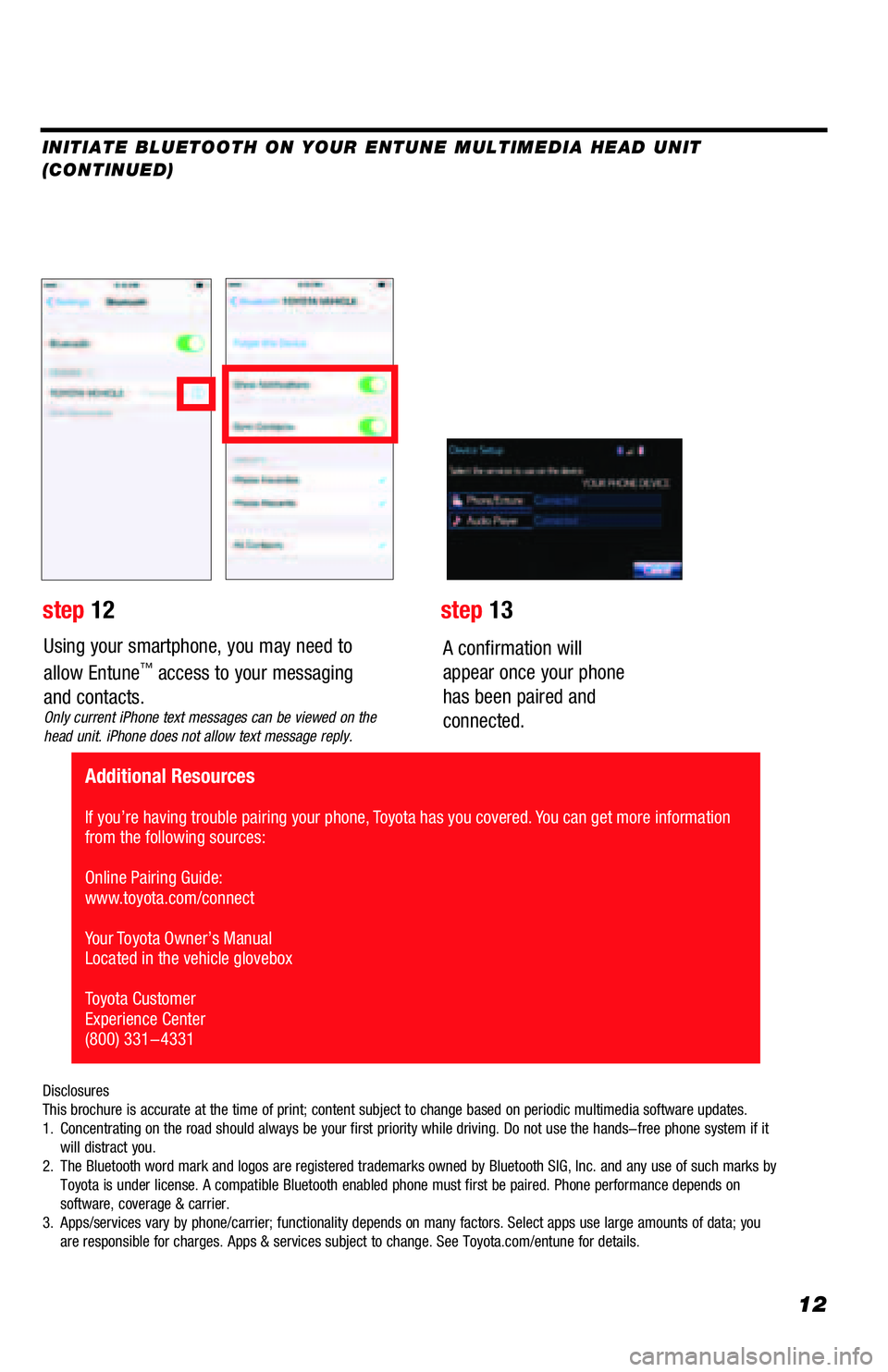
Using your smartphone, you may need to
allow Entune™ access to your messaging
and contacts.
Only current iPhone text messages can be viewed on the
head unit. iPhone does not allow text message reply.
A confirmation will
appear once your phone
has been paired and
connected.
Disclosures
This brochure is accurate at the time of print; content subject to change based on periodic multimedia software updates.
1. Concentrating on the road should always be your first priority while driving. Do not use the hands-free phone system if it
will distract you.
2. The Bluetooth word mark and logos are registered trademarks owned by Bluetooth SIG, Inc. and any use of such marks by
Toyota is under license. A compatible Bluetooth enabled phone must first be paired. Phone performance depends on
software, coverage & carrier.
3. Apps/services vary by phone/carrier; functionality depends on many factors. Select apps use large amounts of data; you
are responsible for charges. Apps & services subject to change. See Toyota.com/entune for details.
step 12step 13
Additional Resources
If you’re having trouble pairing your phone, Toyota has you covered. You can get more information
from the following sources:
Online Pairing Guide:
www.toyota.com/connect
Your Toyota Owner’s Manual
Located in the vehicle glovebox
Toyota Customer
Experience Center
(800) 331-4331
INITIATE BLUETOOTH ON YOUR ENTUNE MULTIMEDIA HEAD UNIT
(CONTINUED)
Page 14 of 44
13
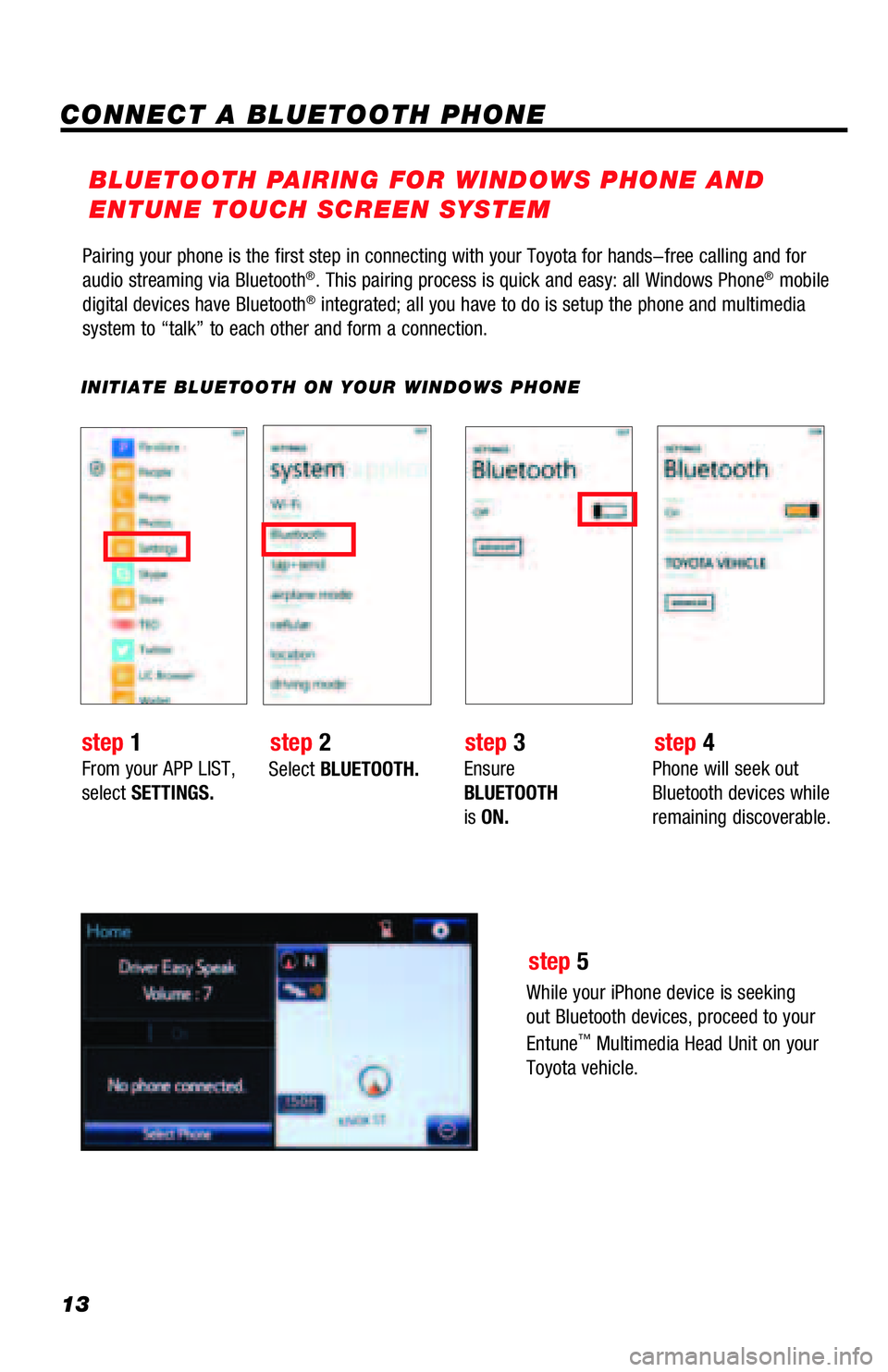
Pairing your phone is the first step in connecting with your Toyota for hands-free calling and for
audio streaming via Bluetooth®. This pairing process is quick and easy: all Windows Phone® mobile
digital devices have Bluetooth® integrated; all you have to do is setup the phone and multimedia
system to “talk” to each other and form a connection.
INITIATE BLUETOOTH ON YOUR WINDOWS PHONE
From your APP LIST,
select SETTINGS.Select BLUETOOTH.Ensure
BLUETOOTH
is ON.Phone will seek out
Bluetooth devices while
remaining discoverable.
While your iPhone device is seeking
out Bluetooth devices, proceed to your
Entune
™ Multimedia Head Unit on your
Toyota vehicle.
BLUETOOTH PAIRING FOR WINDOWS PHONE AND
ENTUNE TOUCH SCREEN SYSTEM
step
1step 2step 3step 4
step 5
CONNECT A BLUETOOTH PHONE