USB TOYOTA VENZA 2011 Owners Manual (in English)
[x] Cancel search | Manufacturer: TOYOTA, Model Year: 2011, Model line: VENZA, Model: TOYOTA VENZA 2011Pages: 680, PDF Size: 13.69 MB
Page 3 of 680

1
2
3
4
5
6
7
3
VENZA_U (OM73008U)
2-2. Instrument clusterGauges and meters ............ 174
Indicators and warning lights .................... 177
Multi-information display (TFT type) ............. 180
Multi-information display (LCD type) ............ 194
2-3. Operating the lights and wipers
Headlight switch .................. 198
Automatic High Beam (vehicles with discharge
headlights) ........................ 202
Fog light switch ................... 209
Windshield wipers and washer .............................. 210
Rear window wiper and washer .............................. 212
2-4. Using other driving systems Cruise control ...................... 213
Rear view monitor system .............................. 216
Hill-start assist control ......... 221
Driving assist systems ........ 223
2-5. Driving information Utility vehicle precautions ....................... 229
Cargo and luggage ............. 234
Vehicle load limits ............... 239
Winter driving tips ............... 241
Trailer towing ...................... 246
Dinghy towing ..................... 258 3-1. Using the air conditioning
system and defogger
Automatic air conditioning system .............................. 262
Manual air conditioning system .............................. 272
Rear window defogger ....... 278
3-2. Using the audio system Audio system type .............. 280
Using the radio ................... 284
Using the CD player ........... 293
Playing back MP3 and WMA discs ........ 303
Operating an iPod .............. 313
Operating a USB memory ................. 320
Optimal use of the audio system .................... 328
Using the AUX port............. 333
Using the steering switches ........................... 334
3-3. Using the Bluetooth
®
audio system
Bluetooth
® audio system .... 338
Using the Bluetooth®
audio system .................... 341
Operating a Bluetooth
®
enabled portable
player ............................... 348
Setting up a Bluetooth
®
enabled portable player.... 350
Bluetooth
® audio system
setup ................................ 355
3Interior features
Page 13 of 680
13
VENZA_U (OM73008U)
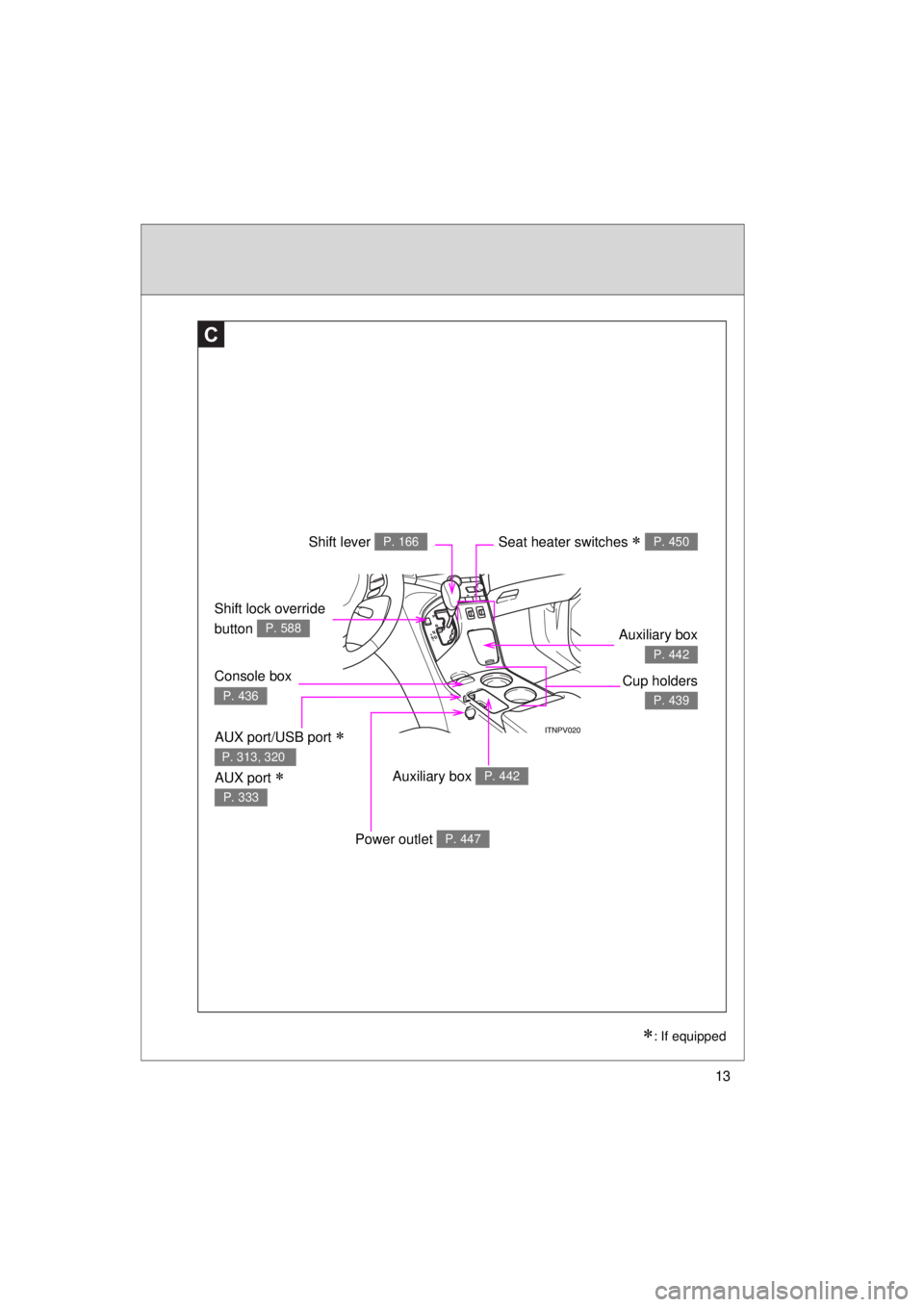
Shift lock override
button
P. 588
Seat heater switches P. 450
C
Shift lever P. 166
: If equipped
Auxiliary box P. 442
Console box
P. 436Cup holders
P. 439
Auxiliary box
P. 442
AUX port/USB port
AUX port
P. 313, 320
P. 333
Power outlet P. 447
Page 260 of 680
260
VENZA_U (OM73008U)
3-1. Using the air conditioning system and defogger
Automatic air conditioning system ........................... 262
Manual air conditioning system ........................... 272
Rear window defogger ..... 278 3-2. Using the audio system
Audio system type............ 280
Using the radio ................. 284
Using the CD player ......... 293
Playing back MP3 and WMA discs ..... 303
Operating an iPod ............ 313
Operating a USB memory .............. 320
Optimal use of the audio system .................. 328
Using the AUX port .......... 333
Using the steering switches ......................... 334
3-3. Using the Bluetooth
®
audio system
Bluetooth
®
audio system .................. 338
Using the Bluetooth
®
audio system .................. 341
Operating a Bluetooth
®
enabled portable
player ............................. 348
Setting up a Bluetooth
®
enabled portable
player ............................. 350
Bluetooth
® audio system
setup .............................. 355
Interior features3
Page 282 of 680
282 3-2. Using the audio system
VENZA_U (OM73008U)
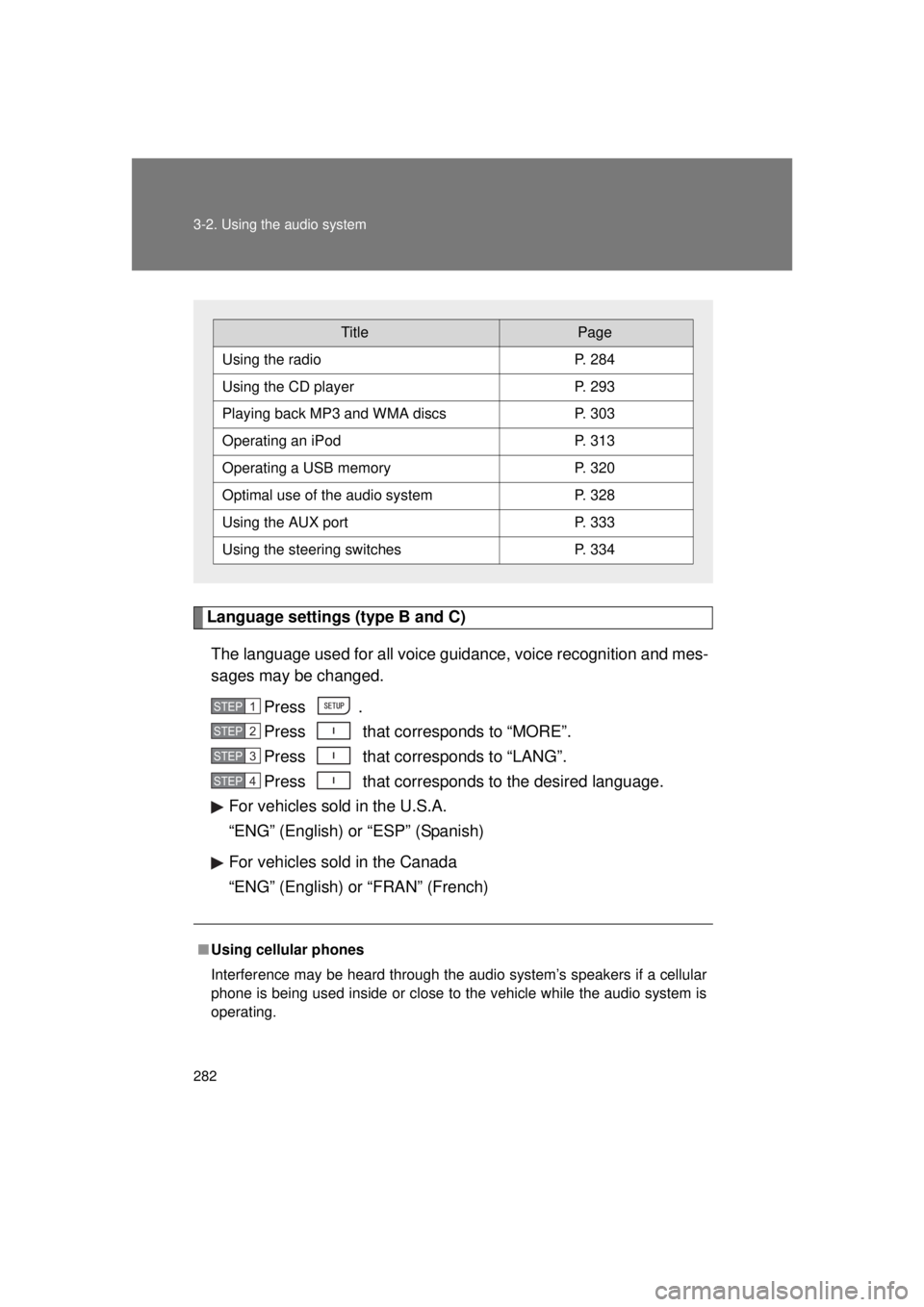
Language settings (type B and C)The language used for all voice guidance, voice recognition and mes-
sages may be changed. Press .
Press that corresponds to “MORE”.
Press that corresponds to “LANG”.
Press that corresponds to the desired language.
For vehicles sold in the U.S.A.
“ENG” (English) or “ESP” (Spanish)
For vehicles sold in the Canada
“ENG” (English) or “FRAN” (French)
■ Using cellular phones
Interference may be heard through the audio system’s speakers if a cellular
phone is being used inside or close to the vehicle while the audio syste\
m is
operating.
TitlePage
Using the radioP. 284
Using the CD playerP. 293
Playing back MP3 and WMA discs P. 303
Operating an iPodP. 313
Operating a USB memoryP. 320
Optimal use of the audio systemP. 328
Using the AUX portP. 333
Using the steering switchesP. 334
STEP1
STEP2
STEP3
STEP4
Page 318 of 680
318 3-2. Using the audio system
VENZA_U (OM73008U)
■Error messages
“iPod ERROR”: This indicates a problem in the iPod, inside the USB
box or the connection between them.
“NO SONGS”: This indicates that there is no music data in the iPod.
“UPDATE YOUR iPod”: This indicates that the version of the iPod is not compatible.
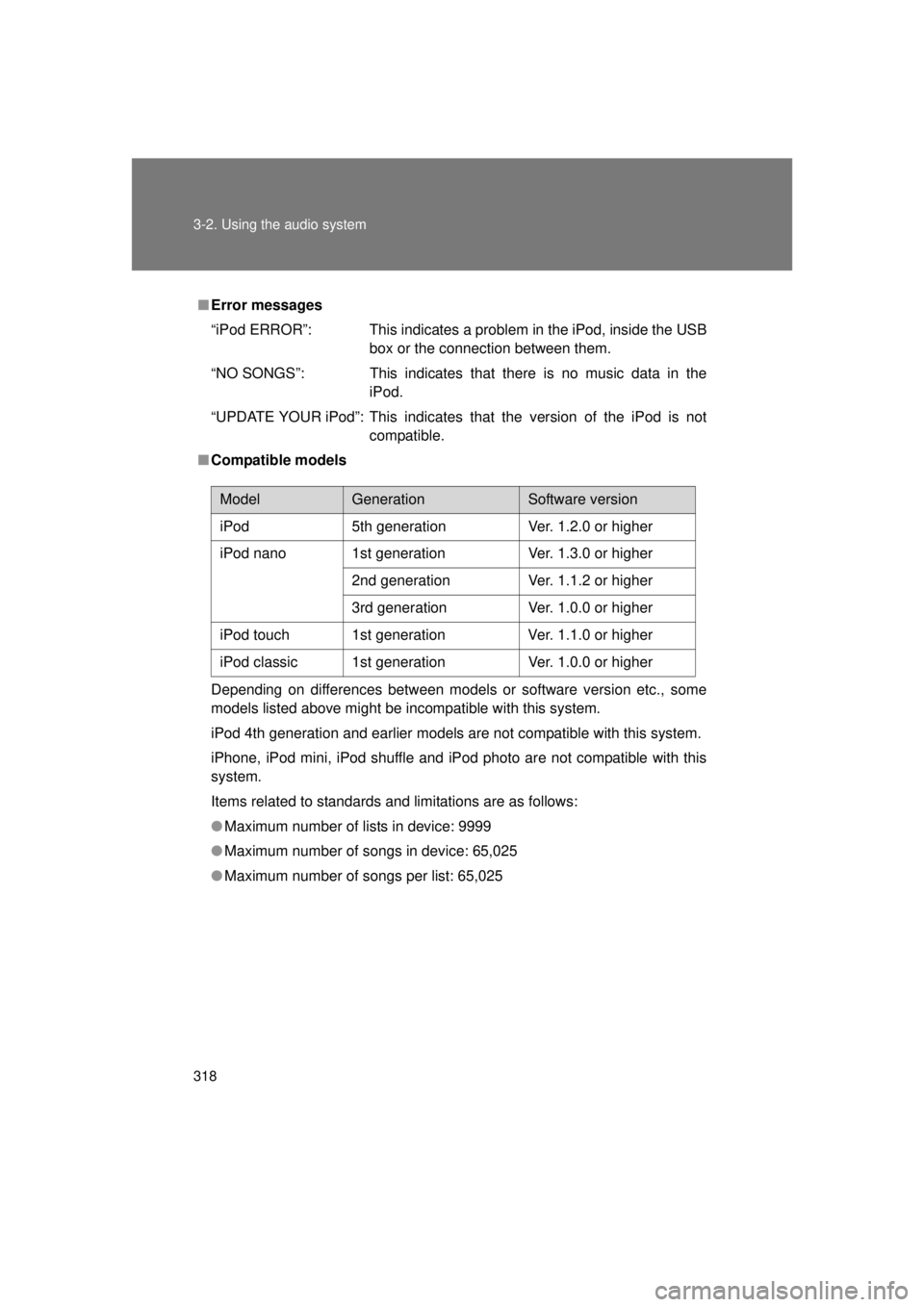
■ Compatible models
Depending on differences between models or software version etc., some
models listed above might be incompatible with this system.
iPod 4th generation and earlier models are not compatible with this system.
iPhone, iPod mini, iPod shuffle and iPod photo are not compatible with this
system.
Items related to standards and limitations are as follows:
● Maximum number of lists in device: 9999
● Maximum number of songs in device: 65,025
● Maximum number of songs per list: 65,025
ModelGenerationSoftware version
iPod 5th generation Ver. 1.2.0 or higher
iPod nano 1st generation Ver. 1.3.0 or higher 2nd generation Ver. 1.1.2 or higher
3rd generation Ver. 1.0.0 or higher
iPod touch 1st generation Ver. 1.1.0 or higher
iPod classic 1st generation Ver. 1.0.0 or higher
Page 320 of 680
320
3-2. Using the audio system
VENZA_U (OM73008U)
Operating a USB memor y
: If equipped
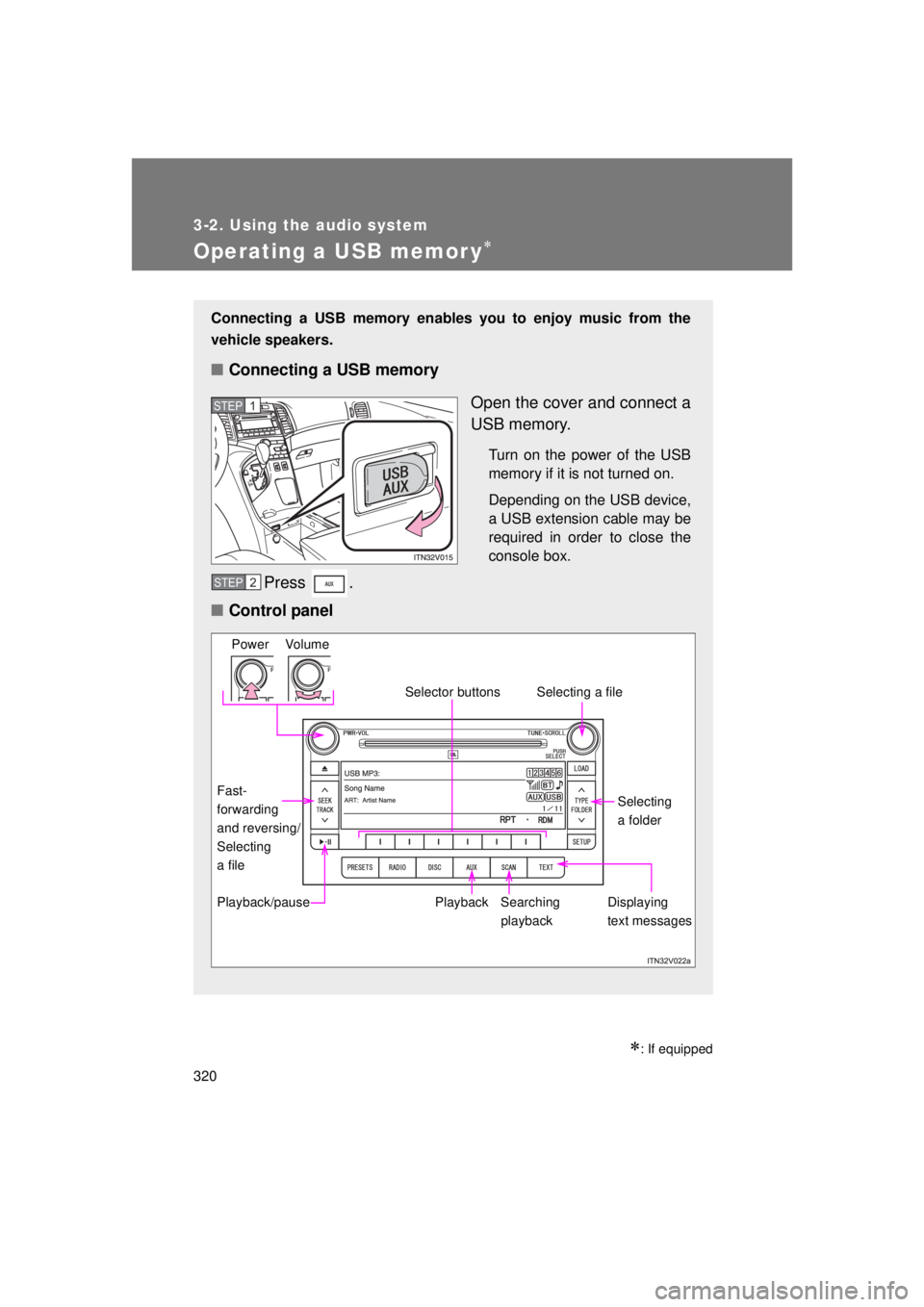
Connecting a USB memory enables you to enjoy music from the
vehicle speakers.
■Connecting a USB memory
Open the cover and connect a
USB memory.
Turn on the power of the USB
memory if it is not turned on.
Depending on the USB device,
a USB extension cable may be
required in order to close the
console box.
Press .
■ Control panel
STEP1
STEP2
Power Volume
Playback
Playback/pause Searching
playback Displaying
text messagesSelecting
a folder
Selecting a file
Selector buttons
Fast-
forwarding
and reversing/
Selecting
a file
Page 322 of 680
322 3-2. Using the audio system
VENZA_U (OM73008U)
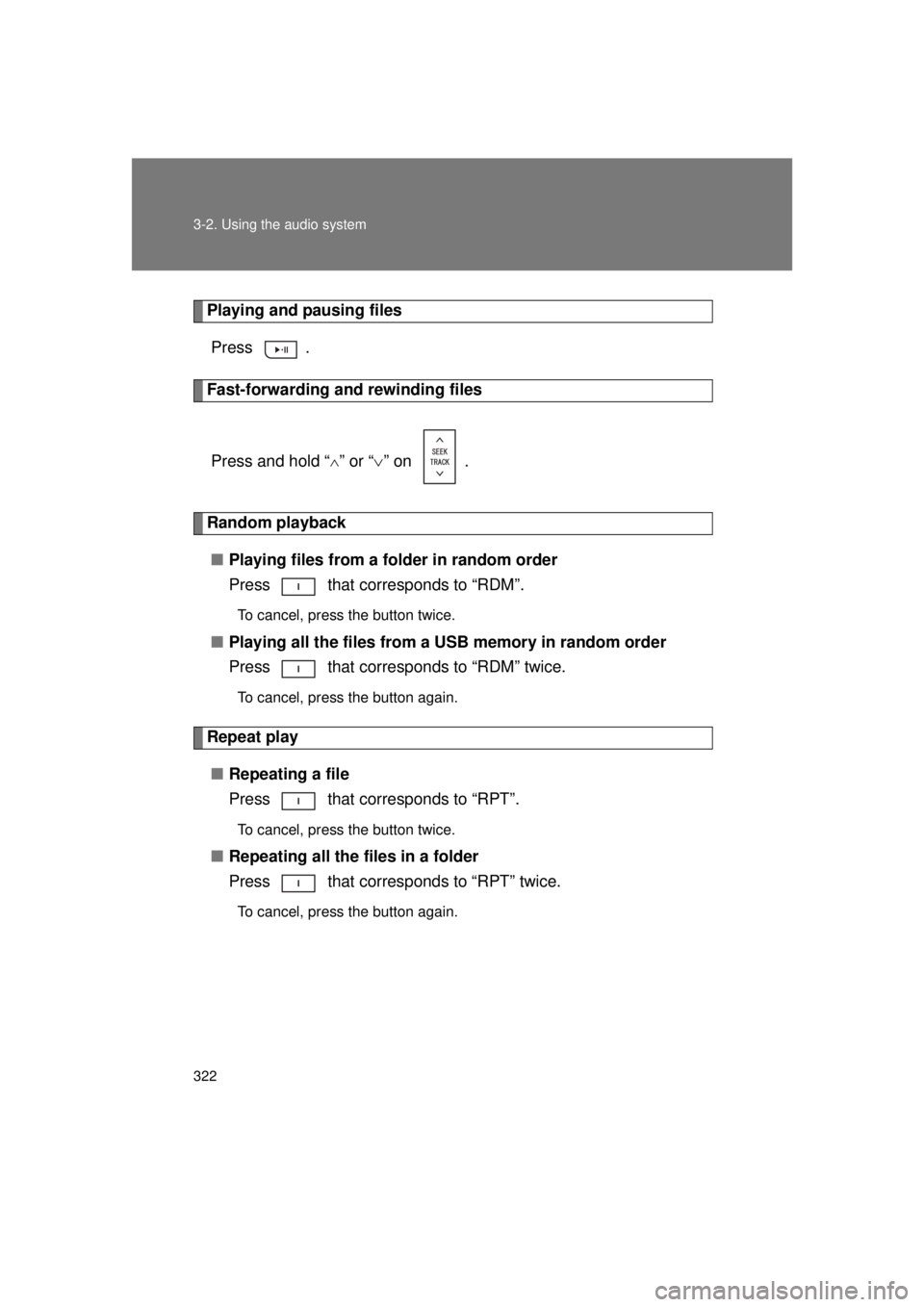
Playing and pausing filesPress .
Fast-forwarding and rewinding files
Press and hold “
” or “ ” on .
Random playback
■ Playing files from a folder in random order
Press that corresponds to “RDM”.
To cancel, press the button twice.
■Playing all the files from a USB memory in random order
Press that corresponds to “RDM” twice.
To cancel, press the button again.
Repeat play
■ Repeating a file
Press that corresponds to “RPT”.
To cancel, press the button twice.
■Repeating all the files in a folder
Press that corresponds to “RPT” twice.
To cancel, press the button again.
Page 323 of 680

323
3-2. Using the audio system
3
Interior features
VENZA_U (OM73008U)
Switching the display
Press .
Each time the button is pressed, the display changes in the following
order: Track title Track title/Artist name Track title/Album name
Track title/Elapsed time.
■ When using the USB port
You may be unable to use the instrument panel power outlet if a device is
connected to the USB port at the same time.
■ USB memory functions
Depending on the USB memory that is connected to the system, certain
functions may not be available. Disconnecting the device and reconnecting it
once again may resolve some malfunctions.
■ Error messages
“USB ERROR”: This indicates a problem either in the USB memory or
inside the USB box or connection between them.
“NO MUSIC”: This indicates that no MP3/WMA files are included in the USB memory.
Page 324 of 680

324 3-2. Using the audio system
VENZA_U (OM73008U)
■USB memory
● Compatible devices
USB memory that can be used for MP3 and WMA playback
Depending on the type of USB device, playback may not be possible.
● Compatible device formats
The following device formats can be used:
• USB communication formats: USB2.0 FS (12mbps)
• File formats: FAT16/32 (Windows)
• Correspondence class: Mass storage class
MP3 and WMA files written in any format other than those listed above
may not play correctly, and their file names and folder names may not be
displayed correctly.
Items related to standards and limitations are as follows:
• Maximum directory hierarchy: 8 levels
• Maximum number of folders in a device: 999 (including the root)
• Maximum number of files in a device: 65025
• Maximum number of files per folder: 255
● MP3 and WMA files
MP3 (MPEG Audio LAYER 3) is a standard audio compression format.
Files can be compressed to approximately 1/10 of their original size using
MP3 compression.
WMA (Windows Media Audio) is a Microsoft audio compression format.
This format compresses audio data to a size smaller than that of the MP3
format.
There is a limit to the MP3 and WMA file standards that can be used and to
the media/formats on which the files are recorded.
Page 326 of 680

326 3-2. Using the audio system
VENZA_U (OM73008U)
●MP3 and WMA playback
• When a device containing MP3 or WMA files is connected, all files in the
USB memory device are checked. Once the file check is finished, the first
MP3 or WMA file is played. To make the file check finish more quickly, we
recommend that you do not include any files other than MP3 or WMA
files or create any unnecessary folders.
• When the USB device is connected and the audio source is changed to USB memory mode, the USB device will start playing the first file in the
first folder. If the same device is removed and reinserted (and the con-
tents have not been changed), the USB device will resume play from the
same point in which it was last used.
● Extensions
If the file extensions .mp3 and .wma are used for files other than MP3 and
WMA files, they will be mistakenly recognized and played as MP3 and
WMA files. This may result in large amounts of interference and damage
to the speakers.
● Playback
• To play MP3 files with steady sound quality, we recommend a fixed bit
rate of at least 128 kbps and a sampling frequency of 44.1 kHz.
• There is a wide variety of freeware and other encoding software for MP3 and WMA files on the market, and depending on the status of the encod-
ing and the file format, poor sound quality or noise at the start of playback
may result. In some cases, playback may not be possible at all.
• Microsoft, Windows, and Windows M edia are registered trademarks of
Microsoft Corporation in the U.S.A. and other countries.
CAUTION
■ While driving
Do not connect USB memory or operate the controls.