language TOYOTA VENZA 2014 Accessories, Audio & Navigation (in English)
[x] Cancel search | Manufacturer: TOYOTA, Model Year: 2014, Model line: VENZA, Model: TOYOTA VENZA 2014Pages: 363, PDF Size: 21.59 MB
Page 23 of 363
23
3. QUICK REFERENCE
1
QUICK GUIDE
VENZA_Navi_OM73020U_(U)
13.05.13 14:12
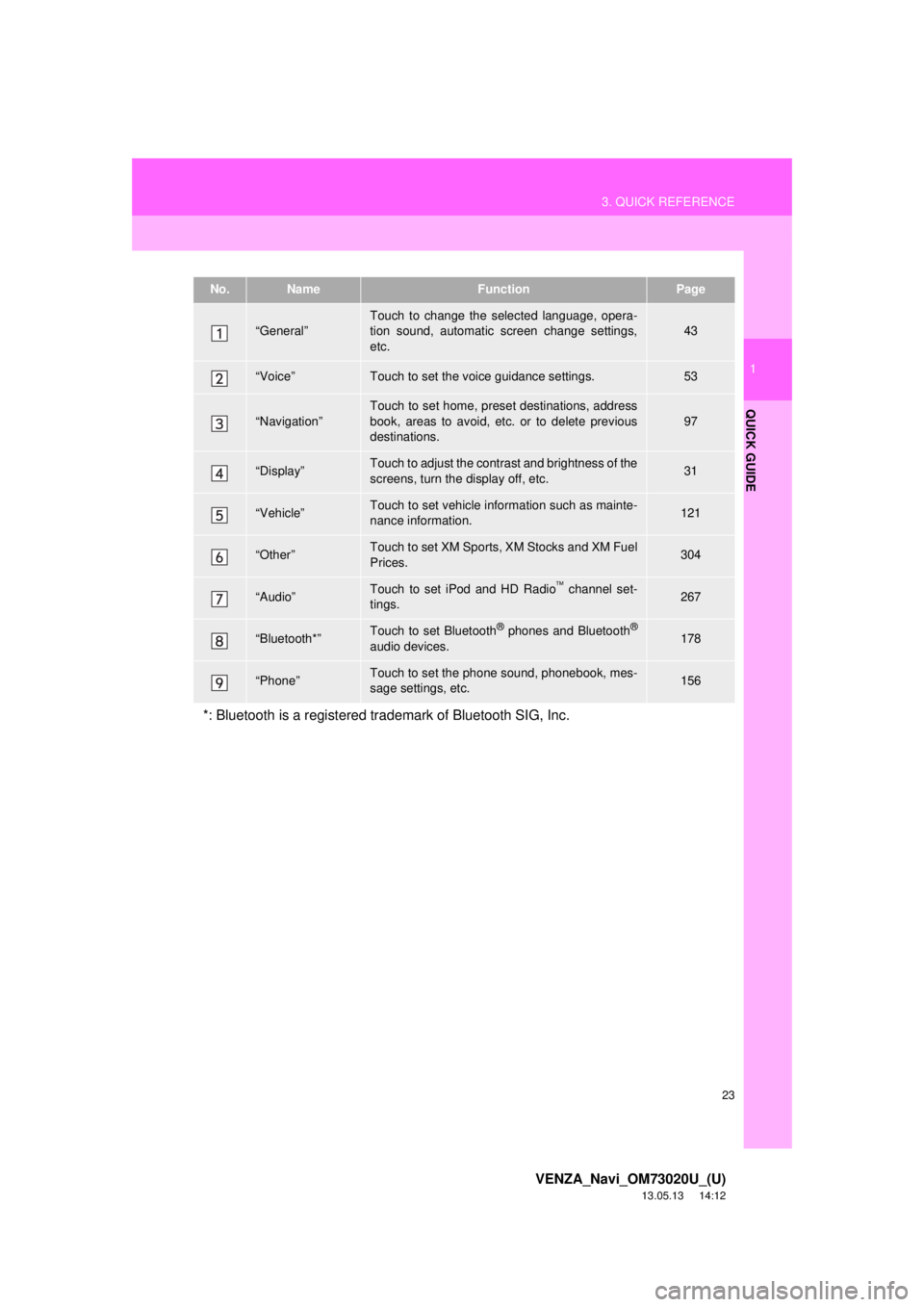
No.NameFunctionPage
“General”Touch to change the selected language, opera-
tion sound, automatic screen change settings,
etc.43
“Voice”Touch to set the voice guidance settings.53
“Navigation”
Touch to set home, preset destinations, address
book, areas to avoid, etc. or to delete previous
destinations.
97
“Display”Touch to adjust the contrast and brightness of the
screens, turn the display off, etc.31
“Vehicle”Touch to set vehicle information such as mainte-
nance information.121
“Other”Touch to set XM Sports, XM Stocks and XM Fuel
Prices.304
“Audio”Touch to set iPod and HD Radio channel set-
tings.267
“Bluetooth*”Touch to set Bluetooth® phones and Bluetooth®
audio devices.178
“Phone”Touch to set the phone sound, phonebook, mes-
sage settings, etc.156
*: Bluetooth is a registered trademark of Bluetooth SIG, Inc.
Page 43 of 363
43
2
BASIC FUNCTION
VENZA_Navi_OM73020U_(U)
13.05.13 14:12
2. SETUP
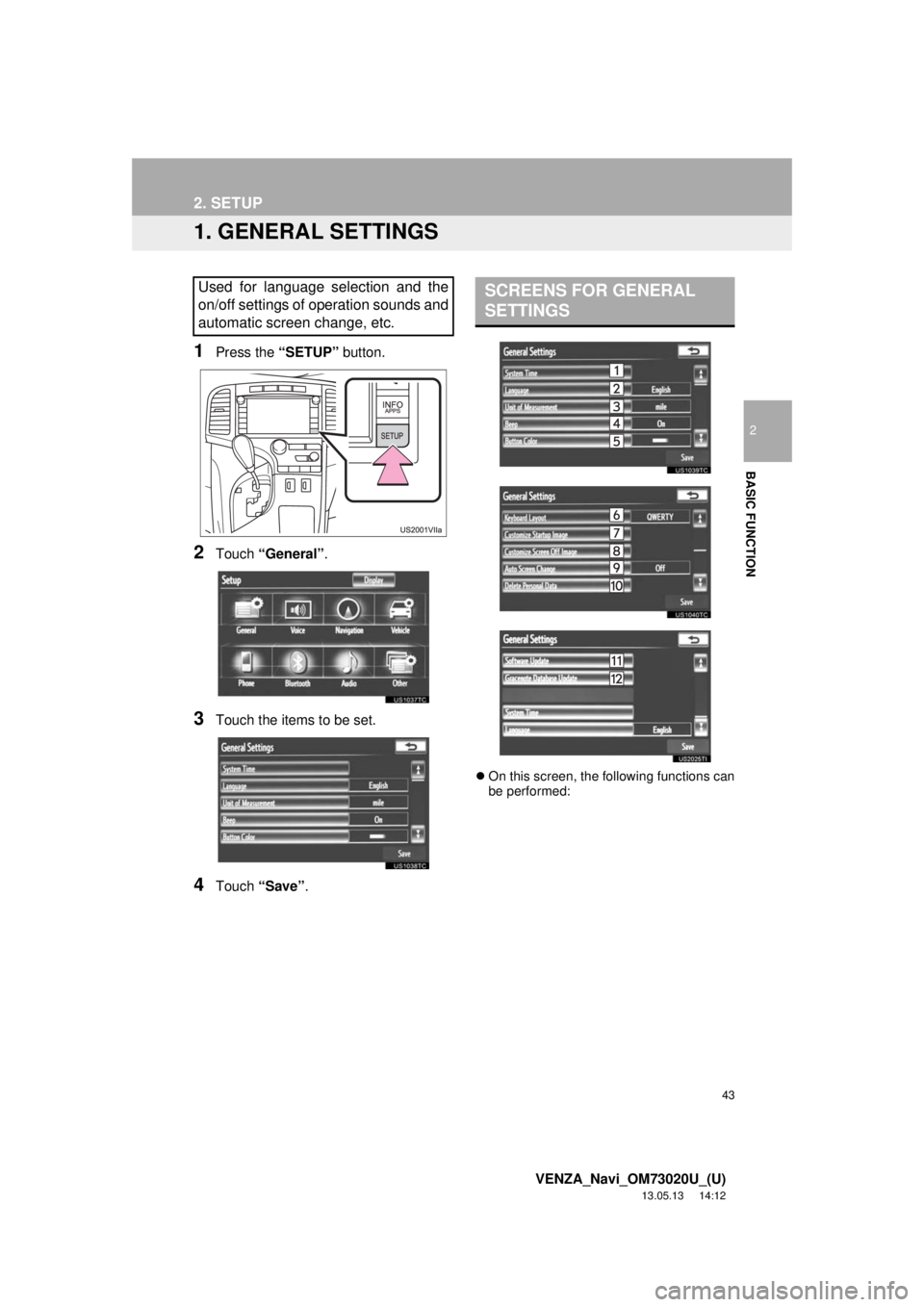
1. GENERAL SETTINGS
1Press the “SETUP” button.
2Touch “General”.
3Touch the items to be set.
4Touch “Save”.
On this screen, the following functions can
be performed:
Used for language selection and the
on/off settings of operation sounds and
automatic screen change, etc.SCREENS FOR GENERAL
SETTINGS
Page 44 of 363
44
2. SETUP
VENZA_Navi_OM73020U_(U)
13.05.13 14:12
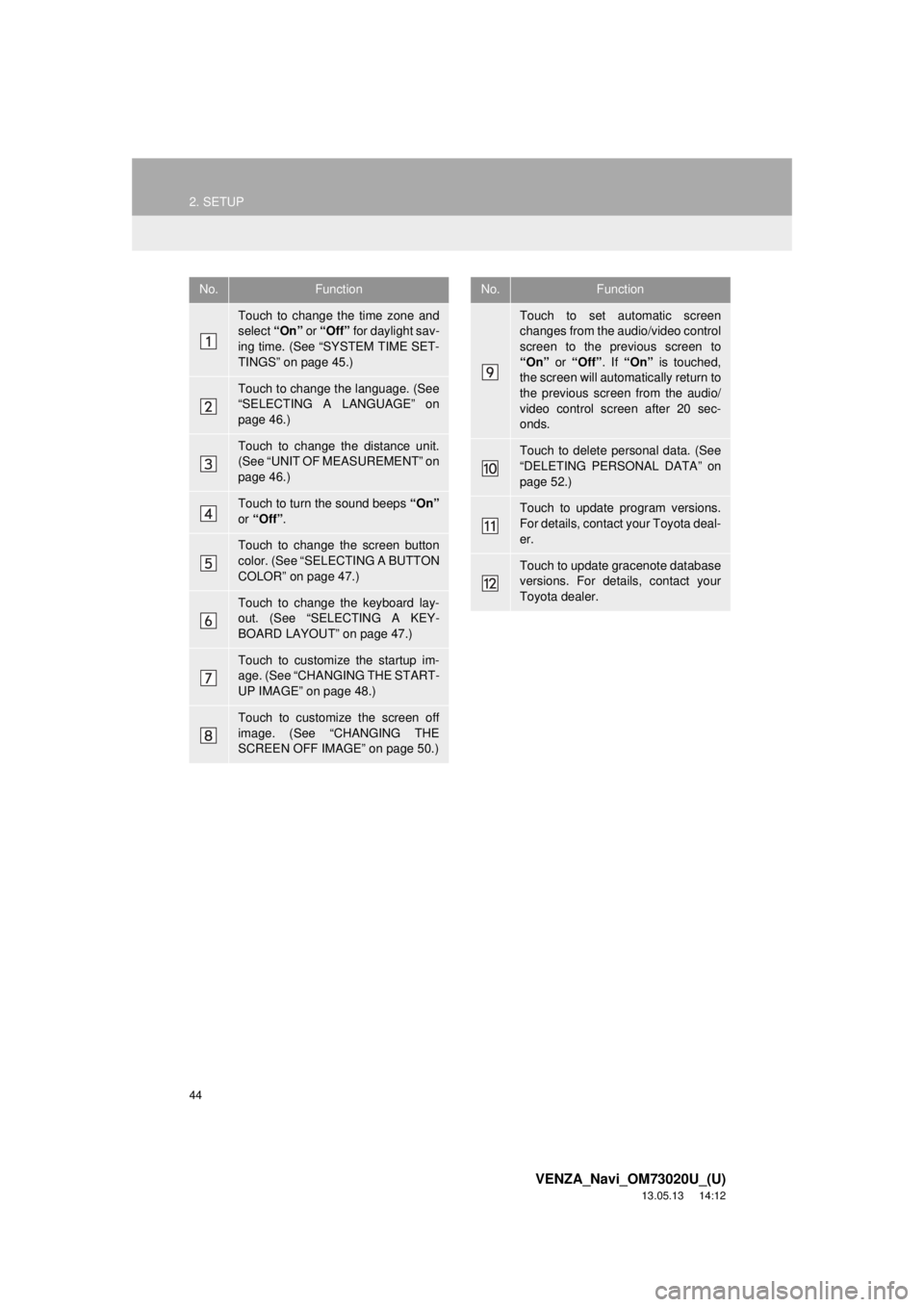
No.Function
Touch to change the time zone and
select “On” or “Off” for daylight sav-
ing time. (See “SYSTEM TIME SET-
TINGS” on page 45.)
Touch to change the language. (See
“SELECTING A LANGUAGE” on
page 46.)
Touch to change the distance unit.
(See “UNIT OF MEASUREMENT” on
page 46.)
Touch to turn the sound beeps “On”
or “Off”.
Touch to change the screen button
color. (See “SELECTING A BUTTON
COLOR” on page 47.)
Touch to change the keyboard lay-
out. (See “SELECTING A KEY-
BOARD LAYOUT” on page 47.)
Touch to customize the startup im-
age. (See “CHANGING THE START-
UP IMAGE” on page 48.)
Touch to customize the screen off
image. (See “CHANGING THE
SCREEN OFF IMAGE” on page 50.)
Touch to set automatic screen
changes from the audio/video control
screen to the previous screen to
“On” or “Off”. If “On” is touched,
the screen will automatically return to
the previous screen from the audio/
video control screen after 20 sec-
onds.
Touch to delete personal data. (See
“DELETING PERSONAL DATA” on
page 52.)
Touch to update program versions.
For details, contact your Toyota deal-
er.
Touch to update gracenote database
versions. For details, contact your
Toyota dealer.
No.Function
Page 46 of 363
46
2. SETUP
VENZA_Navi_OM73020U_(U)
13.05.13 14:12
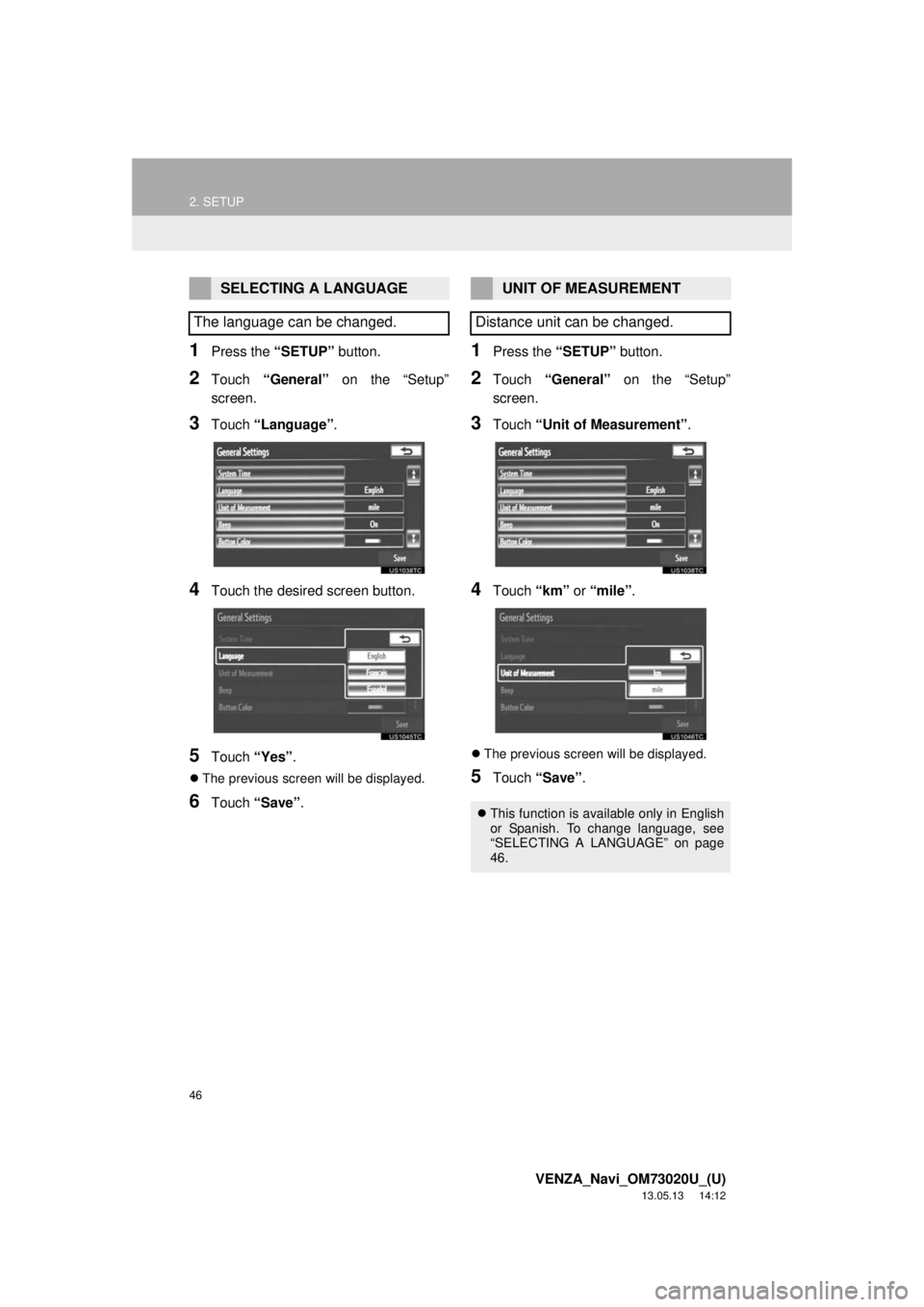
1Press the “SETUP” button.
2Touch “General” on the “Setup”
screen.
3Touch “Language”.
4Touch the desired screen button.
5Touch “Yes”.
The previous screen will be displayed.
6Touch “Save”.
1Press the “SETUP” button.
2Touch “General” on the “Setup”
screen.
3Touch “Unit of Measurement”.
4Touch “km” or “mile”.
The previous screen will be displayed.
5Touch “Save”.
SELECTING A LANGUAGE
The language can be changed.UNIT OF MEASUREMENT
Distance unit can be changed.
This function is available only in English
or Spanish. To change language, see
“SELECTING A LANGUAGE” on page
46.
Page 226 of 363
226
1. AUDIO/VIDEO SYSTEM OPERATION
VENZA_Navi_OM73020U_(U)
13.05.13 14:12
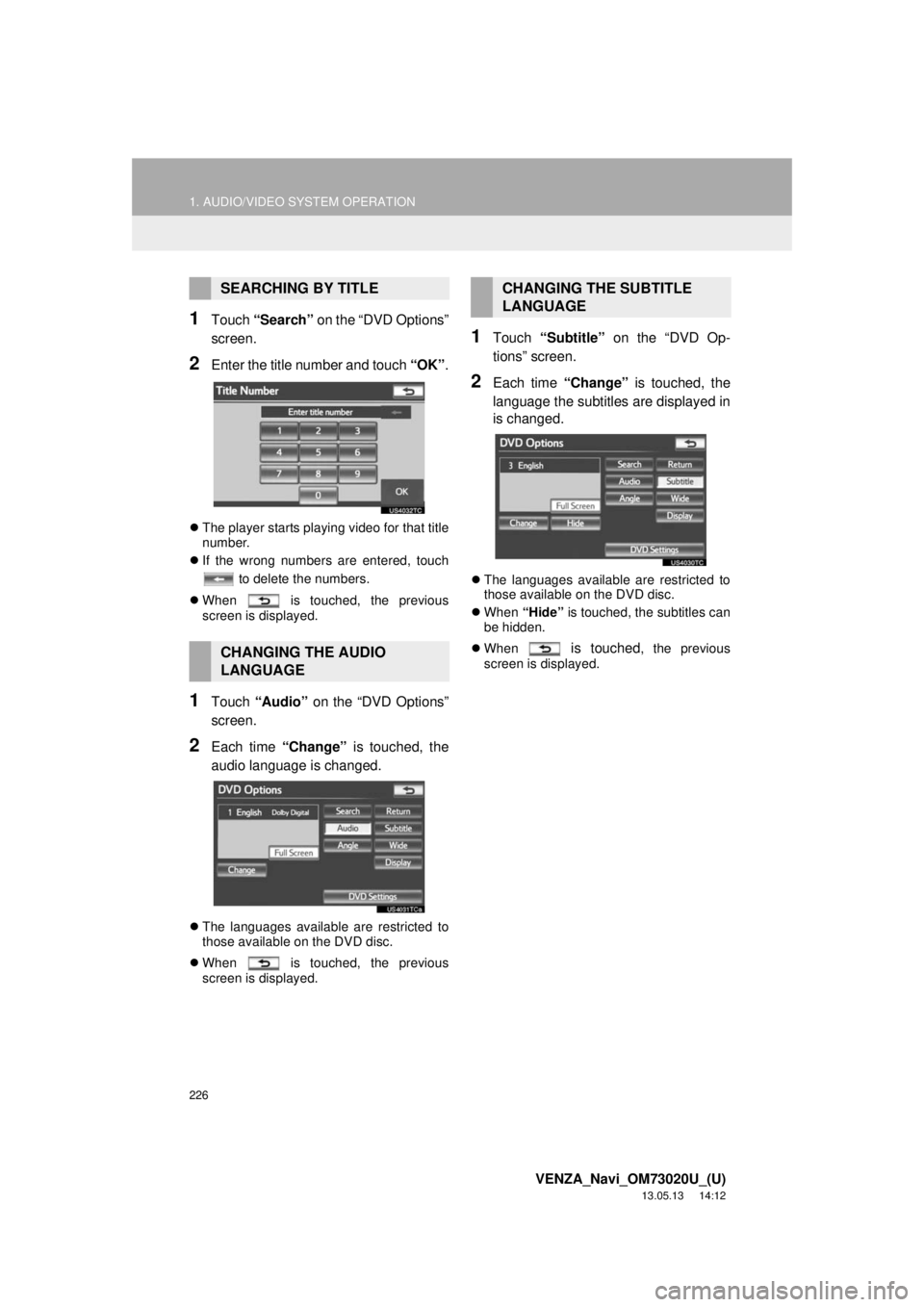
1Touch “Search” on the “DVD Options”
screen.
2Enter the title number and touch “OK”.
The player starts playing video for that title
number.
If the wrong numbers are entered, touch
to delete the numbers.
When is touched, the previous
screen is displayed.
1Touch “Audio” on the “DVD Options”
screen.
2Each time “Change” is touched, the
audio language is changed.
The languages available are restricted to
those available on the DVD disc.
When is touched, the previous
screen is displayed.
1Touch “Subtitle” on the “DVD Op-
tions” screen.
2Each time “Change” is touched, the
language the subtitles are displayed in
is changed.
The languages available are restricted to
those available on the DVD disc.
When “Hide” is touched, the subtitles can
be hidden.
When
is touched, the previous
screen is displayed.
SEARCHING BY TITLE
CHANGING THE AUDIO
LANGUAGE
CHANGING THE SUBTITLE
LANGUAGE
Page 229 of 363
229
1. AUDIO/VIDEO SYSTEM OPERATION
5
AUDIO/VIDEO SYSTEM
VENZA_Navi_OM73020U_(U)
13.05.13 14:12
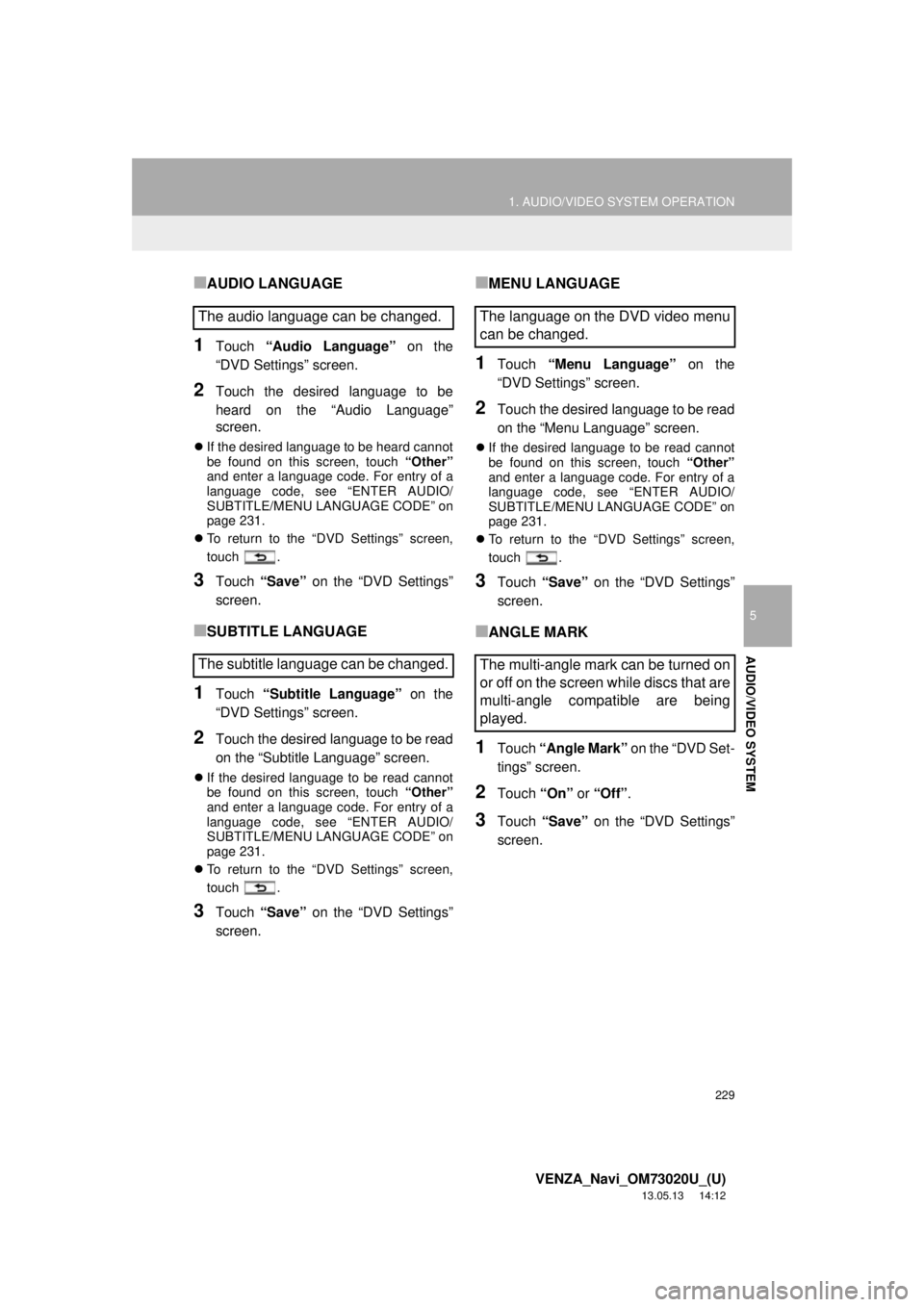
■AUDIO LANGUAGE
1Touch “Audio Language” on the
“DVD Settings” screen.
2Touch the desired language to be
heard on the “Audio Language”
screen.
If the desired language to be heard cannot
be found on this screen, touch “Other”
and enter a language code. For entry of a
language code, see “ENTER AUDIO/
SUBTITLE/MENU LANGUAGE CODE” on
page 231.
To return to the “DVD Settings” screen,
touch .
3Touch “Save” on the “DVD Settings”
screen.
■SUBTITLE LANGUAGE
1Touch “Subtitle Language” on the
“DVD Settings” screen.
2Touch the desired language to be read
on the “Subtitle Language” screen.
If the desired language to be read cannot
be found on this screen, touch “Other”
and enter a language code. For entry of a
language code, see “ENTER AUDIO/
SUBTITLE/MENU LANGUAGE CODE” on
page 231.
To return to the “DVD Settings” screen,
touch .
3Touch “Save” on the “DVD Settings”
screen.
■MENU LANGUAGE
1Touch “Menu Language” on the
“DVD Settings” screen.
2Touch the desired language to be read
on the “Menu Language” screen.
If the desired language to be read cannot
be found on this screen, touch “Other”
and enter a language code. For entry of a
language code, see “ENTER AUDIO/
SUBTITLE/MENU LANGUAGE CODE” on
page 231.
To return to the “DVD Settings” screen,
touch .
3Touch “Save” on the “DVD Settings”
screen.
■ANGLE MARK
1Touch “Angle Mark” on the “DVD Set-
tings” screen.
2Touch “On” or “Off”.
3Touch “Save” on the “DVD Settings”
screen.
The audio language can be changed.
The subtitle language can be changed.The language on the DVD video menu
can be changed.
The multi-angle mark can be turned on
or off on the screen while discs that are
multi-angle compatible are being
played.
Page 231 of 363
231
1. AUDIO/VIDEO SYSTEM OPERATION
5
AUDIO/VIDEO SYSTEM
VENZA_Navi_OM73020U_(U)
13.05.13 14:12
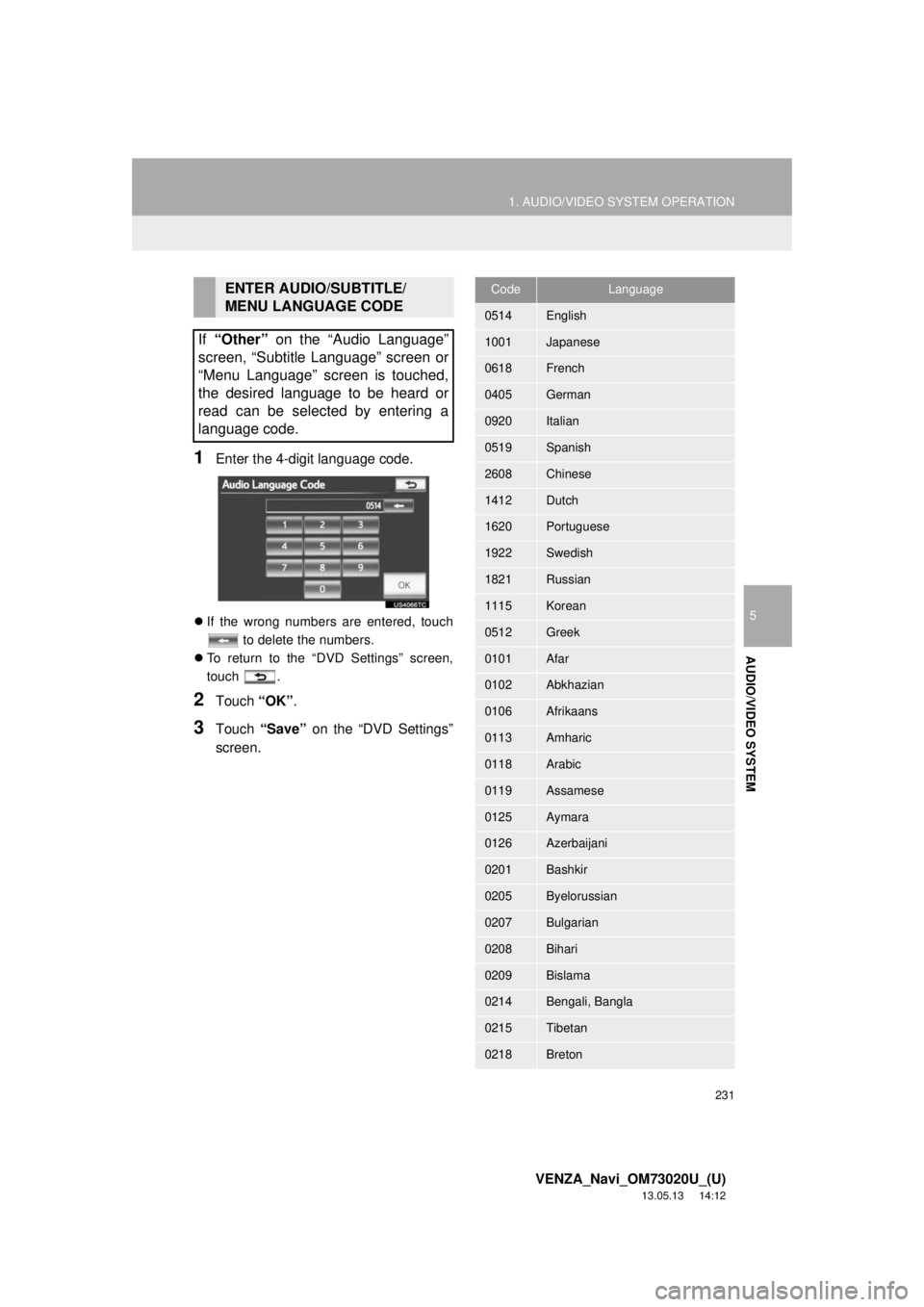
1Enter the 4-digit language code.
If the wrong numbers are entered, touch
to delete the numbers.
To return to the “DVD Settings” screen,
touch .
2Touch “OK”.
3Touch “Save” on the “DVD Settings”
screen.
ENTER AUDIO/SUBTITLE/
MENU LANGUAGE CODE
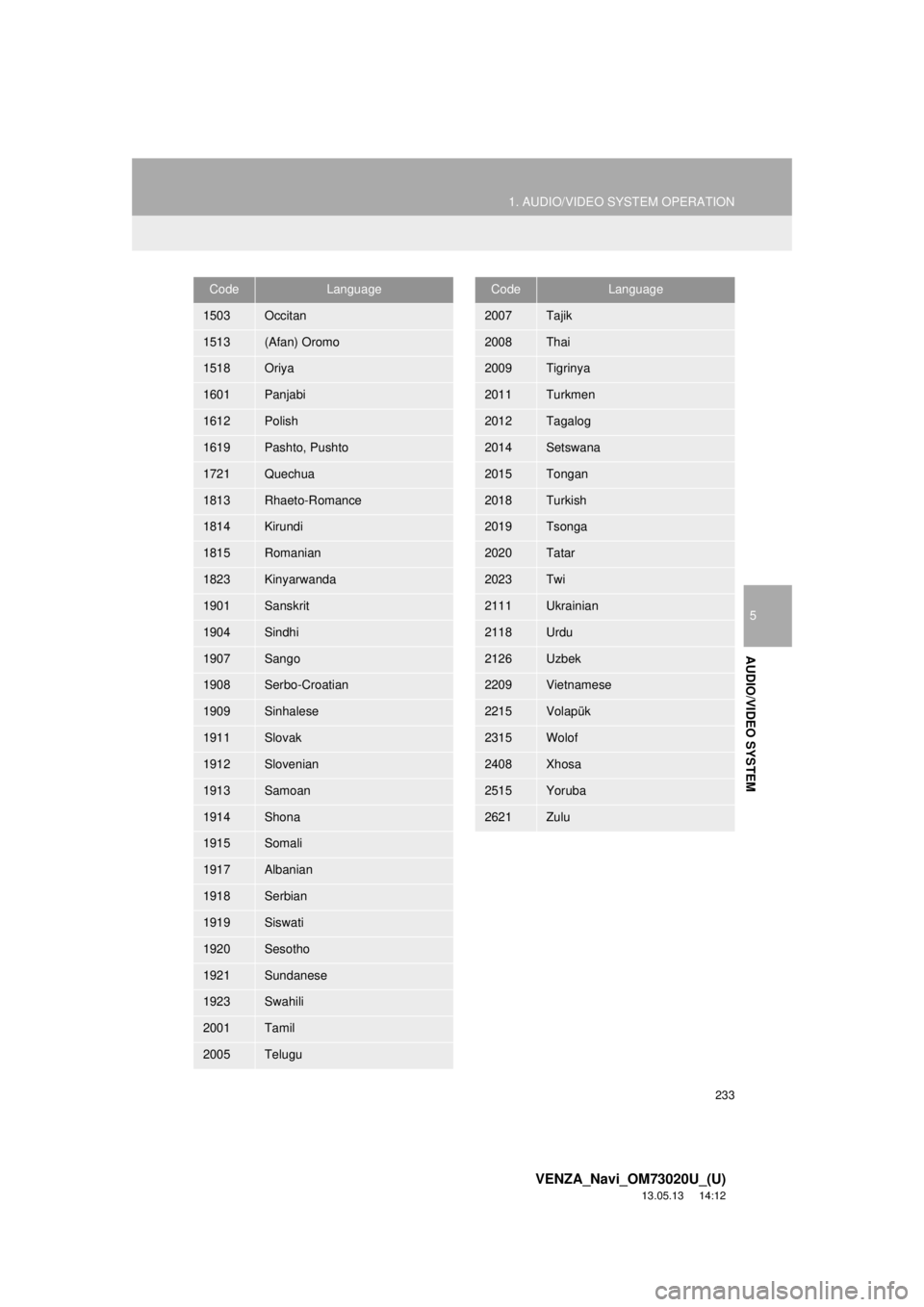
If “Other” on the “Audio Language”
screen, “Subtitle Language” screen or
“Menu Language” screen is touched,
the desired language to be heard or
read can be selected by entering a
language code.CodeLanguage
0514English
1001Japanese
0618French
0405German
0920Italian
0519Spanish
2608Chinese
1412Dutch
1620Portuguese
1922Swedish
1821Russian
1115Korean
0512Greek
0101Afar
0102Abkhazian
0106Afrikaans
0113Amharic
0118Arabic
0119Assamese
0125Aymara
0126Azerbaijani
0201Bashkir
0205Byelorussian
0207Bulgarian
0208Bihari
0209Bislama
0214Bengali, Bangla
0215Tibetan
0218Breton
Page 232 of 363
232
1. AUDIO/VIDEO SYSTEM OPERATION
VENZA_Navi_OM73020U_(U)
13.05.13 14:12
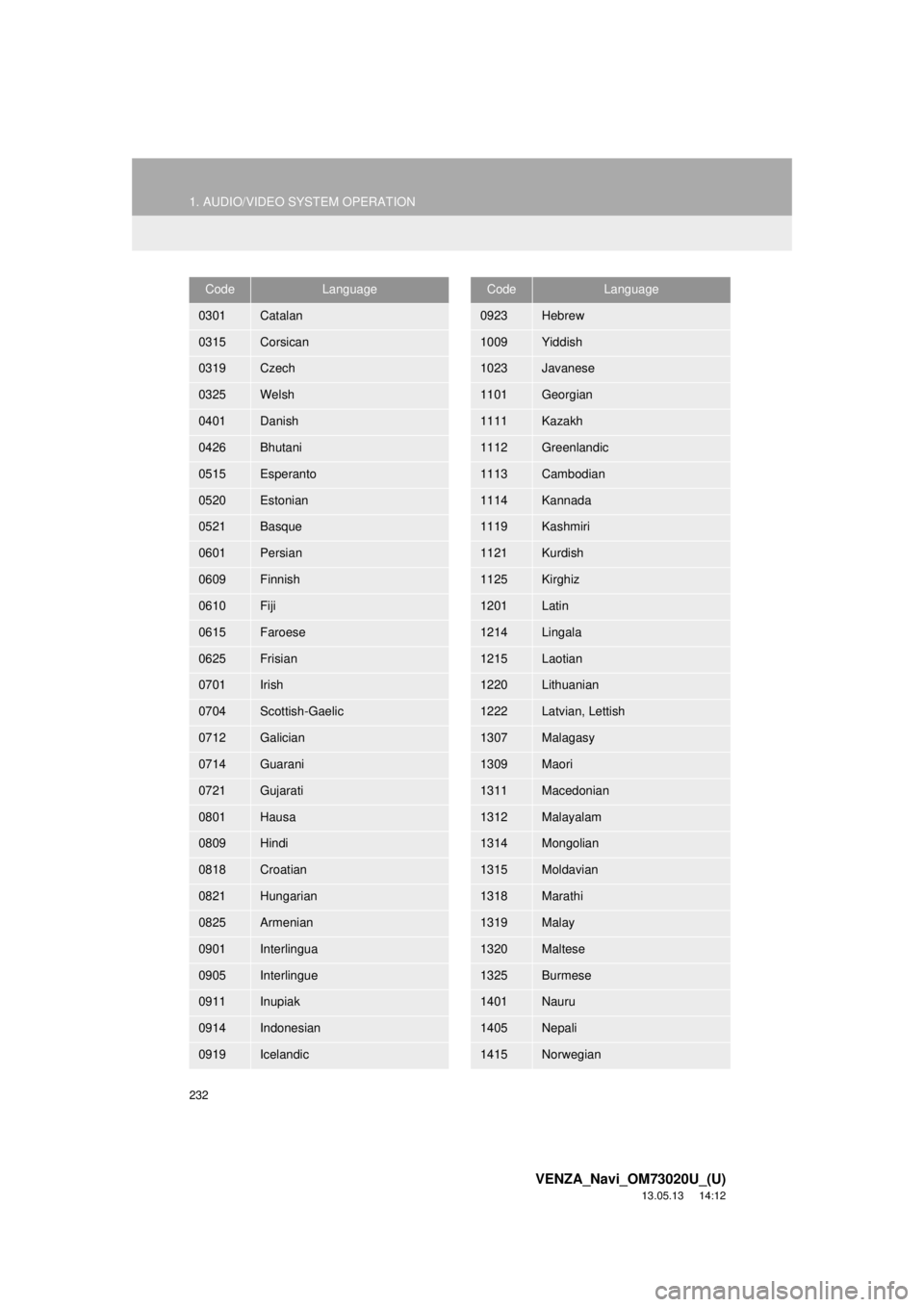
0301Catalan
0315Corsican
0319Czech
0325Welsh
0401Danish
0426Bhutani
0515Esperanto
0520Estonian
0521Basque
0601Persian
0609Finnish
0610Fiji
0615Faroese
0625Frisian
0701Irish
0704Scottish-Gaelic
0712Galician
0714Guarani
0721Gujarati
0801Hausa
0809Hindi
0818Croatian
0821Hungarian
0825Armenian
0901Interlingua
0905Interlingue
0911Inupiak
0914Indonesian
0919Icelandic
CodeLanguage
0923Hebrew
1009Yiddish
1023Javanese
1101Georgian
1111Kazakh
1112Greenlandic
1113Cambodian
1114Kannada
1119Kashmiri
1121Kurdish
1125Kirghiz
1201Latin
1214Lingala
1215Laotian
1220Lithuanian
1222Latvian, Lettish
1307Malagasy
1309Maori
1311Macedonian
1312Malayalam
1314Mongolian
1315Moldavian
1318Marathi
1319Malay
1320Maltese
1325Burmese
1401Nauru
1405Nepali
1415Norwegian
CodeLanguage
Page 233 of 363
233
1. AUDIO/VIDEO SYSTEM OPERATION
5
AUDIO/VIDEO SYSTEM
VENZA_Navi_OM73020U_(U)
13.05.13 14:12
1503Occitan
1513(Afan) Oromo
1518Oriya
1601Panjabi
1612Polish
1619Pashto, Pushto
1721Quechua
1813Rhaeto-Romance
1814Kirundi
1815Romanian
1823Kinyarwanda
1901Sanskrit
1904Sindhi
1907Sango
1908Serbo-Croatian
1909Sinhalese
1911Slovak
1912Slovenian
1913Samoan
1914Shona
1915Somali
1917Albanian
1918Serbian
1919Siswati
1920Sesotho
1921Sundanese
1923Swahili
2001Tamil
2005Telugu
CodeLanguage
2007Tajik
2008Thai
2009Tigrinya
2011Turkmen
2012Tagalog
2014Setswana
2015Tongan
2018Turkish
2019Tsonga
2020Tatar
2023Twi
2111Ukrainian
2118Urdu
2126Uzbek
2209Vietnamese
2215Volapük
2315Wolof
2408Xhosa
2515Yoruba
2621Zulu
CodeLanguage
Page 235 of 363
235
1. AUDIO/VIDEO SYSTEM OPERATION
5
AUDIO/VIDEO SYSTEM
VENZA_Navi_OM73020U_(U)
13.05.13 14:12
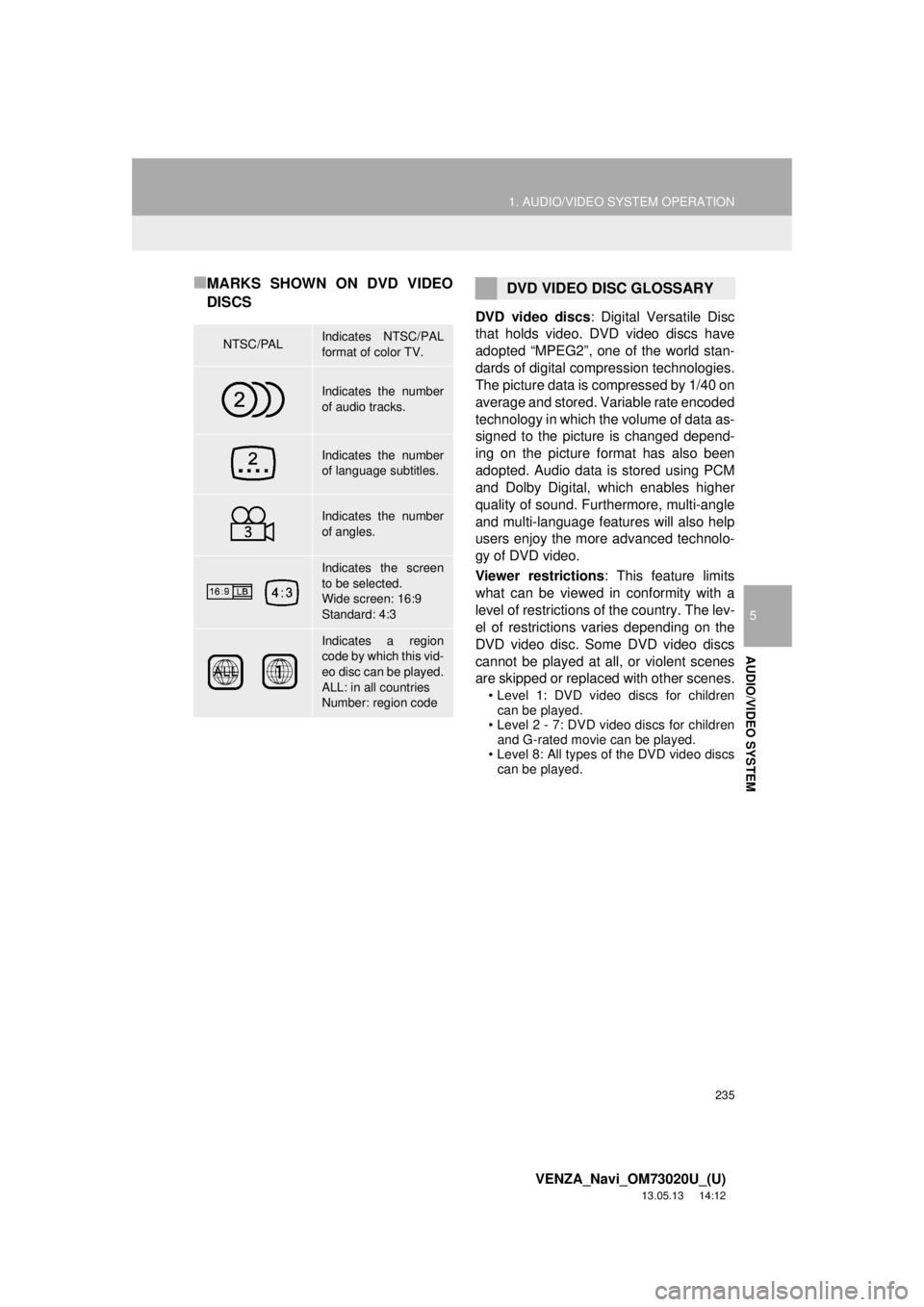
■MARKS SHOWN ON DVD VIDEO
DISCS
DVD video discs: Digital Versatile Disc
that holds video. DVD video discs have
adopted “MPEG2”, one of the world stan-
dards of digital compression technologies.
The picture data is compressed by 1/40 on
average and stored. Variable rate encoded
technology in which the volume of data as-
signed to the picture is changed depend-
ing on the picture format has also been
adopted. Audio data is stored using PCM
and Dolby Digital, which enables higher
quality of sound. Furthermore, multi-angle
and multi-language features will also help
users enjoy the more advanced technolo-
gy of DVD video.
Viewer restrictions: This feature limits
what can be viewed in conformity with a
level of restrictions of the country. The lev-
el of restrictions varies depending on the
DVD video disc. Some DVD video discs
cannot be played at all, or violent scenes
are skipped or replaced with other scenes.
• Level 1: DVD video discs for children
can be played.
• Level 2 - 7: DVD video discs for children
and G-rated movie can be played.
• Level 8: All types of the DVD video discs
can be played.
NTSC/PALIndicates NTSC/PAL
format of color TV.
Indicates the number
of audio tracks.
Indicates the number
of language subtitles.
Indicates the number
of angles.
Indicates the screen
to be selected.
Wide screen: 16:9
Standard: 4:3
Indicates a region
code by which this vid-
eo disc can be played.
ALL: in all countries
Number: region code
DVD VIDEO DISC GLOSSARY