ad blue TOYOTA VENZA 2015 Accessories, Audio & Navigation (in English)
[x] Cancel search | Manufacturer: TOYOTA, Model Year: 2015, Model line: VENZA, Model: TOYOTA VENZA 2015Pages: 281, PDF Size: 6.02 MB
Page 105 of 281
105
3. MEDIA OPERATION
VENZA_Navi+MM_OM73022U_(U)
14.04.30 16:39
AUDIO SYSTEM
3
*Press to play/pause.
*: Without navigation function
CAUTION
●Do not operate the player’s controls or connect to the Bluetooth® audio system while driv-
ing.
● Your audio unit is fitted with Bluetooth
® antennas. People with implantable cardiac pace-
makers, cardiac resynchronization therapy-pacemakers or implantable cardioverter
defibrillators should maintain a reasonable distance between themselves and the
Bluetooth
® antennas. The radio waves may affect the operation of such devices.
● Before using Bluetooth
® devices, users of any electrical medical device other than
implantable cardiac pacemakers, cardiac resynchronization therapy-pacemakers or
implantable cardioverter defibrillators should consult the manufacturer of the device for
information about its operation under the influence of radio waves. Radio waves could
have unexpected effects on the operation of such medical devices.
NOTICE
● Do not leave your portable player in the vehicle. In particular, high temperatures inside
the vehicle may damage the portable player.
No.Function
Page 106 of 281
106
3. MEDIA OPERATION
VENZA_Navi+MM_OM73022U_(U)
14.04.30 16:39
INFORMATION
●Depending on the Bluetooth® device that is connected to the system, the music may start
playing when selecting while it is paused. Conversely, the music may pause when
selecting while it is playing.
● In the following conditions, the system may not function:
• The Bluetooth
® device is turned off.
• The Bluetooth
® device is not connected.
• The Bluetooth
® device has a low battery.
● It may take time to connect the phone when Bluetooth
® audio is being played.
● For operating the portable player, see the instruction manual that comes with it.
● If the Bluetooth
® device is disconnected due to poor reception from the Bluetooth® net-
work when the engine switch is in the follow ing, the system will automatically reconnect
to the portable player.
Vehicles without a smart key system
The engine switch is turned to the “ACC” or “ON” position.
Vehicles with a smart key system
The “ENGINE START STOP” switch is tu rned to ACCESSORY or IGNITION ON
mode.
● If the Bluetooth® device is disconnected on purpose, such as it was turned off, this does
not happen. Reconnect the portable player manually.
● Bluetooth
® device information is registered when the Bluetooth® device is connected to
the Bluetooth® audio system. When selling or disposing of the vehicle, remove the
Bluetooth® audio information from the system. ( P. 5 9 )
Page 107 of 281
107
3. MEDIA OPERATION
VENZA_Navi+MM_OM73022U_(U)
14.04.30 16:39
AUDIO SYSTEM
3
Registering an additional device
1Select “Select Device” on the
Bluetooth
® audio control screen.
2For more information: P.47
Selecting a registered device
1Select “Select Device” on the
Bluetooth
® audio control screen.
2For more information: P.49
1Select the repeat button to change on/
off.
1Select the random button to change
on/off.
CONNECTING A Bluetooth®
DEVICE
To use the Bluetooth® audio system, it
is necessary to register a Bluetooth
®
device with the system.
LISTENING TO Bluetooth®
AUDIO
REPEATING
The track currently being listened to
can be repeated.
RANDOM ORDER
Tracks can be automatically and ran-
domly selected.
Page 136 of 281
136
VENZA_Navi+MM_OM73022U_(U)
14.04.30 16:39
1. USEFUL INFORMATION
1. RECEIVING WEATHER INFORMATION
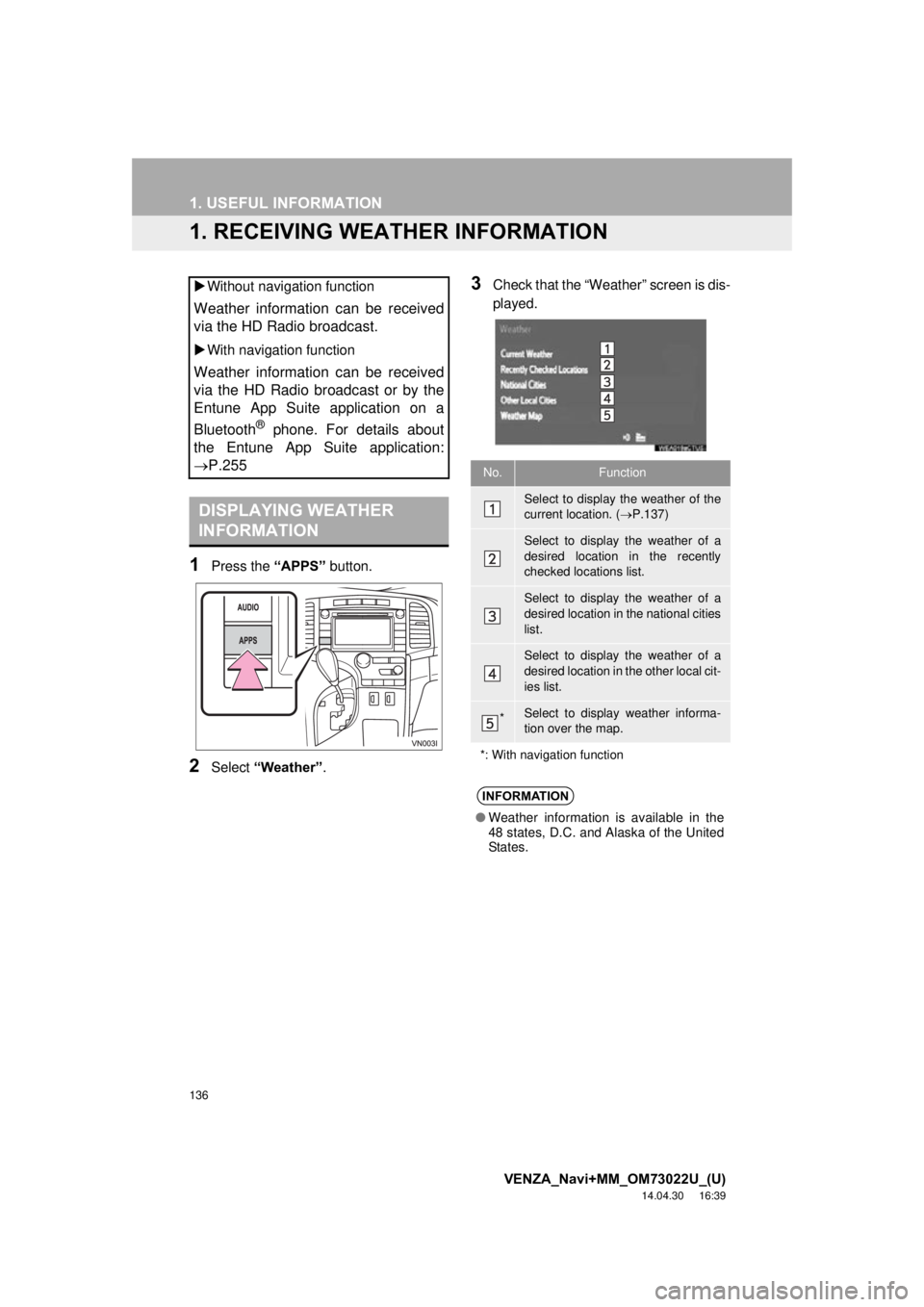
1Press the “APPS” button.
2Select “Weather” .
3Check that the “Weather” screen is dis-
played.
Without navigation function
Weather information can be received
via the HD Radio broadcast.
With navigation function
Weather information can be received
via the HD Radio broadcast or by the
Entune App Suite application on a
Bluetooth
® phone. For details about
the Entune App Suite application:
P.255
DISPLAYING WEATHER
INFORMATION
No.Function
Select to display the weather of the
current location. ( P.137)
Select to display the weather of a
desired location in the recently
checked locations list.
Select to display the weather of a
desired location in the national cities
list.
Select to display the weather of a
desired location in the other local cit-
ies list.
*Select to display weather informa-
tion over the map.
*: With navigation function
INFORMATION
● Weather information is available in the
48 states, D.C. and Alaska of the United
States.
Page 139 of 281
139
1. USEFUL INFORMATION
VENZA_Navi+MM_OM73022U_(U)
14.04.30 16:39
INFORMATION
5
3. DATA SERVICES SETTINGS*
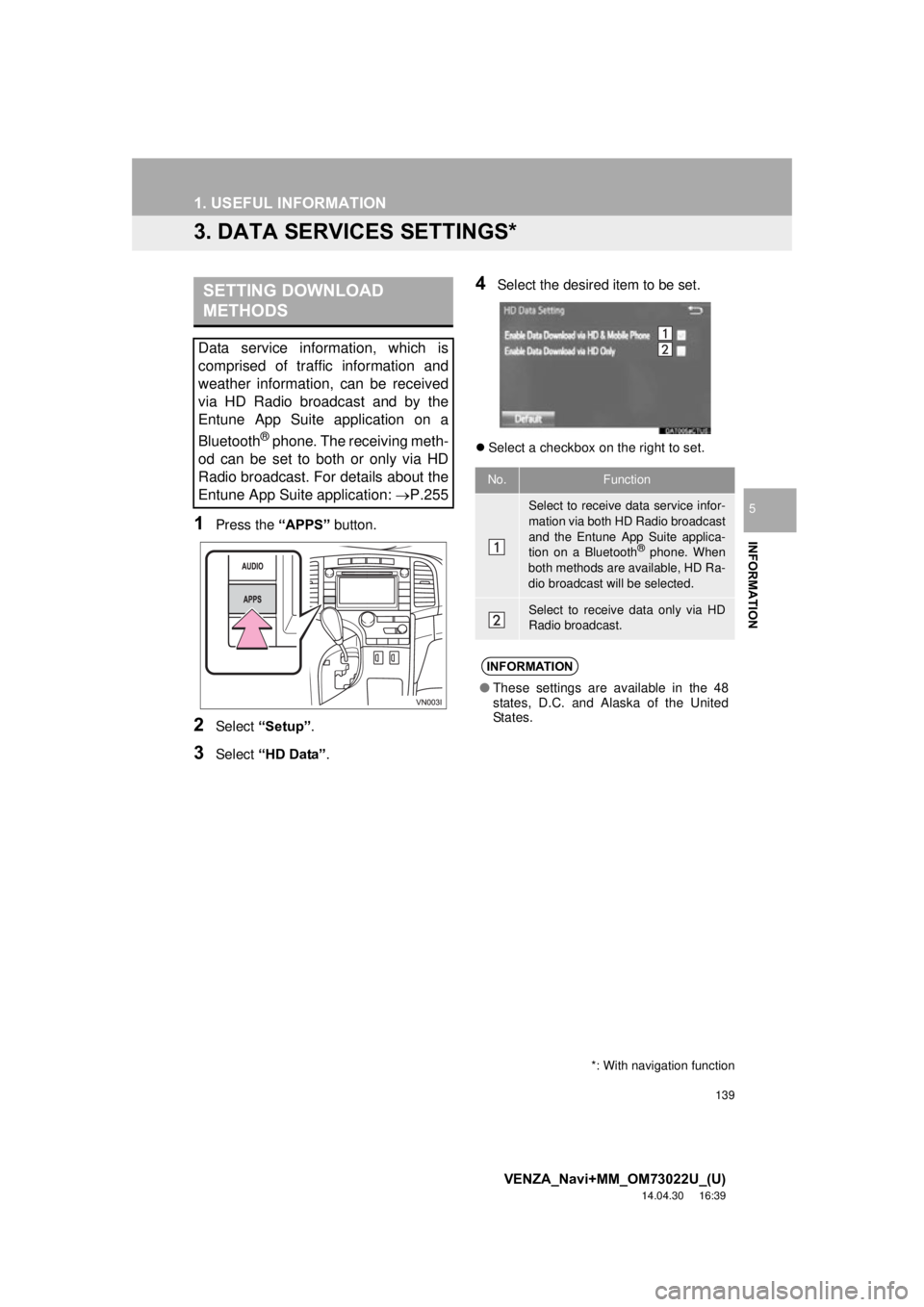
1Press the “APPS” button.
2Select “Setup” .
3Select “HD Data” .
4Select the desired item to be set.
Select a checkbox on the right to set.
SETTING DOWNLOAD
METHODS
Data service information, which is
comprised of traffic information and
weather information, can be received
via HD Radio broadcast and by the
Entune App Suite application on a
Bluetooth
® phone. The receiving meth-
od can be set to both or only via HD
Radio broadcast. For details about the
Entune App Suite application: P.255
*: With navigation function
No.Function
Select to receive data service infor-
mation via both HD Radio broadcast
and the Entune App Suite applica-
tion on a Bluetooth
® phone. When
both methods are available, HD Ra-
dio broadcast will be selected.
Select to receive data only via HD
Radio broadcast.
INFORMATION
● These settings are available in the 48
states, D.C. and Alaska of the United
States.
Page 141 of 281
6
141
VENZA_Navi+MM_OM73022U_(U)
14.04.30 16:39
1
2
3
4
5
6
7
8
1. QUICK REFERENCE ................... 142
2. SOME BASICS ............................ 143
REGISTERING/CONNECTING A Bluetooth® PHONE ........................... 143
USING THE PHONE SWITCH/ MICROPHONE ................................. 144
VOICE COMMAND SYSTEM .............. 145
ABOUT THE CONTACTS IN THE CONTACT LIST ................................ 146
WHEN SELLING OR DISPOSING OF THE VEHICLE............................. 146
3. CALLING ON THE Bluetooth®
PHONE....................................... 147
BY FAVORITES LIST .......................... 148
BY CALL HISTORY ............................. 148
BY CONTACTS LIST .......................... 149
BY DIAL PAD ...................................... 151
BY OFF HOOK SWITCH ..................... 151
BY “Home” SCREEN ........................... 151
4. RECEIVING ON THE Bluetooth®
PHONE ...................................... 153
INCOMING CALLS .............................. 153
5. TALKING ON THE Bluetooth®
PHONE ...................................... 154
INCOMING CALL WAITING ................ 156
6. Bluetooth® PHONE MESSAGE
FUNCTION ...... ....................... ... 157
RECEIVING A MESSAGE ................... 158
CHECKING MESSAGES ..................... 158
REPLYING TO A MESSAGE
(QUICK REPLY) ................................ 159
CALLING THE MESSAGE SENDER ........................................... 160
1. PHONE/MESSAGE SETTINGS ................................. 162
PHONE/MESSAGE SETTINGS
SCREEN ........................................... 162
“Sound Settings” SCREEN .................. 163
“Contact/Call History Settings” SCREEN ........................................... 164
“Messaging Settings” SCREEN ........... 172
“Phone Display Settings” SCREEN ..... 173
1. TROUBLESHOOTING ................ 174
1
PHONE OPERATION
(HANDS-FREE SYSTEM
FOR CELLULAR PHONES)
2S E T U P
3WHAT TO DO IF...
PHONE
Page 142 of 281
142
VENZA_Navi+MM_OM73022U_(U)
14.04.30 16:39
1. PHONE OPERATION (HANDS-FREE SYSTEM FOR CELLULAR PHONES)
1. QUICK REFERENCE
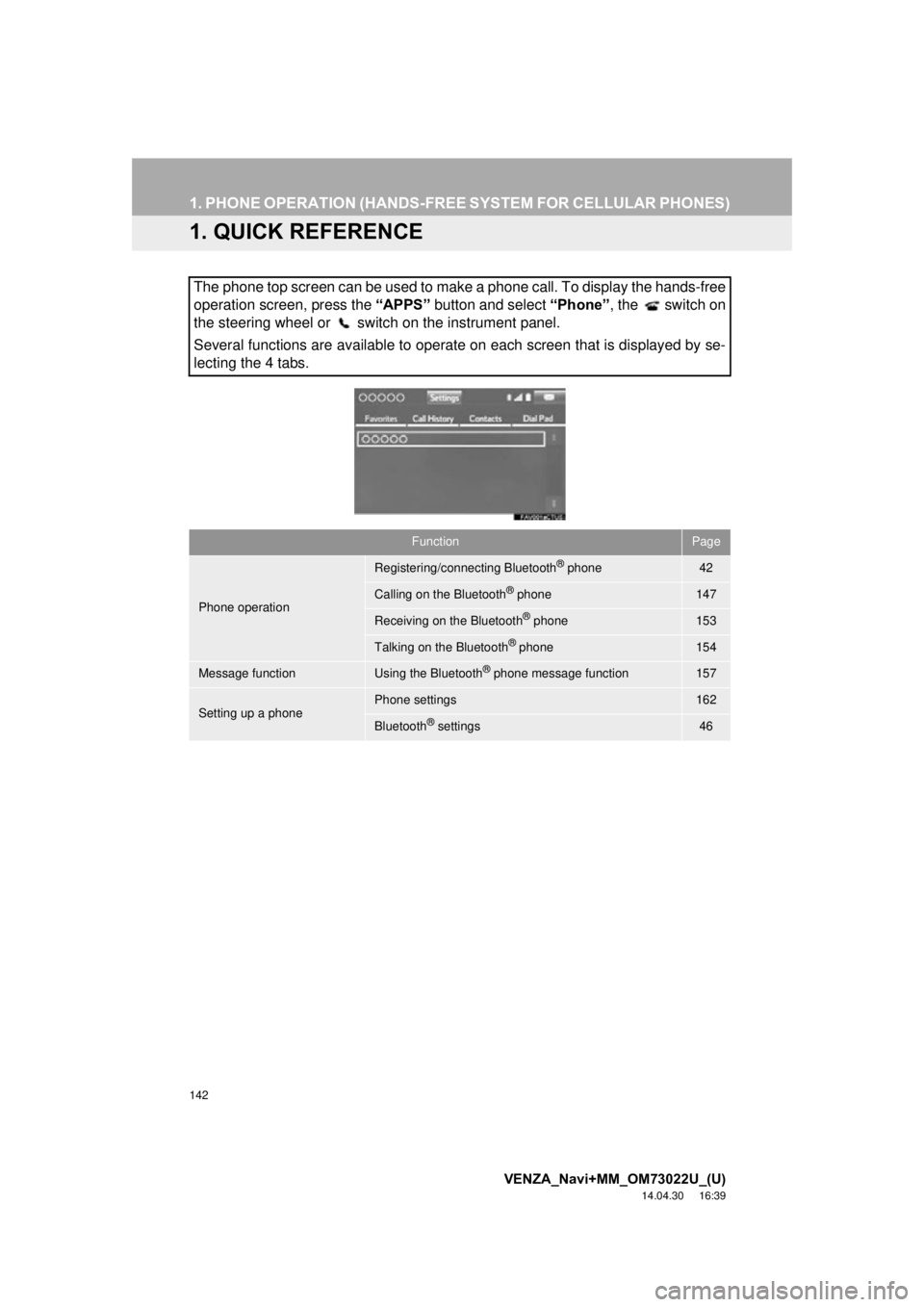
The phone top screen can be used to make a phone call. To display the hands-free
operation screen, press the “APPS” button and select “Phone” , the switch on
the steering wheel or switch on the instrument panel.
Several functions are available to operate on each screen that is displayed by se-
lecting the 4 tabs.
FunctionPage
Phone operation
Registering/connecting Bluetooth® phone42
Calling on the Bluetooth® phone147
Receiving on the Bluetooth® phone153
Talking on the Bluetooth® phone154
Message functionUsing the Bluetooth® phone message function157
Setting up a phonePhone settings162
Bluetooth® settings46
Page 143 of 281
143
1. PHONE OPERATION (HANDS-FREE SYSTEM FOR CELLULAR PHONES)
VENZA_Navi+MM_OM73022U_(U)
14.04.30 16:39
PHONE
6
2. SOME BASICS
The hands-free system enables calls
to be made and received without hav-
ing to take your hands off the steering
wheel.
This system supports Bluetooth
®.
Bluetooth® is a wireless data system
that enables cellular phones to be used
without being connected by a cable or
placed in a cradle.
The operating procedure of the phone
is explained here.
CAUTION
● While driving, do not use a cellular
phone or connect the Bluetooth® phone.
● Your audio unit is fitted with Bluetooth
®
antennas. People with implantable car-
diac pacemakers, cardiac resynchroni-
zation therapy-pacemakers or
implantable cardioverter defibrillators
should maintain a reasonable distance
between themselves and the Bluetooth
®
antennas. The radio waves may affect
the operation of such devices.
● Before using Bluetooth
® devices, users
of any electrical medical device other
than implantable cardiac pacemakers,
cardiac resynchronization therapy-pace-
makers or implantable cardioverter
defibrillators should consult the manu-
facturer of the device for information
about its operation under the influence
of radio waves. Radio waves could have
unexpected effects on the operation of
such medical devices.
NOTICE
● Do not leave your cellular phone in the
vehicle. The temperature inside may rise
to a level that could damage the phone.
INFORMATION
●If your cellular phone does not support
Bluetooth®, this system cannot function.
● In the following conditions, the system
may not function:
• The cellular phone is turned off.
• The current position is outside the
communication area.
• The cellular phone is not connected.
• The cellular phone has a low battery.
● When using Bluetooth
® audio and
hands-free at the same time, the follow-
ing problems may occur:
• The Bluetooth
® connection may be
cut.
• Noise may be heard on the Bluetooth
®
audio playback.
REGISTERING/CONNECTING
A Bluetooth® PHONE
To use the hands-free system for cellu-
lar phones, it is necessary to register a
cellular phone with the system.
( P.42)
Bluetooth® PHONE CONDITION
DISPLAY
The condition of the Bluetooth
® phone
appears on the upper right side of the
screen. ( P.18)
Page 147 of 281
147
1. PHONE OPERATION (HANDS-FREE SYSTEM FOR CELLULAR PHONES)
VENZA_Navi+MM_OM73022U_(U)
14.04.30 16:39
PHONE
6
3. CALLING ON THE Bluetooth® PHONE
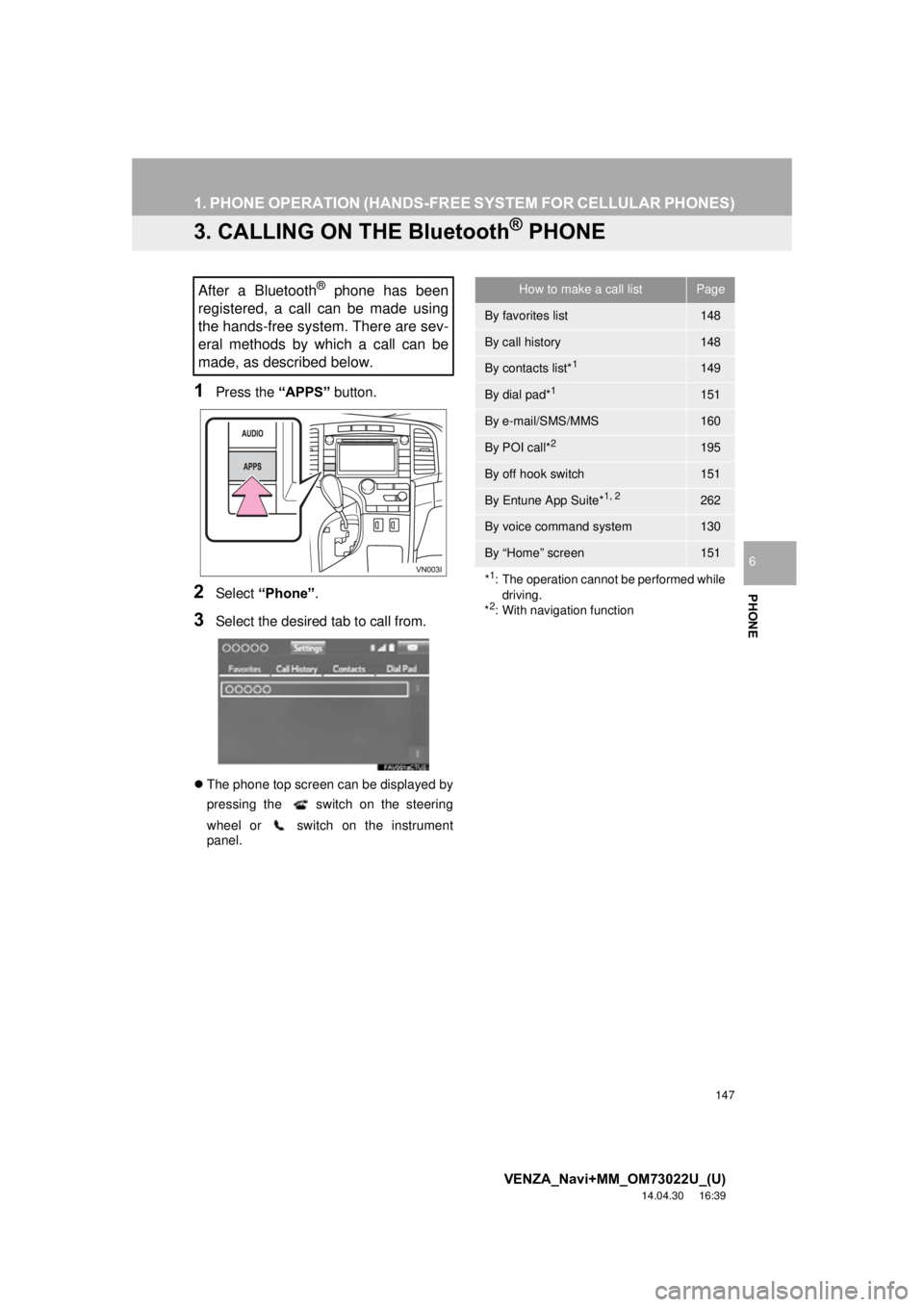
1Press the “APPS” button.
2Select “Phone” .
3Select the desired tab to call from.
The phone top screen can be displayed by
pressing the
switch on the steering
wheel or switch on the instrument
panel.
After a Bluetooth® phone has been
registered, a call can be made using
the hands-free system. There are sev-
eral methods by which a call can be
made, as described below.How to make a call listPage
By favorites list148
By call history148
By contacts list*1149
By dial pad*1151
By e-mail/SMS/MMS160
By POI call*2195
By off hook switch151
By Entune App Suite*1, 2262
By voice command system130
By “Home” screen151
*
1: The operation cannot be performed while driving.
*
2: With navigation function
Page 150 of 281
150
1. PHONE OPERATION (HANDS-FREE SYSTEM FOR CELLULAR PHONES)
VENZA_Navi+MM_OM73022U_(U)
14.04.30 16:39
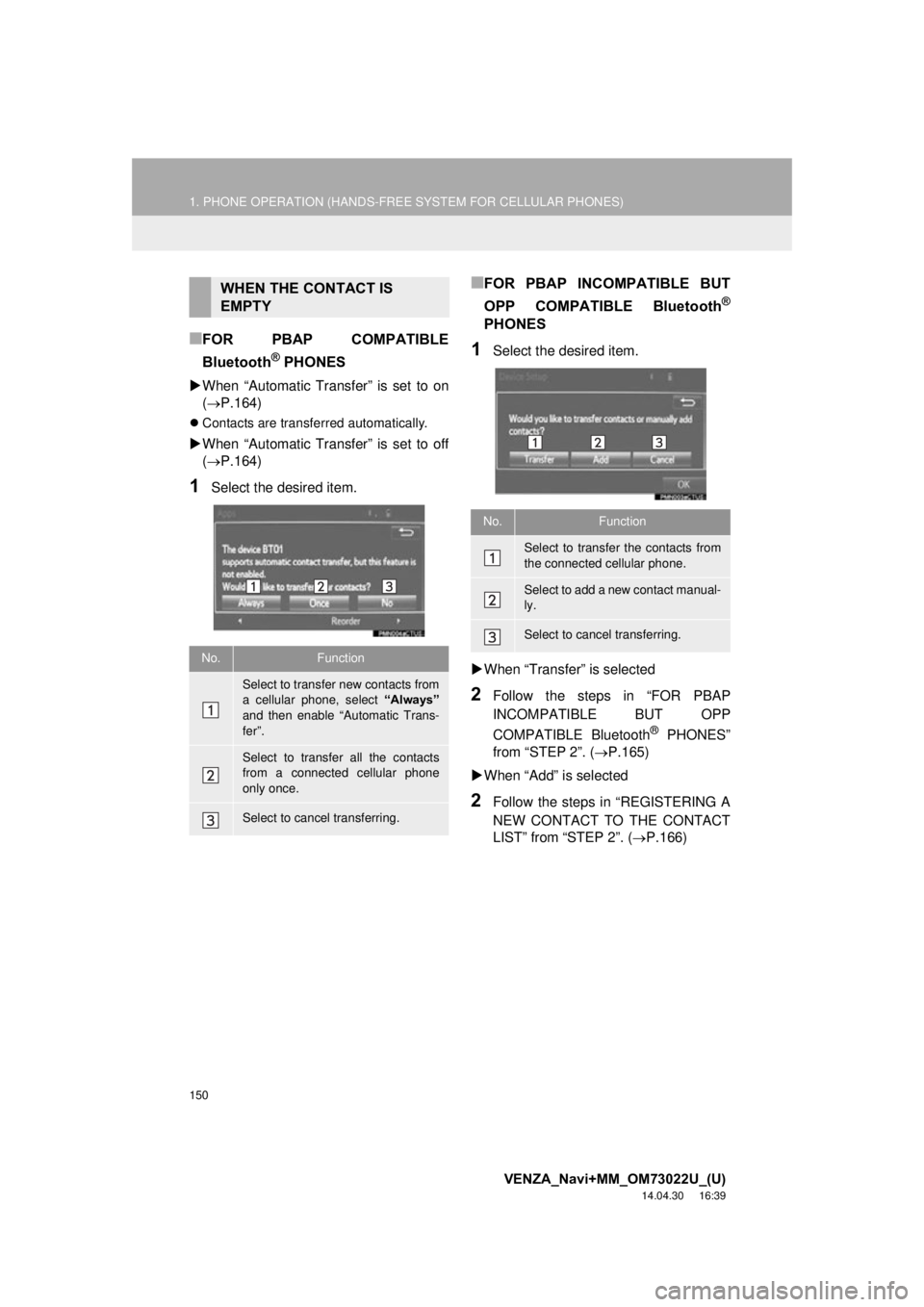
■FOR PBAP COMPATIBLE
Bluetooth
® PHONES
When “Automatic Transfer” is set to on
(P.164)
Contacts are transferred automatically.
When “Automatic Transfer” is set to off
(P.164)
1Select the desired item.
■FOR PBAP INCOMPATIBLE BUT
OPP COMPATIBLE Bluetooth
®
PHONES
1Select the desired item.
When “Transfer” is selected
2Follow the steps in “FOR PBAP
INCOMPATIBLE BUT OPP
COMPATIBLE Bluetooth
® PHONES”
from “STEP 2”. ( P.165)
When “Add” is selected
2Follow the steps in “REGISTERING A
NEW CONTACT TO THE CONTACT
LIST” from “STEP 2”. ( P.166)
WHEN THE CONTACT IS
EMPTY
No.Function
Select to transfer new contacts from
a cellular phone, select “Always”
and then enable “Automatic Trans-
fer”.
Select to transfer all the contacts
from a connected cellular phone
only once.
Select to cancel transferring.
No.Function
Select to transfer the contacts from
the connected cellular phone.
Select to add a new contact manual-
ly.
Select to cancel transferring.