steering TOYOTA VENZA 2015 Accessories, Audio & Navigation (in English)
[x] Cancel search | Manufacturer: TOYOTA, Model Year: 2015, Model line: VENZA, Model: TOYOTA VENZA 2015Pages: 281, PDF Size: 6.02 MB
Page 8 of 281

TABLE OF CONTENTS
8
VENZA_Navi+MM_OM73022U_(U)
14.04.30 16:39
1. BASIC FUNCTION........................... 12
OVERVIEW BUTTONS ......................... 12
“Apps” SCREEN .................................... 14
HOME SCREEN .................................... 16
2. QUICK REFERENCE....................... 20
“Setup” SCREEN ................................... 20
3. NAVIGATION OPERATION ............ 22
REGISTERING HOME .......................... 22
REGISTERING PRESET DESTINATIONS .................................. 24
OPERATION FLOW: GUIDING THE ROUTE ....................... 26
SETTING HOME AS THE DESTINATION .................................... 27
4. FUNCTION INDEX .. ......................... 28
FUNCTION INDEX ................................ 28
1. BASIC INFORMATION
BEFORE OPERATION .................. 32
INITIAL SCREEN ................................... 32
TOUCH SCREEN GESTURES ............. 34
TOUCH SCREEN OPERATION ............ 35
HOME SCREEN OPERATION .............. 36
ENTERING LETTERS AND
NUMBERS/LIST SCREEN
OPERATION ....................................... 37
SCREEN ADJUSTMENT ....................... 40
2. Bluetooth® SETTINGS.................... 42
REGISTERING/CONNECTING Bluetooth® DEVICE............................. 42
SETTING Bluetooth® DETAILS ............. 46
3. OTHER SETTINGS ......................... 54
GENERAL SETTINGS ........................... 54
VOICE SETTINGS ................................. 60
DRIVER SETTINGS ............................... 61
MAINTENANCE ..................................... 62
1. BASIC OPERATION ....................... 68
QUICK REFERENCE ............................. 68
SOME BASICS....................................... 70
2. RADIO OPERATION ....................... 75
AM/FM RADIO ....................................... 75
XM Satellite Radio .................................. 85
INTERNET RADIO ................................. 91
3. MEDIA OPERATION ....................... 92
CD .......................................................... 92
USB MEMORY ....................................... 95
iPod ........................................................ 99
Bluetooth
® AUDIO................................ 103
AUX ...................................................... 108
4. AUDIO REMOTE CONTROLS...... 110
STEERING SWITCHES ....................... 110
5. SETUP ........................................... 113
AUDIO SETTINGS ............................... 113
6. TIPS FOR OPERATING THE AUDIO SYSTEM ............ .............. 115
OPERATING INFORMATION .............. 115
1QUICK GUIDE
2BASIC FUNCTION
3AUDIO SYSTEM
Page 42 of 281
42
VENZA_Navi+MM_OM73022U_(U)
14.12.04 15:06
2. Bluetooth® SETTINGS
1. REGISTERING/CONNECTING Bluetooth® DEVICE
1Turn the Bluetooth® connection setting
of your cellular phone on.
This function is not available when
Bluetooth® connection setting of your cel-
lular phone is set to off.
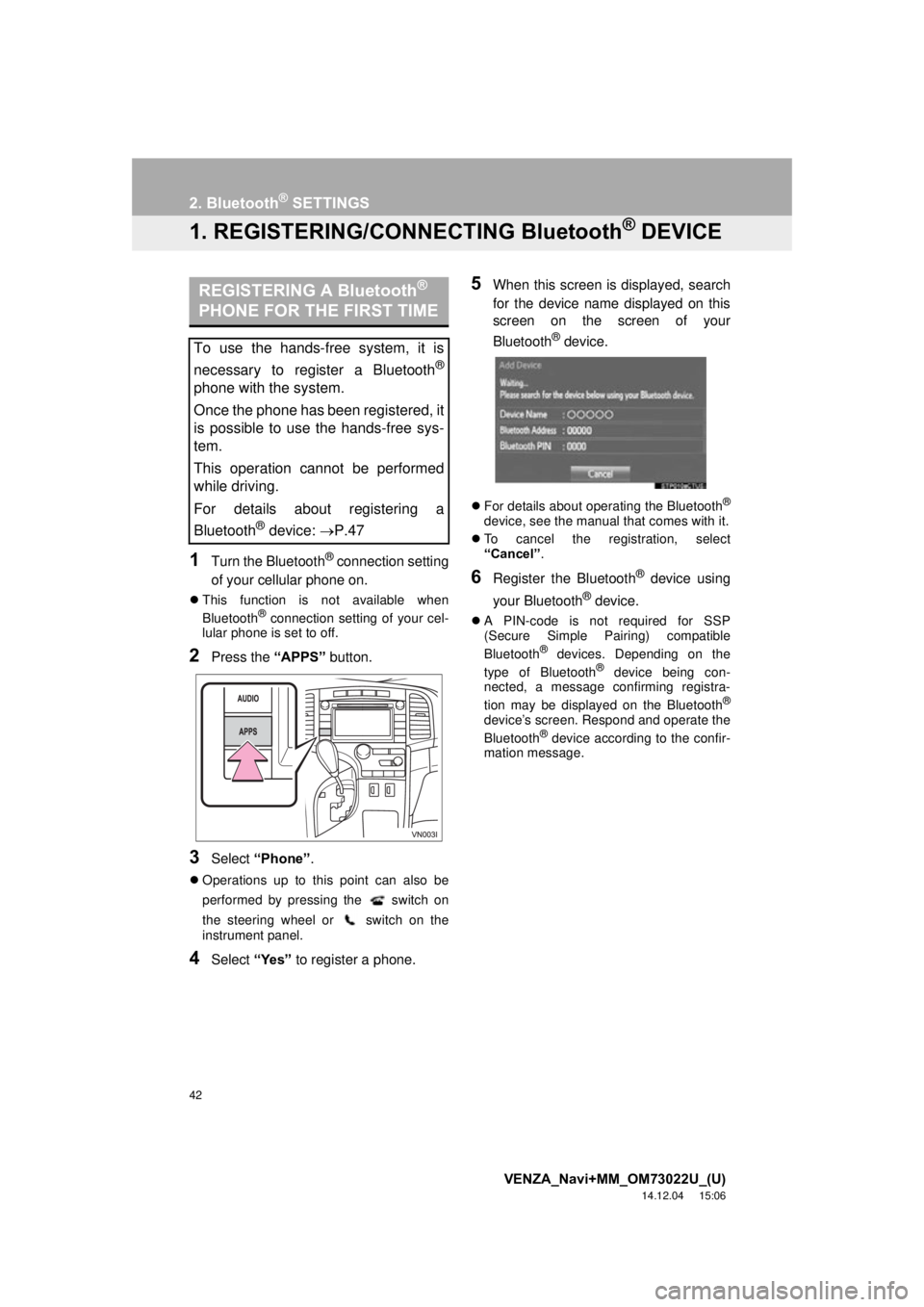
2Press the “APPS” button.
3Select “Phone” .
Operations up to this point can also be
performed by pressing the switch on
the steering wheel or switch on the
instrument panel.
4Select “Yes” to register a phone.
5When this screen is displayed, search
for the device name displayed on this
screen on the screen of your
Bluetooth
® device.
For details about operating the Bluetooth®
device, see the manual that comes with it.
To cancel the registration, select
“Cancel” .
6Register the Bluetooth® device using
your Bluetooth
® device.
A PIN-code is not required for SSP
(Secure Simple Pairing) compatible
Bluetooth
® devices. Depending on the
type of Bluetooth® device being con-
nected, a message confirming registra-
tion may be displayed on the Bluetooth
®
device’s screen. Respond and operate the
Bluetooth® device according to the confir-
mation message.
REGISTERING A Bluetooth®
PHONE FOR THE FIRST TIME
To use the hands-free system, it is
necessary to register a Bluetooth
®
phone with the system.
Once the phone has been registered, it
is possible to use the hands-free sys-
tem.
This operation cannot be performed
while driving.
For details about registering a
Bluetooth
® device: P.47
Page 67 of 281
67
VENZA_Navi+MM_OM73022U_(U)
14.04.30 16:39
1
2
3
4
5
6
7
8
1. CD .................................................. 92
OVERVIEW ........................................... 92
PLAYING AN AUDIO CD ...................... 94
PLAYING AN MP3/WMA/AAC DISC ..... 94
2. USB MEMORY ............................... 95
OVERVIEW ........................................... 95
PLAYING A USB AUDIO ....................... 98
3. iPod ................................................ 99
OVERVIEW ........................................... 99
iPod AUDIO ......................................... 102
iPod VIDEO ......................................... 102
4. Bluetooth® AUDIO ...................... 103
OVERVIEW ......................................... 103
CONNECTING A Bluetooth®
DEVICE ............................................. 107
LISTENING TO Bluetooth
® AUDIO ..... 107
5. AUX .............................................. 108
OVERVIEW ......................................... 108
1. STEERING SWITCHES............... 110
1. AUDIO SETTINGS ...................... 113
AUDIO SETTINGS SCREEN............... 113
1. OPERATING INFORMATION ..... 115
RADIO.................................................. 115
CD PLAYER AND DISC ...................... 116
iPod ...................................................... 118
FILE INFORMATION ........................... 119
TERMS ................................................ 122
ERROR MESSAGES ........................... 123
3MEDIA OPERATION4AUDIO REMOTE CONTROLS
5SETUP
6TIPS FOR OPERATING THE
AUDIO SYSTEM
Page 69 of 281
69
1. BASIC OPERATION
VENZA_Navi+MM_OM73022U_(U)
14.04.30 16:39
AUDIO SYSTEM
3
FunctionPage
Using the radio75, 85, 91
Playing an audio CD or MP3/WMA/AAC disc92
Playing a USB memory95
Playing an iPod®99
Playing a Bluetooth® device103
Using the AUX port108
Using the steering wheel audio switches11 0
Audio system settings11 3
INFORMATION
●The display and button positions will differ depending on the type of the system.
Page 91 of 281
91
2. RADIO OPERATION
VENZA_Navi+MM_OM73022U_(U)
14.04.30 16:39
AUDIO SYSTEM
3
3. INTERNET RADIO*
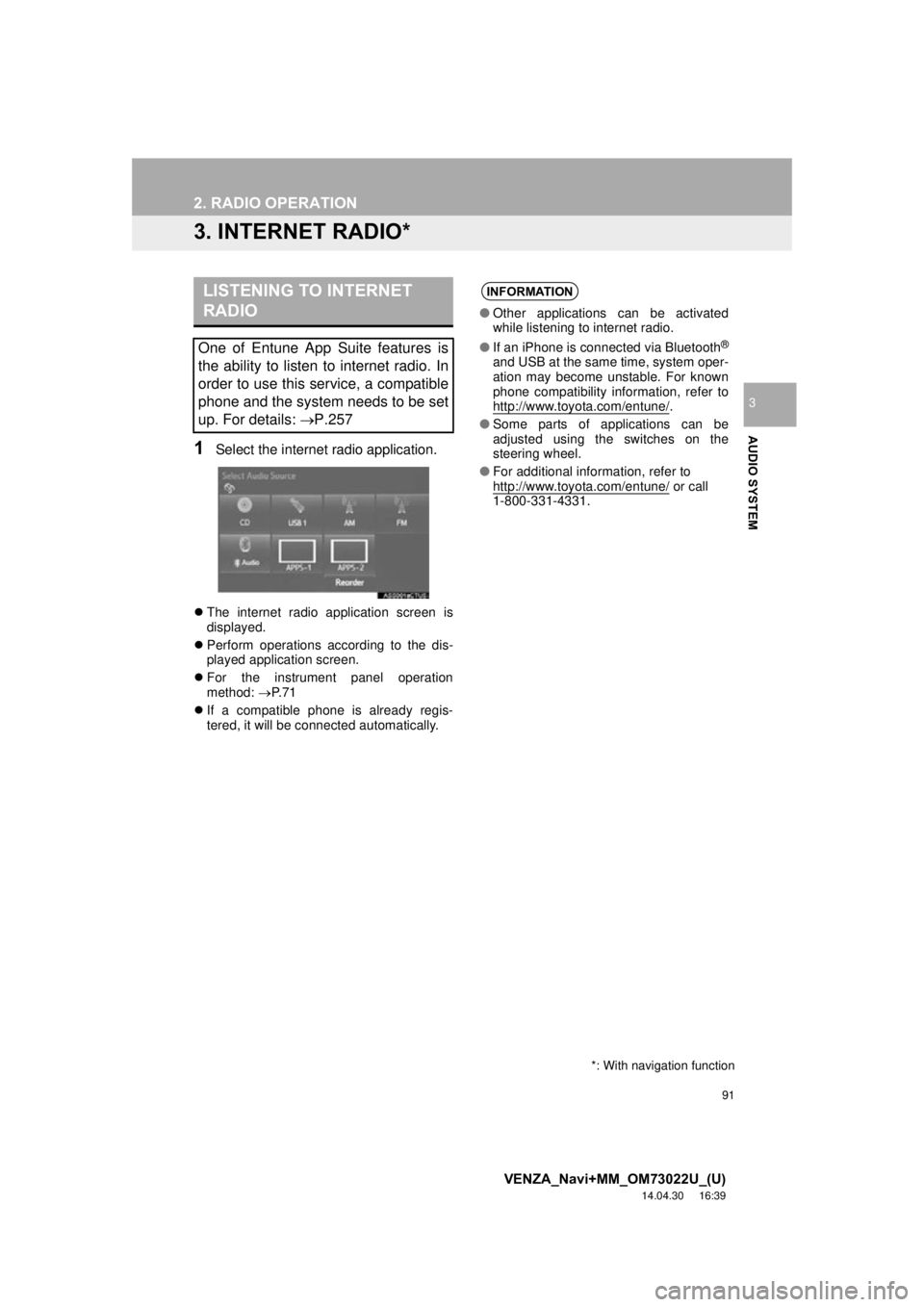
1Select the internet radio application.
The internet radio application screen is
displayed.
Perform operations according to the dis-
played application screen.
For the instrument panel operation
method: P. 7 1
If a compatible phone is already regis-
tered, it will be connected automatically.
LISTENING TO INTERNET
RADIO
One of Entune App Suite features is
the ability to listen to internet radio. In
order to use this service, a compatible
phone and the system needs to be set
up. For details: P.257
*: With navigation function
INFORMATION
●Other applications can be activated
while listening to internet radio.
● If an iPhone is connected via Bluetooth
®
and USB at the same time, system oper-
ation may become unstable. For known
phone compatibility information, refer to
http://www.toyota.com/entune/
.
● Some parts of applications can be
adjusted using the switches on the
steering wheel.
● For additional information, refer to
http://www.toyota.com/entune/
or call
1-800-331-4331.
Page 110 of 281
110
VENZA_Navi+MM_OM73022U_(U)
14.04.30 16:39
4. AUDIO REMOTE CONTROLS
1. STEERING SWITCHES
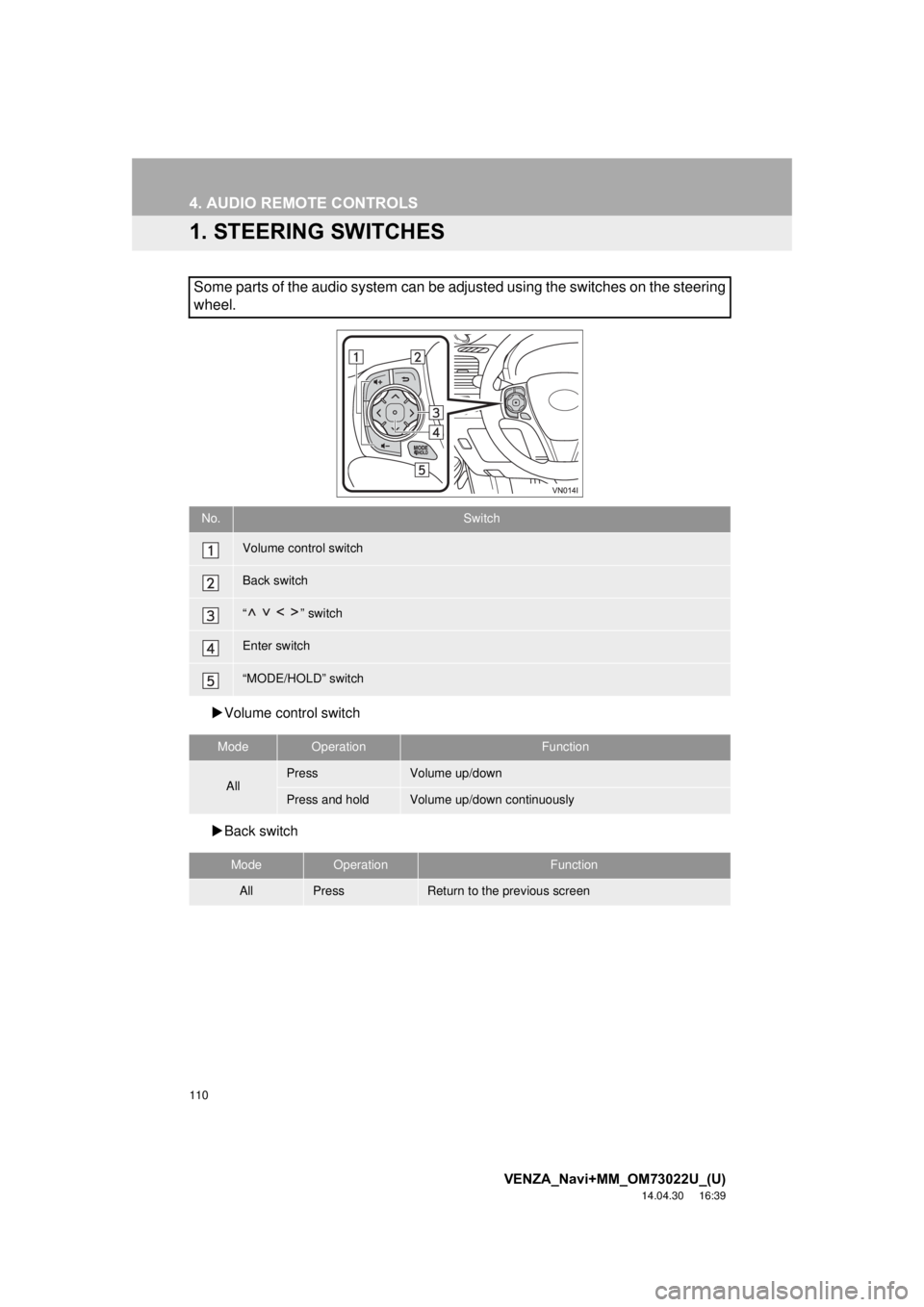
Volume cont rol switch
Back switch
Some parts of the audio system can be adjusted using the switches on the steering
wheel.
No.Switch
Volume control switch
Back switch
“” switch
Enter switch
“MODE/HOLD” switch
ModeOperationFunction
AllPressVolume up/down
Press and holdVolume up/down continuously
ModeOperationFunction
AllPressReturn to the previous screen
Page 126 of 281
126
VENZA_Navi+MM_OM73022U_(U)
14.04.30 16:39
1. VOICE COMMAND SYSTEM OPERATION
1. VOICE COMMAND SYSTEM
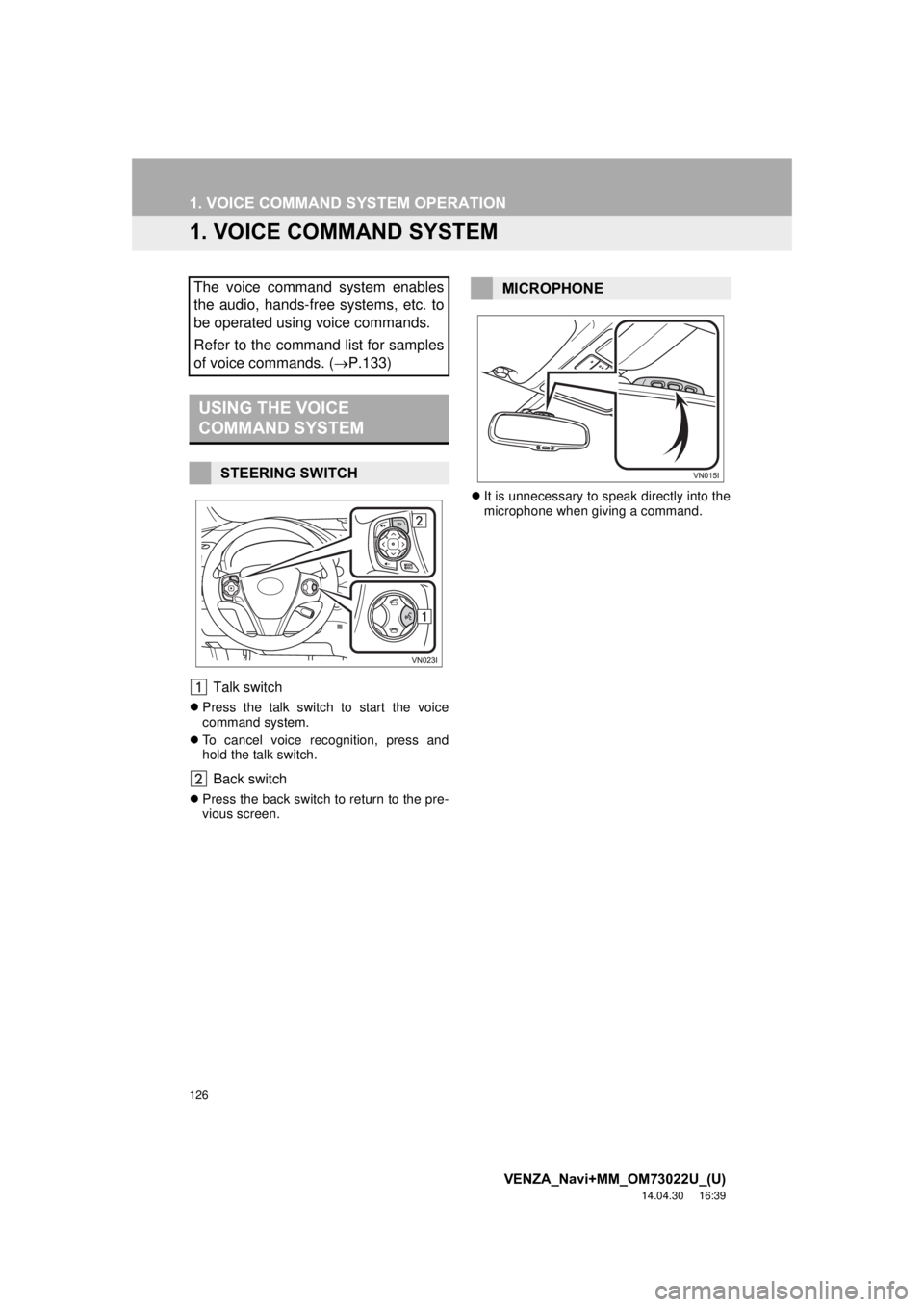
Talk switch
Press the talk switch to start the voice
command system.
To cancel voice recognition, press and
hold the talk switch.
Back switch
Press the back switch to return to the pre-
vious screen.
It is unnecessary to speak directly into the
microphone when giving a command.
The voice command system enables
the audio, hands-free systems, etc. to
be operated using voice commands.
Refer to the command list for samples
of voice commands. ( P.133)
USING THE VOICE
COMMAND SYSTEM
STEERING SWITCH
MICROPHONE
Page 128 of 281
128
1. VOICE COMMAND SYSTEM OPERATION
VENZA_Navi+MM_OM73022U_(U)
14.04.30 16:39
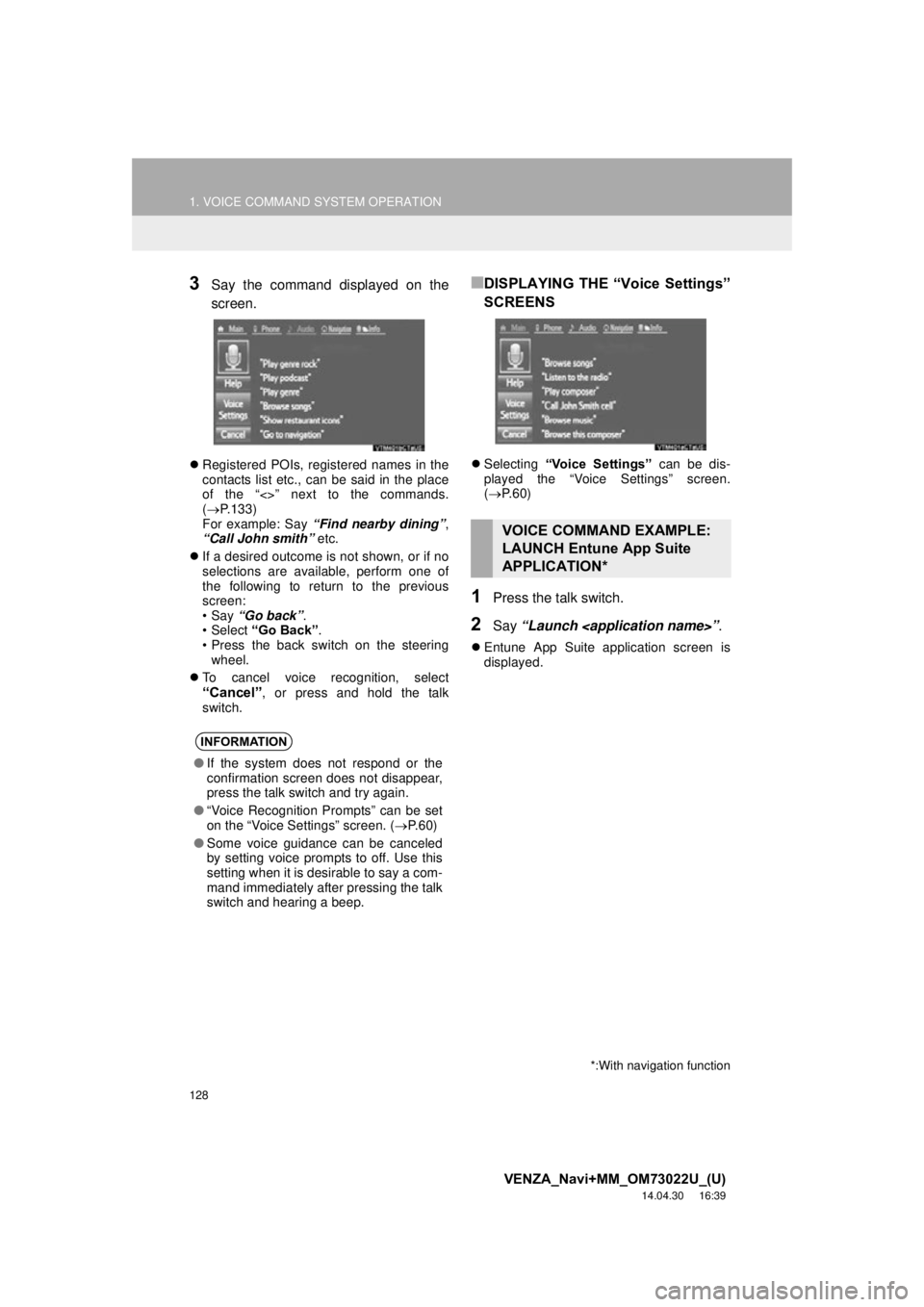
3Say the command displayed on the
screen.
Registered POIs, registered names in the
contacts list etc., can be said in the place
of the “<>” next to the commands.
( P.133)
For example: Say “Find nearby dining” ,
“Call John smith” etc.
If a desired outcome is not shown, or if no
selections are available, perform one of
the following to return to the previous
screen:
•Say “Go back” .
•Select “Go Back” .
• Press the back switch on the steering
wheel.
To cancel voice recognition, select
“Cancel”, or press and hold the talk
switch.
■DISPLAYING THE “Voice Settings”
SCREENS
Selecting “Voice Settings” can be dis-
played the “Voice Settings” screen.
( P. 6 0 )
1Press the talk switch.
2Say “Launch
Entune App Suite application screen is
displayed.
INFORMATION
●If the system does not respond or the
confirmation screen does not disappear,
press the talk switch and try again.
● “Voice Recognition Prompts” can be set
on the “Voice Settings” screen. ( P. 6 0 )
● Some voice guidance can be canceled
by setting voice prompts to off. Use this
setting when it is desirable to say a com-
mand immediately after pressing the talk
switch and hearing a beep.
VOICE COMMAND EXAMPLE:
LAUNCH Entune App Suite
APPLICATION*
*:With navigation function
Page 131 of 281
131
1. VOICE COMMAND SYSTEM OPERATION
VENZA_Navi+MM_OM73022U_(U)
14.04.30 16:39
VOICE COMMAND SYSTEM
4
1Press the talk switch.
2Say the phone number.
In the same manner as it is displayed on
the screen, “Dial
“Dial a number” say the phone number.
Say the phone number one digit at a time.
For example, if the phone number is
2345678:
Say “two three four five six seven
eight”
Do not say “twenty three forty five sixty
seven eight”
Calling to the following phone numbers
• 3 digit numbers (911, 411, 611)
• 7 digit numbers (Local phone numbers)
• 10 digit numbers (Area code + Local
phone number)
• 11 digit phone numbers (1 + Area code + Local phone number)
As the system cannot recognize additional
numbers, say the complete number with-
out stopping.
Calling to other phone numbers
3Say “Call” or press the switch on
the steering wheel.
VOICE COMMAND EXAMPLE:
DIAL NUMBER
When the system recognizes multiple
phone numbers, a phone number candi-
date list will be displayed on the screen.
Pressing the
switch on the steering
wheel makes a call to the top entry on
the list. If the desired phone number is
not displayed on the top of the screen,
say the number of the desired phone
number from the candidate list to select
a phone number from the candidate list.
Page 142 of 281
142
VENZA_Navi+MM_OM73022U_(U)
14.04.30 16:39
1. PHONE OPERATION (HANDS-FREE SYSTEM FOR CELLULAR PHONES)
1. QUICK REFERENCE
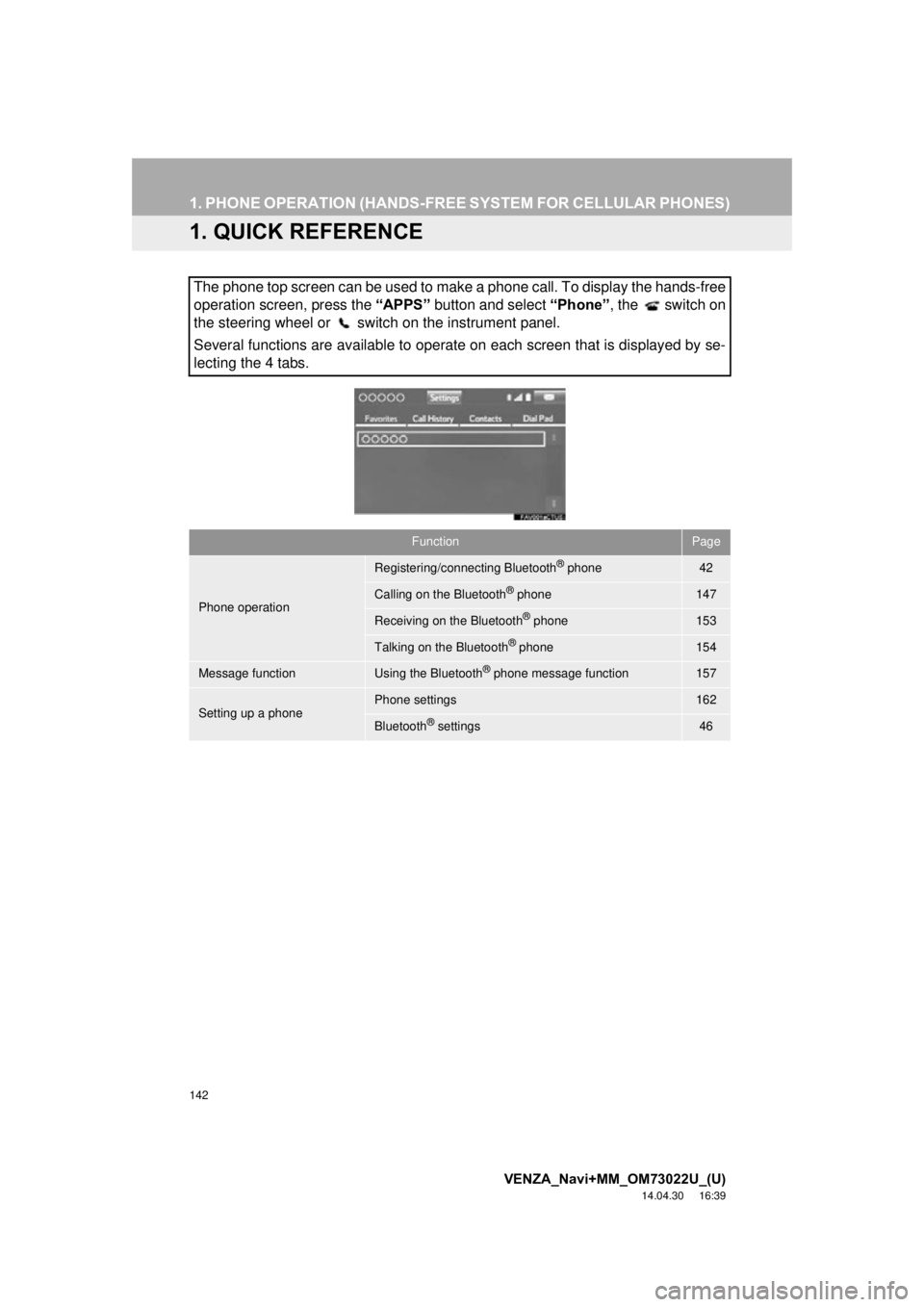
The phone top screen can be used to make a phone call. To display the hands-free
operation screen, press the “APPS” button and select “Phone” , the switch on
the steering wheel or switch on the instrument panel.
Several functions are available to operate on each screen that is displayed by se-
lecting the 4 tabs.
FunctionPage
Phone operation
Registering/connecting Bluetooth® phone42
Calling on the Bluetooth® phone147
Receiving on the Bluetooth® phone153
Talking on the Bluetooth® phone154
Message functionUsing the Bluetooth® phone message function157
Setting up a phonePhone settings162
Bluetooth® settings46