change time TOYOTA VENZA 2015 Accessories, Audio & Navigation (in English)
[x] Cancel search | Manufacturer: TOYOTA, Model Year: 2015, Model line: VENZA, Model: TOYOTA VENZA 2015Pages: 48, PDF Size: 3.27 MB
Page 5 of 48
128-8673b
5 of 48
- III -
CAUTION
Conversational speech on some DVDs is recorded at a
low volume to emphasize the impact of sound eff ects. If
you adjust the volume assuming that the conversations
represent the maximum volume level available for the
DVD, you may be startled by the louder sound eff ects or
when you change to a diff erent audio source. Loud sounds
may have a signifi cant impact on the human body or pose
a driving hazard. Keep this in mind when you adjust the
volume.
CAUTION
1. Keep the monitor clean and dry.
2. Always seek qualifi ed personnel to perform repairs.
Never attempt your own repairs.
3. Do not drop the monitor or expose the monitor to
strong impacts.
4. Do not expose the monitor to direct sunlight for
extended periods of time.
CAUTION
Before putting on Headphones always adjust the volume
setting to the lowest position.
CAUTION
The front glass on the liquid crystal display (LCD) screen
may break when hit with a hard object. If the glass breaks,
do not touch the liquid crystalline material. In case of
contact with skin, wash immediately with soap and water.
Page 15 of 48
128-8673b
15 of 48
- 5 -
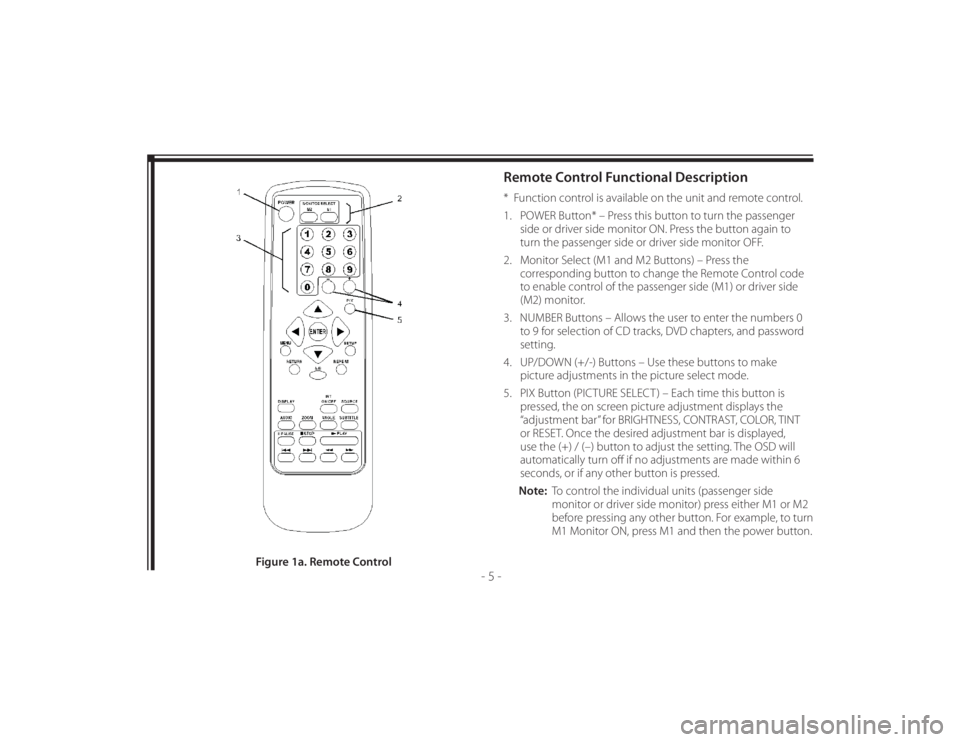
Remote Control Functional Description* Function control is available on the unit and remote control.
1. POWER Button* – Press this button to turn the passenger
side or driver side monitor ON. Press the button again to
turn the passenger side or driver side monitor OFF.
2. Monitor Select (M1 and M2 Buttons) – Press the
corresponding button to change the Remote Control code
to enable control of the passenger side (M1) or driver side
(M2) monitor.
3. NUMBER Buttons – Allows the user to enter the numbers 0
to 9 for selection of CD tracks, DVD chapters, and password
setting.
4. UP/DOWN (+/-) Buttons – Use these buttons to make
picture adjustments in the picture select mode.
5. PIX Button (PICTURE SELECT ) – Each time this button is
pressed, the on screen picture adjustment displays the
“adjustment bar” for BRIGHTNESS, CONTRAST, COLOR, TINT
or RESET. Once the desired adjustment bar is displayed,
use the (+) / (–) button to adjust the setting. The OSD will
automatically turn off if no adjustments are made within 6
seconds, or if any other button is pressed.
Note: To control the individual units (passenger side
monitor or driver side monitor) press either M1 or M2
before pressing any other button. For example, to turn
M1 Monitor ON, press M1 and then the power button.
Figure 1a. Remote Control
Page 17 of 48
128-8673b
17 of 48
- 7 -
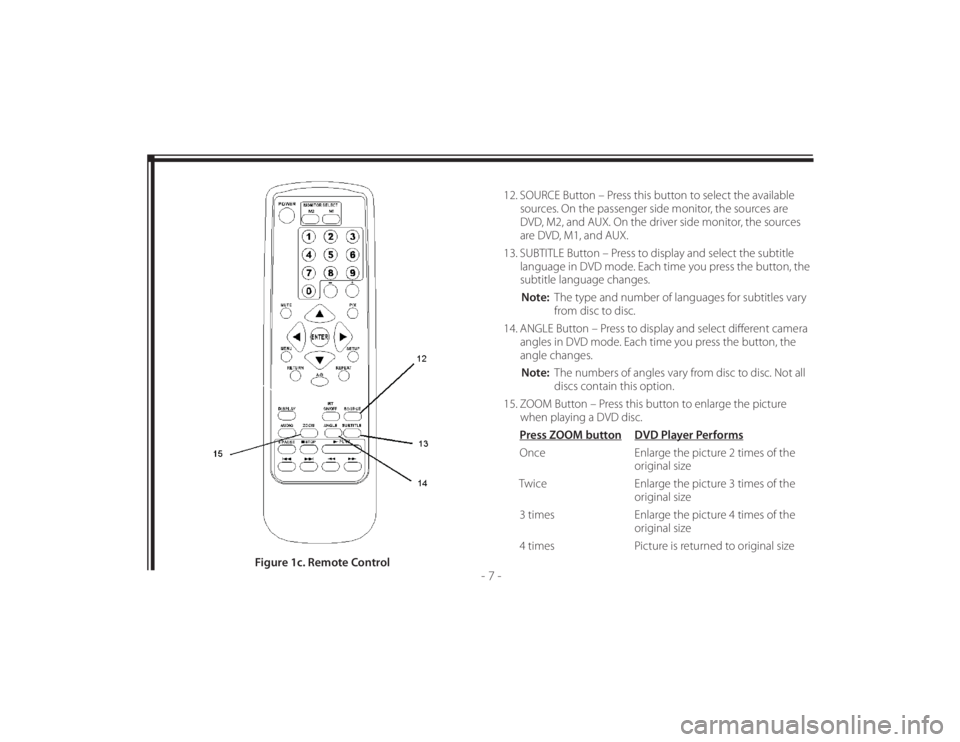
12. SOURCE Button – Press this button to select the available
sources. On the passenger side monitor, the sources are
DVD, M2, and AUX. On the driver side monitor, the sources
are DVD, M1, and AUX.
13. SUBTITLE Button – Press to display and select the subtitle
language in DVD mode. Each time you press the button, the
subtitle language changes.
Note: The type and number of languages for subtitles vary
from disc to disc.
14. ANGLE Button – Press to display and select diff erent camera
angles in DVD mode. Each time you press the button, the
angle changes.
Note: The numbers of angles vary from disc to disc. Not all
discs contain this option.
15. ZOOM Button – Press this button to enlarge the picture
when playing a DVD disc.
Press ZOOM button DVD Player Performs
Once Enlarge the picture 2 times of the
original size
Twice Enlarge the picture 3 times of the
original size
3 times Enlarge the picture 4 times of the
original size
4 times Picture is returned to original size
Figure 1c. Remote Control
Page 18 of 48
128-8673b
18 of 48
- 8 -
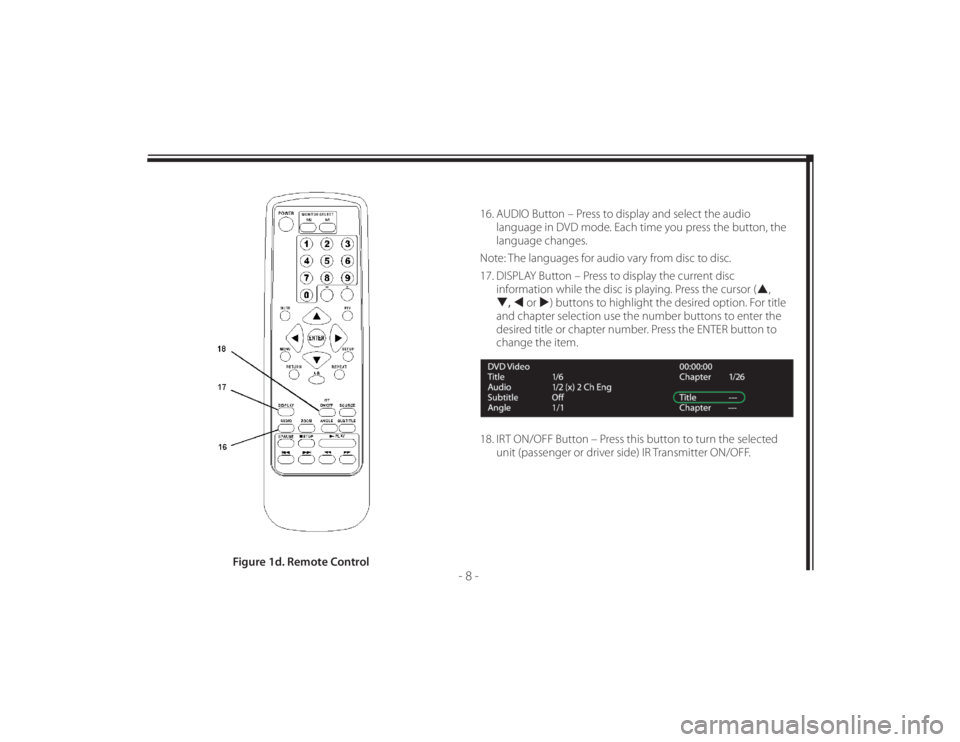
16. AUDIO Button – Press to display and select the audio
language in DVD mode. Each time you press the button, the
language changes.
Note: The languages for audio vary from disc to disc.
17. DISPLAY Button – Press to display the current disc
information while the disc is playing. Press the cursor (,
, or ) buttons to highlight the desired option. For title
and chapter selection use the number buttons to enter the
desired title or chapter number. Press the ENTER button to
change the item.
18. IRT ON/OFF Button – Press this button to turn the selected
unit (passenger or driver side) IR Transmitter ON/OFF.
Figure 1d. Remote Control
Page 19 of 48
128-8673b
19 of 48
- 9 -
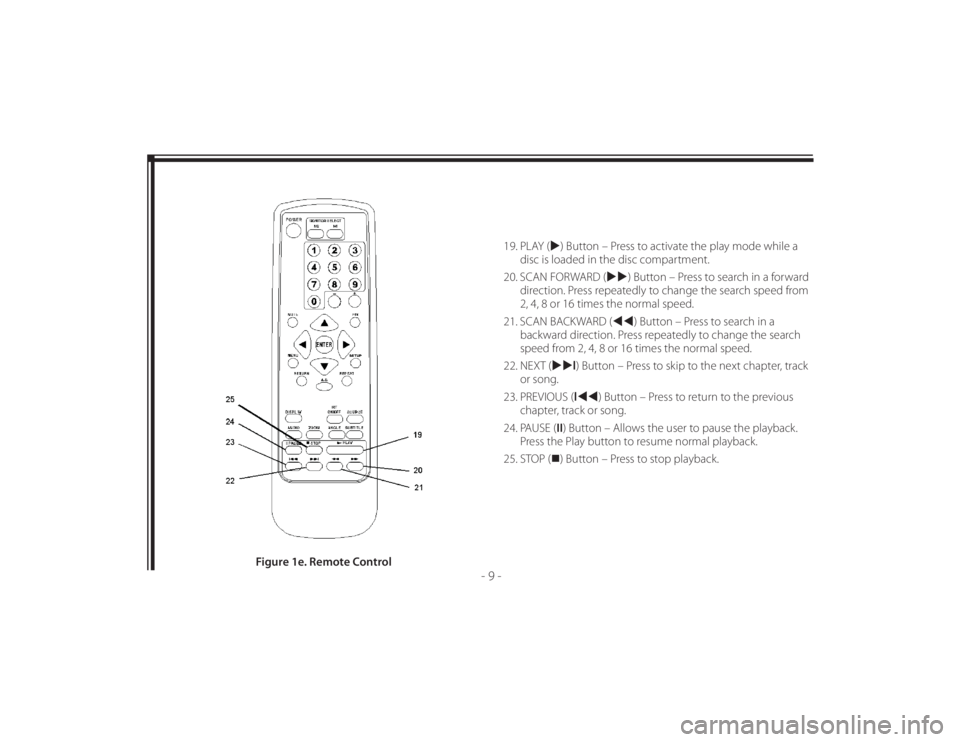
19. PLAY () Button – Press to activate the play mode while a
disc is loaded in the disc compartment.
20. SCAN FORWARD () Button – Press to search in a forward
direction. Press repeatedly to change the search speed from
2, 4, 8 or 16 times the normal speed.
21. SCAN BACKWARD () Button – Press to search in a
backward direction. Press repeatedly to change the search
speed from 2, 4, 8 or 16 times the normal speed.
22. NEXT (l) Button – Press to skip to the next chapter, track
or song.
23. PREVIOUS (l) Button – Press to return to the previous
chapter, track or song.
24. PAUSE (II) Button – Allows the user to pause the playback.
Press the Play button to resume normal playback.
25. STOP () Button – Press to stop playback.
Figure 1e. Remote Control
Page 26 of 48
128-8673b
26 of 48
- 16 -
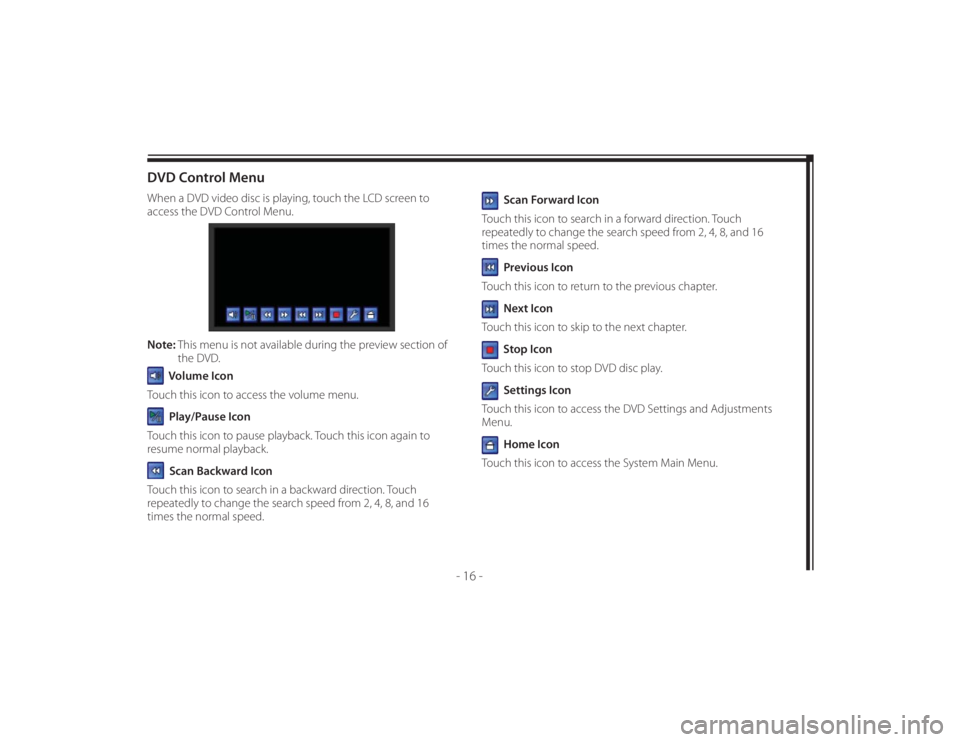
DVD Control MenuWhen a DVD video disc is playing, touch the LCD screen to
access the DVD Control Menu.
Note: This menu is not available during the preview section of
the DVD.
Volume Icon
Touch this icon to access the volume menu. Play/Pause Icon
Touch this icon to pause playback. Touch this icon again to
resume normal playback. Scan Backward Icon
Touch this icon to search in a backward direction. Touch
repeatedly to change the search speed from 2, 4, 8, and 16
times the normal speed.
Scan Forward Icon
Touch this icon to search in a forward direction. Touch
repeatedly to change the search speed from 2, 4, 8, and 16
times the normal speed. Previous Icon
Touch this icon to return to the previous chapter. Next Icon
Touch this icon to skip to the next chapter. Stop Icon
Touch this icon to stop DVD disc play. Settings Icon
Touch this icon to access the DVD Settings and Adjustments
Menu. Home Icon
Touch this icon to access the System Main Menu.
Page 31 of 48
128-8673b
31 of 48
- 21 -
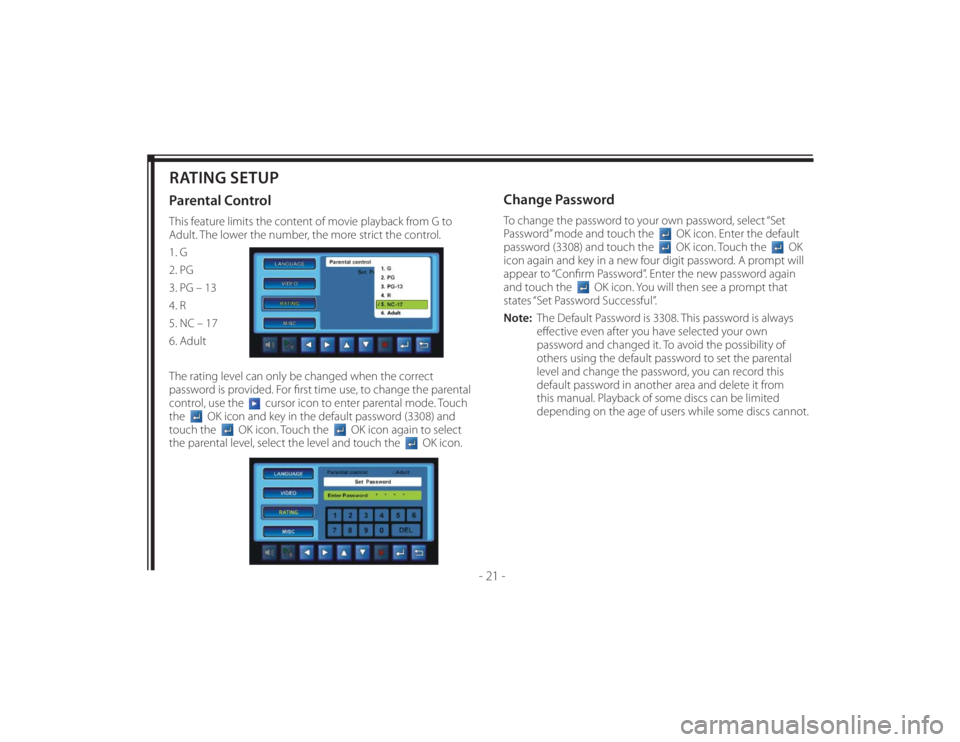
RATING SETUPParental ControlThis feature limits the content of movie playback from G to
Adult. The lower the number, the more strict the control.
1. G
2. PG
3. PG – 13
4. R
5. NC – 17
6. Adult
The rating level can only be changed when the correct
password is provided. For fi rst time use, to change the parental
control, use the
cursor icon to enter parental mode. Touch
the
OK icon and key in the default password (3308) and
touch the
OK icon. Touch the
OK icon again to select
the parental level, select the level and touch the
OK icon.
Change PasswordTo change the password to your own password, select “Set
Password” mode and touch the
OK icon. Enter the default
password (3308) and touch the OK icon. Touch the
OK
icon again and key in a new four digit password. A prompt will
appear to “Confi rm Password”. Enter the new password again
and touch the
OK icon. You will then see a prompt that
states “Set Password Successful”.
Note: The Default Password is 3308. This password is always
eff ective even after you have selected your own
password and changed it. To avoid the possibility of
others using the default password to set the parental
level and change the password, you can record this
default password in another area and delete it from
this manual. Playback of some discs can be limited
depending on the age of users while some discs cannot.