bluetooth TOYOTA VENZA 2016 Owner's Manual
[x] Cancel search | Manufacturer: TOYOTA, Model Year: 2016, Model line: VENZA, Model: TOYOTA VENZA 2016Pages: 688, PDF Size: 18.51 MB
Page 378 of 688

3783-2. Using the audio system (Entune Audio)
VENZA_OM_OM73030U_(U) Playing Bluetooth ®
audio
Select or to Play/Pause.
For details on “Bluetooth
* Audio” screen operation methods, refer to
Basic Audio Operations. ( P. 326)
For details on how to select a track or album, refer to selecting, fast-
forwarding and reversi ng tracks/files/songs. ( P. 338)
* : Bluetooth is a registered trademark of Bluetooth SIG, Inc.
Page 379 of 688
3793-2. Using the audio system (Entune Audio)
VENZA_OM_OM73030U_(U) 3
Interior features
Using a Bluetooth ®
Phone
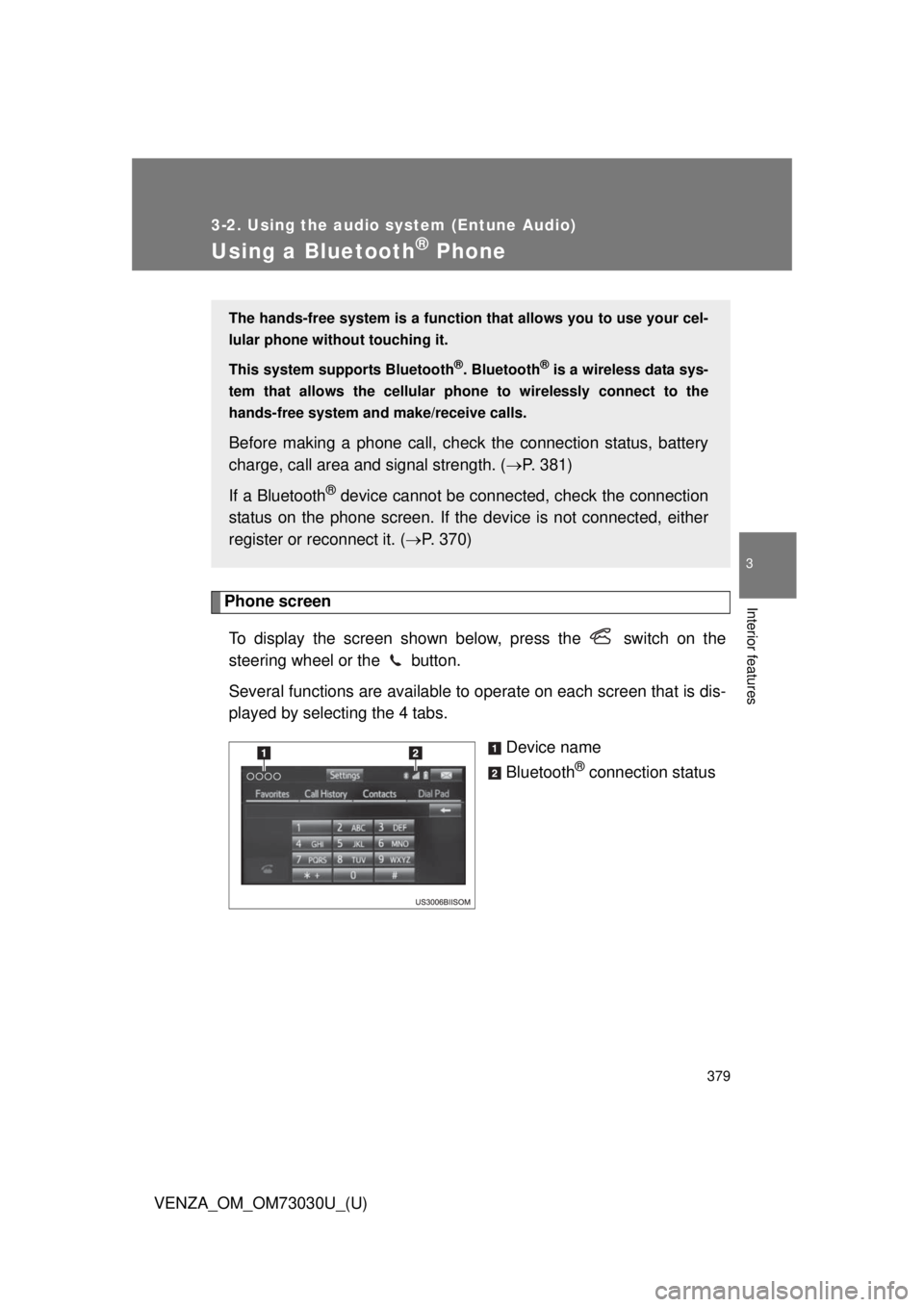
Phone screen
To display the screen shown below, press the switch on the
steering wheel or the button.
Several functions are available to operate on each screen that is dis-
played by selecting the 4 tabs.
Device name
Bluetooth ®
connection statusThe hands-free system is a function th at allows you to use your cel-
lular phone without touching it.
This system supports Bluetooth ®
. Bluetooth ®
is a wireless data sys-
tem that allows the cellular phone to wirelessly connect to the
hands-free system and make/receive calls.
Before making a phone call, check the connection status, battery
charge, call area and signal strength. ( P. 381)
If a Bluetooth ®
device cannot be connec ted, check the connection
status on the phone screen. If the de vice is not connected, either
register or reconnect it. ( P. 370)
Page 380 of 688
3803-2. Using the audio system (Entune Audio)
VENZA_OM_OM73030U_(U) ■ Telephone switch ( P. 396)
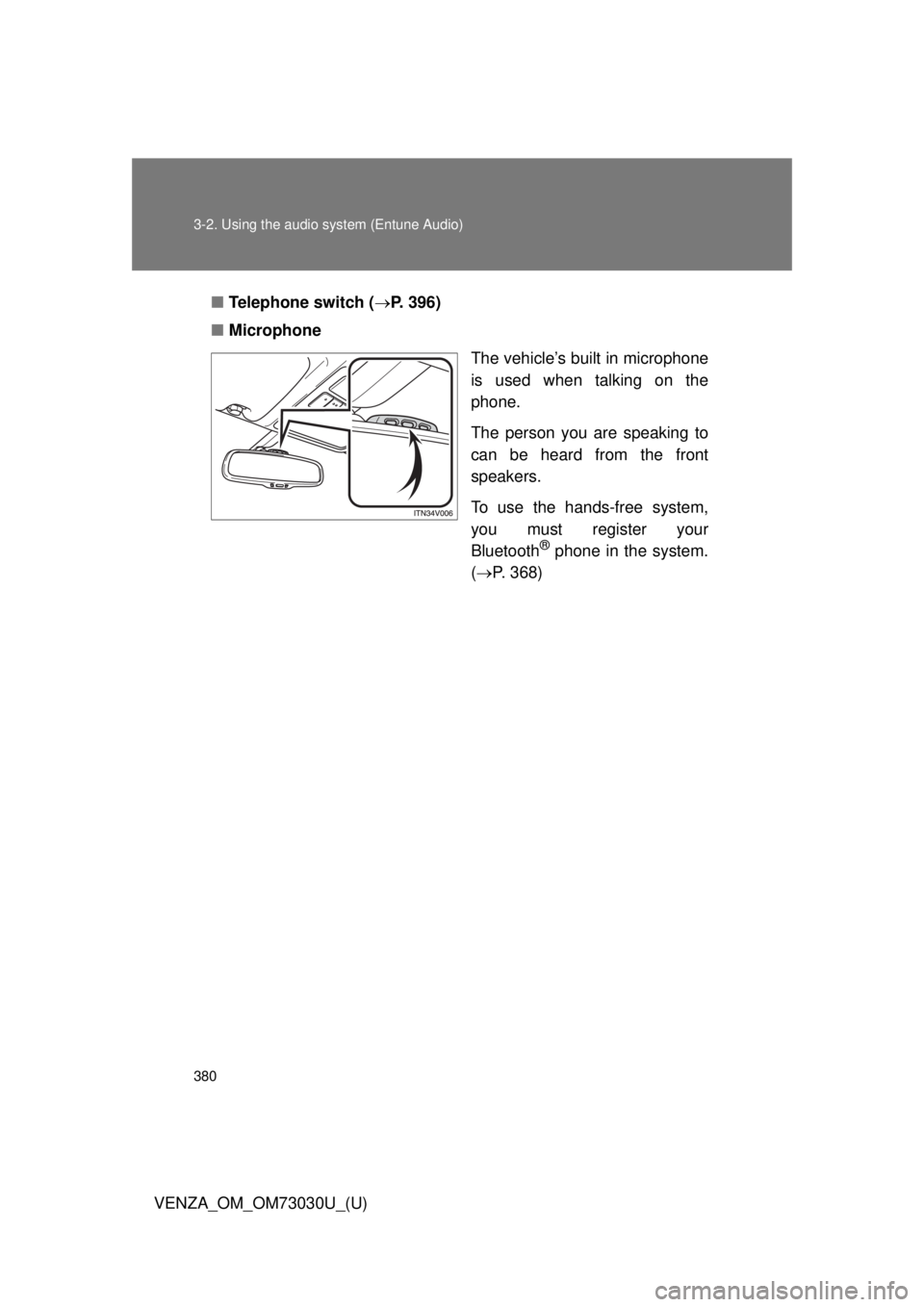
■ Microphone
The vehicle’s built in microphone
is used when talking on the
phone.
The person you are speaking to
can be heard from the front
speakers.
To use the hands-free system,
you must register your
Bluetooth ®
phone in the system.
( P. 368)
Page 382 of 688
3823-2. Using the audio system (Entune Audio)
VENZA_OM_OM73030U_(U)Making a call Dialing
Display the phone screen. ( P. 379)
Select the “Dial Pad” tab and enter a phone number. To delete the input phone number, select .
For the first digit, you can enter “+” by selecting “ ” for a while.
Press the switch on the steering wheel or select .
Dialing from the contacts list
You can dial a number from the c ontact data imported from your cel-
lular phone. The system has one contact for each registered phone.
Up to 2500 contacts may be stored in each contact.
Display the phone screen. ( P. 379)
Select “Contacts” tab.
Choose the desired contact to call from the list.
Choose the number and then press the switch on the
steering wheel or select .
When the contact is empty
You can transfer the phone numbers in a Bluetooth ®
phone to the
system.
Operation methods differ between PBAP (Phone Book Access Pro-
file) compatible and PBA P incompatible Bluetooth ®
phones. If the
cellular phone does not support either PBAP or OPP (Object Push
Profile) service, you ca nnot transfer contacts.Once a Bluetooth ®
phone is registered, you can make a call using
the following procedure: STEP 1
STEP 2
STEP 3
STEP 1
STEP 2
STEP 3
STEP 4
Page 383 of 688
3833-2. Using the audio system (Entune Audio)
VENZA_OM_OM73030U_(U) 3
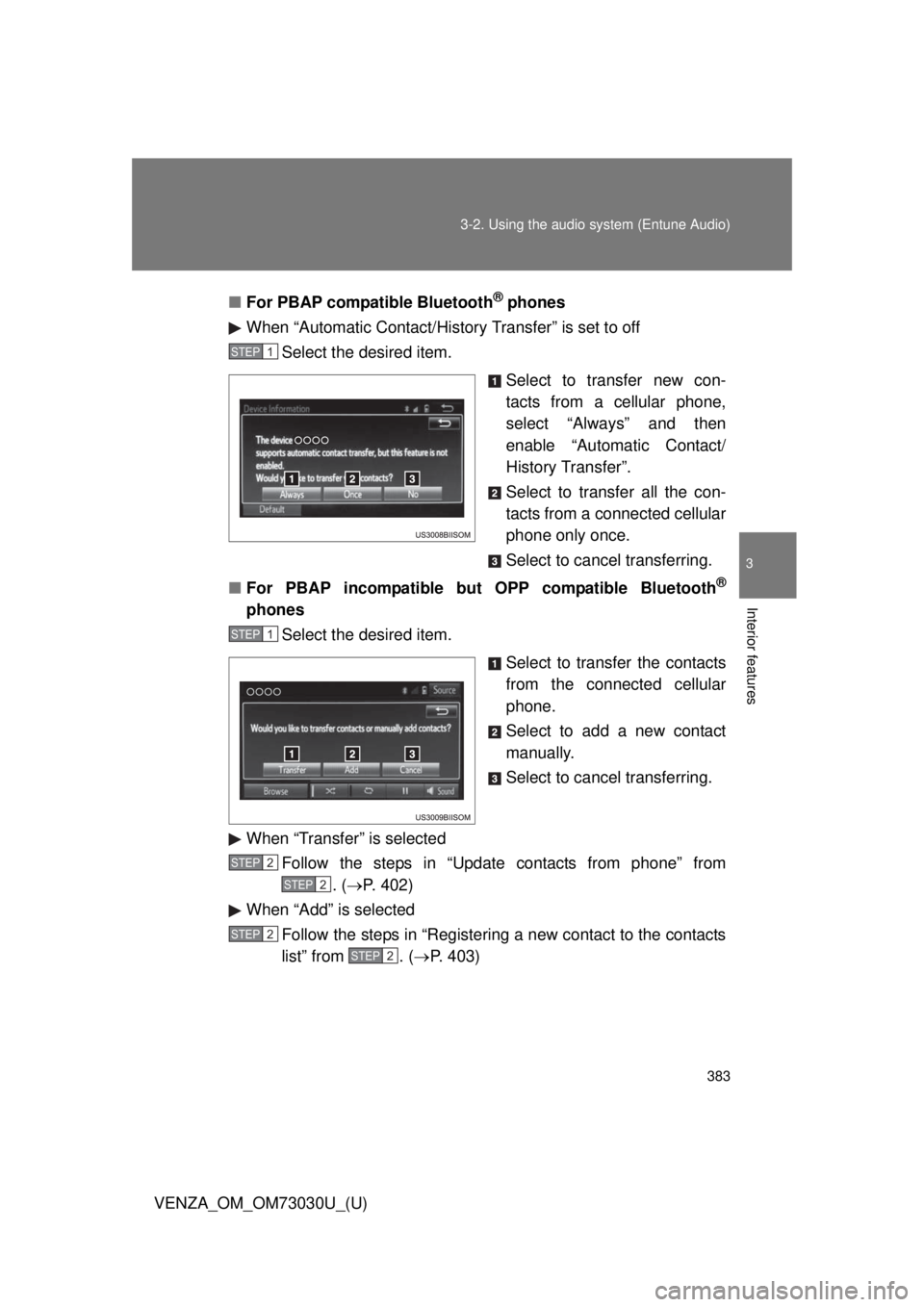
Interior features ■ For PBAP compatible Bluetooth ®
phones
When “Automatic Contact/History Transfer” is set to off
Select the desired item.
Select to transfer new con-
tacts from a cellular phone,
select “Always” and then
enable “Automatic Contact/
History Transfer”.
Select to transfer all the con-
tacts from a connected cellular
phone only once.
Select to cancel transferring.
■ For PBAP incompatible but OPP compatible Bluetooth ®
phones
Select the desired item.
Select to transfer the contacts
from the connected cellular
phone.
Select to add a new contact
manually.
Select to cancel transferring.
When “Transfer” is selected
Follow the steps in “Update contacts from phone” from
. ( P. 402)
When “Add” is selected
Follow the steps in “Registering a new contact to the contacts
list” from . ( P. 403)STEP 1
STEP 1
STEP 2
STEP 2
STEP 2
STEP2
Page 391 of 688
3913-2. Using the audio system (Entune Audio)
VENZA_OM_OM73030U_(U) 3
Interior features
Bluetooth ®
phone message function
Displaying “Messa ge Inbox” screen
Press the button.
Select .
Receiving a message
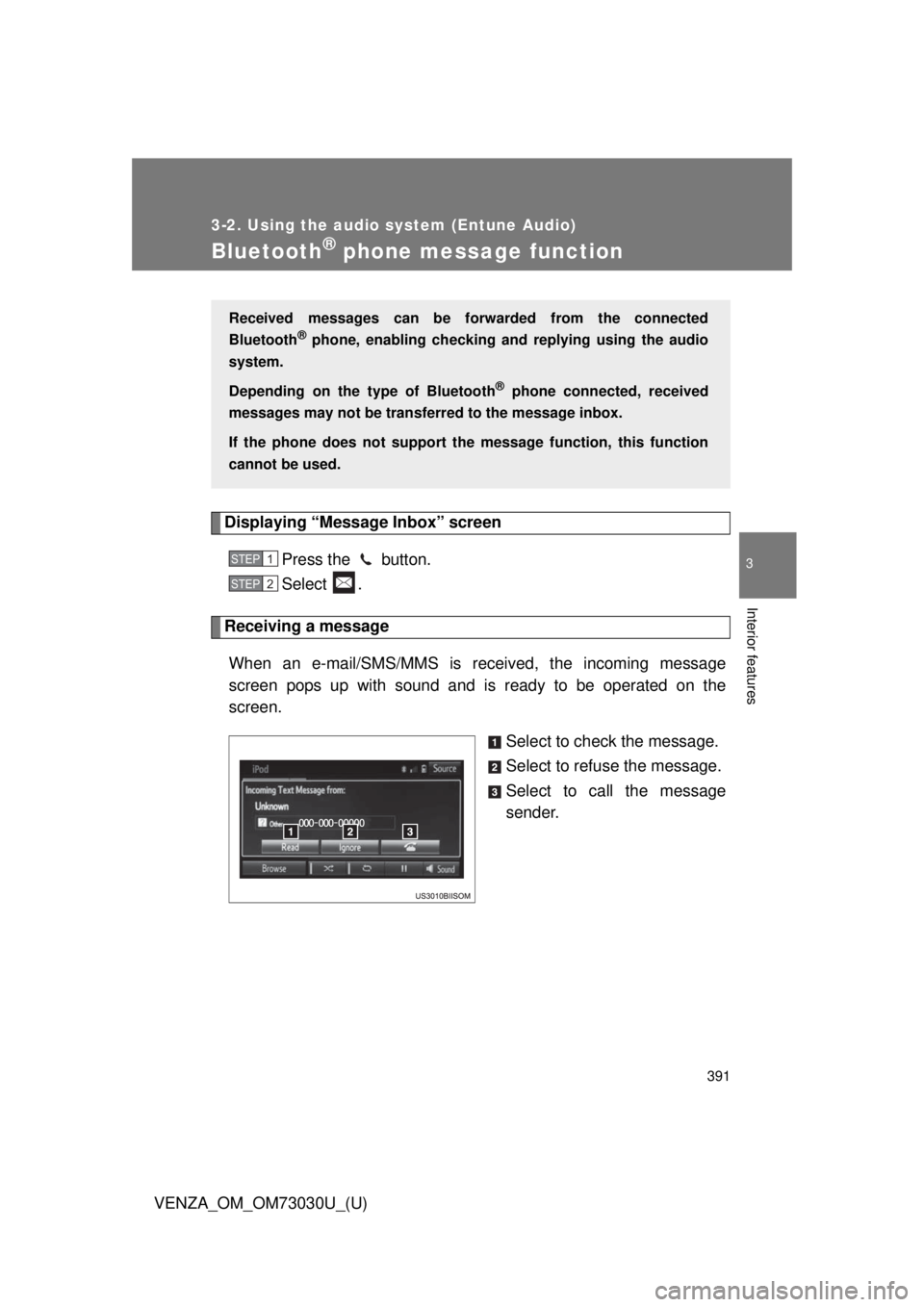
When an e-mail/SMS/MMS is received, the incoming message
screen pops up with sound and is ready to be operated on the
screen.
Select to check the message.
Select to refuse the message.
Select to call the message
sender.Received messages can be forwarded from the connected
Bluetooth ®
phone, enabling checking and replying using the audio
system.
Depending on the type of Bluetooth ®
phone connected, received
messages may not be transfer red to the message inbox.
If the phone does not support the message function, this function
cannot be used. STEP 1
STEP 2
Page 394 of 688
3943-2. Using the audio system (Entune Audio)
VENZA_OM_OM73030U_(U) Replying to a message
Display the “Messa ge Inbox” screen. ( P. 391)
Select the desired message from the list.
Select “Quick Message”.
Select the desired message.
Select “Send”. If an error message is displayed, follow the guidance on the screen
to try again.
■ Editing quick reply message
Select “Quick Message”.
Select corresponding to the desired message to edit.
Select “OK” when editing is completed.■ Check the messages
● Depending on the type of Bluetooth ®
phone being connected, it may be
necessary to perform additional steps on the phone.
● Messages are displayed in the appropriate connected Bluetooth ®
phone’s registered mail address folder.
Select the tab of the desired folder to be displayed.
● Only received messages on the connected Bluetooth ®
phone can be dis-
played.
● The text of the message is not displayed while driving.
● When “Automatic Message Readout” is set to on, messages will be auto-
matically read out. ( P. 408)
● Turn the “PWR VOL” knob, or use the volume switch on the steering
wheel to adjust the message read out volume.
● The message read out function is available even while driving. STEP 1
STEP 2
STEP 3
STEP 4
STEP 5
STEP 1
STEP 2
STEP 3
Page 397 of 688
3973-2. Using the audio system (Entune Audio)
VENZA_OM_OM73030U_(U) 3
Interior features
Bluetooth ®
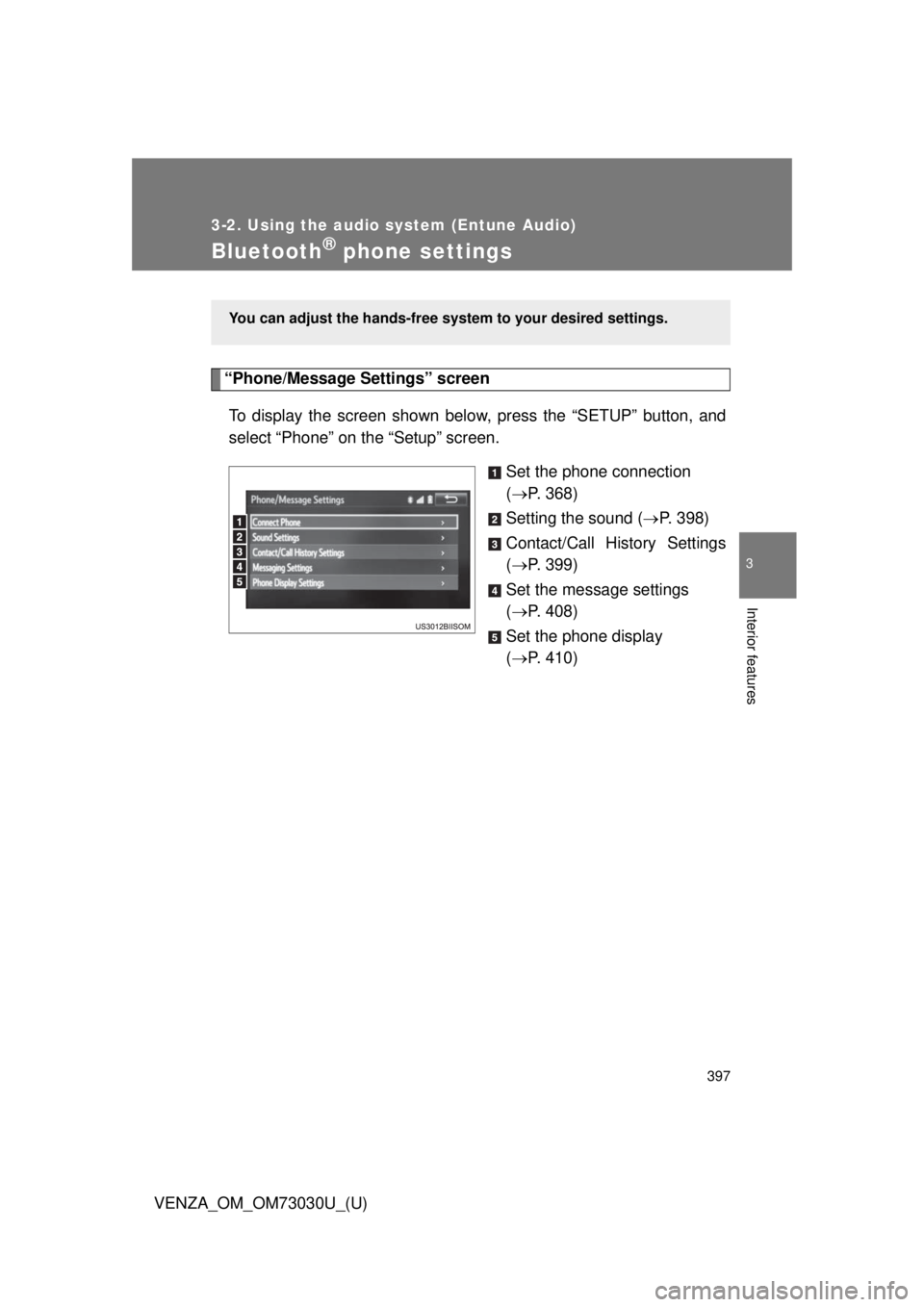
phone settings“Phone/Message Settings” screen
To display the screen shown belo w, press the “S ETUP” button, and
select “Phone” on the “Setup” screen.
Set the phone connection
( P. 368)
Setting the sound ( P. 398)
Contact/Call History Settings
( P. 399)
Set the message settings
( P. 408)
Set the phone display
( P. 410)You can adjust the hands-free syst em to your desired settings.
Page 399 of 688
3993-2. Using the audio system (Entune Audio)
VENZA_OM_OM73030U_(U) 3
Interior features
Contact/Call Histor y Settings The contact can be transferred from a Bluetooth ®
phone to the sys-
tem. The contact also can be added, edited and deleted.
The call history can be deleted and contact and favorites can be
changed.
Display the “Phone/Message Settings” screen. ( P. 397)
Select “Contact/Ca ll History Settings”.STEP 1
STEP 2
Page 400 of 688
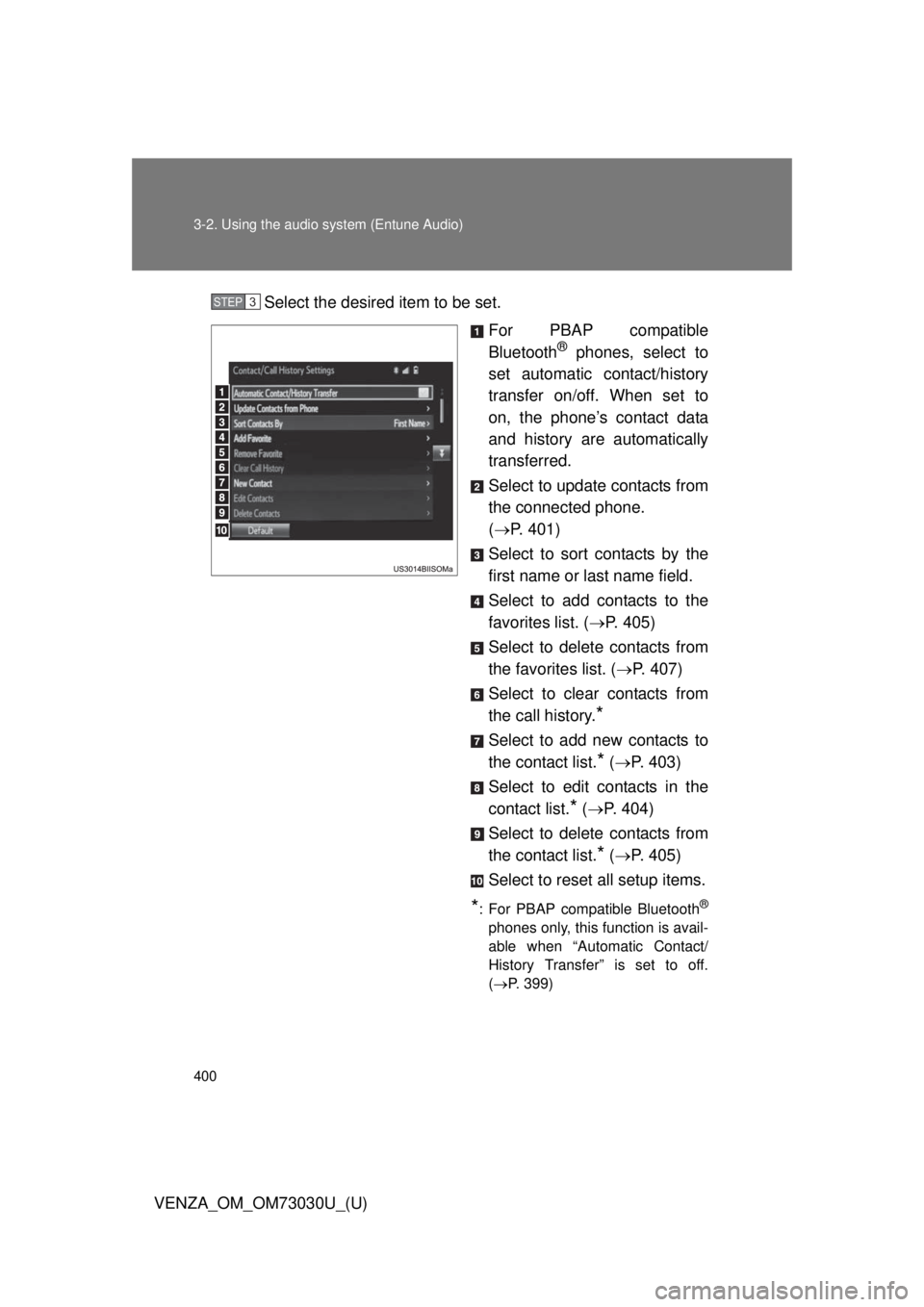
4003-2. Using the audio system (Entune Audio)
VENZA_OM_OM73030U_(U) Select the desired item to be set.
For PBAP compatible
Bluetooth ®
phones, select to
set automatic contact/history
transfer on/off. When set to
on, the phone’s contact data
and history are automatically
transferred.
Select to update contacts from
the connected phone.
( P. 401)
Select to sort contacts by the
first name or last name field.
Select to add contacts to the
favorites list. ( P. 405)
Select to delete contacts from
the favorites list. ( P. 407)
Select to clear contacts from
the call history.
* Select to add new contacts to
the contact list.
* ( P. 403)
Select to edit contacts in the
contact list.
* ( P. 404)
Select to delete contacts from
the contact list.
* ( P. 405)
Select to reset all setup items.
* : For PBAP compatible Bluetooth ®
phones only, this function is avail-
able when “Automatic Contact/
History Transfer” is set to off.
( P. 399)STEP 3