USB TOYOTA VERSO 2017 Owners Manual
[x] Cancel search | Manufacturer: TOYOTA, Model Year: 2017, Model line: VERSO, Model: TOYOTA VERSO 2017Pages: 668, PDF Size: 49.7 MB
Page 3 of 668
1
2
3
4
5
6
3
VERSO_EE_OM64517E
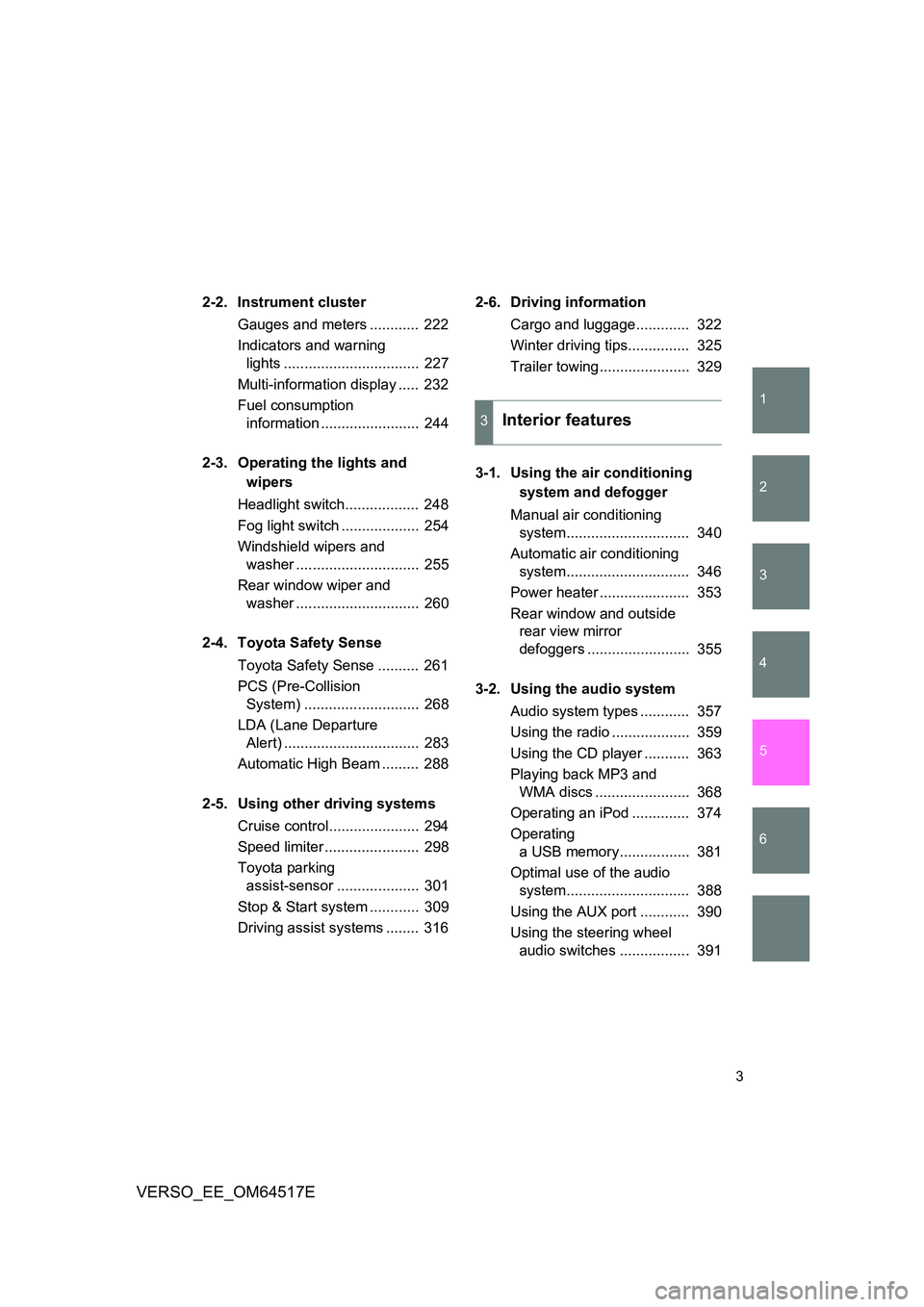
2-2. Instrument cluster
Gauges and meters ............ 222
Indicators and warning
lights ................................. 227
Multi-information display ..... 232
Fuel consumption
information ........................ 244
2-3. Operating the lights and
wipers
Headlight switch.................. 248
Fog light switch ................... 254
Windshield wipers and
washer .............................. 255
Rear window wiper and
washer .............................. 260
2-4. Toyota Safety Sense
Toyota Safety Sense .......... 261
PCS (Pre-Collision
System) ............................ 268
LDA (Lane Departure
Alert) ................................. 283
Automatic High Beam ......... 288
2-5. Using other driving systems
Cruise control...................... 294
Speed limiter ....................... 298
Toyota parking
assist-sensor .................... 301
Stop & Start system ............ 309
Driving assist systems ........ 316
2-6. Driving information
Cargo and luggage............. 322
Winter driving tips............... 325
Trailer towing...................... 329
3-1. Using the air conditioning
system and defogger
Manual air conditioning
system.............................. 340
Automatic air conditioning
system.............................. 346
Power heater ...................... 353
Rear window and outside
rear view mirror
defoggers ......................... 355
3-2. Using the audio system
Audio system types ............ 357
Using the radio ................... 359
Using the CD player ........... 363
Playing back MP3 and
WMA discs ....................... 368
Operating an iPod .............. 374
Operating
a USB memory................. 381
Optimal use of the audio
system.............................. 388
Using the AUX port ............ 390
Using the steering wheel
audio switches ................. 391
3Interior features
Page 13 of 668
13
VERSO_EE_OM64517E
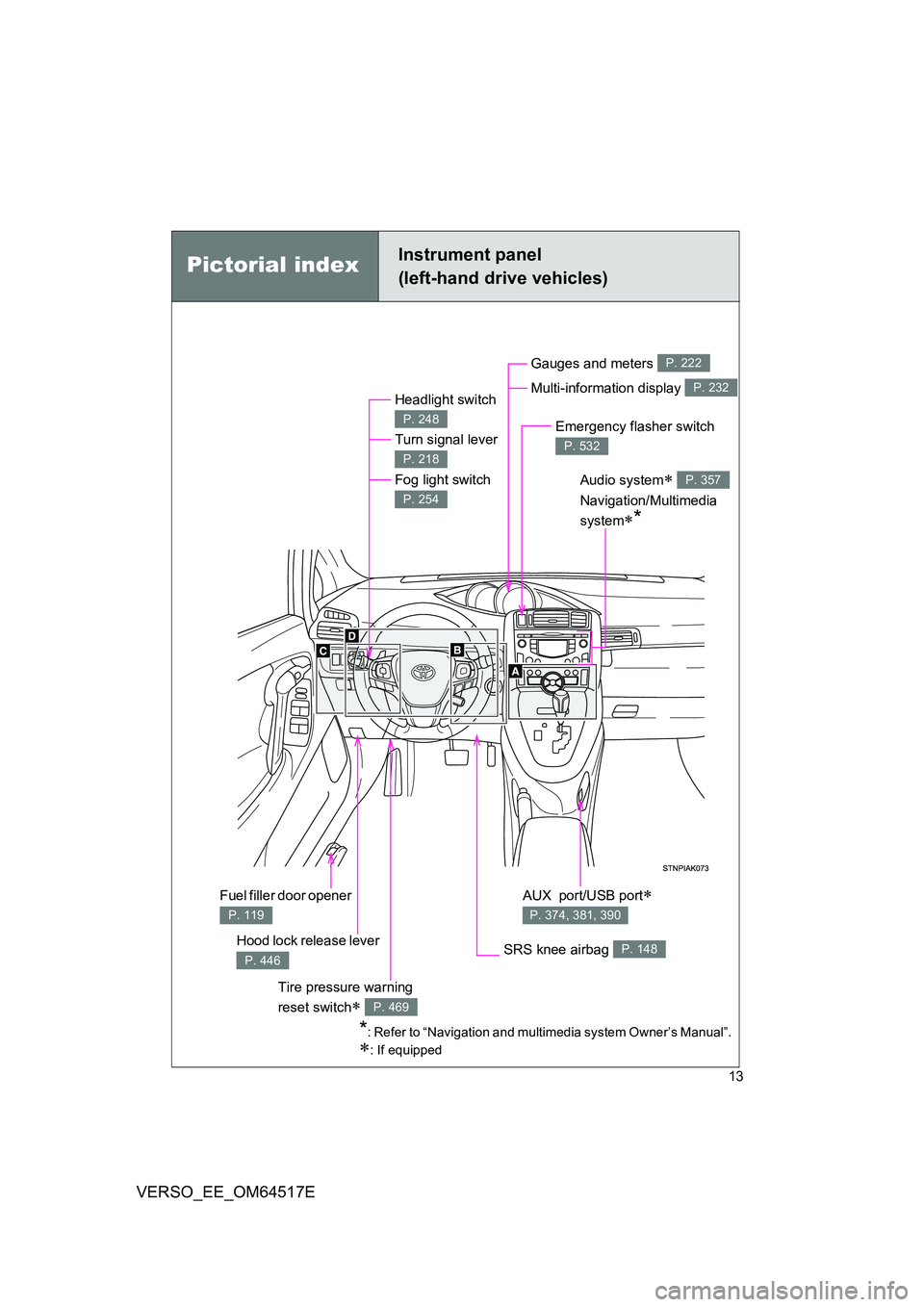
Pictorial indexInstrument panel
(left-hand drive vehicles)
Headlight switch
Turn signal lever
Fog light switch
P. 248
P. 218
P. 254
Hood lock release lever
P. 446
Gauges and meters
Multi-information display
P. 222
P. 232
Audio system
Navigation/Multimedia
system*
P. 357
SRS knee airbag P. 148
Emergency flasher switch
P. 532
*: Refer to “Navigation and multimedia system Owner’s Manual”.
: If equipped
AUX port/USB port
P. 374, 381, 390
Fuel filler door opener
P. 119
Tire pressure warning
reset switch P. 469
Page 24 of 668
24
VERSO_EE_OM64517E
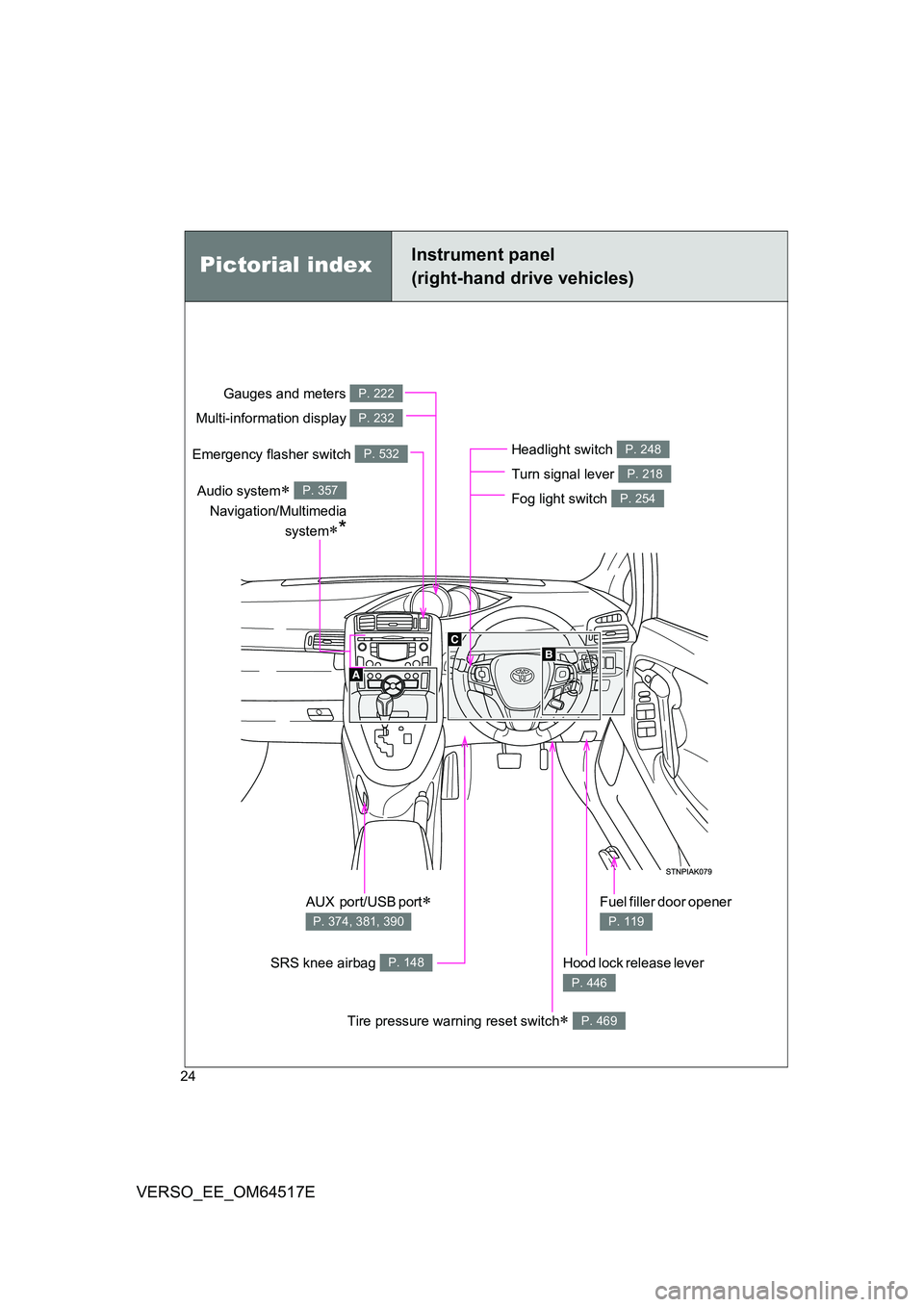
Pictorial indexInstrument panel
(right-hand drive vehicles)
Headlight switch
Turn signal lever
Fog light switch
P. 248
P. 218
P. 254
Hood lock release lever
P. 446
Gauges and meters
Multi-information display
P. 222
P. 232
Audio system
Navigation/Multimedia
system*
P. 357
SRS knee airbag P. 148
Emergency flasher switch P. 532
AUX port/USB port
P. 374, 381, 390
Fuel filler door opener
P. 119
Tire pressure warning reset switch P. 469
Page 339 of 668
3Interior features
339
VERSO_EE_OM64517E
3-1. Using the air conditioning
system and defogger
Manual air conditioning
system ............................ 340
Automatic air conditioning
system ............................ 346
Power heater .................... 353
Rear window and outside
rear view mirror
defoggers ....................... 355
3-2. Using the audio system
Audio system types .......... 357
Using the radio ................. 359
Using the CD player ......... 363
Playing back MP3 and
WMA discs...................... 368
Operating an iPod............. 374
Operating
a USB memory ............... 381
Optimal use of the audio
system ............................ 388
Using the AUX port ........... 390
Using the steering
wheel audio switches...... 391
3-3. Using the interior lights
Interior lights list................ 394
• Personal/interior
lights main switch ........... 395
• Personal/interior lights .... 396
3-4. Using the storage features
List of storage features ..... 398
• Glove box ....................... 400
• Console box.................... 401
• Overhead console .......... 403
• Cup holders .................... 403
• Bottle holders.................. 405
• Auxiliary boxes ............... 406
3-5. Other interior features
Sun visors ......................... 408
Vanity mirrors.................... 409
Power outlets .................... 410
Seat heaters ..................... 412
Armrests ........................... 414
Front seatback tables ....... 415
Rear side sunshades ........ 417
Assist grips ....................... 418
Floor mat........................... 419
Luggage compartment
features........................... 421
Page 358 of 668
358
3-2. Using the audio system
VERSO_EE_OM64517E
■ Using cellular phones
Interference may be heard through the audio system’s speakers if a cellular
phone is being used inside or close to the vehicle while the audio system is
operating.
NOTICE
■ To prevent battery discharge
Do not leave the audio system on longer than necessary when the engine is
stopped.
■ To avoid damaging the audio system
Take care not to spill drinks or other fluids over the audio system.
■ To prevent damage to USB memory or its terminal
Depending on the size and shape of the USB memory that is connected to
the system, the passenger’s seat may hit the USB memory when moving the
seat forward. In this case, do not forcibly move the seat forward as this may
damage the USB memory or the terminal, etc.
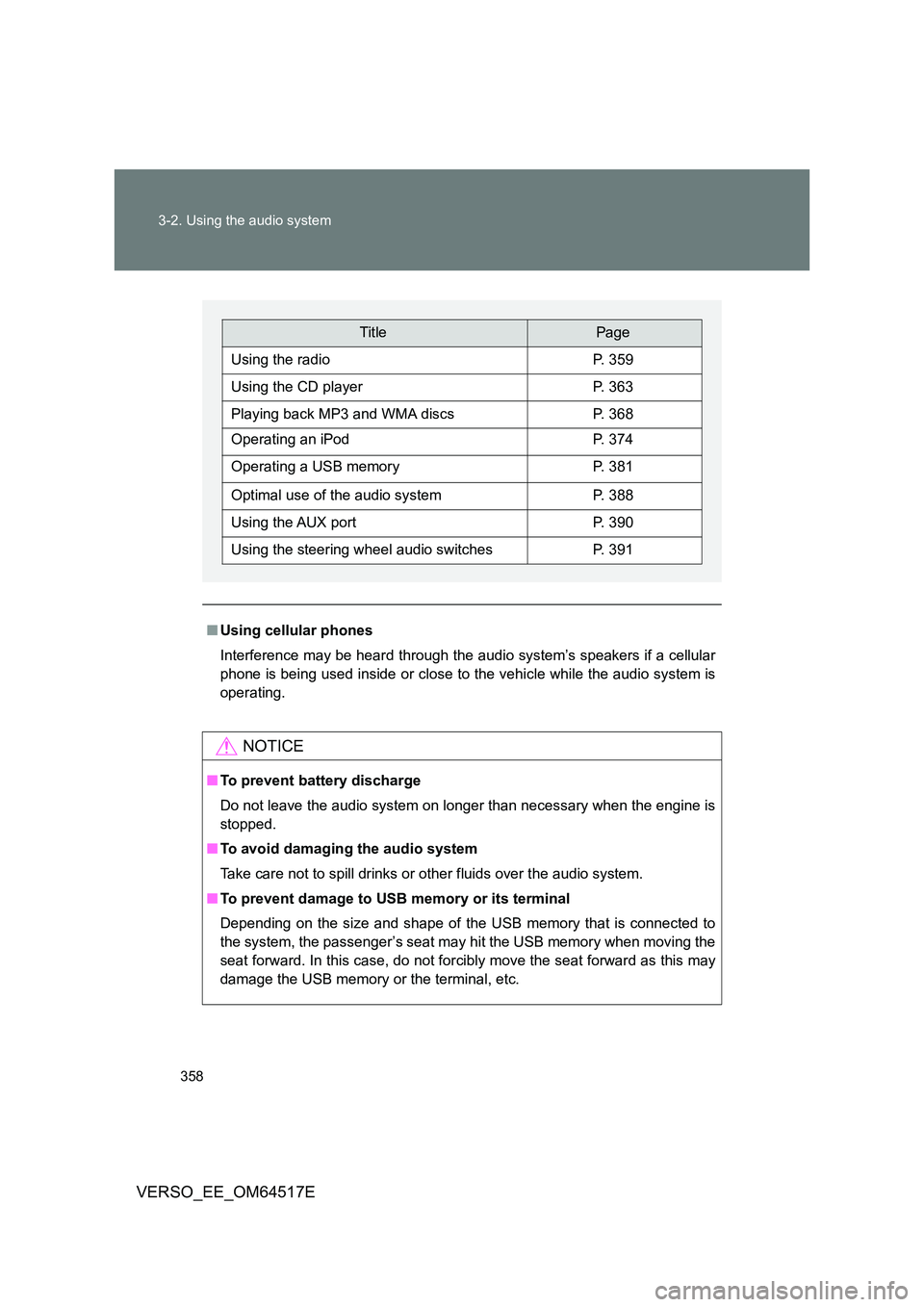
TitlePage
Using the radioP. 359
Using the CD playerP. 363
Playing back MP3 and WMA discsP. 368
Operating an iPodP. 374
Operating a USB memoryP. 381
Optimal use of the audio systemP. 388
Using the AUX portP. 390
Using the steering wheel audio switchesP. 391
Page 381 of 668
381
3-2. Using the audio system
3
Interior features
VERSO_EE_OM64517E
Operating a USB memory
: If equipped
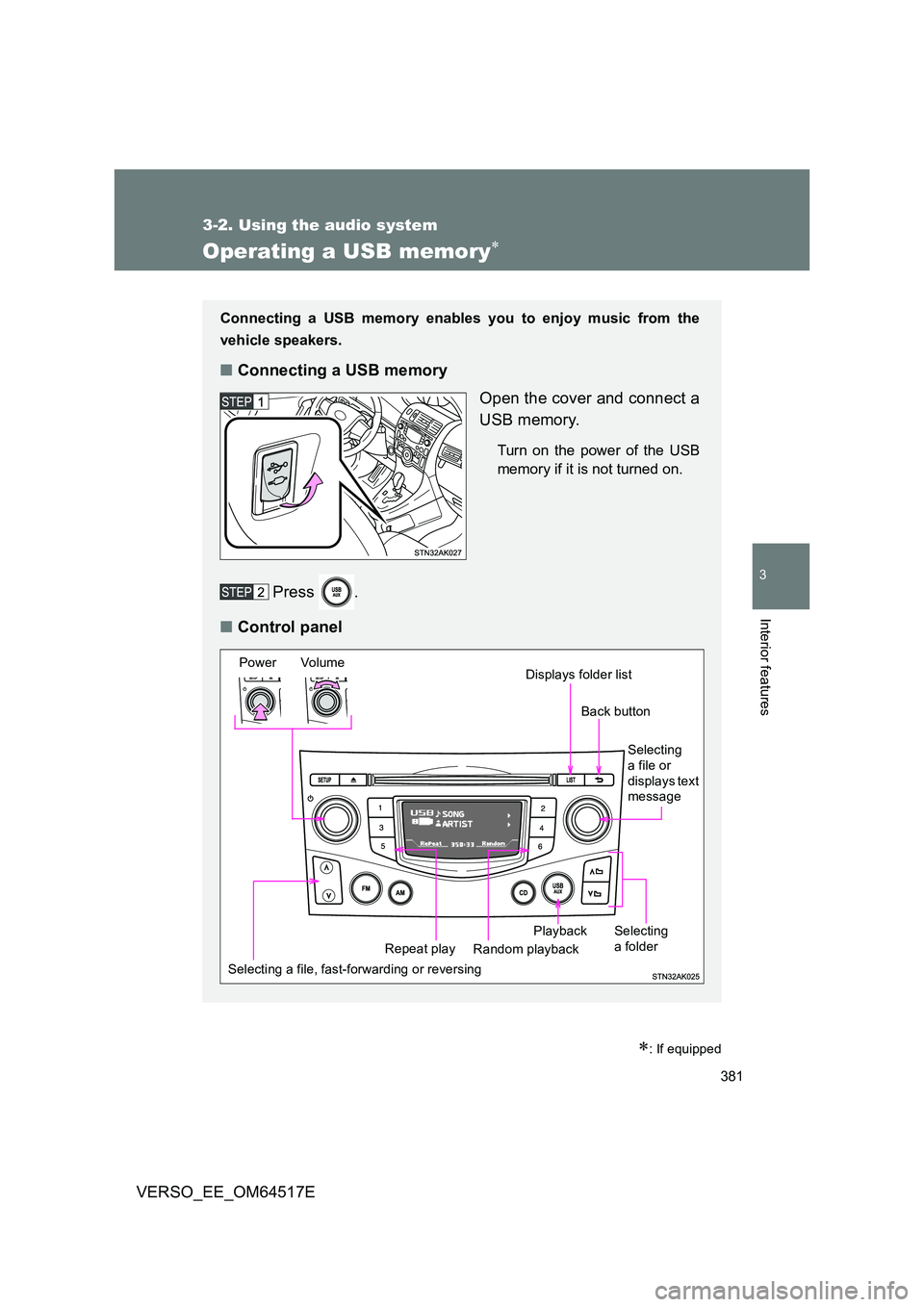
Connecting a USB memory enables you to enjoy music from the
vehicle speakers.
■ Connecting a USB memory
Open the cover and connect a
USB memory.
Turn on the power of the USB
memory if it is not turned on.
Press .
■ Control panel
Selecting a file, fast-forwarding or reversing
Power Volume
Random playback Repeat play
Playback
Selecting
a file or displays text message
Selecting a folder
Displays folder list
Back button
Page 382 of 668
382
3-2. Using the audio system
VERSO_EE_OM64517E
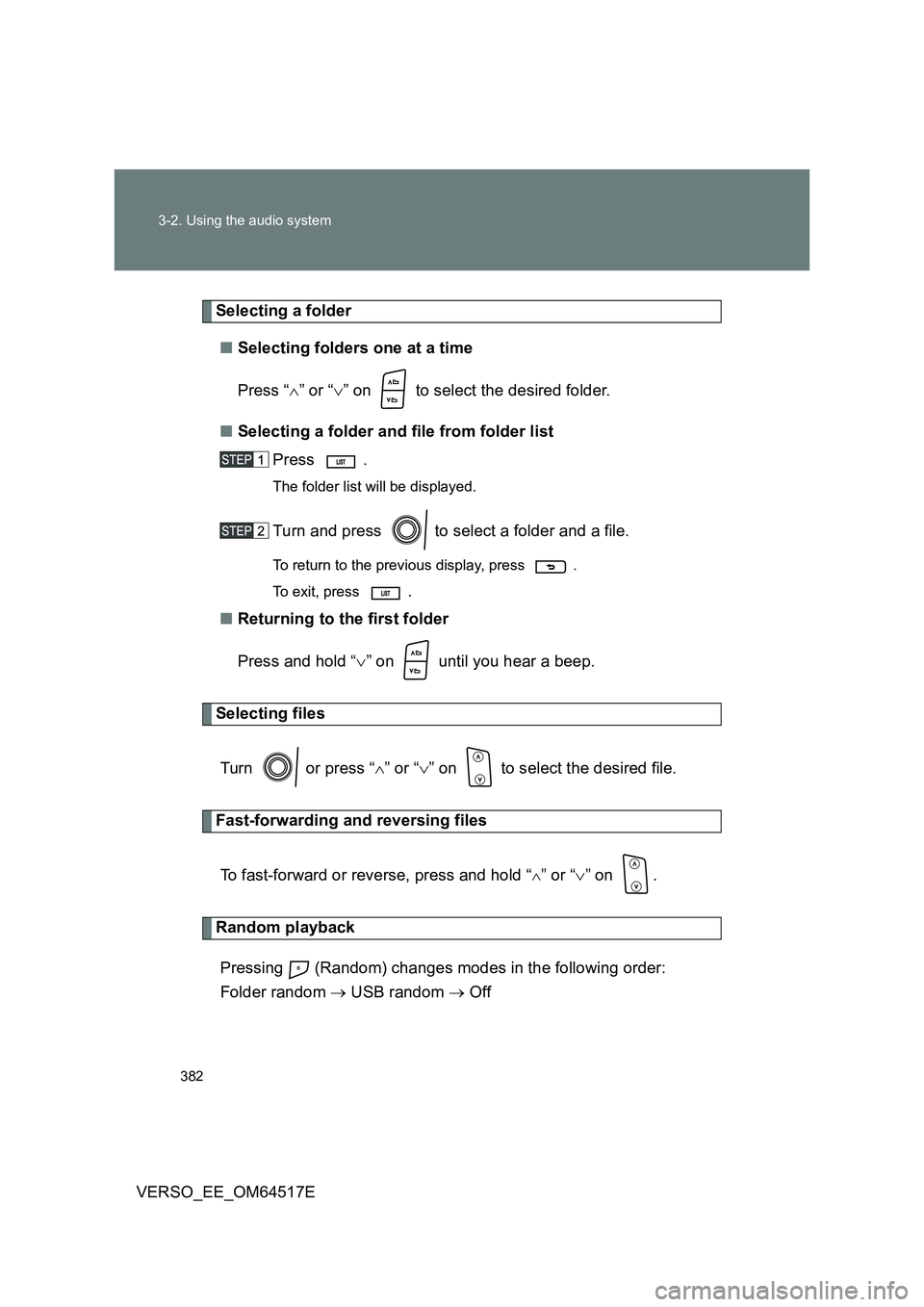
Selecting a folder
■ Selecting folders one at a time
Press “ ” or “” on to select the desired folder.
■ Selecting a folder and file from folder list
Press .
The folder list will be displayed.
Turn and press to select a folder and a file.
To return to the previous display, press .
To exit, press .
■ Returning to the first folder
Press and hold “ ” on until you hear a beep.
Selecting files
Turn or press “ ” or “” on to select the desired file.
Fast-forwarding and reversing files
To fast-forward or reverse, press and hold “” or “ ” on .
Random playback
Pressing (Random) changes modes in the following order:
Folder random USB random Off
Page 383 of 668
383
3-2. Using the audio system
3
Interior features
VERSO_EE_OM64517E
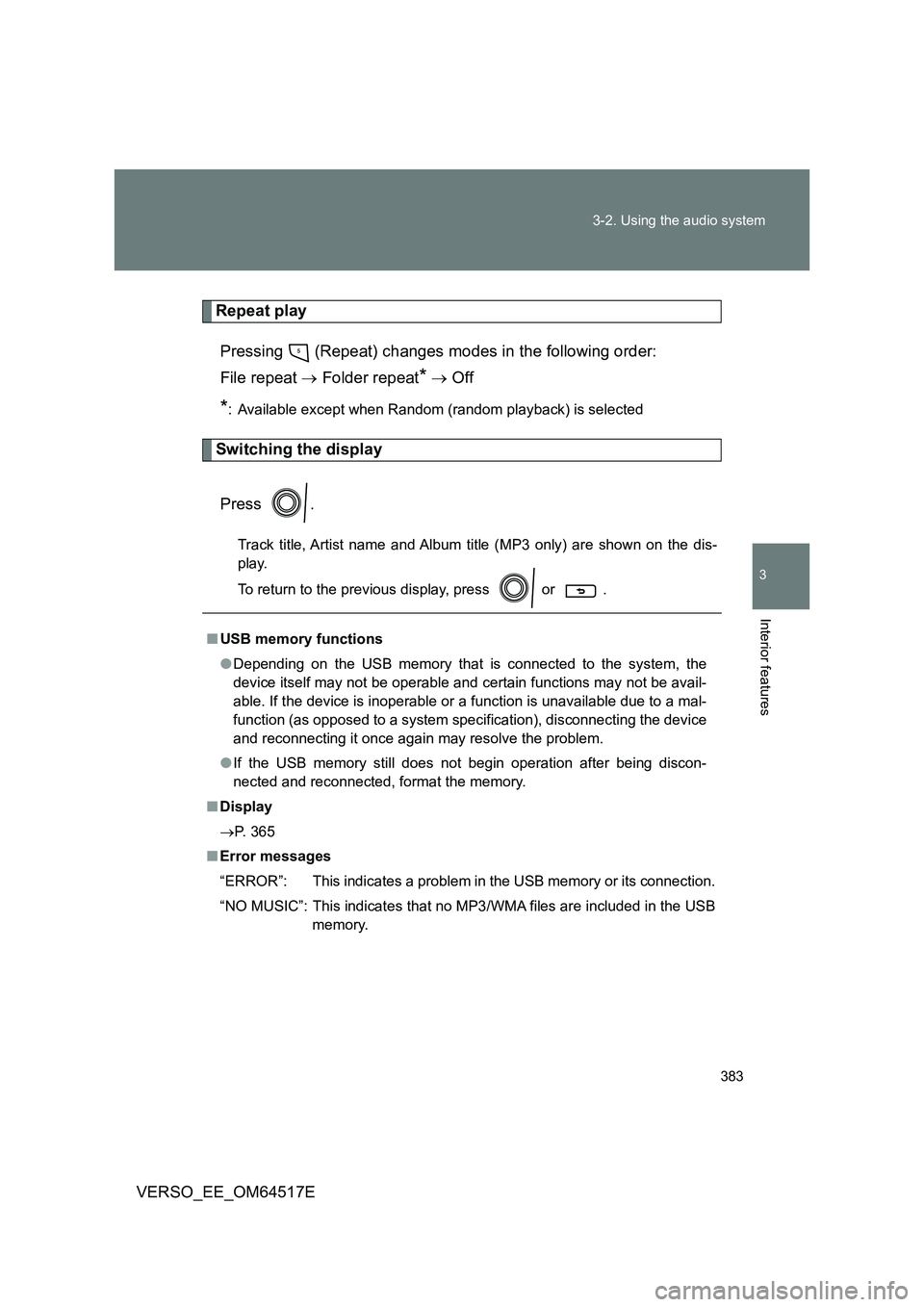
Repeat play
Pressing (Repeat) changes modes in the following order:
File repeat Folder repeat* Off
*: Available except when Random (random playback) is selected
Switching the display
Press .
Track title, Artist name and Album ti tle (MP3 only) are shown on the dis-
play.
To return to the previous display, press or .
■ USB memory functions
● Depending on the USB memory that is connected to the system, the
device itself may not be operable and certain functions may not be avail-
able. If the device is inoperable or a function is unavailable due to a mal-
function (as opposed to a system specification), disconnecting the device
and reconnecting it once again may resolve the problem.
● If the USB memory still does not begin operation after being discon-
nected and reconnected, format the memory.
■ Display
P. 365
■ Error messages
“ERROR”: This indicates a problem in the USB memory or its connection.
“NO MUSIC”: This indicates that no MP3/WMA files are included in the USB
memory.
Page 384 of 668
384
3-2. Using the audio system
VERSO_EE_OM64517E
■ USB memory
● Compatible devices
USB memory that can be used for MP3 and WMA playback
● Compatible device formats
The following device formats can be used:
• USB communication formats: USB2.0 FS (12 mbps)
• File formats: FAT16/32 (Windows)
• Correspondence class: Mass storage class
MP3 and WMA files written in any format other than those listed above
may not play correctly, and their file names and folder names may not be
displayed correctly.
Items related to standards and limitations are as follows:
• Maximum directory hierarchy: 8 levels
• Maximum number of folders in a device: 999 (including the root)
• Maximum number of files in a device: 9999
• Maximum number of files per folder: 255
● MP3 and WMA files
MP3 (MPEG Audio LAYER 3) is a standard audio compression format.
Files can be compressed to approximately 1/10 of their original size using
MP3 compression.
WMA (Windows Media Audio) is a Mi crosoft audio compression format.
This format compresses audio data to a size smaller than that of the MP3
format.
There is a limit to the MP3 and WMA file standards that can be used and
to the media/formats on which the files are recorded.
Page 386 of 668
386
3-2. Using the audio system
VERSO_EE_OM64517E
● MP3 and WMA playback
• When a device containing MP3 or WMA files is connected, all files in
the USB memory are checked. Once the file check is finished, the first
MP3 or WMA file is played. To make the file check finish more quickly,
we recommend that you do not include any files other than MP3 or
WMA files or create any unnecessary folders.
• When the USB memory is connected and the audio source is changed
to USB memory mode, the USB memory will start playing the first file in
the first folder. If the same device is removed and reinserted (and the
contents have not been changed), the USB memory will resume play
from the same point in which it was last used.
● Extensions
If the file extensions .mp3 and .wma are used for files other than MP3 and
WMA files, they will be skipped (not played).
● Playback
• To play MP3 files with steady sound quality, we recommend a fixed bit
rate of at least 128 kbps and a sampling frequency of 44.1 kHz.
• There is a wide variety of freeware and other encoding software for
MP3 and WMA files on the market, and depending on the status of the
encoding and the file format, poor sound quality or noise at the start of
playback may result. In some cases, playback may not be possible at
all.
• Microsoft, Windows, and Windows Media are registered trademarks of
Microsoft Corporation in the U.S.A. and other countries.
WARNING
■ Caution while driving
Do not connect USB memory or operate the controls. Doing so may cause
an accident, resulting in death or serious injury.