CD player TOYOTA YARIS 2016 User Guide
[x] Cancel search | Manufacturer: TOYOTA, Model Year: 2016, Model line: YARIS, Model: TOYOTA YARIS 2016Pages: 592, PDF Size: 10.44 MB
Page 304 of 592
302
YARIS_SEDAN_OM_OM99M18z_(U)
4-2. Audio System
AUX/USB/iPod mode
Audio can be heard from the vehicle’s speakers by connecting a
commercially- available portable audio unit to the auxiliary jack.
A commercially-available, non-impedance (3.5∅) stereo mini
plug cable is required. Contact your Toyota dealer for details.
In addition, audio can be played from the vehicle audio device
by connecting a USB device or an iPod to the USB port.
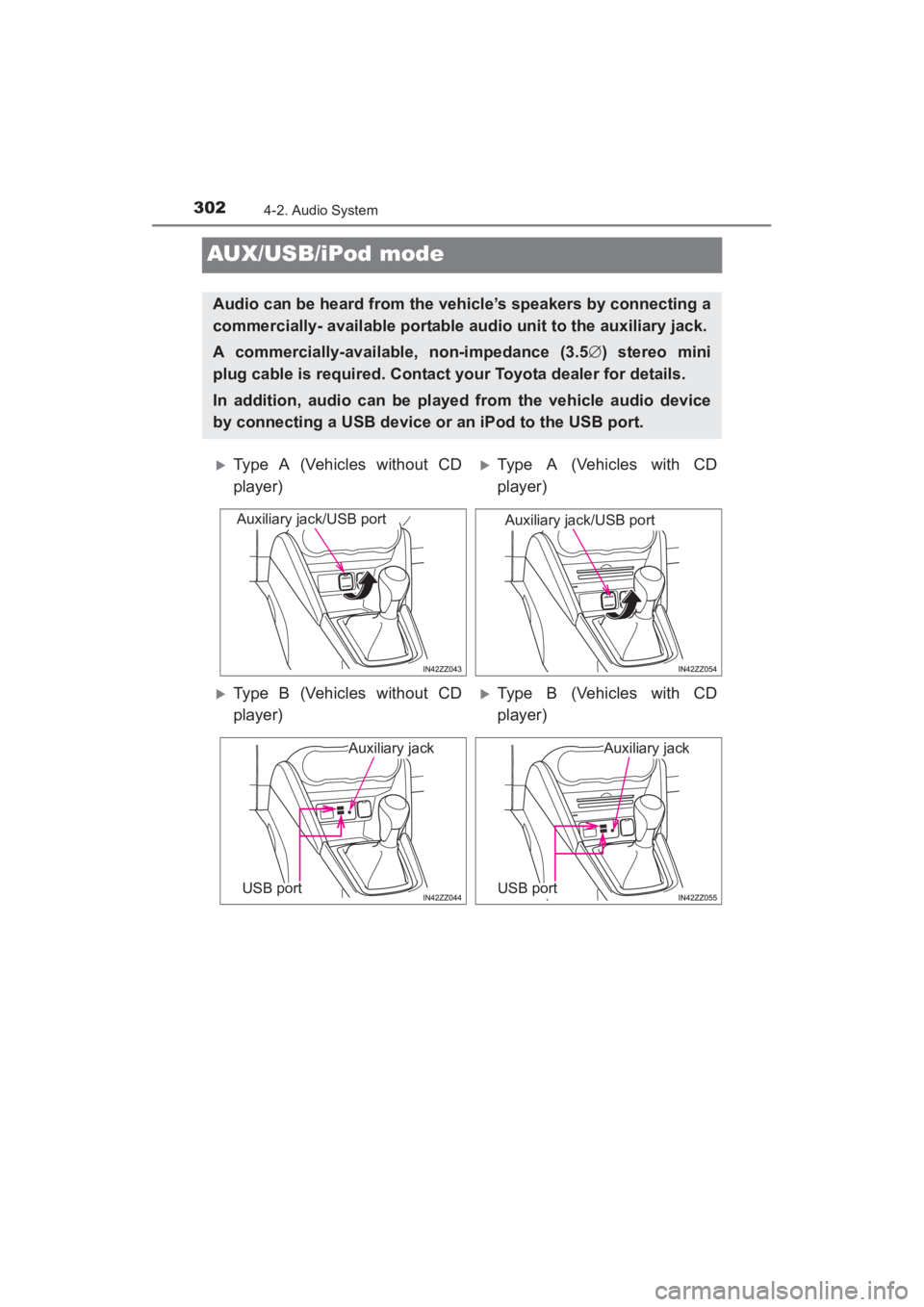
XType A (Vehicles without CD
player)XType A (Vehicles with CD
player)
XType B (Vehicles without CD
player)XType B (Vehicles with CD
player)
Auxiliary jack/USB portAuxiliary jack/USB port
Auxiliary jack
USB port
Auxiliary jack
USB port
YARIS_SEDAN_OM_OM99M18z_(U).book Page 302 Monday, June 1, 2015 9:22 PM
Page 306 of 592
304
YARIS_SEDAN_OM_OM99M18z_(U)
4-2. Audio System
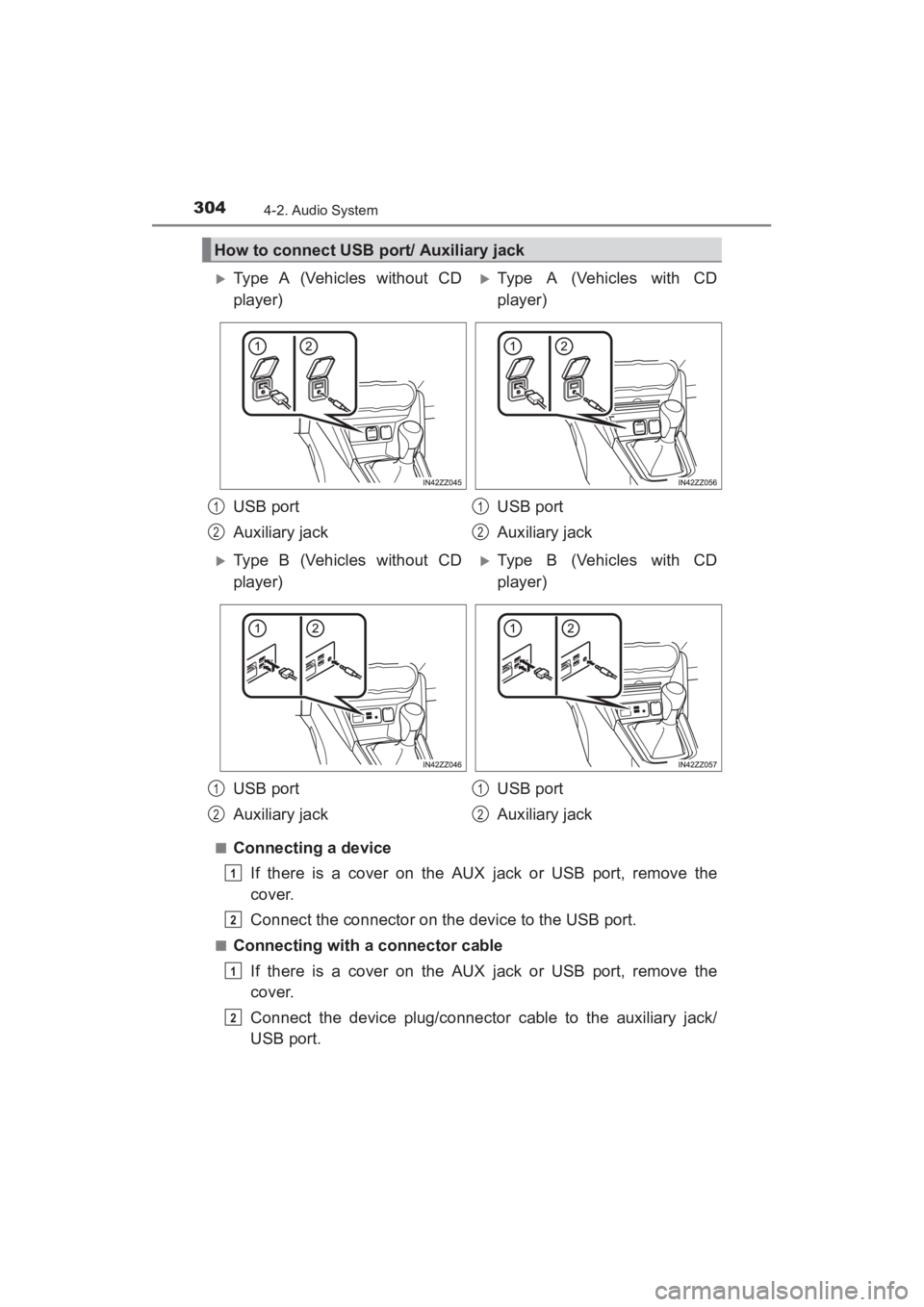
■Connecting a deviceIf there is a cover on the AUX jack or USB port, remove the
cover.
Connect the connector on the device to the USB port.
■Connecting with a connector cableIf there is a cover on the AUX jack or USB port, remove the
cover.
Connect the device plug/connector cable to the auxiliary jack/
USB port.
How to connect USB port/ Auxiliary jack
XType A (Vehicles without CD
player)XType A (Vehicles with CD
player)
USB port
Auxiliary jack USB port
Auxiliary jack
XType B (Vehicles without CD
player)XType B (Vehicles with CD
player)
USB port
Auxiliary jack USB port
Auxiliary jack
1
2
1
2
1
2
1
2
1
2
1
2
YARIS_SEDAN_OM_OM99M18z_(U).book Page 304 Monday, June 1, 2015 9:22 PM
Page 329 of 592
YARIS_SEDAN_OM_OM99M18z_(U)
3274-3. Bluetooth®
4
Interior Features
■Bluetooth® Hands-Free Preparation
● Pairing code setting
The 4-digit pairing code setting for registration of your cell phone
(pairing) can be set beforehand.
The initial setting value is “0000”.
Press the pick-up button or talk button with a short press.
Say: [Beep] “Setup”
Prompt: “Select one of the following: Pairing options, confirma-
tion prompts, language, passcode, select phone or select
music player.”
Say: [Beep] “Pairing options”
Prompt: “Select one of the following: Pair, Edit, Delete, List, or
Set Pairing Code.”
Say: [Beep] “Set pairing code”
Prompt: “Your current pairing code is XXXX. Do you want to
change it to a different pairing code?”
Say: [Beep] “Yes”
Prompt: “Please say a 4-digit pairing code.”
Say: [Beep] “YYYY”
Prompt: “YYYY is this correct?”
Say: [Beep] “Yes” or “No”
If “Yes”, go to Step 14. If “No”, the procedure returns to Step 9.
Prompt: “Your new pairing code is YYYY. Use this pairing code
when pairing devices to the Hands free system. Do you want
to pair a device now?”
Say: [Beep] “Yes” or “No”
If “Yes”, the system switches to the device registration mode. If
“No”, the system returns to standby status.
Bluetooth® Preparation (Type A)
1
2
3
4
5
6
7
8
9
10
11
12
13
14
15
16
YARIS_SEDAN_OM_OM99M18z_(U).book Page 327 Monday, June 1, 2015 9:22 PM
Page 330 of 592
328
YARIS_SEDAN_OM_OM99M18z_(U)
4-3. Bluetooth®
●Device pairing
To use Bluetooth
® Hands-Free, the device equipped with
Bluetooth® has to be paired to the Bluetooth® unit using the fol-
lowing procedure.
A maximum of seven devices including hands-free mobile
phones and Bluetooth
® audio devices can be paired to one vehi-
cle.
Activate the Bluetooth
® application of the device.
For the operation of the device, refer to its instruction manual.
Press the pick-up button or talk button with a short press.
Say: [Beep] “Setup”
Prompt: “Select one of the following: Pairing options, confirma-
tion prompts, language, passcode, select phone or select
music player.”
Say: [Beep] “Pairing options”
Prompt: “Select one of the following: Pair, Edit, Delete, List, or
Set Pairing Code.”
Say: [Beep] “Pair”
Prompt: “Start the pairing process on your Bluetooth
® device.
Your pairing code is 0000 (XXXX). Input this on your
Bluetooth
® device when prompted on the device. See device
manual for instructions.”
Using the device, perform a search for the Bluetooth
® device
(Peripheral device).
For the operation of the device, refer to its instruction manual.
1
2
3
4
5
6
7
8
9
YARIS_SEDAN_OM_OM99M18z_(U).book Page 328 Monday, June 1, 2015 9:22 PM
Page 332 of 592
330
YARIS_SEDAN_OM_OM99M18z_(U)
4-3. Bluetooth®
●Registered device read-out
Bluetooth
® Hands-Free can read-out the devices registered to its
system.
Do this function only when parked. It is too distracting to attempt while
driving and you may make too many errors to be effective.
Press the pick-up button or talk button with a short press.
Say: [Beep] “Setup”
Prompt: “Select one of the following: Pairing options, confirma-
tion prompts, language, passcode, select phone or select
music player.”
Say: [Beep] “Pairing options”
Prompt: “Select one of the following: Pair, Edit, Delete, List, or
Set Pairing Code”
Say: [Beep] “List”
Prompt: “XXXXX..., XXXXX..., XXXXX... (Ex. Device A, device
B, device C)” (The voice guidance reads out the device tags
registered to the hands-free system.)
Press the talk button with a short press during the read-out at
the desired device, and then say one of the following voice
commands to execute it.
• “Select phone”: Selects device (Mobile phone) when the talk button is short- pressed.
• “Select music player”: Selects device (Music player) when the talk button is short-pressed.
• “Edit”: Edits device when the talk button is short-pressed.
• “Continue”: Continues the list readout.
• “Delete”: Deletes the registered device when the talk button is short-pressed.
• “Previous”: Returns to the previous device in read-out when the talk button is short-pressed.
Prompt: “End of list, would you like to start from the begin-
ning?”
Say: [Beep] “No”
Prompt: “Returning to main menu.”1
2
3
4
5
6
7
8
9
10
YARIS_SEDAN_OM_OM99M18z_(U).book Page 330 Monday, June 1, 2015 9:22 PM
Page 333 of 592
YARIS_SEDAN_OM_OM99M18z_(U)
3314-3. Bluetooth®
4
Interior Features
●Device selection
If several devices have been paired, the Bluetooth
® unit links the
device last paired. If you would like to link a different paired
device, it is necessary to change the link. The order of device pri-
ority after the link has been changed is maintained even when
the ignition is switched off.
Hands-free phone:
Press the pick-up button or talk button with a short press.
Say: [Beep] “Setup”
Prompt: “Select one of the following: Pairing options, confirma-
tion prompts, language, passcode, select phone or select
music player.”
Say: [Beep] “Select phone”
Prompt: “Please say the name of the device you would like to
select.
Available devices are XXXXX... (Ex. device A), XXXXX... (Ex.
device B), XXXXX... (Ex. device C). Which device please?”
Say: [Beep] “XXXXX... (Ex. Device B)”
Prompt: “XXXXX... (Ex. Device B). Is this correct?”
Say: [Beep] “Yes” or “No”
If “Yes”, go to Step 10. If “No”, the procedure returns to Step 5.
Prompt: “XXXXX... (Ex. Device B) selected.”
Music player: Press the pick-up button or talk button with a short press.
Say: [Beep] “Setup”
Prompt: “Select one of the following: Pairing options, confirma-
tion prompts, language, passcode, select phone or select
music player.”
Say: [Beep] “Select music player”
Prompt: “Please say the name of the device you would like to
select.
Available devices are XXXXX... (Ex. device A), XXXXX... (Ex.
device B), XXXXX... (Ex. device C). Which device please?”
Say: [Beep] “XXXXX... (Ex. Device B)”
Prompt: “XXXXX... (Ex. Device B). Is this correct?”
1
2
3
4
5
6
7
8
9
10
1
2
3
4
5
6
7
YARIS_SEDAN_OM_OM99M18z_(U).book Page 331 Monday, June 1, 2015 9:22 PM
Page 334 of 592
![TOYOTA YARIS 2016 User Guide 332
YARIS_SEDAN_OM_OM99M18z_(U)
4-3. Bluetooth®
Say: [Beep] “Yes” or “No”
If “Yes”, go to Step 10. If “No”, the procedure returns to Step 5.
Prompt: “XXXXX... (Ex. Device B) selecte](/img/14/60787/w960_60787-333.png "TOYOTA YARIS 2016 User Guide 332
YARIS_SEDAN_OM_OM99M18z_(U)
4-3. Bluetooth®
Say: [Beep] “Yes” or “No”
If “Yes”, go to Step 10. If “No”, the procedure returns to Step 5.
Prompt: “XXXXX... (Ex. Device B) selecte")
332
YARIS_SEDAN_OM_OM99M18z_(U)
4-3. Bluetooth®
Say: [Beep] “Yes” or “No”
If “Yes”, go to Step 10. If “No”, the procedure returns to Step 5.
Prompt: “XXXXX... (Ex. Device B) selected.”
● Deleting a device
Registered devices (Mobile phone) can be deleted individually or
collectively.
Do this function only when parked. It is too distracting to attempt while
driving and you may make too many errors to be effective.
Press the pick-up button or talk button with a short press.
Say: [Beep] “Setup”
Prompt: “Select one of the following: Pairing options, confirma-
tion prompts, language, passcode, select phone or select
music player.”
Say: [Beep] “Pairing options”
Prompt: “Select one of the following: Pair, Edit, Delete, List, or
Set Pairing Code.”
A registered device (Mobile phone) can be deleted using the registra-
tion list.
Say: [Beep] “Delete”
Prompt: “Please say the name of the device you would like to
delete.
Available devices are XXXXX... (Ex. device A), XXXXX... (Ex.
device B), XXXXX... (Ex. device C), or all. Which device
please?”
Say: [Beep] “X” (Say the number of the device to be deleted.)
Say “All” to delete all devices (Mobile phone).
Prompt: “Deleting XXXXX... (Ex. device B...) (Registered
device tag). Is this correct?”
Say: [Beep] “Yes”
Prompt: “Deleted”
8
9
10
1
2
3
4
5
6
7
8
9
10
11
YARIS_SEDAN_OM_OM99M18z_(U).book Page 332 Monday, June 1, 2015 9:22 PM
Page 335 of 592
![TOYOTA YARIS 2016 User Guide YARIS_SEDAN_OM_OM99M18z_(U)
3334-3. Bluetooth®
4
Interior Features
●Registered device editing
Press the pick-up button or talk button with a short press.
Say: [Beep] “Setup”
Prompt: “Select o](/img/14/60787/w960_60787-334.png "TOYOTA YARIS 2016 User Guide YARIS_SEDAN_OM_OM99M18z_(U)
3334-3. Bluetooth®
4
Interior Features
●Registered device editing
Press the pick-up button or talk button with a short press.
Say: [Beep] “Setup”
Prompt: “Select o")
YARIS_SEDAN_OM_OM99M18z_(U)
3334-3. Bluetooth®
4
Interior Features
●Registered device editing
Press the pick-up button or talk button with a short press.
Say: [Beep] “Setup”
Prompt: “Select one of the following: Pairing options, confirma-
tion prompts, language, passcode, select phone or select
music player.”
Say: [Beep] “Pairing options”
Prompt: “Select one of the following: Pair, Edit, Delete, List, or
Set Pairing Code.”
Say: [Beep] “Edit”
Prompt: “Please say the name of the device you would like to
edit. Available devices are XXXXX... (Ex. device A), XXXXX...
(Ex. device B), XXXXX... (Ex. device C). Which device
please?”
Say: [Beep] “X” (Say the number of the device to be edited.)
Prompt: “New name please?”
Say: [Beep] “XXXXX... (Ex. Device C)” (Speak a “device tag”
an arbitrary name for the device.)
Prompt: “XXXXX... (Ex. device C) (Device tag), is this cor-
rect?”
Say: [Beep] “Yes”
Prompt: “New name saved.”
1
2
3
4
5
6
7
8
9
10
11
12
13
YARIS_SEDAN_OM_OM99M18z_(U).book Page 333 Monday, June 1, 2015 9:22 PM
Page 343 of 592
YARIS_SEDAN_OM_OM99M18z_(U)
3414-3. Bluetooth®
4
Interior Features
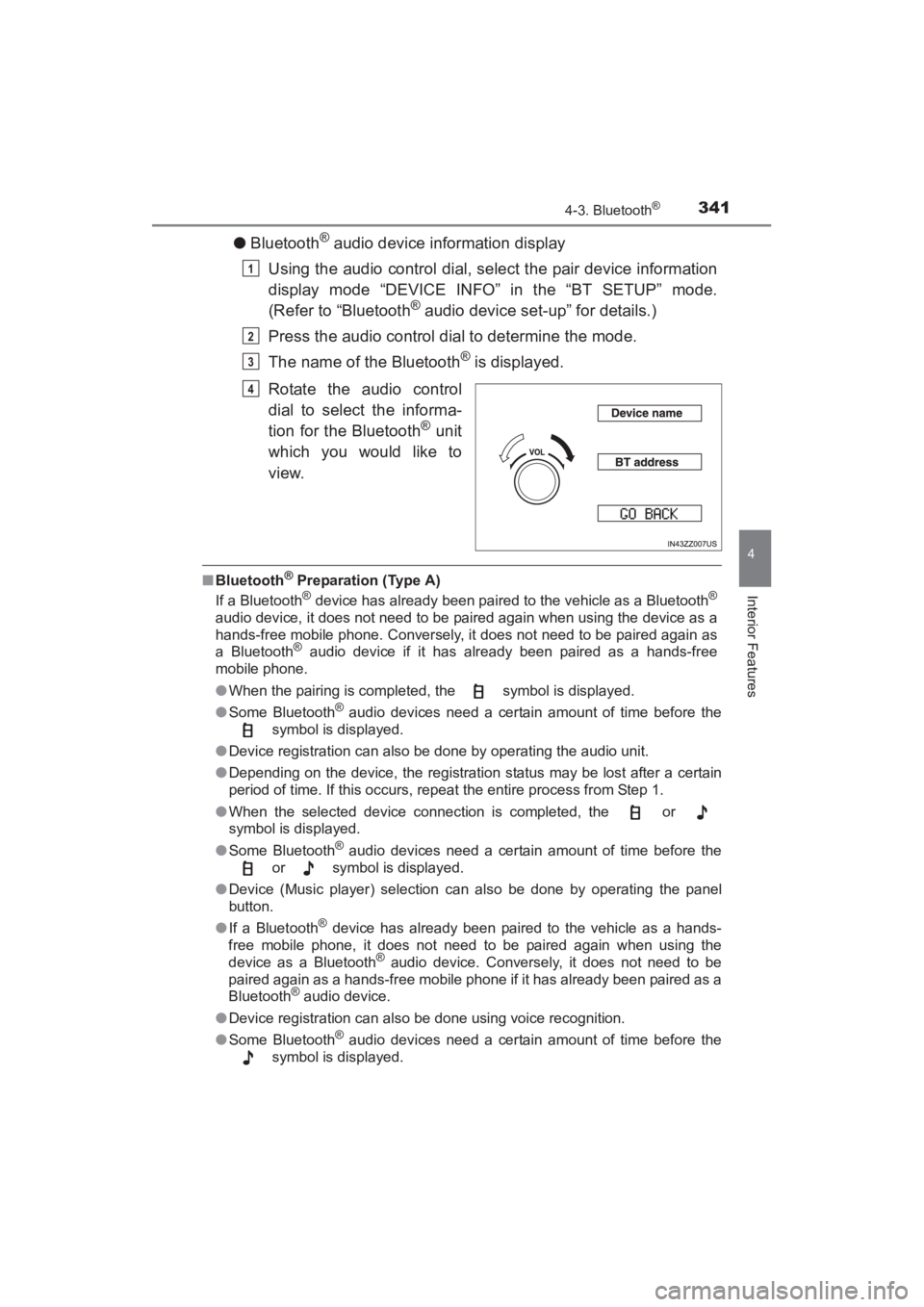
●Bluetooth® audio device information display
Using the audio control dial, select the pair device information
display mode “DEVICE INFO” in the “BT SETUP” mode.
(Refer to “Bluetooth
® audio device set-up” for details.)
Press the audio control dial to determine the mode.
The name of the Bluetooth
® is displayed.
Rotate the audio control
dial to select the informa-
tion for the Bluetooth
® unit
which you would like to
view.
■ Bluetooth® Preparation (Type A)
If a Bluetooth® device has already been paired to the vehicle as a Bluetooth®
audio device, it does not need to be paired again when using the device as a
hands-free mobile phone. Conversely, it does not need to be paired again as
a Bluetooth
® audio device if it has already been paired as a hands-free
mobile phone.
● When the pairing is completed, the symbol is displayed.
● Some Bluetooth
® audio devices need a certain amount of time before the
symbol is displayed.
● Device registration can also be done by operating the audio unit.
● Depending on the device, the registration status may be lost after a certain
period of time. If this occurs, repeat the entire process from Step 1.
● When the selected device connection is completed, the or
symbol is displayed.
● Some Bluetooth
® audio devices need a certain amount of time before the
or symbol is displayed.
● Device (Music player) selection can also be done by operating the panel
button.
● If a Bluetooth
® device has already been paired to the vehicle as a hands-
free mobile phone, it does not need to be paired again when using the
device as a Bluetooth
® audio device. Conversely, it does not need to be
paired again as a hands-free mobile phone if it has already been paired as a
Bluetooth
® audio device.
● Device registration can also be done using voice recognition.
● Some Bluetooth
® audio devices need a certain amount of time before the
symbol is displayed.
1
2
3
4
YARIS_SEDAN_OM_OM99M18z_(U).book Page 341 Monday, June 1, 2015 9:22 PM
Page 345 of 592
YARIS_SEDAN_OM_OM99M18z_(U)
3434-3. Bluetooth®
4
Interior Features
The available languages are English, Spanish, and Canadian French.
If the language setting is changed, all of the voice guidance and voice
input commands are done in the selected language.
XMethod 1
Press the pick-up button or talk button with a short press.
Say: [Beep] “Setup”
Prompt: “Select one of the following: Pairing options, confirmation
prompts, language, passcode, select phone or select music player.”
Say: [Beep] “Language”
Prompt: “Select a language: English, French, or Spanish.”
Say: [Beep] “French” (Speak the desired language: “English”,
“French” or “Spanish”)
Other language settings can also be made while in the current setting by
saying the name of the language in the native pronunciation.
Prompt: “French (Desired language) selected. Is this correct?”
Say: [Beep] “Yes”
Prompt: “French (Desired language) selected” (Spoken in the newly
selected language).
XMethod 2:
Press the pick-up button or talk button with a short press.
Say: [Beep] “French” (Say the desired language: “English”,
“French” or “Spanish”). (Change the desired language by saying the
language name.)
Other language settings can also be made while in the current setting by
saying the name of the language in the native pronunciation.
Prompt: “Would you like to change the language to French (Desired
language)?”
Say: [Beep] “Yes”
Prompt: “Please wait. Switching to French phonebook. French
selected” (Spoken in the newly selected language).
Available Language (Type A)
1
2
3
4
5
6
7
8
9
1
2
3
4
5
YARIS_SEDAN_OM_OM99M18z_(U).book Page 343 Monday, June 1, 2015 9:22 PM