pairing phone TOYOTA YARIS 2019 (in English) User Guide
[x] Cancel search | Manufacturer: TOYOTA, Model Year: 2019, Model line: YARIS, Model: TOYOTA YARIS 2019Pages: 600, PDF Size: 6.11 MB
Page 359 of 600
YARIS SEDAN_OM_OM99S50z_(U)
3594-3. Bluetooth®
4
Interior Features
■Skipping Voice Guidance (for faster operation)
● The Bluetooth® Hands-Free system is operable several seconds after the
ignition is switched to ACC or ON (requires less than 15 second s).
● When operating the audio unit or the A/C while using Bluetooth
® Hands-
Free, the beep sounds or voice guidance (audio unit)/cannot be heard.
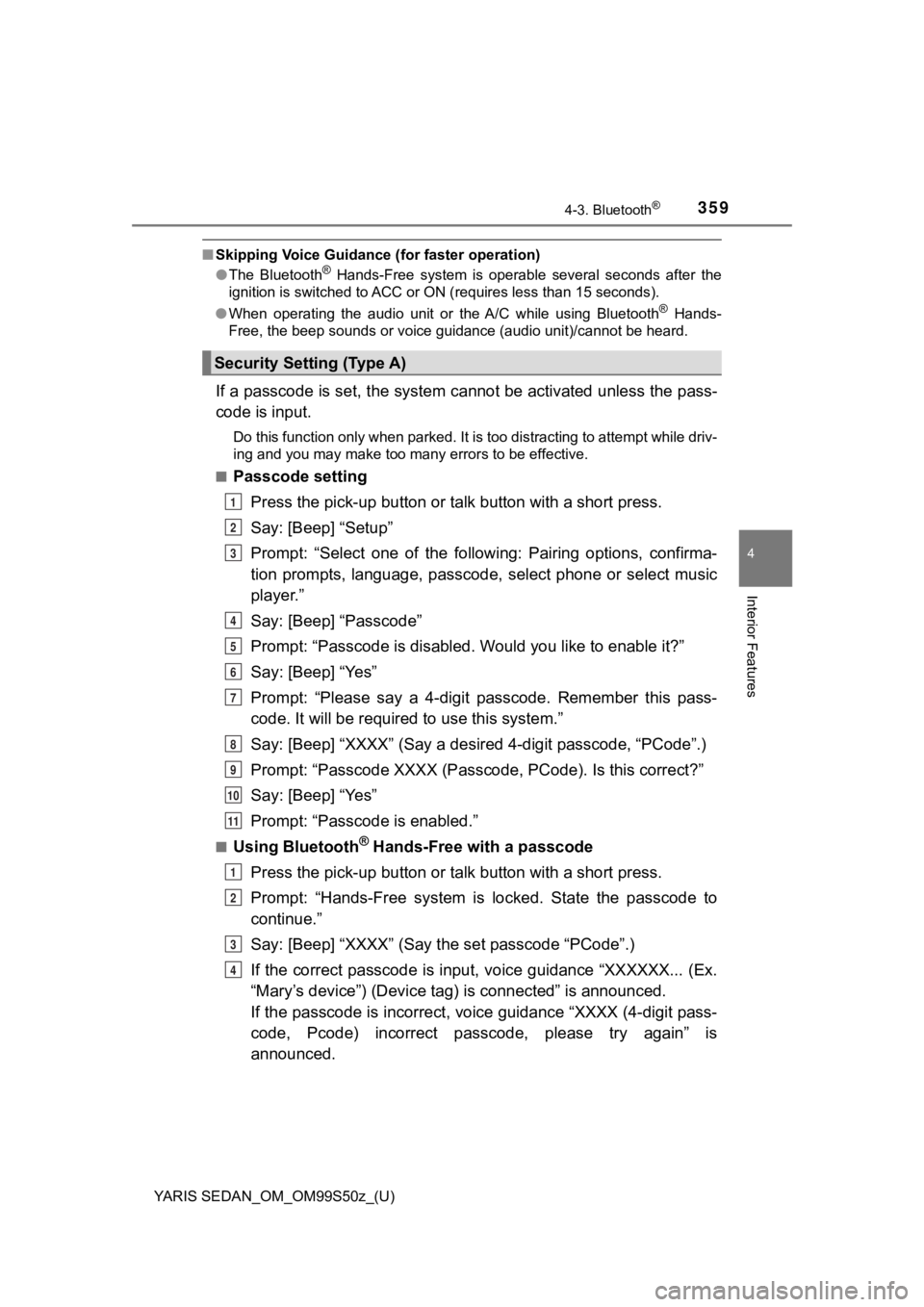
If a passcode is set, the system cannot be activated unless the pass-
code is input.
Do this function only when parked. It is too distracting to att empt while driv-
ing and you may make too many errors to be effective.
■
Passcode setting
Press the pick-up button or talk button with a short press.
Say: [Beep] “Setup”
Prompt: “Select one of the follow ing: Pairing options, confirma-
tion prompts, language, passcode, select phone or select music
player.”
Say: [Beep] “Passcode”
Prompt: “Passcode is disabled. Would you like to enable it?”
Say: [Beep] “Yes”
Prompt: “Please say a 4-digit passcode. Remember this pass-
code. It will be required to use this system.”
Say: [Beep] “XXXX” (Say a desir ed 4-digit passcode, “PCode”.)
Prompt: “Passcode X XXX (Passcode, PCode). Is this correct?”
Say: [Beep] “Yes”
Prompt: “Passcode is enabled.”
■Using Bluetooth® Hands-Free with a passcode
Press the pick-up button or talk button with a short press.
Prompt: “Hands-Free system is locked. State the passcode to
continue.”
Say: [Beep] “XXXX” (Say the set passcode “PCode”.)
If the correct passcode is input, voice guidance “XXXXXX... (Ex .
“Mary’s device”) (Device ta g) is connected” is announced.
If the passcode is incorrect, voice guidance “XXXX (4-digit pas s-
code, Pcode) incorrect passc ode, please try again” is
announced.
Security Setting (Type A)
1
2
3
4
5
6
7
8
9
10
11
1
2
3
4
Page 360 of 600

360
YARIS SEDAN_OM_OM99S50z_(U)
4-3. Bluetooth®
■Canceling the passcode
Do this function only when parked. It is too distracting to attempt
while driving and you may make too many errors to be effective.
Press the pick-up button or talk button with a short press.
Say: [Beep] “Setup”
Prompt: “Select one of the follow ing: Pairing options, confirma-
tion prompts, language, passcode, select phone or select music
player.”
Say: [Beep] “Passcode”
Prompt: “Passcode is enabled. W ould you like to disable it?”
Say: [Beep] “Yes”
Prompt: “Passcode is disabled.”
■Confirmation Prompts
The confirmation prompt confirms the command content to the user
before advancing to the operation requested by the user. When t his
function is turned on, the syst em reads out the voice input com -
mand previously received and confirms whether the command is
correct before advancing to the command execution.
When the confirmation prompt function is turned on:
(Ex. “Calling John’s dev ice. Is this correct?”)
When the confirmation prompt function is turned off:
(Ex. “Calling Jo hn’s device.”)
Press the pick-up button or talk button with a short press.
Say: [Beep] “Setup”
Prompt: “Select one of the follow ing: Pairing options, confirma-
tion prompts, language, passcode, select phone or select music
player.”
Say: [Beep] “Confirmation prompts”
Prompt: “Confirmation prompts are on/off. Would you like to turn
confirmation prompts off/on?”
Say: [Beep] “Yes”
Prompt: “Confirmation prompts are off/on.”
■Confirmation Prompts
If the confirmation prompt function is turned off when making a n emergency
call, the system reads out and confirms the command before exec uting it.
1
2
3
4
5
6
7
1
2
3
4
5
6
7
Page 364 of 600
![TOYOTA YARIS 2019 (in English) User Guide 364
YARIS SEDAN_OM_OM99S50z_(U)
4-3. Bluetooth®
●Voice recognition learning on/off
Press the pick-up button or ta lk button with a short press.
Say: [Beep] “Voice training”
Prompt: “Enrollme](/img/14/43146/w960_43146-363.png "TOYOTA YARIS 2019 (in English) User Guide 364
YARIS SEDAN_OM_OM99S50z_(U)
4-3. Bluetooth®
●Voice recognition learning on/off
Press the pick-up button or ta lk button with a short press.
Say: [Beep] “Voice training”
Prompt: “Enrollme")
364
YARIS SEDAN_OM_OM99S50z_(U)
4-3. Bluetooth®
●Voice recognition learning on/off
Press the pick-up button or ta lk button with a short press.
Say: [Beep] “Voice training”
Prompt: “Enrollment is enabled /disabled. Would you like to
disable/enable or retrain?”
Say: [Beep] “Disable” or “Enable”
When “Disable” is spoken, the voice recognition learning is
turned off. When “Enable” is spoken, the voice recognition
learning is turned on.
Prompt: “Speaker Enrollm ent is disabled/enabled.”
●If an error occurred in the voice recognition learning, re-lear ning can be
done by pressing the talk button with a short press.
● The applicable phrase appears in the audio display.
● After user voice registration is completed, voice guidance “Spe aker enroll-
ment is complete” is announced.
■
Device pairing
To use Bluetooth
® audio and Hands-Free, the device equipped with
Bluetooth® has to be paired to the unit using the following proce-
dure. A maximum of 7 devices including Bluetooth® audio devices
and hands-free mobile phones can be paired.
● Pairing Procedure
Select the icon on the home screen and display the
Settings screen.
Select the tab.
Select .
Turn the Bluetooth
® setting on.
Select to display the message and switch to the
device operation.
Using your device, perform a search for the Bluetooth
® device
(Peripheral device).
Select “Toyota” from the device list searched by the device.
Bluetooth® Preparation (Type B)
1
2
3
4
5
6
1
2
3
4
5
6
7
Page 365 of 600

YARIS SEDAN_OM_OM99S50z_(U)
3654-3. Bluetooth®
4
Interior Features
Device with Bluetooth® version 2.0:
Input the displayed 4-digit pairing code into the device.
Device with Bluetooth
® version 2.1 or higher:
Make sure the displayed 6-digit code on the audio is also dis-
played on the device, and touch the .
Connection permission and pho nebook access permission for
your mobile device may be required depending on the mobile
device.
If pairing is successful, the f unctions of the device connected
to Bluetooth
® are displayed.
Devices compatible with To yota Email/SMS function:
SMS (Short Message Service) mes sages, and E-mail for the
device are downloaded automatically. A download permission
operation for your device may be required depending on the
device.
When Call history and messages are downloaded automatically,
each automatic download setting must be on.
Refer to Communication Settings on P. 396.
After a device is registered, the system automatically identifi es
the device. By activating Bluetooth® Hands-Free again, or by
activating Bluetooth® Hands-Free first after switching the ignition
from OFF to ACC, the device connec tion condition is indicated in
the center display.
● IMPORTANT note about pairing and automatic reconnection:
• If pairing is redone on the same mobile phone device, first clear “Toyota” displayed on the Bluetooth
® setting screen of
the mobile device.
• When the OS of the device is updated, the pairing information may be deleted. If this happens, reprogram the pairing infor-
mation to the Bluetooth
® unit.
• Before you pair your device, make sure that Bluetooth® is
“ON”, both on your phone and on the vehicle.
8
9
10
Page 415 of 600
415
YARIS SEDAN_OM_OM99S50z_(U)
4-3. Bluetooth®
4
Interior Features
Troubleshooting
If you have any problems with Bluetooth®, contact our toll-free cus-
tomer service center.
● U.S.A.
Toyota Customer Experience Center
Phone: 1-800-331-4331 (Toll-free)
Web: http://www.toyota.com/entune
● Canada
Toyota Canada Customer Interaction Centre
Phone: 1-888-TOYOTA-8 or 1-888-869-6828 (Toll-free)
Web: http://www.toyota.ca
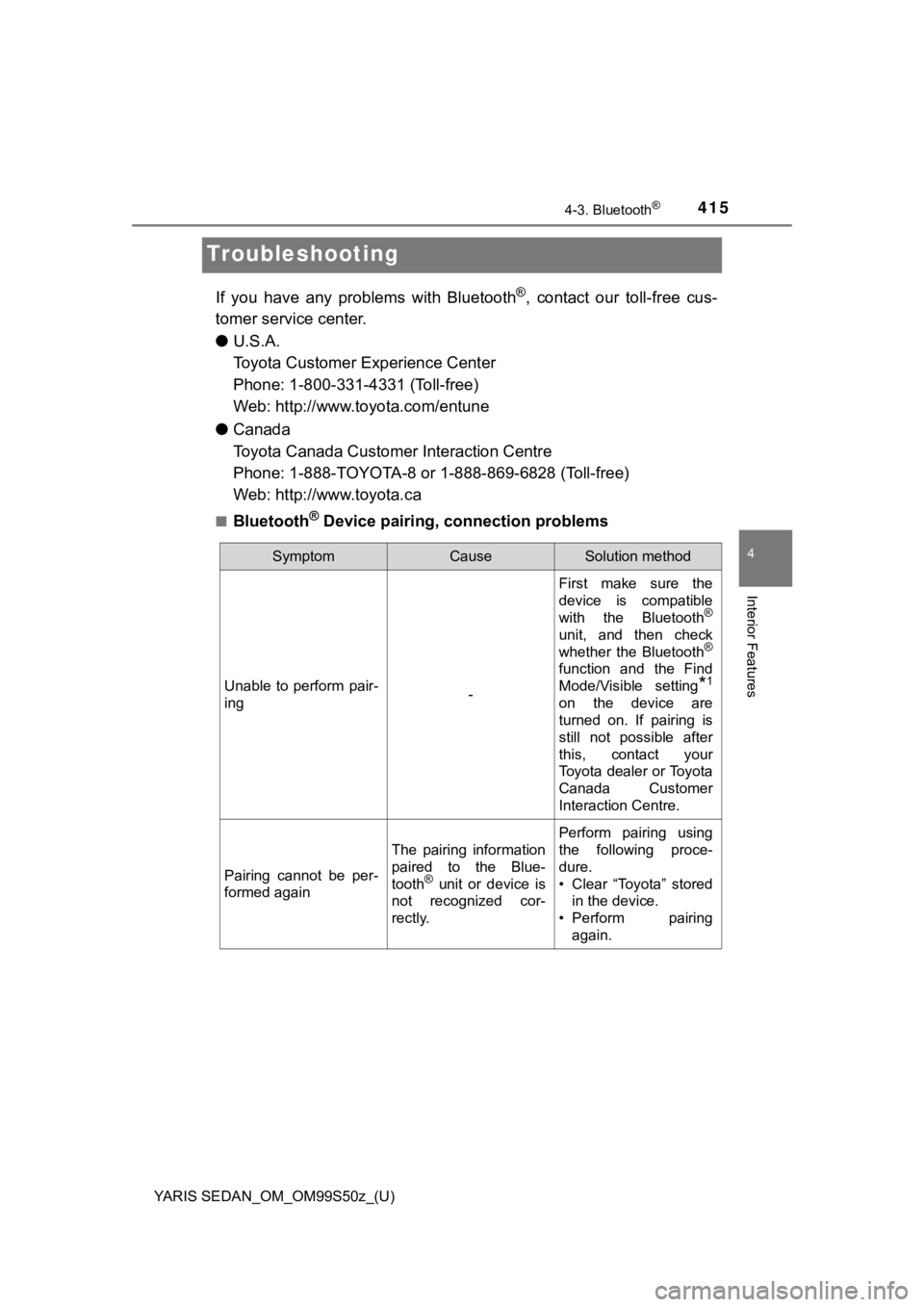
■Bluetooth® Device pairing, connection problems
SymptomCauseSolution method
Unable to perform pair-
ing-
First make sure the
device is compatible
with the Bluetooth
®
unit, and then check
whether the Bluetooth®
function and the Find
Mode/Visible setting
*1
on the device are
turned on. If pairing is
still not possible after
this, contact your
Toyota dealer or Toyota
Canada Customer
Interaction Centre.
Pairing cannot be per-
formed again
The pairing information
paired to the Blue-
tooth
® unit or device is
not recognized cor-
rectly.
Perform pairing using
the following proce-
dure.
• Clear “Toyota” stored in the device.
• Perform pairing
again.
Page 417 of 600
YARIS SEDAN_OM_OM99S50z_(U)
4174-3. Bluetooth®
4
Interior Features
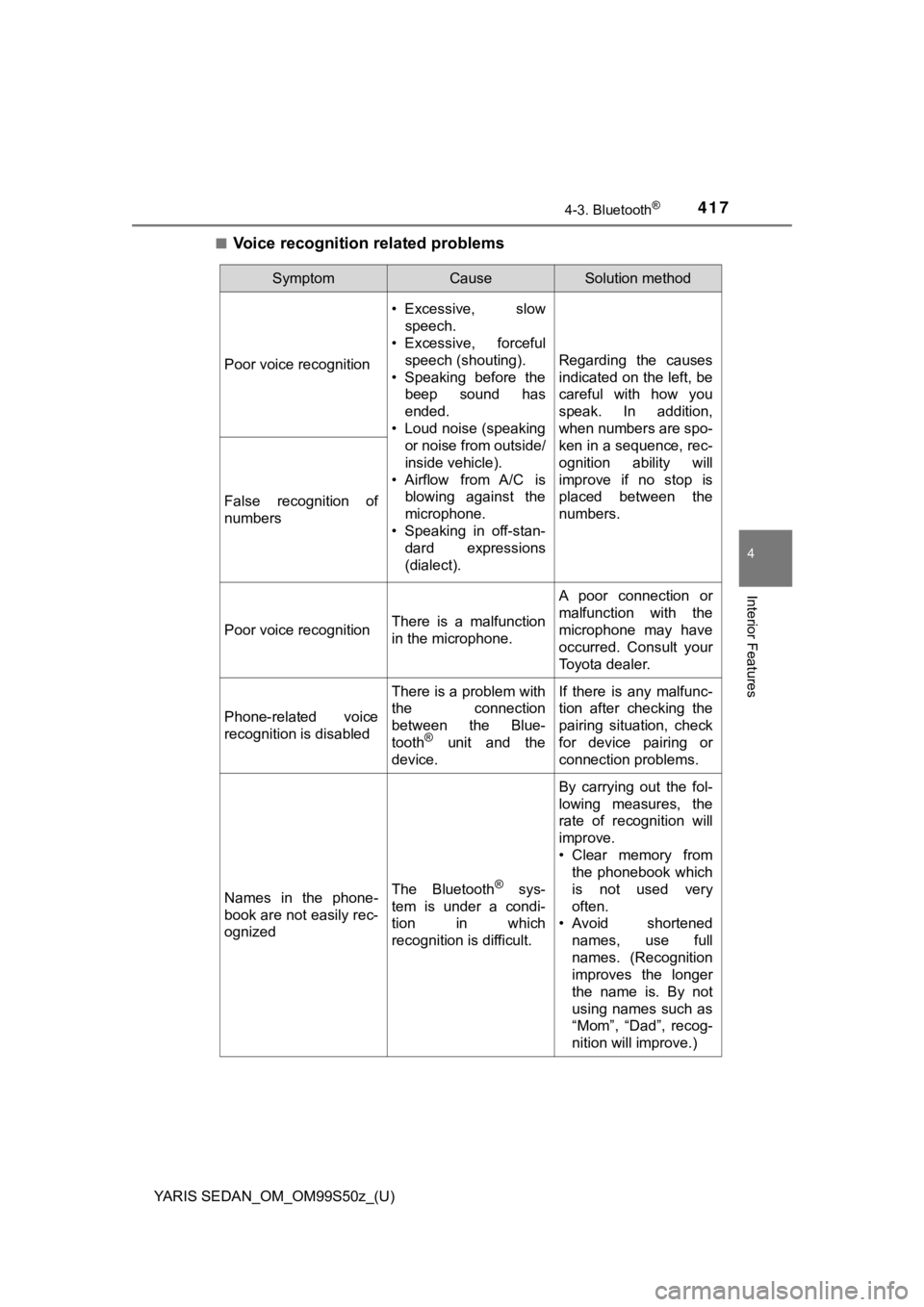
■Voice recognition related problems
SymptomCauseSolution method
Poor voice recognition
• Excessive, slow
speech.
• Excessive, forceful
speech (shouting).
• Speaking before the beep sound has
ended.
• Loud noise (speaking or noise from outside/
inside vehicle).
• Airflow from A/C is blowing against the
microphone.
• Speaking in off-stan- dard expressions
(dialect).
Regarding the causes
indicated on the left, be
careful with how you
speak. In addition,
when numbers are spo-
ken in a sequence, rec-
ognition ability will
improve if no stop is
placed between the
numbers.
False recognition of
numbers
Poor voice recognitionThere is a malfunction
in the microphone.
A poor connection or
malfunction with the
microphone may have
occurred. Consult your
Toyota dealer.
Phone-related voice
recognition is disabled
There is a problem with
the connection
between the Blue-
tooth
® unit and the
device.
If there is any malfunc-
tion after checking the
pairing situation, check
for device pairing or
connection problems.
Names in the phone-
book are not easily rec-
ognizedThe Bluetooth® sys-
tem is under a condi-
tion in which
recognition is difficult.
By carrying out the fol-
lowing measures, the
rate of recognition will
improve.
• Clear memory from the phonebook which
is not used very
often.
• Avoid shortened
names, use full
names. (Recognition
improves the longer
the name is. By not
using names such as
“Mom”, “Dad”, recog-
nition will improve.)
Page 419 of 600
YARIS SEDAN_OM_OM99S50z_(U)
4194-3. Bluetooth®
4
Interior Features
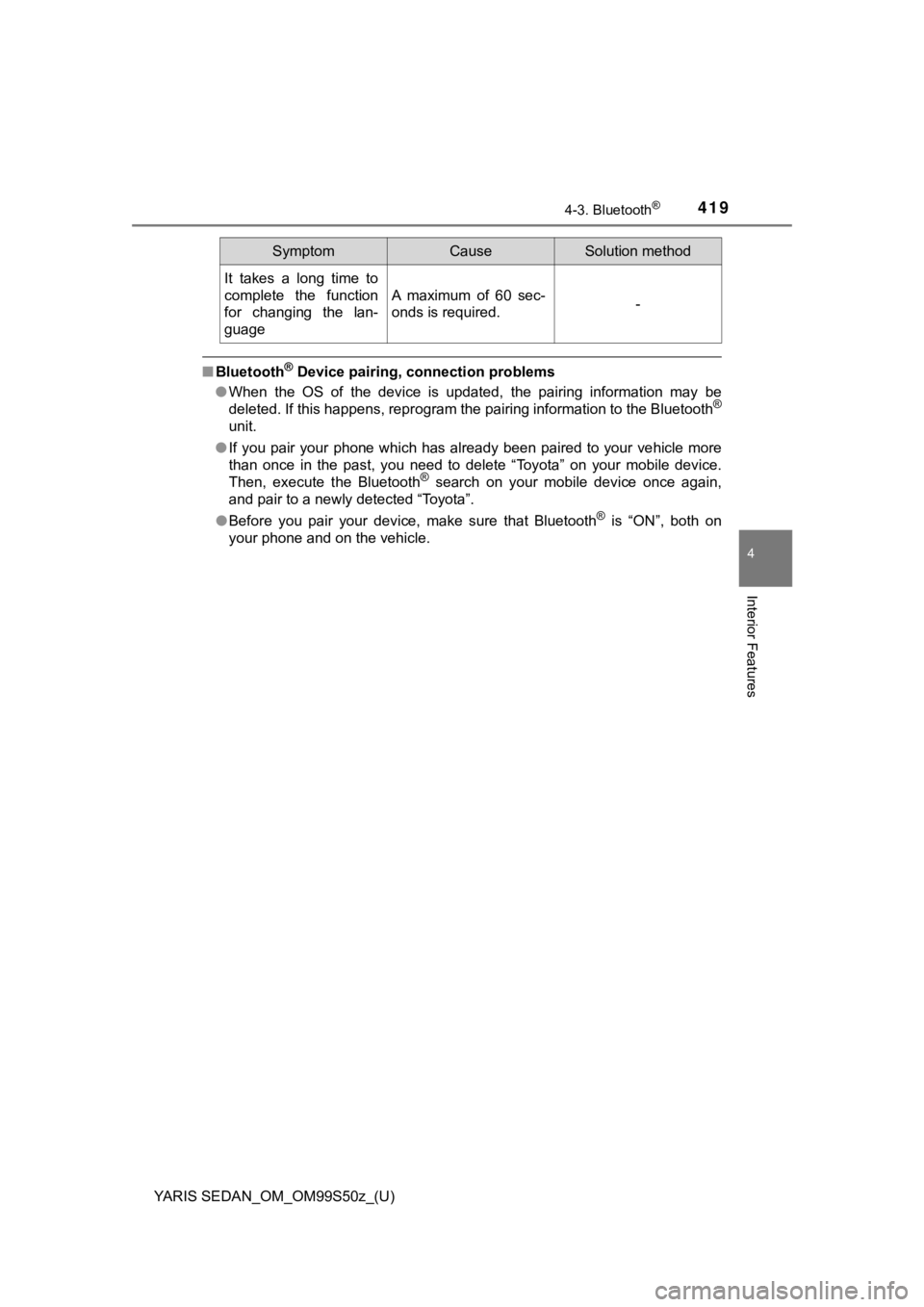
■Bluetooth® Device pairing, connection problems
● When the OS of the device is updated, the pairing information may be
deleted. If this happens, reprogram the pairing information to the Bluetooth
®
unit.
● If you pair your phone which has already been paired to your ve hicle more
than once in the past, you need to delete “Toyota” on your mobi le device.
Then, execute the Bluetooth
® search on your mobile device once again,
and pair to a newly detected “Toyota”.
● Before you pair your device, make sure that Bluetooth
® is “ON”, both on
your phone and on the vehicle.
It takes a long time to
complete the function
for changing the lan-
guage
A maximum of 60 sec-
onds is required.-
SymptomCauseSolution method