ESP TOYOTA YARIS HATCHBACK 2018 Owner's Manual
[x] Cancel search | Manufacturer: TOYOTA, Model Year: 2018, Model line: YARIS HATCHBACK, Model: TOYOTA YARIS HATCHBACK 2018Pages: 520, PDF Size: 8.69 MB
Page 219 of 520

2194-6. Using the driving support systems
4
Driving
WARNING
■The ABS does not operate effectively when
● The limits of tire gripping performance have been exceeded (such as
excessively worn tires on a snow covered road).
● The vehicle hydroplanes while driving at high speed on wet or slick roads.
■ Stopping distance when the ABS is operating may exceed that of nor-
mal conditions
The ABS is not designed to shorten the vehicle’s stopping distance. Always
maintain a safe distance from the vehicle in front of you, especially in the
following situations:
● When driving on dirt, gravel or snow-covered roads
● When driving with tire chains
● When driving over bumps in the road
● When driving over roads with potholes or uneven surfaces
■ TRAC/VSC may not operate effectively when
Directional control and power may not be achievable while driving on slip-
pery road surfaces, even if the TRAC/VSC system is operating.
Drive the vehicle carefully in conditions where stability and power may be
lost.
Page 220 of 520

2204-6. Using the driving support systems
WARNING
■Hill-start assist control does not operate effectively when
● Do not overly rely on hill-start assist control. Hill-start assist control may
not operate effectively on steep inclines and roads covered with ice.
● Unlike the parking brake, hill-start assist control is not intended to hold the
vehicle stationary for an extended period of time. Do not attempt to use
hill-start assist control to hold the vehicle on an incline, as doing so may
lead to an accident.
■ When the VSC is activated
The slip indicator light flashes. Always drive carefully. Reckless driving may
cause an accident. Exercise particular care when the indicator light flashes.
■ When the TRAC/VSC syst ems are turned off
Be especially careful and drive at a speed appropriate to the road condi-
tions. As these are the systems to help ensure vehicle stability and driving
force, do not turn the TRAC/VSC systems off unless necessary.
■
Replacing tires
Make sure that all tires are of the specified size, brand, tread pattern
and total load capacity. In addition, make sure that the tires are inflated
to the recommended tire inflation pressure level.
The ABS, TRAC and VSC systems will not function correctly if different
tires are installed on the vehicle.
Contact your Toyota dealer for furt her information when replacing tires
or wheels.
■Handling of tires and the suspension
Using tires with any kind of problem or modifying the suspension will
affect the driving assist systems, and may cause a system to malfunc-
tion.
Page 236 of 520
2365-2. Setup
General settings
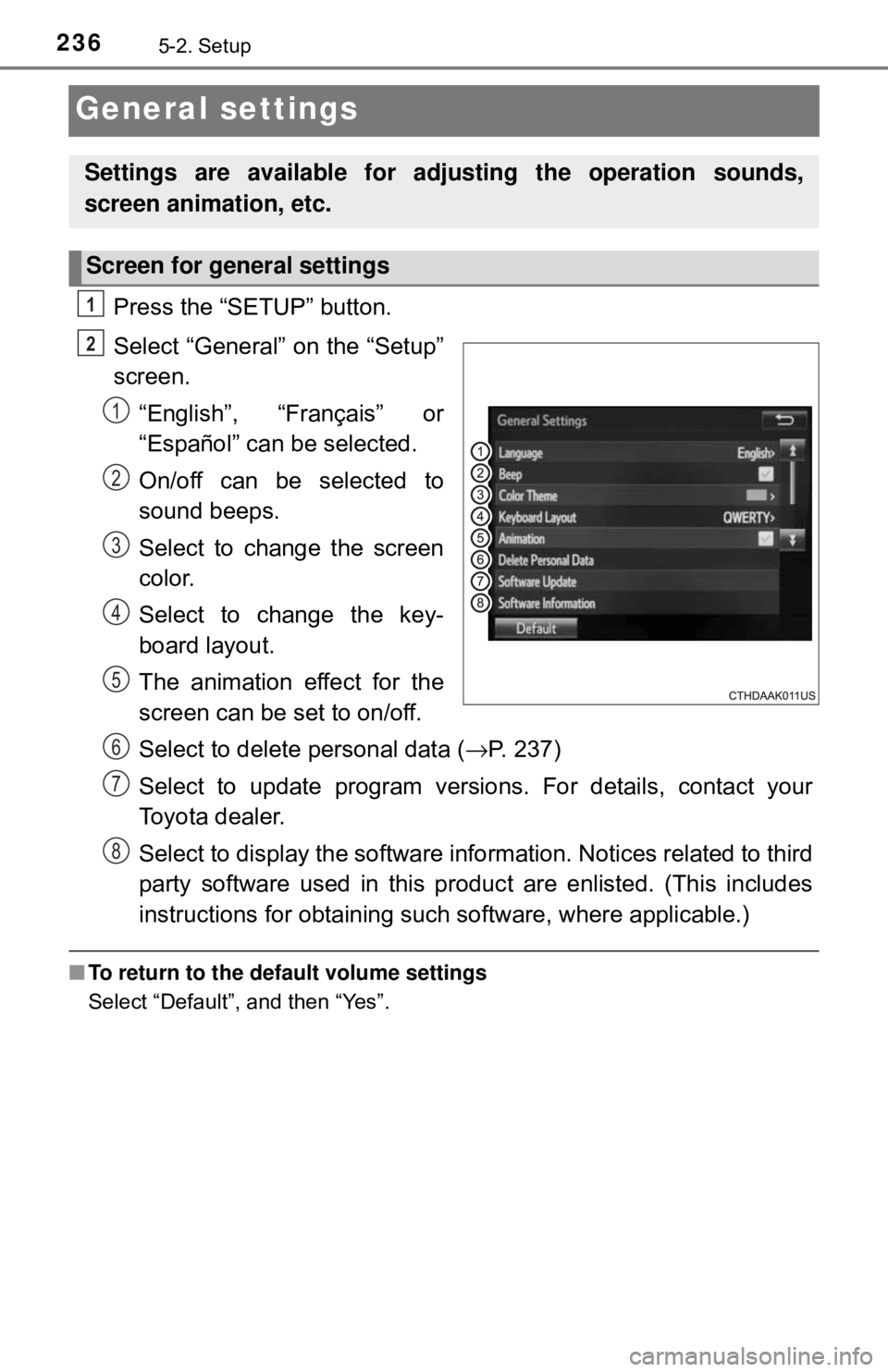
Press the “SETUP” button.
Select “General” on the “Setup”
screen.“English”, “Français” or
“Español” can be selected.
On/off can be selected to
sound beeps.
Select to change the screen
color.
Select to change the key-
board layout.
The animation effect for the
screen can be set to on/off.
Select to delete personal data ( →P. 237)
Select to update program versions. For details, contact your
Toyota dealer.
Select to display the software info rmation. Notices related to third
party software used in this produc t are enlisted. (This includes
instructions for obta ining such software, where applicable.)
■To return to the default volume settings
Select “Default”, and then “Yes”.
Settings are available for adjusting the operation sounds,
screen animation, etc.
Screen for general settings
1
2
1
2
3
4
5
6
7
8
Page 254 of 520
2545-6. Using an external device
■About iPod
●“Made for iPod” and “Made for iPhone” mean that an electronic accessory
has been designed to connect specifically to iPod or iPhone respectively,
and has been certified by the developer to meet Apple performance stan-
dards.
● Apple is not responsible for the operation of this device or its compliance
with safety and regulatory standards. Please note that the use of this acces-
sory with iPod and iPhone may affect wireless performance.
● iPhone, iPod, iPod classic, iPod nano, and iPod touch are trademarks of
Apple Inc., registered in the U.S. and other countries. Lightning is a trade-
mark of Apple Inc.
■ iPod cover art
●Depending on the iPod and songs in the iPod, iPod cover art may be dis-
played.
● This function can be changed to on/off. ( →P. 238)
● It may take time to display iPod cover art, and the iPod may not be operated
while the cover art display is in process.
● Only iPod cover art that is saved in JPEG format can be displayed.
■ iPod functions
●When an iPod is connected and the audio source is changed to iPod mode,
the iPod will resume play from the same point in which it was last used.
● Depending on the iPod that is connected to the system, certain functions
may not be available. If a function is unavailable due to a malfunction (as
opposed to a system specification), disconnecting the device and recon-
necting it may resolve the problem.
● While connected to the system, the iPod cannot be operated with its own
controls. It is necessary to use the controls of the vehicle’s multimedia sys-
tem instead.
● When the battery level of an iPod is very low, the iPod may not operate. If
so, charge the iPod before use.
● Compatible models ( →P. 256)
Page 258 of 520
2585-6. Using an external device
■USB memory functions
●Depending on the USB memory device that is connected to the system, the
device itself may not be operable and certain functions may not be avail-
able. If the device is inoperable or a function is unavailable due to a mal-
function (as opposed to a system specification), disconnecting the device
and reconnecting it may resolve the problem.
● If the USB memory device still does not begin operation after being discon-
nected and reconnected, format the memory.
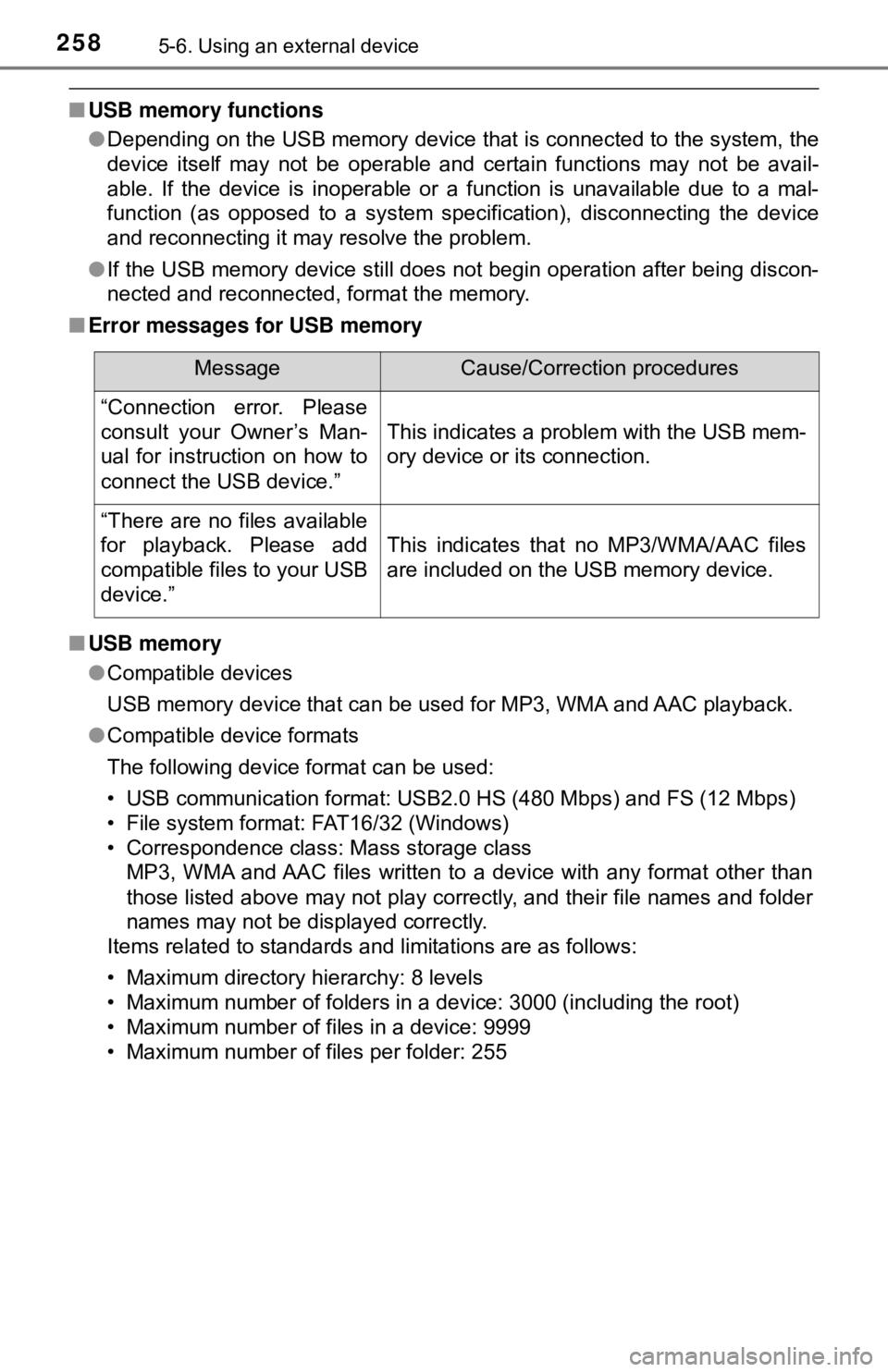
■ Error messages for USB memory
■ USB memory
●Compatible devices
USB memory device that can be used for MP3, WMA and AAC playback.
● Compatible device formats
The following device format can be used:
• USB communication format: USB2.0 HS (480 Mbps) and FS (12 Mbps)
• File system format: FAT16/32 (Windows)
• Correspondence class: Mass storage class
MP3, WMA and AAC files written to a device with any format other than
those listed above may not play correctly, and their file names and folder
names may not be displayed correctly.
Items related to standards and limitations are as follows:
• Maximum directory hierarchy: 8 levels
• Maximum number of folders in a device: 3000 (including the root)
• Maximum number of files in a device: 9999
• Maximum number of files per folder: 255
MessageCause/Correction procedures
“Connection error. Please
consult your Owner’s Man-
ual for instruction on how to
connect the USB device.”
This indicates a problem with the USB mem-
ory device or its connection.
“There are no files available
for playback. Please add
compatible files to your USB
device.”
This indicates that no MP3/WMA/AAC files
are included on the USB memory device.
Page 263 of 520
2635-7. Connecting Bluetooth®
5
Multimedia system
Preparations to use wireless communica-
tion
■About Bluetooth®
The Bluetooth® word mark and logos are registered trademarks owned
Bluetooth SIG, Inc. and any use of such marks by Panasonic Corporation is
under license. Other trademarks and trade names are those of their
respective owners.
The following can be performed using Bluetooth® wireless com-
munication:
■A portable audio player can be operated and listened to via
multimedia system
■Hands-free phone calls can be made via a cellular phone
In order to use wireless communication, register and connect a
Bluetooth
® device by performing the following procedures.
Page 264 of 520

2645-7. Connecting Bluetooth®
■Certifications fo r the Bluetooth®
For vehicles sold in U.S.A.
FCC ID: ACJ932YEAP01A727
NOTE:
This device complies with part 15 of the FCC Rules. Operation is subject to
the following two conditions: (1) This device may not cause harmful interfer-
ence, and (2) this device must accept any interference received, including
interference that may cause undesired operation.
FCC WARNING:
Changes or modifications not expressly approved by the party responsible for
compliance could void the user’s authority to operate the equipment.
CAUTION:
Radio frequency radiation exposure information:
This equipment complies with FCC radiation exposure limits set forth for an
uncontrolled environment.
This equipment should be installed and operated with minimum distance of
20 cm between the radiator and your body. This transmitter must not be co-
located or operated in conjunction with any other antenna or transmitter.
For vehicles sold in Canada
NOTE:
This device complies with Industry Canada licence-exempt RSS standard(s).
Operation is subject to the following two conditions: (1) this device may not
cause interference, and (2) this device must accept any interference, includ-
ing interference that may cause undesired operation of the device.
Le présent appareil est conforme aux CNR d’lndustrie Canada applic\
ables
aux appareils radio exempts de licence. L’exploitation est autorisée aux deux
conditions suivantes: (1) l’appareil ne doit pas produire de brouillage, et (2)
l’utilisateur de l’appareil doit accepter tout brouillage radioélectrique subi,
même si le brouillage est susceptible d’en compromettre le fonctionnement.
This radio transmitter (identify the device by certification number, or model
number if Category II) has been approved by Industry Canada to operate with
the antenna types listed below with the maximum permissible gain and
required antenna impedance for each antenna type indicated. Antenna types
not included in this list, having a gain greater than the maximum gain indi-
cated for that type, are strictly prohibited for use with this device.
Le présent émetteur radio (identifier le dispositif par son numéro de certifica-
tion ou son numéro de modèle s’il fait partie du matériel de catégorie II) a été
approuvé par Industrie Canada pour fonctionner avec les types d’antenne
énumérés ci-dessous et ayant un gain admissible maximal et l’impédance
requise pour chaque type d’antenne. Les types d’antenne non inclus dans
cette liste, ou dont le gain est supérieur au gain maximal indiqué, sont stricte-
ment interdits pour l’exploitation de l’émetteur.
Page 269 of 520
2695-7. Connecting Bluetooth®
5
Multimedia system
Registering a Bluetooth® device
Display the “Bluetooth* Setup” screen. (→P. 266)
Select “Add Device”.
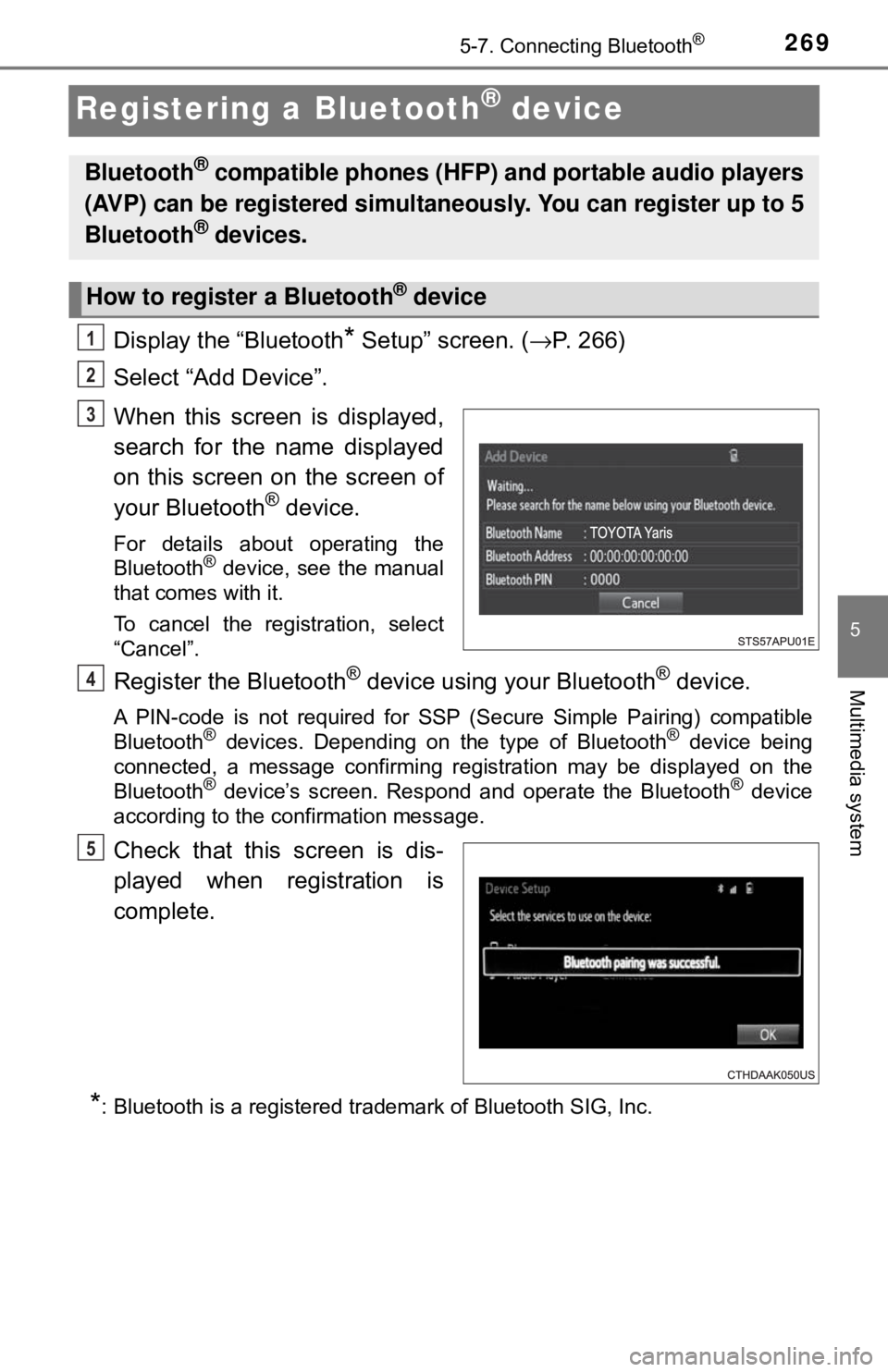
When this screen is displayed,
search for the name displayed
on this screen on the screen of
your Bluetooth
® device.
For details about operating the
Bluetooth® device, see the manual
that comes with it.
To cancel the registration, select
“Cancel”.
Register the Bluetooth® device using your Bluetooth® device.
A PIN-code is not required for SSP (Secure Simple Pairing) compatible
Bluetooth® devices. Depending on the type of Bluetooth® device being
connected, a message confirming registration may be displayed on the
Bluetooth
® device’s screen. Respond and operate the Bluetooth® device
according to the confirmation message.
Check that this screen is dis-
played when registration is
complete.
*: Bluetooth is a registered trademark of Bluetooth SIG, Inc.
Bluetooth® compatible phones (HFP) and portable audio players
(AVP) can be registered simultaneously. You can register up to 5
Bluetooth
® devices.
How to register a Bluetooth® device
1
2
3
4
5
Page 288 of 520
2885-9. Bluetooth® phone
■Check the messages
●Depending on the type of Bluetooth® phone being connected, it may be nec-
essary to perform additional steps on the phone.
● Messages are displayed in the appropriate connected Bluetooth
® phone’s
registered mail address folder.
Select the tab of the desired folder to be displayed.
● Only received messages on the connected Bluetooth
® phone can be dis-
played.
● The text of the message is not displayed while driving.
● When “Automatic Message Readout” is set to on, messages will be auto-
matically read out. ( →P. 301)
● Turn the “PWR ⋅VOL” knob, or use the volume switch on the steering wheel
to adjust the message read out volume.
● The message read out function is available even while driving.
Display the message inbox screen. (→ P. 286)
Select the desired message from the list.
Select “Quick Message”.
Select the desired message.
Select “Send”.
■Editing quick reply message Select “Quick Message”.
Select corresponding to the desired message to edit.
Select “OK” when editing is completed.
Replying to a message
1
2
3
4
5
1
2
3
Page 289 of 520
2895-9. Bluetooth® phone
5
Multimedia system
Calls can be made to an e-mail/SMS/MMS message sender’s phone
number.Display the message inbox screen. (→ P. 286)
Select the desired message.
Select .
Check that the “Call” screen is displayed.
■Calling from a number within a message
Calls can be made to a number identified in a message’s text area.
Display the message inbox screen. (→ P. 286)
Select the desired message.
Select the text area.
Select corresponding to the desired number.
Check that the “Call” screen is displayed.
■Calling from the incoming message screen → P. 285
Calling the message sender
1
2
3
4
1
2
3
4
5